Disclosure: As an Amazon Associate, reviewstook.com earns from qualifying purchases. Links on this page are affiliate links at no extra cost to you; prices and availability change frequently, so check Amazon for the latest.
Home Office PC Pros and Cons: An Honest Balance Sheet
Every buying decision deserves a balance sheet, so this article lays out home office pc pros and cons without salesmanship in either direction. A dedicated desktop for working from home is neither the obvious essential some retailers claim nor the dinosaur some laptop loyalists describe. It is a tool with a specific profile of strengths — sustained comfort, expandability, value — and a matching profile of weaknesses, from immobility to the homework required when buying renewed. We will score the general case first, then walk through how the balance shifts across towers, mini PCs, all-in-ones, and renewed business machines, using real listings as evidence for each side of the ledger.
If you are reading this while torn between a desktop and some other arrangement, the companion analysis in Is A Home Office PC Worth It converts this balance sheet into a cost-over-time argument, while Home Office PC Vs Workstation PC covers the separate question of stepping up to professional-grade hardware. This article stays focused on the honest pros and cons of the home office pc itself, in its common forms.
In this guide
The General Case: Pros
Pro: sustained performance without thermal compromise
A desktop’s case gives its processor room to breathe. Where a laptop throttles under a long export, a video call marathon, or a heavy compile because its cooling is a compromise with thinness, a tower or even a small form factor desktop holds its speed through the whole working day. For knowledge work the difference shows up as consistency: the machine feels the same at 4 p.m. as it did at 9 a.m.
Pro: ergonomics that a laptop cannot match
A desktop separates screen, keyboard, and mouse, so each can sit where your body wants it: monitors at eye level, keyboard at elbow height, chair doing its own job. Over months of full-time work, that separation is a health feature, not a luxury. It is also why desktops pair naturally with the wider desk setup — the right chair, the right input devices — that our cluster covers alongside the PC itself.
Pro: upgrade and repair instead of replace
Memory fills up? Add a stick. Storage tight? Fit a bigger SSD. A fan gets noisy? Replace the fan. Business desktops in particular were designed for technicians to service in minutes with standard parts. This repairability stretches the machine’s life and changes the economics of ownership entirely compared with sealed devices.
Pro: value, especially in the renewed business market
Corporate fleet turnover floods the market with well-built Dell OptiPlex and HP ProDesk machines at prices far below their original cost, typically refitted with modern SSDs and generous memory. No other category of computer offers this much durable capability per unit of currency, and it is the main reason the home office desktop remains the value champion for a fixed workstation.
Pro: ports, displays, and wired networking by default
Multiple monitor outputs, a fistful of USB ports, and a real Ethernet jack come standard on desktops that laptops increasingly treat as optional extras requiring dongles. For a desk that hosts printers, headsets, external drives, and two screens, that native connectivity removes a whole category of daily friction.
The General Case: Cons
Con: it does not travel
The obvious one. A desktop anchors your work to one room. If your week genuinely splits between home, office, and travel, a desktop must be the home base of a wider system — perhaps paired with an inexpensive laptop — rather than your only computer. Buyers who overestimate their rootedness end up resenting the anchor.
Con: it occupies space and shows it
A tower, two monitors, and their cables are furniture. In a studio flat or a shared living room, that footprint is a real cost, only partly softened by mini PCs and all-in-ones. Measure honestly before romanticising the battlestation.
Con: renewed buying requires homework
The value champion’s catch: renewed listings demand that you read configurations carefully, understand processor generations and Windows support, and test the machine on arrival. Buyers who want an appliance-style purchase with a long manufacturer warranty should buy new and accept leaner specifications for the money.
Con: peripherals are a separate budget line
Monitors, keyboard, mouse, webcam, and speakers may all be extra. Bundles and all-in-ones fold some of this in, but a bare renewed tower’s headline price is not the full cost of a working desk, and forgetting that distorts comparisons against laptops.
Con: power draw and idle noise exceed a laptop’s
A desktop and its monitors draw more electricity than a laptop and produce more ambient noise, though modern machines idle quietly and efficiently. In a bedroom-office, a badly placed tower’s fan can intrude on calls and sleep alike; placement and form factor choice are the mitigations.
How the Balance Shifts by Form Factor
Towers: maximum pros, maximum footprint
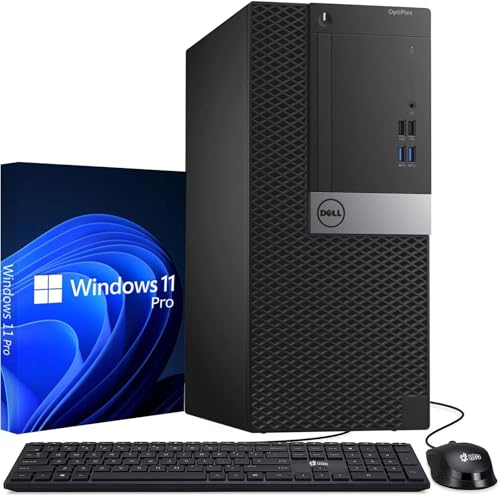
Towers collect nearly every pro on the list — cooling, upgrades, ports, quiet — and pay for it in size. The Dell Tower configuration with an i7-7700, 16GB of memory, and a 512GB SSD is representative: a straightforward, serviceable machine whose main cons are its 7th generation processor’s Windows support caveat and the floor space it claims.
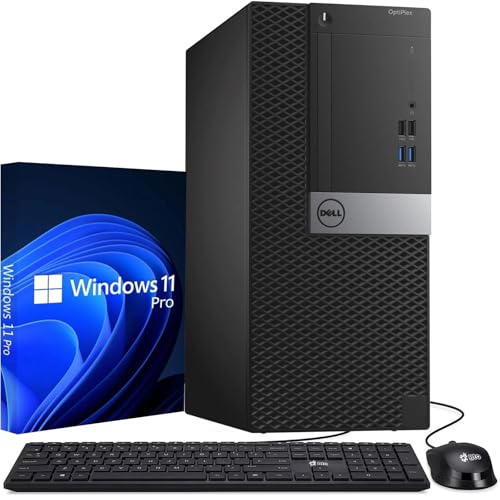
Check on Amazon — the renewed Dell Tower with i7-7700, 16GB DDR4 and a 512GB SSD.
- Strengths: easy to service and upgrade; complete with keyboard, mouse, and Wi-Fi; honest mid-range specifications.
- Trade-offs: processor generation caveat; renewed warranty; tower footprint.
Best for: buyers with space who value serviceability / Not suited for: buyers needing guaranteed long Windows support runway
Dual-drive desktops: capacity pro, complexity con
The Dell OptiPlex 5060 configuration pairing a 500GB SSD with a 1TB hard drive shows the split personality of dual storage: fast system response plus cheap bulk capacity, balanced against one more component to manage and a spinning disk that must never become the system drive by accident during a reinstall.

Check on Amazon — the dual-drive OptiPlex 5060 (i5-8500, 16GB, 500GB SSD plus 1TB HDD), renewed.
- Strengths: supported six-core processor; SSD speed plus HDD capacity; Wi-Fi and Bluetooth included.
- Trade-offs: two storage tiers to organise; renewed unit; hard drive is for bulk files only.
Best for: workers with large local archives / Not suited for: buyers who want the simplest possible setup
Bundles: convenience pro, component-quality con
HP’s EliteDesk bundle with a 24-inch display, keyboard, mouse, speakers, and webcam trades component choice for one-order completeness. The pro is real — an empty desk becomes a workplace in an afternoon — and so is the con: bundled peripherals are starter grade, and you may replace the mouse and speakers within the year.

Check on Amazon — HP’s renewed 24-inch bundle: i5, 16GB RAM, 500GB SSD.
- Strengths: everything in one box; Wi-Fi 6 built in; 16GB memory and SSD as standard.
- Trade-offs: starter-grade peripherals; bundle value assumes you need every component; renewed terms apply to the whole set.
Best for: equipping a new workspace from zero / Not suited for: buyers who already own quality peripherals
Budget legacy machines: price pro, platform con
The Dell Optiplex 9020 bundle — quad-core i5, 8GB of DDR3 memory, a 500GB hard drive, and a 20-inch monitor — is the cautionary exhibit. Its pro is a complete, very cheap seat. Its cons stack up exactly where this guide warns: memory below the comfort line, a mechanical system drive, and an old platform. As a spare or a child’s homework seat it can make sense; as a primary work machine it fails the pros-and-cons test.

Check on Amazon — the legacy Optiplex 9020 bundle with 20-inch monitor, listed here as the cautionary example.
- Strengths: complete seat at the lowest spend; monitor and peripherals included; fine for very light duties.
- Trade-offs: hard drive system disk; 8GB of older DDR3 memory; oldest platform in this article.
Best for: a spare seat or extremely light use / Not suited for: anyone’s primary work machine
New machines: warranty pro, specification con
The current Dell Slim Desktop inverts the renewed bargain: its pros are platform youth, DDR5 memory, Wi-Fi 6, efficiency, and a full warranty; its con is that the same money buys less memory headroom and storage than a renewed tower. Neither side of that trade is irrational — the right pick depends on whether you fear faults or friction more.
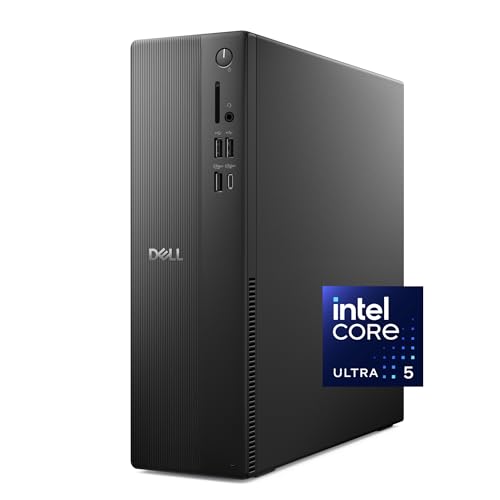
Check on Amazon — Dell’s current Slim Desktop (Core Ultra 5-225, 16GB DDR5, 512GB SSD).
- Strengths: newest platform; full manufacturer warranty; slim, quiet, efficient.
- Trade-offs: 512GB storage; slim case limits upgrades; less specification per dollar than renewed rivals.
Best for: risk-averse buyers keeping a machine for years / Not suited for: maximum-capability-per-dollar shoppers
Mini PCs: footprint pro, ceiling con
The KAMRUI AK1PLUS mini PC makes the mini case honestly: it nearly erases the space and noise cons and keeps dual 4K display support, but its Celeron processor sets a hard ceiling. For correspondence, browsing, and calls the ceiling never matters; for heavy local applications it is the whole story. That reviewstook.com cluster also maintains tier roundups like Best Home Office PC For Small Spaces Under $500 for readers whose pros-and-cons balance points firmly at the smallest machines.

Check on Amazon — the KAMRUI AK1PLUS mini PC (Celeron N5095, 16GB, 256GB SSD).
- Strengths: mounts behind a monitor; 16GB memory is generous for the class; very low power and noise.
- Trade-offs: entry-level processor; small storage; limited expansion beyond an added 2.5-inch drive.
Best for: light workloads on minimal desks / Not suited for: demanding local applications
How to Neutralise the Cons You Care About
Most cons in this article have a practical countermeasure, and knowing them changes the verdict for many buyers. Immobility is answered by pairing the desktop with cloud-synced files so any borrowed laptop becomes a temporary workstation. Footprint is answered by form factor: a small form factor case under the monitor stand or a mini PC behind it reclaims the desk. Renewed-buying homework is answered by method — verify the configuration on arrival, run updates fully, and stress-test inside the return window, a routine we detail step by step in How To Choose A Home Office PC. Peripheral costs are answered by sequencing: start with bundled basics, then upgrade the mouse, keyboard, and chair in that order as budget allows, since those are the parts your body touches all day.
Two cons resist mitigation and should be weighed at full strength. A processor outside Windows support will not become supported later; if longevity matters, it is a veto, not a discount opportunity. And a genuinely mobile working life will not bend to a desktop; if your job moves weekly, the honest answer may be a laptop first and a desktop later, which is why our final section refuses to give a universal verdict.
The Verdict by Buyer Type
For the settled home worker with a defined desk, the pros dominate: comfort, consistency, value, and repairability compound daily, and the cons are mostly one-time costs paid at setup. For the hybrid worker with two or three home days, the desktop still wins as the primary seat provided files live in the cloud. For the fully mobile worker, the cons dominate and the desktop becomes a luxury second machine. For the budget-stretched buyer, renewed desktops offer the strongest pros-per-dollar in all of personal computing, with homework as the admission price. Readers who want the category’s hands-on product verdicts next should read Home Office PC Reviews, where these same trade-offs are scored machine by machine.
Pros and Cons by Workload: The Balance Is Not the Same for Everyone
The general ledger above is an average, and nobody works the average job. For the browser-and-documents worker — email, cloud applications, video calls, a dozen tabs — the desktop’s pros shrink to comfort and reliability while its cons shrink too, because even a modest machine saturates the workload; this worker’s real decision is form factor, and a mini PC or all-in-one often wins their personal ledger outright. For the spreadsheet-and-data worker, the ledger tilts hard toward the desktop: memory headroom and storage speed are daily, felt advantages, and the immobility con barely registers because the work was never going anywhere. For the creative hobbyist who edits photos on weekends, the desktop’s upgrade path becomes the headline pro — a machine that can accept more memory and storage as the hobby grows — while integrated graphics mark the boundary of the hobby’s current ambitions.
For the household administrator, the shared family machine, the ledger gains two entries found nowhere else: the pro of a fixed, findable place where bills, school portals, and documents live, and the con of a shared resource that one person’s workday can monopolise. For the part-time home worker, two or three desk days a week, every figure in the ledger deflates proportionally — the pros are real but sampled less often, which is why this worker’s honest verdict often lands on a modest machine or a good laptop dock instead. Reading your own workload into the ledger is not a refinement of this article’s method; it is the method.
Renewed vs New: Two Completely Separate Balance Sheets
Conflating renewed and new machines produces the muddiest thinking in this category, so here are the two ledgers kept apart. The renewed ledger’s pros: capability per unit of currency that new machines cannot approach, business-grade construction proven in fleet service, modernised storage and memory fitted during refurbishment, and a smaller environmental footprint from hardware given a second life. Its cons: a shorter warranty, cosmetic variability, an older processor platform even when performance is strong, and the buyer’s homework obligation — verify, update, and stress-test on arrival. The new ledger’s pros: a full manufacturer warranty, the current platform with the longest support runway, the latest memory and wireless standards, and an appliance-simple purchase. Its cons: leaner specifications at any given spend, and a faster depreciation curve in the first years.
Notice that the two ledgers share almost no line items, which is why arguing about which is “better” in the abstract goes nowhere. The renewed machine sells you capability and charges you diligence. The new machine sells you certainty and charges you specification. Buyers who know which currency they would rather pay — attention or money — find this decision easy, and buyers who try to pay neither end up with the worst of both: an expensive renewed listing bought carelessly, or a cheap new machine specified below the floor. The floor itself — solid-state storage, 16GB of memory, a supported processor — is the one rule both ledgers obey.
The Hidden Ledger: Noise, Heat, Updates, and Other Second-Order Effects
Some pros and cons only appear after the first month, and a thorough balance sheet should drag them into the light. Noise: a desktop under a desk is quieter at the ear than a laptop beside the keyboard working hard, but a tower in a resonant cabinet can hum through a room; placement decides which version you own. Heat: a desktop warms a small room measurably across a winter’s day — a con in summer, an unlisted pro in January. Updates: desktops left powered and connected update themselves overnight and greet you patched, while a laptop in a bag misses cycles and ambushes you at 9 a.m.; the desktop’s always-home nature is a genuine maintenance advantage. Security: a machine that never leaves the house faces a fraction of a laptop’s theft and loss exposure, and its fixed position makes a wired connection — the most stable and simplest to secure — the default rather than the exception.
There are second-order cons as well. A desktop invites peripheral sprawl: the second monitor becomes a third, the desk deepens, the cable count grows, and a shared room slowly annexes itself to the office. A desktop also concentrates risk in one location — a power cut, a spilled drink, a household accident — where a laptop can simply be carried elsewhere, which is one more argument for the backup routine this cluster recommends regardless of machine type. And a desktop’s very permanence can become a psychological con for workers who struggle to stop: when the office is always assembled, the working day has no natural teardown. None of these entries decide a purchase alone; together they explain why two buyers with identical jobs can reach opposite verdicts and both be right.
The Scorecard: This Article in One Table
| Factor | Leans pro | Leans con | Who feels it most |
|---|---|---|---|
| Sustained performance | Desktop cooling holds speed all day | — | Heavy multitaskers |
| Ergonomics | Screen, keyboard, chair each in place | — | Full-time desk workers |
| Upgrades and repair | Standard parts, esp. in towers | Sealed formats excepted | Long-term owners |
| Value | Renewed fleet machines | New machines cost more per spec | Fixed budgets |
| Mobility | — | Anchored to one room | Hybrid and travelling workers |
| Space | Mini and AIO formats minimise | Towers are furniture | Shared and small rooms |
| Buying effort | New machines are appliance-simple | Renewed demands homework | First-time buyers |
| Peripheral cost | Bundles fold items in | Bare towers need everything | Empty-desk buyers |
Read the table vertically and it describes the category. Read it horizontally, line by line against your own circumstances, and it describes your decision. That second reading is the one we recommend — ideally with a pen, marking the rows that bite and the rows that do not apply, because a pros-and-cons list only earns its name when a specific buyer can point at the three lines that decided them.
Component-Level Pros and Cons: Where the Small Choices Bite
Integrated graphics: pro for the desk, con for the hobby
Every machine in this article’s examples uses integrated graphics, and for office work that is a pro wearing a con’s reputation. The pro side: no extra cost, no extra heat or noise, one less component to fail, and entirely sufficient power for multiple office monitors, video calls, and ordinary photo work. The con side appears only when the machine is asked to live a second life — gaming, 3D work, serious video production — where integrated graphics set a hard ceiling. Buyers should therefore file this component under “know your evenings”: if the machine is purely for work, integrated graphics are the correct engineering, and paying for a discrete card would be buying a con (cost, noise, heat) disguised as a pro.
Bundled peripherals: pro for speed, con for fit
A bundle’s included keyboard and mouse get a desk working the day the box arrives — a real pro for empty rooms and impatient buyers. The con is ergonomic: input devices are the most personal components in the setup, sized to hands and habits, and bundled ones are built to a price for an average user who does not exist. The balanced view treats bundled peripherals as scaffolding — excellent for standing the setup up, expected to be replaced piece by piece as the user’s preferences declare themselves.
Dual storage: pro for capacity, con for confusion
Pairing an SSD with a large hard drive buys bulk storage cheaply, and for households with media archives that is a genuine pro. The con is organisational: two drives invite filing chaos, and the catastrophic version — reinstalling Windows onto the wrong drive — turns the pro into a weekend of regret. Single-SSD machines with adequate capacity are the simpler ownership experience, and simplicity is itself a pro that specification sheets never list.
Myths: Entries That Belong on Neither Side of the Ledger
A honest balance sheet should also clear out the claims that circulate as pros or cons but dissolve on inspection. Myth one: “desktops are obsolete.” The sales figures of business desktops and the behaviour of every IT department on earth say otherwise; the category contracted to its natural territory — fixed desks — and remains the best tool there. Myth two: “renewed means worn out.” Fleet machines are retired by calendar and lease policy, typically with their most failure-prone component — storage — replaced during refurbishment; condition grading exists precisely to price the real wear, which is cosmetic. Myth three: “more cores always means a faster office machine.” Beyond the multitasking needs of your actual workload, extra cores idle; memory and storage decide the felt speed of office work, which is why this article’s examples keep pairing sensible processors with generous RAM. Myth four: “a desktop will be loud.” A laptop working hard beside your ear is usually the loudest computer in the house; a tower under a desk with large, slow fans is engineered quiet, and mini PCs are quieter still. Clearing these myths matters because they distort real ledgers — buyers have rejected the right machine over myth four and bought the wrong one over myth three, and a pros-and-cons article that leaves myths standing has done only half its job.
The Environmental Ledger, Briefly
One more column belongs in a complete accounting, even if it decides few purchases. A renewed desktop is a machine whose manufacturing footprint already happened, given years of additional service instead of a trip into the waste stream; buying one is among the most effective reuse decisions available in consumer electronics. Against that, desktops draw more power across their lives than laptops, and a machine left awake around the clock wastes the advantage idly. The balanced entry: renewed purchase, disciplined sleep settings, and eventual responsible recycling or hand-me-down use — a lifecycle in which the desktop’s repairability and standard parts keep it useful to someone for far longer than sealed alternatives. For buyers who weigh this column heavily, it strengthens the renewed case made throughout this article without changing a single specification recommendation.
Pros and Cons When Someone Else Is Paying
The ledger changes shape when an employer’s stipend or equipment budget enters the picture, and pretending otherwise produces bad advice. With your own money, the renewed value centre is hard to argue against. With an employer’s money, two new pros appear on the new-machine side: procurement simplicity — a current model from a current listing is the easiest purchase to approve, expense, and support — and warranty handling that routes through a manufacturer rather than a refurbisher’s helpdesk. A con also migrates: the homework of renewed buying is done on company time now, and some employers would rather buy certainty than pay an employee to verify configurations. The balanced reading for stipend holders is to spend the employer’s money the way the employer would — on the warrantied, standard, supportable option — unless the stipend is explicitly a personal allowance, in which case it is your money wearing a costume and the original ledger applies in full. Either way, put the peripherals in the claim if the rules allow: the chair and the second monitor are equipment too, and their pros compound exactly as the PC’s do.
The Time Ledger: Pros and Cons Measured in Hours
Every entry in this article can be converted into hours, and doing so exposes an asymmetry worth naming. The desktop’s pros pay out in small daily instalments — minutes saved at boot, at tab restore, at file search, multiplied by every working day of the machine’s life, plus the uncounted value of a body that finishes the week without aches it did not earn. Its cons, by contrast, are mostly charged once: the afternoon of setup, the hours of listing research, the footprint negotiated with a household a single time. One-time costs against daily returns is the most favourable shape a purchase can take, and it is why the verdict section of this article leans the way it does for settled desk workers. The exception that proves the structure is the mobile worker, whose daily returns are sampled too rarely to amortise even the one-time costs — for them the same asymmetry runs in reverse, and the honest ledger says so. When you weigh your own pros and cons, weigh them in hours across the machine’s expected life rather than in feelings on purchase day; the arithmetic is clarifying, and it is very hard to argue with afterwards.
Pros and Cons for the Record: What Owners Report After a Year
Balance sheets written before purchase are hypotheses; the honest version of this article should check them against the pattern of what owners actually report once the machine has a year of service behind it. The pros that grow with time are the ergonomic and reliability entries — owners consistently say the desk setup changed their working comfort more than they expected, and that a business desktop’s uneventful service record is a benefit they only learned to value by contrast with a previous, fussier machine. The pros that shrink are the specification boasts: nobody, a year in, is still pleased about a processor tier; they are pleased about the absence of waiting, which is a different thing and belongs to memory and storage. The cons that grow are the spatial ones — peripheral sprawl is real, and the second monitor does tend to invite a third — and the cons that shrink are the renewed-buying anxieties, which almost every owner reports having forgotten by the second month, displaced by the machine’s ordinary competence.
Two reported experiences deserve direct quotation in paraphrase because they recur so reliably. The first: “I should have bought the bigger memory configuration” — the single most common retrospective in this category, and the reason this article’s ledger keeps weighting memory as a pro worth paying for at purchase. The second: “I never think about it” — offered as faint praise and actually the highest available, because a work computer’s job is to disappear. A pros-and-cons list that ends with owners’ hindsight has done something the pre-purchase versions cannot: it has told you which entries in the ledger will still matter when the others have faded, and the answer — comfort, headroom, and silence — should weight your own reading of every table above.
The One-Sided Ledgers to Distrust
Finally, a defensive section, because this will not be the only pros-and-cons page you read. Distrust the ledger in which the desktop wins everything: it is selling you a tower. Distrust the ledger in which the laptop wins everything: it is selling you a laptop, or an identity. Distrust any list that counts “has a disc drive” as a pro in this decade, any list that treats a processor’s launch-year as a con without mentioning support windows, and any list whose cons for renewed machines dwell on scratches while omitting the only renewed con that truly matters — the diligence owed in week one. A trustworthy balance sheet, like this one, names the cases where its own subject loses: mobility, genuinely; sealed-format upgrades, structurally; below-floor bargains, absolutely. If the page you are reading cannot say when its answer is no, it is not a balance sheet at all — it is a brochure with a table in it.
Pros and Cons Across a Decade: How the Ledger Ages
Project the balance sheet forward and its entries sort themselves by durability. In year one, the loudest pros are novelty-shaped — speed, silence, the pleasure of a desk that finally works — and the loudest cons are the purchase’s own friction: research hours, setup afternoon, the renewed machine’s first-week vigilance. By year three the novelty pros have converted into infrastructure, invisible and load-bearing, while the structural entries take over the ledger: the tower’s upgrade path pays its first dividend when memory or storage grows into the machine instead of replacing it; the sealed formats present their bill in the same season, as a whole-unit question rather than a component answer. The support-window entry, invisible at purchase, becomes the ledger’s largest single line somewhere in this period for any machine bought near the edge of it — which is why this article has treated processor generation as a pros-and-cons item rather than a specification detail. By year five and beyond, the surviving pros are the ones made of matter rather than electronics: the case, the ports, the serviceability, the screens the machine still drives — and the surviving con is the platform’s age, priced by then in software requirements rather than in anyone’s opinion.
The lesson the decade view teaches is that the entries buyers agonise over at purchase — small speed differences, cosmetic grading, a peripheral’s inclusion — are precisely the entries that evaporate, while the entries they skim — generation, format, memory ceiling — are the ones still standing in year five, holding the whole ledger up or letting it down. Weigh accordingly: a pros-and-cons list is a forecast, and its most important rows are the ones whose effects arrive latest.
Pros and Cons of the Category Itself, Judged Against Its Rivals
One ledger remains: the home office desktop against the other ways of computing, taken as whole categories. Against the laptop, the desktop trades all mobility for comfort, capacity, repairability, and value at a fixed point — a trade whose wisdom is decided entirely by how fixed your point is. Against the tablet-and-keyboard combination, the desktop trades elegance and touch for a real file system, real multitasking, and peripherals without adapters — a trade that knowledge work settles quickly and consumption never needs to make. Against the games console’s philosophy of the sealed appliance, the desktop is the opposite bet: open, serviceable, general-purpose, longer-lived. Against doing nothing — the borrowed laptop, the ageing family machine — the desktop’s case is the whole of this article: the friction you have normalised is still friction, and it is being charged daily. Each rivalry clarifies the same centre of gravity. The home office pc is the specialist for one job — serious work, at a desk, at home — and its pros and cons are simply that specialisation, described from different sides. Categories do not get to be best at everything; the honest ones, like this one, are best at something identifiable, and let the buyer decide whether that something is their life.
The Ledger for the Two Desks You Might Actually Own
Desk one: the spare room, full-time, one occupant
Here the category’s pros run at full strength and its cons at their weakest. The tower’s footprint is free — the room exists for this — its immobility is meaningless, its cooling and quiet are enjoyed eight hours a day, and the renewed value case compounds across the longest possible usage. This is the desk the home office pc was evolved for, and its ledger is the one in this article’s opening sections, unmodified. If this is your desk, the only remaining decisions are specification and format, and both are covered elsewhere in the cluster.
Desk two: the corner of a shared room, part-time, contested
Here every entry must be re-weighted before it is believed. The footprint con doubles, because the space is borrowed from a living room that wants it back every evening. The noise con sharpens, because other people’s evenings share the room. The ergonomics pro survives but must be achieved inside a smaller envelope, which pushes the format decision toward the all-in-one or the mini and the specification decision toward adequacy rather than abundance. The value pro survives intact — a contested corner deserves a modest machine, and the renewed market’s lower tiers are built for exactly this compromise. Two desks, one category, opposite weightings: the final proof that a pros-and-cons list is a lens to look through, not a verdict to photocopy.
A Last Word on Weighing: The Three-Question Shortcut
Readers who have followed the full ledger deserve the shortcut it earns. When any specific home office pc is in front of you, three questions reproduce this article’s entire analysis in under a minute. First: does it clear the floor — solid-state storage, 16GB of memory, a processor inside the current support window? If not, its cons are structural and no price repairs them. Second: does its format fit the room it will actually live in, at the hours it will actually be used, among the people who actually share it? If not, its best specification will be resented daily. Third: which side of the renewed-versus-new exchange are you paying — diligence or money — and is that the currency you meant to spend? Answer those three and the pros and cons have, in effect, weighed themselves; the rest of this article exists to explain why those are the questions, and to be here when one of them is hard to answer. That is all a balance sheet can honestly offer: not the decision, but the scales.
Pros and Cons, Distilled for the Fence-Sitter
If you have read this far and remain undecided, the indecision itself is data, and it usually means one specific entry in the ledger is doing all the resisting. Name it, and the decision typically resolves within the minute. If the resisting entry is mobility, no rearrangement of the desktop’s pros will move it — your working life is genuinely itinerant, and the correct purchase is a laptop strategy with the desktop deferred to a more settled season. If the resisting entry is the renewed homework, the resistance is smaller than it feels: it prices out at one careful evening and one vigilant week, after which the machine is simply yours, and the new-machine premium you were contemplating is the market’s price for skipping exactly that week — a legitimate price, now that you can see what it buys. If the resisting entry is space, the format sections of this article have already answered it in three different sizes. And if the resisting entry is a vague sense that the purchase should feel more exciting, recognise the category’s final, quiet pro for what it is: the best work computers are boring in the way plumbing is boring, and the excitement was never supposed to come from the machine. It comes from the work the machine finally gets out of the way of.
The Ledger, Closed
Balance sheets end with a total, and this one’s total is conditional in the way honest totals are. For the settled, desk-bound worker, the home office pc’s pros outweigh its cons by a margin that widens with every year of service, because its advantages compound daily while its disadvantages were mostly paid once, at the door. For the mobile worker, the same ledger totals the other way, and no eloquence in these pages should talk them out of their own arithmetic. Everything between those poles is decided by the three entries this article has returned to in every section — the specification floor, the fit of the format to the room, and the currency, diligence or money, in which the buyer prefers to pay. Weigh those three correctly and the rest of the ledger, however long, is commentary.
Frequently Asked Questions
What is the biggest advantage of a home office PC over a laptop?
Sustained, comfortable performance at a fixed desk: better cooling, larger and better-placed screens, full-size input devices, easy upgrades, and — in the renewed business market — far more capability for the money. The advantage compounds over long working days.
What is the biggest disadvantage?
Immobility. A desktop serves one room. If your work regularly moves between locations, treat the desktop as a home base within a wider setup, or reconsider whether a laptop should be your primary machine.
Are the cons of buying renewed serious?
They are manageable rather than serious: shorter warranties, possible cosmetic wear, and the need to verify the configuration and test promptly. The counterweight is business-grade hardware with fresh SSDs at a fraction of original cost.
Do home office PCs cost more to run than laptops?
Somewhat — a desktop plus monitors draws more power than a laptop — but for typical office hours the difference is modest, and modern desktops idle efficiently. Placement and sleep settings matter more than the category difference.
Can a mini PC really replace a tower?
For light workloads — documents, browsing, email, video calls — yes, completely. For heavy multitasking, large local datasets, or upgrade-minded owners, the tower’s cooling, capacity, and serviceability keep their edge.
Which con should make me walk away from a specific listing?
A mechanical hard drive as the system disk, memory below 8GB, or a processor outside Windows 11 support on a machine you intend to keep. Any one of those turns a bargain into a short-lived compromise.
Is an all-in-one a good compromise?
It is the tidiness champion and a genuine fit for shared spaces and focused workloads. Its structural con is that screen and computer age together, so buy it for the desk it beautifies, not for long-term upgrade economics.