Disclosure: As an Amazon Associate, reviewstook.com earns from qualifying purchases. Links on this page are affiliate links at no extra cost to you; prices and availability change frequently, so check Amazon for the latest.
Home Office PC Buying Guide: What Actually Matters When You Work From Home
A good home office pc buying guide should start with an uncomfortable truth: the machine that runs your working day is not chosen the way a gaming rig is chosen. Nobody cares whether your spreadsheet tower can push high frame rates. What matters is whether it wakes up instantly at 8:55, holds forty browser tabs without stuttering, drives two monitors without adapters dangling everywhere, stays quiet enough that a client call never picks up fan noise, and keeps doing all of that for years without drama. This home office pc buying guide walks through every decision in the order you will actually face them: how much processor you need, how much memory is enough, which storage layout survives a heavy workload, which form factor fits your desk, and when a renewed business desktop is the smartest money you can spend.
Throughout this guide we point to specific machines whose listings we verified through Amazon’s own product data, so the configurations described here are the configurations actually being sold. Where a machine is mentioned without a link, it is there for comparison only. You will also find step-by-step setup guidance, the mistakes that waste the most money, and answers to the questions readers ask us most. If you are still narrowing down your shortlist after reading, our companion piece on How To Choose A Home Office PC turns these criteria into a personal checklist, and the hands-on verdicts live in Home Office PC Reviews.
In this guide
Key Takeaways
- For office work, memory and storage speed shape daily feel more than raw processor bragging rights; 16GB of RAM and a solid-state drive are the floor, not the ceiling.
- Renewed business desktops from corporate fleets deliver the best value in this category because companies replace them on fixed cycles, not because they failed.
- Form factor is a real decision: towers upgrade easily, small form factor boxes hide under monitors, mini PCs mount behind screens, and all-in-ones trade flexibility for a clean desk.
- Buy for the ports and displays you already own; a cheap machine that needs three adapters is not cheap.
- Windows 11 support matters. Older processors outside Microsoft’s supported list are a false economy for a machine you depend on.
Start With Your Workload, Not With a Product Listing
Every buying mistake in this category begins the same way: someone shops by price first and by workload second. Before you look at a single listing, write down what your machine must survive on your worst day, not your average one. For most home workers the worst day looks like a video call running while a large spreadsheet recalculates, a cloud drive syncs a folder of client files, a dozen or more browser tabs sit open across two monitors, and a messaging app, an email client, and a document editor all compete for attention in the background.
That workload is not heavy by gaming standards, but it is wide rather than deep: many medium tasks at once instead of one enormous task. Width is exactly what memory handles. When RAM fills up, the system starts swapping data to storage, and everything begins to feel sticky. This is why this guide treats 16GB of RAM as the sensible minimum for a primary work machine and 32GB as the comfortable choice for anyone who keeps virtual machines, large datasets, design files, or simply a heroic number of tabs in play.
Processor choice follows workload too. A modern six-core chip from Intel’s 8th generation onward, or an equivalent AMD Ryzen part, covers mainstream office work with room to spare. Single-core responsiveness decides how snappy the machine feels when you click, scroll, and switch windows, and chips from the last several generations are all adequate there. Where newer processors genuinely help is efficiency and platform support: current-generation machines bring faster memory standards, better integrated graphics for multiple high-resolution displays, and guaranteed Windows 11 compatibility without workarounds.
The Specs That Matter, Explained in Plain Language
Processor: cores for multitasking, generation for longevity
Think of cores as parallel desks. Office multitasking spreads work across them, so six cores beat four in a busy day even when clock speeds look similar on paper. Generation matters because it decides your upgrade horizon and your operating system support. Intel’s 8th generation is the oldest line we would build a workday around today, because it sits comfortably inside Windows 11’s supported list and still performs well. Machines built on 6th or 7th generation chips can be perfectly functional, and several appear in this guide’s wider discussion, but treat them as budget stopgaps rather than five-year purchases.
Memory: 16GB is the floor, 32GB is the comfort zone
Memory is where home office machines age fastest. Applications grow hungrier every year, browsers especially. A machine with 8GB can open your tools; a machine with 16GB can keep them all open; a machine with 32GB stops making you think about it at all. If you buy a tower or small form factor desktop, confirm it has a free slot or replaceable sticks so a later upgrade stays possible. Mini PCs and all-in-ones sometimes use soldered or single-slot layouts, which makes the initial choice more permanent.
Storage: SSD first, capacity second, spinning disks last
A solid-state drive is non-negotiable in a machine you rely on. Boot times, application launches, file searches, and update installs all transform compared with a mechanical hard drive. Capacity is simpler than marketing suggests: 512GB suits document-and-cloud workers, 1TB suits anyone storing local media, virtual machines, or large project archives. Dual-drive layouts that pair a modest SSD with a big hard drive still make sense for bulk storage, provided the operating system and applications live on the SSD.
Graphics and displays: integrated is fine, outputs are everything
Integrated graphics handle two or three office monitors, video calls, and light photo work without complaint. What actually bites buyers is output mismatch: a renewed desktop with only DisplayPort and VGA meeting a desk full of HDMI monitors. Count your screens, note their inputs, and check the listing’s port list before you buy. A dedicated graphics card only earns its place if you edit video seriously, work in 3D, or game on the same machine after hours.
Form Factors: Tower, Small Form Factor, Mini PC, All-in-One
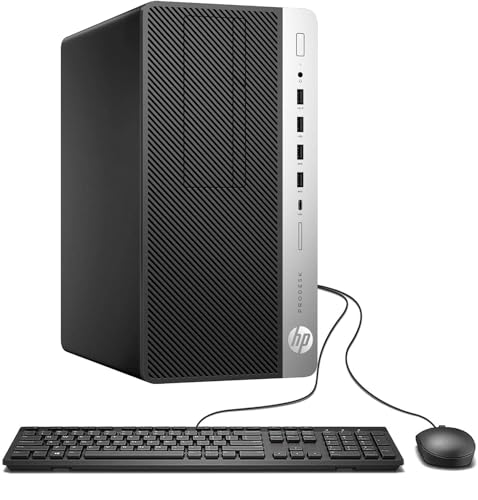
Towers are the mechanics’ choice. They offer the most internal room, the easiest memory and storage upgrades, full-size power supplies, and the quietest cooling under sustained load. If your desk has floor space beside it and you like the idea of upgrading rather than replacing, a tower is the default answer. The HP ProDesk and Dell OptiPlex tower listings in our picks section exist precisely because corporate towers combine that flexibility with business-grade build quality.
Small form factor desktops shrink the same idea into a box that slides under a monitor stand or stands vertically beside a screen. You give up some expansion room and accept laptop-style external power bricks on some models, but you keep real desktop processors and, usually, serviceable memory and storage. For a tidy desk in a shared room, this is often the sweet spot.
Mini PCs go further: a machine the size of a paperback that mounts behind a monitor with a VESA bracket and sips power. They suit clean-desk minimalists, reception and kiosk duties, and light office work. Their limits are thermal headroom and upgrade paths, so buy the configuration you need rather than the one you hope to expand.
All-in-ones fold the computer into the display. One cable, no tower, a webcam and speakers built in. They are the neatest answer for a visible living-room desk and the least flexible when something ages: when the panel or the processor feels old, the whole unit is replaced. Choose an all-in-one for tidiness, not for longevity economics.
New vs Renewed: The Value Question at the Heart of This Category
Most of the machines in this guide are renewed business desktops, and that is deliberate. Large companies lease fleets of Dell OptiPlex and HP ProDesk or EliteDesk machines, run them in climate-controlled offices for a lease cycle, then replace them wholesale. Refurbishers test them, fit fresh solid-state drives and generous memory, install a clean Windows license, and sell them at a fraction of original cost. The buyer gets business build quality — metal cases, standard parts, easy service panels — without business pricing.
The trade-offs are honest ones. You may receive a case with light cosmetic wear. The processor will be several generations old even when performance remains strong. Warranty terms are shorter than a new retail machine’s, so buy from listings with clear renewal grading and return terms, and plan to test everything in the first week. Against that, a new machine buys you the latest platform, the longest support runway, and a full manufacturer warranty. Our picks below include both paths so you can weigh them directly, and the fuller argument is laid out in Home Office PC Pros And Cons and Is A Home Office PC Worth It.
Our Shortlist: Six Machines That Cover the Main Buying Paths
These six were chosen to represent the realistic routes through this guide rather than to crown a single winner. Each is linked so you can check the current configuration and terms on Amazon; configurations on renewed listings can vary by seller batch, so confirm memory and storage on the listing before ordering.

The Tower Workhorse — HP ProDesk 600G4 Tower, Intel i7-8700, 32GB RAM, 1TB SSD
This renewed HP tower is what we point to when someone asks what a serious home office machine looks like without new-machine money. The six-core i7-8700, 32GB of DDR4 memory, and a 1TB solid-state drive cover heavy multitasking for years, and the tower case leaves room to add storage or a modest graphics card later. Wi-Fi and Bluetooth are built in, and Windows 11 is installed and supported on this processor generation.
- Strengths: generous memory and storage out of the box; proper tower expansion; business-grade construction.
- Trade-offs: renewed unit with a shorter warranty than new; larger footprint; integrated graphics only.
Best for: power multitaskers who want one machine for years / Not suited for: minimalists short on desk or floor space

The Memory-Rich All-Rounder — Dell Optiplex 3060, Intel i5-8500, 32GB RAM, 1TB SSD
Dell’s OptiPlex line is the other half of the corporate fleet story. This configuration pairs the six-core i5-8500 with an unusually generous 32GB of memory and a full terabyte of SSD storage, which is exactly the combination that keeps a wide workload feeling effortless. Built-in Wi-Fi and Bluetooth plus Windows 11 Professional round out a machine aimed squarely at people who keep everything open all day.
- Strengths: 32GB RAM at a renewed price point; large fast storage; Pro edition Windows.
- Trade-offs: renewed cosmetics vary; no dedicated graphics; check the exact chassis size on the listing.
Best for: tab-heavy researchers, analysts, and remote workers / Not suited for: buyers who need a brand-new warranty
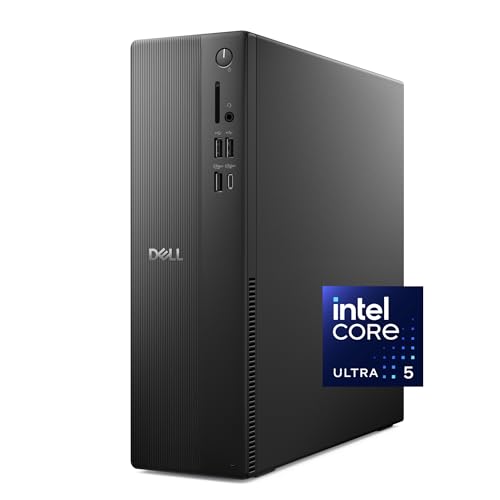
The Brand-New Option — Dell Slim Desktop, Intel Core Ultra 5-225, 16GB DDR5, 512GB SSD
If renewed is not for you, this current-generation Dell is the sensible new alternative. The Core Ultra 5-225 brings a modern platform with DDR5 memory, Wi-Fi 6, and the longest Windows support runway of anything in this shortlist, in a slim case that includes a wired keyboard. It is the machine we recommend to buyers who value warranty and longevity over raw specification-per-dollar.
- Strengths: newest platform and efficiency; full manufacturer warranty; compact slim case.
- Trade-offs: 512GB storage is merely adequate; 16GB rather than 32GB; slim cases limit upgrades.
Best for: buyers who keep machines for many years / Not suited for: maximum spec per dollar hunters


The Desk-Saving Mini — KAMRUI AK1PLUS Mini PC, Intel Celeron N5095, 16GB RAM, 256GB SSD
The AK1PLUS represents the mini PC path: a palm-sized box with 16GB of memory, dual 4K display support, Wi-Fi, Bluetooth, and Ethernet, plus room to add a 2.5-inch drive later. Its Celeron processor is the honest limitation — fine for documents, browsing, email, and calls, wrong for heavy data work — but for a clean desk and light duties it is hard to argue with the footprint.
- Strengths: tiny and mountable; dual 4K outputs; very low power draw.
- Trade-offs: entry-level processor; 256GB storage fills quickly; limited upgrade ceiling.
Best for: light-duty users and second workstations / Not suited for: heavy multitasking or local media libraries


The One-Cable Answer — Dell 23.8″ All-in-One, Intel Core 3 100U, 8GB RAM, 512GB SSD
Dell’s 23.8-inch all-in-one folds a Full HD display, Intel Core 3 processor, 512GB SSD, Wi-Fi 6E, keyboard, mouse, and Dolby Atmos speakers into a single tidy unit. It suits shared spaces where a tower would look like clutter. The 8GB of memory is its weak point for heavy multitasking, so treat it as a focused single-task-at-a-time machine or confirm upgrade options before buying.
- Strengths: neatest possible setup; good display and speakers included; modern wireless.
- Trade-offs: 8GB RAM limits multitasking; all-in-ones are replaced whole, not upgraded; entry processor.
Best for: tidy desks in shared rooms and focused workloads / Not suited for: upgraders and heavy multitaskers


The Straightforward New Tower — HP Business Tower, Intel i5, 16GB RAM, 512GB SSD
HP’s business tower listing offers a current, no-fuss route: an Intel i5 processor, 16GB of memory, a 512GB SSD, Windows 11 with Copilot features, a Wi-Fi adapter, and a keyboard and mouse in the box. It lacks the renewed towers’ 32GB generosity, but it answers buyers who want a traditional tower from a current listing with peripherals included and nothing to hunt down separately.
- Strengths: complete in-box setup; tower flexibility; current Windows 11 build.
- Trade-offs: 512GB storage; integrated graphics; verify the exact i5 model on the listing.
Best for: buyers who want a complete tower package / Not suited for: those wanting 32GB without upgrading
Where to Buy and How to Read a Listing
All six machines above are sold through Amazon, where reviewstook.com tracks these business-desktop listings because stock rotates as refurbishers process new fleet batches. That rotation is the single most important thing to understand about shopping this category: a renewed listing is not a permanent product. The configuration in the title — processor, memory, storage — is what the refurbisher guarantees for that batch, so read the title and the specification table on the listing itself rather than relying on any guide, including this one, and take a screenshot of the configuration at checkout for your records.
Three listing details deserve a slow read. First, the renewal grade and warranty: look for language describing testing, a minimum warranty period, and a return window, and prefer listings sold or fulfilled with clear refurbisher branding. Second, the Windows edition and activation: a legitimate listing ships with Windows installed and activated, and Pro editions add BitLocker drive encryption and remote desktop hosting, both genuinely useful at home. Third, what is in the box: many renewed desktops include a basic keyboard and mouse, some include Wi-Fi adapters as USB dongles rather than internal cards, and monitors are included only when the title explicitly says so. A bundle that names its displays, like the EliteDesk bundles discussed elsewhere in this cluster, is a different purchase from a bare tower, and the price difference usually reflects exactly that.
What Each Budget Tier Actually Buys You
Because renewed stock dominates this category, tiers behave differently than in the new-retail market. At the entry end you are buying competence: an older six-core or quad-core processor, 16GB of memory, and a modest SSD in a small case. That combination runs a browser-based working day perfectly well and only shows its age when you stack heavy local applications on top of each other. Spend a step more and the gains are concrete rather than cosmetic: memory doubles to 32GB, storage doubles to a terabyte, and the processor moves to a stronger six-core part. That middle tier is where most home workers should aim, because it removes the two ceilings — memory pressure and storage pressure — that make a machine feel old.
At the top of the renewed market you are mostly buying condition, warranty length, and newer fleet generations rather than dramatically more speed. Beyond that sits the new-machine tier, where the same money buys a current platform with DDR5 memory and a full warranty but typically less RAM and storage than a renewed tower at the same spend. Neither answer is wrong; they are different bets. The renewed bet says performance per dollar now, with a shorter warranty. The new bet says platform longevity and support, with leaner specifications. Our own lean for a primary work machine is the middle renewed tier or the new slim desktop, depending on how much you value the warranty — a judgement we argue through fully in Home Office PC Vs Workstation PC for readers also weighing professional-grade machines.
Connectivity, Peripherals, and the Desk Around the PC
A home office pc does not work alone, and the accessories around it decide whether the setup feels professional. Budget attention for a second monitor before you budget for a faster processor: dual displays change office productivity more than any internal component at this level. When you plan that second screen, match the machine’s outputs to the monitor’s inputs and order the right cable with the PC, not after it arrives.
Input devices matter on the same logic. The bundled keyboards and mice in renewed packages are serviceable starters, not long-term tools for someone typing eight hours a day. Many readers pair their desktop with a quality wired keyboard and mouse for reliability — our current shortlist for Best Wired Office Keyboards covers that pairing — and with a chair that supports a full workday, which is why the picks in Best Mesh Office Chairs For Gaming sit in the same reading cluster. Webcam and audio deserve one check: all-in-ones include them, towers and minis usually expect you to supply your own, and a headset sidesteps most room-echo problems on calls.
Networking is the quiet spec. Wired Ethernet is the most stable option for calls and large uploads, and every tower here offers it. If your desk cannot reach the router, confirm the listing’s Wi-Fi generation — Wi-Fi 6 adapters cope noticeably better with busy home networks than older Wi-Fi 5 or USB dongles — and place the machine where its antennas are not buried behind a metal case against a wall.
How to Set Up a New Home Office PC in the Right Order
Setup order prevents most first-week frustrations. Follow this sequence and you will avoid the classic trap of migrating everything onto a machine that turns out to have a fault.
- Inspect and inventory first. Photograph the case condition, confirm the power cable, adapters, keyboard, and mouse match the listing, and note the serial number for warranty records.
- Connect minimally and boot. One monitor, keyboard, mouse, power. Confirm it reaches Windows, then check Settings shows the processor, memory, and storage you ordered — this five-minute check is your proof the configuration matches the listing.
- Run Windows Update completely. Renewed machines may sit several update cycles behind. Let it finish, restart as asked, and repeat until no updates remain before you install your own software.
- Turn on protection. Confirm Windows Security shows no warnings, enable BitLocker if your edition supports it, and set up a backup routine — an external drive or cloud sync — before your real files move in.
- Add the second display and peripherals. Connect additional monitors one at a time, set their arrangement and scaling in Display settings, then add printers, headsets, and docks.
- Migrate and test under load. Move your files, sign into your work tools, then deliberately recreate your worst working day — call, tabs, spreadsheet, sync — and listen for fan noise and watch for stutter while the return window is still open.
Problem: the second monitor stays black. Fix: swap the cable before changing settings, confirm the monitor is set to the correct input, and remember that some renewed desktops output DisplayPort natively, so an adapter cable must be the active direction the listing specifies. Problem: Wi-Fi speeds are far slower than your laptop at the same desk. Fix: if the machine uses a USB Wi-Fi dongle, move it to a front port or a short extension cable away from the metal case, which shields the signal. Problem: the machine is louder than expected. Fix: check it is not in a closed cabinet, clean the intake vents, and confirm in Task Manager that a stuck update or indexing process is not pinning the processor during its first days.
Common Mistakes This Guide Exists to Prevent
- Buying 8GB of memory to save a little. It is the most common false economy in this category; the saving is small and the daily friction is permanent.
- Accepting a spinning hard drive as the system disk. Any configuration still booting from an HDD will feel slow no matter what processor it carries.
- Ignoring the processor generation. A cheap machine outside Windows 11 support is a loan, not a purchase.
- Forgetting display outputs. Count your monitors’ inputs against the listing’s ports before ordering, not during setup.
- Skipping the first-week stress test. Renewed machines carry return windows; use them deliberately while faults are the seller’s problem.
- Paying new-machine money for entry specifications. If a new listing offers 8GB and a small SSD, a renewed tower at the same spend usually serves you better — compare honestly.
Final Recommendation
If you read nothing else, buy on this formula: six-core processor from a supported generation, 16GB of memory at minimum and 32GB if the budget stretches, an SSD of 512GB or more, the form factor that fits your room, and outputs that match your monitors. On those criteria, the renewed HP ProDesk tower and Dell Optiplex 3060 in our shortlist are the value centre of this category, the Dell Slim Desktop is the buy-new answer, and the KAMRUI mini and Dell all-in-one serve tidy-desk buyers with lighter workloads. Anyone whose budget is already fixed can jump straight to the tier roundups such as Best Home Office PC Under $500 to see the same logic applied at a set spend.
Reading Processor Names Without a Decoder Ring
Processor model names look like licence plates, but they follow a grammar worth learning before you spend anything. Take the Intel Core i5-8500 that appears in several machines in this guide. The i5 marks the tier within its generation — i3 is entry, i5 is the mainstream heartland, i7 adds cores or clock speed for heavier work. The first digit after the hyphen, 8, marks the generation: an 8500 is an 8th generation part. The remaining digits rank it within that generation, and a trailing letter, when present, hints at a variant — low power, unlocked, or graphics-free. AMD’s Ryzen names follow the same broad pattern: Ryzen 5 5300U is a mid-tier mobile-derived chip of its series, with the U marking an efficiency-focused part commonly found in mini PCs.
Why does the grammar matter? Because listings lead with the flattering half of the name. A headline that shouts “i7” may be describing a processor from many generations ago whose real-world office performance trails a modern i5, while a modest-looking i5 from a recent generation may also carry the decisive advantage of sitting inside the current Windows support window. When you compare two machines, compare generation first, tier second, and the headline last. Core counts follow the same discipline: six cores from a supported generation will serve a multitasker better than four older cores wearing a higher tier badge. This single habit — reading the whole name — prevents the most expensive misreading in the renewed market, where several generations of the same model line circulate at once under nearly identical product names.
Renewed Grades, Warranties, and What “Refurbished” Promises
The word “renewed” covers a spectrum, and the differences are worth money. At the careful end, a refurbisher tests the machine under load, replaces or verifies the storage, fits the advertised memory, cleans the cooling path, installs a properly licensed copy of Windows, and grades the cosmetics honestly. At the careless end, a machine is wiped, photographed kindly, and shipped. The listing itself tells you which end you are dealing with: look for explicit statements about testing, a named warranty period measured in months rather than days, a return window, and a configuration written out in full in the title — processor model, memory size, storage size and type. Listings that hide those facts behind adjectives are telling you something by omission.
Warranty length deserves a calm reading rather than anxiety. A shorter renewed warranty is partly offset by the nature of the hardware: business desktops that survived a corporate lease have already passed the infant-mortality phase where components fail early, and their standard parts are inexpensive and widely available if something does fail later. Your real protection is behavioural, and it is free: verify the configuration on arrival, run the machine hard during the return window, and keep the listing screenshot and serial number in a file. Buyers who do those three things convert the renewed market’s small residual risk into the best value in home computing; buyers who skip them are gambling unnecessarily, however good the listing looked.
The Ports and Connectivity Checklist
Before any purchase in this category, spend four minutes on a checklist that saves a week of adapter regret. First, displays: count the screens you will run, note whether each accepts HDMI, DisplayPort, or both, and confirm the machine’s outputs from its listing — not from a sibling model’s listing, because business desktop lines vary outputs between configurations. Second, USB: tally your permanent residents (keyboard, mouse, headset dongle, printer, external drive) and your occasional guests (phone, camera, USB stick), then confirm the machine offers enough ports in reachable places; front ports are worth real money in daily convenience. Third, networking: an Ethernet port is standard on business desktops and is the most reliable call connection you can own; if you must use Wi-Fi, prefer machines with internal Wi-Fi 6 over those relying on a small USB dongle, and plan the machine’s placement with its antennas in open air rather than behind a metal case in a corner.
Fourth, audio: if your work is call-heavy, decide now whether you will use a USB headset — the simplest path, and the one least troubled by older machines’ analogue jacks — or speakers and a separate microphone. Fifth, the future: a free internal bay or slot is a promise the machine can grow; check whether the form factor you are buying keeps that promise. None of this requires expertise, only the discipline to check the listing against your desk before the box arrives, while the answer is still free to change.
Security and Backup: The Unfashionable Half of Buying
A home office pc holds your livelihood’s paperwork, so two buying-adjacent decisions belong in this guide even though they never appear on a specification sheet. The first is the Windows edition. Professional editions add BitLocker full-drive encryption and the ability to host remote desktop connections; for a machine holding client data, tax records, or anything you would not leave on a train, encryption is the difference between a stolen computer being a hardware loss and being a data breach. Several renewed business desktops in this guide ship with Pro editions as standard, which is one more quiet advantage of the fleet market.
The second decision is backup, and the time to make it is the day the machine arrives, not the day it fails. Choose one automatic method — an external drive with scheduled backups, a cloud service syncing your working folders, or ideally both — and test a restore once while the stakes are zero. A backup you have never restored is a hope, not a backup. These habits cost almost nothing and they complete the purchase: the best home office pc is not merely fast and quiet, it is the machine whose failure would be an inconvenience rather than a catastrophe, and that property is chosen by the buyer, not shipped by the manufacturer.
Matching the Machine to Five Common Jobs
Abstract criteria land differently on different desks, so here is the guide compressed into five recognisable buyers. The administrator — email, documents, portals, calls — needs the floor specification and nothing beyond it: a supported processor, 16GB of memory, an SSD, and whichever form factor the room prefers; spend the surplus on the chair. The analyst — big spreadsheets, many tabs, two or three screens — is the 32GB buyer; memory is their entire story, and either renewed tower in our shortlist was practically specified for them. The developer working from home needs memory again, plus storage for local environments, and should favour towers for the upgrade path their tools will eventually demand. The creative freelancer — documents by day, photo and light video work by evening — should read the graphics section twice: integrated graphics carry the day job comfortably, and the honest question is whether the evening work justifies a machine with a discrete card, which moves the purchase toward a different category than this guide’s shortlist. The household buyer — one machine, many users, shared room — should weight tidiness and simplicity above all: an all-in-one or a bundle, accepted with open eyes about upgrades, because a machine the family actually uses beats a more capable one that intimidates it.
What to Do in the First Month of Ownership
The purchase ends at delivery; the buying guide’s last job is to hand you a first month that protects it. Week one is verification, as the setup section described: configuration checked, updates completed, worst-day workload simulated inside the return window. Week two is ergonomics: set monitor height and distance properly, position the keyboard and mouse, and adjust the chair before your body files its complaints — small corrections now are cheaper than the physiotherapy version later. Week three is systems: confirm the backup has actually run and restore one file from it as a test, set the machine’s sleep behaviour, and file the paperwork — listing screenshot, serial number, warranty terms — in one folder. Week four is the review: sit down with the criteria from this guide and ask whether the machine met them, while every remedy is still available. Buyers who run this month deliberately almost never regret a purchase in this category, because regret usually comes from a mismatch that week one would have caught.
Energy, Heat, and the Room the PC Lives In
A buying guide that ignores the room is only half a guide. Desktops convert electricity into a small amount of heat, continuously, and in a small home office that warmth is noticeable across a day — trivially welcome in winter, a genuine consideration in a sun-facing room in August. Placement is the control you own: open air on the intake and exhaust sides, never a sealed cabinet, and a tower on the floor will run cooler and quieter than the same tower in a cupboard, at the price of collecting more dust. Modern machines idle efficiently, so the energy difference between candidates in this guide should rank last among your criteria — but sleep settings deserve one deliberate minute during setup, because a machine that sleeps when you do costs a fraction of one that glows all night, and the savings compound across the machine’s whole life. None of this should steer you between the six machines above; all of it should steer where the chosen one sits.
A Note on Buying for Someone Else
A meaningful share of home office PCs are bought by one person for another — a parent equipping a student, a partner fixing a hated setup, an adult child modernising a parent’s desk. The criteria in this guide still apply, but their weighting shifts: simplicity and support outrank ceiling specifications, because the buyer will not be there for the daily workarounds. Prefer the complete answers — a bundle with its screens, an all-in-one, a new machine with a manufacturer’s support line — over the value-maximising renewed tower you might choose for yourself, unless you are also volunteering as the household’s IT department. Include the setup labour in the gift: configuration verified, updates run, accounts signed in, backup switched on. A home office pc chosen for someone else succeeds when it never becomes a conversation again, and that outcome is bought with completeness, not with specifications.
How the Shortlist Maps to the Guide’s Own Criteria
It is worth pausing to run the six shortlisted machines back through this guide’s criteria explicitly, because a buying guide should be willing to be audited by its own rules. On memory, the two renewed towers pass at the highest level with 32GB fitted; the bundle and the HP business tower pass at the mainstream line with 16GB; the mini matches them at 16GB, unusual generosity for its size; the all-in-one, at 8GB, is the shortlist’s one deliberate exception, included because its buyers’ workloads are focused and its tidiness is the point — and the guide flags that exception in its review rather than hiding it. On storage, every machine boots from an SSD, honouring the non-negotiable; capacity ranges from the mini’s modest drive, which assumes cloud habits, to the towers’ full terabyte. On processor support, five of the six sit comfortably within the current Windows window, and the sixth — the newest machine here — defines the window’s leading edge. On form factor, the shortlist deliberately spans all four shapes so the guide’s advice can be matched to rooms rather than to our preferences. A shortlist that survives its own criteria, with its exceptions named, is the difference between a buying guide and a catalogue.
Frequently Asked Questions
How much RAM does a home office PC really need?
Sixteen gigabytes is the practical minimum for a modern browser-heavy workday, and 32GB is the comfortable choice if you run many applications at once, work with large files, or want the machine to feel fresh for longer. Eight gigabytes functions, but it is the first place you will feel the machine age.
Is a renewed business desktop reliable enough for work I depend on?
Yes, provided you buy a properly graded listing and test it hard during the return window. These machines were built for corporate service, use standard replaceable parts, and typically arrive with fresh SSDs. The risk is a shorter warranty, which the first-week stress test in this guide is designed to offset.
Do I need a dedicated graphics card in a home office PC?
For documents, browsing, calls, and multiple monitors, no — integrated graphics are sufficient. Add a dedicated card only if you edit video heavily, work in 3D, or intend to play demanding games on the same machine.
Tower, mini PC, or all-in-one: which should I choose?
Choose a tower for upgrades and quiet sustained performance, a mini PC for the smallest footprint and lightest duties, and an all-in-one for the tidiest desk in a shared space. The deciding factors are upgrade appetite and workload weight, in that order.
How long should a home office PC last?
A sensibly bought machine — supported processor generation, 16GB or more of memory, SSD storage — should serve four to six years of office work. Renewed machines start partway through that arc, which their price reflects; new machines start at the beginning of it.
Can a home office PC run two or three monitors?
Most can. Towers and small form factor desktops typically offer two or three display outputs, and mini PCs like the KAMRUI in our shortlist advertise dual 4K support. The real check is matching output types — DisplayPort, HDMI — to the inputs your monitors actually have.
What should I check first when a renewed PC arrives?
Verify the configuration in Windows Settings against the listing — processor, memory, and storage — then run Windows Update to completion and recreate your heaviest working day while the return window is open. Configuration mismatches and early faults are both easiest to resolve in week one.