Disclosure: As an Amazon Associate, reviewstook.com earns from qualifying purchases. Links to Amazon on this page are affiliate links; they cost you nothing extra.
The best laptop depends on budget, screen size and how you work. This guide picks one standout in each tier.
Check the current price on Amazon for each pick. This guide is built from product listings, not our own testing, so configurations change often, so confirm the exact processor, RAM and storage on the product page.
By the Reviewstook Editorial Team. Last updated: October 31, 2026.

In this guide
Quick Picks
| Product | Type | Best for |
|---|---|---|
| ASUS Vivobook Go 15 | Budget 15.6-inch laptop | Intel N150, 4GB RAM, 128GB SSD |
| Lenovo V15 Gen 4 Business Laptop | 15.6-inch business laptop | Core i5-13420H with RJ45 and HDMI |
| Acer Aspire 14 AI Copilot+ PC | Thin 14-inch Copilot+ laptop | Core Ultra 7 256V and a WUXGA display |
| Lenovo IdeaPad Slim 3 (15.3-inch) | 15.3-inch everyday laptop | Ryzen 5 8540U, 16GB RAM, 512GB |
| Microsoft Surface Laptop 13-inch | 13-inch touchscreen laptop | Snapdragon X Plus, Copilot+ PC |
| Samsung Galaxy Book5 Pro 360 (16-inch) | 16-inch 2-in-1 laptop | Core Ultra 7 256V, 2-in-1 |
Our Picks

Top pickBest for basic browsing and documents on a tight budget
1. ASUS Vivobook Go 15
A 15.6-inch FHD Vivobook Go 15 with an Intel N150 processor, 4GB of RAM and a 128GB SSD, per the listing. Check price on Amazon.
Good for: basic browsing and documents on a tight budget. Strengths: low price. Weaknesses: 4GB RAM and 128GB storage are limited. Skip it if you multitask heavily.

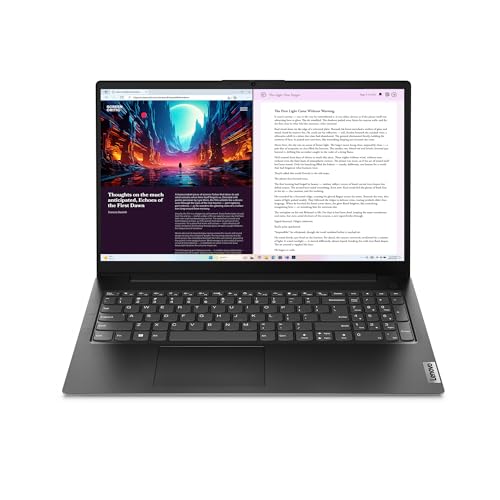
Best for office work that needs a wired network port
2. Lenovo V15 Gen 4 Business Laptop
A 15.6-inch FHD business laptop with an Intel Core i5-13420H, HDMI, RJ45 and a webcam, per the listing. Check price on Amazon.
Good for: office work that needs a wired network port. Strengths: Ethernet and HDMI ports. Weaknesses: higher price. Skip it if you want a thin premium design.

Best for everyday work and study on a mid-range budget
3. Acer Aspire 14 AI Copilot+ PC
A 14-inch WUXGA Copilot+ PC with an Intel Core Ultra 7 256V processor and an NPU rated up to 47 TOPS, per the listing. Check price on Amazon.
Good for: everyday work and study on a mid-range budget. Strengths: modern Intel Core Ultra chip and Copilot+ features. Weaknesses: higher price. Skip it if you want a gaming laptop.

Best for students and home users who want 16GB RAM
4. Lenovo IdeaPad Slim 3 (15.3-inch)
A 15.3-inch WUXGA IdeaPad Slim 3 with an AMD Ryzen 5 8540U, 16GB of memory and 512GB of storage, per the listing. Check price on Amazon.
Good for: students and home users who want 16GB RAM. Strengths: 16GB RAM and 512GB storage. Weaknesses: higher price. Skip it if you want an ultra-light laptop.
Best for portable work with a premium build
5. Microsoft Surface Laptop 13-inch
A 13-inch Surface Laptop (2025) Copilot+ PC with a touchscreen and a Snapdragon X Plus 8-core processor, per the listing. Check price on Amazon.
Good for: portable work with a premium build. Strengths: touchscreen and Microsoft design. Weaknesses: higher price. Skip it if you need maximum app compatibility with older software.
Best for a premium large-screen convertible
6. Samsung Galaxy Book5 Pro 360 (16-inch)
A 16-inch Samsung Galaxy Book5 Pro 360 with an Intel Core Ultra 7 256V, per the listing. Check price on Amazon.
Good for: a premium large-screen convertible. Strengths: premium design and Core Ultra 7. Weaknesses: high price. Skip it if you want a budget laptop.
Best Picks by Category
They summarize listing data and are not hands-on test results.
- Highest listed rating (limited feedback): Samsung Galaxy Book5 Pro 360 (16-inch) — premium tier; check price on Amazon. This is not an independent product-quality award.
- Most reviewed: Lenovo V15 Gen 4 Business Laptop — check price on Amazon.
- Lowest price: ASUS Vivobook Go 15 — budget tier; check price on Amazon.
- Premium option: Samsung Galaxy Book5 Pro 360 (16-inch) — premium tier; check price on Amazon.
Price, Rating and Review Comparison
The table lists the picks alongside their price tier. Prices change often, so confirm the current price on Amazon.
| Product | Price | Rating | Ratings | Price tier |
|---|---|---|---|---|
| ASUS Vivobook Go 15 | Check price on Amazon | — | — | Budget |
| Acer Aspire 14 AI Copilot+ PC | Check price on Amazon | — | — | Mid-range |
| Lenovo IdeaPad Slim 3 (15.3-inch) | Check price on Amazon | — | — | Mid-range |
| Microsoft Surface Laptop 13-inch | Check price on Amazon | — | — | Mid-range |
| Samsung Galaxy Book5 Pro 360 (16-inch) | Check price on Amazon | — | — | Premium |
| Lenovo V15 Gen 4 Business Laptop | Check price on Amazon | — | — | n/a |
How Much Feedback Backs Each Rating
A high average from a handful of ratings is weaker evidence than a slightly lower average from thousands. Here is how the sample size looks for each pick.
How to Choose a Laptop: The Parts That Matter
The six laptops in this guide span a very wide range of price and purpose, from a budget machine to a premium convertible. A laptop is a collection of trade-offs, and the right one depends on what you do. This section explains the main decisions in plain language. As on the rest of the site, we build this from product listings and manufacturer information, not our own testing, so verify specifications on the product page.
The processor, and why the platform matters
The six laptops use four kinds of processors. The ASUS Vivobook Go 15 uses an Intel N150, a low-power chip intended for basic tasks. The Lenovo V15 Gen 4 uses an Intel Core i5-13420H, a performance-class mobile processor. The Acer Aspire 14 AI and the Samsung Galaxy Book5 Pro 360 use Intel Core Ultra 7 256V chips, which are efficient processors with a built-in neural processing unit (NPU). The Lenovo IdeaPad Slim 3 uses an AMD Ryzen 5 8540U, and the Microsoft Surface Laptop 13-inch uses a Snapdragon X Plus, an Arm-based chip. The most important distinction is between the standard x86 chips from Intel and AMD, which run essentially all Windows software, and the Arm-based Snapdragon chip, which is very efficient and long-lasting but may have compatibility limits with some older programs and drivers.
What “Copilot+ PC” means
Two listings use the term Copilot+ PC: the Acer Aspire 14 AI (with an NPU rated up to 47 TOPS) and the Surface Laptop 13-inch. Microsoft uses the label for laptops with an NPU powerful enough to run certain on-device AI features in Windows. These features are optional extras, such as local image tools and enhanced search, and the practical value varies by person. The label tells you the laptop has a capable NPU, not that it is faster for ordinary work, so do not pay extra for it unless you want those features.
Memory and storage
The Vivobook Go 15 listing shows 4 GB of RAM and a 128 GB SSD. That is the bare minimum for Windows and will feel tight with several tabs open or with updates, so it suits only the lightest use. 8 GB is a more comfortable floor, and 16 GB, as in the IdeaPad Slim 3 listing, is a safe choice for most people for several years. Storage of 512 GB, again as in the IdeaPad, is a comfortable baseline; 128 GB fills quickly. Check whether the memory is upgradeable, because thin laptops often solder it.
Screen size, brightness and resolution
Screen sizes here range from 13 to 16 inches. A 13-inch laptop like the Surface is easy to carry; a 15.6-inch laptop like the Vivobook and Lenovo V15 is more comfortable at a desk; and a 16-inch convertible like the Galaxy Book5 Pro 360 has room to spare but weighs more. Full HD is the sensible minimum. The Acer Aspire 14 and IdeaPad Slim 3 list WUXGA panels (1920 by 1200), which are slightly taller and show more of a document. Brightness figures matter if you work near windows, so check them on the product page.
Ports and connectivity
The Lenovo V15 Gen 4 stands out with HDMI and an RJ45 Ethernet port, which are handy for office desks and projectors. Thin laptops often drop Ethernet and have only USB-C ports, so you may need a dock or adapter; see our docking stations and Thunderbolt docks.
The Six Laptops in Depth
ASUS Vivobook Go 15
This is the budget pick; check price on Amazon. The listing describes a 15.6-inch Full HD display, an Intel N150 processor, 4 GB of RAM and a 128 GB SSD. The N150 is an efficient chip for web browsing, email, document editing, video streaming and video calls. The limits are clear: 4 GB of memory is tight, and 128 GB of storage leaves little room after Windows and updates. Heavy multitasking, large spreadsheets or many browser tabs will slow it down.
It is a sensible choice for a child’s first laptop, a secondary laptop for light use or someone who only needs the web and a word processor. It is not a good choice if you plan to keep it for many years or work with demanding programs.
Choose it if your use is simple and your budget is tight. Think twice if you multitask heavily or want it to last.
Lenovo V15 Gen 4 Business Laptop
The V15 Gen 4 is the practical office machine. The listing describes a 15.6-inch Full HD display, an Intel Core i5-13420H, HDMI, an RJ45 Ethernet port and a webcam; check price on Amazon. The processor is a performance-class chip suitable for office work, spreadsheets, multitasking and light photo editing. The ports are the draw: a wired network connection is more stable than Wi-Fi in a busy office, and HDMI makes presentations simple.
It is not a premium design, so expect a plainer, heavier body than a thin laptop. For businesses and home offices that need dependable ports and a decent processor at a fair price, it makes sense. See our business laptop buying guide.
Choose it if you need Ethernet and HDMI and want solid office performance. Think twice if you want a thin, light premium laptop.
Acer Aspire 14 AI Copilot+ PC
The Aspire 14 AI is a mid-range, modern pick; check price on Amazon. The listing describes a 14-inch WUXGA display, an Intel Core Ultra 7 256V processor and an NPU rated up to 47 TOPS. The Core Ultra 7 256V is an efficient chip designed for strong battery life and capable everyday performance, and it includes integrated graphics that are better than those of older integrated chips. The 14-inch size is a good balance of portability and screen space.
This is a good laptop for students and professionals who want a lightweight machine with a modern processor and long battery life. The Copilot+ features are a bonus rather than the main reason to buy.
Choose it if you want a modern, efficient 14-inch laptop at a mid-range price. Think twice if you need a dedicated gaming GPU.
Lenovo IdeaPad Slim 3 (15.3-inch)
The IdeaPad Slim 3 is the value pick for people who want enough memory. The listing describes a 15.3-inch WUXGA display, an AMD Ryzen 5 8540U, 16 GB of memory and 512 GB of storage; check price on Amazon. The combination of 16 GB and 512 GB is what most people should aim for, and the Ryzen 5 is a capable chip for everyday work, study and light creative use.
The screen is large and tall, which suits documents and web pages. It is not an ultra-light design, and the price is not the lowest, but the specification is strong for its tier. It suits students and home users who want a laptop that will feel fast for years.
Choose it if you want 16 GB of RAM and 512 GB of storage in a larger, comfortable laptop. Think twice if you want an ultra-light laptop.
Microsoft Surface Laptop 13-inch
The Surface Laptop 13-inch is the premium compact choice; check price on Amazon. The listing describes a 13-inch (2025) Copilot+ PC with a touchscreen and a Snapdragon X Plus 8-core processor. Surface laptops are known for their clean design, good keyboards and trackpads, and strong build. The Snapdragon chip gives long battery life and cool, quiet operation.
The main caution is software compatibility: Windows on Arm runs most mainstream apps, either natively or through emulation, but some older programs, specialist tools and certain drivers or peripherals may not work well. If you rely on a particular legacy program, check compatibility before buying.
Choose it if you want a compact, premium laptop with long battery life and mainstream software. Think twice if you need maximum compatibility with older software.
Samsung Galaxy Book5 Pro 360 (16-inch)
The Galaxy Book5 Pro 360 is the premium convertible; check price on Amazon. The listing describes a 16-inch laptop with an Intel Core Ultra 7 256V. As a 360 model, the screen folds back to turn it into a tablet, which suits note-taking, drawing and presentations, and the large 16-inch screen gives plenty of room. Premium convertibles like this usually offer bright OLED-class displays, a pen, and a polished build, but check the product page for the exact display and stylus details.
It is a large laptop to carry, and the price reflects its premium positioning. It suits creative professionals and people who want a single device for laptop and tablet use.
Choose it if you want a large premium convertible. Think twice if you want a budget laptop or something very light.
Which Laptop for Which Person
| You are | Best match | Reason |
|---|---|---|
| On a very tight budget with light needs | ASUS Vivobook Go 15 | Lowest price, basic tasks |
| Setting up a home or small office | Lenovo V15 Gen 4 | Ethernet and HDMI, solid processor |
| A student or professional who travels | Acer Aspire 14 AI | Efficient Core Ultra chip, 14-inch |
| Wanting a long-lasting all-rounder | Lenovo IdeaPad Slim 3 | 16 GB RAM, 512 GB storage |
| Wanting a compact premium laptop | Surface Laptop 13-inch | Touchscreen, long battery life |
| Wanting a large convertible | Galaxy Book5 Pro 360 | 16-inch, tablet mode |
Windows on Arm versus Intel and AMD: A Plain-Language Guide
Most laptops use x86 processors from Intel or AMD. These run all Windows software natively. Laptops with Snapdragon chips, such as the Surface Laptop 13-inch, use the Arm architecture, which is common in phones. Arm laptops are usually cooler, quieter and longer-lasting. Windows can run x86 programs on Arm through emulation, and many popular apps now have native Arm versions, so everyday use is fine. The risk lies in niche software, certain games, some hardware drivers and anti-cheat systems. Before buying an Arm laptop, list your must-have programs and check their support.
Battery Life: Reading the Claims
Manufacturers publish battery figures measured under light conditions, often video playback at low brightness. Real life with a bright screen, video calls and many tabs is shorter. Efficient chips like the Core Ultra 7 256V and Snapdragon X Plus are known for strong results, but you should read independent reviews with real-use tests. Charging over USB-C lets you use a single charger for your laptop and phone; check the product page.
Getting the Most From Your New Laptop
- Install all Windows updates before you start using it.
- Uninstall trial software you do not need.
- Set up backup for your files to the cloud or an external drive.
- Adjust power settings for battery life or performance.
- Use a laptop stand or a docking station if you work at a desk for many hours; see our docking stations and portable monitors.
- Protect it with a good bag; see our laptop backpacks.
Common Mistakes When Buying a Laptop
- Buying too little memory. 4 GB is too little for most people today.
- Choosing a hard drive over an SSD. An SSD makes a huge difference.
- Ignoring the screen. A dim, low-resolution screen is tiring.
- Paying for features you will not use. NPUs and touchscreens help some people and not others.
- Not checking ports. Missing Ethernet or HDMI means adapters.
- Skipping the return window. Test the keyboard and screen in real use.
Where to Go Next
For specific budgets, see laptops under $500 and under $1000. For particular uses, see students, programming, business, workstations and touchscreens. Compare platforms in Laptop vs Chromebook, and read the laptop buying guide for more.
How to Choose
RAM and storage
16GB RAM and 512GB storage is a comfortable baseline. See our buying guide.
Screen
Pick size and resolution for how you work.
Battery
Check the maker battery claim and reviews.
How We Chose These Products
We start from products sold on Amazon with a full product name and clear specifications, and we skip results that show only a brand name or a vague title. We then read the listing and any manufacturer information for each one and note the features that matter for laptops and laptop accessories: processor and memory, display, battery and ports. We do not run our own lab tests, and this guide contains no hands-on measurements. Use it to build a shortlist, then check current prices, dimensions and return terms on the Amazon page before you buy.
Buying Guide: What to Check Before You Choose
Graphics, cooling and refresh rate
Gaming laptops depend on the graphics chip and how well the cooling lets it run. Check the graphics model, power limit, display refresh rate and the cooling design. Thin models often run slower than thick ones with the same chip. Battery life during gaming is short, so plan on staying plugged in.
What students and creators need
Prioritize battery life, weight, keyboard comfort and a reliable display. For art or engineering, check screen accuracy and processing power; for writing, comfort and battery. Check the warranty and what the school requires.
Business and professional use
Look for a good keyboard, a durable build, security features, ports for docks and a reliable warranty. For heavy work, check processor, memory and cooling.
Quick Reference: Which Pick Suits Whom
- ASUS Vivobook Go 15: suits basic browsing and documents on a tight budget
- Lenovo V15 Gen 4 Business Laptop: suits office work that needs a wired network port
- Acer Aspire 14 AI Copilot+ PC: suits everyday work and study on a mid-range budget
- Lenovo IdeaPad Slim 3 (15.3-inch): suits students and home users who want 16GB RAM
- Microsoft Surface Laptop 13-inch: suits portable work with a premium build
- Samsung Galaxy Book5 Pro 360 (16-inch): suits a premium large-screen convertible
Common Mistakes to Avoid
- Buying on processor name alone without checking memory and storage.
- Ignoring display brightness and resolution.
- Overlooking weight and battery for mobile use.
- Skipping the warranty.
- Forgetting the ports you need.
Setup and Care
- Install system updates before first use.
- Check battery health settings.
- Back up important files.
- Keep vents clear to avoid heat.
What to Check Before You Buy
- Decide on the main use: browsing, office work, creative work or gaming.
- Look for at least 8 GB of RAM, and 16 GB for heavier multitasking.
- Choose an SSD rather than a hard drive for speed.
- Check screen resolution, brightness and weight.
- Compare battery claims with real reviews.
A Deeper Look at Everyday Performance
Why a laptop can feel fast or slow on identical-looking spec sheets
Two laptops with similar processors on paper can feel very different in daily use, and the reasons are usually cooling, memory configuration and storage speed rather than the chip name itself. A thin chassis with a small fan may let the processor run hard for a short burst, then slow it down to control heat, so a long export or a big spreadsheet recalculation takes longer than the headline numbers suggest. A roomier chassis with better airflow holds its speed for longer. This is why the same processor family appears in both budget and premium machines in this guide, and why the surrounding hardware matters as much as the badge on the box.
Memory configuration is the quiet factor most buyers overlook. A machine with memory running in a dual-channel layout feeds the processor more effectively than the same capacity in a single channel, and integrated graphics benefit most of all because they borrow system memory for video work. Storage matters in a similar way: a modern solid-state drive makes the whole machine feel responsive, while a nearly full drive slows down updates, file copies and even simple program launches. When you compare the picks above, treat the processor, memory and storage as one system rather than three separate lines.
Matching screen size to the way you actually work
The line-up above spans compact and large screens, and the right choice depends on where the laptop will live. A smaller screen suits a machine that moves between rooms, classrooms and cafes every day, because the whole laptop is lighter and fits smaller bags and trays. A larger screen suits a machine that mostly stays on one desk, where the extra width makes side-by-side documents, wide spreadsheets and video timelines easier to manage without an external monitor. Neither is better in the abstract; the mistake is buying the large screen for travel or the small screen for all-day desk work and then fighting the compromise for years.
Resolution and aspect ratio shape that experience as much as size. Taller screens show more of a document or web page at once, which reduces scrolling during writing and research. Sharper panels make small text cleaner, which matters if you read for hours. If you plan to add a monitor later, screen size matters less, because the laptop becomes the second display rather than the main one. Think about that upgrade path before you pay extra for a bigger built-in panel you may rarely rely on.
Ownership Over Three to Five Years
Updates, support windows and when a laptop really becomes obsolete
A laptop rarely stops working overnight. It becomes obsolete gradually, as operating system updates grow heavier, browsers demand more memory, and eventually the maker ends support for its generation of hardware. Planning for that arc is part of choosing well. A machine bought with comfortable memory and storage headroom absorbs years of updates gracefully, while a machine bought at the bare minimum often feels tired long before anything actually breaks. The picks in this guide with more memory and storage are not indulgences; they are the ones most likely to still feel adequate in the later years of ownership.
Software support windows deserve a check before you buy, especially on platforms with published end-of-support dates. Note when security updates are expected to end for the model you are considering, and factor that into how long you plan to keep it. A laptop that receives updates for the whole period you intend to own it is safer and cheaper in the long run than one that needs replacing early because support ran out.
Battery health and charging habits
Laptop batteries wear with use, and habits influence how quickly that happens. Keeping a machine plugged in at a desk for months is convenient, and many laptops offer a charge-limit setting that holds the battery below full to slow that wear; if your model offers it and you mostly work at a desk, enabling it is worthwhile. Heat is the other enemy, so avoid leaving the laptop in a hot car or running heavy work on a soft bed that blocks its vents. None of this requires fussiness, just a few defaults set once and forgotten.
When you judge battery claims, remember that makers test under gentle conditions: low brightness, light tasks, sometimes with radios off. Real days of mixed work, video calls and bright screens will land well below the headline figure on any machine. A more useful comparison is how the laptops in this guide are positioned relative to each other, and whether the one you choose can get through your longest typical day away from a socket with the charger as a backup rather than a lifeline.
Repairs, warranties and the value of a serviceable design
Over a long ownership period, the parts most likely to need attention are the battery, the fans, the keyboard and the charging port. Designs that let a technician open the case and replace those parts extend the useful life of the machine and keep repair costs proportionate. Before buying, it is worth checking what the warranty covers, how long it runs, and whether service is mail-in or available locally. For a machine your work depends on, a warranty that includes accidental damage or faster turnaround can be worth more than a small specification upgrade.
Workflows the Spec Sheets Do Not Describe
Consider three ordinary days. A writer moves between a desk, a sofa and a train, opens dozens of browser tabs, joins two video calls and edits documents all day; for that person, keyboard comfort, weight and battery behaviour matter more than raw processing power. A parent shares one machine between homework, household admin and evening streaming; for them, a clear screen, simple setup and enough storage for photos matter most. A junior analyst lives in spreadsheets and a statistics package, often with a second monitor attached; for them, memory headroom and port selection decide whether the day flows or stalls. The six picks above map onto these days differently, which is why this guide resists naming a single winner.
A practical exercise helps: list the five programs or services you open every day, the two heaviest things you do each week, and the places you work. Then read the pick descriptions again with that list beside you. The right laptop is the one whose strengths line up with your list, not the one with the longest feature list. If two picks both fit, choose the one with more memory and storage, because those are the limits you cannot easily change later and the ones that decide how the machine ages.
Laptop Etiquette and Ownership in Shared Spaces
A laptop lives among other people, and a few courtesies make its owner welcome everywhere. In libraries, trains and shared offices, keep brightness no higher than the room needs, because a glowing screen in a dim carriage is a public object. Use headphones for media without exception, and let the machine’s speakers stay a home pleasure. During calls in shared spaces, a headset keeps your conversation yours and your colleagues’ concentration intact. None of this is about the machine’s quality; it is about the reputation that follows its owner, and the premium picks in this guide, with their good microphones and civilised fans, make the courtesies easier to keep.
At home, shared machines benefit from the account separation this guide recommends and from one more habit: leaving the laptop as you found it. Close your session, charge it if you used the battery, and keep the desk or table clear of the cables only you need. Households quarrel about technology at exactly these small points, and they are all soluble by routine rather than by purchase.
Finally, lend deliberately or not at all. A laptop holds its owner’s accounts, files and logged-in life, and lending it casually lends all of that too. If a guest needs a machine, the guest account exists for the purpose, and setting it up takes less time than the anxiety of an unprotected lend. Owners who treat their laptop as the personal object it is, while sharing its screen generously, get the best of both instincts.
These social details never appear in a review’s verdict, yet they decide whether a laptop is remembered fondly by everyone who lived around it. Choose the machine by the earlier sections; live with it by these.
Environmental and Practical Matters Buyers Ask About Later
A few practical questions tend to arrive after purchase, and they are worth answering before it. Packaging and setup waste can be recycled in most areas once the machine is running and you are sure it is staying. The old laptop deserves a deliberate fate: wiped and handed on, traded in where schemes exist, or recycled through a proper electronics programme rather than a drawer, because a working spare is genuinely useful to most households and a dead one still contains materials worth recovering.
Power adapters are the accessory owners most often need twice, once at the desk and once in the bag, and buying the maker’s own or a properly matched equivalent protects both the machine and its battery. A surge protector at the main desk is cheap insurance in areas with unreliable power. None of these items appears in a specification table, yet together they shape whether a laptop feels supported by its setup or constantly improvised around.
Finally, register the product and keep the digital receipt somewhere you can find in three years. Warranty claims, support chats and insurance questions all begin with proof of purchase, and the buyers who keep it spend minutes where others spend days. It is the least technical advice in this guide and, across a long ownership, among the most valuable.
Sound, Webcams and the Details Video Calls Expose
Video calls have become the test that exposes a laptop’s weakest details. A fine specification sheet can hide a poor webcam, a thin microphone or speakers that make colleagues sound distant, and you will discover all three in your first important meeting. When comparing the picks above, weigh the call experience as a feature in its own right: a clear camera in ordinary room light, microphones that reject keyboard noise, and speakers you can listen to for an hour. If calls are occasional, any pick here serves; if your work is meetings, let this rank near the top of your list, because it is the quality your colleagues will judge your machine by.
Lighting and position fix more than hardware does. Facing a window rather than sitting with it behind you, raising the laptop so the camera meets your eyes, and using a quiet room transform the impression any of these machines makes. A laptop stand or a stack of books and the laptop’s own camera will outperform a premium camera used badly. Set this up once, in the place you take calls, and every pick in this guide becomes a better meeting machine than its listing suggests.
Keyboards and trackpads: the two-hour test
Specifications cannot tell you whether you will enjoy typing on a machine, but two hours of real writing will. Key travel, spacing and the firmness of the deck decide accuracy and fatigue, while trackpad size and smoothness decide whether you reach for a mouse. The picks here vary in these qualities more than their processors vary in speed, which is why this guide’s individual reviews describe them in words rather than numbers. If you write for a living, treat the keyboard as a first-order feature and be willing to trade a processor tier for the board you type fastest on; you will notice the keyboard every day and the processor almost never.
A Simple Decision Path Through the Six
If the laptop will mostly stay home and serve a family, start with the all-rounder and the budget pick and decide by screen size and storage. If it will travel for work or study, start with the compact and fourteen-inch picks and decide by weight and battery behaviour. If it must connect to office equipment by cable, start with the business pick. If it will be drawn on, presented from or folded, start with the convertible. That first fork, based on place and posture rather than specifications, eliminates half the list honestly, and the remaining choice is usually settled by the memory and storage rule: take the configuration with headroom, because it is the one you cannot change later.
How the Picks Compare With Each Other
Readers often narrow this guide down to two or three names and then stall, because the remaining differences are about fit rather than quality. The notes below restate what this guide already says about each pick, in the order the picks appear, so you can match each one against your own list of tasks, places and priorities.
ASUS Vivobook Go 15 — the budget 15.6-inch laptop in this line-up, highlighted in this guide for an Intel N150 processor, 4GB of memory and a 128GB solid-state drive. It is the low-cost route into Windows in this line-up, sensible for light tasks such as browsing, documents and streaming, and the pick to skip if your daily work involves heavy multitasking or large programs.
Lenovo V15 Gen 4 Business Laptop — the 15.6-inch business laptop in this line-up, highlighted in this guide for a Core i5-13420H processor with wired networking and HDMI among its connections. Its wired ports make it the natural desk-based choice here, aimed at home and small-office setups where the laptop stays put and connects to a network and a screen by cable.
Acer Aspire 14 AI Copilot+ PC — the thin 14-inch Copilot+ laptop in this line-up, highlighted in this guide for a Core Ultra 7 256V processor and a WUXGA display. The traveller’s option in this list: a smaller screen and an efficiency-focused platform for people who move around and value battery behaviour and a sharper display over screen size.
Lenovo IdeaPad Slim 3 (15.3-inch) — the 15.3-inch everyday laptop in this line-up, highlighted in this guide for a Ryzen 5 8540U processor, 16GB of memory and 512GB of storage. The all-rounder with the most headroom of the mid-priced picks, and the one this guide points to when you want one machine to stay comfortable for several years of mixed use.
Microsoft Surface Laptop 13-inch — the 13-inch touchscreen laptop in this line-up, highlighted in this guide for a Snapdragon X Plus platform in a Copilot+ PC design. The compact premium pick, built around portability and touch; check that the programs you depend on are comfortable on its platform before choosing it over an Intel or AMD model.
Samsung Galaxy Book5 Pro 360 (16-inch) — the 16-inch 2-in-1 laptop in this line-up, highlighted in this guide for a Core Ultra 7 256V processor in a convertible design. The large-screen convertible, for readers who want tablet-style flexibility and a big canvas for drawing, presenting or media, and who accept the size that comes with it.
Frequently Asked Questions
What is the best laptop?
It depends on budget; see the Quick Picks.
How much RAM do I need?
16GB is a safe choice for most users.
Windows or Chromebook?
See our comparison.
How much memory do I need in a laptop?
For general use, 8 GB is a sensible minimum. For multitasking or heavier work, 16 GB gives more room.
SSD or hard drive?
An SSD is much faster and more reliable for daily use.
How long should a laptop battery last?
Claims vary with use. Check reviews and the listed hours, which are usually best-case.
How much RAM do I need?
8 GB is a common minimum for everyday use; 16 GB gives more headroom.
Should I choose a Windows laptop or a Chromebook?
Chromebooks suit browser-based work; Windows laptops run more desktop software.
Should I prioritise the processor or memory if I cannot afford both?
For everyday work, memory headroom usually improves the experience more than a faster processor. A modest processor with comfortable memory handles browsing, documents and calls smoothly, while a fast processor squeezed by too little memory stumbles as soon as many programs compete for space. Choose the processor first only when you know a specific program you rely on is processor-heavy, such as compiling large projects or exporting video regularly.
Is it worth paying more for a laptop I plan to keep longer?
Usually, yes, provided the extra money buys memory, storage, screen quality or build quality rather than cosmetic features. Those are the things that decide whether a laptop still feels adequate in its later years. Stretching the budget for headroom you will use every day is better value than replacing a too-basic machine early, which costs more overall and means migrating your files and habits twice.
Can one laptop serve both work and family use well?
It can, especially if you set up separate user accounts so each person’s files, browser profile and settings stay apart. Look for enough storage for shared photo libraries, a screen that suits the desk or table where it will live, and a keyboard everyone finds comfortable. The all-rounder picks in this guide are chosen with that shared, mixed use in mind.
What should I check in the first week with a new laptop?
Run all the updates, then use the machine for your real tasks rather than benchmarks: your heaviest document, your longest video call, your usual number of open tabs. Check that the keyboard, trackpad, screen and fan noise suit you while returning or exchanging is still simple. Set up a backup habit in that first week too, before the machine holds anything you would hate to lose.
Do I need a touchscreen on a general-purpose laptop?
Only if you will actually use it. Touch earns its place for readers who annotate documents, draw, present interactively or simply prefer tapping through media and web pages. If your work is typing and pointing all day, a good non-touch screen is just as satisfying, and the money is better spent on memory, storage or a brighter panel.
How do I choose between two laptops that look identical on paper?
Look at the parts specifications hide: keyboard and trackpad feel, screen brightness and finish, fan behaviour during a call, the position of the ports you use daily, and the warranty and returns terms. Read the in-depth sections of this guide for those details on each pick, and handle both machines if you can. When the paper ties, the lived experience decides, and it is different on every model here.
Bottom Line
For budget, the ASUS Vivobook Go 15. For everyday value, the Acer Aspire 14 AI or IdeaPad Slim 3. For premium, the Surface Laptop 13 or Galaxy Book5 Pro 360.
Related Reading
- 5 Best ASUS Gaming Laptops: TUF, ROG Strix and Zephyrus
- 6 Best Business Laptops Under $1000: Office-Ready Picks
- 3 Best Compact Gaming Laptops: 13 to 14.5 Inch
- 6 Best Cooling Pads for Gaming Laptops: Fans and RGB
- 5 Best Entry-Level Gaming Laptops: RTX 3050 to 5050
- 6 Best External DVD Drives for Laptops: USB 3.0 and Type-C
- 7 Best Gaming Laptops Under $1500: RTX 4050 to 5070
- 8 Best Gaming Laptops Under $2000: RTX 5060 to 5070
- Acer Aspire 14 AI vs Surface Laptop 13: Which to Buy?
- Lenovo IdeaPad Slim 3 vs V15 Gen 4: Which Should You Pick?
- Is the Acer Aspire 14 AI Copilot+ PC Worth It?
- Is the Microsoft Surface Laptop 13-inch Worth It?
- Is the Lenovo IdeaPad Slim 3 (15.3-inch) Worth It?
More Laptop Guides
- Best Laptops Under $500
- Best Laptops Under $1000
- Best Chromebooks
- Best Gaming Laptops
- Best Laptops for Students
- Best Laptops for Programming
- Best Business Laptops
- Best Workstation Laptops
- Best Touchscreen and 2-in-1 Laptops
- Best Laptop Cooling Pads
- All laptop guides


