Disclosure: As an Amazon Associate, reviewstook.com earns from qualifying purchases. Links to Amazon on this page are affiliate links; they cost you nothing extra.
Chromebooks and Windows laptops can look similar on a shelf, but they behave very differently day to day. A Chromebook runs ChromeOS, which is built around the Chrome browser, web apps and Android apps. A Windows laptop runs desktop software, including programs that do not exist on the web. The right choice depends on what you need to run, not on which looks better.
This comparison is based on product listings and manufacturer information, not our own testing. Check each model’s details on its product page.
By the Reviewstook Editorial Team. Last updated: October 31, 2026.

The Short Version
Pick a Chromebook if nearly everything you do happens in a browser: email, documents, video, streaming, online classes and web apps. Pick a Windows laptop if you need desktop programs, specialist tools or games that run locally. Many people are happy with a Chromebook as a second or school computer, and unhappy with it as their only machine if they rely on desktop software.
In this guide
Software and Apps
ChromeOS runs web apps, Android apps from the Google Play Store (on supported models) and, on some models, Linux apps. It does not run Windows programs natively. Windows runs almost every desktop program, including full Microsoft Office, Adobe Creative Cloud apps, many professional and engineering tools and most PC games. Before you choose, list the programs you must have and check whether each has a web or ChromeOS version.
Speed and Everyday Performance
ChromeOS is lightweight, so even modest hardware feels quick for browsing and documents. Windows needs more resources, so a cheap Windows laptop with a slow processor and little memory can feel sluggish where a similarly priced Chromebook feels fine. For demanding work such as video editing or programming with heavy tools, a Windows laptop with better hardware is the stronger option.
Price
Chromebooks are generally cheaper, which is part of their appeal for students and families. At the same price, a Chromebook often has a better screen, build or battery than a Windows laptop, because the operating system needs less hardware. Once you reach higher budgets, Windows laptops offer more power and variety, and premium Chromebooks also exist.
Storage and Offline Use
Chromebooks often have less local storage and expect you to keep files in the cloud, though many support offline editing for documents and a microSD slot. Windows laptops carry larger local storage and work fully offline. If your internet is unreliable, check the offline options of the apps you use before choosing a Chromebook.
Security, Updates and Maintenance
ChromeOS updates itself in the background, boots quickly and is hard to infect, which makes it easy to maintain. Chromebooks receive updates for a limited period set by the maker, so check the “automatic update expiration” listed for the model. Windows requires more upkeep but receives updates for a long time. Both are fine when kept up to date.
Battery Life
Chromebooks tend to be efficient, and many manage long battery life, but Windows laptops with efficient processors can also last through a day. Compare real-world reviews rather than listing numbers.
Who Should Buy Which
- School and family use: a Chromebook is often the easy, low-cost choice if the school supports it.
- Office and remote work in the browser: a Chromebook works if your tools are web-based.
- Creative work, programming and engineering: a Windows laptop, because of the software.
- Gaming: a Windows laptop; see our best gaming laptops.
- One machine for everything: a Windows laptop, as it is the more flexible option.
A Practical Test Before You Choose
The most reliable way to choose between a Chromebook and a Windows laptop is to test your own routine instead of comparing spec lists. Spend a few days using only a web browser on your current computer. Open your email, documents, calendar, school or work portals and entertainment in the browser, and avoid installed programs. If your day works, a Chromebook is a strong candidate. If you keep hitting a wall, note what it is.
Make a list of every program you open in a week. Next to each one, write whether it has a web version, an Android version or neither. Be specific about versions, because a web edition of a program may not include every feature of its desktop edition. Add the hardware you plug in, such as printers, scanners, drawing tablets, headsets and external drives, and check that each has ChromeOS support if you are considering a Chromebook.
- List the programs you cannot do without.
- Check for a web or Android alternative to each one.
- Check peripherals for ChromeOS compatibility on the maker’s support page.
- Ask your school or employer which systems they support.
If a required program exists only for Windows, a Chromebook may still be possible through remote access to another computer, but that adds complexity and needs a reliable connection. If this describes your main work, a Windows laptop is simpler.
Specs That Matter on Either Type
Whichever you choose, a few specifications decide how pleasant the machine feels over several years, and they are worth checking on the product page.
Memory is the most common bottleneck. Too little makes many browser tabs or several programs feel slow. A Chromebook can manage with less than a Windows laptop, but a heavy tab habit still benefits from more. Storage type matters as much as size, since solid-state storage is generally faster than older kinds. The screen affects daily comfort: check the resolution, the size, the brightness and whether it is a touch screen. Look at the aspect ratio, since a taller screen shows more of a document. The keyboard and trackpad are what you touch all day, so read reviews for comments on feel and layout.
Ports matter for connecting displays, drives and chargers. Check for USB-C, USB-A, HDMI and a headphone jack if you need them, and whether the laptop charges over USB-C. Weight and build matter if you carry the machine every day.
- Do not pay for power you will not use.
- Compare models on the specific processor and memory, not the series name.
- Be careful with very low-priced models that skimp on screen and storage.
- Read the product page for the exact configuration.
Common Mistakes When Choosing
Several mistakes come up again and again when people choose between these two types of computer, and most are avoidable.
The first is buying a Chromebook as a main computer without checking the software. People discover too late that a required program, such as a specialist tool, has no web version. The second is buying the cheapest Windows laptop and expecting it to feel quick. Low-end processors, small memory and slow storage can make Windows feel sluggish, and that frustration is avoidable by moving up one tier or choosing a Chromebook with better hardware at the same cost.
A third mistake is ignoring update support. A Chromebook has an automatic update expiration date set by its maker, and a Windows laptop’s life depends on the hardware’s ability to run current Windows versions. Both are worth checking before you buy. A fourth is forgetting accessories. A laptop bag, a mouse, a USB-C hub and a spare charger can add to the true cost.
- Check the update expiration date for any Chromebook you consider.
- Check that a Windows model meets the current system requirements.
- Do not choose by screen size alone.
- Do not assume a touch screen or 2-in-1 design is needed unless you will use it.
Setup and Moving Over From Your Old Computer
Moving to a new machine is easier with a plan. Before you switch, back up files from your old computer to a cloud service or an external drive, and list the accounts you will need to sign in to again.
A Chromebook asks you to sign in with a Google account, and your browser data, bookmarks and many settings can follow you if sync is on. Files in cloud storage are available right away, while local files must be copied across. Android apps from the store may be available on supported models. A Windows laptop usually asks you to sign in with a Microsoft account or a local account. You will need to reinstall desktop programs and enter licenses, so collect the installers and keys first. Copy documents across by cloud sync, a drive or a network transfer.
For either machine, install updates on the first day, set up a screen lock, and turn on device-finding features. Review privacy settings and decide which apps may use the camera and microphone.
- Back up before you switch.
- Keep the old computer for a few weeks until you are sure everything has moved.
- Check the return window and test everything you need early.
- Keep the packaging until you are satisfied.
Signs it is time to replace your current machine include slow performance that cleaning and updates do not fix, a battery that no longer lasts a working session and the loss of security updates.
A Week-Long Task Diary Before You Decide
The most reliable way to choose between a laptop and a Chromebook is to look at what you actually do on a computer. For one week, keep a simple diary. Each time you sit down, write what you used: a web browser, a word processor, a spreadsheet, a video call, a photo editor, a game, a school portal. At the end of the week, sort the entries into three groups: things that run in a browser, things that need a program installed on the computer, and things you are unsure about.
If nearly everything lands in the first group, a Chromebook may serve you well. If a few items sit in the second group, check whether each has a browser version, an Android version or a close alternative. If the second group is large, a traditional laptop is the safer path. The unsure group is where to do extra homework: visit the maker or developer pages of those programs and read what systems they support. This small exercise often settles the decision before any shopping begins.
Where Each Type Tends to Fit Best
| Situation | Often a good fit | Why |
|---|---|---|
| Web browsing, email and streaming | Either | Both handle these tasks well |
| School tasks in cloud documents | Chromebook | Simple, quick to set up and manage |
| Specialist desktop software | Laptop | Wider range of installable programs |
| Video editing or design work | Laptop | More choice of powerful programs and hardware |
| A spare computer for the kitchen or couch | Chromebook | Fast to open and simple to maintain |
| Travel with limited connectivity | Laptop, or a Chromebook set up for offline use | Depends on which programs you need offline |
Treat the table as a first guide, not a verdict. Individual models vary, and software support changes over time, so check current information from the maker.
Checking Your Existing Accounts and Files
Before you move, take stock of what you already have. List your email accounts, cloud storage, photo libraries, password manager and any subscriptions tied to a specific computer. Find out whether each one has a web version or an app for the system you are considering. Note where your files live: on the old computer, on an external drive or in the cloud. Files that live in the cloud are easy to reach from any device, while those on an old disk need a plan for copying.
- Check printer support with the printer maker before you buy.
- Confirm that school or work accounts allow the device type.
- Look at how your backup program works on each system.
- Make sure any special file formats you use can be opened.
Buying a Laptop or Chromebook for Someone Else
When you choose for a parent, a child or a friend, think about their comfort rather than your own preferences. A person who wants simple email and video calls may appreciate a system that updates itself and has few settings. A student may need a particular program for a course, so ask the school what it supports. Look at the screen size, keyboard feel and weight, because those affect daily comfort more than most specifications.
Consider support too: who will help if something goes wrong? A computer that you understand well is easier to maintain for a relative than one that is unfamiliar to you. Check warranty terms from the maker and note how to contact support.
Screen, Keyboard and Ports in Daily Use
Specifications about speed attract attention, but you will spend your time looking at the screen and typing. Look for a screen that is bright enough for your room, with a resolution that suits its size, and decide whether you want a touch screen or a convertible design. Check keyboard layout, key travel and whether it has a backlight. Count the ports and compare them with the devices you plug in, such as a mouse, a drive or a monitor. If a model has few ports, a small hub may be needed, which is worth planning for.
How Long Will It Stay Useful
Whichever type you buy, find out how long the maker plans to provide software updates, because this determines how long the device remains supported. Chromebook makers publish an update period for each model, and laptop makers and system software providers publish their own schedules. Check these on the official pages rather than relying on a retailer summary. Look at whether the memory or storage can be upgraded, how easy it is to replace a battery, and what the repair options are. A machine you can maintain tends to last longer, and a clear update schedule helps you plan when to replace it.
Questions to Put to a Seller or a School
If you are unsure whether a device will work for your needs, ask direct questions before you commit. Ask the maker or seller how long the model will receive updates, whether the keyboard layout matches your language and whether the device ships with everything you need. If the computer is for school or work, ask the administrator for a list of supported systems and any required programs. Keep the answers in writing, so you can refer to them if something does not work.
- Will my printer, scanner and external drive work with it?
- Can I install the programs my course or employer needs?
- What is the return policy if the device does not suit me?
- Is there a recommended carry case or sleeve from the maker?
Good answers give you confidence, and vague ones suggest you should look at other options.
Backups and Safe Habits on Either Device
No matter which you pick, regular backups matter. Use a cloud service, an external drive or both, and set the schedule so it runs without you thinking about it. Keep your system and apps updated, use a strong and unique password for each account and turn on two-step sign-in where it is offered. Follow the guidance from the maker and from national cyber security agencies for further steps. Take a moment to check that you can restore a file from your backup, since an untried backup is only a hope.
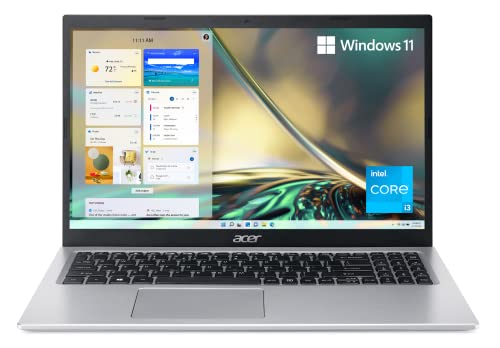

Ready to Buy? Start Here
If this guide helped you decide what to look for, these products are a place to start.

As an Amazon Associate we earn from qualifying purchases. Prices and availability are shown on Amazon.
The Decision in Slow Motion: Testing Your Real Week
Borrow, trial and simulate before you commit
The surest way to choose between a laptop and a Chromebook is to live a representative week on the candidate platform, and there are practical ways to approximate that before spending. If you are considering a Chromebook, spend a week doing everything from the browser on your current computer: documents, email, files, the lot. Note every moment you reach for a desktop program and cannot complete the task comfortably. If the week passes without friction, ChromeOS will feel like a relief. If three tasks break, they are your answer, and a Windows laptop is the honest purchase regardless of price.
The reverse test matters for committed desktop users considering a lighter life. Many people discover their supposed essential programs have web versions that cover everything they actually do, which is a different thing from everything the program can do. Be precise about features rather than brand names: you may need one specific spreadsheet function or one export format, and the web version either has it or it does not. That precision turns a vague platform argument into a checklist, and checklists are how this decision should be made.
Households and classrooms: the multi-user reality
Individuals choose platforms; households and schools live with the consequences together. A Chromebook in a family tends to become the shared, always-ready machine: fast to open, separated by accounts, hard to break and easy to replace. A Windows laptop tends to become the capability machine: the one that runs the scanner’s software, the exam program, the hobby tool. Many homes honestly need the second and enjoy the first, which is why this comparison resists declaring a winner. If the budget allows only one, buy for the hardest essential task in the house, because the easy tasks run on anything.
For children, add the school’s ecosystem to the scales. A child whose school lives in one platform’s classroom tools will find homework smoother on the matching device, and parents will find helping smoother too. For older relatives, weigh the support you personally can give: the platform you know is the platform you can rescue over the phone, and that support value is real even when the other platform looks simpler on paper.
Costs Beyond the Sticker
Software, storage and accessories counted honestly
The purchase price is the beginning of the comparison, not the whole of it. A Windows laptop may invite spending on programs that a Chromebook replaces with included web tools, while a Chromebook may invite a cloud storage subscription once local space fills, and either machine may need a case, a mouse or an adapter for the television. Count the first year of ownership for both options, with the software and services your household actually uses, and the gap between the platforms often narrows or widens in surprising directions. Neither platform is the cheap one in general; each is cheap for a particular pattern of life.
Longevity belongs in the same ledger. A Chromebook’s support end date is published and fixed, which makes its lifespan predictable and its replacement plannable. A Windows laptop’s useful life depends more on its specifications and how well they were chosen, with generous memory extending it and minimal configurations shortening it. Divide each option’s total cost by its realistic years of service and you have the only price comparison that means anything. This guide’s task table, read with that arithmetic in mind, usually settles the question for a specific household within minutes.
Resale, hand-me-downs and second lives
Both platforms hand down well, differently. A Chromebook passed to a child or relative arrives almost factory-fresh after a reset, holds little of your data, and asks nothing of its new owner beyond signing in. A Windows laptop hands down with more capability and more history, rewarding a proper wipe and a fresh setup. If your household cascades devices, factor that second life into the first purchase: the machine that serves you for three years and a child for three more is cheaper than its price suggests, on either platform.
Special Cases That Break the General Rules
A few situations override everything above. A required exam, employer or course program with a stated platform is not a preference to weigh; it is the decision. Creative professionals with established desktop workflows, gamers with a real library, and users of specialist peripherals such as certain scanners, cutters or instruments should start from those anchors and let the platform follow. Travellers to places with unreliable internet should weight offline capability heavily, which can favour either a well-prepared Chromebook or a Windows laptop depending on the software involved. Accessibility needs can also decide the matter, since the platforms’ assistive features differ and the right one is the one that fits the person.
For everyone else, the general rules in this guide hold, and they reduce to a sentence: buy the Chromebook for a browser-shaped life and enjoy its simplicity and value, buy the Windows laptop when any essential task needs the wider world of desktop software, and in both cases choose the individual machine by screen, keyboard, memory and support horizon rather than by platform loyalty. The readers who follow that sentence rarely regret the purchase, whichever side of the comparison they land on.
A Last Word on the Comparison
Comparisons like this one are usually read as contests, and this one has resisted that reading on purpose, because the two platforms are not really rivals for the same life. They are answers to two different descriptions of a life, one browser-shaped and simplicity-hungry, the other software-rich and capability-hungry, and most readers know, once the descriptions are plain, which life is theirs. The machines compared in this guide’s tables are good examples of their kinds; the choice between kinds was always going to be made by your week’s contents, not by any verdict printed here.
So make the list, run the tiebreakers if you need them, and buy with the reason written down. Then set the machine up kindly, for yourself or for the person whose name is on the gift tag, and let the comparison close. The best outcome of a guide like this is not that you remember it, but that you never need it again for this purchase, because the machine you bought keeps quietly being the right one.
What Teachers, Employers and Families Each Get Right
Teachers chose Chromebooks for a reason worth stealing: manageability is a feature. A machine that updates itself, resets in minutes and separates users cleanly lets a class of thirty spend its time on the lesson. Families who copy that thinking, buying the machine that asks least of its least technical member, report the same dividend at kitchen-table scale. Employers chose Windows laptops for an equally stealable reason: capability insurance. When the business’s life depends on specific software, the platform that runs everything is not conservatism but prudence. Households with one essential program should copy that thinking without embarrassment.
The interesting households are the ones that need both lessons at once, and they are most of them. The resolution is rarely a compromise machine; it is a division of labour, whether between two devices or between a device and a service. A Chromebook for the daily ninety percent and access to Windows for the essential ten is a coherent, economical architecture, not an indecision. This comparison’s purpose was never to crown a platform but to make that architecture designable, and readers who finish it knowing which of their tasks belongs on which side have got everything it has to give.
Whichever side you land on, land deliberately. Write the reason on the receipt, literally or figuratively: bought for the school’s ecosystem, bought for the accounts program, bought because our life is a browser. That sentence is the antidote to buyer’s remorse, because it survives the first advertisement for the other platform, and it turns the next purchase, years from now, into a review of a decision rather than a repetition of an argument.
Updates, Lifespans and the Calendar on the Wall
Two different clocks
Each platform keeps time differently, and the difference belongs in the purchase. A Chromebook’s clock is printed in advance: a published date until which it receives updates, after which replacement is the responsible choice. That predictability is a planning gift, especially for schools and families, because the machine’s whole life can be budgeted the day it is bought. A Windows laptop’s clock is vaguer and more personal: it runs until the hardware no longer handles the owner’s software comfortably, a date set largely by the memory and storage chosen at purchase. Neither clock is better; they suit different temperaments, the planner and the keeper, and knowing which temperament is yours helps the choice feel settled rather than argued.
The practical consequence is a calendar note. Chromebook owners should note the support end date where they will see it in good time, because a machine that stops updating should not drift on as the household’s banking computer. Windows owners should note the purchase date and review the machine’s comfort yearly, upgrading memory or storage where the design allows and planning replacement before frustration makes the decision in a hurry. Both habits convert the end of a computer’s life from an emergency into an appointment, which is how grown-up technology ownership is supposed to feel.
The environment, briefly and honestly
The greenest laptop is usually the one already made, which argues for buying the machine that fits your life for the longest realistic span rather than the cheapest that survives the year. On that measure both platforms have a case: a Chromebook’s long, published support window and easy second life in another person’s hands, or a well-specified Windows laptop kept for many years and repaired rather than replaced. Whichever you choose, the hand-me-down and the proper recycling route at the end are part of the purchase’s footprint, and both platforms, reset and wiped as this guide describes, hand down gracefully.
Living With Both: How Households Actually Divide the Work
Households that own both platforms settle into a division of labour that nobody planned. The Chromebook becomes the kitchen and sofa machine: recipes, homework, video calls, the quick look-up, the device a guest can use. The Windows laptop becomes the study and office machine: the tax software, the work files, the printer’s quirks, the games. Each machine is used for what it is best at, and each is judged kindly because it is never asked to be the other. If you are choosing a second device for a home that already has one platform, that division is the opportunity: buy the platform that covers the jobs your current machine does worst, rather than a second copy of its strengths.
The same pattern appears in small businesses and classrooms. A set of simple, managed machines covers the many light tasks, and a smaller number of full laptops covers the few heavy ones, at a total cost below an all-laptop fleet and with less maintenance than either alone. The comparison in this guide is therefore not only about choosing one; it is about knowing what each is for, so that whichever you buy, singly or in combination, you buy it with its job description written down.
Switching costs and the value of staying put
There is an honest argument for whichever platform you already know: your files are organised for it, your shortcuts are habits, and your questions have known answers. Switching should buy something real, simplicity, savings or capability, large enough to repay a month of small unfamiliarities. Many readers of this comparison will correctly conclude that their current platform, in a newer and better-chosen machine, is the right answer. That is not a failure of the comparison; it is the comparison doing its job, which is to make the decision deliberate rather than habitual or fashionable.
The Five-Minute Version for the Truly Torn
If you have read this far and remain undecided, run the tiebreakers in order. First, name any essential program that only exists on one side; if one exists, the decision is made. Second, check the support horizon of the specific Chromebook you are considering against the realistic life of the specific Windows laptop; the longer-lived option wins ties. Third, write down your total first-year cost for both, including software and storage; believe the arithmetic. Fourth, ask which machine you would rather hand to a family member in a hurry; that instinct measures simplicity honestly. A decision that survives all four tests will survive ownership, on either platform.
How the Picks Compare With Each Other
This comparison’s own table assigns everyday tasks to the platform that serves them best. The notes below restate those assignments as a closing summary, so you can find your dominant tasks and read the verdict that follows from them.
Web browsing, email and streaming — the everyday task group in this line-up, highlighted in this guide for both platforms handling these tasks well. A genuine tie: choose by machine quality, price and support horizon, because the platform will not be the difference.
School tasks in cloud documents — the everyday task group in this line-up, highlighted in this guide for the Chromebook’s simplicity and quick management. The Chromebook’s home ground, especially where the school itself uses the same ecosystem.
Specialist desktop software — the everyday task group in this line-up, highlighted in this guide for the wider range of installable programs on a laptop. The Windows laptop’s decisive advantage; a single essential program settles the whole comparison.
Video editing or design work — the everyday task group in this line-up, highlighted in this guide for more choice of powerful programs and hardware on a laptop. The laptop again, because the software catalogue and the hardware headroom both live on that side.
A spare computer for the kitchen or couch — the everyday task group in this line-up, highlighted in this guide for a Chromebook that is fast to open and simple to maintain. The Chromebook as the household’s shared, always-ready second machine.
Travel with limited connectivity — the everyday task group in this line-up, highlighted in this guide for the answer depending on which programs you need offline. The conditional case: list your offline tasks, test them on the candidate platform, and let that test decide.
Frequently Asked Questions
Can Chromebooks run Windows apps?
Not directly. You need web or Android versions of the programs, or a remote desktop to a Windows computer.
Are Chromebooks cheaper than laptops?
Usually, yes, though the gap narrows at higher prices.
Which lasts longer?
It depends on the model. Check battery reviews and, for Chromebooks, the automatic update expiration date.
Can a Chromebook work offline?
Yes for many tasks, if you set up offline access beforehand. Check the apps you rely on.
Is a Chromebook good for students?
Often, for web-based coursework. Confirm that your school or course does not require Windows-only software.
Can a Chromebook replace my main computer?
It can if nearly everything you do is in a browser or has an Android or web version. Check that every program and device you rely on is supported before you decide.
How much memory do I need?
It depends on how many tabs and programs you use at once. Light browsing needs less, while heavy multitasking or demanding software benefits from more. Compare the exact configurations on product pages.
Do Chromebooks have touch screens?
Some models do and some do not. Check the product page for touch support, and whether the screen folds into a tablet-style mode if that matters to you.
Can I print from a Chromebook?
Many printers work, usually through built-in network printing support. Check the printer maker's support page to confirm compatibility with ChromeOS before you buy.
How long will a Chromebook receive updates?
Each model has an automatic update expiration set by its maker. Look for it on the maker's support page or the product listing and factor it into your plans.
Is a Windows laptop better for working from home?
It depends on your tools. If your employer uses web-based tools, a Chromebook may suit you. If you rely on desktop programs or company software, confirm the requirements with your employer first.
Can I install Windows on a Chromebook?
Chromebooks are designed to run ChromeOS, and changing the operating system is not a standard or supported route on most models. If you need Windows, buy a Windows laptop.
Is a used or refurbished laptop a good option?
It can be, if the seller offers a clear return policy and a warranty. For a Chromebook, also check the automatic update expiration date.
Can a Chromebook and a Windows laptop share files easily?
Yes. Cloud storage is the natural bridge, since both platforms work happily with the major services, and files saved there open on either machine. For occasional direct transfers, a USB drive formatted in a common format works between them. Households running both platforms usually stop noticing the boundary within a week, because documents, photos and media formats are shared standards even when the systems differ.
Which platform is safer for a non-technical user?
Both are secure when kept updated, but they ask different amounts of their owners. A Chromebook’s automatic updates, sandboxed design and simple recovery make it forgiving for users who never want to think about maintenance. A Windows laptop offers more control and more responsibility, including choices about security software and downloads. For a user who wants the machine to look after itself, the Chromebook is the kinder default.
Will a Chromebook feel limiting for a university student?
It depends entirely on the course. Subjects taught through browsers, documents and web tools suit a Chromebook completely, and many students prefer the simplicity and battery life. Courses requiring specific desktop software, such as engineering, statistics or media production tools, need a Windows laptop or access to one. Check the course’s published requirements rather than guessing; departments state them precisely because the mistake is so common.
Can I switch platforms later without losing my files?
Mostly, yes, if your files live in standard formats and cloud storage, which is a good reason to keep them there from the start. Documents, photos, music and video move freely. What does not move is software bought for one platform and habits built around specific programs, so the cost of switching is measured in relearning rather than in lost data. Keeping your digital life in portable formats is insurance whichever platform you choose today.
Which is better for an older relative who video-calls family?
The one they will actually use confidently. A Chromebook offers the simplest path: open it, tap the call, and updates never interrupt. A Windows laptop offers the wider choice if the family already uses a particular program or the relative has existing files and habits there. Set up whichever you choose with large text, a simple home screen and the call program pinned where it cannot be lost, and visit once to practise together.
Which platform is better for playing games casually?
Neither is a gaming platform in the dedicated sense, but they differ. A Windows laptop runs the mainstream game stores and a wide catalogue, and even modest models play older and lighter titles. A Chromebook is limited to cloud gaming services and Android games, which can be surprisingly good where the connection is strong. If games are an occasional pleasure, either serves; if a specific title matters, it will name its platform, as essential software always does.
Can a Chromebook handle a small business’s admin?
If the business runs on web tools, as many now do, with browser-based accounting, email, documents and banking, a Chromebook handles the admin with admirable simplicity and security. The blockers are specific: a desktop-only accounts package, a specialist printer or label device, or software tied to a trade body. Inventory those before deciding, exactly as this guide advises for households, and the answer will be clear either way.
Which is easier to lend to a guest or a grandchild?
The Chromebook, by design. A guest sign-in or a spare account gives them a clean, capable machine in seconds, with none of your files, messages or logged-in life exposed, and nothing for them to break that a restart will not forgive. A Windows laptop can be lent with a guest account too, but it asks more of the owner’s preparation. For households that lend often, this small grace is a real point in the Chromebook’s favour.
Do both platforms work with the same accessories?
Mostly. Mice, keyboards, headsets, external drives and modern monitors generally work with both, though a few specialised devices assume Windows drivers. Docks and hubs depend on the ports each machine offers, which is a machine question rather than a platform one. If you own accessories you love, check them against the specific model on your shortlist, whichever platform it runs.
Is it sensible to buy a Chromebook now and a Windows laptop later?
Yes, if the Chromebook covers your current daily life and the Windows machine is a planned answer to a specific future need, such as a course or job you know is coming. What is not sensible is buying a Chromebook for a life that already needs Windows software and hoping to manage; the frustration costs more than the saving. Sequence purchases around known events and the two machines will each be bought at the right time, for the right job.
Bottom Line
Choose a Chromebook for simplicity and low cost when your work is in the browser, and a Windows laptop for flexibility and heavier software. See our best Chromebooks and best laptops, or read our laptop buying guide.
Related Reading
- 6 Best Business Laptop Backpacks: 15 to 17-Inch
- 6 Best Laptop Backpacks: 16 and 17-Inch Picks
- 6 Best Laptop Cooling Pads: Gaming and Budget Fans
- 6 Best Laptop Docking Stations: USB-C and Dual Monitor
- Business Laptop Buying Guide: Windows Pro, Ports, Warranty
More Laptop Guides
- Best Laptops
- Best Laptops Under $500
- Best Laptops Under $1000
- Best Chromebooks
- Best Gaming Laptops
- Best Laptops for Students
- Best Laptops for Programming
- Best Business Laptops
- Best Workstation Laptops
- Best Touchscreen and 2-in-1 Laptops
- All laptop guides


