Photo editing on a laptop depends on three things: how accurate and bright the screen is, how much memory you have, and how fast the storage is. A 2-in-1 adds touch and often pen input, which helps with retouching and masking, and the hinge lets you fold it into a tablet or prop it in tent mode.
The six laptops below all use 14 inch OLED touchscreens. Specs come from each product’s listing page. Several listings are configurations sold by third parties, so confirm the exact version before you buy. We have not used these laptops ourselves, and color and brightness figures are the makers’ own.
As an Amazon Associate we earn from qualifying purchases. Links below are affiliate links, and they do not change the product information we give.
What to Look For
| Feature | Why it matters |
|---|---|
| Display | Color coverage (such as DCI-P3) and brightness shape how edits look |
| Memory | 16GB is a floor for large files; 32GB gives more room |
| Storage | RAW libraries fill drives quickly |
| Pen support | Helps with retouching and masks |
| Seller | Resold or upgraded units may carry a different warranty |
In this guide
Specs at a Glance
| Laptop | Processor and memory | Screen | Storage |
|---|---|---|---|
| ASUS Vivobook Flip 14 | Core Ultra 7 256V; 16GB | 1920 x 1200 OLED; 500 nit peak; 100% DCI-P3 | 1TB |
| Lenovo Yoga 7i | Core Ultra 5 322V; 16GB | 1920 x 1200 OLED; 400 nit | 512GB |
| Lenovo Yoga 7a | Ryzen AI 5 430; 16GB | 1920 x 1200 OLED; 400 nit; Dolby Vision | 512GB |
| HP OmniBook X Flip 14 | Ryzen AI 5 430; 16GB | 2K OLED touchscreen | 512GB |
| HP OmniBook Ultra Flip 14 | Core Ultra 7 258V; 32GB | 2880 x 1800 OLED; 120Hz | 1TB |
| Lenovo Yoga 9i | Core Ultra 7 258V; 32GB | 4K OLED; up to 600 nit; 100% DCI-P3 | 1TB |
The 6 Best 2-in-1 Laptops for Photo Editing
Top pickBest for editing on a 1TB drive
1. ASUS Vivobook Flip 14
A 14 inch 2-in-1 with a 1920 x 1200 OLED touchscreen at 60Hz, 500 nit peak brightness and 100 percent DCI-P3 coverage, as the listing states. It has an Intel Core Ultra 7 256V, 16GB of LPDDR5X memory, a 1TB PCIe 4.0 drive, Thunderbolt 4, Wi-Fi 7 and a backlit keyboard.
Suits: editing on a 1TB drive. Strengths: a wide color figure and a large drive. Weaknesses: a 60Hz screen. Skip it if you need 32GB of memory.
View ASUS Vivobook Flip 14 2-in-1 Laptop on Amazon
Best for light travel edits
2. Lenovo Yoga 7i 14″ 2-in-1
A 3.08 lb aluminum 14 inch convertible with a 1920 x 1200 OLED touchscreen at 400 nits, a 360 degree hinge, an Intel Core Ultra 5 322V, 16GB of memory and 512GB of storage. The listing notes stylus support and a numeric keypad.
Suits: light travel edits. Strengths: a low weight and pen support. Weaknesses: only 512GB. Skip it if your library is large.
View Lenovo Yoga 7i 14 Inch 2-in-1 Laptop on Amazon
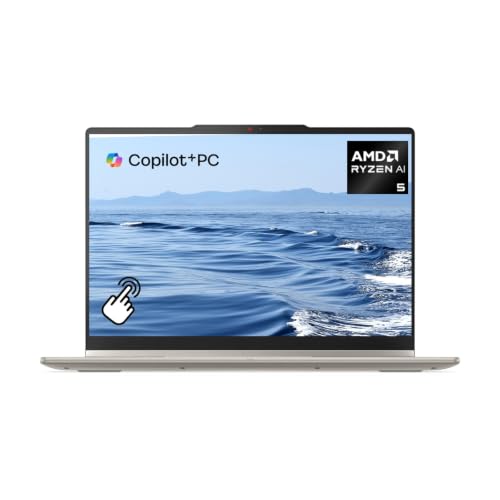
Best for an AMD-based option
3. Lenovo Yoga 7a
A 14 inch convertible with a WUXGA OLED touchscreen at 400 nits with Dolby Vision, an AMD Ryzen AI 5 430, 16GB of memory, 512GB of storage and Radeon graphics. The listing lists a backlit keyboard, a fingerprint reader and stylus support.
Suits: an AMD-based option. Strengths: Dolby Vision and a fingerprint reader. Weaknesses: a modest drive. Skip it if you need Intel.


Best for a Windows 11 Pro 2-in-1
4. HP OmniBook X Flip 14
A 14 inch 2-in-1 with a 2K OLED touchscreen, an AMD Ryzen AI 5 430, 16GB of memory, 512GB of storage and Radeon 840M graphics. A 360 degree hinge allows laptop, tablet, tent and stand modes, and the listing mentions stylus support.
Suits: a Windows 11 Pro 2-in-1. Strengths: OLED and four modes. Weaknesses: brightness is not stated in the text we read. Skip it if you need peak brightness data.


Best for a high-memory build
5. HP OmniBook Ultra Flip 14
A 14 inch convertible with a 2880 x 1800 OLED touchscreen at 120Hz, an Intel Core Ultra 7 258V, 32GB of memory and a 1TB drive, with two Thunderbolt 4 ports and an active pen. This listing is sold by MichaelElectronics2 as a professionally upgraded unit with that seller’s own one-year warranty.
Suits: a high-memory build. Strengths: 32GB, 120Hz and an active pen. Weaknesses: third-party upgrade and warranty. Skip it if you want a factory configuration.

Best for the sharpest screen here
6. Lenovo Yoga 9i 2-in-1 Aura Edition
A 14 inch convertible with a 4K OLED touchscreen listed at up to 600 nits and 100 percent DCI-P3, an Intel Core Ultra 7 258V, 32GB of memory and a 1TB drive. Ports include USB-A and USB-C at 20Gbps. The listing says it is unopened retail packaging with a one year Lenovo warranty.
Suits: the sharpest screen here. Strengths: 4K, 32GB and 1TB. Weaknesses: more screen pixels use more power. Skip it if you want a lighter spec.
View Lenovo Yoga 9i 2-in-1 Aura Edition on Amazon
Setup Tips
- Calibrate the display if you edit for print.
- Keep working files on the internal drive and archive to external storage.
- Update graphics and system drivers before large projects.
- Try the pen in your editing app before relying on it.
Mistakes to Avoid
- Buying 8GB of memory for large RAW files.
- Ignoring that the seller can change the warranty.
- Judging color only by resolution.
- Skipping a backup drive.
Screen Accuracy Versus Screen Size
For photo work, the quality of the display matters more than its diagonal. Look for the color gamut coverage the maker lists, such as DCI-P3 or sRGB, and treat those figures as a starting point rather than proof of accuracy. A panel can cover a wide gamut and still be tuned for vivid, punchy colors out of the box. If your images are meant for print or clients, factory calibration data or the ability to run a hardware calibrator is far more useful than a high resolution number.
OLED panels have deep blacks and strong contrast, which makes shadows look rich while you edit. They also bring a few things to consider. Glossy touchscreens reflect lamps and windows, so check how you will work: a dim room or a controlled desk is better than a sunny cafe table. Brightness is another variable, and the listing may state a peak figure that applies only to small areas or to HDR content. Sustained full-screen brightness is often lower, so read the fine print.
Display settings affect editing as well. Many laptops let you switch between color profiles, and some include software that locks the display to a standard space. Use that setting when you edit for the web or print, and turn off automatic brightness and night modes while making color decisions. Resolution matters for seeing fine detail, but a very high resolution on a small screen can force you to scale the interface, so test how comfortable it is.
Memory, Storage and Working With RAW Files
Editing software loads large images and layers into memory, so your RAM determines how many layers, brushes and open files you can handle before the system slows. Sixteen gigabytes can cope with many everyday edits, but large panoramas, focus stacks, big layered files and several open applications benefit from more. Check the listing, because memory in thin laptops is often soldered, which means you cannot upgrade it later.
Storage works in two ways. Speed affects how quickly catalogs, previews and exports run, and capacity decides how much of your library lives on the laptop. A fast internal drive helps when you scroll through hundreds of RAW files, while a small one fills up quickly with catalogs, caches and scratch space. Plan to keep the active project and catalog on the internal drive and move completed work to external storage.
Build a backup habit around the laptop. A portable external drive for working archives, a second copy elsewhere and perhaps a cloud copy for the most important images protect against theft, damage and drive failure. Leave free space on the internal drive, since editing programs need room for temporary files. If you shoot video or many high-resolution frames, a larger drive or a fast external SSD becomes more than a luxury.
Pen and Touch in an Editing Workflow
A pen can make retouching, dodging and burning, masking and selections feel more natural than a trackpad. Look for pressure sensitivity support, a screen that responds smoothly at the edges and an app that supports stylus input. Not all editing software handles pen pressure the same way, so try your main program before relying on it.
Check how the pen is supplied. Some listings mention stylus support but do not include the pen, and compatibility depends on the pen technology. Confirm which pen type works with your laptop and where it is stored or charged. A pen that lives in a slot or attaches magnetically is less likely to be lost.
The convertible hinge matters too. Tablet mode lets you rest the laptop on your lap or desk and draw, but a heavier machine is tiring to hold for long. Check weight and thickness, and think about whether you want a tent or stand mode for drawing at a comfortable angle. Palm rejection is also worth trying: your hand should rest on the screen without leaving accidental marks. For many photographers, touch is a convenience and the pen a precision tool, so choose according to how much retouching you do.
Ports, Card Readers and External Displays
Photo workflows involve a lot of plugging in. Memory cards, external drives, tethered cameras and monitors all compete for ports. Check how many fast USB-C or Thunderbolt-type ports the laptop offers, what speeds they support and whether they can drive an external monitor. A thin laptop with only two ports may need a dock or hub, so plan for that cost and the extra cable.
Many 2-in-1 laptops omit a full-size SD card slot. If you shoot with SD cards, look for a built-in reader in the specifications or budget for a reliable external one. Card reader speed can affect how quickly you import large batches, so a modern reader is better than a very old one.
An external display can improve your editing environment. A larger, calibrated monitor at your desk helps with color judgment and gives you more room for panels and tools. Check that the laptop can output the resolution and refresh rate your monitor supports through its ports. Wi-Fi speed and a stable connection also matter if you move images across a network or sync to the cloud. Consider the power adapter too, since charging through a port can be convenient but may limit what else you plug in.
Warranty, Seller and Battery Checks
Several of these listings involve resellers or upgraded configurations, so the seller matters. A laptop sold by a third party may carry a different warranty from the manufacturer’s standard terms, and an upgraded unit may change who is responsible if something fails. Read the seller details, the return policy and the warranty description before buying, and keep your order information.
Battery life varies with screen brightness, resolution, refresh rate and workload. Editing with a bright OLED screen drains the battery faster than writing emails. Do not rely on a quoted number; check the capacity and reviews for real-world use. A charger that supports fast charging helps on the go, and a power bank that supports laptop charging can extend a shoot day.
Heat and noise are also practical issues. Thin convertibles can throttle when pushed through heavy exports, so allow ventilation and avoid blocking vents on a soft surface. Keep the operating system and drivers current, and test the display, hinge, speakers and ports soon after the laptop arrives, while you can still return it. Clean the screen with a microfiber cloth, and use a case or sleeve to protect the hinge and touch surface in a bag.
Choosing a 2-in-1 for Photo Editing in More Depth
A convertible laptop for photo work lives or dies by its screen and its pen, but the third partner in the relationship is sustained performance. Editing sessions are marathons of previews, exports and layered files; a machine that sprints for five minutes and then throttles will frustrate more than a steadier machine with humbler peak numbers. When comparing the picks in this guide, think about your longest real session and your biggest real files, and favour the design that stays composed under that load, with cooling and power behaviour you can live with on a desk and on your lap.
Memory and storage choices deserve the same long view, because on many convertibles they are fixed at purchase. Editing applications reward generous memory when large files and multiple applications share the machine, and fast storage changes the feel of everything from importing to scrubbing through a catalogue. Buy the configuration for the photographer you will be in two years, with a library twice its current size, rather than the one that merely survives this month’s work.
The Pen Is a Tool, Not a Toy
For retouching, the pen is the reason the 2-in-1 form exists in this guide at all. Pressure sensitivity, palm rejection and the feel of the nib on glass decide whether masking and dodging feel like drawing or like arguing. Test, in person if you can, how the pen tracks at slow speeds in the corners of the screen, where parallax and edge accuracy show themselves. A pen that behaves at the edges makes full-frame retouching natural; one that wanders there teaches you to avoid the edges of your own photographs.
Set up the pen deliberately once it arrives: assign its button to the tool you reach for most, calibrate your grip pressure in your editing application, and decide which tasks belong to the pen and which to the mouse or trackpad. Most editors settle into a hybrid rhythm, pen for local work, pointer for navigation, keyboard for commands, and that rhythm becomes personal infrastructure. Protect it by keeping a spare nib kit and knowing where the pen charges or lives, because a lost pen quietly converts your convertible back into an ordinary laptop.
Colour Workflow on a Convertible Screen
A good panel is the beginning of colour confidence, not the end. Work in consistent lighting when you judge colour, keep screen brightness at a stable working level rather than letting it wander automatically, and calibrate with a hardware tool if your work goes to print or to demanding clients. Note that flipping between laptop and tablet orientations should not change your colour decisions; if it does, your viewing angle or ambient light is interfering, and the fix is environmental before it is technical.
Soft-proof before you deliver. A screen that covers a wide colour range will happily show you colours a print or a client’s ordinary display cannot reproduce, and the surprise belongs in your studio, not in their inbox. Build a delivery check into your export routine: view the exported file, on the exported settings, once, with fresh eyes. It takes a minute and it is the cheapest professional habit in this entire guide.
2-in-1 Laptops in Real Editing Life
For the travelling photographer, the convertible earns its bag space by collapsing three devices into one: field laptop for backup and culling, tablet for reviewing with clients or family, and retouching station at the kitchen table of a rental. Protect the dream with logistics: a charger that also serves your phone, a card reader that lives in the bag, and a backup drive that travels in a different bag from the laptop. The workflow is only portable if its supporting cast is packed by routine rather than remembered in a panic.
For studio and client work, tent and tablet modes turn the machine into a presentation tool: show a selection, hand over the pen, let a client mark favourites directly. That interactivity sells work and settles decisions faster than emailed contact sheets. Just keep a clean client profile or a tidy desktop for those moments, because the screen you edit on is also the screen you perform with, and professionalism is partly housekeeping.
For students and learners, the 2-in-1 merges note-taking, reference material and editing into a single device that goes everywhere, which is exactly where learning happens. The risk is distraction wearing a productivity costume. Keep editing sessions in the editing application, references pinned deliberately, and notifications off while files are open. The machine can be a studio or a slot machine; the difference is configuration and intent, not hardware.
Setup, Care and Troubleshooting
Set up your editing environment once, properly: application colour settings checked, catalogue location decided, backup running automatically, pen configured, screen brightness fixed for work. Then resist re-engineering it monthly. Most editing misery traces to drifting setups, catalogues in three places, backups that were nearly configured, rather than to hardware limits. A boring, documented setup that you trust beats a brilliant one you half remember.
When edits look different on export than on screen, work the chain in order: application colour settings, export colour space, screen calibration state, viewing application. Change one link at a time and test with the same file. Randomly toggling settings until it looks right fixes the screenshot in front of you and corrupts the next ten files. Colour problems are logic problems, and they yield to sequence, not to volume of attempts.
Care for the hinge and the screen, the two parts a convertible stresses most. Open and close from the centre of the lid, keep grit off the keyboard before folding into tablet mode, since a crumb trapped against the screen in tablet mode can mark it, and carry the machine in a padded sleeve even inside a larger bag. Convertibles are robust when treated as instruments and fragile when treated as frisbees; the owner’s habits decide which.
How the Picks Differ in Practice
The ASUS, Lenovo and HP options in this guide each balance the same triangle, screen quality, pen experience and sustained performance, from slightly different corners, with design language and port selection quietly steering daily convenience. Yoga models lean into the convertible heritage of the category, the OmniBook entries bring HP’s take on the premium thin-and-light balance, and the Vivobook aims the formula at a friendlier cost. Your deciding factors should be your files, your pen habits and your travel pattern, in that order.
If two machines still tie, decide by the ecosystem you already own and the support you can actually reach. A familiar charger standard, a pen shared with another device, a service centre in your city: these unglamorous continuities save more working hours across three years than a small specification advantage saves in three minutes. Buy the machine that fits your life, then make it disappear into your work.
A Photo Workflow Built Around the Convertible
Design your workflow in four stations and let the machine serve each deliberately. Capture and backup happen wherever the photographs are, with the laptop in its most portable mode and the routine kept ruthless: copy, verify, second copy, then relax. Culling suits the tablet and pen, on a sofa, at speed, because selection is a visual judgement that benefits from comfort and distance from the desk. Editing returns to the desk, the calibrated screen position and the full keyboard. Delivery is a checklist, not an improvisation.
Templates and presets are the quiet machinery of this workflow. A consistent import routine, file naming, folder structure, starting develop settings, means every shoot enters the system identically and can be found, finished and delivered without archaeology. Convertibles tempt improvisation because they work everywhere; the photographers who thrive on them are the ones whose process is identical everywhere, so the machine’s flexibility serves the work instead of dissolving it.
Use the modes as punctuation. Laptop mode for the heavy administrative work, tent mode for client review, tablet mode for culling and retouching with the pen. Mode changes mark transitions in your own attention, and over weeks they become a rhythm your household and clients can read: the machine folded flat means selection is happening; the pen in hand means leave the photographer alone. Small social signals are real workflow infrastructure.
Review the workflow quarterly with the same honesty you apply to photographs. Where do files wait too long, where do backups depend on memory, where does the pen get left behind? Fix one friction per quarter, completely, rather than redesigning everything in a weekend of enthusiasm. Workflows, like photographic styles, are built by accumulation, and the convertible rewards the patient architect because it can genuinely become every station in the chain.
The destination of all this design is invisibility: a machine and a method so settled that a shoot flows from camera to delivery without the tools being discussed, least of all by you. When the workflow disappears, what remains is the photography, which was the point of buying a computer shaped like a sketchbook in the first place.
Accessories That Complete the Convertible Studio
Build the accessory kit around the workflow rather than the catalogue: a charger that lives in the bag, a card reader that matches your cards, a compact drive for the road copies, a sleeve that protects the screen in transit, and a spare pen nib set where the pen system uses them. Each item answers a moment you have actually met. The kit should fit in one pouch and be auditable at a glance, because accessories scattered through a household are accessories you effectively do not own.
At the desk, a stand or dock that raises the screen to a healthy height and a full-size keyboard for long administrative sessions turn the convertible into a proper studio without surrendering its portability. The test of the desk setup is the thirty-second transition: arrive, connect, and be editing, with colour and posture exactly as calibrated. Every cable that must be hunted is a small tax on every working day, compounded.
Spend on the bag before the gadgets. A convertible lives a travelling life, and its screen and hinge meet the world through whatever carries them. A genuinely protective, well-organised bag prevents more loss than any other accessory in this section, and it makes the portable workflow feel intentional rather than improvised. Tools carried well get used well; that is the whole philosophy in one sentence.
More Notes for Photo Editing on a 2-in-1
Create a personal test file: your most demanding photograph, with the layered edits you typically make, and use it to benchmark any new machine, pen or software update. Personal benchmarks beat published ones because they measure your work, and a familiar file exposes differences in screen, speed and pen behaviour that specifications hide.
Keep a one-page record of your editing setup: application settings that matter, colour choices, backup locations and pen configuration. When a machine is replaced or a drive fails, that page rebuilds your studio in an hour instead of a week of rediscovering preferences, and it is the cheapest insurance a digital photographer can hold.
Document your setup as you build it: which cable goes where, which settings you changed and why, and what normal behaviour looks like. Three months later, when something misbehaves at the worst possible moment, that note is the difference between a five minute fix and an evening of guessing. A photo of the rear panel before you tidy cables away is worth a page of description.
Change one variable at a time when troubleshooting. Swapping cables, ports and settings simultaneously feels faster but destroys the evidence, so when the problem vanishes you never learn what caused it, and when it stays you have no idea which change to undo. Methodical feels slow for ten minutes and saves hours across the life of the setup.
Keep firmware and software updates on your terms: read what an update changes, update during a quiet window rather than the night before a deadline, and keep a note of the previous version. Most updates are uneventful improvements, but the one that resets a setting you relied on always arrives when you can least afford surprises.
Label everything. Cables, ports, power supplies and storage all look identical in a drawer and surprisingly similar behind a desk. A strip of tape and a marker prevent the classic fault where the wrong adapter gets used or the critical cable gets borrowed for something else. Future you, crouched behind furniture with a torch, will be grateful.
Buy headroom where it is cheap and skip it where it is not. Capacity, airflow and physical space age well; headline speeds you never use do not. Think about what the setup must still handle in a few years, leave a sensible margin for that, and spend the difference on the parts you interact with every day.
Keep the original boxes and accessories for anything you might resell or return, and keep a single folder, paper or digital, with receipts and warranty details. Resale value drops sharply without packaging, and warranty claims go faster with proof of purchase to hand. It is dull administration that pays for itself the first time it is needed.
Keep a small spares kit matched to your setup: the cable types you actually use, a spare power supply where one exists, batteries for the wireless things, and the one adapter your desk cannot live without. Most technology downtime is not a failure of the main device but of a two-pound supporting actor, and the spares kit converts those evenings from expeditions into swaps.
Schedule a brief periodic review of your setup: what is connected, what is unused, what has been borrowed and never returned to its place. Setups drift socially, with cables migrating and settings changing in small unrecorded ways, until the system nobody recognises fails in a way nobody can diagnose. Fifteen minutes of tidying and noting, a few times a year, keeps the system legible to its owner.
Learn the reset and recovery path for everything you depend on before you need it: how it restarts, what a factory reset erases, where your settings are recorded. Recovery knowledge acquired calmly, in advance, is worth ten times the same knowledge acquired at midnight under pressure. Write the steps in your setup notes and keep them with the documentation, not in your memory.
Teach one other person the basics of your setup: how to start it, how to stop it, and what normal looks like. Shared knowledge is resilience for households and small teams alike, and explaining a system is also the fastest audit of your own understanding. The gaps in your explanation are a map of the gaps in your documentation, and both are fixable on a quiet afternoon.
Prefer boring reliability in the parts of a system you cannot see working. The visible components get the reviews and the excitement, but uptime is manufactured by the unglamorous layer: sound power, honest cables, ventilation, backups that have been tested rather than assumed. Audit that layer once in a while with the same enthusiasm you bring to upgrades, and your systems will develop the finest reputation a system can have, which is silence.
2-in-1 Photo Editing FAQ
Do all include a pen?
Most list stylus support, but a pen is not always in the box. Check each listing.
Why is OLED common in this list?
Makers promote deep contrast and wide color coverage, which suits photo work.
Is 16GB of memory enough for photo editing?
It is workable for many edits, but large layered files, panoramas and heavy multitasking benefit from more. Check whether the memory can be upgraded, since it is often soldered. Decide based on your typical file sizes.
Do I need to calibrate an OLED laptop screen?
If your work goes to print or clients, calibration helps ensure consistent color. Some laptops include color profiles, and a hardware calibrator can improve accuracy. Casual editing may be fine with a good factory profile.
Is screen glare a problem for editing?
Glossy touchscreens can reflect lights and windows. Work in a controlled environment or adjust your seating and lighting. Brightness settings can also help.
Should I choose touch and pen over a regular laptop?
It depends on your retouching habits. A pen can make masks and fine adjustments easier, but a traditional laptop may be lighter and cheaper. Try the pen workflow if you can.
Can I connect a larger monitor?
Most modern laptops can output to an external display through USB-C or HDMI. Check the ports and supported resolutions in the listing. A calibrated monitor is a useful upgrade for color work.
How much storage should I plan for?
Think about your catalog size, current projects and how often you archive. RAW files add up fast. Keep older work on external drives and leave free space on the internal drive.
Does a third-party seller affect my warranty?
It can. Resold or upgraded laptops may come with different terms than a factory-sealed unit. Read the seller's policy and keep your receipt.
Processor and Graphics Choices for Photo Work
Photo editing leans on the processor and, increasingly, on graphics hardware. Tasks such as exporting a batch of images, applying noise reduction, building panoramas and using AI-based masking are all CPU- and GPU-heavy. Slim 14-inch convertibles usually use efficient chips with integrated graphics, which handle most still-photo work comfortably but will take longer on large batches than a thicker laptop with a dedicated graphics card.
When you compare models, look at the processor family and generation, the number of cores and whether the laptop includes a neural processing unit. Editing software is adding features that use that hardware, but support varies by program and version, so check what your software actually uses before paying for it. A strong integrated chip is usually enough for editing RAW files from a typical camera; heavy video work or very large panoramas are where you may feel limits.
- Check the software you use against the manufacturer system requirements.
- Look at sustained performance as well as peak speed, since thin laptops can slow down when they heat up.
- Remember that a faster chip will not fix a slow storage drive or too little memory.
Thermals, Fan Noise and Sustained Performance
Convertible laptops are slim, which limits cooling. When you export a large batch, the laptop may spike in speed at first and then settle lower as it warms up. This matters if you edit for long sessions, because the speed you see in a short benchmark may not reflect long-running work. Reading owner feedback about fan noise and heat can tell you how a particular model behaves.
Stand mode and tent mode can change airflow, too. Check that vents are not blocked by a tablet-style posture or a soft surface. If you edit with the laptop in tablet mode for long periods, a warm underside may be uncomfortable, and a thin stand or a desk can help. Keep the vents free of dust, and use a hard, flat surface for heavy exports.
Color Workflow Beyond the Panel
A good screen is only part of reliable color. Your editing software, operating system profile and output destination all shape what you see. Check that the display profile in use matches the one you intend, and be careful with brightness: editing at maximum brightness can lead you to make images too dark. A moderate, consistent brightness helps you judge exposure the same way each session.
- Choose a working color space and stick with it across projects.
- Soft-proof images before printing, if your software supports it, to preview how the print may differ.
- Be aware that other people will view your images on screens that are less accurate than yours.
If you need strict color accuracy for client or print work, a hardware calibrator or a reference monitor attached to the laptop is a more dependable option than relying on the built-in panel alone.
Backup and Portability for Editing on the Move
A convertible laptop encourages editing in cafes, on trips and in client meetings, where backup becomes a practical concern. Photos stored on a single laptop drive are exposed to loss from theft, damage or failure. Keep originals on the memory card until you have copied them to at least two locations, such as the laptop and an external drive or cloud storage.
Carry a small, rugged external drive and a card reader if the laptop lacks a slot. A protective sleeve helps with a hinge that flexes both ways, and a stylus holder or loop keeps a pen from going missing. Consider weight and charger size as part of the travel setup, because a lightweight laptop with a bulky power brick can feel heavier than it looks.
Using Tablet Mode for Retouching and Detail Work
The convertible design earns its keep during retouching. Folding the screen back and drawing directly on the image gives a natural feel for tasks like dodging and burning, masking around hair and cleaning dust spots. A pen allows more precise control than a trackpad, especially for fine brush work, and pressure sensitivity can drive brush size and opacity in software that supports it.
A few habits make this smoother. Use a screen protector or a matte film only if you are comfortable with its effect on image clarity, since it can add texture and slightly soften detail. Keep the screen clean, because fingerprints show under strong light. Support the laptop on a stable surface when drawing, and consider a small stand or a lap desk to raise the angle. Learn the shortcut gestures in your software so you do not need to reach for the keyboard while the screen is folded back.
Frequently Asked Questions
Do I need a dedicated graphics card for photo editing?
Not for most still-photo work. Modern integrated graphics handle RAW editing and common filters comfortably. A dedicated card helps with heavy batches, large panoramas and video, but it adds thickness, heat and cost, which a slim convertible usually avoids.
Will a thin 2-in-1 slow down during long exports?
It can. Slim laptops often reach high speed briefly and then settle lower as they warm up. For long sessions, use a hard, flat surface, keep vents clear, and read owner feedback about heat and fan noise for the model you are considering.
How should I back up photos while traveling?
Keep the originals on the memory card until they are copied to two places, such as the laptop plus an external drive or cloud storage. A small rugged drive and a card reader are easy to carry and protect against loss.
Should I edit at full screen brightness?
Usually not. Very high brightness can lead you to edit images too dark. Pick a moderate, consistent level and use it every session so exposure judgments stay comparable, especially if you also edit in different lighting rooms.
Is a 2-in-1 powerful enough for large RAW files and layered edits?
Modern premium convertibles handle large RAW workflows and layered files comfortably, provided the configuration has enough memory and fast storage and the cooling can sustain the load. The honest test is your own biggest file: if you regularly build very large layered documents or batch-export hundreds of images, favour the strongest sustained-performance option you can carry, and expect exports to be a coffee-break task rather than an instant one.
Should I edit with the pen or a mouse for best accuracy?
Use both, for different jobs. The pen excels at anything resembling drawing: masks, local adjustments, retouching strokes, because pressure and angle carry information a mouse cannot. The mouse or trackpad remains faster for precise clicking through panels, sliders and file management. Most experienced editors switch without thinking, pen in hand for the canvas, pointer for the chrome of the application around it.
How do I keep colours consistent between laptop and tablet modes?
Keep brightness fixed at your working level in both modes, disable automatic brightness while editing, and be aware of viewing angle, since looking steeply down at a folded screen in bright room light changes perceived contrast. Judge critical colour in one consistent setup, ideally the mode and position you calibrated in, and treat other modes as review and selection modes rather than final colour sign-off.
What is the best way to back up photos while travelling with one laptop?
Follow the two-copy rule before sleep: the laptop holds one copy, and a portable drive or cloud upload holds another, stored separately from the laptop. Cards are not a backup once they are reused, so do not format them until the two copies exist and you have opened a few files from the copy. The routine takes minutes nightly and converts a lost bag from a lost trip into an inconvenience.
How long should I expect the battery to last during editing?
Editing is demanding work, driving the screen brightly and the processor hard, so expect notably less than the light-use figures in advertisements and plan around mains power for long sessions. For travel days, cull and organise on battery, which is lighter work, and save heavy exports for a socket. A compact high-output charger that also serves your other devices keeps the travel kit honest and light.
The Short Version
For a 1TB drive and a wide color figure, the Vivobook Flip 14. For light travel, the Yoga 7i. For AMD with Dolby Vision, the Yoga 7a. For an HP 2K option, the OmniBook X Flip 14. For 32GB and 120Hz, the OmniBook Ultra Flip. For the sharpest screen, the Yoga 9i.