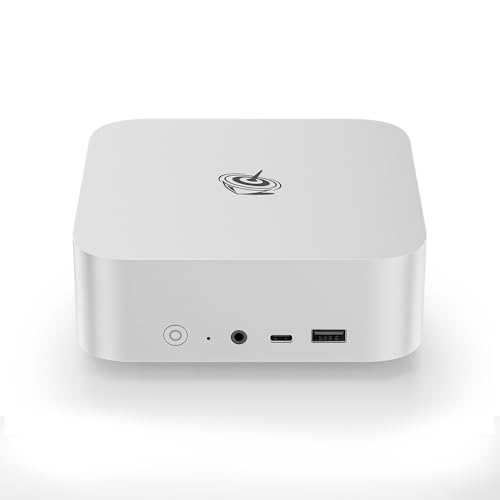
Where to buy
Every price and order on this page goes through Amazon. Check the live listing for the current price and delivery estimate before you commit. We may earn a commission from qualifying purchases.
- Best overall for a first office PC: Beelink SER8 Mini PC, Ryzen 7 8745HS, 32GB DDR5, 1TB SSD — Check on Amazon
- GMKtec NucBox K8 Plus, Ryzen 7 8845HS, 32GB DDR5, 1TB SSD, OCuLink — Check on Amazon
- Apple Mac mini with M4 Chip, 16GB Memory, 256GB SSD — Check on Amazon
- Dell OptiPlex 5060 SFF Desktop, Core i7, 32GB RAM, 1TB SSD (Renewed) — Check on Amazon
- Beelink SER5 MAX Mini PC, Ryzen 7 7735HS, 24GB RAM, 500GB SSD — Check on Amazon
See 1 more Amazon option
- GMKtec NucBox M6 Mini PC, Ryzen 5 6600H, 16GB DDR5, 512GB SSD — Check on Amazon
Read the full guide ↓
Disclosure: As an Amazon Associate, reviewstook.com earns from qualifying purchases. Links to Amazon on this page are affiliate links; they cost you nothing extra. Listing details such as price and availability change often, so check the current Amazon listing before you buy.
Buying your first home office PC is harder than it should be, because listings are written in a dialect nobody speaks at home: product titles stack chip numbers, memory types and port names into one breathless line, and the difference between five good years and frustration by spring usually hides in two or three of those words. This guide is the translation. It explains the vocabulary first, in plain English, then walks through six machines under $700 that a beginner can buy with confidence — what to plug in on the first evening, what else to budget for, and which upgrades are real.
Three honest things before the picks. First, none of these six computers has a separate graphics card, and none is a gaming machine in disguise. The graphics are built into the processor (the glossary below explains), and at this budget that is the correct design: they run two or three monitors, video calls and every normal office program without breaking stride, and the strongest here can even handle light photo editing. What they will not do is play demanding modern games well — if games are the real priority, start with Best Gaming PC Under $700 instead. Second, $700 is a genuinely good budget for office work: it is where generous memory and storage stop being expensive upgrades and become the normal configuration. Third, one of the six is a renewed business desktop and one is a Mac — both legitimate beginner choices, for opposite reasons.
In this guide
Quick Picks
New to this and short on time? Find your situation in the left column; the detailed reviews below explain the reasoning.
| Buyer type | Pick | Why it stands out | Link |
|---|---|---|---|
| Best overall for beginners | Beelink SER8, Ryzen 7 8745HS, 32GB, 1TB | Strong built-in graphics, generous memory and storage, and measured noise around 34.6 dB(A) under full load | Check on Amazon |
| Best if your desk has lots of plugs | GMKtec NucBox K8 Plus, Ryzen 7 8845HS, 32GB, 1TB | Two USB4 ports, an OCuLink port and two wired network ports — the most connections in this guide | Check on Amazon |
| Best if you don’t need Windows | Apple Mac mini, M4 chip, 16GB, 256GB | The smallest, quietest machine here, backed by Apple’s shops and support lines | Check on Amazon |
| Best value — renewed business desktop | Dell OptiPlex 5060 SFF, Core i7, 32GB, 1TB (Renewed) | The same memory and storage headline as the top picks, in a lower-priced renewed package | Check on Amazon |
| Best three-monitor mini in the mid-range | Beelink SER5 MAX, Ryzen 7 7735HS, 24GB, 500GB | Three separate 4K display outputs and 24GB of memory in the mid-range tier — check price on Amazon | Check on Amazon |
| Best low price that can still grow | GMKtec NucBox M6, Ryzen 5 6600H, 16GB, 512GB | Memory you can upgrade later, two storage slots and USB4 at a budget-tier price — check price on Amazon | Check on Amazon |
How These Picks Were Chosen
The first filter was completeness. Every machine below arrives as a finished, working computer — processor, memory, storage and an operating system already installed — because a beginner’s first PC should not begin with a parts list. That is why you will find no barebone kits here (the glossary explains the term). The second filter was the price ceiling, applied honestly: a machine had to be sold at, or regularly seen at, $700 or less in the United States. Two listings drift above that line when the memory market spikes; both are labelled buy-only-at-a-price rather than quietly rounded down.
We did not use these PCs ourselves. We read the manufacturers’ listings, specification pages and manuals, and compared what decides an office machine’s daily behaviour: processor, memory and whether it can grow, storage size and expandability, monitor count, and what stands behind it if it fails. Three beginner-specific rules sat on top: no machine under 16GB of memory (modern office work is browser work, and browsers are memory-hungry); every display count taken from a maker’s own specification, with factory options labelled as options rather than counted; and every pick either new from a maker that supports it, or renewed through a recognized program — because a work computer you cannot get fixed is not cheap at any price.
One judgment deserves stating up front, because it shapes the whole list. The renewed Dell below was chosen in its Core i7-8700 generation for a specific reason: that processor is on Microsoft’s official Windows 11 supported list. Cheaper renewed desktops with older processors exist in large numbers, and many run Windows 11 only through workarounds Microsoft does not support. For a first work machine, supported beats cheap-but-fudged.
The Words on the Listings, in Plain English
Read this section once and the six reviews below will make complete sense. Each term is explained the way we would explain it across a kitchen table, and each one names which of the six picks it applies to.
- Processor (CPU). The chip that does the thinking. More cores means more programs juggled at once without slowing down. Every pick here has six or more — plenty for office work.
- Integrated graphics. The picture-making circuitry built into the processor itself, instead of living on a separate card. All six picks work this way. Integrated graphics are exactly right for documents, browsers, video calls and multiple monitors; the stronger versions here (AMD’s Radeon 780M class) also cope with light photo editing. What they are not is a gaming card.
- Graphics card (discrete GPU). A separate, powerful picture-making component found in gaming PCs. None of the six picks has one, and for office work none needs one. This matters on setup day: there is no separate card to plug your monitor into, so every display socket on these machines is a correct socket.
- Memory (RAM). The computer’s short-term desk space — everything you are actively working on sits here. Too little and the machine slows down and shuffles; 16GB is the workable floor, 24GB is comfortable, 32GB is the buy-it-once answer. This is the single most important number on an office PC listing.
- Storage (SSD). The computer’s filing cabinet, where files live permanently. All six picks use fast SSD storage rather than an old spinning hard drive. 256GB fills faster than beginners expect; 512GB is workable; 1TB is the relaxed choice.
- Socketed vs soldered. Socketed memory sits in a slot and can be swapped or increased later with a screwdriver. Soldered memory is fixed to the board at the factory and can never change. In this guide: the SER8, K8 Plus, NucBox M6 and the Dell have socketed memory you can grow; the SER5 MAX’s 24GB is soldered and final; the Mac mini’s memory and storage are both fixed forever at purchase.
- Renewed. A used business machine that has been inspected, cleaned, tested and resold through a program with a guarantee. Only one pick here is renewed: the Dell OptiPlex 5060, refurbished by a Microsoft Authorized Refurbisher and backed by the Amazon Renewed Guarantee — note that this is Amazon’s guarantee, not a Dell factory warranty.
- Barebone. A partial computer sold without some or all of its memory, storage and operating system. None of the six picks is a barebone — all six arrive complete and ready to set up. A suspiciously cheap mini PC elsewhere is often exactly this, so check before comparing prices.
- USB4. The fastest current USB connection: one cable into a docking station can carry your monitors, keyboard, drives and network at once. The K8 Plus and NucBox M6 have it; the SER8 has one USB4 port as part of its display setup; the SER5 MAX does not have it.
- OCuLink and eGPU docks. OCuLink is a special socket, found only on the K8 Plus in this guide, that lets you plug in an external box containing a desktop graphics card. It is a genuine future upgrade — but the dock, the power supply inside it and the graphics card are three further purchases on top of the PC, so treat the socket as an option you own, not performance you already have.
- 2.5GbE (fast wired networking). An Ethernet socket two and a half times faster than standard. Ordinary internet does not need it, but any wired connection beats Wi-Fi for video calls, and several picks offer this faster version for homes with network storage.
- Refresh rate. How many times per second your monitor redraws the picture, in Hz. Office monitors are usually 60Hz, and a screen only shows the rate the computer is told to send — which is why the walkthrough below includes setting your monitor’s real rate.
- Windows 11 Pro vs macOS. Five picks run Windows 11 Pro, the work version of Windows, with extras like drive encryption and remote-desktop hosting. The Mac mini runs Apple’s macOS instead. What matters is not which is “better” but whether your work programs exist for it.
The 6 Best Home Office PCs Under $700 for Beginners
Beelink SER8 Mini PC — Ryzen 7 8745HS, 32GB DDR5, 1TB SSD
Who it suits: The beginner who wants to buy once and stop thinking about it — heavy multitasking, two or three monitors, a little photo work on the side, and a machine quiet enough to forget.
Start with why this one tops the list. Its processor, AMD’s Ryzen 7 8745HS, has eight cores and the strongest integrated graphics in this guide, AMD’s Radeon 780M class. That chip is what lets one small box run three 4K monitors at once while a video call, a crowd of browser tabs and a big spreadsheet all stay responsive — and what makes light photo editing in programs like Lightroom realistic rather than a patience test. The configuration this guide links pairs that chip with 32GB of memory in ordinary slots (it can be increased to 64GB later) and a 1TB SSD, with a second empty storage slot waiting for the day you outgrow the first. That combination is exactly what cheaper office PCs make you pick between.
It is also the quietest Windows machine here by measurement rather than by vibes: the review site Notebookcheck measured one at about 34.6 dB(A) under a heavier load than office work ever applies, which in real life means you will not hear it across a desk. The box is about 135 × 135 × 44.7 mm — small enough to mount behind a monitor — and it arrives with Windows 11 Pro installed. Two honest cautions. There is no OCuLink socket, so the external-graphics-dock idea belongs to the GMKtec below, not this one. And some reviewers noted Wi-Fi dropouts on this model, traced to the wireless card inside its metal case; if your office cannot run a cable and lives by Wi-Fi, read recent owner comments on the live listing first. On price: check price on Amazon for the 32GB/1TB version — this listing family also includes 16GB/512GB versions. Check the configuration in the listing title before you pay — do not pay the big-configuration price for the small configuration.
- Radeon 780M-class graphics run three 4K monitors and light photo editing without strain.
- 32GB of socketed memory (growable to 64GB) plus a spare storage slot — this machine can age gracefully.
- Measured around 34.6 dB(A) under full load: effectively silent at a desk.
Honest limitation: No OCuLink socket, and the listing family spans several configurations at very different prices — the configuration check on delivery day (in the walkthrough below) genuinely matters here.
Choose it if you want the complete package and years of headroom. Skip it if an external graphics dock is part of your plan, or flawless Wi-Fi with no cable is non-negotiable.

GMKtec NucBox K8 Plus — Ryzen 7 8845HS, 32GB DDR5, 1TB SSD, OCuLink
Who it suits: The beginner whose desk is already a small harbour of devices — docking station, several monitors, external drives, a wired network — or anyone who likes the idea of adding a graphics dock one day without replacing the computer.
Under the lid this is a close cousin of the SER8: a Ryzen 7 8845HS processor with the same Radeon 780M-class graphics, 32GB of memory across two slots (rated up to 96GB), a 1TB SSD with a second storage slot beside it, and Windows 11 Pro ready to go. Where it pulls ahead of everything else in this guide is connections. Two USB4 ports, plus HDMI 2.1 and DisplayPort 2.1 outputs, let it drive up to four displays. Two fast wired network ports suit homes with network storage. And it is the only pick with the glossary’s OCuLink socket — the one credible route to an external graphics dock later. Remember the honest framing: the dock, its power supply and a card are substantial further purchases, so the socket is an option, not performance already paid for.
The catch with this machine is not the hardware; it is the price tag’s behaviour. This complete 32GB/1TB listing’s price can move sharply — during memory shortages it has drifted far outside this budget, so check price on Amazon before you commit. So the recommendation comes with a hard rule, repeated in the mistakes section and the final recommendation: at $700 or less, this is arguably the best-connected home office PC in the guide; above $700, close the tab and wait, because the SER8 above does most of the same office work without the drama. The box itself is about 132 × 125 × 58 mm, roughly a litre, with ordinary fan cooling — unremarkable next to the SER8’s measured quiet, though office work rarely makes it audible.
- The only pick with OCuLink, plus two USB4 ports — a real dock-friendly future.
- Up to four display outputs and two fast wired network ports for serious desks.
- Memory in two slots (up to 96GB) and two storage slots: the most expandable mini here.
Honest limitation: Its price can spike well above this budget during a memory shortage. This is a buy-at-$700-or-less machine, with no exceptions for urgency.
Choose it if your desk runs on docks and monitors, or you want the graphics-dock option banked for later. Skip it if the live price is above $700 — that is not a premium version, it is the same machine on a bad day.

Apple Mac mini — M4 Chip, 16GB Unified Memory, 256GB SSD
Who it suits: The beginner whose work lives in a browser, in Microsoft 365’s Mac apps, or in Apple’s world generally — and who values silence, smallness and being able to walk into a shop for help over Windows compatibility.
Here is the honest version of the machine every guide at this price has to deal with. The Mac mini with Apple’s M4 chip (a 10-core processor with a 10-core graphics unit) is the fastest-feeling, quietest and smallest desktop in this guide, and it comes with something no mini-PC brand can offer: Apple’s shops, phone support and warranty network. Documents, spreadsheets, calls, browser-heavy days and even photo and video editing in Apple’s own apps all run superbly, and its HDMI and Thunderbolt connections handle a multi-monitor desk without fuss. It sits in the upper part of this guide’s budget when priced as intended — check price on Amazon, because listings for it vary.
Now the three structural cautions, because they are the whole decision. First, it runs macOS, not Windows: if your employer or your clients require Windows-only programs, this is not a clever workaround, it is simply the wrong computer. Second, the 16GB of memory and the 256GB of storage are fixed at purchase and can never be upgraded — 256GB is the smallest storage in this guide, and the version with 512GB sits outside this budget. Third, its Amazon pricing needs the same discipline as the GMKtec’s: third-party offers on this listing have been tracked well above its intended tier, so buy only when the live price fits this guide’s budget, ideally on a listing sold or shipped by Amazon or Apple — check price on Amazon. Chosen with open eyes, it is the pick most likely to still feel new in five years; chosen as a cheap Windows PC, it will frustrate you from the first morning.
- M4 speed and near-silent running in the smallest box in this guide.
- Apple’s warranty, shops and phone support — the strongest safety net here for a beginner.
- Priced in the upper part of this budget tier when the listing is as intended — check price on Amazon.
Honest limitation: It is not a Windows PC, and its memory and storage are fixed forever — there is no later fix for either, only a new computer.
Choose it if your tools live in a browser or in Mac apps, and you want the quietest machine here with the strongest support network behind it. Skip it if you need Windows software, generous internal storage, or any upgrade path whatsoever.

Dell OptiPlex 5060 SFF Desktop (Renewed) — Core i7, 32GB RAM, 1TB SSD
Who it suits: The beginner on a real budget who needs a dependable Windows office desktop with generous memory and storage, would rather choose a lower-priced renewed option, and is comfortable with exactly what “renewed” promises — explained below, no romance.
Here is the other route through this guide, and on paper it looks like a misprint: a Dell OptiPlex 5060 small-form-factor desktop, refurbished by a Microsoft Authorized Refurbisher and sold as Amazon Renewed, carrying a six-core Core i7-8700 processor, 32GB of memory, a 1TB SSD and Windows 11 Pro — check price on Amazon. That is the same memory-and-storage headline as the top two machines here, at a much lower renewed tier, in a business case built to be opened and serviced, its memory and SSD standard parts any repair shop recognizes. The processor generation was chosen deliberately, and it is the detail that separates this listing from the sea of cheap renewed desktops: the i7-8700 is on Microsoft’s official Windows 11 supported list, while the older 6th- and 7th-generation chips in most bargain renewed stock are not. For documents, browsers, calls and spreadsheets, six cores and 32GB remain genuinely sufficient.
The other side of the ledger, in plain terms. The chip is from 2018: it uses more power and makes more fan noise than the new minis, and its built-in UHD Graphics 630 is a display driver for office screens and nothing more — no light-creative headroom of the kind the 780M machines offer. Two monitors are standard equipment, through two DisplayPort 1.2 outputs; a third video output was an optional extra on this model, so do not plan a three-screen desk around it. What stands behind the machine is the Amazon Renewed Guarantee — the unit is inspected and tested, and Amazon’s guarantee covers you if it is not as described — which is a return-and-refund promise, not a Dell factory warranty measured in years. Judged on those terms — a renewed business tool with replaceable wear parts and a supported operating system, at a much lower tier, leaving room in the budget for the monitors and chair that arguably matter more — it is not the cheap option. It is the shrewd one.
- 32GB of memory and a 1TB SSD — the top picks’ headline numbers — at a budget renewed tier; check price on Amazon.
- The i7-8700 is officially supported for Windows 11, unlike older renewed generations.
- Standard, replaceable memory and storage inside a case any technician can service.
Honest limitation: A 2018 processor with basic graphics, backed by the Amazon Renewed Guarantee rather than a manufacturer’s warranty — test it thoroughly inside the guarantee window (the walkthrough below shows how).
Choose it if your work is documents, browsers and calls, and you would rather bank the difference for the rest of the desk. Skip it if you want a long factory warranty, the quietest possible desk, or any creative-work headroom.

Beelink SER5 MAX Mini PC — Ryzen 7 7735HS, 24GB RAM, 500GB SSD
Who it suits: The beginner running two or three monitors who wants a modern, quiet mini PC and would like money left over — for the monitors themselves, a dock, or a decent chair.
Think of this as the previous generation of the idea the SER8 perfects, at a friendlier price. Its Ryzen 7 7735HS is an eight-core chip with Radeon 680M graphics — a clear step below the 780M class above, but still far more graphics than office work can use, and enough for casual photo editing. Its real strength is the display story: HDMI 2.0, DisplayPort 1.4 and a USB-C port that carries video give it three independent 4K outputs, the same three-monitor desk as higher-priced machines. The linked configuration carries 24GB of memory and a 500GB SSD, arrives with Windows 11 Pro, and adds fast wired networking (2.5GbE) and Wi-Fi 6. Check price on Amazon — it sits in the middle tier of this budget, leaving real room for the rest of the desk.
Its compromises are specific, so name them. The 24GB of memory is soldered: it cannot be upgraded, ever, so the multitasking ceiling you buy is the ceiling you keep — generous for office work, but fixed. Storage is the opposite story, with two SSD slots, so the 500GB drive can be joined or replaced cheaply later. The USB-C port is a 10Gbps port with video, not USB4, which rules out the fastest docks and any graphics-dock ambitions; dock people should look at the two picks above. One shopping caution matters: Beelink sells several machines under the SER5 name, including an older 5800H model, so confirm the listing says 7735HS and 24GB before paying — and again on delivery day (walkthrough step 10). None of that dents the core offer, a three-monitor Windows 11 Pro mini in the mid-range tier; it only defines who should step up to the SER8: anyone who keeps a machine long enough to outgrow fixed memory.
- Three separate 4K outputs (HDMI, DisplayPort, USB-C) — a three-screen desk at a mid-budget price.
- 24GB of memory with Windows 11 Pro installed — check price on Amazon.
- Two storage slots keep the drive situation upgradeable even though memory is not.
Honest limitation: The 24GB of memory is soldered and final, and there is no USB4 — the fast-dock and graphics-dock futures are closed off.
Choose it if three monitors and a quiet modern mini matter more than maximum memory. Skip it if you keep computers for six or seven years — the fixed memory will eventually be the reason you replace it.

GMKtec NucBox M6 Mini PC — Ryzen 5 6600H, 16GB DDR5, 512GB SSD
Who it suits: The beginner who wants a new, warrantied Windows mini PC that can genuinely grow, for the least money possible — and is happy for the savings to fund the rest of the office.
This is the budget conscience of the guide. Its Ryzen 5 6600H is a six-core processor with Radeon 660M graphics — the modest member of this lineup, a step below the 680M and two below the 780M class — and for the work this guide is about, modest is enough: documents, mail, browsers, video calls and a two-monitor desk run without complaint, and light photo sorting and basic edits are within reach. What earns it a place over cheaper no-name minis is its structure. The 16GB of memory sits in a proper slot rather than being soldered down, there are two storage slots (the fitted drive is 512GB), and the connections read like a machine twice the price: USB4, two fast wired network ports, Wi-Fi 6E and Windows 11 Pro. It sits in the budget tier of this guide — check price on Amazon. At that tier the argument flips: buy this, spend the rest of the desk budget on a second monitor and a chair your back likes, and the office beats one built around a pricier box and a single screen.
The honest limits match the price. Sixteen gigabytes is the floor for comfortable 2026 office multitasking, not a luxury — heavy tab collectors will feel it sooner than in the 32GB picks, though the slot means more memory is a five-minute job later rather than a new computer. The 660M graphics set the ceiling for anything visual: fine for office and light photo work, not a creative workstation and not a games machine. And GMKtec is a mini-PC brand rather than Dell or Apple, so support runs through the seller and the brand’s own channels — normal for this category, and reflected in the price. As a starting point that can grow — more memory, a second drive, a dock on the USB4 port — it is one of the most future-proof budget-tier choices a home worker can make, and the right answer when the $700 budget must cover the whole desk.
- Socketed memory and two storage slots — the cheapest pick here that can actually grow.
- USB4, two fast network ports and Windows 11 Pro at a budget-tier price — check price on Amazon.
- Keeps much of the budget free for the screens and furniture around it.
Honest limitation: 16GB of memory and the 660M graphics are the floor of this guide — adequate for office work, with nothing spare to lend creative tasks.
Choose it if the $700 covers your whole desk, or you want a new machine you can improve piece by piece. Skip it if your multitasking is heavy from the first morning — the SER5 MAX and SER8 start where this one’s ceiling sits.

Comparison Table
| Product | Processor / Graphics | Memory / Storage | Best use | Link |
|---|---|---|---|---|
| Beelink SER8 | Ryzen 7 8745HS / Radeon 780M | 32GB socketed (to 64GB) / 1TB + spare slot | Quiet all-rounder with light creative headroom | Check on Amazon |
| GMKtec NucBox K8 Plus | Ryzen 7 8845HS / Radeon 780M | 32GB socketed (to 96GB) / 1TB + spare slot | Docks, four displays, graphics-dock option — at $700 or less | Check on Amazon |
| Apple Mac mini (M4) | Apple M4 / 10-core graphics | 16GB fixed / 256GB fixed | Silence and support, if macOS fits your work | Check on Amazon |
| Dell OptiPlex 5060 SFF (Renewed) | Core i7-8700 / UHD Graphics 630 | 32GB standard parts / 1TB SSD | Maximum memory and storage per dollar, renewed | Check on Amazon |
| Beelink SER5 MAX | Ryzen 7 7735HS / Radeon 680M | 24GB soldered / 500GB, second slot | Three-monitor desk in the mid-range tier | Check on Amazon |
| GMKtec NucBox M6 | Ryzen 5 6600H / Radeon 660M | 16GB socketed / 512GB, second slot | Upgradeable starter that funds the rest of the desk | Check on Amazon |
Your First Evening: Setup, Step by Step
Every pick arrives ready to run, so setup is an evening of plugging in and checking, not building. Work through the steps in order; they are written for the Windows machines, with Mac differences flagged.
- Choose the spot first. Mini PCs belong where air can move around them — on the desk, or mounted behind a monitor — not sealed inside a closed cabinet, where heat builds up and fans get loud. The Dell desktop needs a shelf or floor space with open air at its vents. Decide the spot before you open the box, because cable lengths will vote on it later.
- Unbox and check the contents against the listing. You should find the PC, its power supply and cable, and (on the minis) often a mounting bracket. Anything pictured but missing is a day-one conversation with the seller, not a month-three discovery.
- Connect the power supply, but do not switch on yet. Plug the power brick or cable into the PC and the wall; everything else is easier to connect while the machine is still off.
- Connect the monitor to the PC’s display outputs. The beginner reassurance this guide can honestly give: none of these six machines has a separate graphics card, so there is no wrong hole — every HDMI, DisplayPort or video-capable USB-C socket is driven by the processor’s built-in graphics. On the Dell, plan around its two DisplayPort outputs; an HDMI-only monitor needs a simple adapter or a DisplayPort-to-HDMI cable. Add your second monitor now if you have one — both systems handle it automatically.
- Add keyboard, mouse and any dock. USB keyboards and mice simply work. With a USB4 dock (K8 Plus, NucBox M6), the single dock cable goes into the USB4 port and everything else plugs into the dock.
- Plug in wired internet if you possibly can. Every pick has a fast wired network port (the K8 Plus and M6 have two). A cable makes tonight’s large updates far faster and video calls steadier for the machine’s whole life. Wi-Fi works if a cable truly cannot reach, but cable first is the best setup decision in this list.
- Switch on and follow the first-run questions. The Windows machines walk you through language, region, Wi-Fi (if you skipped the cable) and a Microsoft account; the Mac mini does the equivalent with an Apple ID. Accept the defaults, and decline any paid extras offered along the way.
- Run every update, then restart, then check again. On Windows: Settings, then Windows Update, then Check for updates — repeat until it says you are up to date; this also pulls in the current graphics and network drivers for these machines. On the Mac: System Settings, General, Software Update. Budget an unhurried hour for this; it is the least glamorous and most valuable step here.
- Set your monitor’s real refresh rate. Screens often arrive sending a lower rate than they can display. On Windows: Settings, System, Display, Advanced display — choose the highest rate your monitor offers. On the Mac: System Settings, Displays. Smooth mouse movement is the visible difference.
- Verify the delivered configuration against the model you ordered. This step protects you on several of these listings specifically. On Windows, open Settings, System, About and read the processor name and installed memory; on the Mac, the Apple menu’s About This Mac shows the same facts. Check them against your order: SER8 buyers, confirm you received the 32GB/1TB configuration rather than a 16GB/512GB style; SER5 MAX buyers, confirm the processor says 7735HS, not the older 5800H; Dell buyers, confirm the i7-8700, 32GB and 1TB you paid for; Mac buyers, confirm the storage figure and that the seller was who you intended. If anything differs, you are inside the return window today — use it.
- Install your programs — and, if you like, a game store. Browser, office suite and your work tools first. If you fancy light games after hours, installing Steam is free and the stronger graphics here (the 780M and 680M machines) handle older, lighter titles pleasantly — with honest expectations: these are office PCs, not games machines.
What Else You Will Spend
The PC is one line of the office, not the office. None of the six picks includes a monitor, keyboard or mouse; if you do not own them, they come first — a monitor before anything, because a better screen improves every working hour while processor headroom improves only some. We do not quote prices for those items here: they vary by taste and week, and none was verified for this guide. The catches attached to specific picks follow one rule — each is a separate purchase on top of the machine, never hidden inside its price.
- A monitor (or two). Budget for at least one screen before upgrading anything else. The SER8 and SER5 MAX exist largely to drive three screens and the K8 Plus four, so a second monitor is the natural partner purchase — and on the Dell or M6 route, the money saved on the PC is exactly where it should come from.
- The K8 Plus graphics-dock option: machine + dock + power supply + graphics card. The OCuLink socket is free; using it is not. An external dock, the power supply that feeds it and a graphics card together add a substantial further purchase beyond the PC. Buy the K8 Plus for the office machine it is today, and treat the dock as a possible future project with its own budget.
- Later fixes on the slotted machines: machine + the part. The SER8, K8 Plus, SER5 MAX and M6 all have a spare storage slot, so a second SSD is simply a drive purchase whenever you need it; the M6’s memory likewise grows with one stick. Neither belongs in today’s budget — both are priced on top of the machine when the day comes.
- External storage habits for the Mac mini: machine + an external drive, eventually. The Mac’s 256GB is fixed forever, so most owners eventually keep big files on an external drive or in cloud storage. Manageable — but count it in the true cost of the cheapest Mac configuration.
- A display adapter for the Dell, if your monitor lacks DisplayPort: machine + one cable or adapter. The Dell’s standard outputs are DisplayPort; an HDMI-only monitor needs a simple adapter cable. A small extra purchase — but check your monitor’s inputs before the box arrives, or setup evening may start with a blank screen.
Upgrades, in Plain Terms
Here is exactly what can and cannot grow on each machine, with no promises the listings do not support. Memory can be increased on four picks: the SER8 (to 64GB), the K8 Plus (to 96GB), the NucBox M6 (from its 16GB start) and the Dell (standard memory any shop can fit). Storage can grow on five: every pick except the Mac mini has either a spare slot or a standard, replaceable drive. The K8 Plus alone offers the external graphics-dock route through its OCuLink socket, at the extra cost described above.
And here is the sentence most buying guides will not print: we promise a graphics-card swap on none of the six. A safe promise of that kind needs a listing that documents a named power supply and a standard case with room for a card, and none of these six listings documents that — the minis are sealed, small machines with no card slot at all, and the Dell’s small-form-factor case and undocumented power supply make it a serviceable office desktop, not a graphics-upgrade project. What the Dell offers instead is repairability: when a stick or drive wears out, the part is standard and cheap — genuinely valuable, just not a gaming upgrade path, whatever anyone tells you. If upgradable graphics are truly the plan, that is a different category of computer; the landscape starts at Best Mini PC Under $700 for small machines and moves quickly toward proper gaming desktops. From the other side: on the Mac nothing inside ever changes, and on the SER5 MAX memory is fixed while storage can grow. Buy either with open eyes and neither will disappoint.
How to Choose a Home Office PC Under $700
- Start with your screens. Serious office work wants two monitors, and three is where it gets comfortable. Everything in this guide runs at least two; the two Beelinks and the K8 Plus run three or four. Before ordering, match the PC’s outputs to your monitors’ inputs — HDMI and DisplayPort need an adapter to talk to each other.
- Size the memory to your real tab habit. Think of 16GB as the minimum, 24GB as relaxed and 32GB as the choice that still feels right in five years. Where memory is soldered — the SER5 MAX and the Mac mini — the figure in the title is permanent, so buy for the worker you expect to become.
- Aim for 1TB of storage, or a spare slot. Sync folders, mail archives and app caches eat a small drive within a couple of years. Starting at 1TB avoids the problem; a second empty slot (SER8, K8 Plus, SER5 MAX, M6) postpones it cheaply.
- Judge renewed on its guarantee. The renewed route swaps a factory warranty for the Amazon Renewed Guarantee and a far lower price, and gives you standard parts any shop can repair. The new route reverses the bargain. Which side suits you depends on whether savings or warranty paperwork would comfort you more at 11 p.m. before a deadline.
- On older machines, confirm Windows 11 is officially supported. Plenty of renewed stock runs 6th- or 7th-generation Intel chips that Microsoft leaves off the Windows 11 list. This guide’s Dell uses the i7-8700 precisely because it is on that list; treat anything older as a workaround and price it accordingly.
- Quiet is a feature when the office is also a home. A fan audible on calls wears on you daily. The SER8 has a measured figure (about 34.6 dB(A) at full load), the Mac mini is quieter still in practice, and the 2018 Dell will be the loudest of the six — tolerable, but last on this measure.
- Know what the fancy ports are for. USB4 earns its keep immediately: one cable to a dock runs screens, drives and network together. OCuLink (K8 Plus only) is a stored option — an external graphics dock later, for a substantial extra cost. Count the first as a feature and the second as a possibility, never as performance already in the box.
- Refuse shortage pricing. The K8 Plus and the Mac mini have both been priced far above and far below their intended tiers lately; check the live price on Amazon and respect this guide’s budget ceiling. A work PC serves for years and is bought on an ordinary day — no ordinary day justifies paying a spike.
- Let savings flow to the desk. If the Dell or the M6 covers your work, the leftover money does more in a second screen, a decent chair and a keyboard you enjoy than in processor speed you will never notice. Tighter whole-desk budgets are covered in Best Home Office PC Under $500 and Best Home Office PC Under $400.
Common Buying Mistakes
- Buying renewed stock built on 6th- or 7th-generation Intel chips, then finding Windows 11 running as an unsupported workaround.
- Paying whatever a volatile listing asks today. Volatile listings for the K8 Plus and third-party Mac mini offers have drifted well above their intended tiers — walk away from both and let the price come back.
- Picking a fixed-memory machine at 16GB because the ticket looked kind, then hitting the wall in year two with no way to add more.
- Trusting a listing’s headline configuration. Multi-style listings sell different machines under one title — confirm processor, memory and storage at checkout, then again on delivery day (walkthrough step 10).
- Counting display outputs from a spec sheet without checking what is actually fitted. Extra video outputs on renewed business desktops were often factory options; go by the standard fit stated in the reviews.
- Spending the entire budget on the box and keeping one small screen. A second monitor beats any processor upgrade in this guide for day-to-day office comfort.
- Asking office integrated graphics to be a games machine. The 780M class is strong for what it is; demanding modern titles are simply a different purchase.
- Letting a renewed machine’s guarantee window drift by untested. In the first days, exercise the memory, the drive, the fans and every port, while problems are still free to fix.
Final Recommendation
- Most beginners: Beelink SER8.
- Desks built around docks and screens: GMKtec NucBox K8 Plus — only at $700 or less.
- If your work lives in Apple’s world: Mac mini (M4) — only when the live price fits this budget.
- Most machine per dollar, eyes open: Dell OptiPlex 5060 SFF (Renewed).
- Three screens in the mid-range tier: Beelink SER5 MAX.
- When $700 must furnish the whole desk: GMKtec NucBox M6, savings redirected to screens and seating.
If you only remember two names, make it the Beelink SER8 and the renewed Dell OptiPlex 5060. The SER8 is the complete modern package — strong integrated graphics, 32GB of memory you can later double, a terabyte of storage and measured quiet — while the Dell offers the same memory-and-storage headline at a much lower renewed tier, in exchange for age and a guarantee instead of a warranty. That exchange is the real decision at this tier. The K8 Plus is the specialist for dock-heavy desks whenever its price sits at or under $700; the Mac mini is the obvious answer for Mac-based work when its live price fits this budget; and when the budget has to furnish everything, the M6 plus a second monitor will make you happier than a premium box facing a single screen. Equipping a smaller space? Start with Best Home Office PC For Small Spaces Under $700. Ready to spend beyond this tier? See Best Home Office PC Under $800. Then: count your monitors, size memory to your habits, respect the walk-away prices, and run the delivery-day configuration check while returning is still easy.
Frequently Asked Questions
Do I need a graphics card for office work?
No — that is the honest foundation of this guide. Documents, spreadsheets, browsers, video calls and multi-monitor desks all run on the graphics built into the processor, which is what every pick here uses. A separate card is for gaming and heavy creative work; if your evenings matter as much as your workdays, buy a gaming PC for both jobs rather than asking an office mini to moonlight.
How much memory do I actually need?
Picture memory as desk space for everything open at once. Sixteen gigabytes handles today’s office load; 24GB gives the browser, chat, calls and cloud sync room to sprawl; 32GB is the figure that keeps a machine feeling unhurried years from now, and it is standard on three picks here. The catch is permanence: on the Mac mini and the SER5 MAX the amount is fixed at purchase, so those two deserve the most careful thought.
Can these PCs run three monitors?
Yes for most of the six, and every count here traces to a maker’s specification. The SER8 and SER5 MAX each run three 4K displays; the K8 Plus manages four; the M6 is a comfortable two-screen machine. The renewed Dell is the exception to plan around: two DisplayPort outputs are standard fit, and the third video output on that model was a factory option, so count on a pair.
Mac mini or a Windows mini PC — which should I choose?
Let your software decide. For browser-based work and Mac applications, the Mac mini is the quietest and best-supported machine in this guide and fine value when its live price fits this budget — with two permanent compromises: macOS instead of Windows, and memory and storage that can never grow past 16GB and 256GB. If your employer’s tools demand Windows, no discount makes it the right buy; pick one of the Windows minis and spend the difference on a screen.
Can these machines handle photo editing?
Light work, yes, provided you pick from the stronger graphics here. The two Radeon 780M machines and the Mac mini handle catalogue browsing, RAW adjustments and social-media graphics without complaint. The SER5 MAX’s 680M manages lighter jobs, while the renewed Dell’s basic graphics exist to light up monitors, not to edit seriously. If your living depends on big video timelines or heavy batch rendering, you have crossed into workstation territory — Best Workstation PC Under $700 shows where that line sits at this money.


