Where to buy
Check the latest price, availability and delivery on Amazon. Orders are placed on Amazon. We may earn a commission from qualifying purchases.
- Best overall workstation under $1,200: Beelink SER9 Pro — Ryzen AI 9 HX 370, Radeon 890M, 32GB, 1TB — Check on Amazon
- Best for memory headroom and upgrades: Minisforum UM890 Pro, Ryzen 9 8945HS, 32GB (to 96GB), 1TB — Check on Amazon
- Best for expansion and fast networking: Minisforum MS-01, Core i9-13900H, PCIe slot, dual 10GbE — Check on Amazon
See 3 more Amazon options
- Best for core count and GPU acceleration: Minisforum AtomMan G7 Pt, Ryzen 9 7945HX (16 cores), RX 7600M XT — Check on Amazon
- Best for Mac-based workflows: Apple Mac mini, M4, 24GB unified memory, 512GB — Check on Amazon
- Best desktop graphics card under $1,200: CyberPowerPC Gamer Xtreme VR, i7-13700F, RTX 4060 Ti 16GB — Check on Amazon
Read the full guide ↓
Disclosure: As an Amazon Associate, reviewstook.com earns from qualifying purchases. Links to Amazon on this page are affiliate links; they cost you nothing extra. Listing details such as price and availability change often, so check the current Amazon listing before you buy.
Twelve hundred dollars is the budget where a work computer stops being a compromise you apologize for and starts being a machine you plan around. The processors in this guide run from 8 to 16 cores. Every pick ships with at least 24GB of memory, and the expandable ones accept 64GB or 96GB when your projects grow into it. Storage is fast NVMe throughout, multi-monitor support is real rather than theoretical — three or four displays from physical ports, not from a spec-sheet asterisk — and several of these machines carry expansion that used to be workstation-department territory: a genuine PCIe slot, dual 10-gigabit networking, USB4, OCuLink. If your work is compiling code, editing 4K timelines, wrangling large spreadsheets and datasets, running virtual machines, rendering product shots or driving a three-screen trading or CAD desk, this is the tier where the machine stops being the bottleneck in your day.
The honesty note belongs up front, because the word “workstation” invites it. A true certified workstation — the kind sold with ISV certifications for specific CAD and engineering applications, ECC memory, and a professional GPU with certified drivers — costs more than $1,200 before you add a monitor. None of the six machines below is ISV-certified, and none of them runs ECC memory; the platforms in this guide do not support it, and we have not pretended otherwise anywhere in the reviews. What $1,200 buys instead is serious prosumer power: consumer and laptop-class silicon with workstation-shaped strengths — core counts, memory ceilings, expansion slots, fast networking — sold without the certification premium. For independent professionals, small studios, developers, creators and home-lab builders, that trade is usually the right one. For anyone whose employer, client or regulator requires certified hardware or error-correcting memory, it is not, and no review below will talk you into it. Below are the quick picks, detailed reviews of all six machines, a comparison table, a buying checklist, an honest account of what the certification gap does and does not mean, the mistakes that waste money at this tier, and the questions professionals ask before spending.
In this guide
Quick Picks
Short on time, or comparing several options at once? Each row below names a type of work and the machine that suits it, with a link to the listing.
| Buyer type | Pick | Why it stands out | Link |
|---|---|---|---|
| Best overall | Beelink SER9 Pro | 12-core HX 370 with the strongest integrated graphics in this guide | Check on Amazon |
| Best memory headroom | Minisforum UM890 Pro | Socketed memory to 96GB, two SSD slots, four displays, OCuLink | Check on Amazon |
| Best expansion and networking | Minisforum MS-01 | A real PCIe slot, dual 10GbE SFP+, vPro remote management | Check on Amazon |
| Best core count and GPU acceleration | Minisforum AtomMan G7 Pt | 16 cores plus a discrete RX 7600M XT graphics chip | Check on Amazon |
| Best for Mac workflows | Apple Mac mini (M4, 24GB) | M4 performance and efficiency in a 5-inch square, up to three displays | Check on Amazon |
| Best desktop graphics card | CyberPowerPC Gamer Xtreme VR | A full desktop RTX 4060 Ti 16GB for GPU-heavy work — check price on Amazon | Check on Amazon |
How These Picks Were Chosen
The budget was applied as a ceiling for a complete, working machine: every product below is a real Amazon listing, and because listing prices change often you should check price on Amazon before you buy rather than relying on any figure quoted elsewhere. Two picks need that discipline more than the others. The Minisforum MS-01 and the CyberPowerPC tower only belong in this guide when their live price fits the under-$1,200 budget, so check the current listing carefully before ordering either one. A workstation bought over budget is not a bargain at any specification.
We did not use these machines ourselves. We read the maker listings and specification pages and independent reviews, and judged each machine on the things that decide professional work rather than the things that decide gaming benchmarks. Sustained multi-core performance came first: a render, a compile or an export holds a processor at full load for minutes or hours, so cooling and power limits matter more than a boost clock that survives a thirty-second benchmark. Memory ceiling came second — not the memory fitted, but the memory the platform can ever hold, because outgrowing RAM is the most common reason a work machine gets replaced early. Expansion came third: a PCIe slot, 10-gigabit networking, USB4 or OCuLink are the difference between a machine that adapts to your next project and one that gets retired by it. Monitor counts were taken only from verified physical port sets — the ports on the box, never a chipset’s theoretical maximum.
Two filters sat on top of all of that. The first is the certification filter, applied in the negative: nothing in this guide is sold as something it is not. Where a machine lacks ECC support or ISV certification, the review says so in plain language, because a professional buying for certified work deserves to learn that here rather than from a client’s IT department. The second is the completeness filter: barebone versions of these models — same name, no memory, no storage, no operating system — circulate under the same listing families, and where that trap exists the review names it clearly. A kit is a fine purchase when you know it is a kit.
The 6 Best Workstation PCs Under $1,200
Beelink SER9 Pro — Ryzen AI 9 HX 370, Radeon 890M, 32GB, 1TB
Who it suits: Creators, developers and heavy multitaskers who want the most capable small work machine at this budget — and who are confident 32GB of memory is their ceiling, because on this machine it is fixed forever.
The SER9 Pro earns the top spot on the strength of its processor. The Ryzen AI 9 HX 370 is a 12-core, 24-thread chip, and its Radeon 890M is the strongest integrated graphics in this guide — the GPU acceleration you actually feel in photo batch processing, 4K timeline scrubbing, light 3D viewport work and the growing list of applications that offload filters and effects to the GPU. In a machine barely larger than a paperback — about 0.82 liters — that combination delivers sustained work performance that would have needed a tower not long ago, and it does it on a desk footprint that leaves room for the monitors, drives and notebooks that real work accumulates. It drives three displays from its HDMI, DisplayPort and USB4 ports, carries a 1TB PCIe 4.0 SSD, and ships with Windows 11 Pro, which matters in this class: Pro brings the remote desktop hosting, drive encryption and management features that the Home edition leaves out.
Check price on Amazon before you buy — listing prices for this class of mini PC move often, and the SER9 Pro only earns its place here when the live price fits this budget. One configuration warning matters more than anything else on the listing. A different, weaker machine — built on AMD’s H 255 chip with lesser graphics — now circulates under the same SER9 Pro name. The listing to buy is the HX 370 configuration; check the processor line on the live listing before ordering, because the name alone no longer guarantees the machine.
- 12-core HX 370 with Radeon 890M — the strongest integrated graphics here.
- Three displays from HDMI, DisplayPort and USB4.
- Windows 11 Pro and a 1TB PCIe 4.0 SSD in a ~0.82L chassis.
Honest limitation: The 32GB of LPDDR5X memory is soldered. It cannot be upgraded, ever — if your workloads are headed past 32GB, this machine has a built-in retirement date, and the UM890 Pro below is your pick instead.
Choose it if your work is creator-shaped — editing, design, development, heavy multitasking — and 32GB is a comfortable ceiling. Skip it if you run multiple virtual machines, enormous datasets or any workload whose memory appetite is still growing.
Minisforum UM890 Pro (Complete 32GB/1TB) — Ryzen 9 8945HS, Radeon 780M
Who it suits: Professionals whose memory needs grow — developers running containers and virtual machines, analysts with expanding datasets, anyone who has ever had to close applications to keep working.
The UM890 Pro is the longevity pick, and the reason is a pair of SO-DIMM slots. Its 32GB of DDR5 arrives socketed rather than soldered and can be replaced with up to 96GB — the highest memory ceiling in this guide — which converts the most common workstation failure mode, running out of RAM, from a replacement decision into a modest upgrade. The storage story matches: two M.2 2280 PCIe 4.0 slots, one filled with the 1TB drive it ships with, the second waiting for the project archive or scratch disk your next job demands. The Ryzen 9 8945HS is an 8-core, 16-thread processor that reviewers have measured sustaining high power limits for a mini PC — the chip is allowed up to around 70W — and its cooling has been described as whisper-quiet under load, which matters in a machine that will sit a meter from your ears through every working day.
The connectivity is the most complete in this guide. Four displays run from HDMI, DisplayPort and two USB4 ports. An OCuLink port offers a path to an external desktop graphics card later — the one credible route by which a mini PC’s graphics can ever be upgraded. Dual 2.5-gigabit Ethernet ports serve anyone moving large files to a NAS or running a small server stack, and Wi-Fi 6E covers the rest. Check price on Amazon for the complete machine before you buy. One warning, and it is the completeness filter in action: a barebone version of this exact model — no memory, no SSD, no operating system — sells under the same name. The listing linked here is the complete 32GB/1TB Windows machine. If the listing looks unusually bare or incomplete, you are probably looking at the kit.
- Socketed memory to 96GB — the highest ceiling in this guide.
- Two M.2 slots, four displays, OCuLink for a future external GPU.
- Dual 2.5GbE networking and measured-quiet cooling.
Honest limitation: The Radeon 780M integrated graphics are a clear step below the SER9 Pro’s 890M, and the 8-core processor gives up cores to the leaders here — you are trading peak speed for a machine that can grow.
Choose it if memory headroom, storage expansion and a five-year working life top your list. Skip it if your work is GPU-led today — the G7 Pt and the CyberPowerPC below accelerate harder out of the box.
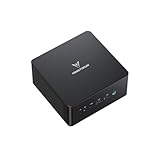
Minisforum MS-01 — Core i9-13900H, PCIe Slot, Dual 10GbE
Who it suits: Home-lab builders, network-heavy professionals and anyone whose work involves moving serious data — fast storage, virtualization hosts, render nodes, small-office servers that also sit on a desk.
The MS-01 is the only machine in this guide that Minisforum itself sells as a mini workstation, and the hardware explains why. Inside its compact chassis sits a half-height PCIe x16 slot (wired for x8) — a genuine expansion slot, the feature that separates a platform from an appliance. Into it goes a low-profile graphics card, a fast storage controller, a capture card or a network adapter, and that single slot is why this machine anchors homelabs and small production setups in a way sealed mini PCs cannot. The networking is in a class of its own here: dual 10-gigabit SFP+ ports on an Intel X710 controller, plus dual 2.5-gigabit Ethernet — one of them an Intel i226-LM with vPro, which brings hardware remote management of the kind IT departments use to reach a machine that will not boot. Storage runs to three M.2 slots plus a U.2 option via the included adapter. The Core i9-13900H brings 14 cores and 20 threads, memory is socketed DDR5 with an official ceiling of 64GB, and three displays run from two USB4 ports and HDMI.
Now the two honest problems, because this pick has them. The first is price discipline: check price on Amazon, and only buy the MS-01 when the live listing fits the under-$1,200 budget in this guide. If the live price sits over that budget, wait rather than stretching for it. The second is temperament. Independent testing measured 42–45 dB(A) under full CPU load — audible in a quiet room, the price of cooling a 14-core chip and that expansion hardware in a small box — and a well-known plug-fest of PCIe cards found that some cards never initialize in the slot. The slot is real, but check your specific card against owner reports before building a workflow around it.
- A real PCIe slot — the only true expansion in this guide.
- Dual 10GbE SFP+ plus dual 2.5GbE, one with vPro remote management.
- Three M.2 slots plus U.2, socketed memory to 64GB.
Honest limitation: You need to check its live price carefully and only consider it when that price fits this budget; it is also the loudest machine here under load, and its Iris Xe integrated graphics are the weakest in this guide — this is a CPU, storage and networking platform, not a graphics machine.
Choose it if expansion, fast networking or a virtualization host is the actual job. Skip it if the live price on Amazon is over this guide’s budget, or if your work is graphics-led — every other pick here accelerates better.

Minisforum AtomMan G7 Pt — Ryzen 9 7945HX (16 Cores), RX 7600M XT
Who it suits: Video editors, 3D hobbyists-turned-professionals and anyone whose workload splits between many CPU cores and a real graphics processor — renders, exports, encodes and effects that integrated graphics handle slowly.
The G7 Pt brings the two things the other minis cannot. The first is cores: the Ryzen 9 7945HX is a 16-core, 32-thread desktop-class processor, the highest core count in this guide, and for compile farms-in-miniature, long renders and heavy multitasking that count is the specification that matters. The second is a discrete graphics processor, the Radeon RX 7600M XT with 8GB of its own GDDR6 memory — a genuine GPU for GPU-accelerated effects, viewport work and hardware encoding, in a slim body of about 2.7 liters. Memory is socketed DDR5 upgradable to 96GB, storage spans one PCIe 5.0 and one PCIe 4.0 M.2 slot, and displays run from HDMI, DisplayPort and USB4 outputs. For the configured 32GB/1TB machine, check price on Amazon before you buy — when its live price fits this budget, it offers a lot of hardware for this tier.
Two clarities keep this pick honest. The first is the GPU’s name: the RX 7600M XT is a laptop-class graphics chip, designed for gaming laptops, with laptop-class power limits — the machine’s selectable CPU power modes and its 300W external power supply tell the same story. It accelerates professional applications very well for this budget, but it is not a desktop graphics card and it is not a professional GPU with certified drivers; judge it as the fastest integrated-alternative at the price, not as a Quadro in disguise. The second is the listing family: a barebone style of the G7 Pt — no memory, no storage, no operating system — exists under the same model name. The pick in this guide is the configured machine; confirm the style selector says so before ordering, because completing the kit with new parts is not the saving it appears to be.
- 16 cores and 32 threads — the most CPU in this guide.
- Discrete RX 7600M XT 8GB graphics for GPU-accelerated work.
- Socketed memory to 96GB; PCIe 5.0 storage slot.
Honest limitation: The graphics are a laptop-class chip with 8GB of memory, which caps large-scene 3D and heavy GPU compute — and the 300W external power brick is a real object on or under your desk, not a footnote.
Choose it if your workload is core-hungry and GPU-assisted in equal measure. Skip it if you need a full desktop graphics card with 16GB of VRAM — that is the CyberPowerPC below.

Apple Mac mini — M4, 24GB Unified Memory, 512GB
Who it suits: Professionals whose work already lives in the Apple ecosystem — iOS and macOS developers, Logic and Final Cut editors, and anyone whose clients and collaborators assume a Mac on the desk.
Some workstations are chosen by software, not by specification, and for that buyer the Mac mini is not a compromise but the answer. This configuration pairs Apple’s M4 chip — a 10-core CPU with a 10-core GPU — with 24GB of unified memory and a 512GB SSD, in a five-inch square that is silent in ordinary use and sips power next to everything else in this guide. It drives up to three displays from three Thunderbolt 4 ports and HDMI, and its media engines give Apple-ecosystem editors hardware acceleration that is genuinely difficult to match at the price inside Final Cut and Logic workflows. The configuration matters: the base 16GB model is the one in the headlines, but 24GB is the working professional’s floor for development and editing loads, and this is the 24GB/512GB machine — check price on Amazon before you buy, and factor in the monitor arm and the external drive every Mac setup eventually acquires.
The limitations are structural and stated by Apple itself: memory and storage are fixed at purchase, permanently. The 24GB and 512GB you buy are the 24GB and 512GB the machine retires with, and in unified-memory architecture that memory is shared between the CPU and GPU, so a heavy graphics workload and a heavy application load draw from the same pool. The Ethernet is gigabit as configured — 10-gigabit is a purchase-time option you cannot add later. And the platform difference is real in both directions: if your professional applications are Windows-only, no benchmark makes this the right machine, and if they are Mac-only, no other pick in this guide is. Choose it for the ecosystem with your eyes open about the ceiling.
- M4 efficiency and media acceleration in a 5 × 5 inch enclosure.
- 24GB unified memory configuration — the professional floor for this tier.
- Up to three displays; three Thunderbolt 4 ports plus HDMI.
Honest limitation: Nothing inside can be upgraded — memory, storage and even the faster Ethernet option are decided on the day you order, and unified memory is shared between CPU and GPU.
Choose it if your tools are Apple’s or cross-platform and your workload fits in 24GB. Skip it if you need Windows-only software, more memory later, or internal storage expansion — the minis above all grow; this one does not.

CyberPowerPC Gamer Xtreme VR — Core i7-13700F, RTX 4060 Ti 16GB
Who it suits: GPU-first professionals — Blender and DaVinci Resolve users, CUDA developers, anyone running local AI workloads — who need a full desktop graphics card with 16GB of VRAM and a case that accepts standard parts for years.
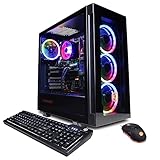
Every other machine in this guide asks its graphics to share a package, a power budget or a memory pool. This one does not. The RTX 4060 Ti in this tower is a desktop graphics card with 16GB of dedicated GDDR6 — double the graphics memory of the G7 Pt’s laptop chip — and for GPU-bound professional work that number is the whole argument: large Blender scenes, high-resolution Resolve timelines with effects, and local AI models all fail on VRAM capacity before they fail on anything else, and 16GB is the difference between a workload that runs and one that will not load. The Core i7-13700F behind it brings 16 cores and 24 threads, displays run from the card’s HDMI and two DisplayPort outputs, and the tower format is itself a workstation feature: standard parts, room for more storage, and a graphics card that can be replaced in three years instead of retiring the machine. It is sold as a gaming PC; nothing about that prevents it from working for a living, and at this budget it is the only route to a real desktop GPU.
The conditions are price and memory, and both are stated without varnish. On price: check price on Amazon before you buy, and only consider this tower when its live price fits the under-$1,200 budget in this guide — if the live price sits over that budget, walk away and wait. On memory: it ships with 16GB of DDR5, the least in this guide and below the working floor for the very workloads its GPU invites. Budget for a second stick or a 32GB kit from day one and treat the machine-plus-memory combination as the real commitment; even so equipped, it remains a compelling way of putting 16GB of desktop VRAM on a desk in this tier. One more professional note: the 13700F has no integrated graphics, so every display runs through the card — normal for a tower, worth knowing if you are used to hybrid setups.
- Desktop RTX 4060 Ti with 16GB VRAM — the most graphics memory here.
- 16-core i7-13700F and a standard-parts tower that accepts future GPUs.
- HDMI plus dual DisplayPort from the card.
Honest limitation: It only belongs in this guide when its live price on Amazon fits this budget, and its 16GB of system memory needs an immediate, separately-budgeted upgrade for serious work.
Choose it if your workload is GPU-bound and VRAM-hungry, and its live price fits this budget. Skip it if its live price sits over this budget, or if desk space and silence matter more than graphics capacity.
Comparison Table
| Product | CPU / GPU | Memory ceiling | Best use | Link |
|---|---|---|---|---|
| Beelink SER9 Pro | Ryzen AI 9 HX 370 (12C) / Radeon 890M | 32GB, soldered | Best all-round creator and developer mini | Check on Amazon |
| Minisforum UM890 Pro | Ryzen 9 8945HS (8C) / Radeon 780M | 96GB, socketed | VMs, growing datasets, four-monitor desks | Check on Amazon |
| Minisforum MS-01 | Core i9-13900H (14C) / Iris Xe | 64GB, socketed | Homelab, fast networking, PCIe expansion | Check on Amazon |
| Minisforum AtomMan G7 Pt | Ryzen 9 7945HX (16C) / RX 7600M XT 8GB | 96GB, socketed | Renders, exports and GPU-assisted editing | Check on Amazon |
| Apple Mac mini (M4) | Apple M4 (10C CPU / 10C GPU) | 24GB, fixed at purchase | Mac-ecosystem development and editing | Check on Amazon |
| CyberPowerPC Gamer Xtreme VR | Core i7-13700F (16C) / RTX 4060 Ti 16GB | 16GB fitted, standard slots | GPU-bound work needing 16GB of VRAM | Check on Amazon |
How to Choose a Workstation PC Under $1,200
- Start with the workload’s bottleneck, not the spec sheet. Compiles, renders and exports are CPU-core work; timeline effects, 3D viewports and AI are GPU work; virtual machines and datasets are memory work. Each pick in this guide leads on exactly one of those axes — buy the axis your work actually loads.
- Judge sustained performance, not boost clocks. Professional loads run for minutes or hours. A chip’s power limit and its cooling decide what you get at minute forty; the headline gigahertz describes minute one. Where reviewers have measured power modes or noise under load, we have used those numbers in the reviews.
- Buy the memory ceiling, not the memory. Fitted RAM can be a starting point; the ceiling is the machine’s working life. Socketed platforms here reach 64GB or 96GB; the soldered and unified-memory machines are finished at 32GB and 24GB respectively. If your memory use has grown every year so far, it will keep growing.
- Count monitors from ports, not promises. Every display claim in this guide traces to a physical port set — HDMI, DisplayPort, USB4, Thunderbolt. If a listing cannot name its ports, it cannot promise your three-screen desk.
- Decide whether expansion is a feature or a fantasy. A PCIe slot, OCuLink port or second M.2 slot only earns its premium if a plausible future project uses it. The MS-01’s slot is worth a premium to a homelab builder and nothing to a video editor; judge it for your desk, not someone else’s.
- Apply the certification test before anything else. If your work requires ISV-certified applications, ECC memory or vendor support contracts, stop: none of that is sold at this budget, by anyone, and the correct purchase is a certified workstation in a higher tier. If it does not, the prosumer machines here are the rational buy.
- Check the live price before you commit. Two picks in this guide are conditional on price — the MS-01 and the CyberPowerPC only make sense when their live price on Amazon fits this budget. A workstation bought over budget is a worse purchase than the runner-up that fits it.
- Confirm the configuration, not the model name. Barebone kits and weaker same-name variants circulate inside these listing families — an SER9 Pro that is not an HX 370, a UM890 Pro with no memory or OS. The processor and configuration lines on the live listing are the product; the name is only the family.
- Budget the desk, not just the machine. The tower needs a memory upgrade from day one; the Mac will want external storage; the MS-01’s SFP+ networking assumes transceivers and cabling. The real cost of a workstation includes what it needs to start work.
What “Workstation” Honestly Means at $1,200
The word workstation carries a technical meaning that marketing has worn smooth, and at this budget the distinction is worth money, so here it is plainly. A certified workstation is sold as a tested combination: the vendor validates specific professional applications — the major CAD, engineering and content-creation suites — on specific hardware and driver versions, so that when an application misbehaves, the vendor owns the problem. Its memory is typically ECC, error-correcting memory that detects and fixes the silent single-bit errors that can corrupt a long render, a large dataset or a simulation without ever announcing themselves. Its graphics are professional cards with drivers written and certified for those applications rather than for games. That package — validation labor, ECC platforms, professional GPUs, support contracts — is why certified workstations cost what they cost, and none of it fits inside $1,200.
What fits inside $1,200 is the performance without the paperwork. The processors in this guide are the same silicon families that power plenty of professional work in practice; the integrated and laptop-class graphics accelerate the same applications, through the same mainstream drivers millions of independent professionals use daily. The honest risks are specific rather than general: a certified-only application feature may be unavailable or unsupported; a once-in-years memory error will not be caught by ECC because there is none; and when something breaks, your support is a consumer warranty rather than a next-business-day contract. For a freelancer, a small studio or a developer, those are acceptable, priced risks. For regulated work, client-mandated certification or a machine whose downtime bills by the hour, they are not — and the correct response to this entire guide is to save toward the certified tier, a step we point to in the recommendations below. We have applied the same discipline to ECC throughout: it appears in this article only to say where it is absent. No pick here supports it, and any listing at this price that hints otherwise deserves the slowest, most careful read on the page.
Soldered or Socketed: The Memory Decision That Outlives the Processor
Processors date by generation; memory ceilings date by physics, and of the two, the ceiling is what retires work machines. Three of this guide’s machines — the UM890 Pro, the MS-01 and the G7 Pt — hold their memory in standard SO-DIMM slots, replaceable in minutes, with ceilings of 64GB or 96GB. Two — the SER9 Pro and the Mac mini — fix their memory at manufacture: 32GB of soldered LPDDR5X in one, 24GB of unified memory in the other, each final. Neither arrangement is a defect. Soldered and unified memory are how those machines achieve their size, efficiency and memory bandwidth, and for a workload that fits comfortably inside the ceiling, the fixed machines are often the better tools — the SER9 Pro is our top pick with its ceiling stated in bold.
The discipline is to forecast honestly. Add up what your work holds in memory on your worst current day — the virtual machines, the dataset, the timeline, the forty browser tabs that are genuinely load-bearing — and then ask whether that number has been stable for two years or growing for two years. Stable, and the fixed machines’ ceilings are headroom. Growing, and a socketed machine bought today is the difference between a modest memory upgrade in year three and a whole new workstation. The same logic applies to the tower in reverse: its 16GB fitted memory is the weakest specification in this guide, but its standard slots make it the cheapest deficiency here to cure. Judge every machine in this guide by the memory it can die with, not the memory it arrives with.
Who Should Stop at $800
A workstation guide owes its readers the same honesty as a gaming one: for a large share of professional work, $1,200 is more than the job requires. Documents, email, web applications, light spreadsheets, ordinary video calls and even moderate development work run indistinguishably on a good machine in the under-$800 tier covered by our guide to the Best Workstation PC Under $800 — and the money you do not spend here buys the second monitor, the backup drive or the chair that your working day will actually notice. The step up to this tier pays for specific things: core counts that halve render and compile times, memory ceilings that hold a virtualization habit, a PCIe slot and 10-gigabit networking, a discrete GPU. If you cannot name which of those your work needs, it does not need them yet. Buy the cheaper machine, keep the difference, and let a real bottleneck — measured in your own work, not in a review — tell you when to climb. Readers whose work has already produced that bottleneck will find the six machines above waiting, and readers planning a bigger jump should look at the Best Workstation PC Under $1500 tier before assuming $1,200 is the ceiling that fits.
Common Buying Mistakes
- Believing the word “workstation” on a listing implies certification. It implies nothing; ISV certification is a documented property of specific models, and at this budget it is absent everywhere in this guide.
- Assuming ECC memory comes with the territory. None of these platforms supports it. If your work requires error-correcting memory, this entire tier is the wrong shelf.
- Buying a soldered-memory machine for a growing workload. The SER9 Pro and Mac mini are excellent and final: their memory ceilings are set at the factory, and no upgrade path exists at any price.
- Ordering the barebone by mistake. Same-name kits without memory, storage or an operating system sit inside these listing families at tempting prices; once you add the missing parts, completing one can cost more than buying the finished machine.
- Paying over budget for a conditional pick. The MS-01 and the CyberPowerPC are both worse purchases than their runners-up when their live price sits over this guide’s budget — check price on Amazon and obey the rules in their reviews.
- Counting monitors from a chipset’s theoretical maximum instead of the ports on the box. Display claims in this guide come from physical connectors; hold every other listing to the same standard.
- Treating a laptop-class GPU as a desktop card. The G7 Pt’s RX 7600M XT is a strong mobile chip with 8GB of memory; workloads that need 16GB of VRAM belong on the tower pick, and workloads that need certified drivers belong in a higher tier entirely.
- Ignoring the desk in the budget: the tower’s memory upgrade, SFP+ transceivers for the MS-01, external storage for the Mac. A workstation’s real cost is what it takes to start work, not just to unbox it.
Final Recommendation
- Most professionals: Beelink SER9 Pro.
- Growing memory needs and long service life: Minisforum UM890 Pro.
- Homelab, networking and expansion: Minisforum MS-01 — only when its live price fits this budget.
- Core-heavy, GPU-assisted production: Minisforum AtomMan G7 Pt.
- Mac-ecosystem work: Apple Mac mini (M4, 24GB).
- GPU-bound work needing desktop VRAM: CyberPowerPC Gamer Xtreme VR — check price on Amazon, with a memory upgrade budgeted.
Our top two for most readers are the Beelink SER9 Pro, for the strongest all-round work performance in a machine that disappears on the desk, and the Minisforum UM890 Pro, for the buyer who expects their workload — and its memory appetite — to grow into the machine over five years. Between them they cover the two shapes this search usually takes: maximum capability now, in a fixed configuration, or slightly less peak speed in exchange for headroom, slots and a second storage bay. If your work is a platform rather than a desk — virtual machines, fast networking, a card you need to install — the MS-01 is the specialist’s answer, bought strictly when its live price fits this budget. If it is GPU-bound, the choice is between the G7 Pt’s mobile chip today and the tower’s 16GB desktop card. And if your software lives on macOS, the Mac mini is not the compromise in this guide; it is the point. Readers earlier in the journey should start with the Best Home Office PC Under $1200 guide if the work is office-shaped, or the Best Mini PC Under $1200 guide for the wider small-machine picture — and everyone should check the live listing’s configuration and price before ordering, because at this tier the homework is the difference between a workstation and an expensive ornament.
Frequently Asked Questions
Can you really buy a workstation for under $1,200?
You can buy workstation-class performance — 12 to 16 cores, 32GB of memory, fast storage, real expansion — but not a certified workstation. ISV application certification, ECC memory and professional GPUs with certified drivers live in a higher price tier. Independent professionals and small studios generally work happily on the prosumer machines in this guide; anyone whose contracts or regulators require certification should budget above it.
Does any machine in this guide support ECC memory?
No. None of the six platforms — the AMD mini PCs, the Intel-based MS-01, the Mac mini or the gaming tower — supports error-correcting memory, and we have said so rather than letting the word “workstation” imply it. ECC is a property of workstation platforms such as Xeon, Threadripper PRO and Minisforum’s MS-02 class, all above this budget.
How much memory does a workstation under $1,200 need?
For most professional work, 32GB is the working floor this tier delivers, and it is the right amount for development, editing, design and heavy multitasking. The more important number is the ceiling: socketed machines here reach 64GB or 96GB, while the SER9 Pro stops at its soldered 32GB and the Mac mini at its fixed 24GB. Buy for the workload you expect in three years, and treat the tower’s fitted 16GB as a same-week upgrade, not a specification.
Mini PC or tower for professional work?
The minis win on desk space, noise and efficiency, and three of them offer memory ceilings and expansion that satisfy most professionals. The tower wins exactly where physics insists: a full desktop graphics card with 16GB of VRAM, standard parts and the ability to replace the GPU instead of the machine. If your workload is CPU- and memory-shaped, buy a mini; if it is GPU-shaped and VRAM-hungry, buy the tower — after checking its live price fits this budget.
Is the MS-01 worth it if the listing is above $1,200?
Not inside this guide’s discipline. Check price on Amazon before you buy: the platform — PCIe slot, dual 10GbE, vPro — is genuinely unique here, which is exactly why it stays in the guide with a rule attached: only buy it when its live price fits the under-$1,200 budget, or wait until it does.
Can these machines run professional CAD and engineering software?
They can run it — the mainstream applications install and perform well on hardware of this class, and the G7 Pt and tower add real GPU acceleration. What they cannot offer is the vendor’s certification for those applications: certified driver paths, validated configurations and a support contract that covers the combination. Hobbyist, student and independent professional CAD is a reasonable use; work that contractually requires certified hardware is not.
What should a beginner buy in this tier?
Start by deciding whether the work is actually workstation-shaped — our guide to the Best Workstation PC For Beginners Under $1200 walks through the tier with first-time buyers in mind, and the Best Workstation PC For Small Spaces Under $1200 guide covers the same budget where desk room is the constraint. Within this guide, the SER9 Pro is the beginner-safe default: complete, quiet, Windows 11 Pro installed, nothing to assemble and nothing to complete.


