Where to buy
Check the latest price, availability and delivery on Amazon. Orders are placed on Amazon. We may earn a commission from qualifying purchases.
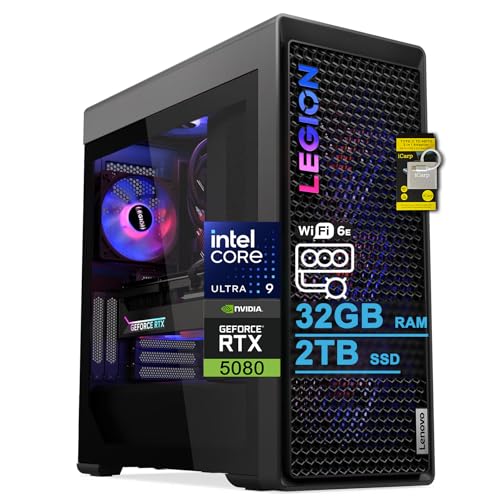
- Best overall for a working office: Lenovo Legion Tower 7i Gen 10, Core Ultra 9 285K, RTX 5080, 32GB RAM, 2TB SSD — Check on Amazon
- Alienware Aurora ACT1250, Core Ultra 9 285, RTX 5080, 32GB RAM, 1TB SSD — Check on Amazon
- iBUYPOWER Y40 PRO, Ryzen 9 7900X, RTX 5070 Ti, 32GB RAM, 2TB SSD — Check on Amazon
- ZOTAC MEK Gaming PC, Ryzen 7 9700X, RTX 5070 Ti, 32GB RAM, Windows 11 Pro — Check on Amazon
See 2 more Amazon options
- CLX Set, Ryzen 7 9800X3D, RTX 5080, 32GB RAM expandable to 256GB, 2TB SSD — Check on Amazon
- Skytech King 95, Ryzen 7 9800X3D, RTX 5070 Ti, 32GB RAM, 1TB SSD — Check on Amazon
Read the full guide ↓
Disclosure: As an Amazon Associate, reviewstook.com earns from qualifying purchases. Links to Amazon on this page are affiliate links; they cost you nothing extra. Listing details such as price and availability change often, so check the current Amazon listing before you buy.
If this is your first serious computer, start with the honest part: $3,000 is much more than a home office needs. Documents, email, spreadsheets, browser tabs and video calls were already instant on machines costing a quarter of this, and nothing below will make them feel faster. This tier exists for a narrower group — people whose computer earns them money through video editing, 3D work, software development or heavy data jobs, people who want one tower for a professional day job and serious gaming at night, and deliberate buy-once shoppers who would rather pay flagship money now than replace a computer every few years. If none of those is you, the kindest advice in this guide is to buy from Best Home Office PC Under $800 and keep a substantial share of the budget for the monitor, chair and lighting that actually change a working day.
The good news for a beginner is that there is nothing to build. All six machines below are prebuilt towers: they arrive assembled, with Windows installed, and your job on the first evening is plugging things into the right sockets and changing a handful of settings — this guide walks through that evening step by step, with nothing assumed. The harder part at this level is vocabulary and traps: spec sheets use shorthand (cores, GDDR7, ATX 3, Thunderbolt 4), two machines belong here only at their current price’s low point, the same name can hide a different machine, and one listing contradicts itself. So below: the jargon translated, the six machines reviewed, the first-evening setup, what else you will spend, and the mistakes that waste the most money at this tier.
In this guide
Quick Picks
Short on time, or comparing several options at once? Each row below names a buyer type and the machine that suits it, with a link to the listing.
| Buyer type | Pick | Why it stands out | Link |
|---|---|---|---|
| Best overall for a working office | Lenovo Legion Tower 7i Gen 10 | 24-core Ultra 9 285K, RTX 5080, 2TB SSD and Thunderbolt 4 in one businesslike tower | Check on Amazon |
| Best premium brand and support | Alienware Aurora ACT1250 | Ultra 9 285 and RTX 5080 with a 1000W Platinum power supply — check price on Amazon | Check on Amazon |
| Best value — keep the difference | iBUYPOWER Y40 PRO | 12-core Ryzen 9 and RTX 5070 Ti with 2TB storage, positioned as the value pick in this tier — check price on Amazon | Check on Amazon |
| Best actual office specification | ZOTAC MEK Gaming PC | The only pick here shipping Windows 11 Pro, with the fastest memory in the guide | Check on Amazon |
| Best memory expandability | CLX Set | Four RAM slots rated to 256GB and an RTX 5080 — at its deal price only | Check on Amazon |
| Best office by day, gaming by night | Skytech King 95 | 9800X3D and RTX 5070 Ti with an 850W Gold ATX 3 power supply | Check on Amazon |
How These Picks Were Chosen
The budget was applied as a ceiling, not a target: every machine below is a real Amazon listing in this guide’s under-$3,000 tier, and where a machine only belongs here when its current price is at its low point, the review says so — check the current price on Amazon before you buy. Each machine was then judged on what matters over a long working life: processor cores, memory and its later ceiling, storage, whether the maker publishes the power supply’s wattage, which Windows edition is in the box, and whether the parts are standard ones a local shop can replace.
We did not use these machines ourselves. We read the maker listings and specification pages and compared what is published — The traps live in that material: one listing describes its own processor two different ways, one maker does not publish its power supply’s wattage at all, and one graphics card is sold with the words “brand may vary” in the listing. Where material contradicts itself or stays silent, the review flags the gap instead of tidying it away. Prices move weekly, so this guide does not print them: check the current price on Amazon for each pick, and note that two of these six only belong in this tier when their current price is at its low point.
Two extra filters were applied for this beginners’ version of the guide. First, arrival condition: every pick had to be a complete, ready-to-run machine — no kits, no half-built boxes, nothing that asks a first-time buyer to open the case. All six pass: none is a renewed or refurbished unit, none is a barebone, and none has its memory or storage soldered in place. Second, forgiveness: ordinary first-evening mistakes — the wrong monitor socket, untouched settings — should be caught, which is why the walkthrough below is a checklist.
The Jargon, Translated
Every term below appears on these six listings. Read this section once and the listings will read like plain English. One plain statement before the definitions, because beginners ask it about every guide: none of the six machines here is renewed, refurbished or second-hand; none is a barebone kit — each is a “prebuilt”, a computer that arrives fully assembled with Windows installed; and nothing inside any of them is soldered down. All six are brand-new, complete towers with memory and storage fitted on standard, replaceable parts. The one partial exception is about shape, not soldering: the Alienware uses Dell’s own motherboard and power-supply formats, covered under “proprietary parts” below.
- Processor (CPU) and cores. The chip that does the computer’s general thinking. Cores are its parallel work lanes: more cores means more heavy jobs finished at once, which is why the 24-core Intel chips below clear video exports and code builds faster than the 8-core ones. For documents and email, even the smallest count here is far more than enough.
- Graphics card (GPU). A separate, powerful chip whose day job in this guide is speeding up video editing, 3D work and AI tools — and whose evening job is games. It is the most expensive part in every machine below, and the part your monitor must plug into.
- Video memory (GDDR7). The graphics card’s own private memory, listed separately from the machine’s main memory — 16GB on every card here. Large projects live in it while they work.
- RAM (memory). The computer’s short-term workspace: the more you have, the more applications and browser tabs stay open without slowing down. All six machines ship with 32GB, years of headroom for office work. What differs is the ceiling — how much more it can accept later.
- SSD (storage). The drive your files and programs live on, measured in terabytes (TB). Big project libraries live here too, which is why the two 1TB picks carry a “plan a second drive later” note.
- Power supply (PSU). The box inside the tower that feeds electricity to everything else, described by wattage (750W, 850W, 1000W) and an efficiency label (Gold, Platinum). It decides whether a future graphics card is a simple swap or a bigger job. One pick does not publish it; its review makes confirming the figure part of the purchase.
- Integrated graphics. A small graphics chip built into the processor, separate from the graphics card. Every processor here has one, good enough to show a desktop — which creates the sneakiest trap: plug the monitor into the motherboard and the picture looks normal while the graphics card sits idle. Step 3 exists because of this.
- Refresh rate (Hz). How many times per second your monitor redraws the picture. Windows often leaves a fast monitor running at a slow 60Hz until you change one setting; step 6 shows where. It affects how smooth games and scrolling feel, not how fast the computer is.
- Windows 11 Home vs Pro. Two editions of the same system. Pro adds drive encryption (BitLocker), the ability to connect into your own machine remotely (Remote Desktop hosting) and business management tools. Five of these six machines ship Home; only the ZOTAC ships Pro. Most home users never miss Pro — but if your machine will hold client data, decide before you buy.
- Liquid cooling (AIO). Instead of a fan blowing on the processor, a sealed loop of liquid carries the heat to a radiator; the 240mm and 360mm figures are the radiator’s size. Its practical benefit in an office is quiet — these systems hold long, heavy jobs without rising fan noise — and there is nothing for you to fill or maintain.
- Ports: HDMI, DisplayPort, Thunderbolt 4. The sockets your screens and docks plug into. HDMI and DisplayPort carry the picture; a card with one HDMI and three DisplayPorts — the ZOTAC’s documented set — can run four screens. Thunderbolt 4, on the Legion, is a single fast socket that can run a whole desk dock. Where a listing does not publish its full socket count, this guide says so rather than guessing.
- Proprietary parts. Components built to one maker’s own shape instead of the industry-standard shapes every shop stocks. The Alienware’s motherboard and power supply are Dell-format: perfectly reliable, but when one fails in year six you buy Dell’s replacement, not any shop’s. The other five machines can be repaired or upgraded anywhere.
The 6 Best Home Office PCs Under $3,000, Reviewed for First-Time Buyers
Lenovo Legion Tower 7i Gen 10 — Core Ultra 9 285K, RTX 5080, 32GB RAM, 2TB SSD
Who it suits: The beginner who is not really buying an office PC at all, but a production machine — video editing, software development, data work or design — and wants the most complete, businesslike version of it.
The Core Ultra 9 285K’s 24 cores are why this machine tops the guide: cores are what heavy work spends — a video export, a large compile, several demanding applications at once. The RTX 5080 graphics card, with 16GB of its own memory, accelerates editing effects, 3D tools and local AI work. The 2TB SSD means project libraries live on the fast internal drive instead of a tangle of external ones. The 360mm liquid cooler lets the processor hold heavy loads through a long export without filling the office with fan noise. Connections are the most office-serious here: Thunderbolt 4 for a one-cable dock, 2.5-gigabit Ethernet for big files, Wi-Fi 6E, and a keyboard and mouse in the box. Check the current price on Amazon before you buy, and compare it with Lenovo’s own direct listings for comparable configurations.
Two limitations deserve reading twice before you order. The listing states the memory maximum as 32GB — the amount it ships with — which, if accurate, means this is the one flagship here that cannot grow to 64GB later for virtual machines or very large datasets. For most professionals 32GB is years of headroom, but verify that line on the live listing before you buy — the upgrades section below depends on it. Second, it ships with Windows 11 Home rather than Pro, so buyers who need BitLocker or Remote Desktop hosting should budget for the edition upgrade.
- The 24-core Ultra 9 285K is the strongest sustained-work processor in this guide.
- RTX 5080, a 2TB SSD and 360mm liquid cooling — a specification built for long jobs, not short bursts.
- Thunderbolt 4, 2.5Gb Ethernet and Wi-Fi 6E give it the best office connectivity here, and the keyboard and mouse are in the box.
Honest limitation: Per its own listing, memory tops out at the 32GB fitted — and the Windows edition is Home, not Pro.
Choose it if your work is genuinely heavy and you want the flagship that needs nothing else bought on day one. Skip it if a 64GB memory upgrade sits anywhere in your plans, or your workload is ordinary office work — this is several times more machine than that job will ever touch.

Alienware Aurora ACT1250 — Core Ultra 9 285, RTX 5080, 32GB RAM, 1TB SSD
Who it suits: The first-time buyer who wants flagship power without flagship homework — a polished, client-facing tower from a global brand, with a support network to call.
The hardware pairing is as flagship as this guide gets: a Core Ultra 9 285 (a 24-core processor by Intel’s own specification), an RTX 5080, 32GB of memory, and a 1000W Platinum-rated power supply — the strongest and most efficient PSU here, with real headroom for a future graphics card. A 240mm liquid cooler handles the processor. The buying rule is the important part. Its position in this guide depends on its current price: check price on Amazon before you buy. When its current price sits at the low end of its range, within this guide’s ceiling, it competes with everything here; when its current price sits above that ceiling, it is not a pick in this guide at all.
The trade-offs are the standing Alienware ones, and a beginner should meet them now rather than in year six. The motherboard and power supply use Dell’s proprietary formats, so repairs and upgrades run through Dell’s parts and service rather than any local shop — which is also why the upgrades section below makes this machine no graphics-card promises despite its huge power supply. Storage is 1TB, the thinnest in the guide — plan on a second drive. Finally, the Amazon listing contradicts itself in places: the processor is described with two different core counts in different sections (Intel’s specification for this chip is 24 cores), and the liquid cooling is described both as fitted and as an option. Both contradictions make step 7 of the walkthrough genuinely important for this pick.
- An RTX 5080 backed by a 1000W Platinum power supply — no other pick pairs the card with this much electrical headroom.
- The premium object in the guide: the finish, the case and a global brand’s support line.
- At the low end of its price range it competes directly with the Legion; above this guide’s ceiling it leaves the guide entirely — check the current price on Amazon.
Honest limitation: Dell-format motherboard and power supply mean repairs run through Dell, storage is the guide’s thinnest at 1TB, and its current price can sit above the $3,000 ceiling, so check it before you buy.
Choose it if brand, finish and a support line to call matter to you, and the deal price is live when you buy. Skip it if you like the idea of upgrading and repairing the machine yourself over a decade — the standard-parts towers below serve that plan better.

iBUYPOWER Y40 PRO — Ryzen 9 7900X, RTX 5070 Ti, 32GB RAM, 2TB SSD
Who it suits: The beginner who did the sums, concluded they really do need a serious machine — and would still like a meaningful share of the budget left over for the monitor, desk and chair that make the office a workplace.
This is the value flagship, and its specification is aimed at work rather than show. The Ryzen 9 7900X has 12 cores, built for sustained multi-threaded loads — exports, compiles, batch jobs. The RTX 5070 Ti, with 16GB of graphics memory, sits one step below the 5080 machines and covers GPU-accelerated editing, 3D and AI work at nearly the same level. Memory is 32GB of DDR5, storage is a 2TB NVMe SSD matching the Legion’s capacity, and keyboard and mouse are included. Its position in the tier is the headline: it sits in the lower part of this guide’s price band — check price on Amazon. At that positioning, this machine delivers most of what the flagship-tier machines here deliver for office-plus-creation work — the honest differences are the 5080’s extra graphics tier and the Intel chips’ extra cores — and leaves more of the budget available to fund the rest of the room.
The limitation is a gap in the paperwork, and this guide refuses to tidy it away: the power supply’s wattage is not published in the verified listing material for this machine. The PSU decides whether a future graphics card is a drop-in swap or a bigger job, so confirming the wattage and rating — on the live listing, or by asking iBUYPOWER — is a condition of this recommendation. If the answer stays vague, the ZOTAC and Skytech publish theirs — a legitimate reason to switch. One more caution: the Y40 PRO name also covers a different configuration built around a 7800X3D processor under a separate listing. Match the Ryzen 9 7900X specification when you order, not just the name.
- A 12-core Ryzen 9 and an RTX 5070 Ti — close to flagship work power at a lower position in this tier.
- Its lower position in this tier means this pick can leave room in the budget for your monitor and chair as well as itself.
- A one-year manufacturer warranty is published, and keyboard and mouse are included.
Honest limitation: Nobody publishes this machine’s power supply wattage in the verified listing material — get the figure confirmed before you buy a tower you plan to keep for years.
Choose it if you want flagship-class creation power and a rational total budget for the whole office. Skip it if an undocumented power supply bothers you and the seller will not confirm it — two picks below publish theirs in full.

ZOTAC MEK Gaming PC — Ryzen 7 9700X, RTX 5070 Ti, 32GB RAM, Windows 11 Pro
Who it suits: The beginner who took the guide’s title literally — an office machine first — and needs the professional Windows features the other five picks leave out.
Begin with the detail that makes this the most office-correct specification here: it ships with Windows 11 Pro. Every other pick runs Windows 11 Home. Pro brings BitLocker encryption for client data, Remote Desktop hosting, and small-business management features. The hardware underneath is equally grown-up: a Ryzen 7 9700X processor, 32GB of DDR5-6000 memory — the fastest memory speed published in this guide — a 1TB NVMe SSD, Wi-Fi 6E and Bluetooth 5.3, and a 750W 80+ Gold power supply with its wattage and rating stated plainly, exactly the transparency the Y40 PRO above does not offer. The graphics card’s sockets are documented — one HDMI 2.1b and three DisplayPort 2.1b — a four-monitor desk from the card, and the only multi-screen claim here made from published outputs rather than assumption. Check the current price on Amazon before you buy.
The limitations are about ceilings, not flaws. The 9700X is an eight-core processor — an excellent, efficient chip, but in a guide where rivals field 12 and 24 cores, heavy compile queues, render batches and many simultaneous virtual machines will finish sooner elsewhere. And its 750W power supply, while correct for the fitted 5070 Ti, leaves the least headroom for a future flagship graphics card of any pick here; the upgrades section below promises like-for-like card swaps for this machine, not flagship ones. Neither point matters to the buyer this machine is for: a professional whose work is serious but not render-farm serious, who wants the office-correct operating system and nothing hidden in the specification.
- Windows 11 Pro in the box — the one pick that does not make you upgrade the operating system for office features.
- Nothing in the specification is hidden: DDR5-6000 memory, a 750W Gold power supply, Wi-Fi 6E, all stated.
- Four documented screen outputs on the card (one HDMI 2.1b, three DisplayPort 2.1b) — a multi-monitor desk without guesswork.
Honest limitation: With eight cores it has the least heavy-job throughput of the serious picks, and its 750W supply leaves the slimmest margin for a future flagship graphics card.
Choose it if your office needs Pro’s encryption and remote-access features, on a specification you can read in full before paying. Skip it if your income rides on how fast render and compile queues clear — that is what the Legion’s 24 cores and the Y40 PRO’s 12 are for.

CLX Set — Ryzen 7 9800X3D, RTX 5080, 32GB RAM (Expandable to 256GB), 2TB SSD
Who it suits: The beginner whose memory needs will grow into the machine — data work, virtual machines — and who is disciplined enough to buy only when this listing’s price is at its low point.
One number in its specification does what no other pick here can match: four memory slots, rated to 256GB in total. The machine arrives with 32GB of DDR5-5600 fitted, but headroom is the point — this is the only tower in the guide that can start as an office PC and grow into a memory-heavy workstation for data work or fleets of virtual machines without a platform change. The supporting specification is flagship grade: an RTX 5080, a 2TB NVMe SSD, a 360mm liquid cooler, and an 850W Gold power supply whose rating CLX’s own specification material confirms.
Two cautions, both substantial. Its position in this guide depends on its current price: check price on Amazon before you buy. This listing is known in this guide’s research as one whose current price can move widely, and it belongs here only when that current price sits at the low end of its range, inside this guide’s ceiling; when it sits well above that ceiling, it is not a pick here at any specification. The processor second: the 9800X3D’s extra cache is engineering aimed at games. Office and creative software experiences it as a capable eight-core chip — no better for that work than the cheaper 9700X in the ZOTAC, and well behind the Legion’s 24 cores. Judge this machine on its memory ceiling and its 5080, buy it only when its current price sits at that low point, and it is a shrewd decade purchase.
- Four memory slots and a 256GB ceiling — a growth path no rival here offers.
- RTX 5080, 2TB of storage and a manufacturer-confirmed 850W Gold power supply.
- A boutique build from standard parts, so any competent shop can service it.
Honest limitation: Its current price can move widely, so timing and a check of the current price on Amazon decide whether it belongs here at all — and the gaming chip’s premium earns creation work very little.
Choose it if growing memory over the years is your plan and the current price on Amazon sits at the low end of its range, inside this guide’s ceiling. Skip it if the price is drifting toward its highs, or 64GB will always be plenty for you — the Legion is the better buy today.

Skytech King 95 — Ryzen 7 9800X3D, RTX 5070 Ti, 32GB RAM, 1TB SSD
Who it suits: The hybrid worker: a serious machine on the desk from nine to five, and the household’s gaming rig after hours — with the budget justified by both jobs.
The King 95’s fundamentals are all published and properly done: an 850W Gold power supply built to the ATX 3 standard — the part that decides whether a year-five graphics card change is a swap or a saga — a 360mm liquid cooler for quiet sustained work, 32GB of DDR5-5600 memory, and an RTX 5070 Ti that exceeds anything an office workload here can ask of it while covering flagship gaming after hours. It is positioned in the middle of this guide’s tier, below the flagship end — check the current price on Amazon.
The work-side caveat is about what the processor’s fame actually rests on. The 9800X3D is celebrated for a cache design that speeds up games; office and creative applications largely cannot use it, and experience the chip as a strong eight-core processor — which still leaves it in a different league from the Legion’s 24-core 285K for export and compile queues, and behind the cheaper Y40 PRO’s 12 cores for that work too. If your evenings are inbox rather than games, you would be paying for a talent your workload never calls on. Two listing cautions finish the picture: Skytech’s own listing warns that the graphics card’s brand may vary, and near-identical King 95 variants circulate under other listings. Order against the model number ST-KING95-1671-W-AM, check the current price on Amazon, then run step 7 of the walkthrough when the box arrives.
- An 850W Gold ATX 3 power supply, published in full — the upgrade-friendly foundation done properly.
- Serious work machine from nine to five, flagship gaming rig after hours, in one tower.
- Positioned below the flagship end of this tier — check price on Amazon.
Honest limitation: You are paying a gaming chip’s premium for office work that cannot use it, and the listing itself says the graphics card’s brand may vary.
Choose it if the same tower genuinely has to earn its keep in the day and game at night. Skip it if it will never game — the Legion and the Y40 PRO put the same money into work cores instead.

Comparison Table
| Product | Processor / Graphics | Best use | Link |
|---|---|---|---|
| Lenovo Legion Tower 7i Gen 10 | Ultra 9 285K (24-core) / RTX 5080 | The complete creator’s office flagship | Check on Amazon |
| Alienware Aurora ACT1250 | Ultra 9 285 (24-core) / RTX 5080 | Premium brand, finish and support at its deal price | Check on Amazon |
| iBUYPOWER Y40 PRO | Ryzen 9 7900X (12-core) / RTX 5070 Ti | Near-flagship work power that funds the rest of the office | Check on Amazon |
| ZOTAC MEK Gaming PC | Ryzen 7 9700X / RTX 5070 Ti | Windows 11 Pro and a fully published work specification | Check on Amazon |
| CLX Set | Ryzen 7 9800X3D / RTX 5080 | Memory growth to 256GB — at its deal price only | Check on Amazon |
| Skytech King 95 | Ryzen 7 9800X3D / RTX 5070 Ti | Professional days, flagship gaming nights | Check on Amazon |
Your First Evening: Setup in Eight Steps
Every machine in this guide arrives assembled with Windows installed. Nothing below requires tools or experience; the whole thing takes about an hour, most of it waiting for updates. Steps 3 and 6 are the two that almost every first-time buyer gets wrong.
- Placement. Put the tower where air can move — desk or floor, vents unobstructed, back a hand’s width from the wall. Never in a closed cabinet: liquid coolers move heat into the room, and a sealed cupboard turns it back on the machine. Note the model number from the carton label — you will need it in step 7.
- Power. Plug the power cable into the back of the tower and the wall. If you press the power button and absolutely nothing happens — no light, no fan, no sound — do not assume it arrived broken: most towers have a small rocker switch on the power supply itself, at the back, which ships in the off position. Flip it, then press the front button again. This is the most common false alarm with a first tower PC.
- Monitor — into the graphics card, not the motherboard. This is the trap, and it is sneaky precisely because nothing looks wrong. Every processor in these six machines has a small built-in graphics chip, so the motherboard’s sockets (the vertical cluster high on the back panel) will show you a perfectly normal picture — produced by that small chip, while the RTX 5080 or 5070 Ti you paid for sits idle. Your games and editing software will run slowly and you will not know why. The graphics card’s sockets are the horizontal row lower down the back of the tower; on the ZOTAC they are documented as one HDMI and three DisplayPorts. Plug the monitor there. No setting fixes the wrong socket afterwards — only moving the cable does.
- Peripherals and wired internet. Plug in the keyboard and mouse (included with the Legion and the Y40 PRO; check the listing for the others). If your desk is anywhere near your router, run an Ethernet cable as well, even though all six machines have Wi-Fi: a wired connection is faster and steadier for large file transfers, cloud backups and video calls.
- Windows Update, then the graphics driver. Open Settings → Windows Update and run it, restarting when asked, then run it again — new machines need several rounds. Then update the graphics driver through NVIDIA’s app: the factory-installed driver is rarely current.
- Set your monitor’s real refresh rate. A fast monitor left at Windows’ default setting shows only part of what you bought. Go to Settings → System → Display → Advanced display and choose the highest refresh rate your monitor offers. If the highest option is 60Hz on a faster monitor, the cable is usually the reason — use the DisplayPort cable that came with the monitor, in the graphics card per step 3.
- Verify what actually arrived. Open Settings → System → About and Task Manager → Performance and read the processor, memory, graphics card and storage against your order. This step exists because of this guide’s own listings: the King 95’s model number is ST-KING95-1671-W-AM and near-identical variants exist; the Y40 PRO must be the Ryzen 9 7900X configuration, not the 7800X3D machine sold under the same name; and the Alienware’s own listing describes its processor and cooling two different ways, so check the delivered machine against the specification you paid for.
- Install your software — work first, then a game store. Install the programs you work in, sign into your backup service, and only then install a game store such as Steam if the machine has an evening job too. You are set up.
How to Choose a Home Office PC Under $3,000
- Start from the delay, not the budget. Machines at this level exist to remove waits you can count — an export, a compile, a render queue. If no specific wait comes to mind, your answer lives in the $800 tier and this page is background reading.
- Cores do work; cache does games. Throughput for creation software tracks core count — 24 in the Intel flagships, 12 in the Y40 PRO. The X3D processors in the CLX and the Skytech are excellent chips whose headline feature targets games, so buy them for a hybrid life, not for documents.
- Compare ceilings, not just fitted memory. All six arrive with 32GB, which covers most professionals for years. They differ in where they stop: four slots and 256GB on the CLX, against a listing-stated maximum of 32GB on the Legion. Decade purchases are decided by ceilings.
- Check which Windows is in the box. Only the ZOTAC ships Pro; the other five ship Home. Need BitLocker encryption or the ability to remote into your own desk? Either pick the ZOTAC or plan for the edition upgrade from the start.
- Insist on a published power supply. Wattage plus efficiency rating is your upgrade future. Five picks print theirs (750W Gold up to 1000W Platinum); the Y40 PRO does not, and it earns its price only after you have had the figure confirmed.
- Budget the room, not just the tower. A cheaper flagship plus a good screen, a supportive chair and decent light will beat a top-priced tower facing a tired monitor every working day — and the Y40 PRO’s lower position in this tier is what makes that trade possible.
- Let the current price be the deciding factor. When the Alienware’s current price sits inside this guide’s ceiling, it is in this guide; when it sits above that ceiling, it is not. The same rule applies to the CLX: in at the low end of its range, out when its current price moves well above the ceiling. Check the current price on Amazon before you buy, and honour that ceiling.
- Order the model number, not the name. “Y40 PRO” and “King 95” each label more than one configuration at more than one price. The verified machines are the ones whose model numbers appear in the reviews.
What Else You Will Spend
The tower is not the whole purchase, and a beginner’s budget should meet the rest of the list now rather than at a second checkout. The monitor comes first. No monitor price is quoted here because none is part of these listings — but a flagship tower driving an old, dim screen is the classic beginner misallocation. The Y40 PRO’s positioning earns its keep here: as the value pick in this tier, it leaves a meaningful share of the $3,000 budget for the screen, desk and chair.
Everything else is a “machine + fix” cost — money spent later, on top of the pick, never hidden inside its price. The two 1TB picks, the Alienware and the King 95, should be budgeted as the machine plus a second internal drive once libraries outgrow the first — a normal, cheap, standard-parts job on the Skytech, and a Dell-parts conversation on the Alienware. The five Windows 11 Home machines should be budgeted as the machine plus a Pro upgrade only if you need BitLocker or Remote Desktop hosting; the ZOTAC avoids that line entirely. The Y40 PRO should be budgeted as the machine plus ten minutes: confirming its power supply wattage costs nothing, but skipping it can cost you an upgrade path later. A keyboard and mouse are included with the Legion and the Y40 PRO; for the other four, check the listing and budget for a set if none is in the box. Finally, add an external backup drive to the plan — a $3,000 machine holding the only copy of your work is a risk no specification fixes.
Upgrades Later, in Plain Terms
Here is the graphics-card swap picture, pick by pick — promised only where the research documents a named power supply and a standard-parts case. Promised: the Legion Tower 7i (850W published, standard tower), the CLX Set (850W Gold published, standard parts throughout) and the King 95 (850W Gold ATX 3 published) can each accept a future graphics card as a straightforward swap within that wattage. The CLX additionally offers the guide’s real memory upgrade — four slots and a 256GB ceiling — against the Legion’s listing-stated 32GB maximum, so verify that line before planning memory upgrades on the Legion. Promised with a condition: the ZOTAC MEK’s published 750W Gold supply handles like-for-like card swaps comfortably, but a future flagship card would mean replacing the power supply too. Not promised: the Alienware, despite its 1000W Platinum supply, because its motherboard and power supply are Dell’s proprietary formats — upgrades there route through Dell’s ecosystem, by design. And not promised for the Y40 PRO, for the simpler reason that its wattage is unpublished: read the label on the delivered unit first, and let that figure tell you what the machine can take. Storage is the easy upgrade everywhere: a second SSD is a standard part in all six towers.
Common Buying Mistakes
- Plugging the monitor into the motherboard’s sockets and spending the first month on the processor’s little built-in graphics chip while the card you paid for idles. Step 3 of the walkthrough exists because this is the most common beginner mistake at this tier — and the picture looks fine, which is how it survives.
- Paying a high-week price for the CLX because its current price had moved well above this guide’s ceiling. With this listing, checking the current price on Amazon and the timing of the purchase matter.
- Ordering by name: a Y40 PRO that arrives as the 7800X3D configuration, or a King 95 variant under a different listing, is a different purchase from the one reviewed here.
- Expecting flagship money to make ordinary office software feel faster. Email and spreadsheets hit their speed limit tiers ago; the premium buys capability elsewhere.
- Skipping the five-minute arrival check in step 7, then finding a configuration mismatch once easy returns have expired.
- Feeding the tower and starving the room: a flagship PC behind an old monitor on a wobbly desk is a worse workplace than a mid-tier PC in a room that was funded properly.
- Discovering the Windows edition on setup day — the machine holding client files runs Home, and the Pro features the office needs turn out to be an upgrade you had not budgeted.
- Taking an unpublished power supply on trust in a machine you plan to upgrade. Either get the wattage confirmed in writing, or buy one of the picks that prints it.
- Confusing flagship money with workstation certification. These are powerful consumer towers; if your software vendor demands certified professional graphics, start with our Best Workstation PC Under $3000 guide instead.
Final Recommendation
- The default for genuine heavy work: Lenovo Legion Tower 7i Gen 10.
- Brand, finish and a support line: Alienware Aurora ACT1250 — only when its current price sits inside this guide’s ceiling; check price on Amazon.
- Flagship power with money left for the room: iBUYPOWER Y40 PRO.
- Windows 11 Pro and a fully published spec: ZOTAC MEK Gaming PC.
- Memory that can grow to 256GB: CLX Set — only near its deal price.
- Professional days, flagship gaming nights: Skytech King 95.
For a first-time buyer who genuinely belongs in this tier, the shortlist is two machines. The Legion Tower 7i is the complete one: 24-core processor, RTX 5080, 2TB of storage, Thunderbolt 4, keyboard and mouse in the box — the flagship that asks the least of a beginner after purchase day. The iBUYPOWER Y40 PRO is the rational one: most of the same working capability at a lower position in this tier that leaves the monitor, desk and chair funded, provided you confirm its power supply figure before you commit. The ZOTAC is the quiet correct choice for Windows 11 Pro; the CLX is a specialist purchase for memory growth, strictly at its deal price; the King 95 is the honest hybrid; the Alienware is the premium object, bought for brand and support with open eyes about its formats. And if your work is office work with ambitions rather than production work, that is a successful read: the same research one tier down lives in Best Home Office PC Under $2500, and the honest starting point for most beginners is Best Home Office PC For Beginners Under $2500 or the $800 tier.
Frequently Asked Questions
I have never owned a proper PC. Is $3,000 a sensible first purchase?
For most beginners, honestly, no — and this guide would rather tell you that than sell you a flagship. A $3,000 tower makes sense as a first PC in three situations: your work is production work (video, 3D, development, data) that pays for itself in hours saved; one tower must cover a professional day job and serious gaming at night; or you are deliberately buying once for a decade and choosing on ceilings and standard parts. If your work is documents, email, web apps and calls, start at the $800 tier or with Best Home Office PC For Beginners Under $1500.
Do I have to build or assemble anything?
No. All six machines are prebuilts: assembled, with Windows installed, ready to plug in. None is a barebone kit, none is renewed, and nothing inside any of them is soldered in place — memory and storage are standard parts. Your entire first-evening job is the eight-step walkthrough above.
Why do my games look fine but run slowly?
Almost certainly the monitor cable. Every processor in this guide has a small built-in graphics chip, and if the monitor is plugged into the motherboard’s sockets, that little chip draws the picture — enough for a desktop, far too weak for games — while your graphics card does nothing. Move the cable to the graphics card’s sockets, the horizontal row lower on the back of the tower, and the problem disappears. It is the most common first-week fault with any tower PC, and it costs nothing to fix.
Is a $3,000 PC overkill for a home office?
As a machine for office tasks alone, yes, plainly. Nothing in this guide will open a document, load a spreadsheet or join a video call any faster than a good $800 PC does — that race was won years ago. The tier earns its money when the same desk also does production work, where 12 to 24 cores and a flagship graphics card turn into hours handed back every week, or when the purchase is a deliberate one-and-done for a decade, chosen on memory ceilings, published power supplies and standard parts.
Do I need Windows 11 Pro for a home office?
Three features decide it: BitLocker, which encrypts the drive; Remote Desktop hosting, which lets you connect into this machine from another one; and business device management. If none of those is on your list, Home costs you nothing in practice. If one is, your routes are the ZOTAC — the only pick of the six with Pro already installed — or an edition upgrade on any of the other five, planned into the purchase from the start rather than discovered at setup.
Can these machines run multiple monitors?
Two picks answer that from published specifications. The ZOTAC’s card lists one HDMI 2.1b and three DisplayPort 2.1b outputs — enough sockets for four screens from the card alone — and the Legion’s Thunderbolt 4 port can drive a dock-based multi-screen desk. The remaining listings do not publish a complete output count, so count the sockets in the live listing’s photographs and spec table before planning a multi-screen setup.
Which of these is best for video editing and creative work?
The Legion, on paper and in practice: the 24-core Ultra 9 285K is the guide’s strongest work processor, the RTX 5080 accelerates the effects and exports, and 2TB of storage keeps project libraries on the fast drive. The Y40 PRO is the value route to most of the same capability — 12 cores and a 5070 Ti, positioned as the value route in this tier — check price on Amazon. And if your projects are the kind that eventually eat memory, the CLX’s 256GB ceiling is the specialist answer, bought at its deal price.
Should I buy one of these, or a cheaper PC plus better peripherals?
For the majority of home offices, take the second option and do not feel you settled: a capable $800–$1,500 machine in front of a good screen or two, in a supportive chair, under decent light, improves more hours of your week than any specification on this page. Reserve the $3,000 tower for when the bottleneck is the workload itself — the exports, builds and renders. If your constraint is desk space rather than budget, our Best Home Office PC For Small Spaces Under $3000 guide covers the compact end of the range.
- Best Home Office PC Under $3000
- Best Home Office PC Under $2500
- Best Home Office PC Under $1500
- Best Home Office PC Under $800
- Best Home Office PC For Beginners Under $2500
- Best Workstation PC Under $3000
- Best Gaming PC Under $3000
- Best Home Office PC For Streaming Under $3000
- Best Home Office PC For Small Spaces Under $3000
- Best Mini PC Under $3000


