Where to buy
Check the latest price, availability and delivery on Amazon. Orders are placed on Amazon. We may earn a commission from qualifying purchases.
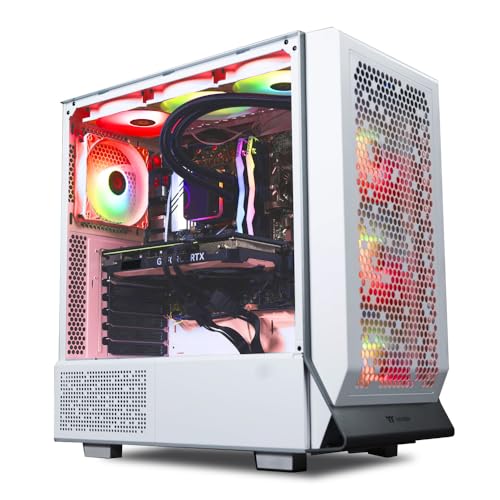
- Best overall office-plus-creation tower: Skytech Omega Gaming PC, Ryzen 7 7700X, RTX 4070 Super, 32GB DDR5, 1TB NVMe, White — Check on Amazon
- Minisforum MS-A2 Mini Workstation, Ryzen 9 HX, PCIe x16 Slot, Dual 10G SFP+ — Check on Amazon
- MSI Codex Z2 Gaming Desktop, Ryzen 7 8700F, RTX 5070, 32GB DDR5, 2TB SSD — Check on Amazon
- AtomMan G7 Ti Mini PC, Core i9-14900HX, RTX 4070 Laptop GPU, 32GB DDR5, 1TB SSD — Check on Amazon
See 2 more Amazon options
- Dell 27 All-in-One EC27250, Core 7 150U, MX570A, 32GB DDR5, 1TB SSD, Windows 11 Pro — Check on Amazon
- Thermaltake LCGS View i4770 Gaming Desktop, i7-14700KF, RTX 4070, 32GB DDR5 5600, Liquid-Cooled — Check on Amazon
Read the full guide ↓
Disclosure: As an Amazon Associate, reviewstook.com earns from qualifying purchases. Links to Amazon on this page are affiliate links; they cost you nothing extra. Listing details such as price and availability change often, so check the current Amazon listing before you buy.
Buying your first serious home office PC is confusing for one simple reason: the boxes are covered in words designed to impress rather than explain. Every technical term below is translated into plain English the first time it appears, there is a short glossary before the reviews, and a setup section walks through your first evening step by step, including the one cable mistake that makes new buyers think their PC arrived broken.
First, the honest part: $1,500 is a lot of money for an office computer, and for pure office work it is more than you need. Documents, email, web browsing, spreadsheets and video calls run exactly as well on a good machine from the $800 tier — not nearly as well, identically. Nobody can see the difference inside a spreadsheet. What the extra money buys is a second job hiding inside the same box: a proper graphics card for video editing, photo work, 3D, design software or local AI tools; memory with room to grow; fast, roomy storage; and enough processor muscle to render, compile or crunch in the background while the document in front of you stays smooth. So the first beginner question is not “which of these six?” but “do I have that second job?” If the answer is no, buy the cheaper tier and put the savings toward a good monitor and a backup drive. If the answer is yes — or honestly soon — the six machines below are worth a first-timer’s money, each explained as if you have never opened a PC in your life, because you should not have to.
In this guide
Quick Picks
Short on time, or comparing several options at once? Each row below names a buyer type and the machine that suits it, with a link to the listing.
| Buyer type | Pick | Why it stands out | Link |
|---|---|---|---|
| Best overall office-plus-creation tower | Skytech Omega, Ryzen 7 7700X, RTX 4070 Super, 32GB, 1TB | A full-size desktop graphics card and a published 750W Gold power supply — check price on Amazon | Check on Amazon |
| Best mini PC — the one you can open up | Minisforum MS-A2 Mini Workstation | An expansion slot, dual 10-gigabit networking and memory that grows to 96GB, in a box under two liters | Check on Amazon |
| Best for the newest graphics generation | MSI Codex Z2, Ryzen 7 8700F, RTX 5070, 32GB, 2TB | The current-generation RTX 5070 and double storage — check price on Amazon | Check on Amazon |
| Best small machine with a real graphics card | AtomMan G7 Ti Mini PC, i9-14900HX, RTX 4070 Laptop | A 140W laptop RTX 4070 and a 24-core processor in a slim upright mini | Check on Amazon |
| Best tidy-desk all-in-one | Dell 27 All-in-One EC27250, 32GB, 1TB, Windows 11 Pro | Screen and computer in one object, business Windows and onsite service — check price on Amazon | Check on Amazon |
| Best quiet tower — deal only | Thermaltake LCGS View i4770, i7-14700KF, RTX 4070 | Liquid cooling keeps long jobs quiet; deal-only — check price on Amazon and buy only when the live price fits the budget | Check on Amazon |
How These Picks Were Chosen
We did not use these machines ourselves. What we did is the homework a careful friend would do: read the makers’ listings and specification pages and independent reviews, and compare the parts that decide how a work computer feels over five or six years — processor, graphics, memory fitted and memory ceiling, storage fitted and spare room, and any power supply figure the maker actually publishes. Where a fact could not be verified from a listing or maker page, this guide does not print it. That is why you will not find monitor-port counts for the towers: on integrator machines the exact graphics card brand can change between batches, so the honest instruction is to check the photos on the live listing, as the reviews tell you to do.
Prices need a beginner warning of their own. At this level, listings change often, so check price on Amazon for the live price before you decide — a listing price is never a promise about today. Two of the six machines are recommended only when their live price fits this budget, and they are labeled deal-only everywhere they appear. A good machine at a bad price is the wrong purchase, and the reviews say so in those words.
Two beginner-specific filters sat on top. Nothing here is a sealed dead end unless its review says so in full size — a first serious PC should let you add memory or storage later. And nothing here is a mystery box: every pick is a named configuration you can verify on arrival against its model number, and the walkthrough below shows you how.
The Jargon, Translated: A Beginner’s Glossary
Twelve terms explain nearly every word on every listing in this guide. Read these once and the reviews below will read like plain English.
- CPU (processor). The machine’s main thinker — it runs your programs and does the general work. It is described in cores: think of each core as one worker. Office work needs few workers; rendering, compiling and virtual machines (pretend computers inside your computer) want many.
- GPU (graphics card). A specialist chip whose one job is pictures: screens, video, 3D, photo effects, AI tools. A discrete graphics card is a separate, powerful component — the single part that turns an office PC into a creation PC.
- Integrated graphics. Picture circuitry built into the CPU instead of living on its own card. Perfectly fine for documents, browsing and video calls — and it is all one pick below (the MS-A2) has until you add a card. It is not a creation tool.
- RAM (memory). The size of the desk the computer works on. More RAM means more apps, tabs and big projects open at once without slowdowns. Every pick here starts at 32GB; what matters for the future is whether you can add more.
- SSD (storage). The filing cabinet where your files and programs live, measured in gigabytes (GB) and terabytes (TB — roughly 1,000GB). An NVMe SSD is the fast modern kind; all six picks use one. Storage fills up; memory does the juggling — beginners mix the two up constantly.
- PSU (power supply). The box inside the PC that feeds electricity to everything else, measured in watts. Its size quietly decides whether a future, bigger graphics card is possible. Makers do not always publish it — here only the Skytech’s figure (750W, Gold-rated for efficiency) is printed by its maker.
- Barebone. A PC sold unfinished — typically without memory, storage or Windows — for buyers who already own those parts. The MS-A2 below is sold as a barebone as well as finished, and the G7 Ti has a barebone version too. A barebone is never a complete working computer on its own.
- Renewed (refurbished). A used machine that has been checked, cleaned and resold. To be plain about this guide: none of the six picks is renewed — all six are sold new.
- Soldered vs socketed. A soldered part is melted permanently onto the board and can never be upgraded; a socketed part sits in a slot and can be swapped with a small screwdriver. None of these six machines has soldered memory — the small machines use little laptop-style memory sticks (SO-DIMMs) in sockets, and the towers use full-size sticks. The honest exception is the G7 Ti: its memory and storage swap, but its processor and graphics card are laptop parts fixed in place for life.
- Refresh rate (Hz). How many times per second your monitor redraws the picture. Windows often starts a fast monitor at a basic 60Hz and never tells you; the walkthrough below shows where to set the screen’s real rate.
- Windows 11 Home vs Pro. Two editions of the same system. Pro adds workplace features — joining a company network domain, managing disk encryption centrally, and letting another computer connect to yours remotely. If an employer requires those, Pro matters; at home, Home lacks nothing day to day. Only the Dell below ships with Pro.
- All-in-one. A computer built into the back of its own screen — one object, one power cable, nothing under the desk. The trade: screen and computer age and retire together.
The 6 Best Home Office PCs Under $1,500 for Beginners
Skytech Omega Gaming PC — Ryzen 7 7700X, RTX 4070 Super, 32GB DDR5, 1TB NVMe (White)
Who it suits: A first-time buyer whose office work has started to spill into creation work — editing video, sorting big photo libraries, learning 3D or design software, trying local AI tools — and who wants a standard tower that can be repaired and upgraded for years.
Ignore the word “gaming” on the box; nothing about this machine requires you to play anything. The processor is a Ryzen 7 7700X with eight cores and strong single-task speed. The graphics card is an RTX 4070 Super, a full-size desktop card with 12GB of its own memory (GDDR6X, the fast kind), and that card is what accelerates video timelines, heavy photo filters, 3D viewports and AI tools that integrated graphics simply refuse to run. Around those sit 32GB of memory and a 1TB fast SSD, all in standard sizes, so any part can be replaced or enlarged later.
One detail earns this machine the top spot for beginners specifically: Skytech publishes its power supply — 750 watts, Gold-rated. Most makers hide that number, and it matters because it is the figure that decides whether a bigger graphics card can be fitted in four years’ time. Here the answer is printed on the listing rather than left to hope. It arrives with Windows 11 Home installed; if an employer insists on Pro features (joining a company domain, managed encryption), that is an upgrade to arrange, not something to discover during your first week of work.
The catch is that its live price can move. This exact configuration — model ST-OMEGA2-1124-W-AM — is the strongest value in this guide when it fits the budget: a genuinely fast creation tower. So the recommendation is conditional: check price on Amazon, and at or under $1,500, buy it first; above that, wait or choose another pick below. One beginner note: the brand of graphics card fitted can differ between production batches, so the row of sockets on the back can differ slightly too. If you plan to run two or three monitors, count the sockets in the listing’s back-panel photos before you order.
- A real desktop RTX 4070 Super with 12GB of graphics memory — the strongest creation muscle in this guide.
- The power supply is published (750W Gold), so the future upgrade path is a fact, not a guess.
- Standard tower parts throughout: memory, storage and card can all be changed later.
Honest limitation: The recommendation only holds when the live price fits the budget — check price on Amazon before you buy — and the fitted graphics card brand, so the exact back-panel sockets, varies by batch.
Choose it if you have a real second job for the graphics card and the listing is sitting at or under $1,500 today. Skip it if your work is documents and calls alone (the $800 tier does that identically for far less) or the listing sits well above the budget.

Minisforum MS-A2 Mini Workstation — Ryzen 9 HX, PCIe x16 Slot, Dual 10G SFP+
Who it suits: The technically curious beginner whose work leans on the processor: programming, virtual machines, data work, a home server or serious networking, in a box that can hide behind a monitor.
Start with what this little machine is not: a sealed appliance. Inside its 1.78-liter case sits a 16-core Ryzen 9 processor (the family covers the 8945HX and the newer 9955HX, which boosts to 5.4GHz), two memory sockets that accept up to 96GB, three places to fit storage drives, and the rarest thing in any mini PC — a PCIe expansion slot (a full-size x16 slot, wired for x8 speed) that accepts a low-profile graphics card or another card later. Its networking is in another league from everything else here: two 10-gigabit SFP+ ports on an Intel X710 controller plus two ordinary 2.5-gigabit network ports, which makes it a natural hub for a fast home network. Its screen outputs are verified from its own listing — one HDMI socket plus two USB-C display sockets — so three monitors run from this box with no dock.
Now the two things a beginner must understand before buying. First, the graphics: as it arrives, the MS-A2 has integrated graphics only (a Radeon 610M), which handles office work and several screens happily but does no real creation work. The graphics card is a later, low-profile purchase that goes in that slot. Buy this machine for its processor, its slot and its networking — not for graphics on day one. Second, it comes in two shapes: a barebone version — no memory, no storage, no Windows — and a finished 32GB/1TB configuration. The barebone only saves money if the memory sticks and drive are already in a drawer at home; bought new, completing it can cost more than the finished version. If you are a true beginner, buy the configured one — check price on Amazon for both versions before you decide. Reviewers also note that it is audible under sustained load and draws relatively more power when idle than rival minis, with limited airflow around the expansion slot.
- An expansion slot in a mini PC: a graphics card or other card can be added later — unique in this guide.
- Memory grows to 96GB and there are three storage positions — the highest ceilings here.
- Workstation networking (dual 10-gigabit plus dual 2.5-gigabit) and three verified display outputs.
Honest limitation: Integrated graphics only as shipped, so creation work waits on a further card purchase; it is audible under sustained load; and the barebone version is a bargain only for people who already own the parts to finish it.
Choose it if your work is processor-heavy — code, virtual machines, data, networking — and you want a small machine that stays upgradeable. Skip it if you need graphics power on day one in a small box (the G7 Ti below is that pick) or a silent room matters more than expansion.

MSI Codex Z2 Gaming Desktop — Ryzen 7 8700F, RTX 5070, 32GB DDR5, 2TB SSD
Who it suits: A beginner who wants the newest generation of graphics card and the most storage in the box — the video editor whose footage library keeps growing, the designer whose project folders eat drives — and who is patient enough to buy when the price drops.
The configuration to look for is model A8NVP-436US, and the model number matters enough that this review will repeat it twice. Inside: a Ryzen 7 8700F processor (eight cores, boosting to 5.0GHz), an RTX 5070 graphics card from NVIDIA’s current Blackwell generation, 32GB of memory and a 2TB SSD — double the storage of the Skytech above, which is the specification that decides how the machine feels in year two. For creation software the 5070 carries the newest media and AI acceleration its maker sells at this level; for the office half of your life it is far more graphics than a document will ever request, which is how a six-year machine should be bought. The case is a standard tower, so memory, storage and graphics all remain replaceable later.
The warning, in the same size of type: check price on Amazon before you take this recommendation seriously, because this listing’s live price can sit well above this budget. Only buy it when the live price fits the under-$1,500 budget; do not let a recommendation talk you into it above that. Two verification habits protect you. MSI sells other Codex Z2 configurations under the same name, so before paying, match the model number A8NVP-436US and the RTX 5070 / 2TB specification line by line — the walkthrough below shows you how to check again when the box arrives. And the power supply’s wattage is not published for this listing, so no figure is claimed here: if a future graphics upgrade matters to you, confirm that number first, because it decides what upgrades are possible. One setup fact belongs here, because it causes real panic in new owners: the 8700F’s name ends in F, which means the processor has no integrated graphics at all — the monitor must plug into the graphics card’s sockets, because the motherboard’s sockets will show nothing. The walkthrough returns to this.
- RTX 5070 — the newest graphics generation in this guide, with current media and AI acceleration.
- 2TB of storage fitted as standard: double most picks here.
- A standard tower from a mainstream brand, with replaceable parts throughout.
Honest limitation: Its live price can sit well above this budget — check price on Amazon first — and the power supply wattage is unpublished, so upgrade headroom cannot be confirmed from the listing.
Choose it if you want the newest card and 2TB in the box and you are happy to wait until the live price fits the budget. Skip it if you need to order this week regardless of the live price, or an undocumented power supply is a deal-breaker for your upgrade plans.

AtomMan G7 Ti Mini PC — Core i9-14900HX, RTX 4070 Laptop GPU, 32GB DDR5, 1TB SSD
Who it suits: A beginner with a genuinely small desk whose work still needs a real graphics card: video editing, 3D hobbies, AI experiments, in the least possible space.
The easiest way to understand the G7 Ti is as a powerful laptop’s insides stood upright, minus the screen and keyboard. It carries a Core i9-14900HX processor with 24 cores boosting to 5.8GHz, an RTX 4070 graphics chip in its laptop form running at up to 140 watts, 32GB of memory in two swappable sockets (upgradable to 96GB), a 1TB SSD with a second, empty SSD slot beside it, Wi-Fi 7, and two verified display outputs — HDMI 2.1 and USB4 — so two monitors connect without any dock. It is sold as a finished 32GB/1TB version and as a barebone version (no memory, storage or Windows); beginners should buy the finished one — check price on Amazon. The shape is the point: a slim upright slab that leaves your work surface completely clear.
Here is the misunderstanding this review exists to prevent: a laptop RTX 4070 is not the same thing as a desktop RTX 4070, despite sharing a name. The laptop part carries 8GB of graphics memory against the desktop card’s 12GB, and even running at a healthy 140 watts it is a clear step slower in long, heavy jobs. The Skytech at the top of this guide is the faster creation machine, full stop. What your money buys here instead is the shape, plus a middle path on repairs: memory and both storage slots can be opened and changed, which is more than most small PCs allow, but the processor and graphics are laptop parts fixed in place for life. None of this makes it a bad buy — it makes it a buy to make with open eyes, when the live price fits the budget, having measured your desk and chosen the trade on purpose.
- A genuine discrete graphics card — the laptop RTX 4070 at up to 140W — in a slim mini-PC shape.
- A 24-core processor, memory upgradable to 96GB and an empty second SSD slot.
- HDMI 2.1 and USB4 display outputs plus Wi-Fi 7, verified from the listing.
Honest limitation: The graphics card is the 8GB laptop part — a step below the desktop 4070 in the towers — and neither it nor the processor can ever be replaced; long heavy jobs are audible in a quiet room.
Choose it if desk space is truly scarce and your creation work fits within an 8GB graphics card. Skip it if a tower fits your desk — for this money a tower gives you the faster desktop card and upgrades the G7 Ti can never take.

Dell 27 All-in-One EC27250 — Core 7 150U, GeForce MX570A, 32GB DDR5, 1TB SSD, Windows 11 Pro
Who it suits: The beginner who wants the least possible fuss: one elegant object on the desk, a big touch screen, business-grade Windows, and a service promise that sends a technician to your door.
Every other pick here is a box that still needs a screen bought and plugged in. This one is the screen, with the computer built behind it — hence the gentlest first evening in the guide: unbox, one power cable, keyboard and mouse, done. The configuration to buy is model DEC27250-7277WHT-PUS. It is a 27-inch Full HD touch all-in-one with a Core 7 150U processor, 32GB of memory, a 1TB SSD, Windows 11 Pro (the only pick here with Pro) and Dell Onsite Service included in the listing. Unusually for an all-in-one it even has a small discrete graphics chip, an NVIDIA GeForce MX570A with 2GB of memory — described honestly, that is gentle acceleration for photo touch-ups, call effects and light creative work, not an engine in the class of the RTX cards above. Check price on Amazon for the live price before you buy.
The cautions come in two kinds. The general kind applies to every all-in-one: screen, computer and power supply age as a single object, opening it up to change parts is limited compared with any tower, and if a major part fails out of warranty, the whole unit is the repair. The specific kind matters more: Dell sells other configurations of this same EC27250 family under different listings, with different specifications. The family name does not identify this machine — the model number does. Match DEC27250-7277WHT-PUS and the 32GB / 1TB / Windows 11 Pro specification before paying, and check again on arrival using the walkthrough below. Matched correctly, this is the pick for the reader who looked at the towers, looked at their desk, and chose the desk.
- Screen and computer in one object — the tidiest desk and the simplest setup in this guide.
- 32GB of memory, a 1TB SSD and Windows 11 Pro as shipped, with Dell Onsite Service.
- A ready-to-work all-in-one for a tidy desk — check price on Amazon, and match the model number above before you buy.
Honest limitation: The MX570A graphics chip is entry-level acceleration, not a creation GPU; the all-in-one ages as one sealed unit with limited serviceability; and sibling configurations share the family name at higher prices, so the model number must be matched exactly.
Choose it if your work is calls, documents and light creative tasks and the desk itself is a priority. Skip it if you edit video seriously, render, or want parts you can replace — every tower in this guide serves you better.

Thermaltake LCGS View i4770 — Core i7-14700KF, RTX 4070, 32GB DDR5 5600, Liquid-Cooled
Who it suits: A beginner whose home office doubles as a recording space — podcasting, narration, call-heavy consulting — and who wants desktop creation power that stays quiet while a microphone is live in the same room.
The specification is a strong, mainstream creation tower: a Core i7-14700KF processor with twenty cores, a desktop RTX 4070 graphics card with 12GB of memory, 32GB of memory running at DDR5-5600 speed (the fastest published memory speed in this guide) and a 1TB fast SSD, all in a Thermaltake LCGS build with liquid cooling. Ordinary PCs cool their processors with a fan on a metal block, and fans get loud exactly when the machine works hardest. Liquid cooling moves the heat to a radiator with larger, slower fans, so during the long jobs — an export grinding through a client call, a render queue running all afternoon — this tower holds its speed with noticeably less noise. If your microphone shares the room with your PC, quiet is not a luxury; it is a working specification.
It is also the most strictly conditional pick in the guide. Its live price often sits above this budget, so treat it as a deal-only pick. Check price on Amazon: when the live price fits the under-$1,500 budget, this is a distinctive, legitimate buy; at anything above that, it is not a $1,500 PC at all, and the Skytech Omega — same graphics class, published power supply — is the better answer. Like the MSI’s processor, this one’s name ends in F (14700KF), meaning no integrated graphics: your monitor must plug into the graphics card’s sockets, because the motherboard’s will show a black screen. And a liquid cooling loop is a sealed part with a finite life measured in years, where an air cooler lasts effectively forever; plan on replacing the cooler inside a seven-year ownership.
- Liquid cooling keeps long jobs quiet — the pick for rooms where a microphone lives.
- A 20-core i7-14700KF and a desktop RTX 4070 12GB for creation work.
- 32GB of DDR5-5600 memory — the fastest memory speed any maker publishes in this guide.
Honest limitation: It is a deal-only pick in the strictest sense: its live price often sits over budget, so everything above applies only when the live price fits the budget — check price on Amazon — and the liquid cooler is a wear item in a way an air cooler never is.
Choose it if a quiet room under load is a genuine work requirement and the listing is sitting inside the budget. Skip it if the listing sits above the budget, or you prefer the fit-and-forget permanence of air cooling.

Comparison Table
| Product | Form | Best use | Link |
|---|---|---|---|
| Skytech Omega, 7700X, RTX 4070 Super | Tower | Office plus serious creation — check price on Amazon | Check on Amazon |
| Minisforum MS-A2 Mini Workstation | Mini PC | Processor-heavy work, virtual machines, fast networking, expansion | Check on Amazon |
| MSI Codex Z2, 8700F, RTX 5070 | Tower | Newest graphics and 2TB storage — check price on Amazon | Check on Amazon |
| AtomMan G7 Ti Mini PC | Mini PC | Discrete-graphics creation in the least desk space | Check on Amazon |
| Dell 27 All-in-One EC27250 | All-in-one | Tidy desk, touch screen, business support | Check on Amazon |
| Thermaltake LCGS View i4770 | Tower | Quiet sustained creation, deal-only — check price on Amazon | Check on Amazon |
Your First Evening: Setup, Step by Step
Everything below assumes the finished versions of these machines (if you chose the MS-A2 barebone, your first job is fitting memory, a drive and installing Windows — a job for a confident friend or a local shop, which is why the review steers beginners to the configured version). Allow about an hour, and do the steps in order.
- Unbox and check the model number before anything else. Find the model code on the box and on the machine’s label and compare it with your order: ST-OMEGA2-1124-W-AM for the Skytech, A8NVP-436US for the MSI, DEC27250-7277WHT-PUS for the Dell. Families of machines share names; model numbers are the machine. If the code differs, stop and contact the seller before setting anything up.
- Choose the spot with air in mind. Towers go on the desk or on the floor beside it, never inside a closed cabinet — every machine here breathes through vents. Leave a hand’s width of clear space behind and above.
- Connect the power. Plug the power cable into the back of the PC and into the wall or a surge protector. On the towers, find the small rocker switch on the power supply at the back and switch it on — a tower that seems dead on arrival is very often just this switch. The minis and the Dell use a power brick or a simple cable; give the brick air, not a pile of papers.
- Plug the monitor into the graphics card — not the motherboard. This is the step that matters most. On the towers, the back panel has two clusters of sockets: a vertical cluster belonging to the motherboard, and a horizontal row lower down belonging to the graphics card. Your monitor cable goes into the graphics card’s row. On the MSI and the Thermaltake this is not a preference but a necessity: their processors (the names end in F) have no integrated graphics at all, so the motherboard sockets show a black screen and the machine looks broken when it is not. On the minis there is no second cluster to confuse you — their display sockets are the right ones — and the Dell skips this step entirely, being its own screen.
- Connect keyboard, mouse and wired internet. Plug in your keyboard and mouse (or their little USB receivers). Then run a network cable from your router for this first evening if one can reach, even though these machines have Wi-Fi. The updates in the next steps are large, and a cable makes them faster and far less likely to stall.
- Power on and walk through Windows setup. Press the power button and follow the on-screen questions: language, account, privacy choices — all changeable later. If the screen stays black, revisit step 4 before assuming the worst.
- Run Windows Update, then update the graphics driver. Open Settings, find Windows Update, and let it download and restart as many times as it asks — this can take a while and is normal. Afterwards, towers and the G7 Ti get one more job: open the NVIDIA app (or download it from NVIDIA) and install the current graphics driver. The driver is the instruction book that lets your creation software actually use the card you paid for.
- Set your monitor’s real refresh rate. Windows frequently leaves a fast screen running at a basic 60Hz. Go to Settings, then System, then Display, then Advanced display, and choose the highest refresh rate your monitor offers. If you bought a 144Hz screen, this ten-second step is the difference between owning one and merely having one on the desk. (The Dell’s built-in screen needs nothing here.)
- Verify that the machine you received is the machine you ordered. Open Settings, then System, then About: check the processor name and the installed memory (it should read 32GB). Open Task Manager (right-click the taskbar) and look at the Performance tab: the graphics card’s name should match your pick — RTX 4070 Super, RTX 5070, RTX 4070 or MX570A — and the storage should show the expected size (1TB, or 2TB on the MSI). Two minutes here, inside the return window, turns a wrong-shipment problem into a simple exchange.
- Install your work tools — and, if you play, a game store. Finish by installing what your days actually run on: browser, office suite, editing or design software, backup tool. If this machine will also play games in the evening, install a game store such as Steam now, while the wired connection is still plugged in — game downloads are the largest files most homes ever pull down.
That is the whole first evening. Nothing in it required opening the case, and nothing should: if a step fails twice, that is what warranties and return windows are for, not a screwdriver.
What Else You Will Spend
A working desk needs more than the PC alone. Extra items are always a separate purchase on top of the machine, never part of the pick itself.
- A monitor comes first. Five of the six picks are boxes with no screen; only the Dell includes one. If you do not already own a decent monitor, it is the first extra purchase — before a fancy keyboard, before anything — because a good screen improves every hour on every machine and outlives the PC.
- Keyboard and mouse. Some listings bundle basic ones and some do not; check the listing’s “what’s in the box” line. Unless the listing says otherwise, they are a separate cost from the PC.
- Completing a barebone means buying the missing parts separately. If you choose the MS-A2’s barebone version, you still need memory, a storage drive and a Windows license if you need one — and completing it with new parts can cost more than the configured version. The same applies to the G7 Ti’s barebone version against its finished version. For a beginner, the configured version is the simpler buy.
- A second drive, one day. Creation libraries grow: the MSI already ships 2TB, the G7 Ti has an empty second SSD slot waiting, and the MS-A2 has three storage positions — so on those picks the future step is one drive, not a new computer.
- A backup drive. The cheapest insurance in this guide: an external drive and a backup habit. A work machine without a backup is a single point of failure with a nice graphics card.
Upgrades in Plain Terms: What You Can and Cannot Change Later
Here it is pick by pick, in plain terms, promising only what the verified facts support.
- Skytech Omega — the clear yes. This is the one pick where a future graphics card swap can be promised plainly: the power supply is published at 750W Gold and the case is a standard tower that takes standard parts. Memory and storage swap the same way. If “I can improve it in four years” is your top requirement, this is your machine.
- Minisforum MS-A2 — upgrade by addition. There is no graphics card inside to swap; instead, its empty PCIe slot accepts a low-profile graphics card later — that is its documented path. Memory grows to 96GB and storage across three positions.
- MSI Codex Z2 — memory and storage yes, graphics maybe. Adding memory or a drive later is straightforward in a standard tower. A graphics swap cannot be promised here, for one specific reason: the power supply’s wattage is not published, and that number decides what card the machine can feed. Confirm it before counting on any future card.
- AtomMan G7 Ti — memory and storage only. You can raise memory to 96GB and fill the empty second SSD slot. The graphics card and processor are laptop parts fixed for life — when the graphics generation moves on, the upgrade is a new machine.
- Dell EC27250 — treat it as an appliance. There is no meaningful graphics upgrade and the screen and computer retire together. Its “upgrade” story is the service contract, not the screwdriver.
- Thermaltake LCGS View — memory and storage yes, graphics unproven. As with the MSI, no power supply figure is published for this listing, so no graphics swap is promised. The liquid cooler, a wear item with a finite life, will also need replacing inside a long ownership plan.
How to Choose a Home Office PC Under $1,500
- Answer the second-job question first. If your days are documents, email, browsing, spreadsheets and calls, stop here and buy from the $800 tier instead — see Best Home Office PC Under $800. This budget only makes sense when a second job — creation, computation, virtual machines — stands next to the office work. If you cannot name yours, do not spend the difference.
- Pick the shape before the specification. Tower, mini PC and all-in-one are three different ownership experiences: a platform you can open, a compact box with varying openness, a sealed appliance. The shape decides your next six years; the spec sheet only decides this year’s speed. If you are torn between shapes, compare Best Workstation PC Under $1500 and Best Mini PC Under $1500 before deciding.
- Match the graphics to the second job, honestly. Video editing, 3D, CAD and local AI want a real card with real memory: the desktop RTX 4070 class (12GB) in the towers, the laptop 4070 (8GB) in the G7 Ti, and none at all in the MS-A2 until you fit its slot. Photo editing asks much less, and documents ask for none of it.
- Treat 32GB as the starting line and the ceiling as the feature. Every pick ships 32GB, which is comfortable for heavy browser-plus-creation work. What separates them is the way up: the MS-A2 and G7 Ti accept up to 96GB, and the towers take standard memory sticks — 64GB later is a purchase, not a new computer. Machines with memory soldered at 32GB or less were excluded from this guide on exactly this point.
- Count storage positions, not just terabytes. A 2TB drive fitted (the MSI) is convenient; an empty second slot (the G7 Ti) or three storage positions (the MS-A2) is freedom — the machine that accepts another drive in year three beats the one that demands an external box on the desk.
- On a tower, want the power supply in writing. The Skytech’s 750W Gold figure is published; the MSI’s and Thermaltake’s are not, and that difference is the difference between a planned future graphics upgrade and a guess.
Common Buying Mistakes
- Spending $1,500 on documents. If the second job cannot be named, the $800 tier plus a great monitor is the better office, full stop.
- Reading a laptop graphics card as a desktop one. The G7 Ti’s RTX 4070 is the 8GB laptop part; the towers’ 4070 cards are 12GB desktop parts. Same name, different machine.
- Buying a volatile listing above the budget. The MSI and the Thermaltake can both sit well above this budget; both are recommendations only when their live price fits it — check price on Amazon.
- Assuming a barebone is cheaper. A barebone MS-A2 still needs memory and storage before it works — parts owners win; new-parts buyers often do not.
- Matching a family name instead of a model number. Dell’s EC27250 siblings and MSI’s Codex Z2 siblings are different machines under one name. The model number is the machine.
Final Recommendation
- Most office-plus-creation beginners: Skytech Omega (at or under $1,500).
- Processor-heavy, technical, expansion-minded: Minisforum MS-A2 Mini Workstation.
- Newest graphics, most storage, patient buyers: MSI Codex Z2 (when the live price fits the budget).
- Small desk, real graphics: AtomMan G7 Ti Mini PC.
- Tidy desk, calls and documents, least fuss: Dell 27 All-in-One EC27250.
- Quiet room, sustained creation: Thermaltake LCGS View i4770 (deal-only — check price on Amazon).
Our top two for a first serious home office PC are the Skytech Omega — it delivers the full desktop RTX 4070 Super class with a documented power supply, and it is the pick whose future upgrades can be promised in plain language — and the Minisforum MS-A2, the only compact machine here that behaves like a platform: memory headroom to 96GB, three storage positions, an expansion slot and networking no tower in this guide matches. Between them they frame this tier’s real decision: graphics-led creation in a tower, or processor-led work in a box that disappears. If your office work leans toward presenting and streaming, see Best Home Office PC For Streaming Under $1500; if desk space binds, see Best Home Office PC For Small Spaces Under $1500; if the budget is really for play after hours, see Best Gaming PC Under $1500. So: name the second job, choose the shape that fits it, check the live price on Amazon, and read the live listing once more before you order.
Frequently Asked Questions
Is a $1,500 home office PC overkill for a beginner?
For documents, email, browsing and calls, yes — an $800 machine does those jobs identically, and no honest guide would pretend otherwise. The money becomes sensible when a second job appears beside the office work: video or photo production, 3D or design software, programming with virtual machines, local AI tools, or a render queue that should run while you work. Buy the second job, not the number.
I know nothing about computers. Which pick is safest?
For the least fuss of all, the Dell all-in-one: one object, one cable, business Windows and a technician-at-your-door service promise. For long-term value with a second job in mind, the Skytech Omega at or under $1,500 — a standard tower any local shop can service.
How many monitors can these machines run?
Only verified counts are stated in this guide. The MS-A2’s listing names HDMI plus two USB-C display outputs — three external monitors from its own sockets. The G7 Ti’s listing names HDMI 2.1 and USB4, so two from its own sockets. The Dell’s 27-inch screen is the display. On the towers, the graphics card’s sockets decide the count and the fitted card brand varies by batch, so verify against the live listing’s photos and specification before ordering — do not rely on the card’s model name alone.
Is 32GB of memory enough, or should a beginner buy 64GB?
Thirty-two — fitted to every pick here — is the comfortable present for office work layered with creation apps. Sixty-four becomes relevant for large video projects, many virtual machines at once, big datasets and local AI work. The buying point is not today’s amount but the road upward: the MS-A2 and G7 Ti accept up to 96GB, and the towers take standard memory sticks, so 64GB is a later purchase rather than a new machine.
What is the catch with the barebone MS-A2?
It is a machine sold without memory, storage or an operating system. If DDR5 memory sticks and an SSD already live in a drawer at home, it can be strong value. If you must buy the parts new, check what completing it would involve first — a completed barebone can cost more than the finished version. Either way you get the same slot, cores and networking — the only thing that changes is what else you still need to buy.
Why are two picks labeled deal-only?
Because their listings often sit above this budget. Both are recommended only when the live price fits the under-$1,500 budget — check price on Amazon before you buy. If the live price is above the budget, wait or choose a different pick.
My new tower shows a black screen. Is it broken?
Almost certainly not. Check two things from the walkthrough: the little rocker switch on the power supply at the back of the case (step 3), and where the monitor cable is plugged in (step 4). On the MSI and Thermaltake, whose processors have no integrated graphics, a monitor cable in the motherboard’s sockets shows nothing at all — move it to the graphics card’s row of sockets and the picture appears. Only if both checks fail should you think about the return window.


