Where to buy
Check the latest price, availability and delivery on Amazon. Orders are placed on Amazon. We may earn a commission from qualifying purchases.
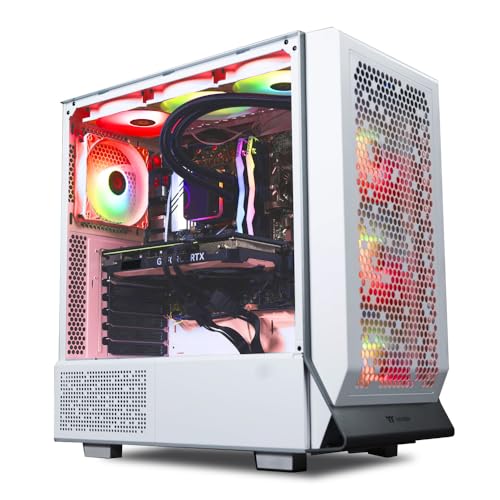
- Best native 1440p renderer in this guide: Skytech Omega Gaming PC, Ryzen 7 7700X, RTX 4070 Super, 32GB DDR5, 1TB NVMe, White — Check on Amazon
- MSI Codex Z2 Gaming Desktop, Ryzen 7 8700F, RTX 5070, 32GB DDR5, 2TB SSD — Check on Amazon
- Thermaltake LCGS View i4770 Gaming Desktop, i7-14700KF, RTX 4070, 32GB DDR5 5600, Liquid-Cooled — Check on Amazon
- AtomMan G7 Ti Mini PC, Core i9-14900HX, RTX 4070 Laptop GPU, 32GB DDR5, 1TB SSD — Check on Amazon
See 2 more Amazon options
- Minisforum MS-A2 Mini Workstation, Ryzen 9 HX, PCIe x16 Slot, Dual 10G SFP+ — Check on Amazon
- Dell 27 All-in-One EC27250, Core 7 150U, MX570A, 32GB DDR5, 1TB SSD, Windows 11 Pro — Check on Amazon
Read the full guide ↓
Disclosure: As an Amazon Associate, reviewstook.com earns from qualifying purchases. Links to Amazon on this page are affiliate links; they cost you nothing extra. Listing details such as price and availability change often, so check the current Amazon listing before you buy.
This keyword joins two jobs that rarely share a desk, so this guide starts by separating them — and by separating two ideas that monitor marketing deliberately blurs. A PC can display 1440p without rendering 1440p. Displaying means the screen shows a 2560×1440 picture; rendering means the graphics hardware actually computes every one of those pixels for every frame of a game. Almost any modern machine can do the first. Only some of the machines below can do the second, and the honest map of this guide is: three picks render games natively at 1440p as their normal mode, because they carry desktop RTX 4070-class cards; one pick renders at 1440p with real compromises and leans on upscaling, because its card is the 8GB laptop version; one pick drives a 1440p monitor beautifully for work but renders games at 1080p or below and upscales the result; and one pick cannot show a 1440p picture on its own screen at all, because the screen built into it is a 1080p panel. Every grade below follows from which of those four situations you are actually buying.
The office half of the keyword deserves the same plain treatment. Documents, email, spreadsheets, browser work and video calls gain nothing from any machine in this guide over a good lower-priced home office PC — that more affordable tier is indistinguishable inside a spreadsheet, and readers whose evenings do not include games should stop there and keep the difference. What the extra money buys here is a second life for the work machine: a graphics card strong enough to render modern games at 1440p after hours, 32GB of memory fitted as standard, and storage that holds both a project archive and a game library. Check price on Amazon for each pick before you buy, because listings in this tier can change and two of them are deal-dependent recommendations, flagged as such in their reviews.
In this guide
Quick Picks
Short on time, or comparing several options at once? Each row below names a buyer type and the machine that suits it, with a link to the listing.
| Buyer type | Pick | Why it stands out | Link |
|---|---|---|---|
| Best native 1440p rendering | Skytech Omega, Ryzen 7 7700X, RTX 4070 Super, 32GB, 1TB | Desktop RTX 4070 Super renders 1440p natively at high settings; published 750W Gold PSU — check price on Amazon | Check on Amazon |
| Newest GPU generation, most storage | MSI Codex Z2, Ryzen 7 8700F, RTX 5070, 32GB, 2TB | RTX 5070 renders 1440p natively and the 2TB drive holds work plus games; pricing can swing widely — check price on Amazon | Check on Amazon |
| Quiet native 1440p — deal only | Thermaltake LCGS View i4770, i7-14700KF, RTX 4070 | Desktop RTX 4070 12GB and liquid cooling for quiet rooms; deal-dependent pick — check price on Amazon and buy only when it falls within budget | Check on Amazon |
| 1440p in the least desk space | AtomMan G7 Ti Mini PC, i9-14900HX, RTX 4070 Laptop | A 140W laptop RTX 4070 with DLSS in a slim mini; 8GB of VRAM is the honest ceiling at 1440p | Check on Amazon |
| 1440p desktop now, graphics card later | Minisforum MS-A2 Mini Workstation | Drives a 1440p desk from verified outputs today; renders games at 1080p or below until its PCIe slot takes a card | Check on Amazon |
| Tidy desk first, gaming last | Dell 27 All-in-One EC27250, 32GB, 1TB, Windows 11 Pro | A 27-inch 1080p touch screen with the PC inside; not a 1440p gaming machine, and this guide will not call it one | Check on Amazon |
How These Picks Were Chosen
The budget was applied as a ceiling, with the care this tier demands: every machine below is a real Amazon listing positioned for this budget tier in the United States. Where a listing is deal-dependent, the review labels it as such everywhere it appears, including the table above, and readers should check price on Amazon to confirm the live price falls within budget before buying.
The grading order for this angle is fixed, and it is worth stating before any product names. First, native rendering: can the documented graphics hardware compute a 2560×1440 frame at high settings as its normal mode? Upscaling is graded second, and only where the hardware genuinely supports it — DLSS is an NVIDIA RTX technology, so it is credited to the four RTX picks and denied, in words, to the two picks without RTX hardware. Where DLSS figures appear in this guide they are NVIDIA’s published scaling factors for a 1440p output: DLSS Quality renders internally at roughly 1707×960, Balanced at roughly 1485×836, and Performance at roughly 1280×720. Those numbers belong to DLSS alone. The one Radeon-graphics pick is credited with FSR upscaling generically, with no internal-resolution figures attached, because its base research documents none. Frame generation, where an RTX pick offers it, is treated throughout as display-side smoothing — it makes motion look smoother; it does not render more pixels, and it is never counted as resolution.
Third, memory — because at 1440p, VRAM is a texture budget that upscaling cannot rebuild. A game rendering internally at 1707×960 and upscaling to 1440p still loads its textures at 1440p intent, so the 12GB desktop cards grade above the 8GB laptop card for this angle even where their raw rendering is close. Fourth, the display path: monitor claims come only from outputs a listing actually names — the MS-A2’s HDMI plus two USB-C display outputs and the G7 Ti’s HDMI 2.1 plus USB4 are verified from their listings — while on the integrator towers the fitted card brand varies by build batch, so the port mix varies with it and the reviews tell you to confirm outputs in the listing photos rather than printing a count nobody pinned down. Finally, the office filter from the base guide still applies in full: 32GB fitted, real storage, and an honest statement of who should not buy each machine.
Rendered at 1440p vs Displayed at 1440p
Keep one distinction in mind while reading every review below, because it decides whether you feel well served or quietly cheated. When a game renders at 1440p natively, the GPU computes all 3.7 million pixels of each frame. When it renders lower and upscales — say at DLSS Quality’s internal 1707×960 — it computes about 1.6 million pixels and reconstructs the rest. The monitor shows a 1440p picture either way, and a good upscaler makes that picture genuinely sharp; what changes is the workload, the texture load and the honesty of the phrase “1440p gaming.” The three desktop-card towers in this guide do the first thing as their normal mode, so for them DLSS is headroom — a way to buy smoothness in the most demanding scenes — rather than a lifeline. The G7 Ti sits between: its laptop card renders many games natively at 1440p at reduced settings, and DLSS becomes the working route when settings or textures climb. The MS-A2 does the second thing only, and the Dell, on its own screen, does neither.
One more boundary, stated once so no review has to hedge it later: native 4K gaming is not what this budget buys in any pick. The desktop RTX picks can upscale a picture to a 4K television and look respectable doing it, but the panel this money pairs with is a 1440p panel, and every recommendation below assumes exactly that pairing.
The 6 Best Home Office PCs for 1440p Gaming Under $1,500
Skytech Omega Gaming PC — Ryzen 7 7700X, RTX 4070 Super, 32GB DDR5, 1TB NVMe (White)
Who it suits: The home worker who wants the after-hours half of this keyword done properly — native 1440p rendering at high settings from a standard tower that also happens to be a strong office-plus-creation machine all day.
Start with the card, because at 1440p the card is the review. The RTX 4070 Super is a desktop part with 12GB of GDDR6X memory, and that combination is precisely the native-1440p class: it computes full 2560×1440 frames at high settings as its ordinary mode of work, with the 12GB frame buffer holding 1440p textures without the compromises an 8GB card starts making. DLSS is present, as it is on every RTX pick here, but on this machine it is headroom rather than necessity — engage Quality mode, rendering internally around 1707×960, when a demanding scene needs smoothing, and understand that you are spending surplus, not covering a deficit. Around the card sit a Ryzen 7 7700X eight-core desktop CPU with the strong single-thread speed that decides how responsive documents and design apps feel, 32GB of DDR5, a 1TB Gen4 NVMe drive, and a detail this guide weights heavily: Skytech publishes the power supply at 750W Gold, which is what makes a future graphics card a planned purchase instead of a guess.
The condition is the price, and it is stated without decoration. This configuration — model ST-OMEGA2-1124-W-AM — is a premium-tier tower, and when its live price on Amazon sits within budget it is the strongest 1440p value in this guide by a wide margin. Its live price can also sit well above budget, so the recommendation is explicitly price-conditional: check price on Amazon, buy it first when it falls within budget, and above that, wait or take a different pick below. Two working notes carry over from the base research. The exact graphics card brand fitted varies between build batches, which means the rear port mix varies too — if your desk runs multiple monitors, confirm the fitted card’s outputs in the listing photos before ordering. And it ships with Windows 11 Home; an employer that requires Pro features is an upgrade conversation to have before day one, not during it.
- Desktop RTX 4070 Super 12GB — native 1440p rendering at high settings, with DLSS as headroom.
- Published 750W Gold power supply: the next graphics card is a plan, not a gamble.
- A standard tower built around 32GB of DDR5 and Gen4 NVMe storage — standard parts throughout.
Honest limitation: The recommendation lives and dies by the live price — check price on Amazon before buying — and the fitted GPU brand, and therefore its exact port mix, varies by batch.
Choose it if you want real native 1440p gaming from the work desk and its live price on Amazon sits within budget. Skip it if your evenings hold no games — a more affordable office tier serves the day job identically — or the live listing sits well above budget today.

MSI Codex Z2 Gaming Desktop — Ryzen 7 8700F, RTX 5070, 32GB DDR5, 2TB SSD
Who it suits: The buyer who wants the newest graphics generation doing the 1440p rendering, and the largest standard storage in the guide holding both the work archive and the game library.
The configuration documented here — model A8NVP-436US — pairs a Ryzen 7 8700F (eight cores, sixteen threads, boost to 5.0GHz) with an RTX 5070 from the current Blackwell generation, 32GB of DDR5 and a 2TB SSD. For this angle the 5070’s job description is the same as the Skytech’s card: render 1440p natively at high settings as the normal mode, with DLSS — Quality internally around 1707×960, Performance around 1280×720 — available as headroom when a scene demands it. It is the newest silicon in the guide, which buys the current generation of media and AI features alongside the rendering. The 2TB drive deserves its sentence: a year of project files plus a modern game library is exactly the load that makes 1TB machines start deleting things, and this is the only pick that ships double as standard. The tower format keeps the standard-parts promise — memory, storage and graphics remain replaceable down the line.
The warning deserves equal prominence: no listing in this guide swings in price like this one. It can represent strong value for an RTX 5070 tower when it falls within budget, yet it can also spend long stretches well above budget. Treat it as a price-alert purchase: check price on Amazon, buy when the live price falls within budget, and do not talk yourself into a listing that sits well above budget because a guide recommended the machine. Two verification notes belong with it. MSI sells several Codex Z2 configurations under one name, so match the model number A8NVP-436US and the RTX 5070 / 2TB specification in the listing before paying — sibling configurations are different machines at different prices. MSI does not publish the power supply wattage in the material available for this listing, so this guide claims no figure for it; if a future GPU upgrade matters to you, confirm the PSU on the live listing or with MSI first, because that one number governs the upgrade path.
- RTX 5070 — the newest GPU generation in this guide, rendering 1440p natively.
- 2TB SSD as shipped: room for the work archive and the game library together.
- Mainstream-brand tower format, with parts that stay replaceable throughout its life.
Honest limitation: Volatility is the story — pricing can swing widely, so check price on Amazon — and with the power supply wattage unpublished, upgrade headroom cannot be verified from the listing.
Choose it if the newest GPU and 2TB in one box are worth buying on a price alert. Skip it if the purchase has to happen this week at whatever price the listing shows, or if an undocumented PSU kills the deal for your upgrade plans.

Thermaltake LCGS View i4770 — Core i7-14700KF, RTX 4070, 32GB DDR5 5600, Liquid-Cooled
Who it suits: The noise-sensitive home worker — calls all day, a microphone in the room — who still wants desktop-card 1440p rendering after hours, and can wait for one specific price.
The specification is a strong mainstream tower: a Core i7-14700KF with twenty cores, a desktop RTX 4070 with 12GB, 32GB of DDR5-5600 — the fastest published memory speed in this guide — and a 1TB NVMe drive, in Thermaltake’s LCGS build with liquid cooling. On this angle’s grading it stands with the Skytech and the MSI, not below them: the desktop 4070 renders 1440p natively at high settings as its normal mode, its 12GB buffer carries 1440p textures without negotiation, and DLSS sits in reserve as headroom for the heaviest scenes. What separates it from the two towers above is not rendering but acoustics. Liquid cooling holds sustained loads — an export running through a client call, a long gaming session in a shared room — with less fan noise than an air-cooled box at the same output, and in a home office that doubles as a recording space that is a working specification, not a luxury.
No pick in this guide is more strictly conditional. This is a premium, deal-dependent pick whose live price often sits above this budget tier as a matter of routine, so check price on Amazon before considering it. So the rule is absolute: when it falls within budget, this is a legitimate and distinctive buy; at anything above budget, it does not belong in this tier at all, and the Skytech Omega — a step up in card class, with a published PSU — is the better answer. One long-term note that liquid cooling asks of any owner: an all-in-one liquid loop is a sealed maintenance item with a finite service life measured in years, where an air cooler is effectively permanent; budget a replacement cooler into a seven-year ownership plan and the quiet is a fair trade.
- Desktop RTX 4070 12GB — native 1440p rendering with DLSS held as headroom.
- Quiet sustained performance from liquid cooling — the acoustic choice of this guide.
- i7-14700KF 20-core CPU and 32GB of DDR5-5600, the fastest published memory specification here.
Honest limitation: Strictly deal-only — its live price often sits over budget, so the recommendation applies only when it falls within budget on Amazon — and the liquid cooler is a wear item in a way an air cooler never is.
Choose it if quiet under load is a working requirement and the live price on Amazon falls within budget. Skip it if the listing sits well above budget, or if air cooling’s set-and-forget permanence suits you better.

AtomMan G7 Ti Mini PC — Core i9-14900HX, RTX 4070 Laptop GPU, 32GB DDR5, 1TB SSD
Who it suits: The desk-space minimalist who still wants genuine 1440p gaming after work — and who understands, before paying, exactly which version of the RTX 4070 name they are buying.
Understand the machine first: it is a powerful laptop’s internals stood upright without the screen. A Core i9-14900HX with 24 cores boosting to 5.8GHz, an RTX 4070 laptop GPU running at up to 140W, 32GB of DDR5-5600 in two SO-DIMM slots (upgradable to 96GB), a 1TB SSD with a second slot waiting, Wi-Fi 7, and display output via HDMI 2.1 and USB4 — both verified from the listing. The configured 32GB/1TB machine and a barebone version are both positioned in this budget tier — check price on Amazon for the configuration you need. For this angle it is a real gaming machine: the RTX hardware supports DLSS with the same published scaling as the towers — Quality rendering internally around 1707×960 toward a 1440p output — and many games render natively at 1440p at reduced settings. The form factor is the point of the purchase: a slim vertical slab that stands behind a monitor and leaves the whole work surface clear.
The honesty paragraph is the one the name tries to skip. A laptop RTX 4070 is not a desktop RTX 4070. It carries 8GB of memory against the desktop card’s 12GB, and at 1440p that difference is not a footnote — upscaling reconstructs pixels, but textures load at full 1440p intent, so 8GB is the binding constraint that decides your settings in demanding games, and even at a healthy 140W the part sits a clear step below the desktop card in sustained work. The towers above are the faster 1440p machines, full stop; what the difference buys here is the shape. Serviceability is the middle path: memory and both SSD slots are user-accessible, but the CPU and GPU are fixed for life, cooling runs through laptop-style fans that will be audible in a quiet room under load, and when the GPU generation moves on, the whole machine is the upgrade. Buy it with open eyes, at a live price on Amazon that sits within budget, having measured the desk and chosen the trade deliberately.
- A real discrete GPU — RTX 4070 laptop at up to 140W, with DLSS — in a slim mini-PC format.
- A 24-core i9-14900HX, memory that climbs to 96GB, and a second SSD slot standing empty.
- Display outputs verified from the listing — HDMI 2.1 and USB4 — alongside Wi-Fi 7.
Honest limitation: The GPU is the 8GB laptop part — a step below the desktop 4070s above, with VRAM as the binding 1440p constraint — and neither it nor the CPU can ever be replaced; sustained loads are audible in a quiet room.
Choose it if desk space is genuinely scarce and your gaming fits an 8GB GPU with DLSS doing its share. Skip it if you have room for a tower — the same money buys the faster desktop card, 12GB of VRAM and a real upgrade path.

Minisforum MS-A2 Mini Workstation — Ryzen 9 HX, PCIe x16 Slot, Dual 10G SFP+
Who it suits: The technical home worker — developer, homelab or network user — whose desk runs a 1440p monitor for work all day, whose gaming is lighter or older, and who values the one small machine here whose graphics ceiling is not fixed at purchase.
Grade this pick by the distinction this guide opened with, because it is the distinction’s clearest case. As a display machine it is excellent and fully verified: the listing names HDMI plus two USB-C outputs rated 8K@60Hz, so a 1440p work desk — one panel or three — runs from its own ports with bandwidth to spare. As a rendering machine, honesty is required: as shipped, graphics are the integrated Radeon 610M, which is fine for multiple high-resolution desktops and light or older games, and is not a native-1440p gaming GPU for modern titles. There is no DLSS here — DLSS is NVIDIA RTX technology and this machine has none — and the upscaling it does have is AMD’s FSR, credited generically: the working arrangement is to render games at 1080p or below and let the scaler present them on the 1440p panel, accepting the softer picture that arrangement honestly produces. In exchange, the rest of the machine is the most serious in this guide: a 16-core Ryzen 9 HX processor (the family spans the 8945HX and the newer 9955HX, a Zen 5 part boosting to 5.4GHz), two DDR5 SO-DIMM slots to 96GB, three M.2/U.2 storage positions, and dual 10-gigabit SFP+ networking on an Intel X710 controller beside dual 2.5-gigabit LAN.
And then there is the slot. The PCIe x16 slot (PCIe 4.0, x8 electrical) accepts a low-profile graphics card later, which makes this the only pick whose 1440p story can change after purchase — a card turns it from an upscaling machine into a rendering one, within the slot’s low-profile, power-limited selection. That is a further purchase, priced separately, and GPU work waits on it; as shipped, this is a workstation that displays 1440p, not a gaming PC that renders it. Pricing needs care in a different shape from the towers’: the barebone version — no memory, storage or operating system — is the lower-cost entry in the range, while the configured 32GB/1TB version sits higher in the tier — check price on Amazon for both. The barebone is the bargain only if you already own DDR5 SO-DIMMs and an NVMe drive, because memory and storage can be costly during an ongoing shortage and completing one with new parts can erase the advantage entirely. Reviewers have also noted audible fan noise under sustained load and relatively high idle power draw, with limited airflow around the PCIe area. Buy it for the cores, the slot and the networking — and for a 1440p desk, not a 1440p render pipeline.
- Verified triple-display outputs (HDMI + 2× USB-C) — a genuine 1440p work desk from its own ports.
- A PCIe x16 slot in a mini PC: the only route here to a real graphics card later.
- Memory to 96GB, three storage positions, dual 10G SFP+ plus dual 2.5G networking.
Honest limitation: Integrated graphics only as shipped — modern games render at 1080p or below and upscale; there is no DLSS — and it is audible under sustained load, with a barebone price that only wins if you already own the parts to complete it.
Choose it if your work is CPU-heavy, your monitor is 1440p, and your gaming is light today with a card planned tomorrow. Skip it if native 1440p gaming is the point of the purchase — every RTX pick above serves that goal today.

Dell 27 All-in-One EC27250 — Core 7 150U, GeForce MX570A, 32GB DDR5, 1TB SSD, Windows 11 Pro
Who it suits: The tidy-desk professional whose work is communication-heavy — calls, documents, browser, light photo work — and who has read this far mostly to confirm that the gaming half of the keyword is not theirs.
Begin with the screen, because for this angle the screen settles the question. This all-in-one (model DEC27250-7277WHT-PUS) builds the computer behind a 27-inch Full HD touch display — 1920×1080. There is no 1440p picture on that panel, rendered or otherwise; the resolution this keyword names is one the machine’s own display cannot show. Its graphics tell the same story: the NVIDIA GeForce MX570A with 2GB of GDDR6 is entry-level acceleration that smooths photo editing, video-call effects and light creative work. It is an MX-class part, not an RTX card — it has no DLSS — and it is not a 1440p gaming GPU in any honest grading. If an external 1440p monitor is part of your plan, treat the display outputs as a question for the live listing: the base research for this guide documents no external-output specification for this pick, and none is invented here.
What the machine genuinely is, it is good at. The Core 7 150U, 32GB of DDR5 and 1TB SSD handle the office day without strain; Windows 11 Pro and Dell Onsite Service make it the only pick whose support story is a technician at your door rather than a box in the mail; and this configuration sits in the mid-range of this budget tier — check price on Amazon — with the least deal-dependent pricing in this guide. The cautions are the all-in-one catechism plus one listing-specific trap. The catechism: screen, computer and power supply age as one object, serviceability is limited next to any tower, and a major out-of-warranty failure makes the whole unit the repair — buy it as a five-year appliance with a service contract, not as a platform. The trap: Dell sells sibling configurations of this same EC27250 family under different listings in higher tiers with different specifications, so match the full model number DEC27250-7277WHT-PUS and the 32GB/1TB/Windows 11 Pro specification before paying. Matched correctly, it belongs to the reader who weighed the towers above against their desk — and picked the desk.
- One object on the desk: a 27-inch touch screen with the computer behind it — the tidiest arrangement here.
- Windows 11 Pro, 32GB of memory and a 1TB SSD as shipped, backed by Dell Onsite Service.
- Positioned below the top of this budget tier, leaving genuine headroom under the budget instead of needing a deal day.
Honest limitation: Not a 1440p machine in either sense — the built-in panel is 1080p and the MX570A is entry-level acceleration with no DLSS — and the all-in-one format ages as a single unit; sibling configurations share the family name in higher tiers, so the model number must be matched exactly.
Choose it if your work is calls, documents and light creative tasks and the desk itself is the priority. Skip it if 1440p gaming is any part of the plan — every other pick in this guide serves it better, and the towers serve it outright.

Comparison Table
| Product | Form | 1440p verdict | Link |
|---|---|---|---|
| Skytech Omega, 7700X, RTX 4070 Super | Tower | Renders natively at high settings; DLSS as headroom | Check on Amazon |
| MSI Codex Z2, 8700F, RTX 5070 | Tower | Renders natively; newest generation; 2TB fitted | Check on Amazon |
| Thermaltake LCGS View i4770, 14700KF, RTX 4070 | Tower | Renders natively, quietly; deal-dependent only — check price on Amazon | Check on Amazon |
| AtomMan G7 Ti Mini PC | Mini PC | Native at reduced settings or via DLSS; 8GB is the ceiling | Check on Amazon |
| Minisforum MS-A2 Mini Workstation | Mini PC | Displays 1440p for work; renders games lower and upscales | Check on Amazon |
| Dell 27 All-in-One EC27250 | All-in-one | 1080p panel and entry graphics — not a 1440p gaming pick | Check on Amazon |
Pairing a 1440p Monitor With These Machines
The panel is half of this keyword, and it is bought separately from every pick here — no monitor price is quoted in this guide, because the base research prices none. What can be stated from documented facts is the connection discipline. A 1440p high-refresh panel wants a DisplayPort connection or a current-generation HDMI port from the graphics hardware; which of those a given machine offers is a listing fact, not a brochure fact. For the two minis the outputs are verified: the G7 Ti’s HDMI 2.1 and USB4, and the MS-A2’s HDMI plus two USB-C display outputs rated well beyond 1440p, will each drive a 1440p gaming panel properly. For the three towers, the fitted graphics card brand varies by build batch on integrator listings, so the port mix varies with it — before ordering, open the listing photos, find the rear panel, and confirm the card carries the outputs your monitor needs; the card class is never the question, the fitted ports are. For the Dell, the monitor question answers itself: its built-in screen is 1080p, so a 1440p panel means an external display, and its output specification is one to confirm on the live listing rather than assume.
Two settings complete the pairing on any RTX pick. Set the monitor’s real refresh rate in Windows after connecting it — panels routinely arrive running at a basic rate until told otherwise — and remember that a higher refresh rate raises the value of the rendering headroom graded throughout this guide: a card rendering natively with DLSS in reserve is what feeds a fast 1440p panel in demanding scenes, while frame generation, where offered, smooths the motion of that feed without adding rendered detail. Readers speccing the panel and the PC together, rather than adding gaming to an existing office, should also compare Best 1440p Gaming PC Under $1500, where the same class of hardware is ranked for play first and work second.
How to Choose a Home Office PC for 1440p Gaming Under $1,500
- Decide which 1440p you mean. Rendering and displaying are different purchases. If games must be computed at 2560×1440, only the three desktop-card towers and, with compromises, the G7 Ti qualify. If the 1440p need is a sharp work desktop and the gaming is lighter, the MS-A2’s verified outputs serve it today. The Dell serves neither — its panel is 1080p — and is bought for other virtues.
- Count VRAM before core counts. At 1440p, textures load at full intent regardless of the internal render resolution, so the 12GB desktop cards outlast the 8GB laptop card for this angle. Upscaling relieves the pixel workload; it does not enlarge the texture budget.
- Treat DLSS as headroom on a native renderer, and as a route on a compromised one. On the towers, DLSS Quality (internally around 1707×960) is spare capacity for the heaviest scenes. On the G7 Ti it is part of the standard arrangement. On the MS-A2 and the Dell it does not exist — DLSS is RTX technology — and any listing or review implying otherwise for those machines is wrong.
- Fire the budget if the second job is absent. Documents, email, spreadsheets and calls are fully served by a more affordable tier — see Best Home Office PC Under $800. This tier exists for the after-hours job: native 1440p gaming, or creation work of the same weight. If you cannot name that job, do not spend the difference.
- Verify display outputs against the listing, never the GPU brochure. Port counts in this guide come from what listings name. On the towers the fitted card brand varies by batch, so the listing’s rear-panel photos are the only count that binds your purchase — check them against your monitor before ordering.
- Demand a published power supply on a tower. The Skytech’s 750W Gold figure is printed; the MSI’s is not published in the available material. That difference is the difference between a planned future GPU upgrade and a guess, and at this price an unpublished PSU deserves a question to the seller before money moves.
- Do the barebone arithmetic honestly. The MS-A2’s barebone version is a bargain only with DDR5 SO-DIMMs and an NVMe drive already on your shelf. Check the full cost of completion at current prices — in a market where memory and storage are shortage-inflated — before assuming the kit wins.
- Check which Windows you are actually getting. Five of these machines ship Windows 11 Home; the Dell alone ships Pro. If an employer, VPN or compliance need requires Pro features, that line in the listing is worth real money and real setup time.
- Give every pick a walk-away point — then obey it. This tier’s listings can swing widely. Check price on Amazon for every pick, and a recommended machine bought well above budget stops being the right machine. Patient buyers should also weigh Best Home Office PC For 1440p Gaming Under $1200 below and Best Home Office PC For 1440p Gaming Under $2500 above before deciding the tier itself is right.
Common Buying Mistakes
- Believing a 1440p monitor makes any PC a 1440p gaming PC. The panel displays what it is sent; the MS-A2 sends it an upscaled picture rendered at 1080p or below, and the Dell cannot send it a native picture from its own screen at all.
- Reading DLSS Quality as rendering at 1440p. It renders internally at roughly 1707×960 and reconstructs the rest — an excellent picture, and a smaller workload, but not native rendering. The distinction is the whole grading system of this guide.
- Reading a laptop GPU as a desktop GPU. The G7 Ti’s RTX 4070 is the 8GB laptop part; the towers’ cards are 12GB desktop parts. At 1440p, where textures decide settings, that difference is the purchase.
- Crediting DLSS to machines without RTX hardware. The MS-A2’s Radeon graphics and the Dell’s MX-class part have no DLSS; their upscaling stories are FSR-class or none, and this guide grades them that way.
- Buying a volatile listing without checking its live price. The MSI and Thermaltake listings can sit well above budget; both are recommendations only when the live price on Amazon falls within budget.
- Assuming a barebone is cheaper. Price a completion before admiring the kit price: at shortage prices for new memory and storage, owners of spares win the MS-A2 arithmetic and new-parts buyers often do not.
- Matching the family name instead of the model number. Under the EC27250 and Codex Z2 names sit sibling machines with different specifications at different prices; the model number is the machine.
- Spending at this tier on documents alone. If the after-hours job cannot be named, a more affordable tier plus a genuinely good 1440p monitor is the better office — the panel improves every working hour, which no graphics card does.
Final Recommendation
- Most buyers of this keyword: Skytech Omega (within budget — check price on Amazon).
- Newest GPU and the most storage, for patient buyers: MSI Codex Z2 (on a price alert).
- Quiet room, native 1440p: Thermaltake LCGS View i4770 (deal-dependent only — check price on Amazon).
- Small desk, real gaming: AtomMan G7 Ti Mini PC.
- 1440p work desk, light gaming, expansion-minded: Minisforum MS-A2 Mini Workstation.
- Tidy desk, no gaming ambitions: Dell 27 All-in-One EC27250.
Our top two for this budget are the Skytech Omega, because when its live price falls within budget it delivers the full desktop RTX 4070 Super class — native 1440p rendering with DLSS held in reserve and a documented power supply — in a premium tower, and the MSI Codex Z2, because it pairs the newest GPU generation with the 2TB drive this dual-purpose life actually needs, for buyers patient enough to purchase it when its live price falls within budget. Between them they frame the tier’s honest choice: the strongest card today, or the newest card with room to grow into. Readers new to machines at this level should start with Best Home Office PC For Beginners Under $1500; those whose desk cannot hold a tower will find the same trade-offs graded by footprint in Best Home Office PC For Small Spaces Under $1500; and the base ranking these six were drawn from, graded on office-plus-creation rather than resolution, is Best Home Office PC Under $1500. Name which 1440p you mean, pick the machine that honestly does it, set your walk-away point, and check price on Amazon before you order.
Frequently Asked Questions
Is DLSS Quality actually rendering at 1440p?
No. At a 1440p output, DLSS Quality renders internally at roughly 1707×960 and reconstructs the remaining detail; Balanced renders around 1485×836 and Performance around 1280×720. The picture on the monitor is a genuine 1440p picture and often an excellent one, but the workload is smaller than native rendering — which is exactly why this guide grades the three desktop-card towers, which render natively as their normal mode, above machines that must upscale to reach the resolution.
Which of these PCs actually render games at 1440p natively?
Three do it as their normal mode: the Skytech Omega (desktop RTX 4070 Super), the MSI Codex Z2 (RTX 5070) and the Thermaltake LCGS View (desktop RTX 4070), all with 12GB-class frame buffers. The AtomMan G7 Ti renders natively at reduced settings in many games and uses DLSS as its working route in demanding ones, limited by its 8GB laptop card. The Minisforum MS-A2 renders at 1080p or below and upscales. The Dell all-in-one does not render 1440p gaming at all.
Can the Minisforum MS-A2 game on a 1440p monitor?
Yes, with the terms stated plainly. Its verified outputs drive a 1440p panel — or three — without strain, and its Radeon 610M graphics play light and older games rendered at 1080p or below and presented on that panel through upscaling; AMD’s FSR is the scaler available to it, and there is no DLSS, because DLSS requires NVIDIA RTX hardware. Modern demanding titles at native 1440p are beyond the integrated graphics as shipped. The machine’s PCIe x16 slot is the documented route to changing that verdict later with a low-profile card.
Why does the Dell all-in-one appear in a 1440p gaming guide at all?
Because it is one of the six verified machines at this budget in the base home-office ranking, and removing it silently would leave readers to find it elsewhere without the warning. The warning is the content: its built-in screen is a 1080p panel, so it cannot display 1440p; its MX570A graphics are entry-level acceleration with no DLSS, so it cannot render 1440p gaming either. It remains a good tidy-desk office machine with Windows 11 Pro and onsite service, positioned in the mid-range of this tier — check price on Amazon — bought for those reasons, by a reader whose gaming ambitions are honestly zero.
Is the laptop RTX 4070 in the G7 Ti the same as the desktop card?
No, and at 1440p the difference is practical rather than pedantic. The laptop part carries 8GB of memory against the desktop card’s 12GB, and textures load at full 1440p intent whichever internal resolution the game renders at — so the 8GB buffer, not raw rendering speed, is what sets the ceiling on settings in demanding titles. The G7 Ti is a capable 1440p machine with DLSS doing real work; it is not the equal of the towers, and this guide ranks it accordingly.
Why are two picks labeled deal-only?
Because much of the time, their listings live above this budget. Both are premium, deal-dependent picks, and the recommendations apply only when the live price on Amazon falls within budget. Treating a deal price as a standing price would mislead you; the honest routine is an alert, a purchase when the live price falls within budget, or a different pick.
Is a $1,500 home office PC overkill if I do not game?
Yes — completely, for documents, email, browsing and calls, which a more affordable machine performs identically. This budget becomes rational when a second job appears beside the office work: 1440p gaming after hours, video or photo production, 3D or CAD, virtual machines or local AI tools. Buy the second job, not the number — and if the second job is the gaming, the three desktop-card towers are where this guide’s money goes.


