Where to buy
Check the latest price, availability and delivery on Amazon. Orders are placed on Amazon. We may earn a commission from qualifying purchases.
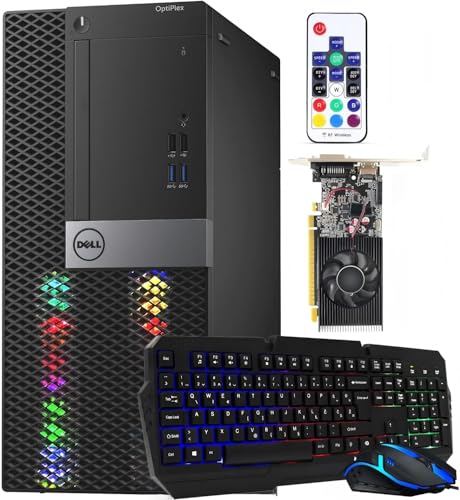
- Only pick that can grow into true 1440p: Dell RGB Gaming Tower, Core i7 6th Gen, GTX 1050 Ti 4GB, 16GB RAM, 512GB SSD (Renewed) — Check on Amazon
- Beelink SER5 MAX Mini PC, Ryzen 7 5800H, 16GB RAM, 500GB SSD — Check on Amazon
- GMKtec M5 Plus Gaming Mini PC, Ryzen 7 5825U, 32GB RAM, 1TB SSD — Check on Amazon
- BOSGAME P4 Light Gaming Mini PC, Ryzen 7 5700U, 32GB RAM, 1TB SSD — Check on Amazon
See 2 more Amazon options
- KAMRUI E3B Mini Gaming PC, Ryzen 5 7430U, 32GB RAM, 512GB SSD — Check on Amazon
- Dell OptiPlex 9020 SFF Desktop, Core i7-4770, 32GB RAM, 1TB SSD (Renewed) — Check on Amazon
Read the full guide ↓
Disclosure: As an Amazon Associate, reviewstook.com earns from qualifying purchases. Links to Amazon on this page are affiliate links; they cost you nothing extra. Listing details such as price and availability change often, so check the current Amazon listing before you buy.
A 1440p monitor asks two completely different things of a PC, and this guide exists because most pages selling you a “1440p gaming desktop” under $400 quietly answer only the easy one. The easy demand is display: putting a desktop, a browser and a video on a 2560×1440 screen. Every machine below can do that — the mini PCs document triple-display outputs rated well past 1440p, and displaying a desktop is light work for any modern graphics hardware. The hard demand is rendering: drawing the game itself at 2560×1440, which means producing roughly 3.7 million pixels per frame instead of 1080p’s 2.1 million — about 78 percent more work, every frame, forever. At under $400, no desktop on sale renders modern games natively at that resolution, and any page implying otherwise is selling you the display number while hoping you never ask about the render number. So the honest version of this keyword, stated up front: these are machines that pair sensibly with a 1440p monitor, not machines that render today’s games at 1440p.
What that pairing actually looks like is better than it sounds. The desktop, text, photo work and streamed video all live at the panel’s full native resolution, where 1440p is a genuine, visible upgrade over 1080p. Games mostly render at 1080p — or lower, for the heaviest recent releases — and are displayed on the 1440p panel, with the lightest esports and indie titles able to render natively at 1440p at low settings on the stronger picks. One technology cannot rescue the gap here: nothing in this guide supports DLSS. DLSS needs an NVIDIA RTX graphics card with Tensor cores; the only discrete GPU below is a GTX 1050 Ti from the Pascal generation that predates DLSS entirely, and the AMD integrated graphics in the mini PCs have no DLSS path either. The tools this tier actually uses are in-game render-resolution scaling and plain display scaling, and the section after the quick picks explains exactly how each behaves on a 1440p panel.
The second piece of standing honesty concerns what kind of machines these are. There is no new desktop with a discrete graphics card under $400, so the two genuine desktops here are Amazon Renewed business machines: a full tower the refurbisher fitted with a real graphics card, and a small-form-factor OptiPlex sold honestly as a project whose card is a second purchase. The other four picks are Ryzen mini PCs — sealed, newer, warrantied boxes whose integrated graphics are fixed forever. For a 1440p buyer the fork has a specific shape: only the tower can ever become a true native-1440p machine, because only the tower can accept a future graphics card; every mini’s 1440p story is display-side for life. The quick picks follow, then the rendering-versus-displaying explanation, reviews of all six machines graded on both, a comparison table, monitor-pairing guidance, and the mistakes that waste money at exactly this budget.
In this guide
Quick Picks
Short on time, or comparing several options at once? Each row below names a buyer type and the machine that suits it, with a link to the listing.
| Buyer type | Pick | Why it stands out | Link |
|---|---|---|---|
| Only route to true 1440p later | Dell RGB Gaming Tower, GTX 1050 Ti (Renewed) | The only pick with a graphics slot — today’s 1080p renderer, tomorrow’s genuine 1440p machine | Check on Amazon |
| Strongest graphics for the panel today | Beelink SER5 MAX Mini PC, Ryzen 7 5800H | 54W Ryzen chip with Vega 8 graphics — check price on Amazon | Check on Amazon |
| Best display-side specification | GMKtec M5 Plus Mini PC, Ryzen 7 5825U | 32GB dual-channel memory and triple 4K outputs — nothing about the setup holds the panel back | Check on Amazon |
| Big-spec mini for a 1440p desk | BOSGAME P4 Mini PC, Ryzen 7 5700U | 32GB/1TB with triple 4K 60Hz outputs — check price on Amazon | Check on Amazon |
| Cheapest start, money left for the monitor | KAMRUI E3B Mini PC, Ryzen 5 7430U | 32GB dual-channel memory and Vega 7 graphics — check price on Amazon | Check on Amazon |
| Project chassis — 1440p desk after the card | Dell OptiPlex 9020 SFF (Renewed) | 32GB RAM and 1TB SSD in a real desktop chassis — check price on Amazon; the card is a second purchase | Check on Amazon |
How These Picks Were Chosen
The budget worked as a ceiling, not a target: each machine below is a real Amazon listing that sells at or regularly within $400, and where a price wanders — renewed stock wanders constantly — check the live price on Amazon before you buy. One pick, the renewed Dell tower, spends part of its life above the line; it is included, because it is the only genuine gaming desktop in this money and a 1440p guide without it would dodge the one machine that can ever render natively at the resolution.
Grading ran on four 1440p-specific criteria. The first is rendering muscle, stated in settings rather than invented frame rates: what resolution and settings class each machine’s graphics honestly sustain. The second is the memory arrangement, because at 1440p it decides more than buyers expect — a discrete card’s own video memory behaves differently from integrated graphics borrowing system RAM, and integrated graphics fed by a single memory stick lose a real share of their speed, so dual-channel configuration was checked on every mini. The third is the documented display side: the outputs each listing actually specifies, since a machine that cannot cleanly drive the panel fails this keyword no matter how it renders. The fourth is the future: whether anything about the machine can change, because a buyer pairing a long-lived 1440p panel with a $400 PC deserves to know which of these boxes can grow toward the panel and which never will.
Two filters from the wider batch discipline sat underneath. DLSS was checked and excluded as a criterion rather than credited: none of the six machines carries an RTX GPU, so no DLSS claim appears anywhere in this guide, and no upscaling internal-resolution figures are quoted for any pick — the base research for this set documents none. The condition filter is the other: two of the six picks are Amazon Renewed, named as renewed in their titles everywhere they appear, with the 90-day return window treated as what it is — a testing deadline, not a warranty. We did not use these machines ourselves; the picks rest on maker and refurbisher listings, Amazon’s product records and independent price histories, compared on processors, graphics, memory configuration, storage and documented display outputs.
Rendered at 1440p, Displayed at 1440p: The Distinction This Guide Runs On
Everything in the reviews below is graded against one distinction, so it gets its own section. A game has a render resolution — the size of the image the graphics hardware actually draws — and a display resolution, the size of the panel showing it. When the two match, the image is native and at its sharpest. When the render resolution is lower, something has to stretch the smaller image across the bigger panel, and how that stretching happens decides how the result looks. At 1440p the arithmetic is unforgiving: 2560×1440 carries about 78 percent more pixels than 1920×1080, so a machine that is comfortable rendering at 1080p is not “a bit short” of native 1440p — it is most of the way short, and no settings menu closes a gap that size for modern games. That is why the honest workflow for this entire tier is native 1440p for the desktop and for light games, and rendered-1080p-displayed-at-1440p for everything heavier.
There are three ways the smaller image reaches the panel, and they are not equal. The crudest is plain display scaling: the game outputs 1080p and the monitor or graphics driver stretches it to fill 1440p. Because 1080p into 1440p is a one-and-a-half-times scale on each axis — a non-integer multiple — the stretch cannot map pixels cleanly, and the result is a touch softer than the same game on a native 1080p panel. The better route, where a game offers it, is in-game render scaling: the game keeps its interface, text and menus at the panel’s native 1440p while rendering the 3D scene at a lower internal resolution and upscaling it. The interface stays crisp — which matters, because interface softness is what makes upscaled gaming feel cheap — and the scene carries the softness instead, where motion hides most of it. The third route is the emergency exit: rendering at 720p, which scales to 1440p as an exact two-by-two integer multiple and so stays clean-edged, at the cost of a visibly lower-detail scene — sometimes the honest trade for the heaviest current releases.
What about the branded upscalers? Some games bundle their own — FSR is the one the AMD machines below can use where a game includes it — and it genuinely helps in the titles that ship it. But its presence and quality vary by game, and the verified research behind this guide documents no upscaling figures for these machines, so this guide claims none: treat an in-game upscaler as a bonus inside the games that have it, not a specification of the PC. And to close the question buyers most often bring from higher-budget guides: DLSS, NVIDIA’s AI upscaler, is simply absent from this tier. It requires RTX graphics with Tensor cores. The one NVIDIA card here is a GTX 1050 Ti — a 2016 Pascal design from before DLSS existed — and integrated AMD graphics have no DLSS support at all. A sub-$400 machine that advertises DLSS is advertising something it does not contain.
None of this makes the 1440p panel a mistake — far from it. The panel is the longest-lived part of any setup, and everything outside the 3D scene already lives at its full resolution: desktop text is visibly crisper, a browser shows more of every page, and photo and document work gain real room. The machines below were chosen to make that pairing honest — strong enough to render the games this budget class plays at 1080p and display them well — rather than to pretend a render capability that $400 cannot buy.
The 6 Best Gaming Desktops for a 1440p Monitor Under $400
Dell RGB Gaming Tower Computer, Core i7 6th Gen, GTX 1050 Ti 4GB, 16GB RAM, 512GB SSD (Renewed)
Who it suits: The buyer whose 1440p ambitions are real but staged — a panel now, a machine that renders at 1080p today, and the one upgrade path in this guide that ends at genuine native 1440p.
Start with why a 2016 graphics card tops a 1440p guide. The GTX 1050 Ti is the only discrete GPU here, and its 4GB of dedicated video memory is a different arrangement from everything else on the page: the card renders from its own fast memory instead of negotiating with system RAM, which is exactly the resource a higher render resolution consumes first. In practice this machine renders the esports catalogue and the pre-2020 AAA library at 1080p low-to-medium settings — the base tier’s standard ground — and can render the lightest esports and older titles natively at 1440p at low settings, the only pick besides the strongest mini about which even that limited native claim is honest. Everything heavier follows the guide’s standard workflow: render at 1080p, display on the panel, use in-game render scaling where offered. The machine around the card is a standard tower refurbished by STG USA and sold through Amazon Renewed in Refurbished – Excellent condition with the program’s 90-day refund-or-replacement backing — 6th-generation Core i7, 16GB of DDR4, a 512GB SSD, built-in WiFi, Windows 11 Pro installed.
The reason it ranks first is the slot. Every other pick’s 1440p verdict is final; this one’s is provisional. The case opens, the card can be replaced, memory can grow and a second drive can be added — so the day a stronger card goes in, this becomes the native-1440p machine the keyword describes, on the same purchase. Two disciplines govern that future. The refurbisher does not publish the power supply’s wattage, so until you have read the label inside the case, plan any swap in the slot-powered card class that asks nothing of the PSU. And the platform underneath is finished: the 6th-generation socket has one generation of headroom, DDR4 is its last memory standard, and the processor sits outside Microsoft’s official Windows 11 support list even though Windows 11 Pro ships installed — it runs, with murkier long-term update guarantees than a modern chip carries. Finally, the price, stated plainly because it decides the purchase: this listing’s price drifts, and it spends real time above this budget. Check the price on Amazon and buy it only on a day it sits at or under $400; on the other days, the correct purchase is patience. Before ordering, confirm the live listing’s port layout too — renewed configurations vary by refurbisher batch.
- The only discrete graphics card in the guide — 4GB of dedicated video memory for the render load.
- The only pick that can ever become a native-1440p machine, via a future card swap.
- Sold by STG USA through Amazon Renewed in Refurbished – Excellent grade, with the program’s 90-day refund-or-replacement cover.
Honest limitation: Today it is a 1080p renderer with a 1440p display, not a 1440p renderer — and the listing’s price drifts above $400 as often as it sits below it, while the unpublished power supply wattage caps GPU swaps until verified.
Choose it if the panel is stage one of a plan and the card swap is stage two. Skip it if you want a warranty, a modern processor, or a machine whose capability is the same on the day it arrives as forever — that description fits the minis.

Beelink SER5 MAX Mini PC, Ryzen 7 5800H, 16GB RAM, 500GB SSD
Who it suits: Buyers who want the strongest graphics this budget puts under a 1440p panel today, in a new machine with a warranty — and who accept that its render ceiling is the one it arrives with.
The SER5 MAX’s claim is its processor’s power budget. Its Ryzen 7 5800H is an eight-core laptop-class chip set to 54W — unusually generous for a mini PC — feeding Radeon Vega 8 integrated graphics, alongside 16GB of DDR4 and a 500GB SSD in a box roughly five inches square (4.96 × 4.44 × 1.65 in) that mounts behind the very monitor this keyword is about. Check its price on Amazon — as a budget-tier pick it undercuts the renewed tower while running silicon half a decade newer, new, with Windows 11 Pro and a manufacturer’s warranty. On the 1440p grading it is the strongest integrated renderer here: the esports catalogue at 1080p with headroom, older AAA at low-to-medium settings, and — like the tower — the lightest titles rendered natively at 1440p at low settings. Its documented triple-display output (HDMI, DisplayPort and USB-C) drives a 1440p main panel without strain, with ports left over for a second screen. Because its graphics borrow system memory, keep the dual-channel memory configuration healthy and matched — integrated graphics fed from a single channel give back a real share of their speed.
The limit is structural and permanent. Inside the box, the RAM can grow to 64GB and the SSD can be swapped up to 2TB, and that is the entire list of changes this machine will ever accept — the graphics are part of the processor and the processor is soldered down. When a future game exceeds the Vega 8, no purchase short of another machine fixes it, and this box’s second career is office, media or server duty. For the 1440p buyer that finality cuts one way: if the panel is a stepping stone and a stronger PC is planned within a couple of years, this machine’s job is to be the best possible 1080p renderer in the meantime, and it is. If the plan was to grow this purchase into a native-1440p rig part by part, only the tower above can do that, and no benchmark makes the Beelink a substitute.
- Ryzen 7 5800H at 54W — the strongest rendering chip in this guide, mini or tower.
- Documented triple-display output (HDMI, DisplayPort, USB-C) for the 1440p panel and a spare screen.
- Check price on Amazon — new stock, with a manufacturer’s warranty behind it.
Honest limitation: Its 1440p story is display-side forever — the graphics can never be upgraded, so native 1440p rendering stops at the lightest titles, permanently.
Choose it if you want the best rendering this budget offers today and the panel will outlive the PC anyway. Skip it if the purchase is meant to evolve into a true 1440p machine — that plan needs the tower’s slot.

GMKtec M5 Plus Gaming Mini PC, Ryzen 7 5825U, 32GB RAM, 1TB SSD
Who it suits: The buyer who wants the mini route with nothing in the supporting specification left to apologise for — full memory, full storage and a display output set that treats the 1440p panel as the main event.
Most minis at this price cut a corner somewhere; the M5 Plus is the one that mostly declines to. Its Ryzen 7 5825U comes with 32GB of DDR4 fitted as two sticks — double the Beelink’s capacity, and in the dual-channel arrangement integrated graphics depend on, which matters more as render resolution climbs — plus a 1TB NVMe SSD on a dual-slot board that can grow to 4TB, with memory expandable to 64GB. The display side is the strongest-documented here: triple 4K display outputs mean the 1440p panel runs at its native resolution with two outputs to spare, joined by dual 2.5GbE LAN and WiFi 6E. Check its price on Amazon before you buy — as a budget-tier pick it sits within this guide’s ceiling, and a Prime coupon can change what you actually pay on the day.
Its 1440p grading carries one asterisk, and it is the power class. The 5825U is a U-series chip built for thin laptops, running at a much lower power level than the Beelink’s 54W H-series part. Both machines carry Vega 8-class graphics with the same on-paper core count and clock figures, but the GMKtec’s graphics share a smaller power budget with the processor, so across long sessions the Beelink sustains more — at 1080p rendering both cover the tier’s standard ground of esports and older AAA at low-to-medium settings, while native 1440p rendering on the GMKtec is a lightest-titles-only proposition, a half-step behind the Beelink rather than beside it. What it buys instead is the absence of friction everywhere else: games install without storage arithmetic, multitasking beside the game never brushes the memory ceiling, and the panel is driven by outputs specified well beyond its resolution. The mini-PC clause applies unchanged — RAM and storage can grow, graphics never can — but of the sealed boxes here, this is the one whose specification you will think about least after purchase day.
- The guide’s fullest standard fit: 32GB of dual-channel memory and a 1TB SSD.
- Triple 4K display outputs, dual 2.5GbE LAN, WiFi 6E — the panel is never the bottleneck.
- A budget-tier listing — check price on Amazon, especially when a Prime coupon is available.
Honest limitation: The U-series processor’s low power budget means its Vega graphics sustain less than the Beelink’s same-named GPU — and like every mini here, the graphics can never be upgraded.
Choose it if you want one purchase with nothing left to upgrade and a display setup with headroom. Skip it if rendering strength per dollar is the whole metric — the SER5 MAX wins that contest.

BOSGAME P4 Light Gaming Mini PC, Ryzen 7 5700U, 32GB RAM, 1TB SSD
Who it suits: Buyers speccing the whole desk at once — a 32GB/1TB machine whose documented display outputs are aimed squarely at multi-screen, high-resolution setups, at a price that leaves panel money unspent.
The P4’s specification reads like the M5 Plus’s sibling: a Ryzen 7 5700U, 32GB of RAM, a full 1TB SSD, Windows 11 Pro, WiFi 6E and dual 2.5GbE LAN. For this keyword its headline is the display line: triple 4K output at 60Hz across HDMI, DisplayPort and USB-C is documented on the listing — a 1440p main panel sits comfortably inside its specified range, with two outputs left for a second screen or a TV. Check its price on Amazon, including through BOSGAME’s own Amazon storefront — it is a budget-tier pick offering a 32GB/1TB specification that other brands often reserve for higher tiers. The rendering grading is the familiar Vega-class story: the 5700U’s integrated graphics cover the esports catalogue and older AAA at 1080p low-to-medium settings, displayed on the panel per the guide’s standard workflow, with native 1440p rendering reserved for the lightest titles. The generous memory and storage mean nothing around the game gets in its way — no downloads rationed, no memory ceiling brushed while a browser and a voice call share the machine.
Two cautions close the review, both carried from the verified record. The first is the standard mini-PC clause in its purest form: graphics are integrated and final, RAM and storage are the only upgrades, and when the Vega graphics fall behind your library, the machine changes jobs rather than parts — though few machines here are better dressed for the second job, since the dual LAN ports and terabyte of storage that are surplus for gaming are precisely what a home server or network storage hub wants. The second is a listing-family warning stated rather than hidden: this model has also been sold in a 5825U variant under near-identical titles, so confirm the exact configuration on the live listing before ordering — the 5700U specification above is the one tied to this listing in the records we verified. For the 1440p buyer the practical difference between the variants is small, but the rule at this budget is absolute: the configuration on the page is the machine you are buying.
- Triple 4K 60Hz display outputs documented (HDMI, DisplayPort, USB-C) — the panel pairing is specified, not assumed.
- A 32GB/1TB specification at a budget-tier price — check price on Amazon — value out of proportion to the badge.
- Dual 2.5GbE LAN: pointless for gaming, priceless for the machine’s second career.
Honest limitation: The graphics are integrated and permanent, as on every mini here — and because this listing family mixes processor variants under near-identical titles, the live configuration needs checking before you buy.
Choose it if the desk plan includes the 1440p panel plus a second screen, and a server afterlife appeals. Skip it if rendering strength is the priority — the Beelink games harder for similar money.

KAMRUI E3B Mini PC, Ryzen 5 7430U, 32GB RAM, 512GB SSD
Who it suits: The buyer funding the panel and the PC out of the same $400 — the cheapest credible machine here, chosen partly because what it doesn’t cost is what the monitor budget needs.
The E3B’s claim is value with a 1440p twist. It is the cheapest credible starting point in the guide — check its price on Amazon — which in a guide about monitor pairing is a feature in itself: as a budget-tier pick it leaves more of the budget for the panel, the peripherals or the games. What the money buys is well chosen rather than merely cheap: a Ryzen 5 7430U with six cores, Radeon Vega 7 graphics, and — the detail that matters most at this price — 32GB of memory fitted as two 16GB sticks, so the integrated graphics run dual-channel instead of limping on the single stick so many budget boxes ship with. Storage is a 512GB M.2 SSD, the machine carries WiFi 6 and triple-display output, a VESA plate is included so the box can mount behind the very panel it drives, and both memory (to 64GB) and storage (to 2TB) can grow later.
Its rendering is honestly the lightest of the minis. The Vega 7 sits one graphics tier below the Vega 8 in the Beelink and GMKtec — same family, fewer cores — and the 7430U is again a low-power U-series chip, so the workload is esports titles and indie games rendered at 1080p, older AAA at low settings, and heavier games only with resolution scaling and patience. Native 1440p rendering belongs to the very lightest titles only, and this pick’s real 1440p story is the display side: a crisp native-resolution desktop, video at the panel’s class, and games upscaled onto it. It is also, like every mini here, a finished product the day it arrives — no slot, no graphics future. What it offers instead is the most balanced total purchase in the guide for a buyer starting from nothing: machine, panel headroom and peripherals inside one budget, which is a trade none of the stronger picks can make.
- Check price on Amazon — no cheaper credible new gaming machine appears in this guide.
- Memory done properly for integrated graphics: 32GB across two sticks, running dual-channel.
- VESA mount included — the box disappears behind the 1440p panel it drives.
Honest limitation: Vega 7 graphics are the weakest of the mini PCs here — native 1440p rendering is a lightest-titles-only claim, and the graphics are, as always with a mini, final.
Choose it if the same budget has to cover the panel and peripherals too. Skip it if your library leans on older AAA titles — the Beelink’s stronger chip is worth the extra there.
Dell OptiPlex 9020 SFF Desktop, Core i7-4770, 32GB RAM, 1TB SSD (Renewed)
Who it suits: Tinkerers who want a real desktop chassis for the least money possible — and who understand, before ordering, that on this machine even the desktop’s graphics card is a second purchase.
The honesty paragraph comes first, because as delivered this is barely a gaming machine at any resolution. What you are looking at is a Haswell-era Dell business desktop in the small-form-factor case: a Core i7-4770, Intel HD Graphics 4600 doing the display work, and — in the renewed configuration tied to this listing — an unusually generous 32GB of DDR3 memory alongside a 1TB SSD, with Windows 11 Pro, WiFi and Bluetooth, sold through Amazon Renewed. Check its price on Amazon — renewed pricing swings, and this listing has spiked far above this budget before. The graphics are the disqualifier for direct gaming: HD Graphics 4600 is 2013 integrated hardware, comfortably the weakest in this guide, good for genuinely old games and the lightest esports at reduced resolution and not much beyond that. Its documented DisplayPort and HDMI outputs will put a desktop on your 1440p panel, but nobody should buy this machine expecting to play games at 1440p, or honestly at 1080p, on delivery day.
So why is it in the guide? Because nothing else this cheap is a genuine desktop: an openable Dell chassis whose expensive boring parts are already bought and fitted. Memory already sits at the platform’s ceiling, storage is a full terabyte of SSD and the Windows licence is in place — the only purchase left between this office box and a gaming desktop is a low-profile graphics card. The small-form-factor case and its low-wattage proprietary power supply limit that card to bus-powered, half-height models — the GTX 1650 low-profile and RX 6400 class — which are exactly the cards that transform machines like this into credible 1080p esports desktops that display on a 1440p panel the way the rest of this guide does. Paired with that card, it keeps a desktop’s upgrade story intact. Every platform caveat from the tower applies here in stronger form: a 2013 processor on a socket with nowhere to go, DDR3 two generations behind current memory, and Windows 11 running on a chip Microsoft’s official support list excludes. Bought knowingly — as a chassis and a project, nothing more on day one — it is the most genuine budget-tier desktop anywhere in this guide. Buy it as a finished 1440p gaming PC and you will be disappointed by Friday.
- A real, openable desktop chassis with a PCIe slot — and the 32GB of RAM and 1TB SSD already inside it.
- Check price on Amazon — as a budget-tier chassis it leaves headroom for the low-profile card.
- Amazon Renewed backing, with 90 days to test it hard and decide.
Honest limitation: As delivered it is not a gaming PC at any resolution — the HD 4600 integrated graphics are the weakest in this guide — and the SFF case plus proprietary low-wattage power supply restrict the future GPU to low-profile, slot-powered cards only.
Choose it if you enjoy the project and want the cheapest route to an upgradable desktop under the panel. Skip it if the plan is to play games on delivery day — literally every other pick here serves that plan better.
Comparison Table
| Product | Type | Graphics | Honest 1440p verdict | Link |
|---|---|---|---|---|
| Dell RGB Gaming Tower (Renewed) | Full tower desktop | GTX 1050 Ti 4GB, discrete | Renders at 1080p today, lightest titles native; the only pick that can grow into native 1440p | Check on Amazon |
| Beelink SER5 MAX | Mini PC | Radeon Vega 8, integrated (54W chip) | Strongest renderer here; native 1440p for lightest titles, 1080p render for the rest | Check on Amazon |
| GMKtec M5 Plus | Mini PC | Radeon Vega 8, integrated (low-power chip) | Triple 4K outputs drive the panel easily; rendering a half-step behind the Beelink | Check on Amazon |
| BOSGAME P4 | Mini PC | Radeon Vega-class, integrated | Triple 4K 60Hz outputs documented; renders at 1080p, displays at 1440p | Check on Amazon |
| KAMRUI E3B | Mini PC | Radeon Vega 7, integrated | Lightest renderer of the minis; its 1440p story is the display side and the money it saves | Check on Amazon |
| Dell OptiPlex 9020 SFF (Renewed) | SFF desktop | Intel HD 4600, integrated | Not a gaming machine as delivered; becomes a 1080p renderer after the low-profile card | Check on Amazon |
Pairing a 1440p Monitor With a Sub-$400 PC
The monitor is half of this keyword, and it obeys different rules from the PC: panels live for a decade, cross several machines, and hold their value in daily use in a way no $400 computer does. So the first pairing rule is to buy the panel for the desk you are building, not for the machine you happen to own this year. A good 1440p monitor paired with any pick above is already showing its worth on day one — desktop text, browsing, documents and video all render at the panel’s native resolution regardless of which box drives them — and it will still be the right panel when a stronger PC eventually renders games natively on it. The PC is the temporary half of this purchase; the panel is the permanent half, and the budget should be split with that in mind.
Size is where 1440p earns its keep. At 27 inches, 1440p is visibly crisper than 1080p at normal desk distance — text edges clean up, fine detail in photos and interfaces resolves, and the extra workspace is real rather than theoretical. At 24 inches the workspace gain shrinks; at 32 inches the pixels spread back out toward 1080p-at-27 density and the crispness argument fades, though the workspace remains. For a desk built around the machines in this guide, 27 inches is the size the resolution was made for. Refresh rate needs the honest treatment this guide gives everything else: these PCs will not feed high-refresh gaming at 1440p beyond the lightest esports titles, so a fast panel is not wasted — desktop motion is smoother and a future PC will use it — but paying a large premium for refresh your current machine cannot fill, while starving the PC budget to do it, is the wrong order of operations.
Connection and settings decide how good the pairing looks in practice. Use the documented outputs: the mini PCs here specify triple-display arrangements over HDMI, DisplayPort and USB-C, and a DisplayPort connection is the tidy default for the main panel where it is offered. In Windows, leave the display resolution at the panel’s native 1440p. Inside games, prefer the render-resolution or resolution-scale setting where one exists, because it keeps menus and interfaces at native sharpness while the 3D scene renders lower; drop the output resolution only in games that offer no scaler, and treat 720p as the last resort — it at least scales to 1440p in clean integer steps. Finally, keep the two purchases in proportion — a mid-priced 1440p panel driven by the Beelink is a better daily experience than a premium panel driven by the weakest box in this guide, and the KAMRUI exists in this list largely to leave the panel budget intact.
How to Choose a Desktop for 1440p Gaming Under $400
- Set the expectation first: you are buying a pairing, not a render resolution. At this budget the panel runs at native 1440p for desktop and video, and games render at 1080p and display upward. A buyer who accepts that sentence will be happy with every pick here; a buyer who doesn’t should raise the PC budget instead.
- Decide whether the machine must be able to grow toward the panel. Only the two renewed Dells have a graphics slot. Only the full tower accepts standard cards. If native 1440p rendering is a genuine goal within this purchase’s lifetime, the tower is the only candidate; if the panel will simply outlive this PC and meet a stronger one later, the minis are free to win on today’s value.
- For integrated graphics, dual-channel memory is not optional. Vega graphics borrow system RAM, and a single memory stick can cost a fifth of their performance — a tax that grows as resolution climbs. Every mini in this guide ships with two sticks fitted; if you ever upgrade memory, replace in matched pairs.
- Check the documented display outputs before anything else. This keyword can fail at the cable: the minis here document triple-display outputs of 4K class, while on the renewed tower the live listing’s port layout needs confirming, because refurbisher configurations vary.
- Interrogate the power supply before dreaming about graphics swaps. Office desktops ship with proprietary, low-wattage power supplies and no spare graphics connectors. Work on the assumption that any future card must live on slot power alone — the 75W class — until the wattage label inside the case tells you otherwise, and never order a card needing a power cable the box cannot supply.
- Judge the processor by generation, not by badge. On paper a Core i7 outranks a Ryzen 5, but generation beats badge: the minis’ current Ryzen chips equal or outrun these decade-old i7s in most work on a third of the power. An i7 badge on a renewed listing is a nameplate from another era, not a promise about speed.
- Treat the 90-day Renewed window as a test bench, not a grace period. In the first week, run the machine hard: long gaming sessions at your render resolution, memory and storage checks, a listen for tired fans and a look at temperatures. A refurbished machine pushed hard for a week and still healthy is a risk you have measured; one that idled through its window is a risk you haven’t.
- Apply the price rule to drifting listings. Renewed prices move with stock. The Dell gaming tower’s price drifts well past this budget, and the OptiPlex has spiked above the ceiling too. Fix your ceiling in advance, buy on the days the listing respects it, and don’t let a renewed badge negotiate you upward.
Common Buying Mistakes
- Believing a “1440p gaming desktop” under $400 renders games at 1440p. At this price the phrase describes the monitor it can drive, not the resolution it renders — and modern games rendered natively at 1440p need hardware several tiers up.
- Hunting for DLSS in this tier. No machine here has an RTX graphics card, so no machine here has DLSS; a listing or review claiming otherwise for this hardware is wrong, and the GTX 1050 Ti predates the technology entirely.
- Lowering the desktop resolution to match the game. Set Windows to the panel’s native 1440p and let games scale internally — dropping the output resolution softens everything, including the text you read all day.
- Paying over the line for drifting renewed stock. The Dell gaming tower’s price can sit above this guide’s entire budget. When it sits there, patience is the purchase.
- Buying a project box like the OptiPlex and then never buying its graphics card. As delivered, its integrated graphics are the weakest here at any resolution; the project only works if the second purchase actually happens.
- Spending the panel premium on refresh rate the PC cannot feed. High-refresh 1440p gaming is beyond every machine in this guide outside the lightest titles; buy the fast panel for the future PC if you like, but not by starving today’s.
- Expecting a mini PC to grow into the panel. No mini PC takes a graphics card — not in this guide, not in any guide. If your plan includes native 1440p rendering in year two, the minis were never candidates, whatever their value today.
- Skipping the stress test on a renewed machine. The 90 days are all the warranty there is; a machine that spent week one browsing the web may still be concealing a tired fan or a failing drive.
Final Recommendation
- The staged route to true 1440p: Dell RGB Gaming Tower (Renewed) — on a day it sits at or under $400.
- Strongest rendering under the panel today: Beelink SER5 MAX.
- Nothing in the spec left to fix: GMKtec M5 Plus.
- Big-spec mini, second screen ready: BOSGAME P4.
- Panel and PC from one budget: KAMRUI E3B.
- The budget project route: Dell OptiPlex 9020 SFF (Renewed) — add the low-profile card when you are ready.
Our top two split along the same fork as the base guide at Best Gaming Desktop Under $400, sharpened by the resolution question. If the 1440p panel is the first step of a plan — and the plan includes this machine one day rendering natively on it — the renewed Dell tower is the only pick that honours the whole plan: its GTX 1050 Ti renders today’s games at 1080p for the panel while its slot waits for the card that changes the verdict, provided you obey the price rule, because its listing spends real time above $400. If the panel will simply outlive this PC, the Beelink SER5 MAX is the best purchase on the page: the strongest renderer here, newer silicon, a warranty, and money left over. Buyers whose real goal is native 1440p rendering now should skip this tier honestly and compare Best Gaming Desktop For 1440p Gaming Under $500 and Best Gaming Desktop For 1440p Gaming Under $700, where the graphics hardware starts to match the phrase; buyers weighing the wider sub-$400 field can cross-check the resolution-first view in Best 1440p Gaming PC Under $400. Whichever side of that fork you land on, verify the live price and the exact configuration before ordering — at $400, that homework is what separates a desktop from a disappointment.
Frequently Asked Questions
Can any desktop under $400 really game at 1440p?
At native 1440p, only the lightest esports, indie and older titles, and only on the stronger picks — the GTX 1050 Ti tower and the Vega 8 mini PCs, at low settings. The honest general answer for this tier is that games render at 1080p and display on the 1440p panel, while the desktop, video and interface live at full native resolution. Genuine native-1440p gaming across modern titles begins at higher budgets; see Best Gaming Desktop For 1440p Gaming Under $1200 for where the hardware starts to match the claim comfortably.
Does anything in this guide support DLSS?
No — and any source claiming DLSS for this hardware is mistaken. DLSS requires an NVIDIA RTX graphics card with Tensor cores. The only discrete GPU here is a GTX 1050 Ti, a Pascal-generation card from 2016 that predates DLSS, and the AMD integrated graphics in the mini PCs have no DLSS support. The upscaling tools this tier actually uses are in-game render-resolution scaling, in-game upscalers such as FSR where individual titles bundle them on the AMD machines, and plain display scaling.
Will games rendered at 1080p look bad on a 1440p monitor?
Softer than on a native 1080p panel, not bad. Scaling 1080p up to 1440p is a non-integer stretch, so fine detail loses a little edge; using a game’s render-scale setting instead keeps menus and text at native 1440p sharpness, which removes most of what the eye objects to. In motion, at these settings classes, the difference is a nuance rather than a flaw — and the desktop outside the game stays sharper than any 1080p setup.
Is a 1440p monitor a waste of money with a PC this cheap?
No, provided you buy it as the long-lived half of the setup. The panel renders your desktop, browser, documents and video at full native resolution from day one, and it will still be the right screen when a future, stronger PC renders games natively on it. What would be a waste is paying a premium for high refresh rates these machines cannot feed in games, or letting the panel budget consume money the PC needs — the pairing works when the split is deliberate.
Is the Dell OptiPlex 9020 a 1440p gaming PC?
Not in the box it arrives in — its review says so at the top, not in the small print. Its HD 4600 integrated graphics are the weakest here; its documented DisplayPort and HDMI outputs will run the desktop on a 1440p panel, but gaming waits for the second purchase — a low-profile, slot-powered graphics card in its PCIe slot, after which it renders at 1080p and displays at 1440p like the rest of the guide. If that second purchase isn’t genuinely going to happen, your money belongs in one of the minis.
Should I just buy a good 1080p monitor instead and skip 1440p?
If the budget is truly fixed and gaming is the only job, a good 1080p panel is the sharper native match for these machines today, and there is no shame in that pairing. Choose 1440p when the desk also does text-heavy work, when you value the workspace, or when you expect the panel to meet a stronger PC later — which, for most buyers assembling a setup from scratch, it will. The panel decision is about the next decade of the desk; the PC decision is about the next few years of games.


