Where to buy
Check the latest price, availability and delivery on Amazon. Orders are placed on Amazon. We may earn a commission from qualifying purchases.
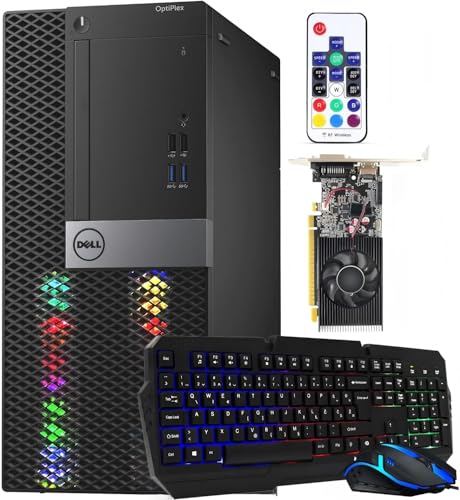
- Best true gaming desktop: Dell RGB Gaming Tower, Core i7 6th Gen, GTX 1050 Ti 4GB, 16GB RAM, 512GB SSD (Renewed) — Check on Amazon
- Beelink SER5 MAX Mini PC, Ryzen 7 5800H, 16GB RAM, 500GB SSD — Check on Amazon
- Dell OptiPlex 9020 SFF Desktop, Core i7-4770, 32GB RAM, 1TB SSD (Renewed) — Check on Amazon
- GMKtec M5 Plus Gaming Mini PC, Ryzen 7 5825U, 32GB RAM, 1TB SSD — Check on Amazon
See 2 more Amazon options
- KAMRUI E3B Mini Gaming PC, Ryzen 5 7430U, 32GB RAM, 512GB SSD — Check on Amazon
- BOSGAME P4 Light Gaming Mini PC, Ryzen 7 5700U, 32GB RAM, 1TB SSD — Check on Amazon
Read the full guide ↓
Disclosure: As an Amazon Associate, reviewstook.com earns from qualifying purchases. Links to Amazon on this page are affiliate links; they cost you nothing extra. Listing details such as price and availability change often, so check the current Amazon listing before you buy.
If this is your first gaming PC, welcome — and here is the one fact that will save you money before anything else on this page: there is no brand-new gaming desktop with a real graphics card for under $400. None. A current entry-level graphics card, a Windows licence and a case with a power supply already eat most of this budget before a processor, memory or storage get a vote, so new towers that do show up at this price are office computers wearing gaming colours. Anything here that sounds too good for the money gets said out loud in its review before you are asked to spend a cent.
So what can a beginner honestly buy with $400? Two kinds of machine, and this guide is built around choosing between them. The first is a renewed business desktop: a Dell tower or small office machine retired from someone’s desk at work, checked over and resold through Amazon Renewed, sometimes with a graphics card fitted by the refurbisher. It is a real desktop — a case you can open, parts you can change — but it is old, and its safety net is a 90-day return window rather than a warranty. The second is a mini PC: a new box the size of a paperback whose built-in graphics play the same games, on a much newer processor, with a proper manufacturer’s warranty — and graphics that can never be upgraded, because the graphics it arrives with are the graphics it dies with. Neither answer is wrong; they are answers to two different questions, and by the end of this page you will know which is yours. If words like renewed, integrated graphics and soldered are new to you, a plain-English glossary below translates them all using these six machines as examples, and a step-by-step walkthrough covers the night the box arrives.
In this guide
Quick Picks
Short on time, or comparing several options at once? Each row below names a buyer type and the machine that suits it, with a link to the listing.
| Buyer type | Pick | Why it stands out | Link |
|---|---|---|---|
| Best true gaming desktop | Dell RGB Gaming Tower, GTX 1050 Ti (Renewed) | The only pick with a real graphics card inside a real, openable tower | Check on Amazon |
| Best gaming value overall | Beelink SER5 MAX Mini PC, Ryzen 7 5800H | A strong modern chip with built-in graphics in the budget tier — check price on Amazon | Check on Amazon |
| Best project desktop | Dell OptiPlex 9020 SFF (Renewed) | A real desktop case with memory and storage already done, in the budget tier — check price on Amazon, and you add a small graphics card later | Check on Amazon |
| Best mini for big libraries | GMKtec M5 Plus Mini PC, Ryzen 7 5825U | 32GB of memory and a 1TB drive fitted from the start, plus two wired network ports | Check on Amazon |
| Cheapest credible start | KAMRUI E3B Mini PC, Ryzen 5 7430U | 32GB of memory fitted as two sticks, in the budget tier — check price on Amazon | Check on Amazon |
| Best second-career mini | BOSGAME P4 Mini PC, Ryzen 7 5700U | 32GB/1TB with two network ports — it retires into a home server when its gaming days end | Check on Amazon |
How These Picks Were Chosen
The budget was treated as a ceiling, not a target: every machine below is a real Amazon listing that sells at, or regularly drifts within, $400 in the United States. Where a price moves — and renewed prices move constantly, because the stock is whatever got retired this month — check the live price on Amazon rather than holding any listing to a number. One pick, the renewed Dell gaming tower, spends part of its life above the line; it stays, with that warning stated plainly and one simple rule attached, because it is the only genuine gaming desktop at this money.
We did not use these machines ourselves. We read the maker and refurbisher listings, Amazon’s product records and independent price histories, and compared what a first-time buyer actually feels: the processor, the graphics, how the memory is fitted, the storage, and — because this search promises a desktop — whether the case opens, whether a graphics slot exists, what size of card physically fits, and whether the power supply can feed one. That last check is where most cheap “gaming desktops” quietly fail: a tower whose power supply cannot run a better card, or whose case accepts only half-height cards, has an upgrade path on paper only. Machines that were desktops in name only — all-in-ones with no slot, stick PCs, office boxes with no graphics path — were left out.
Two honesty filters sat on top of that. The first is about performance: everything here, tower or mini, plays esports games and older big-name games at 1080p on low-to-medium settings, and no pick is described as doing more, in settings words rather than invented frame rates. The second is about condition: two of the six picks are Amazon Renewed, labelled renewed in their names everywhere they appear, with the 90-day window treated as a deadline for testing the machine hard, not a warranty. New machines were judged on being new, modern and sealed; renewed machines on being open, old and cheap — and at $400 that trade is the whole decision.
The Words on the Listing, Translated
Every term below is one you will meet on these six listings, explained with these six machines as the examples. Three — renewed, barebone and soldered — describe what state a machine arrives in, so here are this set’s plain facts up front: two of the six picks are renewed (both Dells), none of the six is a barebone (every pick arrives with memory, storage and Windows already fitted), and the four mini PCs have their processor and graphics soldered in place, while the two towers use parts that plug in and can be unplugged.
- Graphics card (GPU). The part that draws the game on your screen. A discrete graphics card is a separate card with its own memory, plugged into a slot — only the Dell gaming tower here has one, a GeForce GTX 1050 Ti. Everything else uses integrated graphics (next term). The graphics decide, more than anything else, what a budget machine like this can play.
- Integrated graphics. Graphics built into the processor itself, borrowing some of your normal memory instead of having their own. All four mini PCs and the OptiPlex use them. Modern integrated graphics, like the Radeon Vega chips in the minis, are genuinely good for esports and older games; the OptiPlex’s 2013-era version is not.
- Renewed. Amazon’s word for a used machine inspected, cleaned and tested by a seller, then resold with a 90-day refund-or-replacement window if it fails. It is not new, and it is not a multi-year warranty. Both Dells in this guide are renewed; the four minis are sold brand new. Renewed is how a real tower fits under $400 at all.
- Barebone. A computer sold deliberately incomplete — no memory, no storage, no Windows — for buyers who enjoy fitting parts themselves. None of the six picks in this guide is a barebone. Every machine here arrives ready to plug in and switch on.
- Soldered. Permanently attached to the board at the factory, so it can never be removed or upgraded. In the four mini PCs the processor — and therefore the graphics — is soldered: the graphics a mini has on day one are its graphics forever. Their memory sticks and storage drives are not soldered and can be changed. In the two Dell towers the main parts plug into sockets and slots.
- RAM (memory). The machine’s short-term workspace: everything you are doing right now lives here while it runs. More RAM means more things open at once without stutter. Watch for dual-channel — two matching sticks instead of one — which integrated graphics depend on for their full speed. Every mini here ships with two sticks fitted; replace them in matched pairs.
- SSD (storage). Where your games and files live permanently, measured in gigabytes (GB) and terabytes (TB — roughly 1,000GB). All six picks use fast SSD storage rather than an old spinning hard drive. Modern games are large, so the 1TB machines spare you deleting games to make room; 500GB still holds a healthy handful of big titles.
- Processor (CPU) and its generation. The machine’s general-purpose brain. The trap for beginners is the badge: a “Core i7” from 2015 (the Dell tower’s 6th-generation chip, or the OptiPlex’s 4th-generation i7-4770 from 2013) is older and slower at most things than the modern Ryzen chips in the minis. The generation number is the spec that matters, not the badge.
- Power supply (PSU). The box inside a tower that turns wall power into the voltages the parts use, measured in watts. It decides whether a future graphics card is possible. Business towers use modest proprietary supplies; the Dell tower’s listing does not publish its wattage at all — hence this guide only ever talks about slot-powered cards for it (next term) until you have read the label inside the case yourself.
- Slot-powered and low-profile cards. A slot-powered graphics card takes all its electricity from the slot it plugs into (a modest 75W class) and needs no extra power cable — the only safe upgrade class for renewed business towers. Low-profile means half-height, made for slim cases: the OptiPlex accepts only low-profile, slot-powered cards — a short shopping list — and its review names the class honestly.
- Resolution and refresh rate. Resolution is how many dots make the picture — 1080p is this guide’s standard. Refresh rate, in hertz (Hz), is how often per second the screen redraws: a 144Hz monitor shows smoother motion than a 60Hz one, but only if you tell Windows to run it at 144Hz — by default Windows often leaves a fast monitor at 60Hz. The setup walkthrough below includes the one-minute fix.
- Upscaling and render scaling. Tricks that let a modest machine play on a sharp screen: the game draws itself at a lower resolution, then the picture is stretched intelligently to fill the screen. In this set, be plain about what exists: no pick here supports DLSS — that is an NVIDIA RTX feature, and the one NVIDIA card in this guide, the GTX 1050 Ti, is an older GTX model without it. On all six machines the practical route is the game’s own render-resolution setting (and, in games that include it, AMD’s FSR scaling on the Ryzen minis): turn the render scale down until the game runs smoothly, and let the screen stay at 1080p.
The 6 Best Gaming Desktops for Beginners Under $400
Dell RGB Gaming Tower Computer, Core i7 6th Gen, GTX 1050 Ti 4GB, 16GB RAM, 512GB SSD (Renewed)
Who it suits: Beginners who meant the word “desktop”: a proper tower you can open, a real graphics card from day one, and the option to fit a better one later.
Start with what this machine is: a retired business Dell, refurbished and sold through Amazon Renewed by STG USA in Refurbished – Excellent condition, with the programme’s 90-day refund-or-replacement backing. The refurbisher fits the gaming pieces — RGB lighting, built-in WiFi, Windows 11 Pro — around a 6th-generation Core i7, 16GB of memory, a 512GB SSD and the important part: a GeForce GTX 1050 Ti graphics card with 4GB of its own memory. The card is from 2016 and this review will not dress it up, but it is a real card: it does not borrow system memory the way integrated graphics do, it takes all its power from the slot, and it plays the esports catalogue and the big pre-2020 games at 1080p on low-to-medium settings with a steadiness integrated machines can’t match in a busy scene.
The reason it tops a desktop guide is the case around that card. Open the side panel and this is a normal tower: memory can grow, a second drive can go in, and the graphics card can be replaced — with one condition. The listing does not publish the power supply’s wattage, so until you have opened the case and read the label on the supply yourself, any replacement card must come from the slot-powered class that needs no extra power cable. What can never change is the foundation: a finished socket, DDR4 as its final memory standard, and a chip outside Microsoft’s official Windows 11 support list even though Windows 11 Pro arrives installed. Finally the price, because this listing drifts: it moves constantly and spends real time above this budget, so check the current price on Amazon before you decide. The rule is absolute: buy it only on a day it sits at or under $400.
- A real graphics card — GTX 1050 Ti with its own 4GB of memory — in a standard tower case you can open.
- The only pick whose graphics can be replaced later; memory and storage grow the normal desktop way.
- Renewed Refurbished – Excellent from STG USA, with the 90-day window to test it hard and decide.
Honest limitation: The platform underneath is a dead end — a 2015-era foundation — the power supply’s wattage is unpublished, which caps card swaps at the slot-powered class until you verify it, and the price spends real time above $400.
Choose it if a desktop means a tower with a future card swap, and you will price-watch it under the $400 line. Skip it if you want a warranty, a modern processor, or a price that stays put from one week to the next.

Beelink SER5 MAX Mini PC, Ryzen 7 5800H, 16GB RAM, 500GB SSD
Who it suits: Beginners who typed “desktop” out of habit but actually want the most gaming their $400 can play — and who are fine with a box that will never take a graphics card.
Every honest guide at this price has to include this machine, because on gaming value it beats the desktops it shares the page with. Inside a box roughly five inches square — small enough to mount behind a monitor — sits a Ryzen 7 5800H, an eight-core processor allowed an unusually generous 54 watts for a mini PC, with Radeon Vega 8 integrated graphics, 16GB of memory and a 500GB SSD. It sits in the budget tier of this guide — check price on Amazon — and undercuts the renewed tower above while arriving brand new, with Windows 11 Pro installed and a manufacturer’s warranty behind it. It plays the same games the tower plays — esports comfortably at 1080p, older big titles at low-to-medium settings, current big titles only at low settings with the render resolution turned down — with one difference that matters to a beginner: its graphics borrow system memory, so the two-stick memory fitting has to stay healthy.
Now the clause that is the entire trade, in its own paragraph so nobody can say they missed it. You can change the memory (up to 64GB) and swap the storage drive (up to 2TB), and that is the complete list of upgrades, forever: the graphics are part of the processor, and the processor is soldered to the board. When this machine one day stops playing the games you want, the upgrade is a different machine — and this one starts a second life as an office PC, a media box or a home server. The Dell above is older, slower silicon with a living upgrade path; the Beelink is newer, faster silicon with none. If the gaming was the point, nothing else under $400 plays more of it per dollar.
- Ryzen 7 5800H running at 54W — the strongest processor in this guide, tower or mini.
- A budget-tier mini, brand new, with a manufacturer warranty — check price on Amazon.
- Three display outputs (HDMI, DisplayPort, USB-C), WiFi 6 and Windows 11 Pro.
Honest limitation: The graphics can never be upgraded — memory and storage are the only doors that open — and when the Vega 8 falls behind, the whole machine moves to lighter work.
Choose it if you would rather have the strongest gaming today, new and warrantied, than a promise about tomorrow. Skip it if fitting a better graphics card next year is already in your diary — no diary entry can make this box accept one.

Dell OptiPlex 9020 SFF Desktop, Core i7-4770, 32GB RAM, 1TB SSD (Renewed)
Who it suits: Beginners who like a project and want a real desktop case for the least money possible — and who understand, before ordering, that the graphics card is a second purchase.
The honesty paragraph comes first this time, because out of the box this is barely a gaming machine at all. The OptiPlex 9020 is a slim business desktop from 2013: a Core i7-4770, Intel HD Graphics 4600 integrated graphics — the weakest graphics in this guide by a distance — and, in this renewed configuration, a generous 32GB of memory and a full 1TB SSD, with Windows 11 Pro, WiFi and Bluetooth, sold through Amazon Renewed. It sits in the budget tier of this guide — check price on Amazon — though renewed pricing jumps around and it has spiked far higher. Those old integrated graphics run genuinely old games and the very lightest esports titles at reduced resolution, and not much else. If your plan is to play games the evening it arrives, pick any other machine on the page.
So why is it here? Because it is the cheapest honest answer to the desktop question: a real, openable Dell case with the expensive boring parts already done. Memory maxed, storage a full terabyte of fast SSD, Windows licence installed — what is missing is exactly one purchase, a small graphics card. The slim case and its modest proprietary power supply limit the card to the low-profile, slot-powered class — the GTX 1650 low-profile and RX 6400 class — precisely the cards that turn machines like this into credible 1080p esports desktops. Machine plus card lands near this guide’s ceiling. The foundation caveats are the tower’s, only more so: a 2013 chip on a finished socket, DDR3 memory two generations old, Windows 11 running outside Microsoft’s official support list. Bought as a case and a project, with your eyes open, it is the most desktop this budget tier can buy. Bought as a finished gaming PC, it will disappoint you by Friday.
- A genuine desktop case with a graphics slot — and 32GB of memory and a 1TB SSD already fitted.
- A budget-tier project base — check price on Amazon — leaving budget room toward the small graphics card.
- Amazon Renewed backing, with the 90-day window to test, stress and decide.
Honest limitation: As delivered it is not a gaming PC — its integrated graphics are the weakest here — and the slim case plus low-wattage proprietary power supply restrict its one future card to low-profile, slot-powered models only.
Choose it if fitting that one small card yourself sounds like fun rather than a chore. Skip it if you want to play games the day it arrives — in that case it is the one pick here that cannot help you yet.
GMKtec M5 Plus Gaming Mini PC, Ryzen 7 5825U, 32GB RAM, 1TB SSD
Who it suits: Beginners who want the mini-PC route without the usual mini-PC homework — full memory, full storage and desktop-grade ports from day one.
Most $400 mini PCs make you choose which corner was cut. The M5 Plus mostly declines to cut any. It pairs a Ryzen 7 5825U with 32GB of memory — double the Beelink above, fitted as two sticks so the integrated Radeon graphics get the dual-channel bandwidth they feed on — plus a 1TB SSD in a board with a second storage slot (4TB total) and memory that can grow to 64GB. Around the back sit two 2.5-gigabit wired network ports, three 4K display outputs and WiFi 6E. It is positioned near the top of this budget tier — check price on Amazon — so the machine that looks like it spends the whole budget should be judged on its live listing, not on assumptions.
The honest asterisk is about power. The 5825U is a chip designed for thin laptops, sipping power; the Beelink’s processor is a hungrier part allowed 54 watts. Both carry Vega 8-class graphics with the same figures on paper, but the GMKtec’s graphics share a smaller power budget with the processor, so in long gaming sessions the Beelink pulls ahead. What it buys instead is headroom everywhere else: games install without arithmetic, multitasking never brushes the memory ceiling, and storage grows into the second slot without replacing anything. The upgrade ledger is the standard mini one — memory and storage yes, graphics never — but this is the sealed box least likely to make you wish you had bought the bigger configuration, because you already did.
- 32GB of dual-channel memory and a 1TB SSD as standard — the fullest spec here.
- Two 2.5-gigabit network ports, triple 4K outputs and WiFi 6E.
- Positioned near the top of the budget tier for a full-spec mini — check price on Amazon.
Honest limitation: The low-power processor means its same-named graphics sustain less performance in long sessions than the Beelink’s — and like every mini here, the graphics can never be upgraded.
Choose it if your ideal second purchase is no purchase at all. Skip it if raw gaming performance per dollar is your only measure — the SER5 MAX wins that contest.

KAMRUI E3B Mini PC, Ryzen 5 7430U, 32GB RAM, 512GB SSD
Who it suits: The careful first step — beginners who want a new machine, a real warranty and credible 1080p esports gaming for the least money in this guide, with cash left over for the rest of the desk.
The E3B’s claim is value. It sits in the budget tier of this guide — check price on Amazon — and what the money buys is well chosen rather than merely cheap: a six-core Ryzen 5 7430U, Radeon Vega 7 graphics, and — the detail that matters most at this price — 32GB of memory fitted as two 16GB sticks, so the integrated graphics run dual-channel instead of limping on a single stick the way so many budget boxes do. Storage is a 512GB SSD; there is WiFi 6, three display outputs and a VESA mounting plate in the box; and memory (to 64GB) and storage (to 2TB) can grow later if the machine earns it.
Position it honestly against its neighbours. The Vega 7 is one graphics tier below the Vega 8 in the Beelink and the GMKtec — same family, fewer graphics cores — and the 7430U is again a low-power laptop-class chip, so this is the lightest gaming muscle among the minis: esports and indie games at 1080p, older big titles at low settings, current big titles only with the render resolution turned down and some patience. Like every mini here it is a finished product the day it arrives: no slot, no graphics future. What it offers instead is a budget-tier price that leaves room in the budget unspent — which, for a first setup that also needs a monitor, a keyboard and a headset, is the whole point, and a trade none of the tower picks can make.
- The cheapest credible new gaming machine in this guide, in the budget tier — check price on Amazon.
- Memory fitted the way integrated graphics need it: 32GB as two matched sticks, running dual-channel.
- VESA mounting plate included; memory and storage both upgradeable later.
Honest limitation: Its Vega 7 graphics sit one tier below the Vega 8 picks — the lightest gaming muscle among the minis — and they are the graphics it will have for life.
Choose it if the budget has to cover a monitor and peripherals too, or this is a first machine for esports and indie gaming. Skip it if older big-name games are the main diet — spend the extra on the Beelink’s stronger chip.
BOSGAME P4 Light Gaming Mini PC, Ryzen 7 5700U, 32GB RAM, 1TB SSD
Who it suits: Beginners who think in whole lifecycles — a capable gaming mini today that is already dressed for its second job as a home server tomorrow.
The P4’s specification reads like the M5 Plus’s sibling: Ryzen 7 5700U, 32GB of memory, a 1TB SSD, Windows 11 Pro, three 4K display outputs (HDMI, DisplayPort, USB-C), WiFi 6E and two 2.5-gigabit wired network ports. It is sold through BOSGAME’s own Amazon storefront in the budget tier — check price on Amazon — a 32GB/1TB machine at a tier where other brands often charge for half the memory and storage. The gaming is the familiar Vega-class story: esports and older big titles at 1080p low-to-medium settings, with memory and storage generous enough that nothing gets in the way of that.
The P4’s real distinction is what happens after the gaming. Those two network ports and that terabyte of storage are wasted on a pure gaming box and perfect for a home server, a network storage hub or a small always-on machine — the standard second career for a retired gaming mini. Two cautions. First, the standard mini clause in its purest form: the graphics are integrated and final, memory and storage are the only upgrades, and when the Vega graphics fall behind your library the machine changes jobs rather than parts. Second, a warning about this listing family, stated rather than hidden: this model has also been sold in a 5825U variant under near-identical titles, so confirm the exact configuration on the live listing before ordering — and again on arrival, using step 8 of the walkthrough below. The 5700U specification above is the one tied to this listing in the records we verified.
- 32GB of memory and a 1TB SSD in the budget tier — check price on Amazon for big-spec value.
- Two 2.5-gigabit network ports and triple 4K output: the best second-career hardware in the guide.
- Full-size specification at a budget-tier position.
Honest limitation: Integrated graphics are final, as with all the minis — and the listing family mixes processor variants under similar titles, so the live configuration must be checked before buying and on arrival.
Choose it if a machine that games this year and serves files for a decade after sounds like your kind of value. Skip it if you will never use the second network port or the storage — the Beelink games harder for similar money.

Comparison Table
| Product | Type | Graphics | What can be upgraded | Link |
|---|---|---|---|---|
| Dell RGB Gaming Tower (Renewed) | Full tower desktop | GTX 1050 Ti 4GB, separate card | Card swappable within the slot-powered class, memory and storage open; processor platform finished | Check on Amazon |
| Beelink SER5 MAX | Mini PC | Radeon Vega 8, integrated (54W chip) | Memory to 64GB, storage to 2TB; graphics final | Check on Amazon |
| Dell OptiPlex 9020 SFF (Renewed) | Slim desktop | Intel HD 4600, integrated | One low-profile card slot waiting to be filled; memory maxed, 1TB fitted; platform finished | Check on Amazon |
| GMKtec M5 Plus | Mini PC | Radeon Vega 8, integrated (low-power chip) | Memory to 64GB, second storage slot; graphics final | Check on Amazon |
| KAMRUI E3B | Mini PC | Radeon Vega 7, integrated | Memory to 64GB, storage to 2TB; graphics final | Check on Amazon |
| BOSGAME P4 | Mini PC | Radeon Vega-class, integrated | Memory and storage open; graphics final; dual network ports for server duty | Check on Amazon |
Your First Evening: Setup in the Right Order
Nine steps, in order, for whichever of the six machines you bought. None needs a tool except, on the towers, your fingers — and step 3 catches out more first-time buyers than everything else on this page combined.
- Choose the spot before you open the box. A tower goes on the desk or the floor beside it, with a hand’s width of clear air at the back and sides — its fans breathe through those vents, and a tower shoved into a closed cabinet cooks itself slowly. A mini PC can sit on the desk or disappear: the KAMRUI includes a VESA plate for mounting behind a monitor, and the Beelink is built to mount behind one too.
- Power, but not on yet. Plug the power cable (towers) or power brick (minis) into the wall and the machine. On a tower, flip the small rocker switch on the power supply at the back to on — with that switch off, a tower looks completely dead no matter how often you press the front button, and it catches out somebody every day.
- Plug the monitor into the graphics card — this is the step that matters. On the Dell gaming tower, the back panel has two clusters of display sockets: one high up, in a vertical group near the other motherboard ports; the other lower down, in a horizontal strip on the graphics card itself. Your monitor cable goes into the graphics card’s sockets, never the motherboard’s. Plug into the motherboard cluster and the machine will happily show a picture — drawn by the processor’s weak built-in graphics, while the GTX 1050 Ti you paid for sits idle. On the OptiPlex and all four minis there is no separate card, so every display socket is the right one.
- Keyboard, mouse, and a wired internet connection for tonight. Plug in your keyboard and mouse. Then, even if you plan to use WiFi forever, run a network cable to your router for tonight if you can: the updates in step 6 are large, and wired makes them fast and uninterruptible.
- Switch on and do the Windows setup. Press the power button and follow the first-run screens — language, account, the usual. Windows 11 Pro arrives installed on all six (by the refurbisher on the Dells, by the factory on the minis). Decline optional extras you don’t recognise; you will install what you actually want in step 9, deliberately.
- Let Windows Update run, then update the graphics driver. Open Settings, then Windows Update, and let it download and restart as often as it asks — this can take a while on a first evening, and it is not optional homework; it is the machine finishing being built. Then update the graphics driver, the software that lets games talk to the graphics properly: on the Dell tower, the current NVIDIA driver for the GTX 1050 Ti; on the minis and the OptiPlex, Windows Update handles most of it, and AMD’s or Intel’s driver tool can confirm you are current. Outdated graphics drivers are the single most common cause of “my new PC runs games badly.”
- Set your monitor’s real refresh rate. If you bought a 120Hz or 144Hz monitor, it is probably running at 60Hz right now, because Windows plays safe by default. Go to Settings, System, Display, Advanced display, and choose the highest refresh rate offered. Thirty seconds, once, and the smoothness you paid for is actually on.
- Check that the machine you received is the machine you ordered. Open Settings, System, About, and read the processor and memory figures; check the storage size in File Explorer. Compare all three against the listing and the model name on the box. This matters most for the BOSGAME P4, whose listing family also sells a 5825U variant under a near-identical title, and for the two renewed Dells — where you should also run the machine hard tonight (a long gaming session, fans listened to), because the 90-day return window is ticking from today: a fault found in week one is a refund, while a fault found in month four is a repair bill.
- Install one game store, then one game. Install Steam (or whichever store your games live on), sign in, and install one game you know well. Play it for twenty minutes on the settings the game suggests, then adjust: if it stutters, lower the render resolution or the settings preset before touching anything else — that one dial is the difference between a slideshow and a good evening. Only now is it a gaming PC.
What Else You Will Spend
The price of the machine is not the price of the setup, and a beginner’s budget should be planned as a whole desk, not a single box. None of the six machines here includes a monitor, a keyboard or a mouse — they are desktops, and desktops assume you are bringing the screen. Buy the monitor first among the extras: a decent 1080p screen is what you will actually look at for years, it outlives every machine in this guide, and a budget machine in front of a good screen beats a machine at the top of this budget in front of a borrowed TV. That is precisely why the cheaper picks exist — the KAMRUI and the BOSGAME, both in the budget tier, are the machines that leave the monitor money unspent.
Two picks carry a built-in second cost that belongs in your planning from the start, priced the honest way — as machine plus fix, never folded into the headline price. The OptiPlex is the clearest: its budget-tier price — check price on Amazon — buys the case, the memory, the storage and the licence, and its gaming life begins only when a low-profile, slot-powered card goes into its slot. That card is a real second purchase in the GTX 1650 low-profile / RX 6400 class; decide you are willing to make it before the OptiPlex goes in the basket. The Dell tower’s built-in cost is smaller but real: its power supply’s wattage is unpublished, so a future card swap may mean reading a label and staying in the slot-powered class — time and a torch, not money. And one cost applies to both renewed Dells while costing nothing but an evening: the step-8 stress test, run hard inside the 90-day window — the only warranty-shaped thing a renewed machine has.
Upgrades, in Plain Terms
Here is every upgrade promise in this guide, kept or refused, in one place — because “upgradable” is the most abused word in budget PC listings.
- Dell gaming tower: a graphics card swap is possible, with two conditions. The case is a standard tower and the card plugs into a standard slot, so the swap itself is real. But no power-supply wattage is published for this machine, and this guide will not promise what it cannot verify: any replacement card must be from the slot-powered class that needs no extra power cable, and you should read the wattage label on the supply inside the case before ordering anything. Memory and storage upgrades are unconditional. The processor platform is finished: a meaningfully faster processor means a new motherboard, which means a new build.
- Dell OptiPlex: exactly one upgrade was always the plan. Its empty slot takes one low-profile, slot-powered card — that single purchase is the difference between the machine as delivered and the machine as intended. Its memory is already maxed at 32GB and its storage already generous, so after the card the ledger closes: anything further is a new build.
- All four mini PCs: no graphics upgrade exists. Not “difficult” — none. The graphics are part of a processor soldered to the board; there is no slot, no space and no power budget for a card, in these machines or any mini PC. Anyone who tells you otherwise is selling something. What the minis genuinely offer is maintenance: more memory (fitted as matched pairs, to protect dual-channel) and bigger or additional storage — up to 64GB and 2TB on the Beelink and KAMRUI, 64GB and a second drive to 4TB total on the GMKtec. Those upgrades keep a mini comfortable; they do not make it faster at games in any way you would feel.
How to Choose a Gaming Desktop Under $400
- Decide what the word “desktop” means to you before anything else. If it means a case you can open and a card you can replace, only the two renewed Dells qualify, and old processors are the price of admission. If it means a machine that sits on your desk and plays games, the minis are faster, newer and warrantied. Every other decision follows from this one.
- Obey the price rule on drifting listings. Renewed prices move with stock: the Dell gaming tower’s listing drifts and can sit above $400, and the OptiPlex has spiked far higher than its usual budget-tier position. Decide your ceiling first, buy only when the listing respects it, and let the “renewed” badge talk you into nothing.
Common Buying Mistakes
- Believing a new “gaming desktop” exists at this price. If a new tower under $400 claims gaming graphics, read on until you find the integrated graphics or the decade-old card hiding behind the lighting.
- Plugging the monitor into the wrong sockets on a tower — the motherboard cluster instead of the graphics card — and concluding the card is broken. It is the most common first-evening mistake there is; step 3 of the walkthrough exists because of it.
- Paying over the line for drifting renewed stock. The Dell gaming tower’s listing has sat at prices above this guide’s whole budget; on a day like that, the correct purchase is patience.
- Buying the OptiPlex project and never buying the card. As delivered its graphics are the weakest here, and the project only works if the second purchase actually happens.
- Expecting a mini PC to grow a graphics card later. No mini in this guide — or any guide — can take one; if your plan includes a card upgrade in year two, the minis were never candidates.
- Spending every cent on the box and nothing on the screen. These are desktops — the monitor is part of the purchase, and the cheaper picks in this guide exist to fund it.
Final Recommendation
- True desktop, real graphics card: Dell RGB Gaming Tower (Renewed) — on a day it sits at or under $400.
- Most gaming per dollar, new: Beelink SER5 MAX.
- Cheapest upgradable desktop project: Dell OptiPlex 9020 SFF (Renewed), plus its low-profile card when you are ready.
- Nothing left to upgrade: GMKtec M5 Plus.
- Tightest total budget, screen included: KAMRUI E3B.
- Gaming now, home server later: BOSGAME P4.
Our top two split along the fork this guide is built on, and a beginner cannot go far wrong with either. If “desktop” was a deliberate word — you want the case, the slot and the hobby — the renewed Dell tower is the only machine here that honours it fully: its GTX 1050 Ti plays today’s round of games while its slot waits for tomorrow’s card. Just obey the price rule, because its listing spends real time above $400. If the word was habit and the gaming is the point, the Beelink SER5 MAX is the best purchase on the page: newer, faster silicon, a warranty, and money left over for the monitor. When you are ready to step up, Best Gaming Desktop Under $500 and Best Gaming Desktop Under $700 are where new towers with modern graphics cards begin; staying at this ceiling, the resolution-first view is in Best 1080p Gaming PC Under $400 and the small-desk angle in Best Gaming Desktop For Small Spaces Under $400. Whichever side you choose, do step 8 of the walkthrough on the first evening — check the delivered configuration against what you ordered — because at $400 those five minutes matter.
Frequently Asked Questions
I am a complete beginner. Which one should I just buy?
For most first-time buyers, the Beelink SER5 MAX: new, warrantied, the fastest gaming machine here, needing nothing fitted or hunted for — and its one real compromise, graphics that can never be upgraded, is one most beginners never test. Buy the Dell tower instead if you already know you want to open a case and swap a card one day; that desire is the whole difference.
Is there a real gaming desktop for under $400?
Only a renewed one. No manufacturer sells a new desktop with a separate graphics card at this price — the economics of the card, the Windows licence and the case forbid it. What fills the gap is the retired business fleet: Amazon Renewed towers like the Dell here, refurbished with a GTX 1050 Ti fitted. Everything else new at the price is an office machine, an all-in-one, or a mini PC like the four honest ones here.
What does “renewed” actually mean, and is it safe for a beginner?
It means a used machine that a seller has inspected, cleaned and tested, sold with a 90-day refund-or-replacement window if it fails; both Dell picks here are Refurbished – Excellent grade. It is a managed risk, and the management is yours: stress-test it hard in the first week — long gaming sessions, memory and drive checks, fan noise — and return anything that complains. What renewed is not is a multi-year warranty; if that matters more than the upgrade path, buy a new mini.
Why does it matter which sockets I plug the monitor into?
Because a tower with a graphics card has two sets of display sockets, and only one set is connected to the card. Plug into the motherboard’s cluster and the picture is drawn by the processor’s weak built-in graphics while the card you paid for idles — the machine works, games run badly, and beginners reasonably conclude the PC is faulty. The card’s sockets are the lower, horizontal strip on the Dell tower’s back. On the minis and the OptiPlex there is no card, so every socket is the right one.
Is the Dell OptiPlex 9020 a gaming PC?
No — not on the day it arrives, and its review says so at the top rather than in a footnote. The HD 4600 integrated graphics it ships with are the weakest in this guide. It earns its place as the cheapest real desktop case with 32GB of memory and a 1TB SSD already fitted, one low-profile, slot-powered card away from being a credible esports desktop. If you will not make that second purchase, buy a mini PC and play games tonight.
What else do I need to buy before I can play?
A monitor, a keyboard and a mouse — none of the six machines includes them, because they are desktops. A headset or speakers, and a network cable for the first evening’s updates, complete the list. Budget the monitor first: it is the part you will look at for years, and the cheaper picks here — the KAMRUI and the BOSGAME — exist partly to leave that money in your pocket.
Should I just save up for a $500 or $700 desktop instead?
If you want a new tower with a modern graphics card, yes — that market begins just above this budget and becomes genuinely good around $700. Stay at $400 if the renewed trade-offs suit you, if a mini’s sealed design is fine, or if the total desk budget is the real constraint. The worst outcome here is $400 spent on a new “gaming” tower that is neither — no card worth the name, and no slot worth filling.


