Where to buy
Check the latest price, availability and delivery on Amazon. Orders are placed on Amazon. We may earn a commission from qualifying purchases.
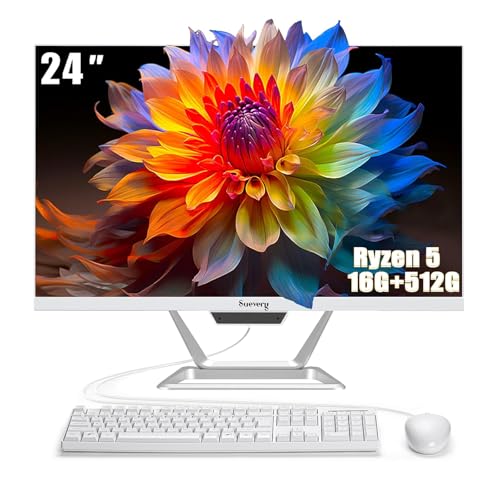
- Best first computer under $500: suevery All-in-One PC 24, Ryzen 5, 16GB RAM, 512GB SSD — Check on Amazon
- Lenovo IdeaCentre AIO 3 24, Ryzen 5 5500U, 16GB RAM, 512GB SSD — Check on Amazon
- HP ProOne 600 G4 All-in-One, Core i5-8500T, 8GB RAM, 256GB SSD (Renewed) — Check on Amazon
- Dell OptiPlex 5260 All-in-One, Core i5-8400, 8GB RAM, 256GB SSD (Renewed) — Check on Amazon
See 2 more Amazon options
- HP 22-inch FHD All-in-One, Intel N100, 8GB RAM, 128GB SSD — Check on Amazon
- Lenovo IdeaCentre AIO 3i 22, Core i3-1115G4 Touch, 8GB RAM, 256GB SSD — Check on Amazon
Read the full guide ↓
Disclosure: As an Amazon Associate, reviewstook.com earns from qualifying purchases. Links to Amazon on this page are affiliate links; they cost you nothing extra. Listing details such as price and availability change often, so check the current Amazon listing before you buy.
If this is your first computer — or the first you have bought in a long time — an all-in-one is the kindest place to start. The whole computer lives inside the screen. No separate box humming under the desk, no fistful of cables to untangle, nothing to connect except a power cord, a keyboard and a mouse. You set it on a desk, plug it in, and it is a computer. For a beginner, that simplicity is the difference between a machine used every day and one that stays in its box because setting it up felt intimidating.
Before the recommendations, here is the honest part, in plain words. A computer under $500 is a machine for everyday life, not for heavy gaming. Every computer in this guide handles email, web browsing, documents, homework, video calls, films and shows, online banking, shopping, and light photo tidying without breaking a sweat. Every one also shares a limit: none has a separate graphics card, the part a computer needs to play big modern games. Older games, simple games and popular online games at gentle settings are fine; the newest blockbusters are not what this money buys, and any listing under $500 that uses the word “gaming” means the first list, not the second. We will say this again next to the picks whose listings use that word, because it is the most common way beginners get mis-sold a computer.
One more thing worth knowing before you shop: under $500, all-in-ones come in three flavours. Some are brand-new machines from famous brands, built around modest entry-level processors. Some are brand-new machines from smaller brands you may not have heard of, which often hide a surprisingly strong processor and generous memory behind the screen for less money, in exchange for a smaller support network. And some are “renewed” — former office computers from HP and Dell that businesses have retired, which professionals have cleaned, tested and resold for a fraction of their original price, often with stronger processors than the new machines. None of the three is automatically right. This guide explains each pick in beginner’s language, flags every catch in the open, and ends with a walkthrough of your first evening with the machine.
Our short answer, if you want it now: the suevery 24-inch machine is the strongest new package at this budget, the Lenovo IdeaCentre AIO 3 24 is the big-brand version of the same idea, and the renewed HP ProOne 600 G4 is the most computer per dollar here if you are comfortable with a refurbished ex-office machine. Everything below explains why.
The Words on the Box, Translated
Computer listings are written in a dialect designed for people who already know it. Here is every term used in this guide, translated into plain English. Keep this section open while you shop.
- All-in-one (AIO). A computer built into its own screen. The screen, processor, memory, storage, speakers and usually a camera are one unit standing on your desk. You do not buy a separate monitor, because the monitor is the computer.
- Processor (CPU). The computer’s brain — the part that does the thinking. Listings name it like a car trim level: “Ryzen 5 5500U” or “Core i5-8500T.” What matters most at this price is how many cores it has. A core is like one worker. Six workers (six cores) can juggle email, a video call and twenty browser tabs at once; two workers (dual-core) manage fine until the desk gets busy. Higher numbers in the name usually mean newer or stronger, but core count is the beginner-friendly clue.
- RAM (memory). The computer’s desk space — how much it can have open and in front of it at once. 8GB is a small desk: fine for a few things at a time. 16GB is a big desk: dozens of tabs, documents and a video call all open together, nothing getting shuffled away. When a computer feels slow with lots open, it is usually short of desk space, not thinking power. Of the two, RAM is the number beginners should care about most.
- Storage (SSD). The computer’s filing cabinet — where your photos, documents, apps and Windows itself permanently live. Every pick here uses an SSD, a fast type of storage with no moving parts. 512GB is roomy; 256GB is workable; 128GB fills up faster than people expect, because Windows and its updates take a share before you save a single photo. One warning, repeated later because sellers rely on you missing it: only the storage inside the machine counts — some listings add a plug-in drive bundled in the box into the headline number.
- Integrated graphics. The picture-making part of the computer, built into the processor instead of living on its own separate card. Perfectly good for films, video calls, everyday screens and light games. A discrete graphics card is the separate, powerful version serious gaming needs — and no all-in-one under $500 has one. If a listing says “gaming” but never names a graphics card, it means integrated graphics.
- Full HD (FHD), 1920×1080. The sharpness of the screen — the standard, clear resolution for screens this size, with crisp text and films that look right. Every pick here is Full HD, so you can stop worrying about this number entirely.
- Renewed / refurbished. A used computer — in this guide, a former office machine — that a professional seller has inspected, tested, cleaned and repaired if needed, then resold with a warranty from the seller rather than the maker. Not the same as buying a stranger’s old PC: it is older, may show light signs of its first life, and costs much less than it did new.
- Windows 11 Home vs Pro. Windows is the system that runs the computer — the desktop, the menus, the start button. Home is the normal home version and does everything in this guide. Pro adds business extras like drive encryption (BitLocker) and hosting remote-desktop connections. For a beginner, either is fine; you will not feel a difference daily.
- Wi-Fi. How the computer connects to the internet without a cable. Every pick here has it. Wi-Fi 6 is simply a newer, slightly faster version. If a renewed listing provides Wi-Fi through a small USB stick instead of a built-in part, that is normal for older office machines — it just occupies one USB socket.
In this guide
Quick Picks
Short on time, or comparing several options at once? Each row below names a buyer type and the product that suits it, with a link to the listing.
| Buyer type | Pick | Why it stands out | Link |
|---|---|---|---|
| Easiest strong start, new | suevery All-in-One PC 24, Ryzen 5, 16GB / 512GB | The most generous memory and storage in a new machine here — check price on Amazon | Check on Amazon |
| Big-brand peace of mind | Lenovo IdeaCentre AIO 3 24, Ryzen 5 5500U | Six-core processor, 16GB RAM, 512GB storage and a DVD drive | Check on Amazon |
| Most computer per dollar | HP ProOne 600 G4, i5-8500T (Renewed) | Ex-office six-core machine at a budget tier — check price on Amazon | Check on Amazon |
| Renewed, with a second-screen future | Dell OptiPlex 5260, i5-8400 (Renewed) | Six-core Dell with USB-C and DisplayPort sockets | Check on Amazon |
| Brand-new and simple, light duties | HP 22-inch All-in-One, Intel N100 | New HP with camera and Wi-Fi 6 — read the storage note first | Check on Amazon |
| The touchscreen one | Lenovo IdeaCentre AIO 3i 22, i3-1115G4 | You can tap the screen — handy for kids and shared spaces | Check on Amazon |
How These Picks Were Chosen
We applied the $500 limit to the whole computer at once — screen, processor, memory, storage, keyboard and Windows together — because that is the promise of an all-in-one: one price, one box, a working desk. Every product below is a real Amazon listing presented within this guide’s $500 budget in the United States. Prices move around — and renewed and smaller-brand prices do — so check the price on Amazon before you order; that sentence recurs in this guide because it genuinely matters.
We did not use these products ourselves. We read the makers’ listings and specification pages and compared the things that decide a beginner’s experience: processor cores, RAM, storage inside the machine, screen size, camera and Wi-Fi, whether a keyboard and mouse come in the box, and which version of Windows is installed. Two extra checks shaped the final six. First, completeness: a beginner should not need a second shopping trip, so picks that arrive ready to use scored ahead of ones that quietly need extras. Second, honesty: where a pick’s own listing says “gaming” about integrated graphics, or adds an external drive into its storage headline, the review below says so in plain terms.
Two of the six are renewed office machines, deliberately. At this budget they are a large share of the sensible market, and a beginner guide that pretended otherwise would steer you away from the strongest processors here. Their reviews explain what “renewed” involves, what warranty you get, and what to inspect on arrival, so the choice is informed rather than a leap of faith.
The 6 Best All-in-One PCs Under $500 for Beginners
suevery All-in-One PC 24 — Ryzen 5, 16GB RAM, 512GB SSD
Who it suits: A first-time buyer who wants one new box that does everything everyday, with no weak spot to learn about the hard way — and who is comfortable that the badge on the front belongs to a smaller brand rather than a famous one.
Start with the two numbers that decide how a computer feels after a year of use. This machine has 16GB of RAM — the big desk — and 512GB of storage — the roomy filing cabinet. Most new computers at this price quietly halve one or both. With 16GB, your email, a pile of browser tabs, a document and a video call can all stay open together without the machine shuffling things away behind your back. With 512GB, your photos, documents and apps live on the machine itself, not on a borrowed plug-in drive. Behind the 23.8-inch Full HD screen sits an AMD Ryzen 5 processor, which the listing records at up to 3.7GHz — a strong, modern class of chip for everyday work — and a keyboard and mouse are in the box, so the desk is finished the day it arrives.
That specification makes it the guide’s benchmark. It is the most generous new 24-inch all-in-one package we found in this budget tier, with this much memory and storage. Smaller-brand prices wander more than big-brand ones, so check the price on Amazon before you order — the shape of the value is what matters: this is the specification the famous brands tend to position at a higher tier.
Two honest cautions, both about expectations. First, the listing describes this machine with gaming language. It has integrated graphics — the picture-making is built into the processor — which means simple games, older games and popular online games at modest settings, and not the big new titles. Buy it as the excellent family and home-office machine it actually is and you will be happy; buy it as a gaming machine and you will not. Second, a smaller brand means a smaller support operation behind it. Before ordering, read the seller’s warranty terms and return window on the listing itself, and keep the box and packaging until the machine has survived its second week — advice that applies to every pick here, but most of all to this one.
- 16GB of RAM and 512GB of storage — the pairing that decides how a computer ages, and the strongest pairing in a new machine in this guide.
- Ryzen 5 processor behind a large 23.8-inch Full HD screen, with keyboard and mouse included.
- A strong value standard for this guide — check the price on Amazon.
Honest limitation: Integrated graphics only, despite the listing’s gaming language, and support comes from a small brand rather than a national service network.
Choose it if you want the most capable new computer your $500 can buy, complete in one box. Skip it if having a famous brand’s warranty and service network behind you matters more than the specification — that is the Lenovo directly below.

Lenovo IdeaCentre AIO 3 24 — Ryzen 5 5500U, 16GB RAM, 512GB SSD
Who it suits: Beginners who want the same generous configuration as the pick above but with a household name on the box and a real support network behind it — plus any household that still has discs, because this machine has something almost no modern computer offers: a DVD drive.
The processor is the headline, and for once the headline undersells it. The Ryzen 5 5500U has six cores — six workers — running at 2.1GHz and speeding up to 4.0GHz when busy, figures confirmed in Lenovo’s own specifications. It was designed for laptops, which is completely normal inside an all-in-one, and it is a genuinely capable everyday brain: stronger than the entry-level Intel chips in the new machines elsewhere in this guide, with integrated Radeon graphics that handle films, video calls, casual games and light photo work without complaint. Around it, Lenovo fits the exact configuration this guide keeps recommending: 16GB of RAM, a 512GB SSD, a 23.8-inch Full HD screen and Windows 11. Then it adds the DVD RW drive — useless-sounding until a school sends home a disc, a relative’s wedding video surfaces, or a box of old photo CDs needs rescuing, at which point it becomes the most valuable socket on the machine.
The buying skill with this pick is patience about price. It is an older model, often sold on Amazon by independent sellers rather than Lenovo itself, so the price wanders — sometimes inside this budget, sometimes well outside it. We make no fixed price claim, and neither should you: when a listing shows it at or under $500, it is arguably the best-balanced new all-in-one here. When sellers ask much more, walk away and take the suevery above or save toward a higher tier. One check matters before you click: confirm the listing is the 16GB RAM / 512GB storage configuration, model F0G1008MUS, because this family was sold in several versions and a cheaper listing may quietly be a lesser one.
- The six-core Ryzen 5 5500U is the strongest processor from a big brand in this guide.
- 16GB RAM, 512GB storage and a built-in DVD drive, a genuine rarity now.
- Lenovo’s support and parts network behind a 23.8-inch Full HD screen.
Honest limitation: An older model sold by third-party sellers, so price and exact configuration vary from listing to listing — and its graphics are integrated, like every pick here.
Choose it if you catch it listed at or under $500 in the full 16GB/512GB configuration. Skip it if the live listing is priced well above the ceiling or turns out to be a smaller configuration — never pay a premium just for the badge.
HP ProOne 600 G4 All-in-One — Core i5-8500T, 8GB RAM, 256GB SSD (Renewed)
Who it suits: Beginners on a hard budget — a home office, a small business, a student, a reception desk — who like the idea of proper business hardware at a budget tier and are at peace with the word “renewed” once it is properly explained.
So, plainly: this computer had a first life. The ProOne 600 G4 was built by HP for company offices, and machines like it sit on desks for years before businesses replace them in bulk. Professional refurbishers then inspect, test and clean them, and resell them at a fraction of the original price. What you get for that compromise is remarkable. The Core i5-8500T has six cores (2.1GHz, rising to 3.5GHz when busy) — six real workers that still out-muscle the brand-new entry chips elsewhere here when several things happen at once. It comes with 8GB of RAM, a 256GB SSD, a 21.5-inch Full HD screen, a keyboard and mouse, and Windows 11 Pro, the business edition of Windows. Check the price on Amazon for the current renewed listing. No new computer in this budget tier is built like this.
The renewed terms deserve the same plainness. The machine is several years old. The warranty comes from the refurbisher or Amazon’s Renewed programme, not from HP’s factory. Accessories may be compatible replacements rather than original HP parts, and on some listings the Wi-Fi and Bluetooth arrive as small USB plug-ins rather than built-in parts — normal for office machines of this era, and worth confirming on the listing you buy. The screen is the smaller 21.5-inch size, and 8GB of RAM is adequate rather than generous. One surprise works in this pick’s favour: business machines were designed to be repaired, so its memory and storage sit behind panels a technician can open — making it, oddly, one of the more upgradeable computers in a category famous for sealed boxes. When it arrives, photograph it, test everything in the first week, and keep the return window in mind.
- Six-core processor and Windows 11 Pro — business substance no new machine in this budget tier offers.
- Budget-tier renewed positioning — check the price on Amazon — with keyboard and mouse in the box.
- Built to be serviced: a technician can replace its memory and storage later.
Honest limitation: It is a renewed, previous-generation machine — smaller screen, 8GB of RAM, a refurbisher’s warranty, and accessories that may not be original HP parts.
Choose it if getting the most computer for the least money tops your list and a refurbished ex-office machine does not worry you. Skip it if you need a factory warranty, the larger screen, or a machine you can ignore for a decade.

Dell OptiPlex 5260 All-in-One — Core i5-8400, 8GB RAM, 256GB SSD (Renewed)
Who it suits: The same value-hunting beginner as the HP above, who prefers Dell’s office hardware — or who can picture a second screen joining the desk one day, because this pick makes that easiest.
OptiPlex is Dell’s equivalent office fleet line, and the 5260 is its 21.5-inch all-in-one from the same era as the HP. The renewed listing documents a Core i5-8400 processor — and here is a small lesson in reading listings: the title calls the chip “quad-core,” but the listing’s own detailed specification says six cores, speeding up to 4.0GHz, and the detailed specification is the one to believe. Six workers, same as the HP. It is paired with 8GB of RAM, a 256GB SSD, a 21.5-inch Full HD screen and Windows 11 Pro. Where this Dell pulls ahead is its sockets: the listing includes Wi-Fi, Bluetooth, a DisplayPort socket and a modern USB-C socket alongside the keyboard and mouse. DisplayPort is the easy way to plug in a second monitor later — the most useful upgrade a home office ever makes — making this the renewed pick for a desk that might grow.
Because it is renewed, the cautions rhyme with the HP’s. The machine is professionally inspected, tested and cleaned, but the condition grade is set by the individual seller, not by Dell, and the warranty is the seller’s or Amazon Renewed’s. Two listings with identical titles can differ in exactly these details — one seller’s machine may have internal Wi-Fi while another’s uses a USB plug-in, and return windows vary — so read the specific listing you are buying the way you would read a contract. We make no fixed price claim here, since renewed prices are set seller by seller; what does not vary is the hardware underneath, and a six-core, serviceable Dell at a renewed price sits comfortably inside this budget. Choosing between this and the HP on the same day? Take the better-graded unit with the clearer warranty — and if all else is equal, take this one’s sockets.
- Six-core i5-8400 and Windows 11 Pro in Dell’s serviceable office chassis.
- USB-C and DisplayPort sockets — the simplest path to a second screen later.
- The documented listing includes a keyboard, a mouse, Wi-Fi and Bluetooth.
Honest limitation: Renewed and seller-dependent — condition grade, warranty and even how the Wi-Fi is provided vary between listings of the same model.
Choose it if you want renewed Dell hardware and a desk that may gain a second monitor. Skip it if you cannot verify the specific seller’s grade and returns terms — with renewed machines, that homework is not optional.

HP 22-inch FHD All-in-One — Intel N100, 8GB RAM, 128GB SSD
Who it suits: A beginner who wants a brand-new machine from a famous brand with a factory warranty and zero drama — for a kitchen counter, a child’s homework desk, a relative’s first computer, or any spot where the work is light: video calls, email, the web, homework, streaming shows.
Everything reassuring about this pick is genuine. It is new, from HP, in a tidy white body with a 21.5-inch Full HD screen, a built-in camera, modern Wi-Fi 6, sockets for HDMI and a wired internet cable, a keyboard and mouse in the box, and Windows 11 Home. Check the price on Amazon for the current listing, sold through an Amazon storefront. For light duties it is a quiet, sip-power machine that asks almost nothing of its owner, and if the person using it is nervous about computers, “new, from HP, with a warranty” is a perfectly good reason to choose it.
Now the two limits, stated before the marketing can soften them. The Intel N100 has four cores and is designed for efficiency rather than speed; with 8GB of RAM it handles light use happily and slows visibly when the desk gets crowded — many tabs, a big spreadsheet and a call at once will make it think. The bigger warning is storage: the drive inside is 128GB, the smallest here, and Windows plus its updates will steadily nibble at it. Worse, this corner of the market plays a trick worth learning once: reporting on this HP model family has documented bundle listings advertising “384GB” of storage that actually combine the 128GB internal drive with a 256GB drive in an external docking accessory. Only the internal number is the computer’s storage, so keep reading any listing for this machine until you find the size of the drive inside it, stated by itself. If your life lives in the cloud and the browser, this HP is a clean, simple answer. If you keep photos and files on the machine itself, the 512GB picks above will serve you far longer.
- Brand-new HP with a manufacturer’s warranty, camera, Wi-Fi 6 and peripherals included.
- Positioned in this guide’s budget tier — check the price on Amazon.
- Compact 21.5-inch footprint that suits counters, small desks and shared family spaces.
Honest limitation: The N100 chip and 8GB of RAM cap it at light work, and the 128GB internal drive is the smallest here — beware bundle listings that pad the storage number with external drives.
Choose it if new-with-warranty matters most and the workload is honestly light and mostly online. Skip it if you store lots of photos and files locally or keep many things open at once — the small drive and entry chip will frustrate you within a year.

Lenovo IdeaCentre AIO 3i 22 — Core i3-1115G4 Touch, 8GB RAM, 256GB SSD
Who it suits: Families and shared spaces who specifically want to touch the screen — children tapping through homework, a cook prodding a recipe with floury hands, grandparents who find a finger simpler than a mouse.
Touch is the entire reason this machine exists, and it genuinely changes how a shared computer gets used. Its 21.5-inch Full HD display responds to fingers: tapping icons, pinching photos bigger, scrolling a recipe, signing a school form. For a child, a kitchen or a hallway information spot, that is the difference between a computer people use and one they walk past. Behind the glass sits an Intel Core i3-1115G4 processor with two cores that run at a brisk pace for everyday apps (up to 4.1GHz), 8GB of RAM, a 256GB SSD, Windows 11, and — like its bigger Lenovo sibling above — a built-in DVD drive. A complete, big-brand package, and no other pick here offers the touchscreen at all.
The trade-offs are the mirror of the strengths, so weigh them honestly. Two processor cores is the fewest in this guide: plenty for browsing, documents, calls and streaming, and the wrong tool for heavy multitasking or creative work. The 256GB of storage is workable rather than roomy. And the price needs a beginner’s discipline: this is an older model, and third-party sellers vary widely — some position it as a premium pick, while used examples sit in a lower tier. So the rule is simple — check the price on Amazon, buy it only when the listing fits this guide’s budget, and walk past it when sellers are charging a premium for nostalgia or touch. If the live price is over the ceiling, the non-touch Lenovo above is simply the better computer, and a touchscreen alone does not justify paying a premium tier.
- A Full HD touchscreen — the only one in this guide, and a real difference for kids and shared spaces.
- Brisk everyday processor pace for apps, plus a DVD drive for disc households.
- Big-brand Lenovo build in a compact 21.5-inch body.
Honest limitation: A two-core processor and 256GB of storage are modest, and its third-party pricing varies widely — check the price on Amazon and buy only when it fits the budget.
Choose it if touch is a real requirement for the people who will use it and the live price respects the budget. Skip it if you would pay a premium for the touchscreen while giving up processor cores, memory and storage you would use every single day.

Comparison Table
| Product | Display | Processor / RAM / Storage | Best use | Link |
|---|---|---|---|---|
| suevery All-in-One PC 24 | 23.8″ FHD | Ryzen 5 / 16GB / 512GB SSD | Strongest new everyday package in this guide | Check on Amazon |
| Lenovo IdeaCentre AIO 3 24 | 23.8″ FHD | Ryzen 5 5500U / 16GB / 512GB SSD | Big-brand balance, DVD drive included | Check on Amazon |
| HP ProOne 600 G4 (Renewed) | 21.5″ FHD | i5-8500T 6-core / 8GB / 256GB SSD | Budget-tier business value, Windows 11 Pro | Check on Amazon |
| Dell OptiPlex 5260 (Renewed) | 21.5″ FHD | i5-8400 6-core / 8GB / 256GB SSD | Renewed Dell with USB-C and DisplayPort | Check on Amazon |
| HP 22-inch All-in-One | 21.5″ FHD | Intel N100 / 8GB / 128GB SSD | Brand-new, light-duty, small spaces | Check on Amazon |
| Lenovo IdeaCentre AIO 3i 22 | 21.5″ FHD Touch | i3-1115G4 / 8GB / 256GB SSD | Touchscreen for family and shared use | Check on Amazon |
Your First Evening: Setting It Up, Step by Step
Every pick in this guide can go from sealed box to working computer in well under an hour, most of it waiting. Here is the whole process, so nothing on the night surprises you.
- Step 1 — Unbox and place it. Lift the machine out, peel off any protective film, and stand it on a stable desk away from direct sunlight on the screen. Keep every piece of packaging until the second week is over — returns are painless with the box and miserable without it.
- Step 2 — Plug in the few things there are. Connect the power cable. Plug in the keyboard and mouse — most here use a USB cable or a small USB receiver; a couple of picks include wireless ones that may need batteries or a first charge. That is genuinely all the wiring an all-in-one asks of you: no separate monitor cable, because the screen is the computer.
- Step 3 — Switch on and follow the questions. Windows will walk you through choosing your language and region, connecting to your home Wi-Fi (have the password handy — it is usually on a sticker on your router), and signing in. It will invite you to use a Microsoft account; that is the normal route and makes the app store and file backup work smoothly. Answer at your own pace — nothing here can be answered wrong in a way that cannot be changed later.
- Step 4 — Let it update, and do not fight it. A new or renewed machine will want to download updates, sometimes for the better part of an hour, and may restart itself more than once. This is healthy, not broken. Plug it in, make tea, and let it finish. When it settles, open Settings, find Windows Update, and press “Check for updates” once more yourself.
- Step 5 — Check the things that are easy to check now. Play a video with sound to test the speakers. Open the camera app and wave at yourself. Visit a few websites. On a renewed machine, look the unit over in good light and try every socket. Any fault found in week one is a simple return; the same fault in month three is an argument.
- Step 6 — Put your world on it. Sign into your email in the browser, install the apps you actually use, and copy your photos and documents across from your old machine or a memory stick. If the computer offers automatic backup of your folders, accept — beginners lose more data to “I meant to back that up” than to any technical failure.
- Step 7 — Find your games in the right places. Games come from app stores, mainly the Microsoft Store already on the machine and Steam, a free app you can install for a huge library of PC games. On these machines, look for older favourites, simple puzzle and card games, and popular online games: if a game’s page shows dramatic cinematic graphics and a recent release date, it is probably beyond an integrated-graphics machine, whatever the computer’s listing said. Browser games and cloud game streaming — where the game runs elsewhere and streams to you like a film — are the beginner-friendly way to play beyond the hardware.
What It Really Costs: The Whole Desk, Not Just the Box
The listing price here is more complete than most: all six picks are all-in-ones, so the screen, speakers and camera are already inside, and every pick documented here includes a keyboard and mouse in the box — confirm on the live listing for the exact unit you buy, especially on renewed listings where “included” is the seller’s choice. No monitor to buy, no separate computer box. That is the category working as advertised.
What might still add to the total is a short, honest list of extras — none hidden inside any pick’s price here, and none required on day one. A surge protector is cheap insurance for any desk. An external plug-in drive is the simplest backup for your photos and documents, and matters more on the 128GB and 256GB picks, whose internal cabinets are small. Word and Excel come as free web versions, which cover most home needs, or as a Microsoft 365 subscription for the full installed apps — many beginners are pleasantly surprised the free versions are enough. A printer, if your household needs one, is its own purchase. One future cost belongs only to the renewed HP and Dell: a technician’s labour, if you ever add memory or storage, comes on top of the part. Add the extras you genuinely need to the listing price before comparing machines, and the $500 ceiling stays honest.
Upgrades, in Plain Terms: What Can and Cannot Grow
Beginners often assume they can start small and upgrade later, the way you might add shelves to a bookcase. With all-in-ones, mostly, you cannot — and it is far better to learn that here than after checkout. Here is the whole truth, part by part.
The processor and graphics are forever. In every pick in this guide, the brain and the picture-making are built into the machine for life. There is no slot for a graphics card, in any of them, at any price of upgrade. This is the deep reason for the gaming honesty throughout this guide: the machine you buy is the machine you keep.
The screen is forever too. It is the computer. Outgrow 21.5 inches and you replace the machine, not the screen — unless your pick has a socket for an extra monitor alongside, which is exactly why the Dell’s DisplayPort earned its praise above.
Memory and storage depend on the pick. In most consumer all-in-ones — the new machines here — the insides are sealed tightly enough that changing memory or storage is a specialist job at best; treat their configuration as fixed. The two renewed business machines are the honourable exception: HP and Dell built them for office technicians, so their memory and storage sit behind panels and can be replaced or enlarged by a repair shop for a parts-plus-labour cost. A real advantage of the renewed route — but a technician’s job, not a Saturday project.
The beginner’s rule that falls out of this is simple: buy the configuration your future self needs, not the one your present self can excuse. It is why this guide keeps pointing at 16GB of RAM and 512GB of storage. Those numbers are not upselling; they are the difference between a machine that still feels fine in year four and one replaced in year two — and a replaced machine is the most expensive kind there is.
How to Choose an All-in-One PC Under $500
- Decide new versus renewed before anything else. It is the real fork in this market. New buys a factory warranty, paid for with a modest entry processor. Renewed business buys a six-core processor and Windows 11 Pro for less, paid for with age and a refurbisher’s warranty. Neither is a lesser version of the other.
- Put RAM at the top of your list. Of every number on the box, memory decides how the computer feels daily. 16GB is the comfortable, keep-it-for-years choice. 8GB is workable for browsing, documents and calls. If two machines are otherwise tied, take the one with more RAM.
- Read the internal storage number — only the internal one. Find the size of the drive inside the machine, stated on its own. 512GB is comfortable, 256GB workable, 128GB tight. If a headline number looks oddly large for the price, suspect an external drive bundled in the box has been added into it.
- Count cores, not hype. Six cores is the strong tier here — the Ryzen 5 machines and the renewed office chips. Four cores is light-duty; two cores is gentle use only. A famous badge on a two-core machine does not beat an unfamiliar badge on a six-core one.
- Ignore the word “gaming” unless a graphics card is named. No pick here has one. Integrated graphics means films, calls, everyday work and light games — which is a perfectly good life for a computer, as long as it is the life you meant to buy.
- Check what is in the box. Keyboard, mouse, camera, Wi-Fi — confirm them on the live listing, and on renewed machines, whether Wi-Fi is built in or arrives as a small USB plug-in that will occupy a socket.
- Match the screen to the spot. 23.8 inches is the comfortable main-desk size, better for documents side by side. 21.5 inches fits counters, small desks and shared corners. Both are equally sharp — you are choosing working room, not clarity.
- On renewed, judge the seller as carefully as the machine. Condition grade, return window, warranty length and what “included” means all vary by seller for the identical model. A clearly graded unit from a transparent seller beats a cheaper vague one every time.
- Plan for the machine’s whole life today. Since upgrades are mostly off the table, choose the configuration you will need in three or four years — then keep the packaging for two weeks and test everything while returns are easy.
Common Buying Mistakes
- Believing a storage headline that quietly includes a plug-in drive from the box. The internal drive is the computer’s storage; everything else is an accessory.
- Paying a “gaming” premium for a machine with integrated graphics. If no graphics card is named in the specification, there is no gaming hardware inside.
- Choosing 8GB of RAM and 128GB of storage to save a little on a machine meant to last years. The saving lasts a month; the squeeze lasts its whole life.
- Assuming you can upgrade an all-in-one later like a traditional tower PC. In most of these, you cannot — buy the end-state configuration now.
- Skipping the renewed business machines out of reflex — or buying one without checking the seller’s grade, warranty and return window. Both reflexes cost money.
- Forgetting the peripherals check: a missing keyboard, mouse or camera, or a Wi-Fi plug-in taking up a socket, quietly changes the real price.
- Letting a touchscreen or a famous badge outrank the processor cores and memory you will use every day, for a feature used twice a year.
- Placing a screen opposite a bright sunny window and blaming the computer for the glare. Where the desk sits is part of the purchase.
- Throwing the packaging away on day one. With a single-unit computer, any fault means returning everything — keep the box until the machine has proven itself.
Final Recommendation
- Most beginners, buying new: suevery All-in-One PC 24.
- Big-brand reassurance, caught under the ceiling: Lenovo IdeaCentre AIO 3 24.
- Tightest budget, most computer per dollar: HP ProOne 600 G4 (Renewed).
- Renewed, with room for a second screen later: Dell OptiPlex 5260 (Renewed).
- Brand-new, light duties, small space: HP 22-inch All-in-One.
- A touchscreen for the family: Lenovo IdeaCentre AIO 3i 22.
For a first computer, our top two are the suevery 24 and the HP ProOne 600 G4 — the two honest shapes of this search. The suevery is the most complete new machine we found under $500: a strong Ryzen 5 with the 16GB of memory and 512GB of storage that decide how a computer ages, everything in one box — check the price on Amazon. The ProOne is the value champion outright: verified business hardware with a six-core processor at a budget tier — check the price on Amazon — for a beginner who has read the renewed section above and is comfortable with it. If a factory warranty is non-negotiable, watch for the Lenovo IdeaCentre AIO 3 24 at or under the ceiling; if duties are light, space is small and brand-new matters most, HP’s 22-inch machine does the job with its storage limit understood. Working with a smaller budget? Start from Best All In One PC Under $400. Able to stretch? There is more headroom in Best All In One PC Under $700. And the plain side-by-side version of this guide, without the beginner walkthroughs, is Best All In One PC Under $500. Whichever you choose: read the internal storage figure on the live listing, confirm the configuration and the seller, check the live price, and keep the box for two weeks. That small homework is the entire difference between a first computer you love and one you apologise for.
Frequently Asked Questions
I am a complete beginner. Which one should I just buy?
If you want new and simple, the suevery 24 — the most memory and storage of the new machines, everything in the box; check the price on Amazon. If your budget is tightest and you have accepted the renewed explanation, the HP ProOne 600 G4 is the strongest budget-tier value here — check the price on Amazon. Either way, follow the first-evening walkthrough above and you will be set up within the hour.
Can these computers play games?
Light ones, honestly labelled. Every machine here uses integrated graphics, which handles older games, simple games and popular online titles at modest settings. Big modern games are beyond all of them, because none has a separate graphics card — no all-in-one at this price does, whatever a listing implies. If gaming is the main event rather than a side pleasure, start instead with Best Gaming PC For Beginners Under $500, where the money goes into a tower that can actually hold a graphics card.
What does “renewed” actually mean, and is it safe?
It means the computer previously worked in an office, and a professional seller has since inspected, tested, cleaned and, where needed, repaired it before reselling it with a seller or Amazon Renewed warranty. The hardware underneath — here, six-core HP and Dell business machines — is genuinely strong. The safety routine is simple: buy a listing with a stated condition grade and a clear return window, photograph and test everything in the first week, and keep the packaging until you are sure.
How much memory and storage do I really need?
For everyday home use: 16GB of RAM and 512GB of internal storage is the comfortable combination that still feels good in four years. 8GB and 256GB is workable for browsing, documents and calls. 8GB and 128GB suits only genuinely light, mostly online use. Always judge the internal drive’s size alone — drives bundled as accessories do not count.
Can I upgrade it later if I need more?
Mostly, no — and that is normal for all-in-ones. The processor, graphics and screen are fixed for life in every pick here. The renewed HP and Dell business machines are the exception: a technician can replace their memory and storage. So buy the configuration your future self needs; the plain-terms upgrade section above explains each part.
Do I need to buy a monitor, keyboard or anything else separately?
No monitor — the screen is the computer. Every pick documented here includes a keyboard and mouse, but confirm on the live listing before ordering, particularly for renewed units where the seller decides what is in the box. The extras worth budgeting for are in the total-cost section above: a surge protector, a backup drive if storage is small, and possibly a printer or a Microsoft 365 subscription if you want the full Word and Excel apps rather than the free web versions.
21.5-inch or 23.8-inch — which screen size is right for me?
Both are Full HD and equally sharp, so this is about space, not clarity. Choose 23.8 inches for a main desk where you will read documents side by side; choose 21.5 inches for a counter, small desk, dorm room or shared family corner. Measure the spot first — an all-in-one’s footprint is simply its stand.
What if I mainly need a computer for working from home?
All six picks handle email, documents, spreadsheets and video calls; the six-core machines — the Lenovo’s Ryzen and the renewed HP and Dell — handle busier multitasking best. If your whole budget is aimed at a work desk, the sibling guide Best Home Office PC Under $500 looks at the same money through a purely work-focused lens, and Best Mini PC Under $500 covers the alternative shape — a tiny separate computer with a monitor you choose yourself.
- Best All In One PC Under $400
- Best All In One PC Under $700
- Best All In One PC Under $500
- Best All In One PC For Beginners Under $400
- Best All In One PC For Beginners Under $700
- Best All In One PC For Small Spaces Under $500
- Best All In One PC For Streaming Under $500
- Best Home Office PC Under $500
- Best Mini PC Under $500


