Disclosure: As an Amazon Associate, reviewstook.com earns from qualifying purchases. Links to Amazon on this page are affiliate links; they cost you nothing extra.
Under $800 gets a solid everyday laptop with a modern processor.
Each laptop below sits in this guide’s under-$800 range. Prices change often, so check the current price. This guide is built from Amazon product listings, not our own testing, so confirm specs, configuration and current price on each product page. Laptop configurations change often.
Last updated: October 31, 2026.
In this guide
Quick Picks
| Product | Type | Best for |
|---|---|---|
| Acer Aspire 14 AI Touch (Core Ultra 5 226V) | Copilot+ PC with touchscreen | Touch plus NPU at a lower price |
| Acer Aspire Go 15 (Ryzen 7 7730U) | 15.6-inch everyday laptop | Ryzen 7 with 16GB RAM and 1TB |
| Acer Aspire 14 AI (Core Ultra 7 256V) | Copilot+ PC, 14-inch | Light everyday Copilot+ laptop |
| Acer Aspire Lite 14 AI (Snapdragon X) | Copilot+ PC | Low-cost Snapdragon X |
| ASUS Vivobook 16 (Snapdragon X) | 16-inch Arm laptop | Large screen on a mid budget |
Our Picks

Top pickBest for touch plus NPU at a lower price
1. Acer Aspire 14 AI Touch (Core Ultra 5 226V)
An Acer Aspire 14 AI Copilot+ PC with a 14-inch WUXGA touch display, Intel Core Ultra 5 226V and an NPU of up to 40 TOPS, per the listing. Check price on Amazon.
Listing details: 14-inch display, 1 TB storage, 1920×1200 resolution, Windows 11 Home (from the Amazon product details; confirm on the page).
Good for: Touch plus NPU at a lower price. Watch out: check RAM and storage on the page.
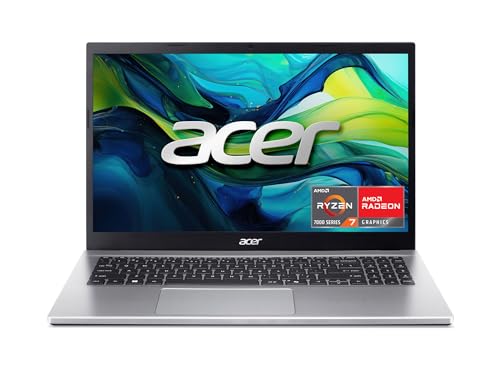
Best for ryzen 7 with 16GB RAM and 1TB
2. Acer Aspire Go 15 (Ryzen 7 7730U)
An Acer Aspire Go 15 with a 15.6-inch FHD display, AMD Ryzen 7 7730U, 16GB RAM and 1TB storage, per the listing. Check price on Amazon.
Listing details: 15.6-inch display, 1 TB storage, 1080p resolution, Windows 11 Home (from the Amazon product details; confirm on the page).
Good for: Ryzen 7 with 16GB RAM and 1TB. Watch out: plain design.
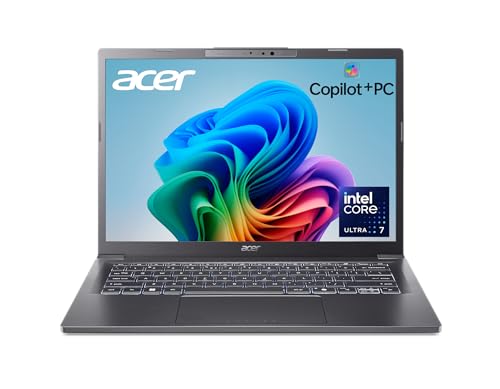
Best for light everyday Copilot+ laptop
3. Acer Aspire 14 AI (Core Ultra 7 256V)
An Acer Aspire 14 AI Copilot+ PC with a 14-inch WUXGA display, Intel Core Ultra 7 256V and an NPU, per the listing. Check price on Amazon.
Listing details: 14-inch display, 1 TB storage, 1920 x 1200 resolution, Windows 11 Home (from the Amazon product details; confirm on the page).
Good for: Light everyday Copilot+ laptop. Watch out: check RAM and storage on the page.
Best for low-cost Snapdragon X
4. Acer Aspire Lite 14 AI (Snapdragon X)
An Acer Aspire Lite 14 AI Copilot+ PC with a Snapdragon X X1-26-100 processor and a 14-inch WUXGA display, per the listing. Check price on Amazon.
Listing details: 14-inch display, 512 GB storage, 1920×1200 resolution, Windows 11 Home (from the Amazon product details; confirm on the page).
Good for: Low-cost Snapdragon X. Watch out: Arm-based; check app compatibility.

Best for large screen on a mid budget
5. ASUS Vivobook 16 (Snapdragon X)
An ASUS Vivobook 16 with a 16-inch WUXGA 60Hz display, Qualcomm Snapdragon X and 16GB RAM, per the listing. Check price on Amazon.
Listing details: 16-inch display, 512 GB storage, 1920 x 1200 resolution, Windows 11 Home (from the Amazon product details; confirm on the page).
Good for: Large screen on a mid budget. Watch out: Arm-based; check app compatibility.
Best Picks by Category
These labels come from the Amazon listings. They are a data summary, not hands-on test results.
- Highest listed rating (limited feedback): Acer Aspire Go 15 (Ryzen 7 7730U) — check price on Amazon. This is not an independent product-quality award.
- Most reviewed: Acer Aspire 14 AI (Core Ultra 7 256V) — check price on Amazon.
- Budget option: Acer Aspire 14 AI Touch (Core Ultra 5 226V) — check price on Amazon.
- Premium option: Acer Aspire Lite 14 AI (Snapdragon X) — check price on Amazon.
Price, Rating and Review Comparison
This table lists the picks with their price tiers.
| Product | Price | Rating | Ratings | Price tier |
|---|---|---|---|---|
| Acer Aspire 14 AI Touch (Core Ultra 5 226V) | Check price on Amazon | — | — | Mid-range |
| Acer Aspire Go 15 (Ryzen 7 7730U) | Check price on Amazon | — | — | Mid-range |
| Acer Aspire 14 AI (Core Ultra 7 256V) | Check price on Amazon | — | — | Mid-range |
| Acer Aspire Lite 14 AI (Snapdragon X) | Check price on Amazon | — | — | Mid-range |
| ASUS Vivobook 16 (Snapdragon X) | Check price on Amazon | — | — | Mid-range |
What the Listings Say
Below are the concrete details each seller states on the Amazon listing. Check the live listing for the latest specs before you buy.
Acer Aspire 14 AI Touch (Core Ultra 5 226V)
The listing states: This combo delivers speed and responsiveness to handle any task with ease -along with all-day battery life of up to 22 hours* and smooth multitasking performance.; Indulge Your Eyes: Immerse yourself in a world of vibrant detail with a breathtaking 14″ WUXGA 1920 x 1200 ultra-high resolution touch display..
Acer Aspire Go 15 (Ryzen 7 7730U)
The listing gives few concrete specifications.
Acer Aspire 14 AI (Core Ultra 7 256V)
The listing states: This combo delivers the speed and responsiveness to handle any task with ease -along with all-day battery life of up to 22 hours and smooth multitasking performance.; Indulge Your Eyes – Immerse yourself in a world of vibrant detail with a breathtaking 14″ WUXGA 1920 x 1200 ultra high-resolution display..
Acer Aspire Lite 14 AI (Snapdragon X)
The listing states: Step Up to Next-Level Performance: Redefine your laptop experience with the Acer Aspire Lite 14 AI.; Immersive Visuals: Immerse yourself in a world of vibrant detail with a breathtaking 14″ WUXGA 1920 x 1200 ultra-high-resolution display.; Versatile: Acer Aspire Lite 14 AI features a durable, thin and lightweight aluminum chassis in an ultra-modern design.; A 180 lie-flat hinge delivers versatile convenience, making work, study, or creative projects easy wherever you go..
ASUS Vivobook 16 (Snapdragon X)
The listing states: ASUS Vivobook/BLUE/16.0 WUXGA(WU) non-Touch/X1 26 100/16GB/Qualcomm UMA/512GB/WIN11 HOME; Ultrafast Qualcomm Snapdragon X 8 Core SE Unleash performance with Qualcomm Hexagon NPU (up to 45 TOPS).; Designed for AI, this chipset evolves the way you create and communicate with unparalleled power efficiency, multi-day battery life3 and seamless connectivity; With extensive storage and advanced communication power, PCIe 4.0 SSDs excel in major gaming applications, multiple servers, daily backups, and more.
How to Choose
RAM and storage
16GB and 512GB is a good target.
Arm or x86
Snapdragon models are Arm.
Screen
Check brightness.
What a Copilot+ Label and an NPU Really Add
Three of the five laptops in this guide are sold as Copilot+ PCs, so it helps to know what that label means before you pay for it. Microsoft uses the term for Windows laptops that include a neural processing unit, or NPU, rated at 40 TOPS or more. TOPS stands for trillions of operations per second, and the number is a measure of how fast the chip can run certain machine-learning tasks. The Acer Aspire 14 AI Touch listing mentions an NPU of up to 40 TOPS, which matches that threshold.
In daily use the NPU handles background jobs so the main processor and graphics do not have to. Examples include blurring your background on video calls, cleaning up microphone noise, and a few on-device features built into Windows. Because that work runs on a low-power block, it can use less battery than doing the same thing on the CPU. The honest caveat is that these features are still young. Many of the apps people rely on every day, such as browsers, spreadsheets and video calls, run the same on a laptop without an NPU. If you never use the new Windows features, you are not missing much by skipping the label.
A practical way to decide: treat the NPU as a bonus, not a reason to overspend. If two laptops cost the same and one has it, take the one that has it. If the NPU model gives you less memory, a smaller drive or a worse screen than a non-NPU model, the older machine is often the better buy. The Acer Aspire Go 15 in this guide has no Copilot+ label, yet its Ryzen 7 processor, 16GB of RAM and 1TB drive are the kind of core specs that matter more for most people.
Intel, AMD and Snapdragon: Picking a Platform
Under $800 you now see three processor families, and each has a different personality.
Intel Core Ultra
The Core Ultra 5 226V and Core Ultra 7 256V chips in two Acer listings belong to Intel’s low-power mobile line. They are built with efficiency in mind, pair processor, graphics and NPU on one package, and typically target thin laptops with long battery goals. They run standard Windows software without translation, which is a plus if you depend on older apps. The V-series generally ships with memory built onto the chip package, so you cannot upgrade RAM later. This makes the RAM figure on the listing final.
AMD Ryzen
The Ryzen 7 7730U in the Aspire Go 15 is an earlier-generation efficiency chip with eight cores. It will not match newer silicon in battery life or AI features, but it handles office work, browsing, streaming and light photo editing without trouble. Laptops with these chips often come with replaceable memory or storage, though you should confirm that for each model before assuming it.
Qualcomm Snapdragon X
The Acer Aspire Lite 14 AI and ASUS Vivobook 16 use Arm-based Snapdragon X chips. Arm laptops are known for strong battery life and cool, quiet operation. Windows can run most traditional x86 programs through a translation layer, but some software, especially older utilities, specialist drivers, certain anti-cheat tools in games and some printer or scanner software, may not work or may run slowly. Check the apps you need before choosing Arm. Most mainstream software, including browsers and Microsoft 365, now has native Arm versions.
Weight, Battery and Screen Size in Daily Use
Spec sheets tell you the processor, but your back and your outlets will tell you what you actually live with.
- 14-inch models. The two Acer Aspire 14 AI laptops and the Aspire Lite 14 AI are in the size class that fits easily into a backpack and onto a train tray table. They suit students, commuters and travelers.
- 15.6-inch models. The Aspire Go 15 gives you more screen and usually a full keyboard with a number pad. It is better for spreadsheets and for people who keep the laptop on a desk, but heavier to carry.
- 16-inch models. The Vivobook 16 offers the most screen area in this guide. That is helpful for side-by-side windows, but weight and bag size go up.
- Resolution. The 1920 by 1200 panels on the 14-inch Acers use a 16:10 shape, which shows more vertical content than a standard 16:9 screen. That helps with documents and web pages.
- Touch. A touchscreen adds cost and a little weight. It is handy for note-taking with a stylus if supported, or for tablet-style browsing, but not essential.
- Battery claims. Maker hours come from ideal test conditions. Real use with a bright screen, video calls and many browser tabs is shorter. Arm and Intel efficiency chips tend to do better than older designs, but treat every claim as an upper bound.
Charging is worth a look too. Many current laptops charge over USB-C, which means a single charger can serve your phone and tablet. Check whether the listing names a port count and whether charging works through any of them.
Real-Life Matches for Each Type of Buyer
Thinking about your week often settles the choice faster than comparing spec tables.
The student
You need all-day battery, a keyboard that works for long essays and enough memory for many tabs. A light 14-inch model with an efficient chip is a sensible fit. Check that your school software, such as a testing lockdown browser or lab app, runs on Windows on Arm if you consider a Snapdragon model. Ask your IT department when unsure.
The remote worker
Video calls, spreadsheets and cloud apps are the main load. A laptop with a good webcam and microphone, a bright screen and a port for an external monitor makes more difference than raw speed. Confirm that the laptop can drive your monitor over USB-C or HDMI at the resolution you want.
The family computer
For a shared machine, storage size and a full-size keyboard matter. The Aspire Go 15 with a large drive and a number pad suits this role, as long as you accept a plain design. Create separate user accounts so each person keeps their own files.
The light creative user
Photo editing, basic video cuts and drawing work best with a color-accurate screen and plenty of memory. None of these laptops are built as creator machines, but a 16-inch screen, such as the Vivobook 16, gives more room for editing tools. For heavy video or 3D work, you would need a discrete graphics card, which is outside this price tier.
The traveler
Weight and battery matter most. A 14-inch laptop with USB-C charging lets you share a charger with other devices. Pack a short cable, and consider a small hub if you need an HDMI or SD slot that the laptop lacks.
Where Buyers Go Wrong at This Price
- Trusting a title over the spec box. Listings often compress details. Several entries here say to check RAM and storage on the page, because the same name can ship in more than one configuration.
- Assuming RAM can be upgraded. On many thin laptops it is soldered. If the listing gives 16GB, that is what you get for the life of the machine.
- Overlooking the operating system edition. Home and Pro editions differ in some business features. Home suits most people.
- Ignoring the return window. A new laptop deserves a week of real use. Test the keyboard, the trackpad, the screen brightness and the fan noise early, while returning is easy.
- Buying for a feature you will not use. Touch, an NPU and a 16-inch panel each cost something in money or weight. Pay only for what you will use daily.
- Skipping the first-day checklist. Run Windows Update, check for firmware updates from the maker, and remove trial software you do not want. A clean start helps battery life and speed.
With a budget like this, the sweet spot is a machine with 16GB of memory, a decent drive and a screen you enjoy looking at. Everything else is a refinement.
Your First Hour With a New Laptop
A little setup work in the first hour pays off for years. Start by letting Windows finish all pending updates, then restart. Next, open the maker’s support app, if one is installed, and apply any firmware and driver updates, since early releases often fix battery and sleep issues. Remove trial software and extra toolbars you do not want, because they use memory and slow startup. Turn on device encryption if it is offered, sign in with a Microsoft account if you want recovery options, and set up a backup to cloud storage or an external drive. Finally, check the battery settings and pick a power mode that matches how you work. If anything about the screen, keyboard, trackpad, speakers or fan behaves oddly, document it in the first days while a return is still easy.
Going Deeper: Choosing Well When Every Laptop Looks Similar
At this end of the market the listings can blur together. Names repeat, screens sound alike and every description promises smooth everyday performance. The differences that matter are quieter: how the keyboard feels after an hour of writing, whether the laptop wakes quickly and stays reliable, how it handles a video call while documents and tabs are open, and whether it will still feel adequate when your needs grow a little. This section stays with the five picks already in this guide and looks at them through real routines: study, remote work, family use, travel and light creative work. It adds no new models. Its purpose is to help you choose the existing pick that matches your life, and to set it up so it stays pleasant rather than slowly becoming a source of small frustrations.
Acer Aspire 14 AI Touch: the compact touch option
The Acer Aspire 14 AI Touch suits a buyer who wants a compact laptop that can move between a desk, a sofa and a bag without ceremony, and who will actually use touch for scrolling, annotating, presenting or casual interaction. Touch is valuable when it fits a habit you already have; it is wasted when bought only because it sounds modern. This pick makes sense for students who read and mark up documents, for remote workers who present and collaborate, and for anyone whose work alternates between typing and direct, hands-on navigation. Its smaller size favours mobility and smaller desks, and it asks in return that you be comfortable with a more focused working area when many windows are open.
In daily use, the key to enjoying a compact touch laptop is organisation. Keep your most used applications pinned and easy to reach, learn a few keyboard shortcuts so you are not hunting through menus, and use virtual desktops or window snapping to separate study, work and personal tasks instead of piling everything into one crowded screen. Wipe the display gently and regularly, because touch screens show marks that distract during reading and video calls. Carry it in a padded sleeve even inside another bag. A compact laptop is bought to be taken places, and the small effort of protecting it is what keeps that freedom enjoyable rather than risky.
Acer Aspire Go 15: the straightforward family and study choice
The Acer Aspire Go 15 represents the straightforward approach in this guide: a larger, familiar laptop for everyday tasks without chasing the newest platform story. It suits families sharing one computer for schoolwork, browsing, streaming and administration, students who want a clear view for documents and lectures, and buyers who prefer a traditional experience with a screen that does not demand window juggling. A fifteen inch class machine at a home desk can be calmer to use than a smaller, cleverer one, especially for older users or for anyone who sets text larger and appreciates space. Simplicity is not a lack of ambition here; for many homes it is exactly the right feature.
The honest limitation is future novelty. A straightforward everyday laptop will not showcase the newest on-device features, and it may feel ordinary beside sleeker machines. Judge it by whether it does your actual tasks well and reliably. Keep expectations and setup aligned: install the applications you truly need, remove clutter you will never use, set up separate accounts for different family members, and agree where photographs and important documents are stored and backed up. Shared laptops fail socially before they fail technically, usually because nobody knows whose files are where or because one person’s downloads become everyone’s problem. Clear accounts and folders prevent most of that.
Acer Aspire 14 AI with the stronger configuration: buying headroom
The second Acer Aspire 14 AI configuration in this list exists for a familiar reason: within one model family, a higher configuration can be the difference between a laptop that is adequate today and one that still feels comfortable when your work grows. It suits a remote worker whose day includes many tabs, calls, documents and perhaps light photo or design work at the same time, and a student entering a more demanding course who cannot replace the laptop next year. Headroom is not about showing off a specification. It is about avoiding the slow, daily friction of waiting, closing applications reluctantly and watching a machine struggle whenever several ordinary things happen at once.
When you consider paying for a stronger configuration in the same family, compare like with like in the listing: memory, storage, display and processor together, not just one highlighted line. Then ask where your current laptop, phone or borrowed machine frustrates you. If the answer is storage full warnings, prioritise capacity. If it is pauses when switching tasks, prioritise memory. If it is a dim or cramped screen, no internal upgrade will fix your real problem. This discipline matters at this budget because every extra spent in one place is taken from somewhere else, perhaps from a bag, a mouse, backup storage or software you also need. Headroom is valuable only when it is headroom in the right place.
Acer Aspire Lite 14 AI on Snapdragon and ASUS Vivobook 16 on Snapdragon: the Arm choice
The two Snapdragon-based picks in this guide ask you to make a platform decision, not just a size decision. Their attraction for everyday buyers is usually a quiet, efficient, modern laptop experience with strong battery behaviour for browsing, documents, streaming and study, in bodies that suit travel and long days away from a charger. The Acer Lite direction emphasises compact value, while the larger ASUS Vivobook direction gives that same platform a bigger screen for home and study. Both suit people whose software life is mainly web based and who use common applications that are well supported on this platform. For them, the experience can feel fresh and uncomplicated.
The check you must not skip is compatibility. List your essential applications, printer, scanner and any specialist device or older program you cannot replace, and confirm support before you buy rather than discovering a problem during term time or a work deadline. Most everyday users will find their needs covered, but a single essential legacy tool can change the answer completely. Also think about accessories: docks, adapters and external drives should be checked in the same way. If your software list is mainstream and your priority is a light, lasting everyday laptop, the Arm picks deserve serious attention. If your life depends on niche or older Windows software, the traditional platform picks in this same guide are the safer home.
Platform, screen and the first month of ownership
Choosing between Intel, AMD and Snapdragon at this level is less about loyalty and more about fit. Traditional platforms offer the broadest familiarity for older software, games and accessories, and a long history that makes help easy to find. The newer Arm platform offers an efficient, connected feeling for web-centred work and can be excellent for students and travellers. Neither is a moral choice. Write down your five most important applications and your three most important accessories, and let that short list decide. A laptop that runs everything you need without workarounds will always feel faster in real life than a theoretically quicker one that makes you fight it twice a week.
Screen size deserves the same practical treatment. A fourteen inch laptop rewards carrying, smaller desks and focused single-task work. A fifteen or sixteen inch laptop rewards reading, split-screen study, spreadsheets, family viewing and anyone who prefers larger text. If the laptop will live on one desk and rarely travel, size costs you little and gives you comfort every day. If it will be carried to lectures, work sites or between homes, every extra bit of size and weight is a daily tax. Be honest about the journey the laptop will actually make, not the one you took once last year. Your back and your bag are reliable witnesses.
Setup, mistakes and making the laptop last
Your first hour should be boring and thorough. Connect to a trusted network, install updates, set a proper sign-in, turn on backup or set up the cloud and external storage you will use, and install only the applications you know you need. Create folders for documents, photographs and downloads, and move the important files you brought from an old machine into them straight away rather than leaving a temporary pile on the desktop. Test your printer, your headphones and a video call before you need them urgently. Then use the laptop normally for a few days before adding clever utilities; most slowness people blame on a new laptop is really clutter they added in the first evening.
The common mistakes at this budget are predictable. Buyers spend everything on the laptop and nothing on backup, then lose work when a drive or machine fails. They choose the smallest storage because their current files fit, forgetting that photographs, videos and system updates grow steadily. They buy touch, size or a new platform because it was highlighted in a listing, without checking whether it matches a habit or a software need. And they keep a new laptop on soft surfaces, in dusty rooms or in a bag without protection, then wonder why it runs hot or looks tired early. None of these require expertise to avoid, only a little thought before the excitement of the new machine takes over.
Looked at this way, the five picks are five answers to five different lives. Choose the compact touch machine for mobile, hands-on work. Choose the straightforward larger Acer for a calm family or study desk. Choose the stronger Aspire configuration when your everyday multitasking needs room to grow. Choose one of the Snapdragon machines when your software is mainstream and a light, efficient, long-lasting day matters most, with the larger ASUS if the screen will be your main view at home. That is the real comparison in this guide, and it is why reading your own routine honestly will lead you to a better purchase than chasing any single line in a listing.
Putting It Into Practice: A Realistic everyday laptop Workflow
A good everyday laptop setup reveals itself in a complete workflow, from the moment you sit down to the moment you share or store the finished result. Start by preparing the workspace before you prepare the work itself. Clear the desk of anything that blocks vents, cables or your elbows, set the screen at a height and brightness you can repeat tomorrow, and open only the applications this session needs. Then bring in your documents and photographs in an organised way, with a clear folder for originals, a clear place for work in progress and a clear destination for finished pieces. This sounds slow for the first five minutes and saves far more than five minutes over the session, because most everyday frustration is not caused by a slow machine but by searching, waiting for cluttered systems and redoing steps that a tidy start would have made simple and obvious.
In the middle of a session, work in passes rather than trying to make everything perfect at once. A first pass should establish structure and remove what clearly does not belong, a second pass should do the detailed everyday itself, and a final pass should check the result with fresh attention, ideally after a short break. Keep notes as you go about decisions you may need to revisit, rather than trusting memory when a client, teacher, colleague or family member asks for a change days later. Save versions at meaningful points so you can return to an earlier stage without starting again. This pass-based method suits every pick in this guide, because it reduces the load on the machine at any one moment, reduces the load on your attention and makes problems visible while they are still small and cheap to correct.
Decisions to make before you start, not during
Many disappointing everyday sessions begin with a decision that was postponed. Which version is the real one, where will the finished result go, who needs to approve it, and what quality or format is actually required? Answer those questions before the detailed work begins. If the result is for a screen, check it the way a screen viewer will see it. If it is for print, a client, an employer or a course, confirm the requirement in writing where you can and keep that note with the project. A laptop cannot compensate for an unclear brief, and a powerful machine used on the wrong target is simply a faster way to produce work that must be done again. The picks in this guide differ in size, platform and special strengths, but they all reward a user who arrives with a clear intention and punish, gently and repeatedly, a user who hopes the intention will emerge halfway through.
Time is the other decision to make honestly. Block enough time for the whole task, including saving, exporting, checking and backing up, not just for the enjoyable central part of the everyday. Rushing the final stage is where errors survive: a wrong file is sent, a setting is left at a draft level, a backup is skipped because the battery is low or the room is needed. If time is short, reduce the scope of the session rather than its care. Finish a smaller part properly, save it clearly and leave a note about where you stopped. That habit, repeated across weeks, is what makes a personal system trustworthy, and trust in your own system is worth more than any single feature highlighted in a listing or an advertisement.
Troubleshooting when the laptop feels slower than it should
When a laptop that should handle everyday begins to feel slow, work through the causes in order of likelihood before blaming the hardware. First, check free storage space, because a nearly full drive slows updates, caching and everyday responsiveness on almost any machine. Second, look at what else is running: cloud synchronisation, a backup, a system update, a browser with many heavy tabs or another demanding application can quietly take the resources your main task expects. Third, check the physical setup, including vents, surface, room temperature and whether you are plugged in for demanding work. Fourth, restart the application, and if necessary the machine, and try the same task again before changing settings at random. This order solves most real problems and, when it does not, it gives you clear information to describe to support instead of a vague feeling that the laptop is old.
If slowness returns in the same place every time, treat that pattern as useful evidence. Note which application, which type of file and which stage of the work triggers it, and whether it happens on battery, when hot, or only with a particular accessory connected. Patterns point to causes: a single application suggests its settings or version, a single accessory suggests a cable, hub or driver question, and heat or battery suggests power and cooling. Change one thing at a time and test again, otherwise you will never know what helped. This calm diagnostic habit is especially valuable with the machines in this guide, because they span different platforms and designs, and advice that fits one may not fit another. Observation first, adjustment second, replacement last is the order that saves both money and temper.
A Checklist You Can Use on Buying Day and Every Month After
On buying day, use a short checklist with the exact configuration you are considering. Confirm the processor, memory, storage, display and ports as listed for that unit, not for the model family in general. Confirm how you will connect your existing printer, printer or accessories, what bag or protection it needs, and how your files will move from your old machine without chaos. Confirm the return and support route while you are calm, and keep the order details with the project or household records where you can find them. Then, at home, resist filling the first evening with every application you have ever heard of. Install what this month requires, set up backup and sign-in security, test a complete small piece of everyday from start to finish, and only then settle into normal use with confidence that the whole chain works.
Every month after, a fifteen minute review keeps the laptop feeling new far longer than most owners expect. Review storage and remove or archive what has accumulated, check that backup has actually run and that you can open a file from it, install pending updates at a convenient time, look at which applications start automatically, and clean the screen, keyboard and vents gently as the maker directs. For work done in the home, also review your folders and naming once in a while, because a system that made sense for one project can quietly become a maze after ten. None of this is technical heroism. It is housekeeping for a tool you depend on, and housekeeping is the cheapest performance upgrade available for every single pick in this guide, regardless of platform, size or intended use.
Seen through this longer lens, choosing between the picks becomes calmer and clearer. You are not buying a demonstration or a single impressive specification. You are buying the centre of a daily system that includes your files, your accessories, your room, your habits and the people who may ask you for a revised result at an inconvenient moment. Choose the machine whose size, platform and strengths fit the system you actually live in, set it up with the care described here, and maintain it in small regular steps rather than in a crisis. That is how a sensible purchase stays sensible for years, and it is the standard against which every recommendation in this guide should be judged before you spend anything at all.
One laptop, several people: making sharing work
In many homes the laptop in this guide will not belong to one person alone, and sharing is a design problem as much as a technical one. Separate accounts are the foundation, because they keep documents, photographs, browsing and school or work material from blending into a single confusing pile where nobody can find anything and everybody can see everything. Agree a simple rule for downloads and the desktop: both are temporary places, not storage, and anything that matters moves into a named folder within the week. Agree also who installs new programs and who removes them, because a shared machine slowly filled by five people’s good intentions becomes nobody’s reliable tool. These agreements sound like household politics, and they are, but they decide whether a perfectly capable laptop feels organised or chaotic far more than its processor ever will.
Sharing also means planning around each other’s peaks. School deadlines, work calls, family video chats and entertainment rarely arrive one at a time, and a single laptop asked to do all of them at the same hour will disappoint someone however well chosen it was. A shared calendar note, a habit of saving and closing work properly rather than leaving it open for days, and a charger kept in one known place rather than travelling mysteriously around the house all reduce friction more than an upgrade would. If sharing regularly causes conflict, that is useful information for the future: the household may need a second, simpler device for browsing and calls, freeing this laptop for the work it was bought to do well.
One final habit ties the whole purchase together. Keep the box, the order record and a short note of why you chose this particular configuration for the first few weeks, while you learn what you like and what you would change. That note sounds unnecessary and becomes surprisingly valuable when a friend asks for advice, when support asks a question, or when you shop again in a few years and want to remember which compromises actually mattered and which ones you never noticed at all in daily use.
Frequently Asked Questions
Is $800 enough?
Yes for everyday use.
Cheapest?
Acer Aspire 14 AI Touch.
Best?
Acer Aspire Go 15 for storage.
Is a Copilot+ PC worth it for everyday use?
Only if the price is close to a non-Copilot model. The NPU speeds up some Windows features such as background blur and noise removal, and may save battery on those tasks. Ordinary work like browsing, documents and streaming runs the same either way, so do not sacrifice memory or storage to get the label.
Can I upgrade the RAM on a laptop under $800?
Often not. Many thin laptops, especially those with newer low-power chips, have memory built onto the chip package or soldered to the board. Check the listing and the maker’s spec page before buying. If upgrades are not possible, choose 16GB at purchase rather than planning to add more later.
Will my old Windows programs run on a Snapdragon laptop?
Most mainstream apps do, either natively or through Windows’ built-in translation layer. Problems appear with older utilities, some drivers, certain games with anti-cheat software and specialist tools. List the programs you rely on and check each developer’s site for Arm support before choosing a Snapdragon model.
How much storage do I need on a $800 laptop?
For most people 512GB is workable and 1TB is comfortable, especially if you keep photos, downloads or games locally. Cloud storage can fill the gap, but a small drive fills quickly after Windows updates. If a laptop has a free drive slot, adding storage later is easier.
Is a 14-inch or 16-inch laptop better for work?
It depends on where you work. A 14-inch model is lighter and easier to carry, while a 16-inch gives more room for spreadsheets and split windows. If the laptop mostly sits on a desk, go larger. If you carry it daily, the weight difference adds up over a week.
Bottom Line
For value, the Acer Aspire 14 AI Touch. For storage, the Aspire Go 15. For Arm battery life, the Aspire Lite 14 AI.
More Laptop Guides
- Best Laptops
- Best Copilot+ Laptops
- Best Ryzen Laptops
- Best Lenovo ThinkPad Laptops
- Best Rugged Laptops
- Best Laptops with Stylus
- Best Laptops for Video Editing
- Best Laptops for Photo Editing
- Best Laptops for Programming
- Best Laptops Under $1000
- What Is a Copilot+ PC
- All laptop guides
Related Guides
- 6 Best Laptops: Acer, Surface, Lenovo, Dell, ASUS (2026)
- 6 Best Gaming Laptops: HP Victus, MSI, ASUS TUF, Lenovo LOQ (2026)
- 6 Best OLED Laptops: ASUS, Lenovo ThinkPad and Slim 7i (2026)
- 6 Best Touchscreen Laptops: Surface, Acer, Dell, Lenovo (2026)
- 5 Best 2-in-1 Laptops: Convertible Windows and Chromebooks (2026)


