Disclosure: As an Amazon Associate, reviewstook.com earns from qualifying purchases. Links to Amazon on this page are affiliate links; they cost you nothing extra.
A stylus laptop suits notes, drawing and annotation. Check whether a pen is included and which pen it supports.
This guide is built from Amazon product listings, not our own testing, so confirm specs, configuration and current price on each product page. Laptop configurations change often.
Check price on Amazon for the current price of each pick.
Last updated: October 31, 2026.
In this guide
Quick Picks
| Product | Type | Best for |
|---|---|---|
| Samsung 12.2-inch Chromebook Plus 2-in-1 | Touchscreen Chromebook | Compact 2-in-1 |
| Lenovo Chromebook 2-in-1 (Intel N150) | 2-in-1 Chromebook | 14-inch WUXGA touch convertible |
| Acer Chromebook Spin 314 | Convertible Chromebook | Core i3-N305 convertible |
| HP OmniBook X Flip 2-in-1 (16-inch) | 2-in-1 laptop | 16-inch 2K touch convertible |
| Lenovo Yoga 7i 2-in-1 (14-inch OLED, Yoga Pen) | OLED 2-in-1 with pen | Ultra 5, 16GB RAM, 1TB, pen included |
| ASUS Zenbook 14 OLED (Ryzen AI 9 465) | 14-inch OLED laptop | 2K touch OLED with stylus |
Our Picks
Top pickBest for compact 2-in-1
1. Samsung 12.2-inch Chromebook Plus 2-in-1
A Samsung 12.2-inch FHD 2-in-1 touchscreen Chromebook Plus with an Intel dual-core processor and 4GB RAM, per the listing. Check price on Amazon for the current listing.
Listing details: 12.2-inch display, 1920 x 1200 resolution, Chrome OS (from the Amazon product details; confirm on the page).
Good for: Compact 2-in-1. Watch out: 4GB RAM.
Best for 14-inch WUXGA touch convertible
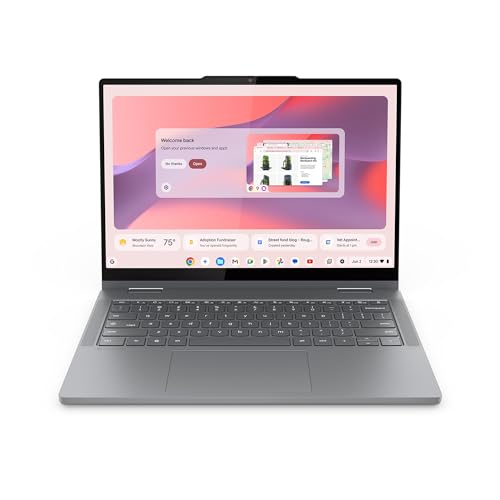
2. Lenovo Chromebook 2-in-1 (Intel N150)
A Lenovo Chromebook 2-in-1 with Intel N150 and a 14-inch WUXGA IPS touch display, per the listing. Check price on Amazon for the current listing.
Listing details: 14-inch display, 128 GB storage, 1920 x 1200 resolution, Chrome OS (from the Amazon product details; confirm on the page).
Good for: 14-inch WUXGA touch convertible. Watch out: Chrome OS only.


Best for core i3-N305 convertible
3. Acer Chromebook Spin 314
An Acer Chromebook Spin 314 convertible with Intel Core i3-N305 and a 14-inch WUXGA IPS touch display, per the listing. Check price on Amazon for the current listing.
Listing details: 14-inch display, 128 GB storage, 1920 x 1200 resolution, Chrome OS (from the Amazon product details; confirm on the page).
Good for: Core i3-N305 convertible. Watch out: Chrome OS only.

Best for 16-inch 2K touch convertible
4. HP OmniBook X Flip 2-in-1 (16-inch)
An HP OmniBook X Flip 2-in-1 with a 16-inch 2K IPS touchscreen, Intel Core Ultra 7 256V, Intel Arc 140V and 16GB LPDDR5X, per the listing. Check price on Amazon for the current listing.
Listing details: 16-inch display, 1 TB storage, 1920×1200 resolution, Windows 11 Home (from the Amazon product details; confirm on the page).
Good for: 16-inch 2K touch convertible. Watch out: large for a 2-in-1.
Best for ultra 5, 16GB RAM, 1TB, pen included
5. Lenovo Yoga 7i 2-in-1 (14-inch OLED, Yoga Pen)
A Lenovo Yoga 7i 2-in-1 with Ultra 5, a 14-inch OLED touch display, 16GB RAM, 1TB SSD and a Yoga Pen, per the listing. Check price on Amazon for the current listing.
Listing details: 14-inch display, 1 TB storage, 1200p resolution, Windows 11 Home (from the Amazon product details; confirm on the page).
Good for: Ultra 5, 16GB RAM, 1TB, pen included. Watch out: check pen model on the page.

Best for 2K touch OLED with stylus
6. ASUS Zenbook 14 OLED (Ryzen AI 9 465)
An ASUS Zenbook 14 OLED with a 2K touchscreen, AMD Ryzen AI 9 465, stylus and Thunderbolt, per the listing. Check price on Amazon for the current listing.
Listing details: 14-inch display, 512 GB storage, 1200p resolution, Windows 11 Home (from the Amazon product details; confirm on the page).
Good for: 2K touch OLED with stylus. Watch out: check RAM and storage on the page.

Best Picks by Category
These labels come from the Amazon listings for each pick. They are a data summary, not hands-on test results.
- Highest listed rating (limited feedback): Acer Chromebook Spin 314 — check price on Amazon. This is not an independent product-quality award.
- Most reviewed: Samsung 12.2-inch Chromebook Plus 2-in-1 — check price on Amazon.
- Budget option: Samsung 12.2-inch Chromebook Plus 2-in-1 — check price on Amazon.
- Premium option: ASUS Zenbook 14 OLED (Ryzen AI 9 465) — a premium-tier option; check price on Amazon.
Price, Rating and Review Comparison
This table lists the picks with their price tier; check price on Amazon for current pricing.
| Product | Price | Rating | Ratings | Price tier |
|---|---|---|---|---|
| Samsung 12.2-inch Chromebook Plus 2-in-1 | Check price on Amazon | n/a | n/a | Budget |
| Lenovo Chromebook 2-in-1 (Intel N150) | Check price on Amazon | n/a | n/a | Budget |
| Acer Chromebook Spin 314 | Check price on Amazon | n/a | n/a | Budget |
| HP OmniBook X Flip 2-in-1 (16-inch) | Check price on Amazon | n/a | n/a | Mid-range |
| Lenovo Yoga 7i 2-in-1 (14-inch OLED, Yoga Pen) | Check price on Amazon | n/a | n/a | Mid-range |
| ASUS Zenbook 14 OLED (Ryzen AI 9 465) | Check price on Amazon | n/a | n/a | Mid-range |
What the Listings Say
Below are the concrete details each seller states on the Amazon listing. Check the live listing for the latest specs before you buy.
Samsung 12.2-inch Chromebook Plus 2-in-1
The listing states: 12.2″ FHD Touchscreen Display Navigate, create, and write naturally with utmost precision on this responsive touchscreen.; 2-in-1 Design Convert to a tablet with the flip of a screen around a 360 hinge.; Intel Celeron Processor 3965Y The low voltage design optimizes energy usage, allowing you to stay productive and entertained with great efficiency.; 720p HD Camera Provides high quality video calls, virtual meetings and online interactions..
Lenovo Chromebook 2-in-1 (Intel N150)
The listing states: TAKE HITS KEEP MOVING Sleek, light, and built to last- the Chromebook 2-in-1 is just 0.69 thick and 3.3lbs.; PERFORMANCE THAT MATCHES YOUR HUSTLE Fuel your ideas with an Intel Core processor and 128GB storage.; Boot up in under 10 seconds to start the day powerfully efficient.; FLEX YOUR CREATIVITY ANYWHERE, ANYTIME Create, work, or unwind your way with a versatile 2-in-1 design..
Acer Chromebook Spin 314
The listing states: Plus get 5TB of storage – all in one plan.; Starts Fast, Won’t Slow You Down: Chromebooks start up in under 10 seconds, and run automatic updates behind the scenes to deliver performance that s full speed ahead.; Never Had a Virus – No Need to Worry: Breathe easy knowing your security and privacy are covered with built-in protection and the Titan C2 security chip.; Easily access Microsoft 365, Minecraft, Adobe Express, and more..
HP OmniBook X Flip 2-in-1 (16-inch)
The listing states: Processor Intel Core Ultra 7 256V 8-Core Processor (Up to 4.8 GHz with Intel Turbo Boost Technology,12 MB Intel Smart cache.; 8 Cores: 4 Performance Cores + 4 Efficient Cores, 8 Threads).; AI-Powered performance for multitasking with Intel AI Boost NPU offering up to 47 TOPS for AI task processing, and Intel Arc 140V Graphics for smooth visuals.; Display 16″ diagonal 2K (1920 x 1200) 16:10 aspect ratio IPS LED 120Hz Touchscreen (DisplayHDR, 400 nits, 100% DCI-P3, Blue Light).. Amazon did not show a rating count for this listing.
Lenovo Yoga 7i 2-in-1 (14-inch OLED, Yoga Pen)
The listing states: Add up to 5 years of coverage when you register your computer with Lenovo.; Intel Core Ultra 5 226V Processor (LPE-cores up to 3.50 GHz P-cores up to 4.50 GHz / 16 GB MOP); Windows 11 Home 64; 1 TB SSD M.2 2242 PCIe Gen4 TLC<br> 16 GB LPDDR5X-8533MT/s (Memory on Package).
ASUS Zenbook 14 OLED (Ryzen AI 9 465)
The listing states: [AI Laptop]: Speed up AI inferencing on the ASUS Zenbook 14 OLED Laptop and enhance your AI workflows, up to 50 trillions operations per second performance.; [Processor]: Powered by the AMD Ryzen AI 9 465 processor.; 10 cores, 20 threads, 10 MB L2 cache, 24 MB L3 cache, up to 5 GHz frequency.; [Ample Storage]: 16GB 7500 MHz DDR5 RAM.. Amazon did not show a rating count for this listing.
How to Choose
Pen included
Only some listings include a pen.
Pen standard
Check the pen type.
Screen
OLED and brighter screens help.
How do laptops with stylus support work?
A laptop with stylus support has a touchscreen that responds to a pen, usually through a built-in digitizer, and a hinge that often lets the screen fold into tablet mode. Not every touchscreen laptop works with every pen, so compatibility is the first thing to confirm.
Pen types differ. Some are active pens that send pressure and tilt data to the screen, and some need a battery or a charging slot, while others work through the screen alone. The listing should say which pen standard the laptop supports and whether a pen is included in the box.
- Active pen: offers pressure sensitivity for drawing and handwriting.
- Passive stylus: works like a finger on the glass and is less precise.
- Charging or batteries: some pens need a replaceable battery or a way to charge.
- Palm rejection: lets you rest your hand on the screen while writing.
Use cases include note taking, marking up documents, sketching and basic photo retouching. If you need professional drawing, look closely at the pen standard, the screen brightness and the software you plan to run.
Latency and feel also vary. Better screens track the pen with less delay and fewer gaps, which helps handwriting look natural. Because listings rarely quantify this, read the description for pen details and check customer comments for mentions of lag or skipping.
Chromebook vs Windows 2-in-1: which stylus laptop is better?
A Chromebook 2-in-1 is better for light, web-based work and note taking at a lower cost, while a Windows 2-in-1 is better for full desktop programs and creative software. The right pick depends on the apps you must run.
Chrome OS is simple, starts quickly and suits browsing, documents, streaming and Android or web apps. The three Chromebook picks here, the Samsung 12.2-inch, the Lenovo Chromebook 2-in-1 and the Acer Chromebook Spin 314, are covered by this approach. The trade-off is that you cannot run all Windows programs.
Windows 2-in-1 laptops, such as the HP OmniBook X Flip, the Lenovo Yoga 7i and the ASUS Zenbook 14 OLED, run standard desktop software, which suits students who need specific programs and creators who use editing or drawing apps. They usually cost more and may use more power.
- Choose Chrome OS if your work happens in a browser, you want simplicity and you want to keep costs down.
- Choose Windows if you need desktop apps, more storage or a brighter OLED screen.
Before you decide, check that your apps and your pen work on the operating system in the listing.
Think about the long term as well. Chromebooks receive updates for a limited period set by the maker, so check the listing or the maker’s support page for how long. Windows laptops give broader software choice and more storage, which helps if your needs change.
Which screen size and tablet mode suit a stylus laptop?
A 14-inch stylus laptop is the most balanced choice for portability and writing room, while a 12-inch model is easier to carry and a 16-inch model gives a larger canvas. Tablet mode works best when the laptop is not too heavy.
Smaller screens are easier to hold as a tablet and fit on a crowded desk or lap. Larger screens give more room for drawing and side-by-side windows but feel heavy when used as a tablet. The 16-inch HP OmniBook X Flip, for example, is a large 2-in-1, so think about how you will hold it.
- Compact 12-inch class: best for note taking on the move.
- 14-inch class: a common middle ground for study, work and sketching.
- 16-inch class: best for desk use with a big working area.
Also check the hinge. A 360-degree hinge lets you fold the screen back, while a tent or stand mode helps with watching video. Brightness and glare matter for drawing, and a glossy screen can reflect lights. Choose a size you can carry comfortably in your usual bag.
Aspect ratio matters for writing. A taller 16:10 screen, as on several of these picks, gives more vertical room for pages and documents than a wide 16:9 screen. Check the resolution on the listing so text and pen strokes look sharp.
Which laptop with a stylus should you buy?
Choose by budget and use: a compact Chromebook for notes, a larger Windows convertible for work, or an OLED model for creative use. Each pick here suits a different buyer.
- If you want the lowest entry cost and a compact size, go for the Samsung 12.2-inch Chromebook Plus 2-in-1, but note the listing’s limited memory.
- If you want a larger Chromebook with more storage, choose the Lenovo Chromebook 2-in-1 (Intel N150).
- If you want a Chromebook with a stronger processor, choose the Acer Chromebook Spin 314.
- If you want a big touchscreen for Windows work, choose the HP OmniBook X Flip 2-in-1 (16-inch).
- If you want a pen included in the box with an OLED screen, choose the Lenovo Yoga 7i 2-in-1 (14-inch OLED, Yoga Pen), then confirm the pen model on the page.
- If you want a 2K touch OLED with stylus and Thunderbolt, choose the ASUS Zenbook 14 OLED (Ryzen AI 9 465), and check RAM and storage on the page.
Some of these listings have few ratings, so lean on the stated specs and your own needs, not star averages alone.
If you are torn, decide whether you need Windows software. If you do, narrow the choice to the three Windows models. If you do not, the Chromebooks give a simpler and lower-cost way to take notes and sketch, and you can still move up later.
What to check before you buy a laptop with a stylus
Before you buy, confirm that a pen is included, that its standard works with the laptop, and that the memory, storage and operating system match your needs. Pen details are the most common source of surprises.
- Pen in the box: many listings do not include one, so check the contents.
- Pen standard: make sure the pen you plan to use is supported by the screen.
- Pen power: note whether it uses a battery or charges, and whether replacement tips are sold.
- Memory and storage: check the listed RAM and drive size.
- Operating system: confirm it runs your apps.
- Hinge and weight: make sure the laptop is comfortable in tablet mode.
- Screen: look at brightness, resolution and glossy or matte finish.
- Warranty and returns: read the terms and the return window.
Pen storage matters too. Some laptops hold the pen in a slot, while others rely on a magnetic edge or a loop, and a lost pen can be costly to replace. Check the listing for a charging or holding method.
It also helps to read the lower-rated comments for repeated issues such as hinge looseness, pen lag or short battery life. A pattern across several comments is more useful than a single complaint.
How do you get the most out of a stylus laptop?
Get the most out of a stylus laptop by choosing apps that support pen input, adjusting pen settings and protecting the screen and pen tip. A few small habits make handwriting and drawing feel much more natural.
Start with software. Note apps, PDF markup tools and drawing programs usually support pressure and palm rejection, but not every app does. Try the apps you rely on before the return window ends, and confirm that handwriting recognition or conversion to text works as you expect.
- Pen settings: adjust pressure, button actions and shortcuts in the system settings.
- Screen protection: a matte screen protector can add grip and reduce glare, but check that it does not affect touch or pen response.
- Pen tips: tips wear down over time, so see whether spares are sold for your pen.
- Posture: in tablet mode, rest the laptop on a table or stand instead of holding it for long periods.
- Cleaning: wipe the screen with a soft cloth to remove oils that can make the pen skip.
If you plan to write for long sessions, try a stand or angle that keeps your wrist comfortable. Keep the pen in its holder or case when travelling, since small pens are easy to lose.
Is a stylus laptop worth it, and who should skip it?
A stylus laptop is worth it if you write, draw or mark up documents regularly, but it may be unnecessary if you rarely use a pen. The convertible form adds flexibility, along with a few trade-offs.
Benefits include natural handwriting, quick sketching and use as a tablet. Downsides include a heavier build than a tablet, possible glare on glossy screens, extra cost for a pen on some models and a pen standard that may limit your choice of replacement. Budget Chromebooks offer simple use but limited memory on some listings, while premium OLED models offer richer screens at a higher cost.
Who should skip it:
- People who type almost all the time and never use a pen.
- Serious digital artists who may prefer a dedicated drawing tablet or pen display.
- Buyers who need desktop software and would be limited by Chrome OS.
If you only want to take notes, a lower-cost Chromebook 2-in-1 may be enough. Compare the picks above, check the current listing for pen details, memory and operating system, then choose the laptop that fits how you will write or draw.
A Closer Look at Each Stylus Laptop in Real Use
A stylus laptop lives two lives: the laptop life of typing, browsing, and calls, and the tablet life of handwriting, sketching, marking up, and presenting. Picks fail when one life is bought and the other is lived in. This section walks through each machine with both lives in view, so you can choose the balance that matches your actual week.
Samsung 12.2-inch Chromebook Plus 2-in-1: the light, simple note-taker
A compact Chromebook Plus in convertible form is the purest note-taking proposition in this list: light to carry, quick to wake, centred on the browser and Android app world, and sized for a bag that already carries books, chargers, and a day of other things. It suits students whose work lives in documents, research, and lecture notes, and any buyer whose computing is web-first and whose stylus need is handwriting, annotation, and simple sketching rather than professional art production.
Its limits are the platform’s limits, and they should be embraced knowingly rather than discovered. Full desktop software from the Windows world is not its home, and heavy creative or technical applications belong on other picks in this list. Storage and offline expectations also deserve a thought for buyers who work away from good connections. Choose it when your life is web-first and your pen is for notes and markup. Skip it when one essential desktop program defines your work.
Lenovo Chromebook 2-in-1 (Intel N150): the accessible classroom and home pick
An entry-class Chromebook convertible suits the buyers who need stylus flexibility at the most accessible commitment: younger students, shared family use, and anyone adding a second, carry-everywhere machine for notes, browsing, and media. The convertible form earns its keep in this class, because a device that is a laptop for homework and a tablet for reading and drawing gets used in more hours of the day than a single-form device does.
Entry class means entry expectations: performance for light work, a screen and pen experience aimed at notes and casual creativity rather than at large canvases or professional illustration, and a build intended for ordinary rather than heroic treatment. For the right owner, none of that is a criticism. Choose it for light, flexible, everyday stylus use. Skip it for demanding software, professional art, or as a power user’s only machine.
Acer Chromebook Spin 314: the established convertible all-rounder
The Spin family has served the convertible Chromebook idea for years, and this fourteen-inch class model suits the buyer who wants the Chromebook simplicity above with a little more screen room to work in: documents and notes side by side, comfortable media, and a tablet mode that does not feel cramped. It is a natural home-and-school machine, and a sensible pick for writers and researchers whose tools are web tools.
It shares the Chromebook platform considerations in full: confirm that your applications live happily in the browser or in Android apps, and confirm whether the pen is included or a separate purchase for the exact listing you are ordering, because convertible listings vary. Choose it when you want the balanced Chromebook convertible. Skip it when Windows software or maximum pen performance for art is the mission, where the picks below take over.
HP OmniBook X Flip 2-in-1 (16-inch): the big-screen Windows convertible
A sixteen-inch Windows convertible changes the stylus conversation: the pen becomes a tool on a large canvas, for marking up documents at full size, sketching with room to breathe, presenting from a tented screen, and split-screen work where notes sit beside sources. The OmniBook framing suits the home-and-professional buyer who wants one substantial machine for desk and sofa, with the full Windows software world available and the tablet mode as a genuine second life rather than a party trick.
Size cuts both ways. A sixteen-inch convertible is a committed tablet: fine on a desk or a lap, ambitious in one hand, and a deliberate carry in a bag. Buyers whose stylus life is mostly standing, walking, or commuting should weigh the smaller picks seriously. Choose it when the large canvas and full Windows capability are the point. Skip it when portability is the first requirement of your stylus life.
Lenovo Yoga 7i 2-in-1 (14-inch OLED, Yoga Pen): the balanced premium convertible
The Yoga combination, a fourteen-inch OLED convertible with the pen in the story from the start, is the balanced enthusiast’s pick in this list. The display quality serves media, photo work, and drawing alike, the size travels properly, and the included-pen framing removes the accessory guessing that complicates other listings. It suits creators, professionals, and students with demanding tastes whose week genuinely mixes typed work, handwritten work, and visual work in one machine.
Premium balance still involves choices: convertible hinges and OLED panels reward owners who treat machines with ordinary care, and the configuration should be checked field by field like every listing here. It is also more machine than a notes-only buyer needs. Choose it when both lives, laptop and pen, are lived daily and deserve quality. Skip it when the pen is an occasional experiment, where a simpler pick serves you and leaves budget for other tools.
ASUS Zenbook 14 OLED (Ryzen AI 9 465): the performance portable with pen support
The Zenbook entry brings the strongest performance-and-display combination in the list into stylus territory: a current Ryzen AI class processor and an OLED panel in a refined fourteen-inch portable. It suits the buyer whose primary identity is power portable user, for demanding applications, creative work, and media, and whose stylus use is a valuable second capability: annotation, occasional sketching, signing, and markup on a beautiful screen. In that life, the pen is a feature of a great laptop rather than the reason for a convertible compromise.
That framing is also its caveat. Buyers whose stylus life is central, who live in tablet mode, or who take long handwritten notes daily, should compare the true convertibles above carefully, because form factor decides handwriting comfort more than any specification does. Confirm the pen story for the exact listing, including whether a pen is included or supported as an accessory. Choose it when performance and display lead and the pen supports. Skip it when the pen leads, because the convertibles were built for you.
Pen Questions That Matter More Than Pen Specifications
Forget the numbers race for a moment and ask the questions that decide daily satisfaction. Does the pen come in the box, and if not, exactly which pen does this model support? Where does the pen live when you are not using it, in a garage in the body, on a magnetic edge, or in your bag where it will be forgotten on the one day you need it? How does the screen feel under the pen for handwriting at your natural speed, and does the machine reject your palm reliably when you rest your hand as you write? Can you replace the pen tip, and the pen itself, easily if it is lost? A stylus system is a small ecosystem, and the owners who love theirs are the ones who checked the ecosystem, not just the laptop.
Setting Up for Handwriting and Drawing Success
Choose your main note or drawing application early and set it up properly: pen defaults, palm behaviour, and cloud sync so your notes exist everywhere you do. Calibrate your expectations with a week of real notes rather than a five-minute scribble, because handwriting on glass is a skill that improves noticeably with a little practice and with a screen protector texture, where supported, chosen for feel. Keep the pen charged or its battery fresh if it uses one, keep a spare tip where the machine is used most, and build the habit of docking the pen in its place every time. The best stylus setup is the one that is ready in the second you think of something worth writing down.
Who Should Skip a Stylus Laptop Entirely
If your honest week contains no handwriting, no annotation, no sketching, and no presenting, a stylus machine’s hinge and pen are weight and cost spent on a life you do not live, and a superb ordinary laptop will serve you better. The stylus earns its place only in use. Buy it for the notes you will actually take and the documents you will actually mark, in the form factor your posture and your bag prefer, and it becomes one of those rare features that changes how you work rather than merely decorating a specification list.
For students, one routine decides whether a stylus laptop transforms study or merely transports it: review. Handwritten notes capture a lecture, but the learning happens when those notes are revisited, reorganised, and turned into summaries and questions. Pick an application that makes review easy across your phone and laptop, tag or title notes consistently from the first week, and schedule the review habit while motivation is high. The pen is the capture tool; the system around it is the education.
Artists and designers should test with their real brushes, layers, and canvas sizes during the return window, because pen behaviour is deeply personal and application-dependent. A machine that delights a note-taker can frustrate an illustrator, and the reverse is also true. Check pressure feel, line quality at slow speeds, and how the screen handles your resting hand in your main application. Fifteen honest minutes with your own work is worth more than any amount of general praise.
Presenters and teachers get a quiet superpower from this category: live annotation. Marking up a slide, a diagram, or a student’s work in the moment, on a tented or flat screen, changes a presentation from a broadcast into a conversation. If that is part of your life, practise the setup before the room is full: application, pen, display connection, and where the machine sits. The technology is simple; the confidence comes from rehearsal.
Finally, protect the investment in small ways. A case that holds the pen, a habit of charging or checking the pen with the laptop, and a note of the exact pen model kept with your records all prevent the small losses that erode a stylus system over time. These machines reward owners who build tiny routines around them, and they repay those routines every time a thought is captured in ink instead of forgotten.
Form Factor Honesty: How You Will Really Hold It
Every stylus laptop promises tablet mode, but owners use tablet mode in specific postures, and those postures should choose the machine. Handwriting at a desk, with the screen flat or tented and your arm supported, suits almost every pick in this list, including the large sixteen-inch convertible. Handwriting standing, in a corridor, a ward round, a site walk, or a shop floor, suits only the compact picks, because weight and balance decide whether the machine is a clipboard or a burden. Reading and media on a sofa suit the convertibles in their tent and tablet forms and reward the better displays. Sketching for real stretches rewards screen room and a stable surface more than portability. Walk your own postures through the shortlist before you buy, and be suspicious of any choice that requires a posture you do not actually have.
The hinge is a daily feature
Convertible hinges live a harder life than laptop hinges, opening, folding, tenting, and flattening many times a day. A hinge that feels steady in every position, without wobble when you write and without stiffness that makes conversion a chore, is a quality you will feel constantly. If you can handle the machines, convert each one several times and write a paragraph in tablet mode. Two minutes of that tells you more about your next three years than any processor comparison in this guide.
Software Ecosystems Decide More Than Hardware
The Chromebook picks and the Windows picks in this list are not really competing machines; they are competing ecosystems, and your applications should arbitrate. List the programs your work and study genuinely require, then check each one’s home: browser, Android app, or full Windows application. Note-taking and drawing have strong answers in both worlds, but specialised desktop software, certain creative suites, and some institutional tools live in only one. Buy the ecosystem your list dictates, then choose the machine inside it by size, pen story, and display. Buyers who reverse that order, machine first and ecosystem second, are the ones writing disappointed accounts of otherwise excellent hardware.
Sharing, families, and second users
Stylus convertibles are unusually shareable machines: a parent annotates in the morning, a child draws in the afternoon, and the same device presents a film at night. If sharing is your reality, weight simple sign-in, durable conversion, and a pen arrangement that survives household life, and consider whether one shared convertible or a simpler personal machine plus a shared one serves the house better. If the machine is personal, the calculus flips: fit it precisely to your hand, your bag, and your applications, because no compromise for other users is required.
Keeping the Pen in Your Life
The saddest stylus laptops are the ones whose pens live in a drawer, because the owner’s system never formed around the tool. Prevent that outcome with three small commitments in the first month. First, give the pen one job it owns completely, lecture notes, meeting notes, document markup, or a daily sketch, and let it be the unquestioned tool for that job until the habit sets. Second, keep the pen with the machine, always, in its garage, its loop, or its case pocket, because a pen that must be fetched is a pen that will be skipped. Third, review the ink weekly, turning notes into summaries, actions, or filed documents, because ink that is never revisited teaches its owner, falsely, that writing things down does not help.
Do those three things and the stylus stops being a feature and becomes a faculty, the way touch-typing did: invisible, assumed, and quietly central to how work gets done. That transformation, not the specification of any single pick, is what this category is really selling. Choose the machine whose size, ecosystem, and pen story fit the hand and the week you actually have, build the small system around it, and the pen will earn its place every day it is picked up, which, if the system is right, will be most days.
A Note on Posture and Long Sessions
Stylus work has a physical side that spec sheets ignore. Writing or drawing for long stretches on a flat screen asks things of your neck, shoulder, and wrist that a raised, angled surface answers more kindly, which is one reason the tent and stand positions of a convertible matter beyond their novelty. Vary your setup across a long session, rest your eyes as you would with any screen, and let the machine’s flexibility serve your body rather than merely your software. The owners who love these machines for years are the ones who arranged them kindly, for the work and for themselves alike.
Frequently Asked Questions
Is the pen included?
Check each listing.
Cheapest?
Samsung Chromebook Plus 2-in-1.
Best?
Lenovo Yoga 7i includes a pen.
Do all touchscreen laptops work with a stylus?
No, not all touchscreen laptops support a pen, and some only respond to a finger or a basic stylus. Check the listing for the supported pen standard. Matching the pen to the laptop is the key step.
Is a stylus included with 2-in-1 laptops?
Sometimes, but many listings do not include one. Check the contents of each listing to see whether a pen is in the box. The Lenovo Yoga 7i pick here mentions a Yoga Pen, so confirm the model on the page.
Can I use any pen on my laptop?
Not always. Many laptops work best with the pen standard they were designed for, and some accept several types. Check the manual or the listing for supported pens.
Are Chromebooks good for note taking with a stylus?
Yes, touchscreen Chromebooks can be good for note taking, sketching and annotating documents, especially in web apps. Check that your note app works on Chrome OS. Confirm pen support on the listing.
What is the difference between a 2-in-1 and a laptop with a stylus?
A 2-in-1 is a laptop with a hinge or detachable screen that works as a tablet, while stylus support refers to pen input. Many 2-in-1 laptops support a pen, but not all do. Check both features on the listing.
Do I need a pen with a battery?
It depends on the pen. Some pens use a replaceable battery, others charge, and some need neither. Check the listing for how the pen is powered and whether replacements are sold.
How much RAM should a stylus laptop have?
Sixteen gigabytes suits most Windows 2-in-1 users, while light Chromebook use can work with less. Drawing and photo apps benefit from more memory. Check what the listing states before you buy.
Is OLED worth it on a stylus laptop?
OLED can give richer color and contrast for drawing and media, but it is often found on higher-priced models. Glare and battery use can differ by model. Choose it if screen quality matters to your work.
Bottom Line
For a pen in the box, the Lenovo Yoga 7i. For OLED, the ASUS Zenbook 14 OLED. For budget, a Chromebook 2-in-1.
More Laptop Guides
- Best Laptops
- Best Copilot+ Laptops
- Best Ryzen Laptops
- Best Lenovo ThinkPad Laptops
- Best Rugged Laptops
- Best Laptops for Video Editing
- Best Laptops for Photo Editing
- Best Laptops for Programming
- Best Laptops Under a Modest Budget
- Best Laptops Under a Mid Budget
- What Is a Copilot+ PC
- All laptop guides


