Disclosure: As an Amazon Associate, reviewstook.com earns from qualifying purchases. Links on this page are affiliate links at no extra cost to you; prices and availability change frequently, so check Amazon for the latest.
How to Choose a Home Office PC: A Step-by-Step Decision Guide
Learning how to choose a home office pc is less about memorising specifications and more about asking the right questions in the right order. Most buyers do it backwards: they fall for a listing, then invent reasons it fits. This guide reverses that. You will work through seven decisions — workload, memory, storage, processor, shape, screens, and new-versus-renewed — and by the end you will be able to look at any listing and say, in about thirty seconds, whether it deserves your money. Along the way we use real, currently listed machines as worked examples, so every rule gets tested against an actual product rather than floating in theory.
Keep a notebook or a notes app open while you read. Each step ends with something to write down, and those notes become your personal specification sheet. If you want the broader background on why each specification matters, pair this walkthrough with our Home Office PC Buying Guide, which explains the category in depth; this article is the practical companion that turns that knowledge into a choice. Readers who have already chosen and want ownership impressions can skip ahead to Home Office PC Review.
In this guide
Key Takeaways
- Decide in order: workload first, then memory, storage, processor, form factor, displays, and only then brand or listing.
- Write your worst working day down on paper; buy for that day, not for the quiet Tuesday version of your job.
- Sixteen gigabytes of memory and solid-state storage are the two lines you should not cross downward to save money.
- The right answer is often a renewed business desktop; the wrong answer is any machine whose processor falls outside Windows 11 support.
- Test any machine hard in its first week, while returning it is still painless.
Step 1: What Does Your Worst Working Day Actually Look Like?
Open a blank note and reconstruct your busiest recent workday hour by hour. Which applications were open simultaneously? How many browser tabs, honestly? Were you sharing a screen on a video call while something recalculated, rendered, synced, or exported in the background? Did anything stutter, and if so, what were you doing at that moment?
This exercise matters because office workloads differ more than office job titles suggest. A writer living in a browser and a word processor needs far less machine than a bookkeeper running accounting software beside three spreadsheets and a scanning utility, who in turn needs less than a designer exporting proofs while a cloud drive syncs a media library. Write down your five heaviest simultaneous applications and your typical tab count. That list, not a salesperson’s chart, sets every specification that follows.
One more question belongs in this step: does this machine also owe you anything after work? Light gaming, family photo management, and household admin all ride along on most home office machines. None of them change the fundamentals, but a household that edits home video on weekends should note it now, because it affects the graphics and storage decisions below.
Step 2: How Much Memory Should You Insist On?
Memory is the specification that decides whether your machine feels calm or frantic, so decide it before anything else. Use this rule: if your Step 1 notes show a browser with many tabs plus three or more substantial applications, insist on 16GB as your minimum and treat 32GB as the target. If your work is genuinely light — email, documents, a handful of tabs — 16GB still buys you years of headroom for very little extra, which is why we rarely bless 8GB machines for a primary workstation.
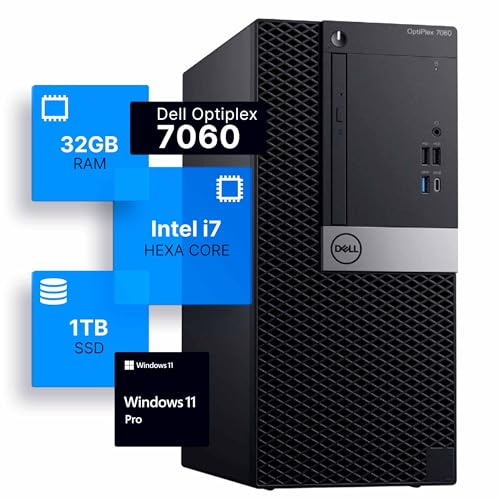
Worked example: consider the Dell Optiplex 7060 Tower listed with an Intel i7-8700, 32GB of DDR4 memory, and a 1TB SSD. On paper its processor is several generations old, yet for a tab-heavy analyst it will feel faster across a working day than a brand-new 8GB machine, because memory pressure — not processor speed — is what such a user actually hits. That is the central lesson of this step: in office work, RAM quantity quietly outranks processor novelty.

Worked Example — Dell Optiplex 7060 Tower, Intel i7-8700, 32GB RAM, 1TB SSD
- Strengths: memory and storage generous enough to end spec anxiety; tower case allows later upgrades; six-core processor still strong for office loads.
- Trade-offs: renewed, so warranty is shorter than new; integrated graphics only; tower footprint needs floor or desk room.
Best for: buyers whose Step 1 notes show heavy multitasking / Not suited for: anyone determined to buy brand new
Step 3: How Much Storage, and in What Shape?
Storage has two separate questions hiding inside it: speed and capacity. Speed is settled — the system drive must be a solid-state drive, full stop. A machine that boots from a mechanical hard drive will feel elderly regardless of its other specifications, and no discount justifies it in 2026.
Capacity depends on where your files live. If your work sits in cloud storage and your local drive holds applications plus a working set of documents, 512GB is comfortable. If you keep local archives, virtual machines, photo libraries, or years of project files, aim for 1TB. Dual-drive configurations — a smaller SSD for the system paired with a large hard drive for bulk — remain a legitimate budget pattern, as long as Windows and your applications live on the SSD side of the pairing.
Worked example: the HP EliteDesk 800G4 bundle pairs a 1TB SSD with 16GB of memory and, unusually, includes two 24-inch displays in the box. For a buyer starting from an empty desk, that bundle collapses three purchases into one decision, and its storage figure is the one to copy even if you buy your screens separately: a terabyte removes storage from your list of worries for the life of the machine.

Worked Example — HP EliteDesk 800G4 PC Bundle, Intel i5-8500, 16GB RAM, 1TB SSD, Dual 24″ LCDs
- Strengths: complete desk in one box, screens included; terabyte SSD; Wi-Fi 6 and Bluetooth built in.
- Trade-offs: renewed bundle, so check each component on arrival; speakers and accessories are starter grade; bundle value depends on needing both monitors.
Best for: buyers equipping an empty desk in one order / Not suited for: buyers who already own good monitors
Step 4: Which Processor Generation Is Old Enough to Be a Bargain, and Which Is Too Old?
Draw your line at support, not at speed. Intel’s 8th generation and AMD’s Ryzen 3000 series and later sit inside Microsoft’s Windows 11 support list and still perform office work briskly; they are the sweet spot for renewed value. Newer generations add efficiency, faster memory standards, and longer runway. Older generations — Intel 6th and 7th — still function and appear in very cheap listings, but they ask you to accept an unsupported operating system path or a workaround, which is a poor trade on a machine holding your livelihood.
Within the supported range, prefer six cores over four for multitasking, and do not pay premiums for top-tier chips of old generations when a mid-tier chip of a newer generation costs the same; platform age affects memory type, display support, and resale sense all at once.
Worked example: the Dell Optiplex 7050 SFF uses a 7th generation i7-7700 with a lavish 32GB of memory and a 1TB SSD. It is the perfect test of this step’s rule. The memory and storage tempt, and for a buyer who understands the Windows support caveat it can still serve — but a buyer following this guide strictly would rank a supported-generation machine with the same memory ahead of it, and would only take the 7050 knowingly, at a price that reflects the caveat.

Worked Example — Dell Optiplex 7050 SFF, Intel i7-7700, 32GB RAM, 1TB SSD
- Strengths: huge memory and storage for the class; compact small form factor case; dual monitor support.
- Trade-offs: 7th generation processor sits outside standard Windows 11 support; renewed warranty; SFF case limits later graphics upgrades.
Best for: informed bargain hunters who accept the support caveat / Not suited for: buyers wanting a set-and-forget five-year machine
Step 5: What Shape Should the Machine Be?
Now, and only now, choose the box. Measure your space and be honest about your habits. Towers belong to upgraders and to anyone with floor space; they run coolest and quietest and accept new drives and memory in minutes. Small form factor desktops belong on tidy desks where the machine can stand beside a monitor or lie beneath it; you keep desktop processors and most of the serviceability in a third of the volume. Mini PCs belong behind monitors and in rooms that double as living space; they ask you to buy the right configuration up front because later upgrades are limited. All-in-ones belong where appearances matter most and workloads are focused.
Worked example, small: the Dell Optiplex 3050 SFF pairs an i5-6500 with 16GB of memory and a 256GB SSD in a compact case with 4K display support. Its processor predates the support line drawn in Step 4 and its storage is modest, so this guide positions it as a secondary or light-duty machine rather than a primary five-year buy — a good illustration of how the steps combine: shape is right, memory is right, generation and storage argue for a limited role.

Worked Example — Dell Optiplex 3050 SFF, Intel i5-6500, 16GB RAM, 256GB SSD
- Strengths: compact and quiet; adequate memory; DisplayPort and HDMI outputs with 4K support.
- Trade-offs: older processor generation; 256GB storage fills fast; best treated as light-duty.
Best for: a second workstation or a light-duty desk / Not suited for: a primary machine expected to last many years
Worked example, minimal: the BOSGAME E5 11 Pro mini PC runs an AMD Ryzen 5300U with triple-display 4K support, dual LAN ports, and a footprint that disappears behind a screen. For a home worker whose Step 1 notes show browser-and-documents work, a machine like this satisfies every step despite its size — provided its 8GB memory and 256GB storage variant is weighed honestly against Step 2’s rule, which for most buyers argues for choosing a higher-memory configuration where offered.

Worked Example — BOSGAME E5 11 Pro Mini PC, AMD Ryzen 5300U, 8GB RAM, 256GB SSD
- Strengths: triple 4K display support; dual Ethernet for flexible networking; mounts out of sight.
- Trade-offs: 8GB memory is below this guide’s comfort line; storage is modest; mini PC upgrade paths are narrow.
Best for: minimal-desk setups with light workloads / Not suited for: heavy multitaskers

Step 6: How Many Screens, and Do the Ports Match?
Decide your display count before you order, because adding a screen later to a machine without the right output is an adapter-filled annoyance. One large monitor suits focused work; two monitors suit almost everyone else; three suit traders, developers, and researchers who live in references. Then perform the boring, essential check: list your monitors’ inputs, list the candidate machine’s outputs from its listing, and confirm they meet without exotic adapters. Note that reviewstook.com keeps a running set of tier roundups — for example Best Home Office PC Under $700 — where the display outputs of each tier’s machines are compared side by side for exactly this check.
Worked example, integrated: HP’s 21.5-inch all-in-one builds the screen into the machine, with an Intel N100 processor, 8GB of DDR5 memory, and combined SSD-plus-docking storage. It answers Step 6 by removing it — one screen, built in, nothing to match — at the cost of the flexibility every other step in this guide tries to preserve. Choose it when the desk is also a living space and the workload is correspondence, documents, and calls.

Worked Example — HP 21.5″ FHD All-in-One, Intel N100, 8GB DDR5 RAM
- Strengths: nothing to assemble or match; tidy single-cable desk; docking hub expands connections.
- Trade-offs: entry-level processor; 8GB memory; the whole unit ages as one piece.
Best for: correspondence-and-documents workers in shared spaces / Not suited for: multi-monitor or upgrade-minded buyers
Step 7: New or Renewed — Making the Final Call
With specifications settled, the last decision is philosophical and financial. Renewed business desktops convert your budget into memory, storage, and build quality; new machines convert it into warranty, platform youth, and support runway. Our standing advice: if the machine is your livelihood and you cannot tolerate any first-month uncertainty, buy new or buy renewed from the most clearly graded listing you can find, then test relentlessly in week one. If your budget is fixed and your workload is heavy, renewed wins on capability every time. The fuller cost argument, including what ownership looks like over several years, is developed in Is A Home Office PC Worth It, and the head-to-head against professional workstations is in Home Office PC Vs Workstation PC.
Putting It Together: Three Sample Decisions
The analyst: Step 1 shows forty tabs, two big spreadsheets, and daily screen-sharing. Memory target 32GB, storage 1TB, supported six-core processor, tower for quiet cooling, two DisplayPort outputs. The Optiplex 7060 worked example matches almost line for line. The writer: Step 1 shows a browser, a word processor, and calls. Sixteen gigabytes, 512GB, any supported processor, and the shape decision dominates — a mini PC behind the monitor keeps a small flat’s only table clear. The household administrator: the machine runs bills, school portals, photo backups, and video calls in a shared room. An all-in-one or a bundle with screens included wins on tidiness and simplicity, accepting the upgrade limits with open eyes.
Problems Buyers Hit While Choosing, and the Fixes
Problem: two listings look identical but differ in price. Fix: compare the full configuration line — memory, storage type, Windows edition, included peripherals, and warranty — because renewed listings with the same headline model routinely differ in exactly those fields. Problem: you cannot tell whether a processor is supported. Fix: search the exact chip model against Microsoft’s Windows 11 supported processor list before ordering; it takes two minutes and settles the question permanently. Problem: every machine you like has one flaw. Fix: rank your Step 1-to-6 notes and sacrifice the lowest-ranked item; a flawless listing at this price level usually means you misread it. Problem: analysis paralysis between two good options. Fix: choose the one with more memory; in office work it is the tiebreaker that keeps paying you back daily. Readers still torn between complete shortlists can compare the verdicts in Home Office PC Reviews before committing.
How to Read a Listing the Way a Refurbisher Writes It
Listings in this category are written to a formula, and learning the formula turns you from an audience into an inspector. The title is the contract: processor model, memory, storage, operating system, and any bundled items, in roughly that order. Read it word by word and convert every claim into a checkable fact. “Intel i7” alone is not a fact; “Intel i7-8700” is, because you can look up its generation and its Windows support status in two minutes. “Large storage” is not a fact; “1TB SSD” is, and the SSD half of that phrase matters more than the terabyte half. Where the title is vague — an unnumbered “Intel i5”, a storage figure without a type — treat the vagueness as information: careful refurbishers specify, because specification is what their testing actually guarantees.
Next, the box contents, because the difference between a workstation and a shopping list lives there. Keyboards and mice range from genuinely included to absent; Wi-Fi may be an internal card or a USB dongle with very different performance; a power cable is universal but a display cable is not. Then the warranty and returns language, read for durations rather than adjectives. Finally, the photographs: stock images of a model line tell you nothing about your unit, while a listing that describes its cosmetic grading policy is at least acknowledging the question. None of this requires suspicion — the good sellers in this market are easy to recognise precisely because their listings answer these questions before you ask them.
How to Score Two Finalists Instead of Agonising Over Them
Most buyers do not struggle to find candidates; they struggle to choose between the last two. Replace the agonising with arithmetic. Build a five-line scorecard from your step notes: memory, storage, processor generation, form factor fit, and warranty-and-returns. Score each finalist out of five on each line, judging against your own requirements rather than against perfection — a machine earns five on memory if it meets your Step 2 target, not if it has the most memory on the internet. Weight the lines by your Step 1 notes: a tab-heavy worker doubles the memory line; a shared-room worker doubles the form factor line. Add the columns. In our experience the exercise ends most ties honestly, and when it does not, the tie itself is the answer: two machines that score identically against your real requirements are both right, and you should choose on listing quality and returns terms and stop researching.
Worked illustration, using two machines from this article’s examples: the Optiplex 7060 Tower against the EliteDesk bundle. A heavy multitasker with existing monitors scores the Dell’s 32GB and terabyte storage at the top of the scale and gives the bundle’s included screens no credit at all, because they duplicate hardware already owned — the tower wins clearly. A buyer starting from an empty desk reverses the arithmetic: the bundle’s two displays answer a requirement the tower leaves unmet, and its 16GB still clears the memory floor — the bundle wins. Same machines, same facts, opposite correct answers. That is why this guide refuses to crown universal winners and insists on your notes instead.
How Much of the Budget Belongs to the PC Itself?
A mistake hiding inside many choosing processes is allocating the entire budget to the computer and discovering the desk afterwards. A working setup divides its spend roughly into three parts: the machine, the displays, and the things your body touches — chair, keyboard, mouse. Buyers who starve the third category to feed the first end up with a fast computer they sit at uncomfortably, which is a strange definition of an upgrade. As a working rule, if your total budget is fixed, let the PC claim the largest share but not the whole: hold back enough for at least one good monitor if you lack one, and treat the chair as a purchase with a longer service life than the computer itself.
This allocation lens also reframes the new-versus-renewed decision one final time. The renewed machine’s lower price is not merely a saving; it is budget that migrates to the second monitor and the chair, where it buys daily comfort that no processor upgrade can match. Conversely, a buyer who already owns excellent peripherals can pour the whole budget into the machine with a clear conscience. The steps in this guide are sequential for a reason, but the budget step quietly audits all of them: a choice that leaves the setup incomplete is not finished, however good the computer is.
How to Plan for Year Three While Buying in Year One
Choosing well includes a small act of imagination: picture the machine in its third year. Your applications will be heavier, your archive larger, your tab count unlikely to have reformed. Which specification will you wish you had bought more of? For most buyers the answer is memory, followed by storage — the two resources that software growth consumes — and the good news is that towers and many small form factor machines let year-three you fix both in minutes. If you are choosing a format that forecloses upgrades, a mini PC or an all-in-one, year-one you must buy the headroom outright: the configuration decision becomes permanent, and the correct response is to step one level above your current requirement rather than exactly meeting it.
Year three also has an operating system dimension. A processor comfortably inside the current Windows support list in year one remains supported in year three almost by definition, while a machine bought at the edge of support may meet its boundary mid-life. This is the long-game reason Step 4 draws its line where it does. Finally, keep the paperwork: the listing screenshot, the serial number, the warranty terms, and a note of any upgrades you install. Year-three you, troubleshooting a fault or selling the machine onward, will be grateful that year-one you spent four minutes on a folder.
Questions Worth Asking Before You Order
When a listing leaves a gap, these are the questions that close it, in the order we would ask them. Is the memory configured as one stick or two, and is a slot free for later? Is the storage a single SSD, and if the listing mentions a hard drive as well, which one carries Windows? Is Wi-Fi internal or a USB adapter, and which generation? Which Windows edition is installed, and is the licence digital and activated? What exactly is the warranty period, and does the return window start at delivery? Are the keyboard and mouse wired or wireless, and is a display cable in the box? A seller who answers these plainly has earned the order; a listing that already answers them in its text has earned it faster. Keep the answers with your paperwork — they become your arrival checklist, and the arrival checklist is where choosing ends and owning well begins.
One Buyer, All Seven Steps: A Complete Worked Decision
To see the steps working as a single process, follow one composite buyer — call her a project coordinator for a remote team — from blank page to order. Her Step 1 notes, written honestly, show a day built on a team-chat application that never closes, a browser carrying twenty to thirty tabs across project boards and documents, two video calls with screen sharing, a medium spreadsheet she maintains, and a cloud drive syncing shared folders all day. Step 2 converts that width into a memory decision: 16GB would work, 32GB is the target, because her pattern is precisely the many-things-at-once pattern memory serves. Step 3 gives her 1TB, not because her current files demand it, but because project archives accumulate and storage regret is the most common year-two complaint in her role. Step 4 draws the generation line at supported processors and eliminates two cheap listings she had bookmarked — the moment in the process where the guide earns its keep, because both looked like bargains until the support question was asked.
Step 5 is settled by her room: a dedicated desk in a spare bedroom with floor space, so a tower is available to her, and she prefers its quiet and its upgrade path to a mini’s invisibility. Step 6 counts two monitors, both HDMI-and-DisplayPort capable, and confirms her finalists’ outputs match without adapters. Step 7 is the honest one: her budget is real but not desperate, and she chooses renewed — a 32GB tower — because capability per unit of currency is her binding constraint, accepting the homework with her eyes open. She scores her two finalists on the five-line scorecard from this article, finds them level, and breaks the tie on warranty wording. Then she runs the arrival routine: configuration verified against the listing within the hour, updates completed the same evening, her worst Tuesday recreated on Wednesday while the return window yawns wide. Six weeks later the machine has done the only thing a well-chosen computer should do — it has stopped being a topic. That disappearance is the product of the seven steps, and it is available to any buyer willing to spend one evening on notes before spending money on hardware.
Red Flags: When to Walk Away From a Listing
Choosing well is partly subtraction, so here are the listings this guide would have you close without a second thought. A system drive described without the letters SSD anywhere near it — walk away; the machine’s daily feel is already decided against you. Memory listed as 8GB on a machine marketed for serious work — walk away, unless the price and a free slot make the upgrade arithmetic explicit and you are willing to do it on day one. A processor named only by tier, “Intel i7” with no model number — walk away; the missing digits are the listing’s confession. A bundle whose headline counts the monitor’s size more prominently than the computer’s specifications — read twice, then usually walk away; the screen is being used to sell the box behind it. Warranty language that dissolves into adjectives when you look for durations — walk away. And a price dramatically below every comparable listing for the same configuration — pause longest here; in a market built on commodity fleet hardware, a miracle price usually means a different configuration than the one you think you are buying. Walking away costs nothing and is the most underused tool in this entire guide.
Choosing When the Desk Is Not Yours Alone
The steps so far assume a single decision-maker with a single workload, and many real desks fail both assumptions. When two people share one machine — partners on opposite shifts, a parent and a student — the choosing process gains a negotiation step that belongs between Steps 1 and 2: write both worst days down, and buy for the heavier one, because a machine sized for the lighter user taxes the heavier every day, while the reverse merely leaves headroom idle. Separate user accounts cost nothing and keep each person’s files, browser, and desktop intact; a shared machine without them is a daily argument waiting for a deadline. When the buyer is an employer equipping a home worker, the calculus shifts again toward standardisation and support: identical machines are easier to support than optimal ones, Pro-edition Windows earns its place for management and encryption, and the choosing steps compress into a policy — which is a compliment to the steps, since a good policy is just a decision made once, well.
There is also the choosing you do for a future self whose job may change. A buyer expecting a heavier role within a year — a promotion into data work, a freelance sideline growing teeth — should weight the upgrade-path lines of the scorecard more heavily and favour the tower whose ceiling is years away over the sealed format that fits today’s lighter load. Choosing is always partly prophecy; the steps do not remove that, they simply make the prophecy explicit, written in the notes where a later self can audit it.
The Half-Hour Version: Choosing Fast Without Choosing Badly
Sometimes the machine dies on a Monday and the decision must be made by lunch. Here is the whole guide compressed into a half-hour protocol that sacrifices depth but never the floor. Minutes one to five: write your three heaviest simultaneous applications and your monitor count. Minutes five to ten: fix the non-negotiables — 16GB of memory or more, an SSD of 512GB or more, a processor you can confirm sits in the current Windows support list. Minutes ten to twenty: find two listings that meet those lines, one renewed business tower and one alternative in the format your room prefers, and read both titles word by word. Minutes twenty to twenty-five: check outputs against your monitors and box contents against your needs. Minutes twenty-five to thirty: choose on warranty wording, order, and calendar the arrival-verification routine for delivery day. A decision made this way is not the equal of the full process — it skips the scorecard, the budget audit, and the year-three imagination — but it never buys below the floor, and in this category the floor is where the expensive mistakes live. Speed is a legitimate requirement; panic is not a specification.
How to Choose When the Listings Will Not Sit Still
One frustration deserves its own section because every buyer in the renewed market meets it: the listing you researched yesterday is gone, repriced, or reconfigured today. Fleet-fed stock rotates, and a choosing method that depends on one exact listing is fragile by design. The robust version of this guide’s method chooses a specification, not a product. Your step notes define a target — processor generation and cores, memory, storage, format, outputs — and any listing meeting that target from a clearly graded seller is a correct purchase, whether it wears Dell badges or HP ones. This is why the worked examples in this article are framed as illustrations of steps rather than as commandments: the Optiplex and EliteDesk examples teach the pattern, and the pattern survives their stock. Practically, keep a shortlist of two or three acceptable configurations, set the floor in writing, and buy the first listing that clears it with clean warranty language. Buyers who internalise this stop experiencing the market’s rotation as chaos and start experiencing it as inventory — the same shift a refurbisher’s own buyer makes, and the final skill this guide has to teach.
What Good Choosing Looks Like a Year Later
The last test of a choosing method is retrospective. A year after a good decision, the machine has produced no stories: no slow mornings worth narrating, no upgrade emergencies, no support cliff appearing on the horizon, no peripheral archaeology behind the desk. The buyer’s notes, if they kept them, read like a description of the machine they own — because the steps forced the purchase to be a transcription of the workload rather than a reaction to a listing. A year after a bad decision, the stories are all specification-shaped: the memory that should have been doubled, the drive that filled, the processor whose support ended, the second monitor that needed one adapter too many. Notice that none of the bad stories are about brand, and none of the good outcomes required luck. That is the deepest claim this how-to makes: in this category, outcomes are chosen, not chanced — and the choosing takes one honest evening.
The Steps, Stress-Tested: Three Hard Cases
Hard case one: your workload is two workloads
The buyer who works a desk job by day and studies, creates, or freelances by night presents Step 1 with two different worst days. Run the steps for the heavier one and check the result against the lighter; the usual resolution is a machine specified for the evening’s ambition with the day job riding free, because office work is almost always the lighter load. The trap is averaging the two into a compromise that serves the serious workload badly — headroom belongs to the peak, not the mean.
Hard case two: the budget arrives in instalments
When the money cannot all be spent at once, the steps reorder themselves by irreversibility. Buy first what cannot be upgraded later in your chosen format — in a sealed or slim format, that means the memory and processor configuration; in a tower, it means the platform and case, with memory and storage deliberately bought at the floor and scheduled for upgrade when the next instalment lands. Displays and peripherals stage gracefully across months; a wrong platform does not stage at all.
Hard case three: you are choosing under someone else’s rules
Employer stipends, client security requirements, and household budgets all impose lines the steps must respect rather than resent. Treat each rule as an additional step-zero fact — a required Windows edition, an approved vendor, a hard ceiling — and run the remaining steps inside it. The method survives constraints because it was never about a specific machine; it is about the order in which facts are allowed to decide, and constraints are simply facts that arrive early.
A Final Exercise: Write Your Specification in One Sentence
Before you close this guide, compress everything into the single sentence that will ride with you into the listings: “I need a [format] with a [generation-and-core-count] processor, [memory] of RAM, a [capacity] SSD, and outputs for [number] monitors, bought [new/renewed] because [reason].” Filling those brackets from your step notes takes two minutes, and the sentence is ruthlessly clarifying — any listing can be tested against it in seconds, and any hesitation you feel while filling a bracket names the exact step to revisit. Buyers who arrive at a listing with a sentence buy a machine; buyers who arrive with a mood buy a listing’s opinion of them. Keep the sentence with your paperwork after the purchase, too. A year from now, when someone asks how you chose, it will still be the whole method in miniature — and if you ever choose again, for a second desk or a growing household, the sentence is where the seven steps begin again, faster for having been written once.
Choosing for the Second Time: What Returning Buyers Do Differently
There is a special clarity in watching someone choose their second home office pc, because their steps reorder themselves around scar tissue. They start with the specification that failed them last time — it is always memory, storage, or support, never the badge — and they write it at the top of the page in larger letters. They read listings from the warranty paragraph backwards instead of from the headline forwards. They treat the arrival routine not as diligence but as ritual, performed before the old machine is even disconnected, because they remember which week the return window mattered. And they spend noticeably less time choosing, not because they care less but because their Step 1 notes write themselves from experience: they know their tab count the way they know their shoe size. First-time buyers cannot borrow the scars, but they can borrow the reordering — which is, in the end, all this guide has been trying to lend. Choose as if you will have to live with the machine for years, because the entire method is that sentence, expanded.
Frequently Asked Questions
What is the first thing I should decide when choosing a home office PC?
Your workload on its worst day. Write down the applications and tabs that run simultaneously at your busiest; that list determines memory first, then storage and processor, and it prevents both overspending and underbuying.
Is 16GB or 32GB of RAM the right choice?
Sixteen gigabytes covers most home office work comfortably. Choose 32GB if you run virtual machines, very large spreadsheets or datasets, design tools, or simply keep an exceptional number of applications open — it is the upgrade most likely to extend the machine’s useful life.
How old a processor is too old?
For a primary work machine, stay within Windows 11’s supported list — Intel 8th generation or newer, or AMD Ryzen 3000 series or newer. Older chips still function, but the operating system support caveat makes them stopgaps rather than long-term buys.
Should I choose a mini PC or a tower?
Choose the tower if you value quiet cooling, easy upgrades, and the longest service life. Choose the mini PC if desk space is precious and your workload is light; just buy the memory and storage you need up front, because expanding later is limited.
Are renewed desktops a safe choice for important work?
They are, with two habits: buy clearly graded listings with stated warranty and returns, and stress-test the machine during its first week. Business desktops were engineered for corporate service and use standard parts, which is why refurbishers can stand behind them.
Do I need to budget for monitors and peripherals separately?
Often, yes. Some bundles include displays, keyboards, and mice, but many renewed towers are the computer alone. Check the listing’s box contents, and if you need everything, a bundle or an all-in-one can be the cleaner purchase.
What if I choose wrong?
Buy from listings with a clear return window and use it if the first week’s testing disappoints. The steps in this guide shrink the risk considerably, but the return window is your final safety net — treat it as part of the purchase, not an afterthought.