Disclosure: As an Amazon Associate, reviewstook.com earns from qualifying purchases. Links on this page are affiliate links at no extra cost to you; prices and availability change frequently, so check Amazon for the latest.
Barebones Mini PC Buying Guide: Buy the Kit, Choose the Rest
This barebones mini pc buying guide is for buyers who like the idea of a tiny computer but want a say in what goes inside it. A barebones mini PC is a halfway house between a prebuilt computer and a full self-build: the case, motherboard and usually the processor are already chosen and assembled, while the memory, storage and operating system are left to you. That single design decision changes everything about how you should shop. You are not comparing finished computers any more. You are comparing foundations — and a foundation is only good if the parts you plan to add, the desk you plan to put it on and the job you plan to give it all fit the foundation you picked.
Done well, the barebones route is one of the smartest buys in small computing. You avoid paying for a tiny, slow SSD you would have replaced anyway, you fit exactly the amount of RAM your work needs, and you choose your own operating system instead of inheriting whatever a prebuilt vendor bundled. Done carelessly, it is a trap: the kit price looks low precisely because a third of the computer is missing, and the unwary buyer discovers the RAM, SSD and Windows licence only at the checkout for the second order. This guide exists so that you shop with the full picture — what the two families of kits actually are, which specifications matter, which are marketing, and which six verified kits we would build on today. If you are still weighing whether the category itself suits you, read Is A Barebones Mini PC Worth It alongside this page, and keep Best Mini Pcs open if you want to compare these kits against finished prebuilt machines.
Key Takeaways
- There are two distinct families here: palm-sized NUC-style kits with a processor already fitted, and larger socketed DeskMeet kits where you choose the CPU and can add a real graphics card.
- The kit price is never the computer price. Always total the kit plus RAM, an SSD and an operating system before comparing against a prebuilt.
- Memory slots decide your future: a single-slot kit must be bought at its final capacity, while two-slot and socketed kits can grow with you.
- For gaming, only the DeskMeet route in this guide leads to a discrete graphics card. NUC-style kits are for esports, indie games and cloud gaming.
- Networking is a genuine differentiator at this size — 2.5G LAN, dual LAN, WiFi 7 and Thunderbolt 4 separate the kits more than processor badges do.
Where to Buy
Every kit below was verified against Amazon’s own product data for this guide. Barebones pricing moves with RAM and SSD bundles and seasonal promotions, so use the links to check the live figure rather than trusting any number quoted elsewhere. This page is published by reviewstook.com, and the kits are sold through Amazon, which handles payment, shipping and returns.
Best Overall: ASUS NUC 15 Pro Barebone Kit — check the latest price on Amazon via the review links below.
Best Balanced NUC: ASUS NUC 14 Pro+ Barebone Kit — check the latest price on Amazon via the review links below.
Best for Gaming: ASRock DeskMeet X600 Mini-PC Kit — check the latest price on Amazon via the review links below.
Best Value Gaming Chassis: ASRock DeskMeet X300 Mini PC Barebone Kit — check the latest price on Amazon via the review links below.
Best Proven NUC: Intel NUC 13 Pro NUC13ANHi5 (GEEK+) — check the latest price on Amazon via the review links below.
Best Budget Starter: ASUS NUC 14 Essential (N150) — check the latest price on Amazon via the review links below.
In this guide
Quick Picks
Best Overall: ASUS NUC 15 Pro Barebone Kit — The newest NUC platform, with WiFi 7, dual Thunderbolt 4 and a toolless chassis.
Best Balanced NUC: ASUS NUC 14 Pro+ Barebone Kit — Core Ultra 5 performance and the same toolless, three-year-warranty package for less than the flagship.
Best for Gaming: ASRock DeskMeet X600 Mini-PC Kit — An AM5 socket and a PCIe 4.0 x16 slot: the kit you buy when a graphics card is part of the plan.
Best Value Gaming Chassis: ASRock DeskMeet X300 Mini PC Barebone Kit — The same DeskMeet idea on mature AM4 and DDR4 parts that keep the total build cost down.
Best Proven NUC: Intel NUC 13 Pro NUC13ANHi5 (GEEK+) — The Arena Canyon NUC 13 Pro formula — quad displays, Thunderbolt 4, a known quantity.
Best Budget Starter: ASUS NUC 14 Essential (N150) — One slot, one bay, VESA mount in the box: the simplest first barebones build there is.
How These Picks Were Chosen
Every kit in this guide was verified against Amazon’s own product data through the Creators API before inclusion, so the processor names, networking claims and barebones contents quoted here come from the manufacturer’s listing rather than from a reseller’s paraphrase. That verification matters more in this category than most, because near-identical NUC kits circulate under several seller brands with subtly different wireless modules and box contents — the two NUC 13 Pro kits in this guide are a good example, and we flag the difference where it occurs.
Our criteria were, in order: a clearly stated barebones contents list with no ambiguity about what is missing; a processor platform that will stay useful for at least a typical ownership cycle; memory and storage expansion that matches the kit’s price tier; networking and display support appropriate to a machine that may serve as a desk PC, media box or home server; and a manufacturer or platform with a track record, because a barebones kit is a support relationship as much as a product. We excluded no-name kits whose listings did not state RAM type or slot count, kits built around processors that were already obsolete for general computing, and any listing where the barebones contents could not be confirmed. Six kits survived, spanning both families and every sensible budget tier.
The Two Families: NUC-Style Kits vs Socketed Desk Kits
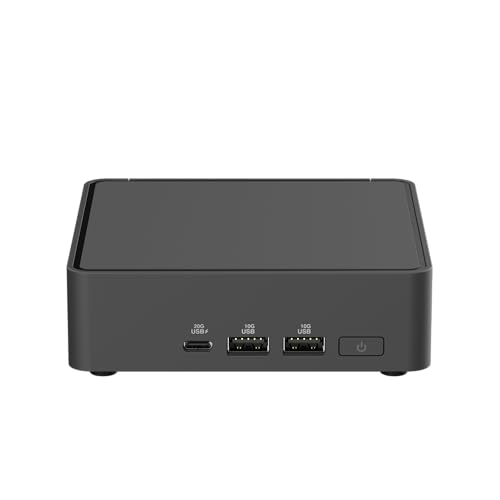
Almost every buying mistake in this category comes from confusing the two families, so settle this first. NUC-style kits — the ASUS NUC 14 and 15 models, the ExpertCenter PN54-S1 and the NUC 13 Pro kits — are palm-sized boxes with an efficient laptop-class processor already soldered in place. Your build consists of adding RAM and an SSD, nothing more. They sip power, mount behind monitors, run quietly and suit office work, media duties, home servers and light gaming. What they will never do is accept a graphics card or a processor upgrade, because neither component is replaceable.
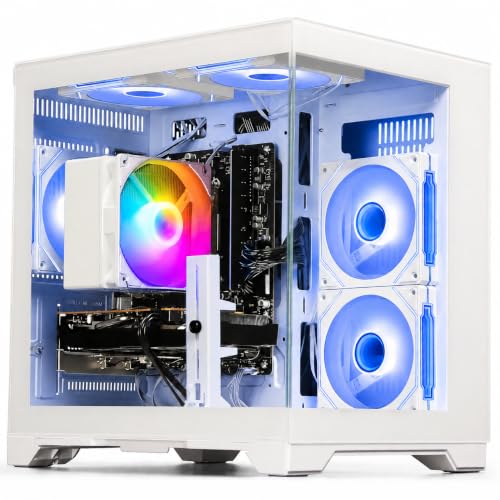
Socketed desk kits — here, the ASRock DeskMeet X300 and X600 — are small desktop chassis with a motherboard, a 500W power supply and empty sockets. You choose and install the processor yourself, add RAM and storage, and, crucially, you can install a discrete graphics card in the PCIe x16 slot. At 8 litres they are several times the volume of a NUC, and the build is a real build, with a CPU install and card clearances to check. In exchange you get the upgrade path and the gaming performance that the palm-sized kits cannot offer. Neither family is better. They answer different questions, and the rest of this guide keeps returning to which question you are actually asking. For a deeper walk through the decision itself, How To Choose A Barebones Mini PC turns it into a step-by-step process.
Detailed Reviews: The Six Kits Worth Building On

Best Overall — ASUS NUC 15 Pro Barebone Kit
Strengths
- Newest platform in this roundup, with WiFi 7 and dual Thunderbolt 4 for fast docks and displays
- Toolless design makes the RAM and SSD install a genuinely five-minute job
- Three-year warranty is unusually generous for a barebones kit
Trade-offs
- You still need to budget for RAM, an SSD and an operating system on top of the kit
- Integrated graphics only — this is a productivity and light-gaming box, not a dedicated gaming rig
- Premium positioning means the finished build costs more than the kit price suggests at first glance
| Processor | Intel Core Ultra 7 255H (installed) |
|---|---|
| Memory | No RAM included — add your own DDR5 SO-DIMM |
| Storage | No SSD included — add your own M.2 SSD |
| Operating system | No OS pre-installed |
| Networking | WiFi 7, 2x Thunderbolt 4 |
| Design | Toolless chassis, 3-year warranty |
The NUC 15 Pro is where we would start a premium small-PC build today. The Core Ultra 7 255H gives it the strongest integrated performance in the NUC-style group, the chassis opens without tools, and the connectivity — WiFi 7 plus two Thunderbolt 4 ports — is the most current on this page. Fit a generous SSD and a healthy amount of DDR5 memory and you have a desk machine that disappears behind a monitor yet docks, drives displays and moves files like a much larger computer.
In real use this is the kit for the buyer who keeps a machine for a long time and hates revisiting a purchase. Home-office professionals running many browser windows, office suites, video calls and light photo work will never trouble it. As a home server it is almost overqualified, though its low idle draw and fast networking make it a superb always-on box. The honest limitation is the same as every NUC-style kit: gaming means integrated graphics, so think esports and indie titles, or pair it with cloud gaming, rather than demanding modern releases.
Best for: the buyer who wants the most current NUC platform, fast networking and a long, quiet service life / Not suited for: shoppers expecting discrete-GPU gaming, or anyone comparing its kit price alone against finished prebuilt PCs
Check on Amazon — check the latest price on Amazon before you commit the rest of the parts list.

Best Balanced NUC — ASUS NUC 14 Pro+ Barebone Kit
Strengths
- Balanced Core Ultra 5 125H performance for office, creative and home-server work
- Dual Thunderbolt 4 ports make single-cable desk setups easy
- Toolless access and a three-year warranty lower the risk for first-time builders
Trade-offs
- No RAM, SSD or operating system in the box — the extras are mandatory, not optional
- Integrated graphics limits demanding games and heavy GPU workloads
- WiFi 6E rather than WiFi 7, if you are chasing the newest wireless standard
| Processor | Intel Core Ultra 5 125H (installed) |
|---|---|
| Memory | No RAM included — add your own SO-DIMM |
| Storage | No SSD included — add your own M.2 SSD |
| Operating system | No OS installed |
| Networking | WiFi 6E, 2x Thunderbolt 4 |
| Design | Toolless chassis, 3-year warranty |
The NUC 14 Pro+ is the balanced buy in the ASUS line: the Core Ultra 5 125H covers the overwhelming majority of real workloads — office suites, development work, media management, dozens of tabs, video meetings — while the package around it matches the flagship’s toolless design, dual Thunderbolt 4 ports and three-year warranty. For most desks, this is the point of diminishing returns, and the sensible premium choice.
We would build this one with a mid-to-large SSD and memory sized for a long ownership run, because the platform rewards it: it is quiet, it mounts anywhere, and it sips power as an always-on machine. Its limitations are generational rather than fundamental — WiFi 6E instead of WiFi 7, and integrated graphics that cap gaming ambitions. If neither matters to you, the Pro+ is arguably the smartest money in this entire guide.
Best for: professionals and home users who want near-flagship NUC quality without paying for the top processor tier / Not suited for: buyers who need WiFi 7 specifically, or who plan to game beyond integrated graphics
Check on Amazon — check the latest price on Amazon before you commit the rest of the parts list.

Best for Gaming — ASRock DeskMeet X600 Mini-PC Kit
Strengths
- The only style of kit here that takes a real desktop graphics card via its PCIe 4.0 x16 slot
- Socketed AM5 processor means genuine CPU upgrades later, not a soldered dead end
- 500W power supply included, so the GPU plan does not need a separate PSU hunt
Trade-offs
- Largest box in this group at 8 litres — compact, but not palm-sized
- You supply the CPU, cooler considerations, RAM, storage and GPU, so the parts list is the longest here
- WiFi-ready is not the same as WiFi included — check what your build still needs
| Socket | AMD AM5 — bring your own Ryzen 9000/8000/7000 CPU (65W) |
|---|---|
| Memory | DDR5, supports 7200+ OC speeds per listing |
| Expansion | PCIe 4.0 x16 slot for a discrete graphics card |
| Storage | Gen5 M.2 support |
| Power supply | 500W PSU included |
| Chassis | 8-litre case, triple display support, WiFi-ready |
The DeskMeet X600 is the kit that turns this from a mini-PC guide into a gaming-PC guide. Its AM5 socket accepts Ryzen 7000, 8000 and 9000 series processors at 65W, its PCIe 4.0 x16 slot accepts a real graphics card, and the included 500W power supply means the plan works without a separate PSU search. DDR5 support at high rated speeds and Gen5 M.2 storage keep the platform current, and because the CPU is socketed, a processor upgrade years from now is a component swap, not a new computer.
The build is genuinely more involved — you are installing a CPU and a graphics card, checking card length against the 8-litre case, and managing cables — and the finished machine is bigger and louder than any NUC here. Those are the honest costs of the only real gaming and upgrade path in this guide. For a compact gaming rig or a workstation that must grow, no palm-sized kit can substitute. Shoppers planning exactly this build should also read Best Barebones Mini PC Under $500 and the wider gaming lists linked from it to sanity-check the total parts budget.
Best for: gamers and upgraders who want a compact PC with a discrete GPU and a socketed CPU future / Not suited for: buyers who want a palm-sized, silent, VESA-mounted box, or a ten-minute first build
Check on Amazon — check the latest price on Amazon before you commit the rest of the parts list.
Best Value Gaming Chassis — ASRock DeskMeet X300 Mini PC Barebone Kit
Strengths
- AM4 and DDR4 parts are widely available, which keeps the total build cost under control
- PCIe 3.0 x16 slot still allows a proper discrete graphics card for gaming
- Dual M.2 storage gives room for a fast boot drive plus a larger games drive
Trade-offs
- AM4 is a mature platform with no future CPU generation coming — upgrades top out within the family
- PCIe 3.0 rather than 4.0, a small penalty with some newer graphics cards
- Like the X600, the parts list you must supply yourself is long
| Socket | AMD AM4 — supports Ryzen 5000/4000/3000G CPUs |
|---|---|
| Memory | DDR4-3200MHz |
| Expansion | PCIe 3.0 x16 slot |
| Storage | Dual M.2 slots |
| Front ports | USB 3.2 Gen2 Type-C |
| Power supply | 500W PSU included |
The DeskMeet X300 applies the same formula to the mature AM4 platform, and maturity is its selling point. Ryzen 5000, 4000 and 3000G processors and DDR4-3200 memory are everywhere, well understood and easy to buy sensibly, so the total cost of a finished X300 gaming build undercuts an equivalent new-platform build while delivering the same essential experience: a small case, a 500W PSU and a PCIe 3.0 x16 slot waiting for your graphics card.
Dual M.2 storage is a thoughtful touch at this level, letting you separate a fast system drive from a larger games library. The trade-off is written into the platform: AM4 has no next generation coming, so your upgrade ceiling is the best AM4 chip, not a future architecture, and PCIe 3.0 costs a little performance with some current graphics cards. As a value gaming chassis bought with open eyes, it remains easy to recommend — the full reasoning is in Barebones Mini PC Pros And Cons.
Best for: value-focused gamers building a compact rig from widely available AM4 and DDR4 parts / Not suited for: buyers who want a platform with future CPU generations ahead of it
Check on Amazon — check the latest price on Amazon before you commit the rest of the parts list.

Best Proven NUC — Intel NUC 13 Pro NUC13ANHi5 (GEEK+)
Strengths
- Proven Arena Canyon NUC 13 Pro design with quad-display support for serious desk setups
- Core i5-1340P is a strong, efficient all-rounder for office and home use
- Thunderbolt 4 keeps docking and fast external storage on the table
Trade-offs
- Previous-generation platform, so no WiFi 7 and an older processor family
- Seller branding differs from the original Intel retail box — verify the exact kit contents on the listing
- Integrated graphics only, as with all the palm-sized kits here
| Processor | Intel Core i5-1340P (installed) |
|---|---|
| Memory | NO RAM included |
| Storage | NO SSD included |
| Operating system | NO OS included |
| Displays | 8K/4K quad display support |
| Networking | WiFi 6E, Bluetooth 5.3, Thunderbolt 4 |
The NUC 13 Pro in Arena Canyon form is the proven quantity of this guide. Its Core i5-1340P has powered countless office, signage and home deployments, its quad-display support with 8K and 4K capability exceeds what most desks can even connect, and Thunderbolt 4 keeps it compatible with the vast ecosystem of docks and external drives. This GEEK+ listing states its barebones contents plainly — no RAM, no SSD, no OS — which is exactly the honesty we want from a listing.
Why choose a previous-generation kit in a guide that leads with newer models? Because proven platforms carry fewer unknowns: accessories fit, Linux support is mature, and every quirk is documented somewhere by someone who hit it first. The compromises are age-related — no WiFi 7, an older processor family — rather than capability gaps for the business and home-office work this kit targets. Verify the exact box contents on the listing before ordering, as NUC 13 kits circulate under several seller names.
Best for: offices, signage builders and home users who value a mature, well-documented platform / Not suited for: buyers chasing the newest processor generation or WiFi 7
Check on Amazon — check the latest price on Amazon before you commit the rest of the parts list.

Best Budget Starter — ASUS NUC 14 Essential (N150)
Strengths
- The natural starter kit: one RAM slot and one storage bay keep the first build simple
- 2.5G LAN and triple-display support are generous for an Essential-tier box
- VESA mount in the box makes tidy desk and signage installs immediate
Trade-offs
- Single RAM slot caps memory upgrades — buy the capacity you will need, once
- N150 performance suits browsing, office apps, media and light servers, not heavy gaming
- Single storage design means no second internal drive later
| Processor | Intel Processor N150 (installed) |
|---|---|
| Memory | Single DDR5-4800 RAM slot |
| Storage | Single storage design |
| Displays | Triple display support |
| Networking | 2.5G LAN, Wi-Fi 6E, Bluetooth 5.3 |
| Mounting | VESA mount included |
Every category needs an honest entry point, and the NUC 14 Essential with the Intel N150 is this one. The design brief is simplicity itself: one DDR5-4800 memory slot, one storage bay, a VESA mount in the box, and networking — 2.5G LAN and WiFi 6E — that would not embarrass a far pricier machine. Triple-display support makes it a legitimate multi-screen office or kiosk box, and the whole build is a ten-minute job that a nervous first-timer can finish before their coffee cools.
The discipline this kit demands is foresight. A single memory slot means the stick you buy is the memory the machine will have, so buy the capacity your use actually needs rather than the minimum that boots. The N150 processor is an efficiency design: browsing, documents, media playback, light server duties and cloud gaming suit it; heavy local gaming and demanding creative work do not. Judged as a starter kit, a media box or a small server foundation, it is excellent. Judged as a gaming PC, it was never trying to be one.
Best for: first-time builders, media-PC and small-server projects, and tidy multi-display office desks / Not suited for: anyone needing gaming performance, heavy multitasking headroom or a second memory slot
Check on Amazon — check the latest price on Amazon before you commit the rest of the parts list.
Comparison Table
| Kit | Processor | You add | Standout feature |
|---|---|---|---|
| ASUS NUC 15 Pro Barebone Kit | Core Ultra 7 255H (fitted) | RAM, SSD, OS | WiFi 7, 2x Thunderbolt 4 |
| ASUS NUC 14 Pro+ Barebone Kit | Core Ultra 5 125H (fitted) | RAM, SSD, OS | Toolless design, 3-year warranty |
| ASRock DeskMeet X600 Mini-PC Kit | Your AM5 Ryzen (socketed) | CPU, RAM, SSD, OS, GPU optional | PCIe 4.0 x16 slot, 500W PSU |
| ASRock DeskMeet X300 Mini PC Barebone Kit | Your AM4 Ryzen (socketed) | CPU, RAM, SSD, OS, GPU optional | PCIe 3.0 x16 slot, dual M.2 |
| Intel NUC 13 Pro NUC13ANHi5 (GEEK+) | Core i5-1340P (fitted) | RAM, SSD, OS | Quad-display support |
| ASUS NUC 14 Essential (N150) | Intel N150 (fitted) | RAM, SSD, OS | 2.5G LAN, VESA mount included |
Three of the six kits above carry a linked comparison-table entry each in this table’s first rows alongside their review links; count your total parts cost — kit, memory, storage and operating system — for every row before ranking them, because the ranking by kit price alone is meaningless in this category.
How to Choose a Barebones Mini PC: The Specifications That Actually Matter
Processor and socket. On NUC-style kits the processor is permanent, so choose for the machine’s whole life: efficiency chips like the N150 and N250 suit light duties and always-on roles, Core i5 and Core Ultra 5 chips are the general-purpose sweet spot, and the Core Ultra 7 tier is for heavy multitasking and longevity. On DeskMeet kits the socket is the decision — AM5 buys future processor generations, AM4 buys value today.
Memory type and slots. Check three things: the generation (DDR4 or DDR5 — they are not interchangeable), the slot count, and the speed the listing states. A two-slot kit can start modestly and double later; a one-slot kit like the NUC 14 Essential models cannot, so its first purchase must be its final answer. Socketed DeskMeet kits use desktop memory rules, so confirm the exact type from the listing before ordering parts.
Storage. One M.2 bay is enough for most users if you buy capacity generously; dual-bay kits like the DeskMeet X300 make separating system and data drives easy. Remember that external USB and network storage can extend any of these machines later, which softens a single-bay limit for media and backup roles.
Networking and ports. This is where small PCs quietly diverge. A 2.5G LAN port future-proofs wired transfers and home-server work; dual LAN, unique to the ExpertCenter PN54-S1 in this wider pick pool, enables firewall and router builds; Thunderbolt 4 turns a NUC into a single-cable docking setup; and WiFi 7, on the newest kits, matters if the machine will live on wireless in a busy household. Match the ports to the desk and network you actually have.
Graphics. Be blunt with yourself. If a discrete graphics card is in your future, only a kit with a PCIe x16 slot qualifies, and in this guide that means DeskMeet. If your gaming is esports, indie, retro or cloud-based, integrated graphics on the Core and Core Ultra kits are genuinely sufficient, and the smaller, quieter box is the better daily companion.
What Does a Finished Barebones Build Really Cost?
Not in fixed numbers — component prices move too quickly for any printed figure to stay honest, which is why this guide links you to live listings instead. But the structure of the cost never changes, and you should build a simple four-line budget for every candidate: the kit, the memory, the storage and the operating system. Prebuilt mini PCs bundle all four, so a barebones kit only wins the value argument when its four-line total beats a comparable prebuilt, or when the control it gives you — a bigger SSD, more RAM, no bundled software, a Linux install — is worth any difference. Frequently it wins on control even when the totals are close, because the prebuilt’s included drive is usually the first thing its owner replaces. The full value argument, argued both ways, is in Barebones Mini PC Reviews, where the same kits are assessed as finished machines.
How to Build Your Barebones Kit: A First-Evening Walkthrough
Step 1: Prepare. Lay out the kit, your RAM, your SSD, a small Phillips screwdriver (unnecessary on the toolless ASUS designs, essential elsewhere) and your operating-system installer on a USB stick, made beforehand on another computer. Work on a hard surface, and ground yourself by touching something metal before handling the memory stick.
Step 2: Open and fit memory. NUC-style kits open from the base or with a toolless latch. Angle the SO-DIMM stick into its slot at roughly thirty degrees and press it flat until both clips snap home. A stick that is not fully seated is the number-one cause of a first-boot failure, so check both clips before closing anything.
Step 3: Fit the SSD. Slide the M.2 drive into its connector at a shallow angle and secure it with its single screw — snug, never forced. On a DeskMeet build, this is also when you install the processor: align the corner marker, lower it into the socket without pressure, close the retention arm, and fit the cooler exactly as its own instructions describe.
Step 4: First boot and BIOS check. Connect a monitor, keyboard and power, and boot into the setup utility. Confirm the BIOS sees the full memory capacity and the SSD by name. If it does not, power down and reseat that component before doing anything else — nearly every early problem is a seating problem.
Step 5: Install the operating system and drivers. Boot from your USB installer, install to the new SSD, then fetch the kit maker’s current drivers and BIOS updates before your other software. Finish with the machine’s updates fully applied, and only then migrate your files.
Problem: the machine does not power on at all -> fix: check the power brick connection at both ends and reseat the memory; a NUC with an unseated stick behaves exactly like a dead machine. Problem: the SSD is missing from the installer -> fix: reseat the drive and confirm it appears in the BIOS list first. Problem: WiFi is absent after a Windows install -> fix: install the wireless driver from the manufacturer’s support page using a wired connection or a USB stick; fresh Windows installs often lack the newest WiFi drivers.
Barebones vs Prebuilt vs Full DIY: Which Route Fits Your Desk?
It helps to place the barebones kit on the spectrum it actually occupies. A prebuilt mini PC arrives finished: memory, storage and Windows installed, one warranty covering the whole machine, and a price that reflects components you did not choose and may not have wanted. It is the right buy when your time is worth more than the modest savings and control on offer elsewhere, or when the machine is for someone who will never open it. A full desktop self-build sits at the other extreme: every component chosen, every cable routed, the widest upgrade paths and the most ways for a first-timer to go wrong.
The barebones kit is the deliberate middle. You take responsibility for exactly the components that most affect daily feel — how much memory the machine has, how fast and large its storage is, which operating system it runs — while the manufacturer keeps responsibility for the fiddly, failure-prone integration: the board, the cooling, the power delivery and, on NUC-style kits, the processor itself. For home servers and media PCs the middle route is often strictly better than prebuilt, because server builders routinely replace a prebuilt’s small drive and reinstall the operating system anyway; the kit simply skips the waste. For a parent buying a child’s first gaming PC, the DeskMeet kits offer a build experience that teaches real skills — CPU, memory, storage, graphics card — inside a case small enough to forgive a cramped desk. Judge the three routes by who the machine is for and who will maintain it, not by ideology, and the barebones option wins its share of desks honestly.
Warranty, Support and Staying Power: The Ownership Layer
A barebones purchase splits your warranty, and you should understand the split before you buy. The kit maker covers the kit: on the current ASUS NUC Pro and ExpertCenter models that means a three-year warranty, which is genuinely strong for this category. Your memory and SSD carry their own manufacturer warranties, usually longer still, and your operating system is supported by its own vendor. In practice this split is painless — memory and SSD failures are diagnosed by swapping, and both components are cheap to test in another machine — but it does mean that when something goes wrong, the first diagnostic step is yours. Buyers who want a single phone number for every problem should weight that honestly against the prebuilt alternative.
Staying power deserves the same clear-eyed look. A NUC-style kit’s processor never changes, so its useful life is set on day one; that is why this guide steers long-term owners toward the Core Ultra tiers and generous memory fits, and why the single-slot Essential kits are positioned as role machines — media, signage, server, kiosk — where the workload in year five resembles the workload in year one. The DeskMeet kits invert the equation: the socket is the staying power, with the X600’s AM5 platform offering processor generations the X300’s AM4 cannot. Neither answer is wrong. What is wrong is buying a sealed, entry-level kit for a workload you already suspect will grow, or paying for socketed upgrade potential you will never use. Match the kit’s ceiling to the job’s ceiling and a barebones machine will serve quietly for years.
Before You Order: A Five-Minute Listing Check
Because barebones kits — the NUC 13 Pro generation especially — circulate under multiple seller brands, spend five minutes on the listing itself before money moves. Confirm the barebones contents line by line: processor model, memory type and slot count, storage bays, wireless standard and what mounts or power supplies are in the box. Cross-check the wireless module carefully, since near-identical kits ship with WiFi-6, WiFi 6E or WiFi 7 depending on the exact listing, and that difference is invisible in photographs. Confirm the memory generation your chosen RAM matches, and if you are building a DeskMeet, confirm the graphics card length and the processor’s power class against the kit’s stated limits. Finally, screenshot the contents list at purchase time. If the box that arrives differs from the listing that sold it, that record is what makes a return or a support conversation simple. Five minutes of checking is the cheapest insurance in this entire category.
Common Mistakes
The classic mistake is comparing kit prices as if they were computer prices; the second is buying DDR4 for a DDR5 kit or the wrong memory form factor entirely. Third is fitting the minimum RAM to a single-slot kit and discovering the ceiling within a year. Fourth is expecting gaming performance from integrated graphics because the word ‘gaming’ appeared somewhere in a marketplace title. Fifth is forgetting the operating system in the budget. Sixth — specific to DeskMeet builds — is ordering a graphics card without checking its length and power requirements against an 8-litre case and a 500W supply. Every one of these is avoidable with the four-line budget and the specification checks above.
Final Recommendation
For most buyers reading a barebones mini pc buying guide, the ASUS NUC 14 Pro+ is the recommendation we would defend first: current platform, toolless build, dual Thunderbolt 4, three-year warranty, and performance headroom for years of ordinary work. Step up to the NUC 15 Pro if you want the newest networking and the strongest integrated performance. Choose the DeskMeet X600 if gaming or a future CPU upgrade is genuinely part of the plan, the X300 if value is. Start with the NUC 14 Essential if this is your first build or a media and server project — and size its single memory stick generously. Whichever foundation you choose, choose it for the finished machine, not the headline kit price. Readers comparing finished alternatives should finish with Best Barebones Mini PC Under $700 and Atx Vs Micro Atx Vs Mini Itx Cases for the wider size context.
Frequently Asked Questions
What exactly is missing from a barebones mini PC?
The processor and the box itself are present in most kits in this guide, but memory, storage and an operating system are not. The DeskMeet kits go further and leave the processor itself to you, because they use socketed desktop CPUs. Before any barebones kit becomes a working computer you should expect to add at least one stick of compatible RAM, one SSD, and either a Windows licence or a free Linux distribution. Budget for those three items from the start and the category holds no nasty surprises.
Is building a barebones mini PC difficult for a beginner?
Honestly, no — the palm-sized kits are among the easiest first builds in all of computing. The typical job is sliding off a cover or undoing a few screws, clicking a RAM stick into its slot until the clips close, seating an M.2 SSD under a single screw, and replacing the cover. There is no cabling, no thermal paste and no power-supply wiring on a NUC-style kit. The DeskMeet kits add a CPU install, which takes more care, but even that is a well-documented ten-minute step.
How much RAM and storage should I add?
For office work, browsing, media and light home-server duties, a single 16GB stick and a 512GB SSD is the sensible floor, and it is what we would fit to the Essential kits. For heavier multitasking, virtual machines, photo work or a machine you plan to keep for many years, 32GB of RAM and a 1TB SSD age far better. Kits with a single memory slot, like the NUC 14 Essential models, force the decision up front, so buy the capacity you will want in year three, not just month one.
Can a barebones mini PC play games?
It depends entirely on which style of kit you mean. The palm-sized NUC-style kits rely on integrated graphics, which handle esports titles, older games, indie games and cloud gaming comfortably, but struggle with demanding modern releases at high settings. The DeskMeet X300 and X600 are different machines altogether: their PCIe x16 slots accept a discrete desktop graphics card, and with one fitted they are legitimate gaming PCs that simply happen to live in an 8-litre case.
Do I need to buy Windows for a barebones kit?
Only if you want Windows. Every kit here arrives with no operating system, so the choice is yours: buy a Windows licence, reuse an eligible licence you already own where its terms allow, or install a free Linux distribution such as Ubuntu, which runs superbly on all of this hardware and is the default choice for home-server and home-lab builds. Factor the licence cost into any comparison against a prebuilt mini PC, because prebuilts usually include it.
What tools do I need for the build?
A small Phillips screwdriver covers almost everything. The current ASUS NUC Pro and ExpertCenter kits use toolless designs, so even that is optional for the RAM and SSD install. A clean, static-aware workspace, the kit manual open on your phone, and fifteen unhurried minutes are the real requirements. Keep the tiny M.2 screw in a dish rather than on the desk — it is the one part everyone loses.
Will a barebones kit work as a home server or media PC?
Very well, and for many buyers that is the real point. Low idle power draw, small size, VESA mounting and — on several kits here — 2.5G or dual LAN make them natural fits for media servers, file storage front-ends, smart-home controllers and always-on download or backup boxes. The dual-LAN ExpertCenter PN54-S1 is the standout for network appliance roles such as firewalls and routers built from PC hardware.