Disclosure: As an Amazon Associate, reviewstook.com earns from qualifying purchases. Links on this page are affiliate links at no extra cost to you; prices and availability change frequently, so check Amazon for the latest.
Workstation PC Buying Guide: How to Choose a Machine That Earns Its Desk Space
A workstation PC is not simply a faster office computer, and treating it like one is how buyers end up with the wrong machine. This workstation PC buying guide is built around a simple idea: a workstation is a tool bought to finish specific work — CAD assemblies, 3D renders, video timelines, code builds, data analysis, local AI experiments — and every specification on the listing should be judged against that work, not against a generic idea of power. A gaming PC is optimised for frame rates in short bursts. A workstation is optimised for sustained, verified, all-day reliability under loads that can run for hours, and the hardware choices that follow from that difference are what this guide explains.
The market makes this harder than it should be. The label workstation gets attached to everything from a renewed office tower with a decade-old processor to a six-figure-class rendering monster with three professional graphics cards. Both are technically workstations. Neither tells you anything useful until you look at the processor class, the memory type and capacity, the graphics certification story, the storage layout and the support behind the machine. This guide walks through each of those decisions in the order you should make them, then points to real, currently listed machines at each level — every one verified against Amazon’s own product data before it was included here.
If you are still at the stage of deciding how to approach the purchase, the step-by-step companion How To Choose A Workstation PC turns these criteria into a decision sequence, and Workstation PC Pros And Cons weighs the honest advantages and drawbacks of the category itself. Readers who already know they want a budget-capped shortlist can jump straight to Best Workstation PC Under $500 or Best Workstation PC Under $1200. This page is the reference you come back to: what matters, what does not, and how much of each thing your work actually needs.
In this guide
Key Takeaways
- Buy for the workload, not the label: the word workstation on a listing guarantees nothing about performance.
- Processor cores help rendering, simulation and compiling; clock speed and per-core performance help CAD modelling and general responsiveness. Most buyers need a balance, not a maximum of either.
- Memory capacity is the cheapest insurance in a workstation. Running out of RAM mid-render or mid-build costs more time than a slower processor ever will.
- Professional graphics (NVIDIA RTX Ada or RTX PRO series, older Quadro cards) matter when your software certifies them or your models are large; integrated graphics are fine for 2D and light 3D work.
- ECC memory, vPro management and ISV certification are the real dividing lines between a workstation and a fast consumer PC — decide whether your work needs them before paying for them.
- Renewed enterprise workstations are the value sweet spot for many buyers: yesterday’s professional hardware at entry-level money, with the caveat that you must check the exact configuration, because renewed listings vary.
- Storage layout beats storage size: a fast NVMe system drive plus separate bulk storage outperforms one large slow drive in almost every professional workflow.
Where to Buy
The machines discussed in this guide are sold through Amazon, where configuration options and stock change frequently — the reviewstook.com listings linked below are the exact configurations verified for this guide. Check the configuration on the listing carefully before ordering, especially on renewed machines, where memory and storage can differ between sellers of the same model.
Lenovo ThinkStation P2 Gen 2 — Check on Amazon
Lenovo ThinkStation P3 Tower Gen 2 (RTX 4000 Ada) — Check on Amazon
HP Z4 G4 Workstation (Renewed) — Check on Amazon

Dell Tower Desktop (ECT1250) — Check on Amazon
PCSP Precision 7920 Tower Workstation (Renewed) — Check on Amazon
What Actually Makes a PC a Workstation?
Strip away the marketing and a workstation differs from a regular desktop in four practical ways. First, the components are selected for sustained load: processors, cooling and power supplies rated to run at full tilt for hours without throttling or failing. Second, the platform supports professional features — ECC memory that detects and corrects data errors, remote management such as Intel vPro, and expansion room for professional graphics and fast storage. Third, the graphics story is different: professional GPUs carry certified drivers for applications like SolidWorks, AutoCAD, Revit and the Adobe and Autodesk suites, which means the vendor has tested that exact combination and will support it. Fourth, workstations are usually sold with business support and longer, more serious warranties than consumer machines.
None of that means every buyer needs every feature. A freelance video editor may never use ECC memory or vPro, but will care intensely about sustained rendering performance and fast storage. A structural engineer running certified CAD cares about the driver certification first and raw speed second. A developer compiling large codebases cares about core count and memory capacity and may never stress the graphics at all. The buying mistake is paying for the full professional stack when your software uses none of it — or, just as bad, saving money by skipping the one feature your software actually requires.
There is also a form-factor decision hiding inside the category. Traditional towers offer the best expansion and cooling. Small-form-factor and mini workstations — including the new generation of AI-focused mini PCs — trade expansion for desk space and quiet, and some of them now deliver genuinely serious compute in a box that fits behind a monitor. Renewed enterprise towers sit in a category of their own: older platforms, professional build quality, very low entry cost, and configuration lottery as the main risk. This guide covers all three shapes, because the right answer depends on your desk and your workload as much as on your budget.
Start With the Workload: The Only Question That Matters First
Before comparing a single specification, write down the three heaviest things the machine will do in a normal week, and the software involved. This sounds obvious and is skipped constantly, which is why so many workstations are mis-specified. A machine for 2D CAD and office work needs almost nothing beyond a modern processor, 32GB of memory and a fast SSD. The same budget spent on a machine for 4K multicam editing should go towards graphics and storage throughput. A machine for local AI work lives or dies on graphics memory and system memory capacity. The workload decides where the money goes; everything else in this guide is applying that decision.
Be honest about peaks versus habits. If you render one large scene a month, a mid-range machine that takes twice as long on that one job may be a better purchase than a high-end machine that sits idle-powered the rest of the time — the money saved can go to storage, backup or a second monitor, all of which you will use daily. Conversely, if rendering, simulation or compiling is your billable day, compute time is literally money, and the calculus flips: the fastest machine you can justify pays for itself in recovered hours. Professionals who bill by the hour should do that arithmetic explicitly; hobbyists and students usually should not.
Also note which of your applications are licensed or certified for professional graphics. Autodesk, Dassault and Adobe publish certified hardware lists. If your livelihood depends on one of those applications behaving correctly under deadline pressure, a certified professional GPU is not a luxury — it is the support contract that matters when something breaks. If your tools are Blender, DaVinci Resolve, VS Code and a browser, certification is irrelevant and consumer or integrated graphics may serve you perfectly well.
The Processor: Cores, Clocks and the Two Families
Workstation processors come in two broad families. Mainstream performance chips — Intel Core Ultra 7 and 9, AMD Ryzen 7 and 9 — offer high clock speeds and a healthy core count in a single socket, and they power most modern tower workstations. High-end desktop and server-class chips — AMD Threadripper and Threadripper PRO, Intel Xeon W and dual-socket Xeon configurations — offer far more cores, far more memory capacity and far more expansion lanes, at far higher cost and power draw. The mainstream family is the right answer for the large majority of buyers; the heavy family exists for rendering farms-in-a-box, simulation, massive compiles and multi-GPU AI work.
Within either family, the cores-versus-clock trade-off is the decision. Modelling work in CAD is mostly single-threaded: the software recomputes one feature at a time, so per-core speed rules and a high-clock mainstream chip beats a many-core chip running slower. Rendering, encoding, simulation and compiling scale across cores, so core count rules there. Most real workloads mix both, which is why balanced chips — strong clocks with a solid core count — are the safe default, and why the extreme ends of the market (very many slow cores, or few very fast ones) are specialist tools.
One more practical point: sustained performance is not peak performance. A workstation that boosts impressively for ninety seconds and then throttles is a poor tool for a four-hour render. Tower workstations with serious cooling, and platforms designed for professional duty cycles, hold their performance; that consistency, rarely printed on a listing, is a large part of what the workstation premium buys. When you read the picks later in this guide, note which machines are built around platforms designed for exactly that sustained behaviour.
Memory: Capacity First, ECC When It Counts
Memory is where workstation buyers most often under-buy, because the failure mode is invisible at purchase time. A machine with too little RAM does not refuse to work; it swaps to storage, stutters through large files, and quietly taxes every working day. As a working guide: 32GB is the sensible floor for professional work in 2026 — office, 2D CAD, development, light photo and video work. 64GB suits serious 3D, 4K editing, large datasets and running virtual machines alongside your main tools. 128GB and beyond is for large assemblies, heavy simulation, big local AI models, serious data work and anyone who keeps everything open at once. Several machines in this guide ship with 128GB or far more, which tells you where the professional market’s centre of gravity now sits.
ECC memory — error-correcting code — detects and fixes the random single-bit errors that occur in any large memory array. For most users those errors are a theoretical risk; for long renders, financial models, scientific computing and any machine that runs loaded for days, they are a real one, and a silent data corruption is the worst kind. ECC is standard on Xeon and Threadripper PRO platforms and appears on some custom builds; it is generally absent on consumer platforms. If your work is long, unattended and correctness-critical, treat ECC as a requirement. If your work is interactive and you save often, it is a nice-to-have you can skip without guilt.
Also check whether the memory configuration leaves you an upgrade path. A tower with free slots can grow from 64GB to 128GB later; a mini PC with soldered LPDDR5 memory is fixed forever at whatever it shipped with. Neither is automatically wrong — soldered memory is faster and the mini machines in this guide ship generously configured — but the decision should be conscious. Buy the soldered machine at the capacity you will need in three years, not the capacity you need today.
Graphics: Professional, Consumer or Integrated?
Graphics is the most expensive decision in a workstation and the one most often made by habit rather than by need. There are three tiers. Integrated graphics — Intel UHD, AMD’s RDNA integrated GPUs in the new AI processors — handle displays, 2D work, light 3D and video playback comfortably, and the latest integrated parts are strong enough to surprise people. Consumer discrete cards (GeForce RTX series) deliver huge rendering and AI performance per unit of money and are the pragmatic choice for Blender, Resolve, Unreal and most GPU compute. Professional cards (RTX Ada generation, RTX PRO Blackwell generation, older Quadro) add certified drivers, larger memory options, ECC graphics memory on the top models and vendor support for professional applications.
The honest rule: if your software’s publisher certifies professional drivers and your income depends on that software, buy professional graphics. If your software is GPU-agnostic — most editing, 3D content creation outside certified CAD, development, AI experimentation — consumer or strong integrated graphics give you more performance for the same money. And if your work is CPU-bound, spend the graphics budget on memory and storage instead; an idle professional GPU is the most expensive paperweight in the industry.
Graphics memory deserves its own sentence because it is the limit buyers hit first in AI and high-resolution 3D work: the model or scene either fits in GPU memory or it does not, and no amount of system RAM fully compensates. Local AI buyers in particular should start from the size of the models they intend to run and work backwards to the graphics configuration — several of the mini workstations later in this guide exist precisely because their unified memory architectures let the GPU use a very large pool of fast system memory.
Storage, Expansion and the Unglamorous Details
Storage advice for workstations is simple to state and commonly ignored: run the operating system and active projects on NVMe SSD storage, keep bulk and archive material on a second drive, and back up both somewhere that is not the same machine. The dual-drive layouts in several picks here — a fast SSD paired with a large hard drive — reflect exactly that pattern. Gen 5 NVMe drives offer headline speeds that matter for huge sequential transfers and large project loads; Gen 4 drives remain entirely adequate for most professional work, and capacity plus a sane layout beats generation bragging rights in daily use.
Expansion is the tower’s enduring argument. PCIe slots accept future graphics cards, capture cards, fast networking and storage controllers; drive bays accept cheap bulk storage; a full-size power supply accepts all of it. Mini workstations increasingly answer with fast external connectivity — USB4 at high bandwidth, multiple high-speed Ethernet ports — which covers more real-world expansion than it used to, but a buyer who knows they will add internal cards should buy the tower and not apologise for its size. Check the power supply wattage against any graphics upgrade you are planning; an undersized PSU is the most common reason a planned upgrade becomes a second purchase.
Finally, the details that listings bury: the operating system edition (Windows 11 Pro matters if you need domain join, BitLocker management or Remote Desktop hosting), the warranty terms and who honours them, the noise level implied by the cooling design if the machine sits beside you, and — on renewed machines — exactly what renewed means for that seller, including battery-of-tests language, cosmetic grading and return terms. These are boring checks. They are also where workstation purchases actually succeed or fail.
The Shortlist: Six Workstations That Cover the Real Buying Cases
Rather than rank machines that serve different buyers, this shortlist maps one strong, verified option to each of the buying cases this guide has described. Every machine below was checked against Amazon’s product data on 2026-11-20, and the specifications quoted are the specifications in its listing title — nothing has been padded or guessed.
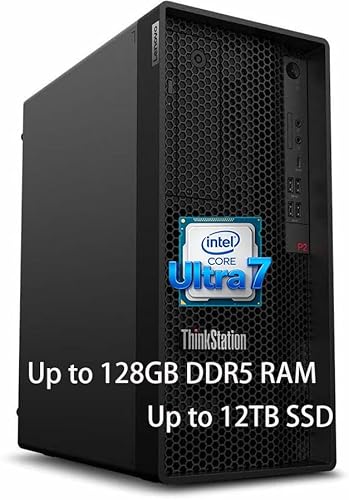
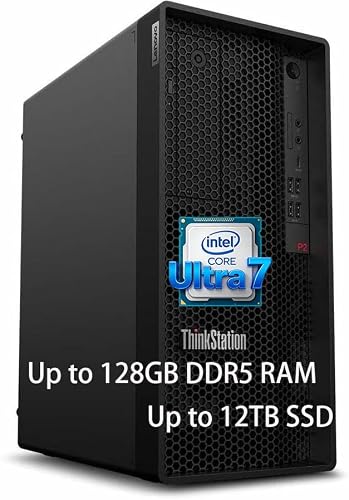
Best Balanced Tower — Lenovo ThinkStation P2 Gen 2
Strengths
- 128GB of DDR5 memory as shipped — the capacity most buyers eventually upgrade to, already fitted
- Core Ultra 7 265K pairs high clocks for CAD-style work with enough cores for rendering and builds
- Two-tier storage (2TB SSD plus 1TB HDD) matches the active-project/archive layout this guide recommends
Trade-offs
- No discrete professional GPU in this configuration, so certified-CAD and heavy GPU buyers must look at the P3 configuration below
- Windows 11 Pro and Wi-Fi 7 are welcome, but the tower still needs desk or floor space a mini would not
- Memory is DDR5 at mainstream speeds; extreme memory-bandwidth workloads belong on the heavier platforms
| Processor | Intel Core Ultra 7 265K |
|---|---|
| Memory | 128GB DDR5 RAM |
| Storage | 2TB SSD + 1TB HDD |
| Networking | Ethernet, Wi-Fi 7, Bluetooth |
| Operating system | Windows 11 Pro |
The ThinkStation P2 Gen 2 is the machine we would hand to the widest range of professionals: engineers doing mixed CAD and analysis, developers running containers and virtual machines, editors and designers whose tools are more CPU- and memory-hungry than GPU-bound. The specification reads like the checklist from the first half of this guide — a balanced modern processor, memory capacity with genuine headroom, fast primary storage with bulk backup on board, and a business operating system.
Its honest limitation is graphics. With no professional discrete card in this configuration, buyers whose software demands certified drivers, or whose 3D and AI work is GPU-first, should treat the P3 below as their Lenovo option instead. For everyone else, the P2’s restraint is a virtue: the money has gone into the parts that tax every working day.
Best for: engineers, developers and creators who want one balanced, long-lived tower / Not suited for: buyers who need a certified professional GPU from day one

Best Certified-Graphics Tower — Lenovo ThinkStation P3 Tower Gen 2 (RTX 4000 Ada)
Strengths
- NVIDIA RTX 4000 Ada professional graphics with certified drivers for the major CAD and engineering suites
- 256GB of DDR5 memory removes memory capacity from the list of things to think about for years
- Core Ultra 9 285 vPro flagship processor plus Gen 5 NVMe storage: no weak link in the chain
Trade-offs
- This is a serious professional configuration and priced as one within its tier — overkill for office-plus-light-CAD buyers
- The 256GB memory ceiling it ships at leaves nothing to upgrade into; expansion means graphics and storage only
- A full tower with flagship parts wants proper desk planning, power and ventilation
| Processor | Intel Core Ultra 9 285 vPro |
|---|---|
| Graphics | NVIDIA RTX 4000 Ada |
| Memory | 256GB DDR5 6400MHz |
| Storage | 2TB NVMe Gen 5 SSD |
| Networking | Wi-Fi 7 |
| Operating system | Windows 11 Pro |
If the graphics-certification section of this guide described your working life, this is your machine. The P3 Tower Gen 2 in RTX 4000 Ada configuration pairs Lenovo’s flagship mainstream workstation platform with the professional GPU that Autodesk and Dassault ecosystems are built around, then removes the two other common bottlenecks — memory and storage speed — by shipping 256GB of RAM and a Gen 5 NVMe drive.
Buy it when failed or unsupported graphics behaviour costs you billable time. Skip it when your software never asked for certification: the same budget buys far more raw rendering throughput in consumer graphics, and the honest buyer matches the tool to the software, not to the badge.
Best for: CAD, engineering and architecture professionals on certified software / Not suited for: GPU-rendering buyers who would get more raw speed from consumer cards

Best Renewed Value — HP Z4 G4 Workstation (Renewed)
Strengths
- A genuine Xeon workstation platform with 64GB of memory at renewed, entry-level positioning
- Quadro professional graphics keep older certified software and multi-monitor professional setups happy
- Dual storage (NVMe SSD plus 2TB HDD) already follows the layout this guide recommends
Trade-offs
- Renewed means the platform is an older generation: fine for its workloads, not a match for new towers on speed
- The Quadro P400 is a display-and-light-3D card, not a rendering or AI engine
- Configuration and cosmetic condition vary by seller; verify the exact listing before ordering
| Processor | Intel Xeon W-2133, 6-core, up to 3.9GHz |
|---|---|
| Memory | 64GB DDR4 |
| Storage | 512GB NVMe SSD + 2TB HDD |
| Graphics | NVIDIA Quadro P400 2GB |
| Operating system | Windows 11 Pro |
| Condition | Renewed |
The HP Z4 G4 is the standing proof that workstation value and workstation novelty are different things. This renewed unit brings a Xeon W processor, 64GB of memory and professional build quality to buyers whose workloads — 2D and light 3D CAD, office-plus, development, media work, home-lab duty — do not need the newest platform. For a first workstation, a second machine, or a small studio equipping several desks, that arithmetic is hard to argue with.
The discipline with renewed machines is verification, and it applies here in full: confirm the memory, storage and graphics in the exact listing, confirm the return terms, and plan on the platform’s age meaning sensible, not spectacular, performance. Judged on those terms, the Z4 remains one of the smartest buys in this guide.
Best for: first-time workstation buyers, small studios and home-lab builders on a budget / Not suited for: buyers who need current-generation speed or serious GPU compute

Best Compact AI Workstation — MINISFORUM MS-S1 MAX (64GB)
Strengths
- Ryzen AI Max+ 395 with 16 cores and a large unified memory pool is built for local AI and heavy multitasking
- A PCIe x16 slot and dual 10GbE networking give a mini PC expansion answers most minis cannot offer
- Dual M.2 storage and USB4 v2 connectivity keep fast external storage and docks on the table
Trade-offs
- Memory is soldered LPDDR5: the 64GB it ships with is the 64GB it will always have
- Integrated graphics, however strong, are not a certified professional GPU for CAD suites
- Mini cooling is good, not magical — sustained all-core loads will be audible in a quiet room
| Processor | AMD Ryzen AI Max+ 395, 16 cores / 32 threads |
|---|---|
| Graphics | RDNA 3.5 integrated GPU |
| Memory | 64GB LPDDR5 |
| Storage | 2TB SSD, dual M.2 PCIe 4.0 |
| Expansion | PCIe x16 slot |
| Networking | Dual 10GbE, Wi-Fi 7 |
| Ports | USB4 v2 80Gbps |
| Power supply | 320W |
The MS-S1 MAX represents the new mini-workstation argument at its strongest. AMD’s AI Max+ platform lets the integrated GPU draw on a large, fast pool of shared memory, which is exactly what local large-language-model and AI development work wants, and MINISFORUM wraps it in a chassis with the two things minis usually lack: a real PCIe slot and genuinely fast wired networking.
Choose the 64GB configuration when your models and projects fit comfortably inside it, and read the soldered-memory warning in this guide before ordering — stepping up to the 128GB variant at purchase is the only upgrade path there will ever be. As a desk-friendly machine for AI experimentation, development and heavy general work, it is a compelling alternative to a tower.
Best for: developers and AI experimenters who want serious compute in minimal space / Not suited for: buyers who need certified CAD graphics or plan staged memory upgrades

Best Mainstream Office-Plus Tower — Dell Tower Desktop (ECT1250)
Strengths
- A current Core Ultra 7 processor and 32GB of memory cover professional office, 2D and development work cleanly
- 1TB of PCIe NVMe storage is the right default for a single-drive machine
- Dell’s mainstream tower line is easy to live with: quiet, serviceable and sensibly connected
Trade-offs
- Integrated UHD graphics only — 3D, GPU rendering and AI buyers need a different machine
- Ships with Windows 11 Home, which lacks the Pro management features some businesses require
- A mainstream tower’s power supply limits how ambitious a later graphics upgrade can be
| Processor | Intel Core Ultra 7-265 |
|---|---|
| Memory | 32GB RAM |
| Graphics | Intel UHD Graphics (integrated) |
| Storage | 1TB PCIe NVMe SSD |
| Networking | Wi-Fi 6, Bluetooth |
| Operating system | Windows 11 Home |
| Included | Wired keyboard and mouse |
Not every workstation buyer needs a workstation badge, and this Dell tower is the guide’s acknowledgement of that. For professional work that is really about a fast, modern, dependable desktop — documents, data, 2D design, development, browser-heavy research, light media work — a current Core Ultra 7 with 32GB of memory and fast NVMe storage is the correct specification, and paying for professional features you will never invoke is its own kind of mistake.
The two checks before buying are the ones flagged in its trade-offs: if your organisation needs Windows 11 Pro features, confirm the edition question, and if there is any chance of serious 3D or AI work in this machine’s future, buy a graphics-equipped configuration instead. Within its intended role, it is a sound, unglamorous, correct purchase.
Best for: professionals whose work is office, 2D, data and development rather than 3D or AI / Not suited for: anyone needing a discrete or certified GPU

Best Many-Core Renewed Tower — PCSP Precision 7920 Tower Workstation (Renewed)
Strengths
- 48 cores and 96 threads across two Xeon Platinum processors: genuine many-core throughput for parallel work
- 384GB of DDR4 memory is a capacity new machines reach only at the very top of the market
- Quadro P2000 graphics, dual storage tiers and Windows 11 Pro complete a serious professional specification
Trade-offs
- Two previous-generation processors will lose to modern chips on single-threaded and lightly threaded work
- Size, power draw and fan noise are all enterprise-grade; this is not a quiet under-desk machine
- Renewed purchase discipline applies in full — verify configuration, condition and return terms
| Processors | 2x Intel Xeon Platinum 8160, 48 cores / 96 threads total |
|---|---|
| Memory | 384GB DDR4 |
| Storage | 1TB NVMe + 4TB HDD |
| Graphics | NVIDIA Quadro P2000 5GB |
| Operating system | Windows 11 Pro |
| Condition | Renewed |
The Precision 7920 in this dual-Xeon, 384GB configuration is the renewed market’s party trick: core counts and memory capacities that cost a fortune new, offered renewed for buyers whose workloads are truly parallel — rendering, simulation, virtualisation hosts, big parallel compiles, data crunching. For those specific jobs it can out-work machines costing far more, because parallel throughput is the one thing it has in abundance.
It is equally a machine with clear edges. Single-threaded CAD modelling will feel its processors’ age, its appetite for power and space is real, and renewed buying rules apply without exception. Bought knowingly for parallel work, it is one of the most interesting value propositions in the workstation market. Bought casually as a general desktop, it is the wrong machine.
Best for: render, simulation, virtualisation and parallel-compute buyers who value cores and capacity / Not suited for: single-threaded CAD users and anyone needing a quiet, compact machine
Reading the Tiers: What Each Level of Workstation Actually Buys
Workstation pricing falls into recognisable tiers, and knowing what each tier buys stops two opposite errors: paying flagship money for mainstream work, and expecting entry machines to do flagship work. The entry tier — largely renewed enterprise machines like the Z4 G4 and the dual-Xeon 7920 in our shortlist, plus basic new towers — buys professional build quality, generous memory by consumer standards and honest performance for 2D work, light 3D, development and parallel batch jobs on older platforms. What it does not buy is current-generation speed, modern graphics or a long runway of driver and OS support innovation. It is the right tier for first workstations, second machines, small studios equipping several seats and home labs.
The mainstream tier — new towers like the ThinkStation P2 — buys the current platform: fast modern processors, DDR5 memory in serious capacities, fast NVMe storage, current connectivity such as Wi-Fi 7, and a full manufacturer warranty. This is where most professionals should shop, because it is where the price-to-working-life ratio peaks: the machine is fast on day one and still credible in year five. The professional-graphics tier, represented here by the P3 with RTX 4000 Ada, adds certified drivers and the support structure around them; you are buying assurance as much as silicon, and it is worth it precisely when your software vendor’s certification list matters to your income.
Above that sit the specialist tiers this guide’s shortlist only touches: heavy workstations built on Threadripper PRO or dual-socket platforms with multiple professional GPUs and memory capacities measured in hundreds of gigabytes, built for studios whose renders, simulations or AI training runs are measured in days. The compact AI tier — the MS-S1 MAX and its rivals — cuts across the pricing tiers entirely: its value is not raw tier position but the combination of serious compute, large unified memory and minimal footprint. Read every listing through this tier lens and the market stops looking like a wall of model numbers and starts looking like what it is: a set of distinct tools at distinct levels, each correct for someone.
One tier trap deserves a direct warning. The gap between a renewed flagship and a new entry tower is where buyers most often misjudge age: a five-year-old top-tier workstation and a new mid-tier tower can post similar numbers in a quick benchmark while differing enormously in memory generation, storage speed, graphics options, power consumption and remaining support life. Neither is automatically better — the renewed flagship may carry far more memory and cores, the new tower far better single-thread speed and efficiency — but the comparison must be made on your workload’s terms, not on the original launch prices of the machines involved.
Monitors, Docks and the Rest of the Desk
A workstation is a system, and the parts around the tower decide how much of its performance you actually feel. Display first: professional work rewards screen quality and quantity in equal measure. A single large high-resolution monitor suits CAD and editing timelines; dual monitors suit development, data work and anything reference-heavy. Check that your chosen machine’s graphics — integrated or discrete — can drive your intended displays at their native resolutions and refresh rates, a detail that matters with older professional cards and renewed machines in particular. Colour-critical buyers should budget for a calibrated, wide-gamut display and treat it as part of the workstation purchase, because an uncalibrated screen silently taxes every visual decision made on a fast machine.
Connectivity is the second half of the desk. Towers earn their keep with ports and slots; mini workstations lean on docks and hubs, where a single USB4 connection can carry displays, storage and peripherals — one reason the high-bandwidth USB4 ports on the compact machines in this guide matter more than their size suggests. Fast wired networking deserves a mention for anyone moving large projects to network storage: the multi-gigabit and 10GbE ports appearing on modern workstations turn network drives from a bottleneck into a working location, and if your studio runs a NAS, that port may be worth more to your daily speed than a processor tier.
Finally, plan the unglamorous power and protection layer. A workstation under sustained load deserves a quality surge protector at minimum and, for anyone whose renders or builds run unattended, an uninterruptible power supply sized to let the machine finish or shut down cleanly. Add the ergonomic basics — a chair and desk setup you can sit in for the hours the machine will run — and the workstation budget is honestly complete. Buyers routinely spend everything on the tower and nothing on the system around it, then wonder why the upgrade feels smaller than the invoice suggested.
How to Set Up a New Workstation in Its First Week
The first week decides whether a workstation feels like an upgrade or a migration project, so treat setup as part of the purchase. Day one is verification: confirm the delivered configuration matches the listing — memory capacity, storage, graphics, operating system edition — before you migrate anything, because discrepancies are far easier to resolve before the machine becomes your production system. Run the vendor’s hardware diagnostics, update the BIOS or UEFI and drivers from the manufacturer’s support page rather than generic sources, and apply operating system updates fully before installing your professional applications.
Then set the machine up the way professionals do. Create your backup system before you need it: an external drive or network location, an automatic schedule, and one test restore so you know it works. Organise storage deliberately — active projects on the fastest drive, archives on bulk storage — and point your applications’ cache and scratch locations at the fast drive too, a setting editors and CAD users in particular leave on defaults and pay for daily. Install applications in dependency order, license and activate them while your old machine is still available for deactivation juggling, and only then migrate working files.
Finish with a load test that imitates your real work: open your largest project, run your longest typical render or build, and watch temperatures, noise and memory usage. A workstation that handles your worst normal day without throttling, swapping or audible distress is set up correctly. If it struggles, the first week is when configuration changes, memory additions or — in the worst case — returns are still painless. Readers who want the decision side of this in more depth will find it in Workstation PC Review and the hands-on category survey at Workstation PC Reviews.
Common Mistakes When Buying a Workstation PC
- Buying the label instead of the specification — a workstation badge on an old or weak configuration changes nothing about its performance.
- Starving the machine of memory to afford a faster processor, then losing more time to swapping than the processor ever saved.
- Paying for certified professional graphics your software does not use — or skipping them when your software’s support depends on them.
- Ordering a soldered-memory mini at today’s capacity and discovering next year’s project does not fit.
- Ignoring the operating system edition and discovering the missing Pro features after deployment.
- Skipping configuration verification on a renewed machine, where listings for the same model genuinely differ.
- Forgetting backup, scratch-disk and power-supply planning — the unglamorous items that decide whether the machine works professionally.
Final Recommendation
A workstation purchase goes right when it starts from the workload and stays honest all the way down the specification sheet. Decide what the machine must do, let that decide the processor balance, buy memory capacity generously, match the graphics to your software’s actual requirements, lay storage out in two tiers, and verify everything on arrival. Follow that sequence and almost any of the machines in this guide will serve you well, because each of them is the right answer to a clearly stated question.
If you want one default recommendation: the Lenovo ThinkStation P2 Gen 2 is the balanced tower most professionals should start from, the P3 with RTX 4000 Ada is the certified-graphics answer, the renewed HP Z4 G4 is the value play, and the MINISFORUM MS-S1 MAX is proof that the compact AI workstation has genuinely arrived. Still weighing whether the category itself justifies its premium over a regular PC? That is exactly the question Is A Workstation PC Worth It takes apart — and if your budget is the binding constraint, the shortlists at Best Workstation PC Under $700 and Best Workstation PC Under $800 apply this guide’s criteria at fixed tiers.
Frequently Asked Questions
What is the difference between a workstation PC and a regular desktop?
Component selection and support. Workstations use parts rated for sustained professional loads, offer features like ECC memory and remote management, carry graphics with drivers certified for professional applications, and are sold with business-grade support. A fast consumer desktop can match a workstation’s speed in short bursts while offering none of those assurances.
How much RAM does a workstation PC actually need?
32GB is the sensible professional floor today, 64GB suits serious 3D, 4K editing, large datasets and virtual machines, and 128GB or more serves large assemblies, simulation and local AI. Memory is the specification buyers most regret under-buying, because running out of it slows everything, every day.
Do I need a professional GPU, or is a gaming card fine?
It depends entirely on your software. If the publisher certifies professional drivers for your application and your income depends on it, buy the professional card. For GPU-agnostic tools — most editing, Blender, development, AI experimentation — consumer or strong integrated graphics deliver more performance per unit of money.
Is a renewed workstation a sensible buy?
Yes, with verification discipline. Renewed enterprise workstations offer professional platforms, generous memory and very low entry costs. Confirm the exact configuration in the listing, the cosmetic and testing standards the seller applies, and the return terms — renewed listings for the same model can differ substantially.
Should I choose a tower or a mini workstation?
Choose the tower if you will add internal cards, drives or a bigger GPU later, or if sustained quiet cooling matters. Choose the mini if desk space is scarce and its as-shipped configuration — especially soldered memory capacity — already covers your three-year needs.
What does ECC memory do, and do I need it?
ECC memory detects and corrects the random bit errors that occur in large memory arrays. For long, unattended, correctness-critical work — big renders, scientific and financial computing — it is worth requiring. For interactive work where you save often, it is optional.
How long should a workstation PC last?
A well-specified workstation should serve four to six years, which is why this guide pushes buyers towards memory headroom and balanced specifications rather than peak numbers. The machines that get replaced early are almost always the ones that were under-specified in memory or graphics memory at purchase.