Disclosure: As an Amazon Associate, reviewstook.com earns from qualifying purchases. Links to Amazon on this page are affiliate links; they cost you nothing extra.
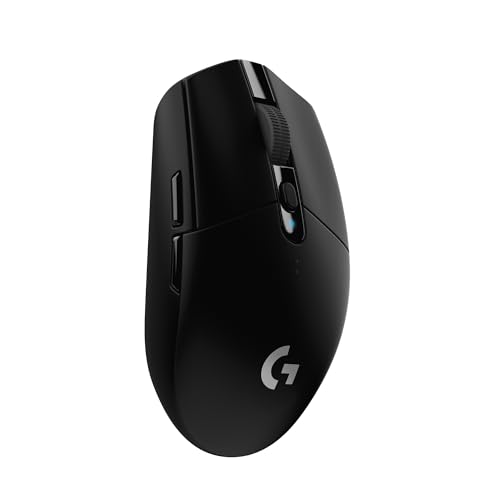
Quick answer: Both are wired gaming mice in the budget tier. The DeathAdder Essential lists a 6,400 DPI sensor and switches rated for 10 million clicks; the M602 lists up to 7,200 DPI, RGB lighting and key remapping.
This comparison is built from the product listings on Amazon, not our own testing. Confirm details on the product pages.
By the Reviewstook Editorial Team. Last updated: October 31, 2026.

At a Glance
| Feature | Razer DeathAdder Essential | Redragon M602 |
|---|---|---|
| Price | Check price on Amazon | Check price on Amazon |
| Sensor | 6,400 DPI optical | Up to 7,200 DPI |
| Switches | Mechanical, 10M clicks | Not highlighted |
| Buttons | 5 programmable | Remappable keys and macros |
| Lighting | Not highlighted | 7 RGB modes |
| Software | Razer Synapse | Redragon software |
| Design | Ergonomic | Ergonomic; design launched in 2015 |
In this guide
Key Differences
Lighting
Only the M602 lists RGB lighting.
Switches
The DeathAdder lists a click rating.
Brand
Razer Synapse against Redragon software.
Which Should You Choose?

Choose the Razer DeathAdder Essential if
you want a trusted ergonomic shape and a click rating.

Choose the Redragon M602 if
you want RGB lighting.

What the Differences Mean
A spec table shows what differs. This section explains why each difference matters, so you can weigh the rows that apply to you.
Sensor
A sensor with a higher maximum DPI is not automatically more accurate. Most players run a few hundred to about 1600 DPI. Tracking consistency matters more than the peak figure, and it is hard to judge from a spec sheet. In this comparison, Razer DeathAdder Essential lists “6,400 DPI optical” while Redragon M602 lists “Up to 7,200 DPI”.
Switches
Switch type affects feel, sound and sometimes responsiveness. Optical and magnetic switches register the press without metal contact; mechanical switches use a physical contact. The right one is the one that feels good to you and suits the room you play in. In this comparison, Razer DeathAdder Essential lists “Mechanical, 10M clicks” while Redragon M602 lists “Not highlighted”.
Buttons and controls
More buttons help only if you will bind them and can reach them without shifting your grip. Extra controls add weight and cost, so count the ones you would really use. In this comparison, Razer DeathAdder Essential lists “5 programmable” while Redragon M602 lists “Remappable keys and macros”.
Lighting
Lighting is cosmetic and can reduce battery life on wireless models. If you do not care for it, ignore this row. In this comparison, Razer DeathAdder Essential lists “Not highlighted” while Redragon M602 lists “7 RGB modes”.
Which Is Right for Which Buyer
- If you play competitive shooters, prioritize weight or key response, a layout you can control and a stable connection over extra features.
- If you play strategy or MMO games, look at the number of programmable buttons or keys and whether profiles can be stored on the device.
- If you use the same device for work, pay attention to comfort, noise and Bluetooth support.
- If you are on a budget, check the price on the day you buy and the return policy, and skip features you will not use.
Before You Buy: A Five-Point Check
- Confirm the exact model on the product page; similar names often hide different features.
- Check dimensions against your hand or desk.
- Look at the warranty and return window.
- Read what the companion software is required for.
- Keep the packaging for the first couple of weeks.
This comparison is based on the Amazon listings and manufacturer information, not our own testing. Treat it as a way to narrow the choice, then confirm the details that matter to you.
Grip Style and Hand Size Fit
Shape decides whether a cheap wired mouse is comfortable or tiring, and no spec row captures it. Start by noticing how your hand sits on a mouse today. A palm grip rests the whole hand on the body and favors a taller, longer shape. A claw grip arches the fingers and pushes the weight toward the back and the buttons. A fingertip grip uses only the fingers and suits small, light mice.
Both mice in this comparison are listed as ergonomic designs, which usually means a contoured, right-handed body with a rest for the thumb. That helps if you are right-handed and use a palm or loose claw grip. It is a poor match for left-handed users, because ergonomic shapes are generally not symmetrical. Check the listing for the words “right-handed” or “ambidextrous” before you order.
Measure your hand from the wrist crease to the tip of your middle finger and compare it with the length of the mouse if the listing gives dimensions. A mouse that is too short forces you to curl your fingers, and one that is too long makes the buttons hard to reach. If the listing does not give dimensions, look for customer photos that show a hand on the mouse, and treat them as rough guidance only.
Whichever you choose, give yourself a few days of normal use before judging it. A new shape often feels odd at first, and the return window is your safety net if it still feels wrong.
Setting DPI and In-Game Sensitivity
The maximum DPI figure on a listing is a ceiling, not a recommendation. What you actually use is a setting you pick, and it works together with the sensitivity slider in each game and in your operating system. Two people can have the same hand speed and feel very different results if one runs a low DPI with a high in-game sensitivity and the other does the reverse.
A sensible way to tune it is to leave the in-game sensitivity near its default, choose a DPI step that lets you turn around in a game with a comfortable sweep of your forearm, and then fine-tune in small steps. If your crosshair jitters or feels too fast to place precisely, lower the setting. If you run out of mouse pad before you finish a turn, raise it.
Many budget mice let you cycle through several DPI steps with a button on top. Pick one low step for aiming and one higher step for desktop work, then leave them alone so your muscle memory can settle. Changing the setting every session makes it harder to improve.
Also check the operating system pointer speed. If “enhance pointer precision” is switched on in Windows, the cursor can speed up depending on how fast you move, which makes aim less predictable. Most players turn that option off and rely on the mouse setting alone.
Cable, Feet and Scroll Wheel Details
In this budget tier, small hardware details separate a mouse you forget about from one that annoys you. Start with the cable. A flexible, lightweight cable drags less on the desk than a stiff one, and a braided cable can look tough but sometimes feels heavier. Because both mice here are wired, the cable is part of the experience every time you swipe. Many players route it over a small clip or let it hang off the back edge of the desk to remove drag.
Next, look at the feet, the pads on the underside. Smooth, evenly placed feet glide predictably and wear slowly. If a listing shows only small feet near the corners, they may wear faster. Replacement feet are sold separately for many mice, but check that your model has a compatible set before counting on it.
The scroll wheel is another place budget mice can differ. Some wheels have clear notches you can feel, which helps in games that use the wheel for weapon swaps. Others feel smoother and quieter, which suits document work. A wheel that is too loose can scroll when you do not intend it to.
Finally, consider the surface. Optical sensors track well on most cloth pads and matte desks but can struggle on glass or very glossy surfaces. A basic cloth mouse pad is a low-cost way to get steadier tracking from either mouse.
Software, Remapping and Profiles on a Budget
The listing mentions companion software for both mice, and it is worth deciding in advance whether you will use it. Software lets you remap buttons, change DPI steps, adjust lighting and sometimes record macros. If you only need the default behavior, you may never install it, and a mouse that works well without any software is a plus.
If you do plan to remap buttons, ask three questions. Does the software run on your operating system? Does it need an account or an internet connection? And are the settings stored on the mouse, or only while the program is running? Settings stored on the device travel with you to another computer. Settings that live only in the software may reset when the program is closed or uninstalled.
Be careful with macros in online games. Some titles and communities treat automated key sequences as cheating, so read the rules of any game before binding a macro to a button. Simple remaps, such as putting a push-to-talk or a reload action on a side button, are generally fine.
When you read reviews, separate comments about the mouse hardware from comments about the software. A mouse can be comfortable and accurate while its software feels dated, and the reverse is also possible. Decide which matters more for your use.
Cleaning and Knowing When to Replace a Mouse
A little upkeep keeps a budget mouse feeling fresh. Unplug it and wipe the body with a slightly damp, lint-free cloth. Use a dry cotton swab around the sensor window and the scroll wheel, and avoid soaking any opening. Wipe the feet and the mouse pad too, because dust under the sensor causes skipping.
Some signs say the mouse is wearing out. A double-click when you press once is the most common one, and it points to a tired switch. A wheel that scrolls the wrong way for a moment, a cursor that jumps or drifts while the mouse is still, and a cable that works only at certain angles are other warnings. Clean first, try another USB port and another surface, and if the fault stays, replacing it is usually more practical than repairing it at this tier.
Check the warranty before you give up. The length and terms vary by seller and region, so read the product page or the maker’s site and keep your order record.
- Clean the sensor window and feet every few weeks.
- Test a suspect mouse on a different computer before blaming the software.
- Keep the box and receipt until you are sure you are happy.
Wired Mouse Terms Explained
Gaming mouse specifications use terms that are easy to misread. Here is a short glossary.
- DPI: a sensitivity measure showing how far the cursor moves relative to your hand. A higher number is not automatically better.
- Optical sensor: a sensor that tracks movement using light.
- Switch: the mechanism under each button, which affects the feel and sound of clicks.
- Polling rate: how often the mouse reports its position to the computer.
- Ergonomic shape: a body designed to fit the hand, often shaped for right-handed use.
- Braided cable: a cable wrapped in fabric that can feel more flexible or stiff, depending on the design.
- Programmable buttons: buttons that can be assigned to different functions in software.
- Lift-off distance: how high the mouse can be lifted before it stops tracking.
Check each maker’s specification page for the specific details of the mouse you are considering.
Which Situation Fits Which Mouse
| Your situation | What to weigh | Where to look |
|---|---|---|
| Casual gaming and everyday use | Comfort and simple setup | Shape and photos |
| Larger hands | Body length and width | Dimensions |
| Competitive play | Sensor, weight and consistent feel | Specification pages |
| Shared computer | Plug-and-play design | Software requirements |
| Desk with limited space | Cable length and routing | Cable details |
Think about what you will notice most when you use the mouse. For many people, comfort and button feel matter more than the highest number on a spec sheet.
A Short Pre-Purchase Check
- Measure your hand and compare it with the dimensions given by the maker.
- Think about your grip style, whether palm, claw or fingertip.
- Check the cable length and how it will reach the computer.
- Look at the button layout and whether any buttons are placed where you might press them accidentally.
- See whether you need software for settings.
- Check compatibility with your operating system.
- Read about warranty and support.
Taking a few minutes to check these points prevents the common disappointment of a mouse that does not fit your hand.
Reading a Listing Closely
Look at the sensor name, DPI range and polling rate, and think about how you will use them. Check how many buttons the mouse has and what they do. See the body material, the cable type and the feet.
Read what the maker says about lighting if it has any, and whether lighting can be turned off. Look at the weight and whether the mouse is shaped for one hand only.
Setting Sensitivity and Keeping Things Comfortable
Choose a DPI setting that suits your screen and your habits, and adjust in small steps. Many players pair a moderate DPI with in-game sensitivity settings. Give each change a few days before you decide whether it helps.
Keep your wrist in a neutral position, take regular breaks and adjust your chair and desk. If you feel pain or numbness, speak with a health professional. Use a mouse pad that suits the sensor and keep the surface clean.
Getting the Most From a Simple Wired Mouse
A wired mouse has no battery and no pairing, which makes it a dependable everyday tool. Plug it into a rear or front port directly on the computer, and avoid long chains of hubs that may add delay. Route the cable so it does not catch on the desk edge, and use a cable clip if it drags.
Take time to test the mouse in the games and apps you use. Open a few familiar scenes and see whether the cursor feels predictable. If the pointer seems jumpy on a glossy desk, try a mouse pad with a matte surface. Keep the sensor window clean, since a speck of dust can cause odd behavior.
If you want to remap buttons or change lighting, download the software only from the maker’s official site. Save a profile once you are happy, and record your settings in a note so you can restore them later.
When you are choosing between two budget mice, spend time with the details that affect daily use: shape, weight, cable and button feel. Those are the points you will notice every day.
Cleaning, Cable Care and Replacement
Wipe the shell with a lightly damp cloth, and keep the sensor window clear of dust. Do not bend the cable sharply or wrap it tightly around the mouse. If the scroll wheel, buttons or cable begin to misbehave, check the manual and contact the maker’s support if problems continue.
What Budget Wired Mice Do Well, and Where the Money Went
The DeathAdder Essential and the Redragon M602 sit in the tier where every design decision is a trade. There is no wireless hardware, no battery and no premium shell finish in either mouse, and that is precisely why the tier exists: the money goes to the sensor, the switches and the shape, and the features that cost the most to build are simply left out.
Understand what you are not giving up. A wired connection is still the most reliable link in gaming: no pairing, no receiver, no battery and no interference, on any computer, including ones in BIOS menus and locked-down school or office machines. For a single desk that never moves, wired is not a compromise at all; it is the simplest possible solution, and both of these mice deliver it.
What you give up is desk freedom and travel convenience. The cable dictates your desk layout, and the mouse is tied to one machine at a time. If your life involves a laptop bag, a couch or a second computer, weigh that honestly, because a budget wired mouse bought for the wrong routine gets replaced quickly, and a replaced bargain is not a bargain.
Build expectations also belong in this tier. Plastics feel lighter, coatings are simpler and packaging is plain. None of that affects a match. What affects a match is whether the buttons are crisp, the wheel is defined and the shell fits your hand, and those are exactly the things to test during the return window rather than assuming the price predicts them.
The DeathAdder Shape and the M602’s Ergonomic Shell
Both mice are ergonomic and right-handed, but they arrive at comfort from different histories. The DeathAdder line’s shape is one of the most copied in gaming: a long, gently curved shell that suits palm and relaxed claw grips and medium to large hands. The Essential carries that shape into the budget tier, which is its main argument: players who know the silhouette fits them get it without paying for the flagship models above it.
The M602 is also an ergonomic design, and its listing notes a design that has been on the market for years. Longevity cuts both ways: the shape is proven and familiar to many hands, and the design’s age means its styling and feature set reflect an earlier generation’s priorities. Neither point decides anything without your hand on the shell.
Hand size is the filter. Smaller hands and fingertip grips often find long ergonomic shells unwieldy, because the front of the mouse extends past the fingers and the main buttons’ sweet spots sit further forward. Measure your hand, compare it with each listing’s dimensions, and if you are between categories, favor the mouse whose length lets your fingers rest naturally on the buttons without stretching.
Left-handed players should pass on both and look for symmetrical or left-handed designs. An ergonomic right-handed shell cannot be adapted by willpower, and forcing it produces exactly the discomfort these shapes exist to prevent.
DPI Figures in the Budget Tier: 6,400 Against 7,200
The DeathAdder Essential lists a 6,400 DPI optical sensor; the M602 lists up to 7,200 DPI. In this tier, buyers sometimes treat the larger number as the better sensor, and that is the wrong lesson. Maximum DPI is a ceiling. Most players set their mouse between a few hundred and a couple of thousand DPI, so both ceilings sit far above real use, and the numbers tell you almost nothing about tracking quality at the settings you will actually choose.
What matters at this price is consistency: a sensor that tracks slow corrections without jitter, handles fast flicks without spinning out, and behaves the same on your pad every day. Those qualities cannot be read off a listing. They can be tested in the return window with slow diagonal lines in a drawing program and a session in your main game.
Adjustable DPI steps are the practical sensor feature here. Both mice let you change sensitivity, and the useful setup is two or three steps you genuinely use, for example one for general play and one lower step for careful aiming. A mouse left on a single well-chosen setting beats a mouse cycled through five steps nobody remembers.
Surface choice completes the picture. Any optical sensor in this tier expects a proper mousepad; a bare glossy desk or glass surface will defeat mice costing far more than these. If tracking feels wrong, change the surface before blaming the sensor, because a basic cloth pad is the cheapest performance upgrade in this entire comparison.
Switches Rated at Ten Million Clicks: Translating the Number
The DeathAdder Essential lists mechanical switches rated for ten million clicks, a figure that sounds modest beside flagship ratings many times larger. Translate it into use before worrying. Even a heavy player produces thousands of main-button clicks on a busy day, not tens of thousands, so a ten-million rating represents years of ordinary service. Ratings are lab figures under controlled conditions, but as a rough calendar they are reassuring rather than alarming.
The M602’s listing does not highlight a switch rating, which in this tier usually means the maker chose not to compete on that line rather than that the switches are fragile. Judge the M602’s clicks by feel during the trial: crisp, even between left and right, with no mushiness or double-registering.
Real-world switch life is decided as much by environment as by ratings. Dust, crumbs and humidity around a desk age any switch faster than clean use does. Keep food away from the mouse, wipe it weekly and store it somewhere dry, and either mouse’s switches will likely outlast your interest in the mouse itself.
If a switch fault does appear, it usually appears early: double clicks on single presses or a button that misses inputs. Test both buttons deliberately in the first week with a few hundred clicks in a document or a click-test page, because an early fault is a straightforward return, while the same fault discovered in month three is a warranty conversation.
Lighting and Software: The M602’s Extras Against Razer’s Ecosystem
The clearest feature gap between these mice is presentation. The M602 lists multiple RGB lighting modes; the DeathAdder Essential’s listing does not highlight lighting. If your setup’s appearance matters to you, or the mouse is a gift for a younger player who will enjoy it, the M602’s lighting is a genuine point in its favor that costs nothing in performance.
Software is the other half of the gap. The DeathAdder Essential works within Razer’s Synapse ecosystem; the M602 uses Redragon’s own software for remapping and macros, as its listing describes. Both let you reassign buttons and adjust settings beyond the Windows defaults. The questions to ask are practical: does the software run on your operating system, do settings persist, and do you need the software running for your binds to work?
Macros deserve a word of caution. Both ecosystems can record them, and they are legitimately useful for repetitive work tasks and single-player games. In competitive multiplayer titles, macro rules vary by game and some prohibit automation outright. Check your main game’s rules before building your play around a macro, because the mouse cannot tell you what the game allows.
Set up software once, properly: update it from the maker’s official site, configure your DPI steps and binds, and export or note the settings. Budget mice often move between computers, and a settings note turns each move into a two-minute job.
Cable Life: Routing, Drag and Desk Discipline
A wired mouse’s cable is its lifeline and its leash, and how you route it decides how the mouse feels. Give the cable a gentle approach with slack resting on the desk, anchor it high or use a bungee if you make wide swipes, and keep it off sharp desk edges where months of rubbing will fray the jacket.
Drag is the daily tax of wired play. It changes with direction and with how much cable is on the desk, which is why consistent routing matters: the same amount of slack in the same place makes the pull predictable, and predictable drag is something your aim adapts to within sessions. A cable left to rearrange itself daily never becomes predictable.
Inspect the cable where it enters the mouse; that flex point is where wired mice usually fail first. If the jacket cracks or the connection becomes intermittent when the cable moves, that is the mouse telling you its remaining life is short. Neither listing here promises a detachable cable, so treat the fitted one with the care due to a non-replaceable part.
When a Budget Mouse Is Enough, and When to Step Up
These mice are enough for a large share of players: anyone on a single desk, playing at ordinary sensitivities, who values a proven ergonomic shape and a reliable wired link over wireless freedom and premium materials. They are also the sensible choice for a second machine, a child’s first gaming setup, a spare for guests and a stopgap that may quietly become permanent.
Step up when your routine demands what this tier omits: wireless for a laptop-centered life, a symmetrical or smaller shell for your grip, or a higher-end sensor for extreme sensitivity settings. Step up for fit and function, not for DPI numbers or lighting you will stop noticing in a month.
The smartest budget strategy is the trial. Buy the shape that fits your hand on paper, test clicks, wheel, tracking and comfort through a full week of your real routine, and return it without hesitation if your hand disagrees. In this tier, the difference between a bargain and a waste is almost never the specifications; it is whether the shell and your hand get along.
Extra Questions About This Pairing
Is the DeathAdder Essential’s sensor good enough for competitive play?
For the sensitivities most players use, yes: the practical limits in this tier are the player’s consistency, pad space and practice, not the sensor ceiling. Test tracking on your own pad during the return window, and judge by your game rather than by the maximum DPI printed on the box.
Does the M602’s lighting affect performance or battery?
There is no battery to affect on a wired mouse, and lighting does not change tracking or click performance. It draws a small amount of power from the USB connection and adds visual flair. If you dislike it, the software or the mouse’s controls can typically tone it down; check the listing and software for the options on the exact unit.
Which of these suits larger hands?
Both are ergonomic shells, and the DeathAdder shape is known for suiting medium to large hands with a palm or relaxed claw grip. Compare the listed dimensions with your hand measurement, and favor the shell whose buttons sit under your fingers without stretching. Use the return window to confirm with a full gaming session and a workday.
Can I use either mouse on a console or a Mac?
Basic pointing and clicking over USB generally work broadly, but companion software for remapping and lighting may be Windows-focused. Check each product page for the operating systems the software supports, and plan on default behavior wherever the software cannot run.
What usually fails first on a budget wired mouse?
The cable at the shell entry and the scroll wheel are the common wear points, followed by the main switches over longer horizons. Careful routing, a clean desk and an early click test in the first week address all three, and keeping the receipt makes any early failure a simple claim.
Setting Up Either Mouse in the First Ten Minutes
Start with the mouse at its default settings and your existing in-game sensitivity, so the only new variable is the hardware. Play one familiar session and note three things: whether your fingers reach the main buttons without stretching, whether the wheel’s steps feel distinct under your finger, and whether the cable’s pull is noticeable during your widest regular movement.
Then open the maker’s software, downloaded from the official site, and make a small number of deliberate changes. Set two or three DPI steps you will genuinely use, assign the side buttons to the actions you listed before buying, and adjust or disable lighting to your taste. Save or export the profile immediately; budget mice move between machines more often than premium ones, and a saved profile makes each move painless.
Check for a firmware or software update once, apply it exactly as instructed with the mouse connected, and then leave the software alone. Repeated tweaking in the first week usually reflects the hand adjusting to a new shell, not settings that need chasing. Give your grip a week to settle before changing sensitivity again.
Comfort Across a School or Work Day
Budget mice often serve double duty for homework, office tasks and games, and comfort across that whole day is the real test of an ergonomic shell. A shape that feels lively in a forty-minute match can tire the hand across six hours of browsing, documents and spreadsheets, because the load is different: less movement, longer static holds.
Set the desk up for the long load. Keep the mouse close so your elbow stays by your side, rest your forearm level with the desk, and avoid pinching the mouse harder than the task needs; a light grip is a habit worth building on any shell. Shake out your hand and stretch your fingers during natural breaks, and stand up between sessions.
If your hand aches in the first days, distinguish new-shape adjustment from a genuine mismatch. Mild unfamiliarity fades across the first week of exclusive use; pain that sharpens, tingling or numbness does not belong to adjustment and should not be pushed through. A shell that fights your hand will not win you over in week three, and the return window is the honest place to act on that.
Finally, remember that these are right-handed ergonomic mice sharing a desk with a keyboard. If you alternate between typing-heavy days and gaming days, a compact keyboard or a keyboard positioned to keep the mouse close can do as much for comfort as the mouse itself, by keeping your arm from reaching outward all day.
Should I buy a mouse bungee for a budget wired mouse?
Only if cable drag genuinely bothers you after a week of careful routing. Many players solve drag with a raised anchor point, a monitor stand edge or a simple clip. A bungee is a refinement, not a requirement, and it is better bought to solve a felt problem than bundled speculatively with the mouse.
Keeping a Budget Mouse Working for Years
Longevity in this tier is mostly hygiene and habits. Wipe the shell weekly with a slightly damp cloth, clear crumbs and dust from the wheel gap and button seams with a dry swab, and clean the sensor window gently so tracking stays consistent. Desks that host snacks age mice quickly, so the single most effective maintenance step is keeping food and sugary drinks away from the pad.
Check the feet every few months. Feet that have worn thin or started to lift make any mouse feel scratchy and can convince you the sensor is failing. If replacements exist for the model, fresh feet restore the original glide for a fraction of a new mouse’s cost; if they do not, that is a factor to weigh before your next purchase rather than a crisis with this one.
Store the mouse sensibly when it travels or the desk is cleared: coil the cable loosely rather than wrapping it tightly around the shell, which stresses the entry point, and keep the mouse out of prolonged direct sunlight and damp rooms. Small care, repeated, is what turns a budget purchase into a five-year tool instead of a one-year stopgap.
Frequently Asked Questions
Which has RGB?
The M602.
Which has a higher DPI?
The M602 lists up to 7,200.
Are they wireless?
No, both are wired.
Is Razer DeathAdder Essential or Redragon M602 better for beginners?
Pick the one that fits your hand or desk and your budget. Features matter less than comfort for most beginners. See the verdict above for the main difference.
Can I use either with a Mac?
Basic functions normally work on any system, but companion software may be Windows-only. Check each product page.
What if I choose the wrong one?
Check the return window on Amazon and keep the packaging while you test it.
Is a higher DPI number worth paying attention to on a cheap mouse?
Usually not by itself. Most players use a modest setting, so the maximum matters less than how steady the tracking feels on your surface. Choose by shape, comfort and reliability first.
Will either mouse work on a glass desk?
Optical sensors can struggle on glass or very glossy surfaces. A cloth mouse pad or a matte desk surface gives more consistent tracking, so it is worth having one handy.
Do I need to install software to use these mice?
Basic pointing and clicking normally works without it. Software is mainly for remapping buttons, changing DPI steps and lighting. Check each product page for what the software is required for.
Are these mice suitable for left-handed users?
Ergonomic shapes are usually designed for right-handed use. Look for the words ambidextrous or left-handed in the listing, and if they are absent, assume the shape favors the right hand.
Why does my cursor feel inconsistent even with a decent mouse?
Pointer acceleration in the operating system, a dirty sensor, or a reflective surface are common causes. Turn off enhanced pointer precision, clean the sensor window and try a cloth pad.
How do I stop a stiff cable from dragging?
Let the cable hang off the back of the desk, use a small cable clip, or raise it slightly with a bungee-style holder. A cloth pad also reduces friction under the cable.
What should I do if the mouse starts double-clicking?
Clean around the button and test it on another computer. If it still double-clicks, the switch is probably worn, so check the warranty or return window and consider replacing the mouse.
Bottom Line
Choose the DeathAdder Essential for the shape, the M602 for RGB. See best gaming mice under $20.
Related Reading
- 6 Best Gaming Mice Under $50
- Razer DeathAdder Essential Review: Is It Worth It?
- Attack Shark X3 vs Redragon M725: Two 49g Wireless Mice
- 7 Best Razer Gaming Mice: Viper, Basilisk, Naga and More
- Is the Razer Basilisk V3 Worth Buying? Listing-Based Review