Disclosure: As an Amazon Associate, reviewstook.com earns from qualifying purchases. Links to Amazon on this page are affiliate links; they cost you nothing extra.
Quick answer: Both are HP home inkjet all-in-ones with a document feeder. The Envy 6555e adds automatic two-sided printing and a touchscreen, while the DeskJet 4155e is the simpler, cheaper-tier model.
This comparison is built from the product listings and manufacturer information on Amazon, not our own testing. Confirm details on the product pages before you buy.
By the Reviewstook Editorial Team. Last updated: October 31, 2026.

At a Glance
| Feature | HP Envy 6555e | HP DeskJet 4155e |
|---|---|---|
| Type | Color inkjet all-in-one | Color inkjet all-in-one |
| Print speed (listing) | Up to 10 ppm black / 7 ppm color | Up to 8.5 ppm black / 5.5 ppm color |
| Auto two-sided printing | Yes | Not mentioned in the listing |
| Document feeder | 35-sheet feeder | Auto document feeder |
| Input tray | 100 sheets | Not listed |
| Display | 2.4-inch touchscreen | Not highlighted |
| Wi-Fi | Dual-band | Dual-band with self-reset |
| Ink policy | HP+ and Instant Ink offer | Works only with cartridges with HP chips |
In this guide
Key Differences
Duplex and speed
The Envy 6555e is listed with automatic two-sided printing and higher rated speeds.
Feeder and display
Both list a feeder. The Envy 6555e listing adds a 2.4-inch touchscreen and a 100-sheet tray.
Ink policy
The DeskJet 4155e listing says the printer is intended to work only with cartridges with HP chips and may block others. HP+ requires an HP account and internet connection on both.
Which Should You Choose?
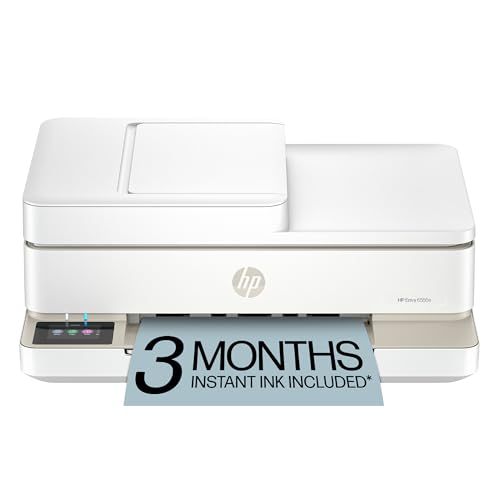
Choose the HP Envy 6555e if
you want duplex printing, a touchscreen and slightly faster rated speeds for family printing.

Choose the HP DeskJet 4155e if
you print rarely and want a low-cost HP with a feeder.
What the Differences Mean
A spec table shows what differs. This section explains why each difference matters.
Speed
Maker speeds are best-case figures for plain black text. Color, photos and duplex are slower. Use the numbers to compare, not as a promise. Here, HP Envy 6555e lists “Up to 10 ppm black / 7 ppm color” while HP DeskJet 4155e lists “Up to 8.5 ppm black / 5.5 ppm color”.
Duplex printing
Automatic duplex saves paper and flipping. Check whether it covers printing only or also copying. Here, HP Envy 6555e lists “Yes” while HP DeskJet 4155e lists “Not mentioned in the listing”.
Scan and copy features
A document feeder helps with multi-page jobs and duplex scanning saves time. If you rarely scan, a flatbed is enough. Here, HP Envy 6555e lists “35-sheet feeder” while HP DeskJet 4155e lists “Auto document feeder”.
Connection
How a printer connects affects setup and reliability. Wi-Fi is convenient for sharing, USB is the most dependable, and Ethernet suits offices. Check the Wi-Fi band and AirPrint or Mopria support. Here, HP Envy 6555e lists “Dual-band” while HP DeskJet 4155e lists “Dual-band with self-reset”.
Ink and running costs
Ink or toner is where the money goes. Compare the cost per page, the starter cartridge size and whether third-party ink is accepted. Here, HP Envy 6555e lists “HP+ and Instant Ink offer” while HP DeskJet 4155e lists “Works only with cartridges with HP chips”.
Which Is Right for Which Buyer
- If you print rarely, a low-cost model with cheap or long-life ink or toner avoids waste from dried ink.
- If you print a lot, prioritize a low cost per page, such as an ink tank or laser model.
- If you need to scan or copy documents, check for a document feeder.
- If you print photos, check the number of inks and paper support.
Before You Buy: A Five-Point Check
- Confirm the exact model on the product page; similar names often hide different features.
- Check the cost of replacement ink or toner.
- Check the Wi-Fi band and mobile printing support.
- Check the size of the printer against your space.
- Check the return window and warranty.
This comparison is based on the Amazon listings and manufacturer information, not our own testing. Treat it as a way to narrow the choice, then confirm the details that matter to you.
How the Two HP Tiers Differ in Daily Use
The Envy 6555e and the DeskJet 4155e come from the same maker and cover similar jobs, so the choice is about convenience features. According to the listings used for this comparison, the Envy adds automatic two-sided printing, a touchscreen and a 100-sheet input tray, while the DeskJet is the simpler model.
In daily use, a larger input tray means refilling paper less often, which matters if several people print or if you print long documents. A touchscreen lets you start copies and scans and check settings at the printer, rather than going through a phone or computer. A simpler control panel is fine if most of your printing comes from a computer or phone.
Think about who will use the printer. A household where one person prints occasionally may not notice the difference between the two. A busy household with students, home workers and shared use is more likely to appreciate the convenience features.
- Occasional use by one person: the simpler model may be enough.
- Frequent use by several people: tray size and on-device controls help.
- Long documents: automatic two-sided printing can reduce manual handling.
These are general observations based on the feature lists, not test results. Confirm each feature on the current product page.
Paper Handling, Trays and Media
Paper handling is one of the least glamorous parts of a printer purchase, yet it shapes how often you feel annoyed with it. The Envy listing shows a 100-sheet tray, while the DeskJet listing does not state tray size in the information used here, so check the product page for that detail.
Consider the paper you actually print on. Plain letter or A4 paper is the easy case. Envelopes, labels, photo paper and card stock often need specific settings, and some small printers handle them less reliably or only through a special path. Read the listing and manual for supported media types and weights before you buy.
Also think about the document feeder. Both models list one. A feeder lets you copy or scan multiple pages without placing each on the glass, but it is intended for ordinary paper and not for fragile, stapled or damaged originals. Use the glass for those.
- Check supported paper sizes and types.
- Check the tray capacity and the way paper is loaded.
- Remove staples and clips before using the feeder.
- Use the glass for photos, receipts and thin or torn pages.
If you plan to print photos, look at whether the listing describes photo printing and borderless options, and treat the quality claims as the maker’s, not as independent results.
The Touchscreen and App Experience
Modern printers rely on both a screen on the device and a phone app. Which matters more depends on your habits. The Envy’s 2.4-inch touchscreen, as described in its listing, lets you work at the printer. The DeskJet relies more on a simpler panel together with the app or your computer.
An on-device screen is helpful for walking up and making a copy, checking network status, or fixing an error without finding your phone. It is less important if you always print from a device. A small screen is also not a substitute for a computer when you want detailed settings.
The app side matters for setup, scanning from the printer to your phone, and checking ink levels. Check that the app supports your phone or tablet operating system and that the features you want, such as scanning and remote printing, are described in the listing. Some features may require an account.
- Do you copy and scan at the printer often?
- Do you want to see errors and ink status on the device itself?
- Are you comfortable creating an account for app features?
Read the maker’s privacy and account information before signing in, and decide whether the extra features are worth it to you.
Long-Term Ownership Checks for Either HP Model
Both listings point to a policy of working with cartridges that have HP chips, so plan your ink purchasing around compatible cartridges and the maker’s guidance. Before buying, find the cartridge names for each model and see whether standard and larger sizes exist. Compare how many pages each cartridge is rated for in the maker’s information, treating the figures as estimates that depend on what you print.
Think about the whole life of the printer. Replacement cartridges, paper, and occasional maintenance add up over time. If you print a lot, a printer with a higher ink cost may end up costing more than a pricier model with cheaper supplies, so compare supplies as well as the purchase price.
Warranty and support are also part of ownership. Look at the warranty terms on the product page and at the support options the maker lists. Keep your receipt and register the product if the maker offers registration.
- Confirm cartridge model numbers before buying supplies.
- Check for subscription ink plans and read the terms.
- Keep the box and receipt through the return window.
- Check for firmware updates after setup.
Signs it is time to replace the printer include repeated hardware errors after cleaning and updating, failure to hold a network connection, and repair costs that approach the price of a new model.
A Home Printing Self-Assessment
Before comparing models, take ten minutes to describe how your household actually prints. The answers often point to a clear winner without any need to study a spec sheet in detail.
- How many pages do you print in a typical month, and does that number jump around during school terms or tax season?
- Do you print on both sides of the page often, or only now and then?
- How often do you scan or copy multi-page documents?
- Do you print from a phone, a laptop or both?
- Will several people share the printer, and do they all need to connect wirelessly?
- Where will the printer sit, and how much room is there for paper trays and the lid?
- Are you comfortable with an account and a subscription-style ink arrangement, if the maker offers one?
Jot down the answers and keep them beside you when you read the details for the HP Envy 6555e and the HP DeskJet 4155e. If duplex printing and a touchscreen sound useful in daily life, the Envy points that way. If you print only a few pages a week and want a straightforward machine, the DeskJet may be all you need.
How to Read an Inkjet Listing Like a Careful Buyer
Printer pages mix useful facts with marketing language. Here is how to sort them out.
Speed figures
Quoted speeds are usually measured in draft or lightly formatted modes. Everyday printing with graphics or color tends to run slower than the headline number. Treat the figure as a way to compare models from the same maker, not as a promise for your documents.
Ink details
Look at which cartridges the model uses, how many are in the box and whether the listing mentions a subscription or enrollment program. Introductory cartridges that come with a new printer may hold less than standard ones, so check the maker’s notes on what is included.
Duplex and feeder language
Automatic two-sided printing is a different feature from a document feeder for scanning or copying. Read the listing carefully to see which of these each model offers, and whether the feeder handles single or double-sided originals.
Connection options
Most home models offer wireless printing and a USB connection. Confirm that the printer supports the computers, phones and apps you use by checking the maker’s compatibility page.
Mistakes That Lead to Printer Regret
- Buying on the lowest sticker figure alone: Ongoing ink use often matters more than the purchase amount over several years.
- Ignoring the ink policy: Some HP printers work with an account and may limit which cartridges are accepted. Read the maker’s current policy before you buy.
- Underestimating paper needs: If you print envelopes, labels or photo paper, check the supported media list.
- Not allowing space: Output trays and scanner lids need clearance. Measure the shelf or desk first.
- Skipping setup help: Wireless setup is easier with the maker’s app and your network password at hand.
- Forgetting to print occasionally: Inkjets can clog if left idle for long periods. Print a small page now and then, as the maker suggests.
Avoiding these errors makes either model more pleasant to live with, and it keeps the ownership experience closer to what you imagined when you ordered.
A Side-by-Side Decision Table by Household
The table below maps common household types to the two printers. It is a general guide, and the maker’s pages give the exact feature lists.
| Household type | Leaning | Reason |
|---|---|---|
| Students with regular assignments | HP Envy 6555e | Automatic two-sided printing saves paper and effort |
| Occasional printer, a few pages a month | HP DeskJet 4155e | A simple machine covers light use |
| Home office with regular documents | HP Envy 6555e | Duplex and a touchscreen help with daily tasks |
| Shared family printer | HP Envy 6555e | The touchscreen makes menus easier to use |
| Small apartment, tight shelf | Check dimensions of both | Size and tray clearance decide the matter |
| Buyer who dislikes extra features | HP DeskJet 4155e | Fewer controls and a simpler layout |
If your household fits two rows, favor the feature you would miss most. People rarely regret having automatic duplex when they print often, but they may regret paying for it when they print rarely.
When to Use the Manual and When to Call Support
Follow the maker’s setup guide the first time you install the printer. It covers removing packing tape, loading cartridges, aligning the print head and connecting to your network. Skipping steps leads to most early problems.
If you see recurring paper jams, streaky output after cleaning cycles, or error messages that do not clear, check the maker’s support pages first, then contact their support team. Do not open the printer beyond what the manual shows, and unplug it before reaching into any area, following the official instructions.
For network trouble, restart the router and printer, then follow the maker’s wireless troubleshooting steps. If problems persist, an IT-minded friend or a local technician can help. Keep your proof of purchase handy, since warranty service usually needs it.
Whichever model you choose, a little maintenance goes a long way. Keep the paper dry, store spare cartridges as the packaging directs and update the firmware through the maker’s app when new versions appear.
One last practical step: set a reminder to check the ink situation before an important deadline. Running out of a cartridge the night before a big print job is a very common frustration, and keeping one spare of each cartridge type, stored as the maker directs, removes the worry entirely.
Living With Either HP: The First Ninety Days
The choice between these two HP inkjets is really a choice between two tiers of the same idea, and the first ninety days reveal what a tier actually buys in a home. Both printers will print the school documents, the forms, the photographs and the household paperwork that make up ordinary family printing life, and both will do it through the same broad HP experience of app-guided setup and wireless printing from every device in the house. The differences the comparison above sets out, in capability, in handling, in the small refinements of the higher tier, do not announce themselves on the first day. They accumulate: in the week when scanning joins printing as a daily need, in the month when a long document tests the paper handling, in the moment when the household realizes which conveniences it has started to take for granted and which absences it has started to work around without noticing.
That accumulation is why the honest way to choose is to inventory your last ninety days rather than imagine your next ninety. Count the scans, not just the prints. Count the times two people needed the printer in the same hour, the times a document was longer than a few pages, the times a photograph mattered enough to reprint. The higher tier in any printer range exists for households whose real history contains those moments regularly. The lower tier exists, honorably, for households whose history is mostly single pages and occasional color, and for them the higher machine features would be furniture they never sit on. Neither household should buy the other household printer, and the comparison in this article is best used as a mirror held up to your own recent printing, with the specifications acting as labels for patterns you have already lived.
The Touchscreen, the App and the Rest of the Family
Shared printers are operated by the least technical person in the house at the most hurried moment of the week, and the interface is where tier differences become family differences. A clearer screen, a more guided copy and scan routine, and an app experience that behaves the same on every phone reduce the number of times the household printer expert is summoned from another room. That summoning cost never appears in a specification table, yet over years it is one of the largest real costs of a home printer. When you weigh the two models, weigh them as the family will meet them: standing at the machine, document in hand, wanting a copy in thirty seconds. The model that makes that moment calm for everyone, not just for the person who set it up, is worth more than its feature list suggests, and the model that complicates it will be paid for in interruptions long after its purchase price is forgotten.
Running Costs and the Ink Conversation, Stated Calmly
Every HP inkjet purchase eventually becomes a conversation about ink, and it is better held before the purchase than after it. Cartridge printers reward households that print steadily and punish, in cost per page, households that print in rare bursts separated by cleaning cycles. Subscription ink arrangements change that shape for households whose printing is regular enough to match a plan rhythm, and they reward the connected features both of these printers carry. What matters for this comparison is that the ink conversation should be held about your household pattern, not about the models in the abstract: estimate your monthly pages honestly, look at how each tier handles the supplies and plans described in the comparison, and choose the arrangement whose costs stay predictable in your busiest month, not merely cheap in your quietest. A printer whose running costs surprise its owner monthly will be resented however good its first week was, and a printer whose costs are understood and accepted disappears into the household budget like any other utility.
Paper Handling Is a Personality Trait
Watch how a household actually loads and uses paper and you learn which tier it needs. Homes that print on one kind of plain paper, a stack at a time, will never stress either machine. Homes that mix plain paper, photo paper, envelopes and the occasional heavier sheet are asking the printer to be a small print shop, and they feel every weakness in tray design, in paper sensing and in the clarity of the instructions at the moment of swapping stock. The comparison sections on paper handling deserve a slow read from those households, because the difference between a printer that swaps media gracefully and one that treats every change as an incident is the difference between a machine that gets used for everything and one that gets used only for the jobs it cannot spoil. Match the machine to the household media habits, and the tier question often answers itself before price is even considered.
Two Households, Two Right Answers
The Light-Duty Family Printer
Picture the household whose printer wakes for permission slips, a recipe, a returns label, a photograph for a card and the occasional form, a few times a week and never for long. For this household the virtues are readiness, simplicity and a footprint that does not colonize the room, and both models in this comparison are built in that image. The decision between them should be made on the few differences that touch light duty at all: how pleasant the machine is to meet after a week asleep, how confidently the least technical member can make a copy, and how the ink arrangement behaves at low volume, since low volume is where cartridge economics are least forgiving. A household printing lightly should be especially honest about subscription or high-yield arrangements designed for steadier use, because a plan matched to the wrong rhythm converts a saving into a standing charge. Chosen with that honesty, the lighter tier is not the budget apology of this comparison; it is the correct instrument, and its owners will like it precisely because it asks so little of them.
The Busy Household Office
Now picture the household where the printer is shared infrastructure: two adults working or studying, documents scanned as often as printed, a feeder that earns its keep, and deadlines that do not care which tier of printer is on the desk. Here the higher tier differences described in this article stop being brochure language. Handling capacity becomes time. Interface clarity becomes independence for every user. The small refinements of the upper model are paid back weekly, in jobs that simply proceed. This household should also think harder about placement and network, because a shared printer at the edge of the wireless world generates more folklore than any specification can counteract. For this buyer, choosing the lower tier to save money once, then paying in friction for years, is the expensive route wearing a cheap disguise, and the comparison exists to help them see that before the box is opened rather than after the first busy month.
What Neither Printer Changes
It steadies the decision to name what it does not decide. Both machines are inkjets, with an inkjet need for regular exercise and proper shutdown if their nozzles are to stay healthy through quiet months. Both depend on the same household disciplines: paper stored dry and loaded honestly, settings matched to the stock in the tray, and a network set up once with care. Both will produce lovely color documents and perfectly acceptable family photographs, and neither will match a laser for text speed or a tank printer for refill economics at high volume. A buyer whose real workload points at those other technologies should hear that as information, not as a failure of this pair. Within their shared territory, home and light-office color printing with scanning, these two HP models divide the ground sensibly, and the right choice is the one whose tier matches the household history you inventoried rather than the household you occasionally imagine being.
Setup Day and the First Week Test
Give whichever model you choose a fair first week. Set it up where it will live, join it to the network before anything else, and install it on every device in the house while you are still in a patient mood, printing one real page from each. Run the household actual jobs in miniature: a copy made by someone other than you, a scan sent where scans are supposed to go, a photograph on the paper you actually own. Write the cartridge type and the setup date on a note with the spare paper. If something small is wrong, the first week is when it is cheapest to discover, while packaging and return options still exist. A printer that passes its first week under those conditions will usually pass its first year, because the faults that matter in home printing are nearly all present at the beginning, hiding inside setup, placement and expectation, rather than waiting mysteriously in the future.
How to Read Owner Opinions About This Pair
Opinions about home inkjets are unusually polarized, and the polarization is mostly about households rather than hardware. Owners who print steadily, keep the machine on the network and treat ink as a planned supply tend to describe this class of printer as effortless. Owners who print in rare bursts, unplug the machine at the wall and meet it only at deadlines tend to describe the same class as temperamental. Both are reporting truthfully; they are reporting different marriages between a machine and a routine. When you read verdicts on either of these HP models, sort them by the routine behind them before sorting them by the model in front of them. Praise from a household like yours is evidence. Complaints from a household whose habits you do not share are weather reports from another climate.
Apply the same sorting to your own expectations before you buy. If your household is the bursty, deadline-driven kind, choose the tier and the ink arrangement that forgive that pattern best, and build the two habits that forgive it further: leave the printer powered as its maker intends so it can maintain itself, and print one small color page in the quiet weeks. If your household is the steady kind, either model will reward you, and the choice returns to the comparison proper: handling, interface and the tier features your history says you will use. That is the whole method. Machines are constant; households vary; satisfaction lives in the match, and the match is knowable before the box arrives if you are willing to count your own last ninety days honestly.
The Tie-Breaker: Your Busiest Week, Walked Through Slowly
If the pair is still level, walk your busiest printing week through each machine in imagination. The school deadline with its project and its photographs. The work deadline with its scans. The family event with its copies for everyone. Notice where the higher tier removes a step you would otherwise perform, and where the lower tier asks nothing you would mind giving. Busy weeks are the honest unit of printer ownership, because quiet weeks forgive every machine. Buy for the busy week, within reason, and let the quiet weeks enjoy the surplus. If the walk-through separates nothing, accept that the pair is level for your life, choose on the day terms and the support available where you live, and put the saved deliberation into setup, which will repay it more reliably than further comparison ever could.
After the Purchase: Habits That Make Either Tier Look Wise
A season after the purchase, the tier debate will be forgotten and a simpler question will remain: does the printer simply work whenever the household reaches for it? That outcome is built from habits, and they are identical for both models. Keep the printer connected and powered the way its maker intends, so its self-maintenance can happen in the quiet hours instead of as a surprise at a deadline. Keep paper dry, flat and honestly loaded, with the settings changed whenever the stock changes, because most home inkjet complaints are paper complaints wearing a disguise. Print a little in color on a regular rhythm even in text-heavy months, since the channels a household ignores are the ones that later demand attention. Keep the correct spare supply in the house once the first set is underway, and write what it is on the box, because the wrong cartridge bought in a hurry is a household tradition worth breaking.
Teach the machine to the household, too. The ten minutes spent showing everyone how to copy, how to scan to the shared place and how to read a warning message will be repaid every month in interruptions that never happen. Record the setup date and the supply type where the paper lives. None of this is technical, and all of it is decisive: the satisfied long-term owners of printers in this class are not the ones who bought a secret better model, but the ones who ran a small, steady system around an ordinary good one. Choose the tier that matches your history, then build that system, and either of these HP printers will settle into the background of family life, which is where the best household machines have always lived.
A Final Word on Choosing Between Close Relatives
Comparisons between close relatives in one range have a particular trap: they invite the buyer to treat the decision as a verdict on their own judgment, as if one model were the clever choice and the other the mistake. Resist that framing. These are two calibrations of the same instrument, aimed at households with different rhythms, and a household that knows its rhythm cannot choose wrongly between them in any way that matters. The family that prints lightly and buys the lighter tier has not settled; it has matched. The office that buys the higher tier has not splurged; it has matched. Spend your care on the matching, on the setup and on the habits, and let the model number become what it should be: the least interesting fact about a printer that simply serves, week after week, whichever badge it wears.
Before You Order: The Five-Minute Sanity Check
Run one last check that takes five minutes and prevents the commonest regrets. Measure the place the printer will live, including the height needed to open it fully and the depth with paper loaded, because a printer that cannot open where it sits will be resented daily. Confirm the exact model name on the listing matches the model in this comparison, since HP ranges contain near-identical names across tiers and regions, and the tier is the entire subject of this article. Confirm that the supplies it takes are stocked by the shops or services you genuinely use, and read the return terms while returning is still a theoretical act. Check that every computer and phone in the house can use the printer route you intend, including the oldest device, which is always the one that matters at a deadline. Finally, say your household printing history out loud in one sentence, and check that the tier in your basket is the tier that sentence describes. If it is, order with confidence and close the comparison. The decision has been made the way printer decisions should be made: from evidence, about your own life, with the specifications as servants rather than masters.
One more consideration deserves air before the decision closes, because it decides more household printer stories than any specification: the second user. Every shared printer has a person who chose it and several people who merely inherit it, and the inheritance is where satisfaction is won or lost. The inheritors care about nothing in this comparison except whether the machine is findable on the network, legible at the panel and forgiving of the wrong button. If your household inheritors are confident, independent users, either tier will serve them. If they are occasional, hurried or young users, let their experience carry real weight in the choice, favoring the model whose everyday encounters are clearest, because a printer that only its buyer can operate is a household bottleneck with a power cord. Decide with the whole household in the room, at least in imagination, and the machine that arrives will belong to everyone from its first week, which is the true beginning of the quiet, reliable service both of these printers are capable of giving.
And when the printer has been in the house a month, do the smallest and most valuable review of all: ask the household, not yourself, whether printing has become easier. Their answer measures everything this comparison could not, the setup, the placement, the tier, the teaching, in a single verdict. If the answer is yes, the decision is closed and vindicated, whichever model delivered it. If the answer names a friction, it will almost certainly name one of the fixable surroundings, a setting, a location, a supply kept in the wrong place, rather than the machine itself. Fix that, and the verdict improves without a new purchase, which is the happiest ending any printer comparison can honestly offer.
That is the spirit in which to close this comparison: not as a contest with a loser, but as a fitting, of a machine to a household, done with evidence and finished with habits. Both printers will print your documents. One of them matches the rhythm, the volume and the hands of your home more closely than the other. Find that one, set it up like you mean to keep it, and let the years of unremarkable, reliable printing that follow be the only review that ultimately matters.
Frequently Asked Questions
Which has lower running costs?
Neither is cheap per page. For regular printing consider an ink tank printer.
Do both block third-party ink?
Check HP’s policy for each. The DeskJet 4155e listing states it blocks cartridges without HP chips.
Do I need HP+?
Setup may push HP+, which needs an HP account and internet. Check what you accept before activating it.
Which one costs less to run?
Compare the replacement ink or toner price and page yield on each product page.
Can either print from my phone?
Most current printers support AirPrint, Mopria or an app. Check each product page.
What if I choose the wrong one?
Check the return window on Amazon and keep the packaging while you test it.
Is the touchscreen worth it?
It helps if you often copy, scan or check settings at the printer. If you print mostly from a phone or computer, it matters less.
Can both models scan multi-page documents?
Both list a document feeder, which supports multi-page copying and scanning. Check the product page for how the feeder works and what paper it accepts.
Which one is better for photos?
Both are home inkjets, but photo quality depends on paper, settings and cartridges. Check the listing for photo features and treat the maker's claims as claims, not test results.
Do I need an HP account?
Setup and some app features may ask for one. Check the setup instructions and the privacy information before you sign in.
Will the DeskJet work with any cartridge that fits?
The listing says it works only with cartridges with HP chips. Check the compatible cartridge list for your model before buying.
What should I check before buying ink?
Look at the exact model number, the cartridge name and the size options. Match them to the printer listing rather than guessing from a similar printer.
How do I know when to replace the printer?
Consider replacing it when errors persist after cleaning and updating, when quality stays poor, or when a repair would cost close to a replacement.
Bottom Line
Choose the Envy 6555e for duplex and features, and the DeskJet 4155e for the lowest entry price. See best HP DeskJet printers.
Related Reading
- Types of Printers Explained: Inkjet, Laser, Ink Tank and More
- 7 Best Wireless Printers for Home Use
- HP DeskJet 4155e vs Canon PIXMA TR4720
- HP Envy 6555e vs Canon PIXMA TS7720: Which Home Inkjet?
- HP Envy 6555e vs OfficeJet Pro 8125: Home or Home Office?
More Printer Guides
- Best Printers for Home Use
- Best All-in-One Printers
- How to Calculate Printer Cost Per Page
- Printer Terms Explained
- Is the HP Envy 6555e Worth Buying?

