Disclosure: As an Amazon Associate, reviewstook.com earns from qualifying purchases. Links on this page are affiliate links at no extra cost to you; prices and availability change frequently, so check Amazon for the latest.
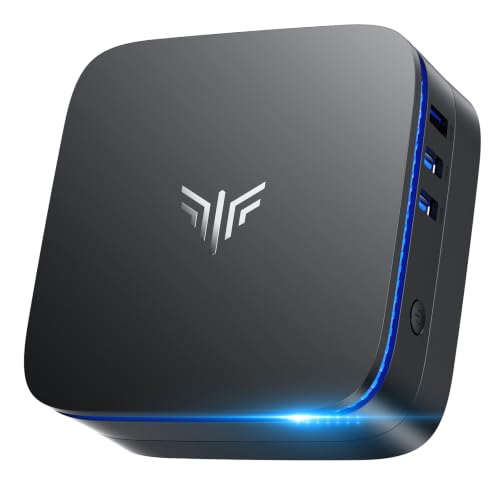
How to Choose a Mini PC: A Step-by-Step Method That Ends the Guesswork
Learning how to choose a mini pc is really learning how to ask the right questions in the right order. A mini pc can be the smartest computer purchase you make this decade — tiny, quiet, efficient and far more powerful than its size suggests — or it can be an underpowered paperweight that stutters through every video call. The difference is almost never luck. It is whether the buyer matched the processor class, memory, storage and ports to a clearly understood job, in that order, before looking at a single product page.
This guide teaches the method rather than merely listing machines. You will inventory your workload, translate it into a processor class, size the memory and storage with simple rules, run the desk test on ports and displays, settle the operating system question, and only then shortlist models — using the verified machines in this cluster as worked examples at every step. If you prefer the specification-first view of the same decisions, our broader guide covers the category from that angle Mini PC Buying Guide; the two pieces are designed to be read together, and the honest balance sheet of the category’s strengths and weaknesses lives here Mini PC Pros And Cons.
One promise before we start: no step in this method requires technical expertise. It requires honesty about how you actually use a computer, which is a different and much more available skill.
Where to Buy
The six machines referenced throughout this method were verified as exact listings before inclusion. Every model below was checked against the verified pick sheet for this guide on reviewstook.com, and each link goes to the exact listing whose title was confirmed, so you are never guessing which configuration you are about to buy.
- KAMRUI AK1PLUS Mini PC
- KAMRUI Pinova P1 Mini PC
- BOSGAME E5 11 Pro Mini PC
- Glorlin Mini PC (Ryzen 5 3500U)
- GMKtec M5 Ultra Gaming Mini PC
- ACEMAGIC Mini Gaming PC
In this guide
Key Takeaways
- Choose the processor class from your heaviest weekly task, never from your lightest daily one.
- Treat 16GB of memory as the general-purpose floor; 8GB is for single-purpose machines only.
- Size storage for your local files plus one large application or game — then add headroom.
- Count monitors and peripherals before buying; the right ports beat a drawer of adapters.
- Buy the parts you cannot upgrade (processor, fixed memory) for the machine’s whole life.
- Decide the operating system by your software list, not by habit or fashion.
Step One: How Do You Write a Workload Inventory?
Take ten minutes and write down three lists. The daily list: applications you open every day and roughly how many browser tabs you keep alive. The weekly peak list: the single heaviest thing you do in a typical week — editing photos, running a virtual machine, a big spreadsheet, a game, a video project, a long compile. And the desk list: monitors and their resolutions, keyboard, mouse, headset, webcam, printers, external drives and anything else with a cable or a dongle.
These three lists are your entire buying specification. The daily list determines whether an entry machine feels smooth or sluggish. The weekly peak determines your processor class — this is the step most buyers skip, choosing for their average day and then suffering through their peak. The desk list determines ports and display outputs. If you share the machine, inventory the household, not just yourself: a family mini PC must survive the union of everyone’s peaks, which is usually an argument for one tier more memory than any single user needs.
Be specific about games, because “some gaming” spans a canyon. Write down actual titles. Esports games, indie titles and older releases are realistic on strong integrated graphics; the newest large-budget releases at high settings are not a mini PC use case at all, and recognising that now saves a disappointed return later. Similarly, name your creative software: “photo editing” in a browser-based tool and in a professional raw editor are different workloads wearing the same label.
Step Two: Which Processor Class Matches Your Peak?
People shopping for a small computer often ask which processor is “best,” but the more useful question is which processor class matches the desk the machine will live on. Mini PCs draw their chips from the laptop world, and the classes are consistent. Low-power Celeron-class silicon, like the N5095, targets silence, tiny power draw and basic computing: documents, browsing, email, streaming video and admin work. It is a legitimate choice for a kitchen PC, a reception desk or a child’s homework machine, and a poor choice for anything creative or computational.
The middle class — AMD Ryzen U-series processors — is where most buyers should land. These chips pair efficient cores with integrated graphics that handle two or three 4K displays without drama, and they keep everyday software feeling instant. The top class, Ryzen HS processors and Apple silicon, exists for buyers who want genuine headroom: compiling code, editing photos in batches, running multiple virtual machines, or playing games on integrated graphics. The Radeon 680M paired with the Ryzen 7 7735HS is the strongest integrated graphics in this cluster, while Apple’s M6 takes a different route with a unified architecture that suits macOS creative applications particularly well.
Whichever class you choose, check the exact chip name rather than the brand family. “Ryzen 7” spans several generations and performance levels; the model number after it is the truth. Every pick in this cluster lists its full processor name in its specification box for exactly that reason, and you should be suspicious of any listing that hides the chip behind a vague series label.
Now map your inventory to the ladder. Essentials-only inventories — documents, browsing, calls, streaming — belong on the entry rung: the KAMRUI AK1PLUS exists precisely for this desk. Inventories with heavy multitasking, multiple monitors or light creative work belong on the U-series rung, represented here by the KAMRUI Pinova P1 at its lower edge, the Glorlin and BOSGAME machines in its middle, and the GMKtec M5 Ultra at its top. Inventories with gaming, virtual machines or serious creative work belong on the performance rung, where the ACEMAGIC machine in this worked example sits — and where the flagship examined in our single-product review also lives Mini PC Review.
Step Three: How Much Memory and Storage Should You Specify?
Memory sizing for a mini PC follows simple, testable logic. Eight gigabytes, as fitted to the KAMRUI Pinova P1 and BOSGAME E5 11 Pro, is enough for focused work: one main application, a browser with a modest tab count, documents and calls. It is the right amount for a single-purpose desk — a reception machine, a home-office PC for one suite of apps, a Linux box running services — and it will feel tight the moment you stack a browser, a chat client, a spreadsheet and a video call on top of each other.
Sixteen gigabytes is the comfortable mainstream: it absorbs heavy browsing, office suites, light photo work and development tools without the system swapping to storage, and it is the minimum we suggest for anyone keeping a machine for several years. Above that, 24GB and 32GB configurations serve multitaskers, virtual-machine users and — importantly — gaming on integrated graphics, since the GPU shares this pool. The Apple Mac mini complicates direct comparison because its unified memory is shared between CPU and GPU by design and managed differently by macOS; treat its 16GB as a complete-system figure rather than a Windows-equivalent number, and remember it cannot be changed after purchase.
Upgradeability is the hidden variable. Some mini PCs use standard laptop memory slots you can upgrade later; others solder memory to the board. If a listing does not make this clear, assume the configuration you buy is the configuration you keep, and size accordingly. Buying one tier above your current need is cheaper than replacing the whole machine in two years.
Storage in this cluster starts at 256GB and rises to 1TB, and the right size depends on what lives on the machine rather than in the cloud. A 256GB drive suits a desk whose files live in cloud storage, whose media streams rather than downloads, and whose software list is short — with the warning that operating system updates, caches and one large game can consume a surprising share of it. The 512GB configurations are the stress-free middle: room for a real application library, local documents, photos and a handful of games. The 1TB drive in the GMKtec M6 Ultra suits creators, game libraries and anyone who treats the PC as their primary archive.
Speed matters as well as size. All of the main picks here use solid-state storage, and NVMe drives in particular keep boot times, application launches and file copies feeling instant. Two expansion details are worth knowing: the KAMRUI AK1PLUS accepts an additional 2.5-inch SSD, which is a cheap way to add bulk storage for media or backups later, and several machines use standard M.2 drives that a confident owner can swap. External storage is the other pressure valve — a fast USB or USB4 drive is a perfectly good home for a game library or media collection that does not need to live on the internal drive.
Whatever size you choose, keep a simple backup habit from day one: cloud sync for documents, and an external drive image for the system. A mini PC is small enough to be knocked off a desk, and the data on it is the only part you cannot replace.
Apply the rules mechanically. If your daily list ever shows a browser, a chat app, a document suite and a call running together, 8GB is disqualified — choose 16GB or more. If your weekly peak involves virtual machines, large photo libraries or games on integrated graphics, choose 24GB or 32GB where the budget allows. For storage, total your local files, add the operating system and your application library, add your single largest game or project, and then double the result if you can afford to: storage regret arrives faster than any other kind. Where a machine offers expansion — the AK1PLUS’s 2.5-inch bay is the cluster’s clearest example — you may relax the storage rule slightly, because you hold a cheap escape hatch.
Step Four: Does the Machine Pass Your Desk Test?
Ports are where a mini PC either disappears into your setup or becomes a daily annoyance, so count your peripherals before you buy. The good news in this cluster is display support: most of these machines drive two or three 4K monitors using combinations of HDMI, DisplayPort and USB-C or USB4 video output, which makes a mini PC a legitimate multi-monitor workstation rather than a compromise. Check which standards your monitors use and confirm the machine offers them natively, so you are not dependent on adapters from day one.
For data, the spread matters. USB4 on the GMKtec M6 Ultra is the premium option, opening the door to fast docks, rapid external storage and single-cable desk setups. USB-C display output on the KAMRUI Pinova P1 and GMKtec M5 Ultra serves the same docking idea at a lower tier. Wired networking is a quiet strength of this category: dual 2.5GbE LAN on the GMKtec machines and the BOSGAME suits home labs, network storage and anyone whose WiFi is unreliable, while WiFi 6 or 6E covers the rest. Bluetooth 5.x across the range handles keyboards, mice, headsets and controllers without dongles.
The practical test is to list everything on your desk — monitors, keyboard, mouse, headset, webcam, external drives, a phone charger — and count the ports and the cables. A machine that needs a hub for your basics is the wrong machine; a machine with one or two ports to spare is the right one.
Run the test literally: every device on your desk list must have a home, natively, with one port to spare. Pay special attention to display standards. The Pinova P1’s HDMI, DisplayPort and Type-C trio and the M5 Ultra’s similar spread suit most modern monitors; dual-LAN machines like the BOSGAME and M5 Ultra add a wired-networking dimension that matters if the PC will talk to network storage or serve files. Then picture the cables: a machine that passes on paper but forces a permanent adapter chain has failed the test in spirit.
Step Five: Which Operating System Does Your Software Demand?
Operating system choice is the one decision in this category that cannot be undone with an upgrade, so make it deliberately. The Windows machines in this cluster run Windows 11, with the ACEMAGIC notably shipping Windows 11 Pro — relevant if you need its remote desktop hosting, drive encryption management or domain features for work. Windows offers the widest software and game compatibility and is the default assumption of most workplaces.
The Apple Mac mini runs macOS, which is either the whole point or a complete mismatch depending on your software list. If your tools are Apple’s, or cross-platform applications you already know run natively on Apple silicon, the Mac mini is a polished, quiet and efficient desk machine. If your work depends on Windows-only software or your games live in Windows-only libraries, no amount of hardware elegance will fix the mismatch.
Linux is the third path, and the BOSGAME E5 11 Pro explicitly supports it, down to SSH-based headless use. A mini PC makes a superb small home server, development box or network services machine, and several buyers in this category purchase with exactly that second life in mind. Whichever system you choose, spend the first hour removing bundled extras you do not need, applying updates, and turning on the built-in backup and encryption tools — an hour of setup hygiene pays for itself for years.
Step Six: How Do You Shortlist and Verify?
With class, memory, storage, ports and platform fixed, the market collapses to a handful of candidates — and now product research becomes verification rather than browsing. For each candidate, confirm the exact processor model, the memory capacity and whether it can be upgraded, the storage type and size, the port list against your desk test, and the operating system licence. Treat any listing that hides the processor behind a family name as disqualified until clarified. Compare configurations like-for-like when you check prices, because a cheaper listing with half the memory is not a bargain — it is a different, smaller machine wearing the same name.
This is also the moment to sanity-check your tier against the wider market: browse the current category landscape Best Mini Pcs, read a roundup of full reviews Mini PC Reviews, and if gaming is anywhere in your inventory, read the direct comparison between standard and gaming-focused mini PCs before deciding which tribe to buy from Mini PC Vs Mini Gaming PC. Verification takes twenty minutes and prevents the two classic regrets — the machine that was almost powerful enough, and the machine whose power you paid for and never use.
The Worked Shortlist: Six Machines, Six Rungs

KAMRUI AK1PLUS Mini PC
Entry tier done properly: modest processor, sensible memory, solid-state storage and room to add a second drive later. It is the machine for a first home-office desk, a family PC or a dedicated single-purpose workstation.
| Processor | Intel Celeron N5095 (up to 2.9GHz) |
|---|---|
| Memory | 16GB RAM |
| Storage | 256GB SSD, supports 2.5-inch SSD expansion |
| Networking | WiFi, Bluetooth, Ethernet |
| Displays | Dual 4K |
| Best role | Everyday office and home basics |


KAMRUI Pinova P1 Mini PC
The entry Ryzen option. The Ryzen 3 Pro 7330U is a meaningful step up in responsiveness from Celeron-class chips, and triple display output over HDMI, DisplayPort and Type-C makes it a tidy multi-monitor office machine. The 8GB of memory is its ceiling: fine for focused work, tight for heavy multitasking, so buy it for a defined, single-desk job.
| Processor | AMD Ryzen 3 Pro 7330U (up to 4.3GHz) |
|---|---|
| Memory | 8GB RAM |
| Storage | 256GB SSD |
| Networking | WiFi, Bluetooth |
| Displays | 4K via HDMI, DisplayPort and Type-C |
| Best role | Entry-level Ryzen office work |

BOSGAME E5 11 Pro Mini PC
The utility player: dual wired networking and Linux support give it roles most mini PCs cannot fill, from office workstation to compact home server, provided its modest memory matches the job.
| Processor | AMD Ryzen 5 5300U (4 cores / 8 threads) |
|---|---|
| Memory | 8GB DDR4 |
| Storage | 256GB M.2 2280 SSD |
| Networking | Dual LAN with 2.5 GbE, Wi-Fi 5, Bluetooth 5.0 |
| Displays | Triple displays, 4K at 60Hz |
| Note | Supports Linux and SSH use |


Glorlin Mini PC (Ryzen 5 3500U)
The storage-generous budget pick. Its older Ryzen 5 3500U is a capable everyday processor, and the combination of 16GB of memory with a 512GB NVMe SSD is more comfortable than many newer-named rivals manage. WiFi 6, Bluetooth 5.3 and three 4K display outputs make it an easy home-office recommendation for buyers who keep files locally.
| Processor | AMD Ryzen 5 3500U (4 cores / 8 threads, up to 3.7GHz) |
|---|---|
| Memory | 16GB RAM |
| Storage | 512GB NVMe SSD |
| Networking | WiFi 6, Bluetooth 5.3 |
| Displays | Three 4K screens via dual HDMI and DisplayPort |
| Best role | Budget home office with generous storage |

GMKtec M5 Ultra Gaming Mini PC
The balanced middle of the range: strong processor, modern WiFi 6E, dual fast LAN and three-display support, with storage as the deliberate economy.
| Processor | AMD Ryzen 7 7730U |
|---|---|
| Memory | 16GB RAM |
| Storage | 256GB SSD |
| Networking | Dual NIC LAN 2.5GbE, WiFi 6E, Bluetooth 5.2 |
| Displays | Triple 4K via HDMI 2.0, DisplayPort and USB-C |
| Best role | Mid-range all-rounder |

ACEMAGIC Mini Gaming PC
The gaming value pick. The Ryzen 7 7735HS with Radeon 680M graphics is the strongest gaming combination in this cluster, and 24GB of memory feeds both multitasking and the integrated GPU properly. Windows 11 Pro, 2.5Gbps LAN, WiFi 6 and triple 4K output round out a machine built for people who work all day and play in the evening on the same small box.
| Processor | AMD Ryzen 7 7735HS |
|---|---|
| Graphics | AMD Radeon 680M integrated graphics |
| Memory | 24GB RAM |
| Storage | 512GB SSD |
| Networking | 2.5Gbps LAN, WiFi 6 |
| Displays | Triple 4K |
| Operating system | Windows 11 Pro |

How Do You Set the Machine Up Once It Arrives?
Unbox onto a clear desk and connect the minimum: one monitor, keyboard, mouse, power. Complete the first boot and every pending update before connecting anything else — mini PCs frequently improve fan curves and display handling in early firmware updates, and you want that baseline before judging the machine. Add monitors and peripherals one at a time, testing as you go. Choose final placement with vents unobstructed; behind-monitor mounting is excellent provided the monitor’s exhaust is not feeding the PC’s intake. Then set up backup and sign-in security, remove bundled software you do not need, and only then migrate files and install your full application set.
Problem: a second monitor stays black. Fix: confirm the port you used actually carries video on that model, try the other display output, and check the monitor’s input selection before suspecting the PC. Problem: the fan is louder than expected on day one. Fix: let updates finish and give the machine an hour of normal use; indexing and update work makes any new PC temporarily busy and warm. Problem: WiFi speeds disappoint. Fix: test wired if your machine has Ethernet — several in this cluster offer fast or dual LAN — and reposition the PC out from behind metal monitors or inside cabinets, which shield antennas surprisingly effectively.
Heat and noise are the physics tax on small computers, and every mini PC negotiates that tax differently. Entry-level chips produce so little heat that their machines stay near-silent under office loads; you will hear a home’s ordinary room sounds over them. Performance chips work harder: under a sustained gaming or rendering load, a small fan in a small chassis becomes audible, though well-tuned machines keep the tone smooth rather than whiny, and under everyday loads they settle back to a murmur.
Placement is your half of the bargain. Give the machine air on all sides, never seal it in an unventilated cabinet, and keep vents clear of papers and dust. Mounting the PC behind a monitor with a VESA bracket — a classic mini PC trick — is excellent for desk space and usually fine for airflow, as long as the monitor’s own heat is not blasting straight into the intake. A can of compressed air every few months, used gently with the machine off, keeps dust from insulating the heatsink.
Expectations calibrated this way rarely disappoint: judge a mini PC’s noise under the load you will actually run most of the time, not under a synthetic stress test, and remember that a machine working hard for ten minutes during an export is behaving normally, not failing.
Common Mistakes When Choosing a Mini PC
Choosing by family name instead of exact chip model is the most expensive mistake, followed closely by sizing memory for the average day instead of the peak hour. Buyers also routinely forget a peripheral — the webcam, the printer, the drawing tablet — and discover the omission at setup. A subtler mistake is buying storage by today’s files while ignoring that operating systems and game installs grow every year. And the most human mistake is skipping the worth-it question entirely: for some desks the correct conclusion of this method is a laptop, or a tower, and an honest method must allow that answer Is A Mini PC Worth It.
Final Recommendation
Follow the six steps and the choice usually makes itself: inventory honestly, let the peak set the processor class, floor the memory at 16GB for general use, size storage with headroom, pass the desk test, and verify the exact listing before money moves. In this cluster’s worked examples, that method lands essentials desks on the KAMRUI AK1PLUS, focused Ryzen desks on the Pinova P1 or Glorlin, infrastructure-minded buyers on the BOSGAME, balanced power users on the GMKtec M5 Ultra, and players and creators on the ACEMAGIC. Check the live price of your chosen configuration, and buy the machine your lists described — not the one an advertisement described to you.
Three Worked Examples: The Method Applied to Real People
Abstract steps become clear when walked by someone specific, so here are three composite buyers — assembled from the patterns this category sees constantly — taken through the method from inventory to shortlist.
Example One: The Analyst With Two Monitors and a Spare-Time Channel
Her daily list: a browser with thirty tabs, a chat client, documents and spreadsheets, video calls. Her weekly peak: editing a twenty-minute video for a small channel, plus a spreadsheet model that makes lesser machines visibly think. Her desk list: two 4K monitors, a headset, a webcam, an external drive. The method reads her peak — video editing plus heavy multitasking — and places her on the performance rung, with memory at the generous end because editing and multitasking both feed on it. Her shortlist from this cluster is the GMKtec M6 Ultra pattern: performance processor, maximum memory, large storage for project files, triple display outputs so a third screen stays possible. The entry machines never appear in her process, and correctly so — her peak disqualifies them in step two, saving her from the most common regret in the category.
Example Two: The Retired Teacher’s First Home Computer in a Decade
His daily list: email, browsing, video calls with family, documents, streaming in the evening. His weekly peak: a photo slideshow from a phone backup, once, patiently. His desk list: one monitor, a printer, a keyboard and mouse. The method places him at the entry rung without a moment’s guilt: the KAMRUI AK1PLUS pattern — modest processor, comfortable memory, expandable storage for the photo archive — serves his entire inventory with silence to spare. The method’s value here is permission: permission not to buy headroom he will never use, and to spend the difference on a larger, kinder monitor instead.
Example Three: The Student Who Games
Her daily list: lectures, notes, research browsing, documents. Her weekly peak: gaming sessions — esports titles with friends, a growing indie library — plus coursework that occasionally involves a virtual machine for a computing class. Her desk list: one high-refresh monitor, a headset, a controller. The method catches two peaks pulling the same direction: the virtual machine wants memory, the games want graphics, and both point to the gaming tier — the ACEMAGIC pattern, with its Radeon 680M and generous memory, or the M6 Ultra pattern if the budget stretches. Her desk test adds a wrinkle worth copying: she checks the monitor connection path for her high-refresh display before ordering, because a gaming setup betrayed by a cable standard is a classic own goal.
A One-Page Checklist to Take Shopping
Condensed from all six steps, in the order to apply them. One: my heaviest weekly task is named, in writing. Two: my processor class follows from it — essentials, U-series productivity, or performance. Three: memory is 16GB or more unless the machine has exactly one job. Four: storage covers my local files, my applications and my largest project or game, with headroom. Five: every desk peripheral has a native port, with one to spare, and my monitors connect without adapter chains. Six: the operating system matches my software list, not my habits. Seven: the listing I am buying names the exact processor, memory and storage — no family names, no variant-selector surprises. Eight: I have checked the live price of this exact configuration, compared like-for-like against at most two finalists. Nine: I know the seller’s returns window, and I will test my peak workload inside it. Ten: I have asked the worth-it question once, honestly, and the answer was yes.
That checklist is deliberately unglamorous. Choosing well is mostly the disciplined absence of the ten small errors it prevents — and a buyer who runs it will choose better than most experts browsing on instinct.
What If Your Inventory Points to Two Tiers at Once?
The common hard case: a daily list that screams entry tier and a weekly peak that whispers performance. A teacher who edits one video a month; an office worker whose spreadsheet model runs quarterly; a parent whose child is beginning to game. The method’s tie-breakers, in order. Frequency first: a peak that arrives weekly outranks one that arrives quarterly, and a quarterly peak can sometimes be borrowed — a family member’s machine, a workplace computer — rather than bought. Growth second: a peak belonging to a growing hobby or a developing career deserves the higher tier, because it will be a daily list soon. Frustration third: some peaks are merely slow on a lower tier, and some are impossible; slow is a price worth paying occasionally, impossible is not. Apply the three tie-breakers and the two-tier case almost always resolves — and when it genuinely does not, buy the higher tier, because the cost of over-buying is money while the cost of under-buying is money plus the machine.
How to Read a Listing Like a Reviewer
Product listings are arguments, and reviewers read them adversarially. Adopt the habit for your finalist and three patterns will start glowing. First, the order of information: honest listings lead with the exact processor model, memory and storage; listings that lead with adjectives and reveal the processor three screens down are telling you why. Second, the variant selector: confirm that the configuration in your basket is the configuration in the headline, because the headline price-shaped impression often belongs to the smallest variant. Third, the port photograph versus the port list: count the physical ports in the images and reconcile them with the text — discrepancies resolve in favour of the photograph, always.
Apply the same adversarial reading to reviews, including ours. A useful review names the exact configuration it discusses, separates verified specification from general knowledge about a hardware class, and tells you who should not buy the product. A review that praises everything and specifies nothing is an advertisement wearing a review’s clothes. This cluster’s own single-machine examination tries to model the standard Mini PC Review; hold every source you consult — us included — to it.
The Seven-Day Test Protocol After It Arrives
Choosing does not end at checkout; it ends when the returns window closes, and a deliberate test week converts that window from a deadline into a tool. Day one: updates, setup, backup — the boring foundations. Day two: your daily list, exactly as inventoried, watching for any moment the machine makes you wait. Day three: your weekly peak, in full, at its real scale — not a token version. Day four: the desk test in practice — every peripheral connected simultaneously, every monitor at its intended resolution, a full working session. Day five: the acoustic test — the machine in its final position, during your quietest regular activity. Day six: the growth test — one workload from the tier above yours, attempted in the knowledge that it is allowed to be slow, to learn where the ceiling lives. Day seven: the verdict — keep, or exchange up a tier while exchange is painless.
Most buyers who run this protocol keep their machines, because the six steps chose well. The protocol’s value is concentrated in the minority case: the peak that turned out heavier than the inventory admitted, discovered on day three rather than in month three. Treat the test week as the final step of choosing — step seven, the empirical one — and the method in this guide becomes a loop that cannot really fail: inventory, class, memory, storage, desk, platform, verification, and then proof.
Questions Worth Asking Before You Commit
Four questions, asked of yourself rather than of any salesperson, catch the residual errors the steps miss. What will I do in month thirteen that I am not doing now — and does the machine survive it? If the answer involves a growing hobby, a course or a career change, it belongs in the inventory, not in a footnote. What is this machine’s second life in my household, concretely — named room, named role? A machine with a named retirement is a cheaper machine than its price suggests. Which single specification would I upgrade if the budget grew by one step — and is that specification one of the unchangeable ones? If yes, stretch now; if it is storage, relax, because storage forgives. And finally: am I choosing this machine, or am I choosing against a previous machine’s frustrations? Buyers fleeing a slow old computer systematically over-buy the attribute that hurt them — usually raw speed — and under-buy the quiet ones, like memory and ports, that will actually govern the next five years. The inventory exists precisely to overrule that reflex; trust it over the scar tissue.
Choosing for Someone Else: The Gift and Family Variant
Half the mini PCs in this cluster will be chosen by one person for another — a parent for a student, a child for a parent, a partner for a shared desk — and the method bends in two places when the buyer is not the user. The inventory must be taken by interview rather than introspection, and interviews under-report peaks: ask not “what do you do on the computer?” but “what is the most annoying thing the old computer does?” and “what have you stopped trying to do on it?” The answers — the game abandoned, the video never edited, the video call endured on a phone because the PC could not be trusted — are the real peak list, and they reliably point one tier higher than the polite inventory suggested.
The second bend is support. A machine you choose for someone else is a machine you will be telephoned about, so weight the unglamorous virtues: the tier with headroom that prevents the “it has gone slow” call, the operating system the user already knows rather than the one you prefer, the storage that postpones the “it says the disk is full” call for years. Buy the boring-correct machine, set it up completely before handing it over — updates done, backup running, accounts signed in, the desktop arranged the way the old one was — and the gift becomes what it should be: not a project for the recipient, but a desk that simply works, chosen well by someone who cared enough to run the steps properly.
The Method, Compressed Into One Paragraph
Write down your daily applications, your heaviest weekly task and every device on your desk. Let the weekly task choose your processor class — essentials, U-series or performance — and refuse to shop below it. Set memory at 16GB unless the machine has exactly one job, and size storage for your files, applications and largest project with headroom to spare. Count ports against the desk until every device has a native home. Let your software list choose the operating system. Verify the exact listing — processor model, memory, storage — and check its live price against one like-for-like rival. Test the peak inside the returns window. Nine sentences, one good computer: that is the whole method, and everything else in this guide is commentary on why each sentence earns its place.
How Long Should Choosing Take?
A reasonable fear, reading a guide this thorough, is that choosing a mini PC has been made to sound like a research degree. It has not: the method’s steps are front-loaded thinking that replaces weeks of tab-hopping with an hour of sequence. Timed honestly, the inventory takes ten minutes with a notebook. The processor-class decision takes five, because the inventory makes it. Memory and storage sizing take five more, being arithmetic rather than taste. The desk test takes fifteen, most of it spent counting cables and reading your monitors’ input panels. Platform takes two minutes if your software list is honest. Shortlisting and verification — the only step involving product pages at all — takes twenty. Under an hour, start to finish, for a machine that will sit on your desk for half a decade.
Set that hour against the alternative timelines. The unmethodical buyer spends longer — far longer — spread across evenings of contradictory listings, and arrives at a decision with less confidence and a higher chance of the two classic regrets. The under-buyer spends the hour again in eighteen months, plus the price of a second machine. The over-buyer spends it once but pays a quiet tax of unused capability for years. Measured in time, the method is not the expensive option; it is the discount. And measured in confidence, it returns something no amount of browsing buys: the knowledge of why your machine is the right one, stated in your own workload’s terms — which is what makes the test week a formality and the ownership years that follow it untroubled.
Frequently Asked Questions
What is the first thing to decide when choosing a mini PC?
Your workload peak. Write down the heaviest task of your typical week; it sets the processor class, and every other decision — memory, graphics capability, budget tier — follows from that class.
How do I know if a processor is powerful enough?
Match the class, not the brand: Celeron-class for essentials, Ryzen U-series for productivity and multitasking, Ryzen HS-class or Apple silicon for creation, virtual machines and gaming on integrated graphics. Always confirm the exact model number in the listing.
Is it better to spend on memory or storage?
Memory first, because on many mini PCs it cannot be changed later, while storage can often be expanded internally or externally. Integrated graphics also share memory, so memory spending helps gaming too.
Can I upgrade a mini PC later?
Usually storage, sometimes memory, never the processor or graphics. That is why this method buys the unchangeable parts for the machine’s whole working life.
How many monitors can a mini PC drive?
Most models in this guide drive two or three 4K displays. Match the machine’s HDMI, DisplayPort and USB-C/USB4 outputs to your monitors’ inputs to avoid adapters.
Should I choose Windows, macOS or Linux?
Let your software decide. Windows offers the broadest compatibility, macOS suits Apple’s ecosystem and apps, and Linux excels for development and home-server roles — the BOSGAME in this guide explicitly supports it.
What if I choose wrong?
Buy from a listing with a clear returns policy, test your peak workload in the first days — not just email — and exchange up a tier promptly if the machine strains. Testing the peak early is the whole point of the inventory.