Disclosure: As an Amazon Associate, reviewstook.com earns from qualifying purchases. Links on this page are affiliate links; they cost you nothing extra. Prices and availability change often, so check the current Amazon listing before you buy.
A game wont launch for one of a surprisingly small number of reasons, and the fastest path back to playing is not trying fixes at random — it is identifying which family your failure belongs to, then working that family’s checklist in order. Launch failures sort into five families: the game files themselves are damaged or incomplete; the platform around the game — Steam, the Epic launcher, Battle.net, the Xbox app — is confused about state, cache or permissions; the system beneath both, meaning drivers, runtimes and Windows itself, is missing something the game needs; security software or an overlay is interfering at the exact moment of startup; or, least often and most seriously, hardware is beginning to fail, most commonly the drive the game lives on. This guide walks each family in the order you should test them, explains what each symptom is telling you, and ends with the two storage upgrades worth considering when the last family turns out to be yours. Read the symptom sections first and start at the family your failure matches — the order of this article is a diagnostic, not a ceremony.
One habit separates quick fixes from evening-long ordeals: change one thing at a time and try launching after each change. Players who apply six fixes at once and succeed never learn which one mattered, and players who apply six at once and fail have built a machine they cannot reason about. The checklists below are written to be worked singly, in order, with a launch attempt between steps. It feels slower. It is, in practice, dramatically faster.
Key takeaways
- Verify the game’s files before anything else — it is the highest-success fix in this entire guide and costs nothing but download time.
- A game that launches on a second Windows account, or with overlays and antivirus paused, has told you exactly which family its problem lives in.
- Driver and runtime problems announce themselves with specific error messages; read the message before searching, because the exact wording is the diagnosis.
- Launch failures that move between games, or arrive with slow loads and stutter, point at the drive — check its health before reinstalling anything.
- Reinstalling the game is the last resort of the file family, not the first step of the evening.
In this guide
First, read the failure: what kind of wont-launch is yours?
Nothing happens at all — no window, no error, no process
The silent failure is the most common and the most informative. You click Play, the button may briefly change, and then the desktop simply continues existing. This pattern usually means the game’s process started and died instantly, or never started because something it needs — a runtime, a permission, an anti-cheat service — refused at the threshold. Work the platform family and the interference family first: launcher cache, administrator and compatibility settings, overlays and security software. A silent failure almost never means the game’s art files are corrupt; it means the doorway is blocked, not the house.
The splash screen or launcher appears, then closes
A game that shows its logo and dies has started successfully and failed during initialisation — loading drivers, graphics settings, or its first files. This is the signature of the system family and the file family in roughly equal measure: graphics drivers that the new title dislikes, a settings file pointing at a resolution or display that no longer exists, or early game files damaged in a way the menu never survives. Note whether the crash happens before or after any graphics appear; before suggests configuration and drivers, after suggests files and the drive beneath them.
A specific error message appears
An error message is a gift, and should be treated as one: write down or photograph its exact text and any code it carries before dismissing it. Missing DLL names point at runtimes — the Visual C++ redistributables and DirectX components that the system family covers. Anti-cheat errors name their own service and usually mean that service is blocked, outdated or quarrelling with security software. Graphics device errors point at drivers or at a game trying to use the wrong GPU in a dual-graphics laptop. The message is the diagnosis wearing a uniform; searching its exact wording will outperform every generic fix list, including this one.
It launched yesterday and will not launch today
A game that broke overnight was changed by something: a game patch, a Windows update, a driver update, or security software definitions. Work backwards through that list before working forwards through generic fixes. If the game patched, verify files and check the title’s known-issues chatter. If Windows or the driver updated, the system family’s rollback options become your first tools. The overnight failure is the most solvable kind, because its cause has a timestamp.
Several games fail, or the failures wander
When launch problems stop respecting game boundaries — different titles failing in different weeks, loads growing slower, textures arriving late, the launcher itself stuttering — stop troubleshooting software. That pattern is the drive family’s accent, and it is covered in its own section below, because reinstalling games onto a tiring drive is how a solvable hardware warning becomes a lost library.
Family one: the game files
Step one: verify or repair the installation
Every major platform can compare your installed files against its own record and replace the ones that differ. In Steam it lives in the game’s Properties under Installed Files; Epic calls it Verify; Battle.net calls it Scan and Repair; the Xbox app has a repair option in its management menus. Run it before anything else in this family. Interrupted updates, crashed downloads, overeager antivirus quarantines and drives with developing bad spots all announce themselves the same way — a file that is not what it should be — and verification answers all of them in one pass. Large games take a while; let it finish, because a verification cancelled at ninety percent has told you nothing.
Step two: clear the game’s own configuration
Games store their settings separately from their installation, usually in your Documents folder or AppData, and a corrupt or impossible settings file — a resolution your monitor cannot show, a display index for a screen you unplugged — can kill a launch that files alone would survive. Rename the game’s settings folder rather than deleting it, then launch: the game will rebuild defaults, and if it starts, you have found the culprit and can restore your preferences selectively from the renamed copy. This step is the specific cure for the splash-screen death described above, and for failures that began when you changed monitors or graphics hardware.
Step three: free the drive and check its space properly
Games need working room beyond their installed size — for patch staging, shader compilation and save growth — and a drive filled to its last gigabytes can fail launches in ways that look like file corruption. Keep a comfortable margin free on the game’s drive, and if the drive is nearly full, treat freeing space as a diagnostic step rather than housekeeping. While you are there, note which drive the game lives on; if it is an elderly hard drive in a system that also has an SSD, the platform’s move-install feature, used after the drive-health checks below, is a legitimate fix and not merely an upgrade.
Step four: reinstall — last, and only with evidence
A clean reinstall answers everything in this family and costs the most time, bandwidth and settings archaeology, which is why it sits last. Earn it: verification failed or found nothing while symptoms persist, configuration resets changed nothing, and the failure is confined to this one title. Before reinstalling, back up your saves if the game keeps them locally — cloud saves have made this less perilous than it was, and finding out yours were local-only is a lesson best learned from this paragraph rather than from experience.
Family two: the platform and its permissions
Restart the launcher completely — and the PC, once
Launchers are long-lived processes that accumulate confusion: stuck downloads, stale login tokens, cached states that no longer match the server. Close the launcher fully — including its system-tray resident — reopen it, and try again. If that fails, restart the PC itself once, not as superstition but because it clears the anti-cheat services, graphics driver states and file locks that a launcher restart cannot reach. A failure that survives a genuine restart has told you something valuable: it is persistent state, not a transient tangle, and the steps below are where persistent state lives.
Clear the launcher’s cache and check its status
Steam’s download cache, cleared from its settings, resolves a family of launch refusals where the button simply declines to work. The other platforms have equivalents in their settings or via their support-documented cache locations. While you are in the settings, confirm the platform itself is not mid-outage — a launcher that cannot reach its servers will fail launches in ways that impersonate local faults, and the platform’s status page is a thirty-second check that has saved many evenings.
Administrator rights and compatibility modes, used precisely
Running the game — once, diagnostically — as administrator separates permission problems from everything else: if it launches elevated, the fix is to repair the folders’ permissions or the anti-cheat service’s installation, not to play elevated forever. Compatibility modes are for genuinely old titles; applying them to modern games causes more launch failures than it cures, and if a compatibility flag is already set on a current game’s executable from some earlier troubleshooting adventure, removing it is a legitimate fix that surprises people every week.
Move the library folder off troubled ground
Games installed into protected or synchronised locations — inside cloud-synced folders, in directories an aggressive backup tool watches, on a drive with failing health — inherit their landlord’s problems. If a title’s failures resist this entire family, moving its installation to a plain folder on your healthiest drive, using the platform’s own move feature, is a diagnostic and a cure in one action. A game that launches from the new home has indicted the old one, and the drive-health section below becomes your next reading.
Family three: drivers, runtimes and Windows
Graphics drivers: update, or clean-install when updating is the problem
The graphics driver is the most powerful software in the launch chain and the most common system-family culprit. If a game fails after a driver update, or a new release fails on an old driver, the driver is the prime suspect. The remedy with the highest success rate is a clean installation — the driver installer’s own clean option, or a dedicated removal tool used carefully in safe mode for stubborn cases — because years of layered updates can leave a driver installation in a state no incremental update repairs. Laptop owners with dual graphics should also confirm, in Windows’ graphics settings, that the game is assigned to the discrete GPU; a title trying to launch on integrated graphics it cannot use produces failures that impersonate everything else in this guide.
The runtimes: Visual C++ and DirectX, reinstalled without ceremony
Most Windows games depend on Microsoft’s Visual C++ redistributables — plural, in several years’ versions, in both architectures — and on DirectX components whose web installer still repairs gaps that Windows’ built-in version leaves. Missing-DLL errors name these directly, but subtler launch deaths trace here too. Reinstalling the full redistributable set from Microsoft’s own pages is safe, quick and embarrassingly often the whole fix; the games themselves usually carry the installers they need in a redist folder inside their installation, which is the version-matched place to run them from.
Windows itself: updates, integrity and the gaming features
Run Windows Update to completion — including the restart it asks for — because a half-updated system is a launch-failure factory. If failures are broad and recent, Windows’ own integrity tools, run from an administrator terminal, can find and repair system files that updates and crashes have damaged. Check also that Game Mode is on and that no power plan is throttling the machine into laptop manners on a desktop. None of this is glamorous; all of it is the ground the game stands on, and ground problems impersonate building problems perfectly.
Family four: interference at the moment of launch
Overlays: the usual suspects, tested one at a time
Discord, Steam’s own overlay, GPU software overlays, recording tools and RGB utilities all inject themselves into games at launch, and any of them can be the one a particular title cannot survive. Disable them one at a time — not all at once, or you will never know the culprit — starting with the ones that changed most recently. A game that launches with an overlay disabled has not sentenced you to life without it; it has identified a version conflict that the overlay’s next update, or the game’s, will usually heal.
Antivirus and anti-cheat: a diplomatic problem
Security software and anti-cheat systems are both in the business of watching processes behave suspiciously, and a game launch — a new executable loading drivers and hooking inputs — can look exactly like the thing each is watching for. The diagnostic is to pause protection briefly and launch; the cure is never to play unprotected permanently, but to add the game’s folder and its anti-cheat service to the security software’s exclusions once the diagnosis is confirmed. If your security product quarantined game files earlier, restore them and then re-run verification from family one, because the two families’ damage arrives together.
Background software with hooks: capture, audio and RGB
The interference family extends beyond overlays to anything that hooks audio, video or input system-wide: capture cards’ software, virtual audio cables, soundboard tools, keyboard and RGB ecosystems. A launch failure that began when you installed a shiny new peripheral utility is that utility until proven otherwise. The clean-boot discipline — starting Windows with third-party services disabled, then re-enabling in halves — is the systematic version of this hunt, and Microsoft’s own documentation walks it safely. It is an hour’s work that feels like a day, and it ends arguments that guessing cannot.
Family five: when the drive is the problem
Reading the signs before the drive reads its last
A tiring drive announces itself in a dialect this guide has referenced throughout: verifications that keep finding files to repair in different games, loads that stretch month over month, stutters as textures stream, the occasional launch that succeeds on the third try. Solid-state drives add their own tells — a system that freezes for seconds at a time, event logs filling with storage errors. Our companion guide to checking drive health walks the full diagnostic, from SMART data to manufacturer tools; the short version here is to check before you reinstall anything, because installing onto a failing drive writes your library onto sand.
how to check drive health before it fails
If the drive is dying: rescue order of operations
Back up saves and irreplaceable files first, while the drive still answers — documents, save folders, screenshots, the things no platform can re-download. Games themselves are replaceable and should be rescued last, if at all. Then replace the drive, reinstall the platform, and let the library re-download onto healthy storage. Players who reverse that order — games first because they are large and visible — occasionally lose the small files that actually mattered while the big ones were still copying.
The two replacements worth your money
When a gaming drive is replaced, the two NVMe models below are the ones this site recommends without qualification for the role; both were verified through the Creators API catalogue data on 2026-11-24, with exact titles in the sources file. Choose between them on your motherboard’s generation and your budget; either will make the replaced drive feel like a rumour.

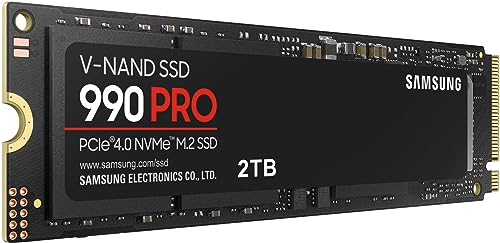
Samsung 990 Pro 2TB — the flagship game drive
Badge: Best for a primary gaming library
- Interface: PCIe 4.0 M.2 2280 per the listing
- Speed: up to 7,450 MB/s reads per the listing
- Capacity: 2TB in the verified listing
Samsung’s 990 Pro has been the reference PCIe 4.0 game drive for good reason: sustained performance under the random, bursty loads games actually generate, a mature controller with an excellent reliability record in the field, and software tooling that makes health checks and firmware updates painless — the last being directly relevant to readers arriving from a drive failure. As the home for an operating system plus a serious library, it is the default recommendation of this guide.
Strengths
- Reference-class gaming load performance and consistency
- Excellent health tooling for a buyer freshly burned by a dying drive
- Proven long-term reliability record
Trade-offs
- Premium pricing within its generation
- PCIe 4.0 ceiling for boards that could feed a 5.0 drive
- Heatsink variants need a clearance check in tight laptops
Best for: a primary drive replacement in a gaming desktop. Not suited for: budget rescues where any healthy SSD restores the library.

WD Black SN850X 2TB — the gaming-tuned alternative
Badge: Best value flagship for game libraries
- Interface: M.2 2280 NVMe per the listing
- Speed: up to 7,300 MB/s reads per the listing
- Features: gaming-focused firmware modes in WD’s software
Western Digital’s Black line is tuned unapologetically for game libraries, and the SN850X pairs near-flagship throughput with load behaviour optimised for the way games actually read. Its dashboard software gives the health visibility a burned buyer wants, and its pricing within the flagship tier is frequently the friendlier of the two. Between this and the Samsung, the honest differences are software taste and price on the day; the performance difference will not be felt in a launch screen by any human.
Strengths
- Gaming-tuned load performance at a friendlier tier price
- Clear health dashboard for ongoing peace of mind
- Heatsink model available for consoles and tight builds
Trade-offs
- Dashboard software is Windows-centric
- Peak figures trail the Samsung’s by a margin only benchmarks see
- Game-mode features are garnish, not substance
Best for: library drives and console expansion as well as PC primaries. Not suited for: buyers wanting the single fastest benchmark number.
A worked order of operations for a stubborn case
The ninety-minute protocol
When a failure has survived casual attempts, stop improvising and run the protocol in order: note the exact symptom and any error text; restart the PC once; verify the game’s files; reset the game’s configuration folder; disable overlays one at a time; pause security software once, diagnostically; clean-install the graphics driver; reinstall the runtimes from the game’s own redist folder; test on a second Windows account to separate machine faults from profile faults; and only then consider reinstalling the game or indicting the drive. Ninety minutes of that sequence, performed singly with a launch attempt after each step, resolves or precisely locates the overwhelming majority of launch failures — and the step that works tells you what your machine needed, which is knowledge that pays rent on every future failure.
Mistakes that turn a small failure into a lost weekend
Applying every fix you can find, simultaneously
The shotgun approach destroys information. A machine with six changes applied at once cannot tell you which one mattered, and if the failure persists you now own six new variables. The discipline of one change and one launch attempt is the entire method of this guide, and abandoning it is the single most common way a twenty-minute fault becomes a two-day saga.
Reinstalling Windows as an early move
A full Windows reinstall does fix most launch failures, in the same way that moving house fixes a leaking tap. It also costs a day of reconfiguration and destroys the evidence of what was wrong, guaranteeing you will meet the fault’s cousin again. Keep it as the documented last resort it is, after the protocol above has produced a specific indictment of the operating system itself.
Ignoring the error message’s exact words
Paraphrasing an error into a search — “game crashes dll” — retrieves the internet’s generic anxiety. The exact DLL name, the exact code, the exact anti-cheat service in the message are the diagnosis, and ten minutes honouring them outperforms an evening of generic fixes. Photograph the message before you dismiss it; future you, at step seven of the protocol, will be grateful.
Final recommendation
Work the families in order, change one thing at a time, and let each symptom route you: silent failures to the platform and interference families, splash-screen deaths to files and drivers, error messages to their named culprits, wandering failures to the drive. Keep verification as your first tool and reinstalling — of the game, and especially of Windows — as your last. And if the drive turns out to be the culprit, treat the replacement as the upgrade it secretly is: a modern NVMe drive will not only resurrect the game that would not launch, it will shorten every load that follows it, which is the happiest ending a troubleshooting guide is allowed to promise.
Anti-cheat failures deserve their own chapter
Modern multiplayer titles launch their anti-cheat before they launch themselves, and when the anti-cheat refuses, the game dies so early it looks like the silent failure from this guide’s opening. The tells are a brief splash of the anti-cheat’s own branding, an error naming the service, or a failure that affects several games sharing the same anti-cheat while sparing everything else. The remedies are specific: reinstall or repair the anti-cheat from the game’s own folder, where its installer usually lives; confirm its service is not disabled in Windows’ services list, because system-tuning tools sometimes disable it as clutter; remove the RGB and overlay utilities it is known to quarrel with; and check that your security software has not quarantined its driver, which returns you to the exclusion fix in family four. What not to do is follow forum advice to delete system files or disable core Windows security features in the anti-cheat’s name — legitimate anti-cheat problems are solved by repairing the service, never by weakening the machine around it.
Laptops: the dual-graphics trap and other portable specialties
Gaming laptops add one launch failure that desktops cannot have: the game choosing the wrong graphics processor. Windows and the GPU vendors’ software both maintain per-game assignments, and a title assigned — by an old setting, a confused update, a battery-saver intervention — to the integrated graphics may fail to launch entirely if its engine cannot initialise on that hardware, or may launch into single-digit performance that looks like a different fault. The fix lives in Windows’ graphics settings and in the NVIDIA or AMD control panel: assign the discrete GPU explicitly, then launch again. Laptops also suffer a battery variant of the same trap, where unplugged power profiles throttle the discrete GPU into uselessness; if a game launches on mains power and refuses on battery, you have met it. Finally, laptop owners should keep their manufacturer’s chipset and management drivers current alongside the graphics driver, because the handoff between the two GPUs is choreographed by software that ages as surely as the headline driver does.
Consoles are not immune: the same thinking, fewer tools
A console game that will not launch offers fewer levers, but the family logic survives the translation. Restart the console fully rather than sleeping it. Check the disc for the smudge or scratch that optical media still die of, or re-download the digital copy whose licence check is failing. Clear the console’s cache by its documented power ritual, confirm your account’s licence and subscription state — a lapsed subscription quietly revokes launches in a way that impersonates corruption — and check the storage’s free margin, because consoles, like PCs, need working room their owners forget to leave. A title failing after a system update is the console’s version of the overnight failure: check the publisher’s status channels before factory anything. The factory reset sits where the Windows reinstall sits on PC — documented, effective, and last.
When it is not your machine at all
Some launch failures are weather, not climate: the platform’s servers are down, the game’s login queue has collapsed on a launch day, a licence server is unreachable from your region, or a required online check is failing for everyone at once. The diagnostic is social and quick — the platform’s status page, the game’s official channels, the sudden crowd of identical complaints timestamped within the hour. The cure is patience and the refusal to dismantle a healthy PC in response to someone else’s outage, which is a real and recurring tragedy in troubleshooting forums: players reinstalling Windows because a server farm in another hemisphere had a bad afternoon. Before the ninety-minute protocol, spend ninety seconds confirming the world is working; it is the cheapest step in this entire guide and the one whose omission is most expensive.
Shader compilation: the launch that is only pretending to fail
A modern wrinkle deserves its own warning: many current games compile shaders on first launch, a process that can hold a black screen or a static splash for minutes that feel, to a reasonable person, exactly like a hang. Players force-quit, relaunch, and meet the same wall — sometimes corrupting the very cache the game was building. The tells are drive and processor activity continuing behind the still screen, and a second launch that gets further than the first. The discipline is to give a first launch one honest, uninterrupted ten minutes before declaring it dead, especially after a driver update, which invalidates shader caches and starts the compilation over. If a game provides a shader progress indicator in its menus thereafter, let it finish there too. Patience is not a satisfying fix, but in this one family of failures it is frequently the entire fix, and the players who learn it stop meeting the problem altogether.
Keeping a launch-failure log: the habit that pays compound interest
Players who game on the same machine for years will meet this guide’s families again, and the ones who meet them calmly share a habit: they keep a tiny log. A notes file with dates — driver installed, Windows updated, game patched, fault appeared, step that fixed it — converts every future failure from an investigation into a lookup. The log’s magic is pattern recognition across time: the overlay that breaks every autumn update, the anti-cheat that quarrels with one specific utility, the drive whose verification repairs began in March. None of that is visible inside a single evening’s frustration. Start the log with tonight’s fix, in one sentence, and you have bought your future self the cheapest insurance in PC gaming — the knowledge of what your particular machine, in your particular configuration, has done before.
Old games on new systems: the compatibility wing
Everything so far assumed a current game on a current system. The archive has its own failure modes, and they reward a different toolkit. Titles from earlier Windows eras may need the legacy DirectPlay feature enabled in Windows’ optional features, a specific older DirectX runtime the modern OS considers beneath it, or a community patch that the game’s surviving fans maintain with more devotion than its publisher ever did. CD-era titles add disc checks that modern Windows’ driver policies refuse, which the game’s later digital re-releases exist precisely to solve — buying the maintained digital version of a beloved old game is often the cheapest hour-for-hour fix in this entire guide. Compatibility mode, dismissed earlier for modern games, is a legitimate instrument here, applied one flag at a time with a launch attempt between each. And the second-account test from the main protocol still applies: old games are unusually sensitive to profile corruption, because they write their settings in places modern Windows protects differently than the era expected.
After the fix: making the next failure cheaper
A repaired launch is an opportunity to lower the price of the next one, and five minutes now buys hours later. Leave the drive the comfortable free margin this guide prescribed, rather than refilling it by Friday. Let the platform’s cloud saves be enabled and confirm they are actually uploading, because the day they matter is not a day you get to schedule. Keep the graphics driver on a cadence — not every release the hour it drops, not never — and note each version in the log. Keep one known-good restore point from a healthy week. None of this is the folklore of cautious people; it is the distilled experience of everyone who has ever lost a weekend to a game that would not launch and resolved, correctly, that the weekend was the tuition for a system. Pay the five minutes. The system is the fix that keeps fixing.
Mods, and the launch failure you installed yourself
For modded games, the differential diagnosis gains a first question that outranks everything in the families above: did it launch before the last mod change? Mods fail launches by version mismatch — a mod built for last month’s patch meeting this month’s game — by load-order quarrels, and by the framework mods beneath them updating on a different schedule than the game itself. The method is subtraction: disable the most recent additions first, then halves of the load order if the culprit hides, launching between changes with the same one-variable discipline as the main protocol. A game that launches clean with mods disabled has not asked you to abandon them; it has asked you to update the framework, respect the load order your mod manager reports, and reintroduce your collection in the order the evidence clears. Players who maintain a known-good mod profile — a saved load order from a working week — hold the archive version of the restore point this guide keeps recommending, and they spend their evenings playing instead of bisecting.
Reading Windows’ own evidence: the Event Viewer in plain terms
When a game dies silently, Windows usually writes a small obituary that most players never read. The Event Viewer’s application log records the crash with the faulting module named — and that module name is often the entire diagnosis compressed into one word. A fault in the game’s own executable points back to files and configuration; a fault in a graphics driver file indicts the driver; a fault in an overlay’s or audio tool’s module names your interference culprit outright; a fault in a system runtime returns you to the redistributables. You do not need expertise to use this: open the log after a failed launch, find the error timestamped at your attempt, and read the module name aloud. Compare it against the families in this guide and you will frequently find the protocol shortened from ninety minutes to the single step the evidence ordered. It is the closest thing PC troubleshooting has to asking the machine what happened, and the machine, to its credit, usually answers honestly.
A short word for the reader whose game launches on the second PC in the house
Households with two gaming PCs own a diagnostic instrument money cannot buy: a control machine. When a title launches on one and refuses on the other, the fault is definitionally local, and the fastest method is the diff — list the differences that touch the launch chain. Driver versions first, then recently installed utilities, then security products and their exclusions, then the drives’ ages and free space, then the Windows builds. Somewhere in that short list sits a difference shaped exactly like your symptom, and it is almost always the answer. The same diff disciplines single-PC owners who can borrow a friend’s configuration details. Troubleshooting feels like divination from inside one machine; from the vantage of two, it is mostly bookkeeping — which is the deepest lesson this guide has to teach, and the reason its every section has been a list of comparisons disguised as a list of fixes.
The psychology of the broken evening, and how the protocol answers it
There is a reason launch failures ruin evenings out of proportion to their technical weight: they strike at the exact moment leisure was supposed to begin, with friends sometimes waiting in a lobby, and every failed attempt feels like evidence that the machine you paid for is mocking you. The protocol in this guide is designed for that emotional reality as much as for the technical one. Its order front-loads the fixes most likely to succeed, so momentum builds early; its one-change discipline converts helplessness into a sequence of small, answerable questions; and its log habit means the evening, even when lost, purchases the next one. Players who internalise the method stop dreading the failure, because they have watched it surrender to the same steps often enough to trust them. That trust — not any single fix in the families above — is the real product of a good troubleshooting guide, and it is yours now for every game that ever refuses you again.
One final distinction: will not launch versus will not stay launched
Players use the phrases interchangeably, but the boundary matters because the toolkits diverge after it. Everything in this guide addresses the game that cannot reach its own menus. The game that launches, plays, and then crashes mid-session is a different patient — its suspects are thermals, power delivery, memory stability and in-game bugs, and feeding it launch fixes wastes the evening. If your failure straddles the line, crashing inside the first minute of menus, treat it as a launch failure and work the families; the initialisation phase extends further into the menus than the splash screen suggests. If it survives menus and dies in gameplay, close this guide with thanks and open the crash-troubleshooting one instead — beginning, as always, with temperatures and the Event Viewer’s honest obituary, which serves both patients equally well.
What success looks like, and the small ceremony that marks it
When the game finally launches — and with the protocol’s families worked honestly, it very nearly always does — resist the urge to simply play and forget. Take ninety seconds to close the loop properly: write the one-sentence log entry naming the step that worked, re-enable anything you paused diagnostically, restore the overlay you actually use if it was innocent, and set the restore point your healthy machine has earned. Then play, with the particular pleasure of a session that was defended rather than merely started. The players who perform that small ceremony are the ones whose next launch failure, whenever it comes, will cost them twenty minutes instead of an evening — because they will open the log, recognise the family, and start at the step that history has already nominated. Troubleshooting, done this way, compounds like interest. That is the whole secret, and it was never really about the game.
The guide’s promise, restated for the reader in a hurry
If you read nothing else, read this paragraph and work it in order. Confirm the world is up — the platform’s servers and the game’s service — before touching your machine. Restart once, genuinely. Verify the game’s files. Rename its settings folder and try again. Turn off your overlays one at a time. Pause your security software once, and if that cures it, write the exclusion instead of living unprotected. Clean-install the graphics driver, reinstall the runtimes from the game’s own folder, and test on a second account. Check the drive’s health before reinstalling anything onto it. That sequence, which fits in a paragraph, is the distilled form of every family in this guide — and the full text above exists to explain why each step earned its place, so that when your failure deviates from the script, you will know how to improvise in the same spirit rather than starting the guessing again from zero. Keep the paragraph somewhere you can find it at the worst moment — pinned above the desk, saved in the log file this guide asked you to start — because troubleshooting wisdom is only worth what it is worth at 9 p.m. with a lobby waiting, and at that hour nobody reads a guide; they read a paragraph, and work it, and play. If the paragraph alone rescues your evening, the guide has done its work and the families above can wait for a quieter day — when reading them, calmly, will make you the person in your circle who gets the call when a game will not launch, and who answers it with a sequence instead of a shrug. That reputation, earned one rescued evening at a time, is the final dividend of the method — and it begins, as everything in this guide begins, with verifying the files and changing one thing at a time, patiently, in the right order, until the game finally gives in and launches, as it almost always eventually does when the method is followed honestly and completely through to the end.
Frequently asked questions
Why does my game launch on my laptop but not my desktop?
Because the fault lives in one machine’s state, not in the game: a driver version, a runtime gap, an overlay, a security exclusion, or a drive. The working machine is your control group — compare driver versions and recently installed software between the two, and the difference that matches the symptom families in this guide is your prime suspect.
Is running as administrator a safe permanent fix?
It is a good diagnostic and a poor lifestyle. A game that only launches elevated is telling you a permission or service underneath is broken; fix the folder permissions or reinstall the anti-cheat service it depends on. Playing permanently elevated widens your system’s exposure for no benefit once the real fault is repaired.
How do I know if my drive is causing launch failures?
The pattern is breadth and progression: multiple games affected, verifications repeatedly finding damage, loads lengthening over months, occasional storage errors in the system logs. Confirm with a health check — SMART status through the drive maker’s tool or a reputable utility — before spending anything, and back up saves first if the report is poor.
Will reinstalling the game delete my saves?
Usually not, because most modern titles keep saves in the cloud or in your Documents folder, separate from the installation. Usually is doing heavy work in that sentence: check where your specific game stores saves before reinstalling, and copy the folder somewhere safe if there is any doubt. Two minutes of caution insures hundreds of hours of progress.
The game worked until its latest patch. What now?
Verify files first, because patches are when installations most often end up inconsistent, then check the developer’s known-issues posts for your exact symptom — a patch-day failure shared by thousands is a developer fix away, not a your-machine problem. Rolling back a graphics driver installed the same day is the other high-probability move.
When should I give up and reinstall Windows?
When the ninety-minute protocol has run completely, multiple unrelated games fail identically, and system integrity checks report damage they cannot repair. At that point the reinstall is a diagnosis honoured rather than a guess — and you will rebuild faster for knowing exactly which software to reinstall carefully and which to leave behind.
How can I tell whether the launcher or the game itself is at fault?
Separating the messenger from the message saves hours in this kind of troubleshooting. Begin by launching a different game through the same launcher: if that title opens normally, the launcher, your account session and the shared machinery beneath them are probably healthy, and suspicion moves to the problem game’s own files. If nothing opens, the fault sits higher up, so sign out of the launcher completely, close it from the system tray rather than merely minimising its window, and reopen it before testing again. Next, look for the game’s own executable inside its installation folder and try starting it directly, understanding that some titles will still demand the launcher and refuse politely. That refusal is itself information, because it tells you the two are linked as designed rather than broken. Keep each test to one change at a time and write down what happened in a single sentence. A short written trail turns a frustrating evening into a sequence you can hand to anyone helping you, instead of a fog of things you half remember trying.
What should I prepare before asking a support team or forum for help?
Good help depends on good evidence, and five minutes of preparation can save days of back and forth. Write down the exact wording of any error message rather than a paraphrase, because a single distinctive phrase is often searchable word for word. Note when the problem began and what changed just before it, a patch, a driver update, new hardware or a move to a different drive, since timing is the clue experienced helpers reach for first. Record the basic shape of your system, your graphics card, your operating system version and how much free space the installation drive has left. List the fixes you have already attempted, honestly and in order, so nobody wastes your time suggesting them again. Finally, mention whether other games launch normally, because that single fact divides the problem space in half. Arriving with this small dossier does not just speed up your answer; it signals that your report deserves a careful reader, and careful readers are exactly who you want.
Related guides
how to check drive health step by step
fixing HDMI audio that will not work
diagnosing an HDMI handshake failure
fixing a headset microphone that will not work