Disclosure: As an Amazon Associate, reviewstook.com earns from qualifying purchases. Links on this page are affiliate links; they cost you nothing extra. Prices and availability change often, so check the current Amazon listing before you buy.
Knowing how to backup gaming data is the difference between a drive failure being an afternoon’s inconvenience and it taking a decade of saves, screenshots and settings with it. Gaming data is not your game installs — those can be downloaded again. It is the irreplaceable layer: save files the cloud never touched, the screenshot folder from a game you finished years ago, controller and graphics configurations tuned over months, mod lists that took weekends to assemble, and the recordings of matches that cannot be replayed. This guide builds you a working system, not a vague intention: what to protect and where it actually lives on a modern PC, the storage worth buying for each role, a step-by-step setup for local and portable backups, how to verify that cloud saves are really doing what you assume, and the restore drill that turns a backup from a hope into a fact. The whole routine, once set up, asks about fifteen minutes a month of you.
Key takeaways
- Back up the irreplaceable layer — saves, screenshots, clips, configs and mod lists. Game installs are re-downloadable and are the lowest priority in any backup.
- Follow the adapted 3-2-1 rule: three copies of what matters, on two different kinds of storage, with one copy outside the machine — a portable SSD in a drawer satisfies the spirit of it for most players.
- Cloud saves are a feature, not a guarantee. Verify per game, because coverage varies by title and by launcher, and the failures are silent until the day you need the file.
- A backup you have never restored from is a hypothesis. The restore drill — copying one save back and loading it — is part of the setup, not an optional extra.
- The moments that destroy data are predictable: drive failures, reinstalls, hardware upgrades and repastes that go sideways. Back up before those moments, on a schedule the calendar triggers rather than your memory.
In this guide
What gaming data actually is, and where it hides
Start with an inventory, because gaming data is scattered by history rather than organised by design. Save files live in at least four kinds of places on a Windows PC: inside the game’s own folder or the launcher’s user-data directory for many Steam titles; in your Documents folder, often under a My Games subfolder, for a long tradition of releases; in the AppData folders — Local, LocalLow and Roaming — where a large share of modern and indie games quietly keep their progress; and in platform-specific stores, with the Xbox app and Game Pass titles keeping saves in a protected packages area that resists casual copying. Screenshots and clips live in the capture folders of your graphics software, your launcher galleries and the Windows Captures folder. Configurations live with the games, inside launchers, and inside peripheral software — mouse, keyboard, wheel and flight-stick profiles are gaming data too, and rebuilding a racing wheel’s per-game profiles from memory is a special kind of misery that the calibration guides’ readers will recognise.
Mods deserve their own sentence in the inventory: the mod files can usually be re-downloaded, but the list — which mods, which versions, which load order — cannot, and it is the list that represents your weekends. Export it, screenshot it, or copy the mod manager’s profile folder; the principle is to preserve the recipe even where the ingredients are replaceable. Emulator saves and the save-states of retro libraries are the most fragile data of all, because no cloud has ever seen them and their formats belong to software that itself may vanish. If it cannot be re-bought or re-downloaded, it belongs on the backup list by definition.
The cloud-save audit
Before building anything, audit what your platforms already protect, because the answer varies by game in ways the launchers do not advertise. In Steam, a game’s store page and its properties panel state whether it supports cloud saves; most do, some beloved titles do not, and a few support it partially. Epic, GOG and the other launchers each run their own systems with their own gaps, and games played through one launcher do not inherit another’s coverage. Game Pass and the Xbox app sync saves through their own service with the added complication that the local copies sit in protected folders. The audit takes twenty minutes: list the games whose progress you would genuinely mourn, check each one’s cloud status in its launcher, and mark the gaps. Those gaps — plus everything outside any launcher, which is most of the inventory above — are what your own backup system exists to cover. Trust the cloud where you have verified it, and only there.
The storage worth buying, by role
A gaming backup system has three roles: the fast portable drive that carries copies away from the machine, the rugged portable that survives being carried, and the internal drive that receives a clone or a migrated library when hardware changes. The four products below are the verified options for those roles, each confirmed against the site’s own catalogue data.
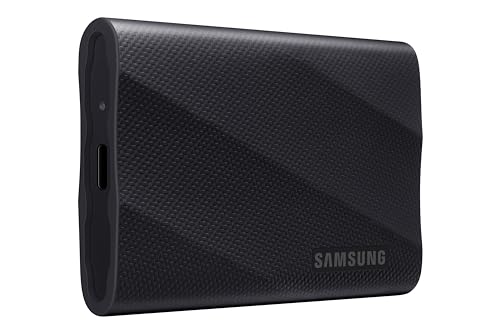
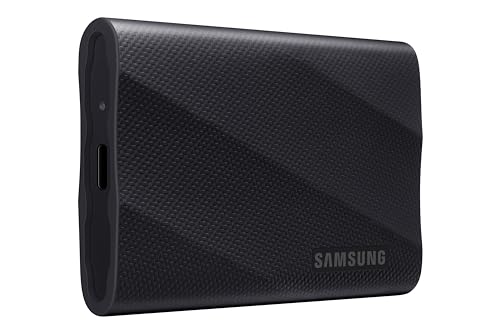
Samsung T9 Portable SSD 2TB — the fast working backup
Badge: The backup drive for large libraries and quick sessions
- Capacity: 2 TB, per the verified listing title
- Interface: USB 3.2 Gen 2×2, up to 2,000 MB/s, per the listing title
- Audience in the listing: gaming, students and professionals
- Form: portable external SSD
The T9 is the drive for the main backup role in a serious library: fast enough that copying a few hundred gigabytes of captures, clips and game folders is a coffee break rather than an evening, which matters more than it sounds — backups that take hours are backups that get postponed. Its full speed needs a USB 3.2 Gen 2×2 port, still not universal on motherboards, and on an ordinary USB 3.2 Gen 2 port it runs at that port’s ceiling, which remains quick. Treat it as the working copy: the drive that receives the scheduled backup, gets verified, and lives away from the PC between sessions.
Strengths
- Top-tier portable speed keeps big backup sessions short enough to actually happen.
- 2 TB holds a substantial capture archive beside the essential data.
- Compact, bus-powered design needs no separate supply or dock.
Trade-offs
- Full speed requires a Gen 2×2 port many systems still lack.
- It is a smooth everyday drive, not the armoured option for rough travel.
- Portable drives are losable; the encryption habits in this guide matter.
Best for: the primary backup drive of a large gaming library. Not suited for: being thrown unprotected into a kit bag daily. Current listing: Check price on Amazon
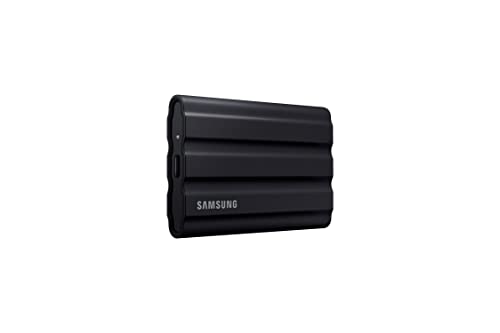
Samsung T7 Shield Portable SSD 2TB — the rugged second copy
Badge: The copy that travels and survives
- Capacity: 2 TB, per the verified listing title
- Interface: USB 3.2 Gen 2, up to 1,050 MB/s, per the listing title
- Protection: rugged build, IP65 water resistance, per the listing title
- Audience in the listing: photographers, content creators and gaming
The T7 Shield is the second-copy drive: the one that lives in a bag, a car, a relative’s house or a work drawer, so that a theft, a spill or a house-level disaster cannot take every copy at once. Its ruggedised shell and water resistance are not marketing garnish in this role — the off-site copy is precisely the drive that gets handled, transported and stored in imperfect places. It is a step slower than the T9 on paper and entirely fast enough for a monthly copy, which is the cadence this role runs at. Many players will rationally own one of these two Samsung drives rather than both; the deciding question is whether your second copy needs to survive travel or merely to exist away from the desk.
Strengths
- Rugged, water-resistant build suits the off-site and travel role exactly.
- Speed is ample for scheduled copies of the essential data set.
- Same compact, bus-powered convenience as its sibling.
Trade-offs
- Slower than the T9 for very large working backups.
- Ruggedness costs a little size and weight against the slimmest drives.
- Still a single small object; the system needs a habit, not just hardware.
Best for: the off-site or travel copy in a two-drive system. Not suited for: being the only backup of a huge capture library. Current listing: Check price on Amazon

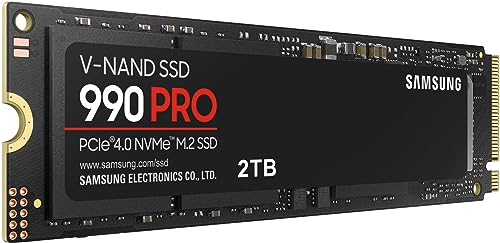
Samsung 990 Pro 2TB — the internal destination for clones and migrations
Badge: The drive a library moves to when hardware changes
- Capacity: 2 TB, PCIe 4.0 M.2 2280, per the verified listing title
- Speed: up to 7,450 MB/s, per the listing title
- Role in the listing: high-end computing, gaming and heavy-duty workstations
The 990 Pro’s role in a backup system is the receiving end: when a game drive is replaced, upgraded or cloned ahead of a failure, this is the class of drive the data lands on. Its speed collapses migration times and then serves as a front-line game drive with the old unit retired to backup duty — the natural lifecycle this guide recommends, in which yesterday’s primary becomes today’s copy. It is also the right home for a local, always-connected backup partition in a desktop with spare M.2 capacity, with the standing warning that an internal copy protects against file mistakes and single-drive failure, not against the machine-level events the portable copies exist for.
Strengths
- Flagship NVMe speed makes clones and migrations fast enough to do without dread.
- Proven high-end drive for the primary game-library role after migration.
- 2 TB matches the portable copies, keeping the system’s tiers symmetrical.
Trade-offs
- An internal drive cannot be the off-site copy; it complements the portables, never replaces them.
- Requires a free M.2 slot and a motherboard of the PCIe 4.0 generation for full speed.
- Premium tier pricing buys speed a pure backup role does not need.
Best for: cloning and migrating a library to a new primary drive. Not suited for: off-site storage. Current listing: Check price on Amazon

WD Black SN850X 2TB — the second internal, for mirrored libraries
Badge: The alternative flagship for a two-drive desktop
- Capacity: 2 TB, M.2 2280, per the verified listing title
- Speed: up to 7,300 MB/s read and 6,300 MB/s write, per the listing title
- Positioning in the listing: gaming expansion and high-performance internal storage
The SN850X fills the same role as the 990 Pro from the other great storage house, and desktops with two fast M.2 slots can run one of each: a primary library drive and a mirrored internal copy that syncs nightly without a cable ever being plugged in. Its write speed, quoted in its own listing, is the figure that matters for the backup direction of travel, and it is flagship-class. Choose between it and the Samsung on the day’s terms and your existing ecosystem; the system’s design matters more than the badge on the second drive. The wider internal-drive field is compared in the best NVMe SSDs for gaming.
Strengths
- Flagship read and write speeds for fast internal mirroring and migration.
- Gaming-positioned firmware and design from a storage specialist.
- Pairs naturally with either Samsung above in a two-brand system.
Trade-offs
- Same internal limitation as any fixed drive: no protection against machine-level events.
- Full performance assumes a PCIe 4.0 slot; older boards cap it.
- A mirrored copy mirrors mistakes too — it is not a version history.
Best for: the second internal drive in a mirrored desktop setup. Not suited for: portable or off-site duty. Current listing: Check price on Amazon
The setup, step by step
Work these steps once, in order, and the system exists. First, build the essential folder. Create a single staging folder on your PC — call it Gaming Backup — and inside it, subfolders for Saves, Captures, Configs and Mods. Copy into it the current state of everything your inventory found: the save folders from Documents and AppData for the games that matter, the screenshot and clip folders you care about, the exported peripheral profiles, and the mod lists and manager profiles. This staging folder is the unit of backup from now on; every tool below simply copies it, which means adding a newly discovered save location to your habits takes thirty seconds forever after.
Second, make the first full copy to your primary portable drive, and verify it by size and by spot-checking that the newest save file in the staging folder exists on the drive with today’s date. Third, set the recurring mechanism: a sync or backup utility — Windows’ own File History, the drive maker’s bundled software, or any reputable sync tool — configured to copy the staging folder to the portable drive whenever it is connected, or on a weekly schedule with the drive left plugged in if your desk allows. The rule for choosing the mechanism is that it must be automatic; a system that depends on remembering has a half-life of about a month. Fourth, make the second copy to the rugged drive or your off-site location, on the monthly cadence, and store that drive somewhere that is not the same room as the PC. Fifth, run the restore drill described below before you call the system finished.
The restore drill
Pick one game. Move its current save folder to a safe temporary location — move, do not delete. Copy the backed-up save from the portable drive into the game’s save location. Launch the game and load the save. If your progress appears, your backup is real: the files are the right files, in the right structure, readable by the game. Restore the newer save you set aside, and record the drill’s date. This ten-minute ceremony is the difference between a backup system and a folder full of optimism, and it should be repeated whenever you change tools, drives or launchers, and once a year for luck. Players who have done the drill meet a real drive failure with a checklist. Players who have not meet it with a prayer.
Backing up before the dangerous moments
Certain events should trigger an out-of-cycle backup the way a storm triggers closing windows. A Windows reinstall or a major feature update. Any drive-health warning sign — and if you do not yet know how to read those, how to check drive health is the companion skill, because the time to copy data off a drive is while it is still answering questions. A hardware upgrade that touches storage, cooling or the motherboard, including a repaste session from how to apply thermal paste safely, where the machine will be open and handled. A move of house, a sale of the machine, or lending it. And the start of any long, heavily modded playthrough you would hate to lose — back up the mod recipe before the first session, not after the fiftieth hour. These triggers share a property: they are all known in advance. Data loss in gaming is rarely a surprise ambush; it is a scheduled event whose invitation was ignored.
What not to back up, and the install question
Game installs are the bulkiest and least precious data on the machine. On a fast connection, re-downloading a library is an overnight job; on a slow or capped connection, it is a genuine cost, and the calculus changes — players on metered connections rationally keep one portable copy of their most-played installs, which the 2 TB drives above can hold alongside the essential data. Decide by your connection, not by dogma. Shader caches, launcher caches and temporary files should never be backed up; they are regenerated, and including them slows every copy and clouds every verification. The staging-folder design handles this automatically, because you only ever copy what you deliberately placed inside it.
One more exclusion with an exception: configuration files for games you no longer play can be pruned at the annual review, but save files should essentially never be pruned. They are tiny, they are the point of the entire system, and the player who deletes a completed game’s save to save space will meet that game again in a remaster, a sequel with import bonuses, or a nostalgic evening — carrying the particular regret of having once had the file in hand.
Security for the copies themselves
A backup drive concentrates your data into a small, portable, losable object, so give it the two protections that match its risks. Encryption — BitLocker on Windows, or the drive software’s own option — means a lost drive is an inconvenience rather than an exposure; your saves are not state secrets, but the drive will inevitably accumulate more than saves over its life. Physical labelling is the low-tech twin: a drive labelled with its role and the date of its last copy gets used correctly by future you, while an anonymous drive in a drawer gets wiped for a project in a moment of false confidence. Finally, a backup drive is not an archive for other duties. The drive that holds your only second copy should not moonlight as the household’s media shuttle; every extra role is a formatting accident looking for a date.
Common mistakes in gaming backups
Trusting cloud saves without the per-game audit is the first, and its failures are discovered exclusively at restore time. Backing up installs while saves sit unprotected in AppData is the second — a system that protects the replaceable and abandons the irreplaceable. Keeping every copy in or on the same machine is the third: an internal mirror and a drive that lives permanently plugged into the same PC share the machine’s fate in a theft, a surge or a ransomware event, which is why one copy must physically leave. Never testing a restore is the fourth and the most common. And letting the system lapse is the fifth: backup habits die quietly, in the gap between the drive being borrowed for something else and never coming back. The monthly second-copy cadence in this guide is deliberately light so that it survives contact with a real life; a modest system that runs beats a grand one that was abandoned in March. When a game itself starts failing to launch after a restore or a migration, treat that as its own fault tree and work through what to do when a game wont launch rather than re-restoring in circles.
Platform notes: Steam, Epic, GOG, Xbox and emulators
Steam is the most transparent platform to back up manually: a title’s local saves live either in its library folder’s userdata area or in the system locations from the inventory, and the whole Steam library folder can be copied to a portable drive and recognised by a fresh Steam install pointed at it — the one case where backing up installs is officially graceful. Keep the userdata area inside any library copy, since it carries saves and configurations for the titles that store them there. Epic’s cloud coverage varies more by title, and its local saves follow the AppData pattern; the audit matters most on this platform. GOG’s offline installers are themselves a form of backup — a library of installers on a portable drive is independent of any launcher’s survival — and Galaxy’s cloud saves cover many but not all titles.
The Xbox app and Game Pass are the awkward citizens. Saves sync through the Xbox service, and the local files sit in a protected packages directory that is not designed for manual copying; some titles support the platform’s cross-save and some do not. The practical guidance is to verify sync status inside the app for the games that matter, to avoid any tool that promises to liberate those folders unless you accept the risk, and to count Game Pass saves as cloud-dependent in your audit — which raises the value of your screenshots, clips and notes for those titles, since those you can protect yourself. Emulators sit at the opposite pole: total control, total responsibility. Their save and state folders are ordinary files in ordinary places, perfectly copyable, and protected by nothing on earth except your own system — which is why retro libraries belong in the staging folder from day one.
Versioning: keeping yesterday’s save too
A backup that only ever holds the latest state protects against loss but not against corruption — and games corrupt saves in ways that sync faithfully to every copy: a crash mid-write, a mod removed mid-playthrough, a cloud conflict resolved the wrong way. The defence is versioning: keeping not just the current staging folder but dated snapshots of it, so a bad state discovered on Friday can be rolled back to Wednesday’s. Storage makes this cheap for the essential data, because saves and configs are small; the captures folder is where snapshots grow expensive, and it can reasonably stay single-version. Configure your sync tool to keep a handful of dated versions of the Saves and Configs folders, or make the monthly off-site copy a dated snapshot rather than an overwrite. The player who has once watched a hundred-hour save eat itself will never again call this over-engineering.
One refinement belongs in every staging folder from the start: a single text file, written by you, that lists where each game’s saves were found and when they were last copied. It reads like a triviality in the month it is written and like a map in the year it is needed — when a new PC is being assembled, when a game’s folder has moved after an update, when someone else must perform the restore because you are not there. Systems survive on documentation exactly as much as on hardware, and one page of yours is the cheapest layer in this entire guide.
The third copy in the cloud: what belongs there
Cloud storage earns a place in this system in one specific role: the home of the smallest, most irreplaceable subset. Save files and configuration folders for an entire library typically measure in single-digit gigabytes, which fits comfortably inside even a modest cloud allowance, syncs continuously without a cable ever being touched, and survives every physical event that could befall your house and your drawer of drives simultaneously. Point your cloud folder at the Saves and Configs portions of the staging folder — not at captures, which are bulky and replaceable in spirit if not in fact — and the system gains a layer that maintains itself. The cautions are the usual ones: cloud sync is a mirror before it is a history, so enable the service’s version history or recycle-bin retention where offered, and remember that a cloud account is only as durable as its password and its payment method. Set a calendar note to confirm the account is healthy whenever the card on file changes. Data rots in drawers; accounts rot in inboxes; the annual review below exists to catch both.
Multi-PC households and the travelling player
Households with a desktop and a laptop, or a main rig and a handheld, gain a second use from the portable backup drive: it becomes the bridge. Saves for games without cloud coverage can be carried between machines by the same staging folder that backs them up, provided you respect the direction of travel — the newest save wins, and overwriting the wrong way is the classic self-inflicted wound, which versioning exists to forgive. Label the staging folder on the portable drive with the date of its last sync from each machine, and the bridge stays safe. Handhelds deserve a specific mention, because their storage is a microSD card away from a pocket: the card’s contents — saves, states and all — should be imaged to the portable drive at the monthly cadence, since small cards in small devices live the most dangerous lives in the whole ecosystem. LAN-party and tournament players have the same shape of problem at higher stakes: the profile and config folders for your peripherals and games belong on the portable drive before you travel, because a borrowed or replacement machine at an event is configured in minutes from a copy and in hours from memory.
The annual review: thirty minutes that keep the system true
Once a year — the same week you might clean the PC’s filters and revisit its temperatures — give the backup system its own half hour. Open the staging folder and add any save locations the year’s new games have introduced; the inventory drifts as your library does. Confirm both portable drives mount, hold what their labels claim, and pass a spot restore of one save — the drill again, because drives die in drawers too. Check the cloud subset is still syncing and the account behind it is healthy. Prune captures you no longer care about, export a fresh copy of every peripheral profile after the year’s tuning, and update the mod lists for any playthrough still in progress. Then write the date on the drives’ labels and forget the system for another year, which is exactly what a good system permits. The review’s real function is not the tidying; it is the discovery, in peacetime, of any layer that silently stopped working — because every layer of every backup system eventually does, and the only question is whether you find out during the review or during the disaster.
What good looks like: the system assembled
Step back and look at the finished arrangement, because its modesty is the point. On the PC, one staging folder gathers everything irreplaceable, maintained by the habit of saving new locations into it as games arrive. A fast portable drive receives that folder weekly and automatically, and has been proved by a restore drill. A rugged portable carries the monthly copy to somewhere that is not this room. A sliver of cloud storage holds the saves and configs continuously. Inside the machine, a flagship internal drive receives clones and migrations when hardware changes, and retires in time to become another copy. Nothing in the arrangement is exotic, nothing requires a subscription you do not already have, and the total recurring effort is a monthly drive swap and an annual half hour. What it buys is the near-total removal of data loss from your gaming life — every drive failure, reinstall, theft and fat-fingered deletion demoted from catastrophe to errand. Players insure graphics cards with warranties and cases with surge protectors; this is the same instinct, applied to the only part of the machine that cannot be re-bought at any price.
Restoring to a new PC: the migration walkthrough
The system’s finest hour is the arrival of a new machine, and the walkthrough deserves to be written down while yours is hypothetical. Day one is for the platform layer: install the launchers, sign in, and let cloud saves descend for the titles they cover — then verify one beloved save in-game before trusting the layer wholesale. Next, the staging folder comes off the portable drive and is unpacked into its corresponding homes on the new machine: Documents saves to Documents, AppData folders to their matching AppData branches — Roaming to Roaming, LocalLow to LocalLow, because games look in exactly one place and a save in the wrong branch is a save that does not exist. Peripheral software is installed fresh and the exported profiles imported into it, which is the moment the wheel and flight-stick owners collect on their foresight. Mods are rebuilt from the preserved lists and manager profiles, in the recorded order, before the games that need them are launched. Installs themselves come last and at leisure — downloaded overnight or restored from a copied Steam library folder — because everything that made the old machine yours is already in place, and the new PC feels like a continuation rather than a replacement. Keep the old machine intact and unformatted for a month after the migration. The forgotten folder always exists; the only question is whether it still exists somewhere reachable when you remember it.
RAID is not a backup, and other category errors
Owners of multi-drive desktops sometimes believe a mirrored array has this guide covered. It does not, and the distinction is worth stating precisely because the hardware feels so reassuring. Mirroring protects against exactly one event — the physical death of one drive — while faithfully and instantly replicating every other misfortune: deletions, corruption, ransomware, a controller fault, a house event. It is an availability technology, keeping a machine running through a failure, and availability is a fine thing that is simply not the same thing as a backup. The same category error appears in miniature with the internal second drive used as the only copy, and with the cloud sync used as the only history. Each layer in the system this guide builds covers a failure the others cannot: the mirror covers drive death, the portable covers the machine, the off-site covers the building, the versions cover the past. Remove any layer and a named disaster walks back in. When you audit your own arrangement, audit it by disaster, not by device — list the events, and ask of each one which copy survives it. That question, answered honestly, is the whole science of this subject.
Choosing the software: the four features that matter
The tool that moves your copies matters less than the system’s design, but four features separate a suitable tool from a frustrating one. It must run automatically — on a schedule or when the drive connects — because automation is the entire premise. It must verify, comparing what it wrote against what it read, because a copy tool that cannot detect its own errors manufactures false confidence at scale. It must keep versions of the folders you nominate, for the corruption scenario this guide described. And it must log plainly, in a place you will actually look during the annual review, because a silent failure in the tool is indistinguishable from success until restore day. Windows’ built-in File History covers more of this list than its reputation suggests, the drive makers’ bundled utilities cover the scheduling basics for their own hardware, and the established third-party sync and imaging tools cover all four features for owners who want one program to run the whole system including full-drive images. Full-drive imaging deserves its own sentence: an image of the system drive is a fine extra layer for a machine whose configuration is elaborate, but it is a complement to the staging-folder system, never a substitute — images are bulky, slow to verify, and restore all-or-nothing, while the data that actually matters restores file by file in minutes. Choose the tool by the four features, configure it once, and judge it at the drill.
Shared machines: backing up a family’s gaming data
A family PC multiplies the inventory by the number of its players and adds a failure mode of its own: the well-meaning tidy-up, in which one person’s spring cleaning deletes another person’s AppData saves, invisible and unmourned until the next school holiday. The system adapts with two changes. The staging folder becomes per-person — one folder per player inside the backup, each maintaining their own inventory — because saves are personal in a way the machine is not, and because a child who owns their folder learns the habit as a native rather than as a chore. And the backup cadence gains a social trigger: before any family member’s big intervention on the shared machine — the upgrade, the reinstall, the new drive — the whole system’s staging folders get copied, by whoever is intervening, as a condition of being allowed to start. Households that adopt that single rule report the same discovery as workshops that adopt the baseline rule in the cooling guide: most disasters were scheduled events, and a copy taken at the doorway costs ten minutes against a loss that no apology can refund. The drives do not care whose data they hold; the system works identically, and the family’s saves acquire the same boring immortality as the solo player’s.
When a copy fails: reading the error instead of retrying blindly
Sooner or later a backup run reports errors, and the errors are information with a return address. A single file that fails to copy, repeatedly, in the same place, usually means that file is open and locked by its game or launcher — copy with the game closed, or let the tool use shadow copies — or that the file itself is damaged, which is a fact worth knowing about a save before the original drive is trusted further. Many files failing with disconnects or timeouts indict the connection: a cable, a hub, a port, in that order of probability, and portable drives deserve a direct motherboard port rather than a front-panel or hub path for their large sessions. A drive that reports itself full in the middle of a growing library is the system asking for its capacity review — captures are always the growth, and the curation policy in this guide is the pressure valve. And a verification failure, where the copy does not match the source, is the one error never to wave through: re-copy once, and if it repeats, treat the destination drive as a suspect and test it with the health tools from the companion guide, because a backup drive that cannot hold data faithfully is worse than none — it is a promise that will be broken on the worst available day. Every one of these readings takes less time than the blind retry it replaces, and each converts an annoyance into maintenance performed at the moment it was cheap.
Backups away from home: travel, events and the borrowed machine
The system in this guide assumes a home base, and gaming life increasingly happens away from one — LAN events, tournaments, a season of work travel with a laptop, a handheld that lives in a coat pocket. The travel adaptation is a compression of the whole system into the bag: the rugged portable drive becomes the primary for the trip’s duration, the staging habit continues on the travelling machine, and the home copies wait, untouched, as the layer the trip cannot endanger. Two disciplines matter more away than at home. The drive is encrypted, because travel is where drives are lost, and a trip’s worth of new saves is copied at the trip’s end before the travelling machine is wiped, reformatted or returned — the borrowed and employer-owned machine being the classic place where a season of progress dies of someone else’s IT policy. And the handheld’s card is imaged on return with the same inevitability as the photographs from the same trip, because both are the trip’s record and both exist, until copied, in exactly one fragile place.
Frequently asked questions
Where are my game saves actually stored?
It depends on the game, which is the honest and annoying truth. The four usual homes are the game’s own folder or Steam’s userdata directory, your Documents folder under My Games, the AppData Local, LocalLow and Roaming folders, and — for Xbox app titles — a protected packages area. The inventory method in this guide finds yours: check those locations for the games you care about, and copy what you find into the staging folder. A game’s community almost always documents its exact save path, and searching for that path by the game’s name takes a minute.
Does Steam Cloud make manual backups unnecessary?
For the games it verifiably covers, it does the main job — and the verification is the point. Coverage varies by title, sync conflicts happen, and Steam Cloud holds nothing outside its own system: not your screenshots outside the cloud allowance, not your mods, not your peripheral profiles, not your emulator libraries. Treat cloud saves as one layer of the system, audit them per game, and let your own backup cover everything else — which, in most libraries, is the majority of what would actually be mourned.
How often should I back up my gaming data?
The essential staging folder: weekly, automatically, to the primary portable drive. The second, off-site copy: monthly. And immediately before any dangerous moment — a reinstall, a hardware change, a drive showing health warnings, a house move. Saves written during a heavy playthrough week are worth an extra manual copy the moment a session ends on a milestone; it takes a minute, and milestones are exactly the progress that cannot be re-earned at the same emotional exchange rate. Think of the cadence as insurance premiums scaled to the rate at which you create things worth losing: a player deep in a hundred-hour RPG is minting irreplaceable data nightly, while a player between games can let the automatic weekly rhythm carry everything. The schedule should breathe with the library — tighten it when a beloved playthrough is live, relax it in the quiet months, and never let it reach zero, because drives do not consult your gaming calendar when they choose their day.
Should I back up my game installs too?
Only if your connection makes re-downloading expensive. On fast, unmetered internet, installs are the lowest-value data on the drive and the backup system should spend its capacity and your attention on the irreplaceable layer. On slow or capped connections, keeping your most-played installs on the portable drive is rational — Steam libraries in particular restore gracefully from a copy. Either way, decide deliberately rather than letting the install folders silently consume the backup’s whole capacity by default.
What is the difference between syncing and backing up?
A sync keeps copies identical, including their mistakes: delete or corrupt a file in one place and the sync faithfully propagates the loss. A backup preserves states across time, so an earlier, healthy version survives the discovery of a later, broken one. Gaming data needs both behaviours — sync for convenience between the staging folder and the primary drive, and versioned snapshots for the saves themselves. Tools blur the words; the distinction in behaviour is what matters, and this guide’s versioning section exists to make sure at least one copy of your saves is a history and not just a mirror.
My drive is failing. What do I copy first?
The staging folder, if it exists — that is what it is for. If it does not: saves first, from Documents, AppData and the launchers’ userdata, then screenshots and clips, then configs and mod lists, and installs last or never. Work gently and in that order, because a dying drive’s remaining life is measured in reads, and every read should buy something irreplaceable. Copy to a healthy drive, not to another partition of the failing one, and stop the moment the drive begins disconnecting or clicking — at that point the remaining data is a professional recovery conversation, and further attempts reduce its prospects. The health signs that warn you before this day are covered in how to check drive health.
Screenshots, clips and the archive that outgrows every system
Captures are the one part of gaming data that grows without discipline, and they deserve a policy rather than a shrug. A year of enthusiastic screenshotting and replay buffering can exceed the rest of the backup combined, and the honest truth is that most of it will never be opened again — while a small fraction of it, the finish-line shots and the impossible plays, is as irreplaceable as any save. The workable policy is a two-tier one. Everything lands in the captures folder and is copied while it is recent, because curation in the moment is impossible. Then, at the annual review, the year’s captures are culled to a keeps folder — the shots you would actually show someone — and the keeps folder joins the permanent backup while the bulk is allowed to age off the portable drives. This keeps the archive honest and the backup fast, and it converts a hoarding problem into an editing habit. Players who stream or create content should treat their masters and project files as a separate, more serious archive with its own capacity planning; the moment recordings become work product, they graduate from this guide’s household system into the creator’s, where the drives above are the beginning rather than the whole answer.
The bottom line
Protect the layer that cannot be re-downloaded. Keep it in one staging folder, copy that folder weekly to a fast portable drive without being asked, carry a second copy somewhere else monthly, let the cloud hold the smallest and most precious subset, and prove the whole arrangement once by restoring a save and loading it. That is the complete system, and it fits in a paragraph because it was designed to be lived with rather than admired. The players who lose a decade of saves are never the ones who lacked the knowledge — everyone knows drives die — they are the ones whose system required them to remember, to bother, to get around to it. Build the version that runs without you, and then let it.
Start tonight with the smallest version that is real: one staging folder, one copy, one restored save loaded and seen with your own eyes. The full system can grow from that seed at the weekend; the seed itself should not wait for the weekend, because drives do not.
Related guides
Backup is one leg of a small maintenance culture that keeps a gaming PC’s data alive across years and hardware changes. Its companions on this site cover the drive’s own warning signs and the network faults that are not data problems at all.