Disclosure: As an Amazon Associate, reviewstook.com earns from qualifying purchases. Links on this page are affiliate links; they cost you nothing extra. Prices and availability change often, so check the current Amazon listing before you buy.
Learning how to check drive health is the skill that decides whether a dying drive is a planned upgrade or a data funeral. Every modern drive — hard disk or SSD — continuously monitors itself and keeps a diagnostic ledger of its own condition, and reading that ledger takes five minutes with free tools. The catch is knowing which numbers in it matter, which are noise, and what each warning obliges you to do, in what order, before the drive stops answering questions altogether. This guide teaches the reading properly: the symptoms that should send you to the tools, the SMART attributes that carry real meaning for hard drives and for SSDs separately, the thresholds that separate watchfulness from emergency, the exact sequence for rescuing data from a drive that is failing now, and the replacement drives worth migrating to when the verdict comes in. The golden rule runs through all of it: back up first, diagnose second — never the other way round on a drive you suspect.
Key takeaways
- Copy your irreplaceable data off a suspect drive before running any diagnostic that stresses it. Diagnosis consumes a failing drive’s remaining life; spend that life on your files first.
- SMART data is a trend instrument, not a fortune teller. A single reading informs; readings across months convict.
- On hard drives, reallocated and pending sectors are the numbers that matter. On SSDs, the wear percentage and the spare-block count carry the same weight.
- A drive can pass its self-test and still be failing. Symptoms — new noises, vanishing files, freezes during copies — outrank any green tick.
- Stop using a failing drive for anything except recovery. Every power-on is a withdrawal from an account you cannot see the balance of.
In this guide
The symptoms that should send you to the tools
Drives announce themselves before they fall silent, and the announcements form a pattern language worth learning. New mechanical sounds from a hard drive — clicking, grinding, a beep-and-retry rhythm, a spin-up that falters — are the most urgent sentence in the language, because the mechanism is physically failing and the drive’s remaining life may be measured in hours. Software symptoms speak more quietly: files that corrupt or vanish, folders that take seconds to open, a game that suddenly stutters as it streams from one specific drive, Windows freezing during large copies, a drive that intermittently disappears from the system and returns after a restart, boot times that lengthen month by month. Each has innocent explanations too — which is why this guide teaches verification rather than panic — but each earns a health check on the day it is first noticed, because the check is free and the alternative explanation is a deadline.
Two impostors should be ruled out before the drive is blamed, because they imitate its symptoms faithfully. A failing cable or a loose connection produces the disappearing-drive pattern exactly, and costs nothing to test by reseating or swapping. An overheating drive throttles and stumbles in ways that look like failure and vanish with airflow. The health check below reads the drive’s own ledger, which is immune to both impostors — the ledger records what the drive itself experienced, and a drive with a clean ledger and dramatic symptoms is telling you to look at its connections and its cooling first.
The tools, and what each is for
Four instruments cover the field, and a thorough check uses two of them. The drive maker’s own utility — Samsung Magician, WD Dashboard and their equivalents — reads the drive’s full proprietary ledger, reports a plain-language health percentage where the model supports it, updates firmware, and runs the maker’s own diagnostic tests; it is the authoritative reader for its own brand. CrystalDiskInfo is the universal translator: it reads SMART data from almost any drive, presents the critical attributes with their raw values, and colour-codes its judgement, which makes it the fastest first look. The command-line smartctl, from the smartmontools package, is the deep instrument — the full attribute table, the error log, and self-tests you can schedule — for owners who want the primary evidence rather than a summary. Windows’ built-in Get-PhysicalDisk report gives a coarse healthy-or-not verdict that is useful only as a tripwire. Use the maker’s tool and one independent reader together: where they agree, believe them; where they disagree, the raw attribute values, explained next, are the arbiter.
Reading SMART on a hard drive: the attributes that matter
A hard drive’s ledger holds dozens of attributes; five carry nearly all the meaning. Reallocated Sector Count records sectors that failed and were replaced from the drive’s spare pool. A small, stable number on an old drive is a scar; a number that grows between readings is an active wound, because the surface is continuing to fail. Current Pending Sector Count is graver: these are sectors the drive cannot currently read and is waiting to re-test — data in them is already effectively lost, and a non-zero pending count on a drive holding anything you value is a copy-it-now instruction. Uncorrectable Sector Count confirms reads that failed outright. Reported Uncorrectable Errors and the drive’s error log extend the same story. Spin Retry and mechanical attributes matter mainly as corroboration.
The reading discipline matters as much as the attributes. Take a baseline reading today, with the date recorded, and repeat it monthly on any drive you are watching: a reallocated count that sits unchanged for six months is history, while the same count doubling in a month is a prognosis. Temperature belongs in the same log — a hard drive that lives hot ages fast, and its ledger will eventually say so. And treat the drive’s own overall verdict with respect but not obedience: the firmware’s failure prediction is conservative by design in some brands and optimistic in others, which is why the raw counts and their trend, not the single word PASS, are what this guide teaches you to read.
Reading SMART on an SSD: a different ledger
An SSD has no surface to scar and no arm to tire; it dies by exhaustion and by electronics, and its ledger reads accordingly. The headline figure is wear — reported as Percentage Used, Wear Levelling Count or a plain health percentage in the maker’s tool — which estimates how much of the flash’s rated write life has been consumed. Wear is a fuel gauge, not a fault: a drive at 40 percent used with no errors is a healthy drive with a past, and even a drive that passes 100 percent of its rated endurance typically continues working, because the rating is a warranty boundary drawn conservatively. The alarm attributes on an SSD are the error family: growing media errors, a spare-block count that has begun to fall from its full value, uncorrectable errors, and unsafe-shutdown counts that climb — the last of which often indicts the system’s power behaviour rather than the drive, and which matters because repeated hard power cuts are how SSDs accumulate real damage.
Temperature deserves its own sentence on NVMe drives, because the fastest models throttle hard when hot and their logs remember it: a drive whose log shows long excursions at its thermal ceiling is a drive asking for the heatsink or airflow it was denied, and chronic heat shortens flash life in a way the wear figure will eventually confess. The SSD reading discipline mirrors the hard drive’s — baseline, trend, corroborate across two tools — with one addition: check the firmware. SSD firmware updates have, across the industry’s history, fixed everything from stutter to premature wear reporting, and a drive being judged for its life deserves to be judged on its current firmware, updated carefully with its data already backed up, because firmware work on a drive you suspect is itself a dangerous-moment procedure.
The replacement drives, chosen before you need them
A health verdict often ends in a migration, and choosing the destination calmly, in advance, beats choosing it in an emergency. The three verified drives below cover the roles: two flagship internal drives to migrate a library onto, and a fast portable that serves as the rescue target and the permanent off-machine copy.

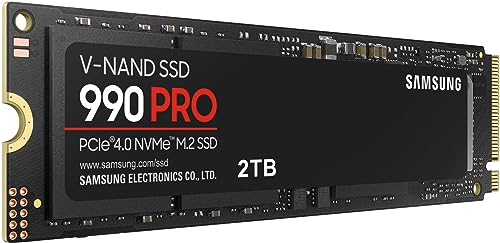
Samsung 990 Pro 2TB — the migration destination
Badge: The flagship to move a library onto
- Capacity: 2 TB, PCIe 4.0 M.2 2280, per the verified listing title
- Speed: up to 7,450 MB/s, per the listing title
- Positioning: high-end computing, gaming and heavy-duty workstations, per the listing title
- Health tooling: Samsung Magician reports this drive’s health and manages its firmware
The 990 Pro is the natural destination when a game drive’s ledger turns: flagship speed that makes the clone or the library copy a short job, and — relevant to this guide’s subject — first-class health tooling, because Magician presents this drive’s wear, temperature history and firmware status in the plain language a worried owner needs. Migrating onto a drive whose own health you can read this clearly closes the loop the failing drive opened. Its 2 TB capacity matches the libraries most players are rescuing, and its performance then serves as the primary game drive for years, with the health habit transferred to it from day one.
Strengths
- Flagship NVMe speed collapses migration and clone times.
- Best-in-class maker tooling for ongoing health monitoring.
- Capacity suits the typical game library being rescued.
Trade-offs
- Full speed requires a PCIe 4.0 slot; older boards will cap it.
- Premium tier pricing buys performance a pure archive role would not need.
- Needs its thermal situation respected — a heatsink or board cover — to stay off its throttle.
Best for: replacing a failing primary game drive. Not suited for: machines without an M.2 slot. Current listing: Check price on Amazon

WD Black SN850X 2TB — the alternative flagship
Badge: The other house’s answer, with write speed for clones
- Capacity: 2 TB, M.2 2280, per the verified listing title
- Speed: up to 7,300 MB/s read and 6,300 MB/s write, per the listing title
- Positioning: gaming expansion and high-performance internal storage, per the listing title
- Health tooling: WD Dashboard provides this drive’s SMART view and diagnostics
The SN850X stands in the same role from the other great storage maker, and its quoted write speed is the figure a migration cares about, since a clone writes as fast as it reads. Owners whose failing drive is a WD will find its Dashboard the familiar reader for both the patient and the replacement, which simplifies the trend log this guide asks you to keep. Between this and the Samsung, choose on your existing ecosystem and the day’s terms; the health discipline matters more than the badge, and both drives support it fully. The broader field is compared in the best NVMe SSDs for gaming.
Strengths
- Flagship write speed makes it an excellent clone and migration target.
- Maker dashboard gives a complete health and firmware picture.
- Gaming-positioned design suits the primary library role after migration.
Trade-offs
- Same PCIe 4.0 assumption for full performance.
- Premium tier, like its rival.
- Runs warm under sustained writes without cooling provision.
Best for: WD-ecosystem owners replacing a primary drive. Not suited for: external or portable duty. Current listing: Check price on Amazon
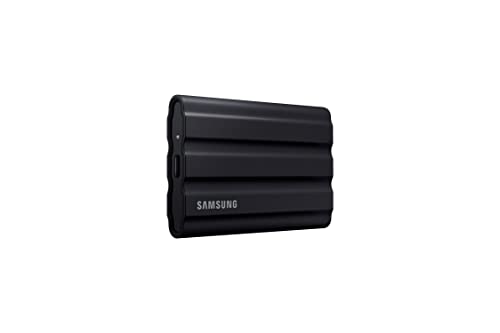
Samsung T7 Shield 2TB — the rescue target
Badge: Where the data goes first when a drive is dying
- Capacity: 2 TB, USB 3.2 Gen 2, up to 1,050 MB/s, per the verified listing title
- Protection: rugged build, IP65 water resistance, per the listing title
- Audience in the listing: photographers, content creators and gaming
The T7 Shield’s role in a health emergency is to be the safe place within arm’s reach: plug it in, copy the irreplaceable layer off the suspect drive in priority order, and the crisis is demoted to a hardware errand. Its rugged build suits a drive that will be handled during a stressful evening and then stored as the library’s off-machine copy — the role the backup system in how to back up gaming data properly assigns it permanently. Every gaming desk should own its rescue target before it needs one; a drive bought during a failure arrives a day after the data’s deadline.
Strengths
- Fast enough that an emergency copy of the essential data is a short job.
- Rugged, water-resistant build suits handling and storage.
- Doubles permanently as the backup system’s off-machine copy.
Trade-offs
- USB speeds cannot match an internal NVMe for whole-library clones.
- A single portable is a copy, not a system — it wants the backup routine around it.
- Its own health should join your periodic checks once it holds data you value.
Best for: the standing rescue and backup target on a gaming desk. Not suited for: being a primary internal game drive. Current listing: Check price on Amazon
Self-tests: what they can and cannot tell you
Drives can test themselves: a short self-test samples the electronics and a portion of the surface or flash, and an extended test reads everything, taking hours on a large hard drive. Run them in the right order of operations — data safe first, always, because an extended test is exactly the sustained workload that finishes a marginal drive — and read their results with the correct expectations. A failed self-test is a definitive verdict: retire the drive. A passed self-test is a weaker statement than it appears, because the test samples what it samples on the day it runs; drives with growing reallocated counts have passed self-tests on their way to failure, which is why this guide ranks the attribute trend above the test’s green tick. Use self-tests as corroboration and as warranty evidence — makers often ask for one — never as an acquittal that overrules symptoms or a worsening ledger.
The drive is failing now: the rescue sequence
When the evidence convicts a drive — pending sectors above zero, a reallocated count climbing between readings, a failed self-test, or mechanical noises — the sequence matters more than speed, because a dying drive’s remaining life is a budget and every operation spends it. First, stop all non-essential use: no games from it, no diagnostics, no defragmentation, no benchmark heroics. Second, copy in the priority order the backup guide teaches — saves and irreplaceable data first, then captures and configs, then anything else, installs last or never — to a healthy destination, in small batches, letting the drive rest between them if it begins to struggle. Copy files, do not clone yet: a clone reads every sector including the empty and the broken, spending the budget indiscriminately, while a file copy spends it only on data. Third, if the drive holds a whole system or library that must move intact and the file copy has secured the essentials, a clone to the replacement — using a tool that can skip bad sectors and resume — becomes reasonable, with the understanding that its completion is a hope, not a plan. Fourth, when a drive stops mounting, clicks, or disconnects under load, stop entirely: continued power-on attempts reduce professional recovery prospects, and the remaining decision is whether the data justifies a recovery service. That judgement — data’s value against recovery’s cost — is the owner’s alone, and it is kinder made in advance, which is the entire argument for the backup system that makes the question moot.
When to stop and replace: the verdict table
| Finding | Meaning | Action |
|---|---|---|
| Pending sectors above zero | Data already unreadable in places | Copy irreplaceable data now; plan replacement |
| Reallocated count growing between checks | Surface failure in progress | Replace; use the old drive for nothing important |
| SSD spare blocks falling, media errors rising | Flash exhaustion becoming failure | Migrate to a new drive on your schedule, soon |
| SSD wear high but errors zero | Fuel gauge low, engine sound | Watch the trend; budget a replacement without panic |
| Failed self-test | The drive’s own verdict | Retire it; warranty claim if covered |
| Clicking, grinding, disappearing | Mechanical or connection failure | Test the cable once; if the drive, rescue sequence only |
| All attributes clean, symptoms persist | The fault is probably elsewhere | Check cables, cooling, power — then the rest of the system |
The table’s philosophy is asymmetric, deliberately: storage is cheap and data is not, so every doubtful verdict resolves toward replacement, and the drive you retire early costs you a component while the drive you trust too long costs you the library. A retired-but-working drive has honourable second careers — scratch space, a games-only drive whose contents are re-downloadable, a test bench unit — provided nothing irreplaceable ever depends on it again.
The healthy-habits layer: keeping good drives good
Health checking is a rhythm, not an event. Put a five-minute reading into the same seasonal maintenance as the wheel’s test view and the paste’s temperature log: open the maker’s tool, note the headline figures for every drive in the machine — wear, errors, temperature — in the same log document, and glance at the trend rather than the snapshot. Keep drives cool and their firmware current, with firmware updates performed only when the data is backed up, because the update process itself is a dangerous moment. Give hard drives mechanical kindness — no knocks, no moving a running machine — and give SSDs electrical kindness: clean shutdowns, a surge-protected supply, and headroom in capacity, because an SSD run permanently at the brim wears faster and slows down, a fullness tax that a library audit pays off twice. Drives managed this way rarely surprise their owners; the ledger’s whole purpose is to convert surprise into schedule, and five minutes a season is the subscription price.
Common mistakes in drive-health checking
Running a full surface scan or a benchmark on a drive you already suspect is the dangerous one — the diagnostic as executioner. Trusting a single green PASS is the naive one, against a worsening attribute trend. Checking only when symptoms appear is the common one, discarding the trend that makes readings meaningful. Cloning a dying drive before copying its essential files is the inverted one, spending the drive’s last hours on empty sectors. Continuing to use a convicted drive for new saves because it still mostly works is the expensive one. And ignoring the portable and backup drives in the health round is the quiet one — the copies are drives too, with ledgers of their own, and a rescue target that has quietly died in its drawer is a betrayal scheduled for the worst day. Drives that hold games also hold game faults in the other direction: a title that will not launch from a struggling drive is a storage symptom before it is a software one, and what to do when a game wont launch is the companion fault tree once the drive is acquitted.
The Windows layer: file-system checks are not health checks
Windows offers its own drive tools, and placing them correctly prevents a common confusion. The error-checking scan and the chkdsk command examine the file system — the index of where files live — and can repair its logical damage: cross-linked files, orphaned records, directory errors left by crashes. That is bookkeeping repair, valuable after an unclean shutdown, and it says almost nothing about the drive’s physical health; a dying drive can host a freshly repaired file system the way a crumbling house can have tidy rooms. Worse, chkdsk’s deeper modes read every sector, which makes them exactly the workload a suspect drive should be spared until its data is safe. The defragmentation and optimisation panel is similarly misread: for SSDs it issues trim commands that are part of healthy housekeeping, and for hard drives it reorganises data — neither is a diagnostic. Use the Windows layer for what it is: maintenance of the filing system, performed on drives whose physical ledger you have already read and judged sound. The order in this guide is never reversed — ledger first, bookkeeping second, heroics never.
A worked reading: one hard drive, three months
Abstract attributes become clear attached to a story, so consider a representative one assembled from the pattern these cases follow. A five-year-old library hard drive begins freezing a game during loading, twice in a week. The first reading shows a reallocated count in the low dozens, a pending count of zero, and temperatures normal. Verdict by this guide’s table: history, not emergency — the data is copied anyway, because the drive holds saves and the copy is cheap, and the figures go into the log. A month later, the game has frozen twice more and the reallocated count has grown; the pending count is still zero but the trend has declared itself. The drive is replaced on a calm weekend, the library migrates, and the old unit retires to holding re-downloadable installs. Two months after that, examined out of curiosity, its pending count is no longer zero. Nothing was lost at any point, no evening was an emergency, and the total drama of the affair was one planned purchase — which is the entire product this guide sells. The same drive, unread, would have announced itself eventually in the other way: mid-game, mid-season, with the pending sectors holding whatever they were holding. The ledger does not prevent failure. It reschedules it from the drive’s terms to yours.
Laptops, handhelds and soldered storage
The reading method travels, but the stakes change shape. A gaming laptop’s drive is usually a single NVMe module — replaceable in most gaming models, which makes the migration path identical to a desktop’s, and worth confirming in the model’s documentation before the emergency rather than during it. Thin-and-light machines and handhelds increasingly solder their storage, which removes the replacement option and promotes the backup from a virtue to the only plan: on a soldered machine, the seasonal reading and the portable copy are the whole strategy, and a worsening ledger is a warranty-and-data conversation held early, while the machine still runs, rather than a repair performed later. Handhelds add the microSD card as a second, quieter drive — cards expose little or no health data and live brutal lives, so their contents belong in the monthly copy by default, a point the backup guide makes from its own direction. Across every form factor the sentence survives: read what can be read, copy what cannot be replaced, and never let a storage technology’s convenience talk you out of either.
Second drives, game libraries and the archive tier
Many gaming PCs accumulate drives in tiers — a fast system SSD, a library SSD, an elderly hard drive holding everything else — and the health habit should cover the tiers unequally on purpose. The system drive gets the full seasonal reading, because its failure is the most disruptive. The library drive gets the same, because its contents represent the most hours. The archive hard drive, holding captures and retired installs, gets read too, but its verdicts are judged by its contents: an archive of re-downloadable and culled material can be allowed to live further into its warnings than any other drive in the machine, provided the keeps — the irreplaceable fraction — have been promoted to safer storage as the backup guide’s curation policy describes. This tiered judgement is not carelessness; it is the same risk arithmetic applied honestly per drive, and it is how owners of many drives keep the five-minute habit proportionate. What no tier is exempt from is the clicking rule and the pending-sector rule: those two findings promote any drive, whatever it holds, to the rescue sequence on the day they appear.
Buying a used drive: read the ledger before the price
The health ledger transforms the used-storage market from a lottery into an inspection, and any used drive purchase should begin with a screenshot of its full SMART readout from the seller — a request honest sellers expect and answer, and whose refusal is itself a reading. Judge what you are sent by this guide’s standards: power-on hours against the drive’s age story, wear percentage against its claimed life, error attributes at zero or absent, and a reallocated count that is either zero or small and confessed. A used hard drive with meaningful reallocation is a drive whose best data is its price, and it should only ever hold what you can lose. A used SSD at honest wear with clean errors can be an excellent archive or library drive, because its remaining life is legible in a way a hard drive’s never is. On arrival, before any data trusts it, run the maker’s extended diagnostic and take your own baseline reading — the drive enters your log with its history attached, and from that day its trend is yours to watch. Storage is one of the few components whose entire past is written on it; buying used without reading the writing is a choice, and not the frugal one it masquerades as.
Power: the quiet author of drive damage
A surprising share of ledger damage is written by electricity rather than by age. Unsafe shutdowns — power cuts, hard resets, a plug pulled — interrupt writes mid-flight, and SSDs in particular log each one; a climbing unsafe-shutdown count is the drive reporting that its environment keeps hitting it. The remedies are environmental: a surge protector as the minimum, a small uninterruptible supply for machines whose work or whose neighbourhood’s grid justifies it, and the discipline of clean shutdowns on any system whose drives you have just been reading warnings about. Brown-outs and cheap, failing power supplies produce a subtler version — voltage that sags under load, drives that drop off the bus at the exact moment a game spins up — and a drive that disappears only under full system load belongs to that investigation before it belongs to a replacement order. The ledger cannot see the wall socket, but it keeps the bruises, and a pattern of power-related entries across several drives in one machine is the machine confessing that the fault was never in the drives at all.
Network storage and the drives you cannot hear
Owners who keep a NAS or a home server hold drives whose symptoms they will never hear and whose freezes they will never sit in front of, which makes the ledger not just useful but the only witness. Network storage systems surface SMART through their own dashboards and can schedule the readings and the self-tests this guide describes — set them, because an unwatched array discovers its failing member at the moment a second one is asked to rebuild from it, which is the storage world’s cruellest scheduling joke. The verdict table applies unchanged, with one sharpening: in a mirrored or parity array, a drive showing growing reallocation should be replaced at the first calm opportunity rather than at the table’s usual patience, because the array’s redundancy is only real while every other member is healthy, and the rebuild that follows a replacement is itself the most stressful day of the survivors’ lives. Read the whole array’s ledgers together, seasonally, the way you would read a team’s medical reports rather than one player’s.
Temperature, taken seriously
Temperature is the one health factor entirely within the owner’s gift, and both drive families keep its receipts. Hard drives age measurably faster at sustained high temperatures, and their comfort zone is the middle of the room’s range rather than the top of a sealed case’s. NVMe SSDs complicate the picture by being two devices thermally: the controller, which throttles to protect itself and makes a hot drive feel like a failing one under sustained writes, and the flash, whose endurance quietly shortens at sustained heat. The readings in your log should therefore include the temperature under load, not merely at idle — a drive that idles politely and cooks during a game install is telling you its heatsink, its slot’s airflow or its position under a hot graphics card is wrong, all of which are fixable with a pad, a cover or a slot change rather than a purchase. Treat a drive’s thermal story as part of its health rather than a performance footnote: the wear figures of next year are being written by the temperatures of this one, and the log that records both will eventually show you the correlation in your own machine’s handwriting.
Migrating to the replacement: the calm version
When the verdict is replacement and the data is safe, the migration itself is a procedure with a correct order. Install the new drive alongside the old if the machine allows it — a second M.2 slot or a USB enclosure for the destination — and decide between the two honest methods. A clone copies the drive as a whole, system, partitions and all, and is the right tool for a system drive whose Windows installation and configuration you intend to keep; use the drive maker’s bundled cloning software or a reputable imaging tool, clone while the source is still healthy enough to be read completely, and keep the old drive untouched and unformatted for a month afterward as the migration’s own backup. A fresh install with a file copy is the right tool when the old installation carries its own problems, when the platform is changing at the same time, or when the source drive’s health makes a full read a gamble — the staging folder from the backup system moves the irreplaceable layer, the launchers rebuild the replaceable one overnight, and the new drive starts its life clean. Either way, the new drive enters the log on its first day with a baseline reading of its own, so that its story, years from now, can be read from the beginning rather than reconstructed from its middle. That first entry is a small ceremony worth performing: it is the moment the machine’s storage stops being a collection of hopes and becomes a matter of record.
Enclosures, docks and the drives that report through glass
A drive read through a USB enclosure is a drive interviewed through an interpreter, and the interpreter’s quality varies. Most modern enclosures pass SMART through faithfully; some older or cheaper bridges filter, truncate or invent the data, producing readings that are suspiciously empty or implausibly perfect. The tell is a ledger with no history — zero hours on a drive you have owned for years, attributes frozen at their factory values — and the remedy is a second opinion: read the drive through a different bridge, a dock, or a direct internal connection before any verdict is based on the numbers. This matters most at the two moments enclosures are used most: the rescue, where a removed drive is read through whatever adapter is at hand, and the used purchase, where a seller’s screenshot may have passed through a bridge that flatters. None of this invalidates enclosure readings as a first look — a pending-sector warning seen through any bridge is a warning to act on — but a clean bill of health for a drive you intend to trust deserves one direct reading before the trust becomes load-bearing.
Firmware updates on a healthy drive: the careful procedure
Because this guide recommends current firmware and also warns that updating is a dangerous moment, the procedure deserves to be written out. First, the backup is verified — not merely made, but spot-checked — because the update will be performed on a drive whose contents must be assumed, for planning purposes, to be at risk. Second, the machine is put on stable power: a desktop on its surge protector with no storm in the forecast and no other work scheduled, a laptop on mains power with its battery charged, because an update interrupted by power loss is the one failure the drive may not survive. Third, everything else closes — the update runs alone, without games, copies or other drives being written around it. Fourth, the maker’s own tool performs the update, from the drive’s own support page’s instructions, and the machine is not touched until the tool declares completion and the drive has been re-detected. Finally, the new firmware version joins the health log with the date, and the drive’s baseline readings are retaken, since an update can legitimately change how attributes are reported and the trend line deserves a marked seam rather than a mysterious jump. Performed this way, a firmware update is a ten-minute maintenance act with a vanishingly small risk; performed casually, mid-session, on battery, it is how healthy drives are lost to a procedure that was supposed to protect them — a parable the whole of this guide could be summarised by.
A note on drive sounds you should ignore
Balance demands the opposite list as well, because health anxiety has its own costs and some drive sounds are simply the sound of work. A hard drive’s ordinary seek chatter — soft, irregular, present since the drive was new and unchanged in character — is the mechanism doing its job, and it is change, not noise, that indicts. An SSD has no moving parts, but the systems around it sing: coil whine from a power supply or graphics card under load is routinely misattributed to the silent drive beneath it. Fans ramping during a copy are the cooling system answering the workload. The diagnostic question is never “can I hear it” but “is this new, is it mechanical in rhythm, and does the ledger agree” — a sound with a clean ledger and an innocent explanation is a sound to forget, and the log exists so that forgetting is a decision rather than a hope.
External drives in enclosures, drives in docks, drives in the second machine in the house — the habit covers them all with the same five minutes, and the log page grows a line for each. Completeness matters less than rhythm: a partial reading repeated seasonally beats a perfect audit performed once and abandoned, because the trend is the instrument and the trend exists only where the rhythm does — five imperfect minutes, four times a year, faithfully kept, will catch more failing drives than any heroic annual investigation.
Frequently asked questions
How do I check my drive’s health in five minutes?
Open the maker’s utility for your drive, or CrystalDiskInfo for any drive, and read four things: the overall health verdict, the error-family attributes (pending and reallocated sectors on a hard drive; media errors and spare count on an SSD), the wear percentage on an SSD, and the temperature. Note them with the date. That reading, repeated seasonally, is the core practice of this guide — the depth sections exist to interpret what those five minutes show you.
My drive says 90 percent health. Should I worry?
On an SSD, that figure is the wear gauge: a tenth of the rated write life is spent, nine-tenths remain, and with zero errors it is a description, not a warning. What deserves attention is the rate of change and the company it keeps — wear climbing fast points at a write-heavy workload worth understanding, and any error attributes moving alongside it change the conversation entirely. Health percentages summarise; the attributes underneath them are where the truth is itemised.
Can a failing drive be repaired?
The data on it can sometimes be recovered; the drive itself, essentially never, in any sense you should trust. Sector reallocation is the drive repairing around damage automatically, and it is a countdown, not a cure. Software that promises to repair bad sectors is re-testing and re-mapping at best. Treat every failing drive as a read-only source for rescue and a replacement order waiting to be placed, and let its second career, if any, hold only data you can afford to lose twice.
How long do SSDs and hard drives last?
Long enough that the honest answer is a distribution, not a date. Hard drives in desktop service commonly run many years, with mechanical failure a rising risk across their whole life. SSDs wear by writes, and a gaming workload — mostly reading — is gentle, so most game-library SSDs will be replaced for capacity or speed long before their wear gauge empties. In both families, individual drives fail early without asking permission, which is why this guide teaches reading ledgers and keeping copies rather than trusting averages: your drive does not care what the statistics promised. Treat any published lifespan figure as a planning horizon for budgets, never as a promise about a specific unit — the unit in your machine has its own ledger, and it, rather than the average of a million strangers’ drives, is the document your decisions should be based on. Owners who internalise that stop asking how long drives last and start asking how this drive is, which is the question with an actionable answer.
My drive makes a clicking sound. What do I do?
Stop, in the specific order this guide gives. Do not run diagnostics, do not reboot repeatedly to see if it improves, and do not open the drive — its interior is a clean-room instrument and opening it ends professional options. If the data on it is backed up, replace the drive and move on. If it is not, and the data matters, the remaining route is a professional recovery service, and every power-on attempt between now and then reduces their prospects. Clicking is the one symptom that outranks every other instruction in this article.
Does checking health work for external and console drives?
External USB drives expose SMART through most modern enclosures, and the same tools read them — worth doing, because portable drives live rough lives and hold your copies. Console drives are a closed world: the console’s own storage management is the only reader available, and the practical translation of this guide for console libraries is to keep the portable copy current, since a console drive’s failure offers no rescue sequence at all. The principle survives every platform: know the ledger where you can, and keep copies where you cannot.
Endurance ratings, decoded: TBW and what your workload writes
SSD listings carry an endurance rating — terabytes written, the total data the maker warrants the drive to absorb — and owners routinely misjudge their position against it in both directions. A gaming workload is overwhelmingly reads: games are written once at install and read for years, so a library drive’s writes accumulate at a pace that makes even a modest endurance rating a decade-scale budget. The writers in a gaming PC’s life are specific and findable: capture and recording buffers, streaming caches, video editing, large game installs churned frequently, and the page file on a memory-starved system. A drive whose wear climbs faster than the library grows has one of those tenants, and the maker’s tool, which reports total host writes, lets you compute your own burn rate and project the gauge honestly instead of fearing it abstractly. The projection almost always acquits the gaming workload — and when it does not, it has found you a real problem, like a recording buffer writing to the wrong drive, months before the gauge itself would have. Numbers, again, are cheaper than surprises.
The health log: one page per machine
Keep the record where the other maintenance notes live — beside the calibration figures and the temperature baselines, in the backup they all belong to. One page per machine suffices: for each drive, its model, its install date, and a line per seasonal reading with the date, the wear or reallocated figure, the error counts and the temperature. The page’s value compounds quietly. It converts a suspicious reading into a trend at a glance. It dates a drive for warranty purposes without a receipt hunt. It tells a future owner — or a future you, three PCs from now — exactly what the machine’s storage has lived through. And on the day a drive finally fails, it lets you say the sentence that separates the prepared from the bereaved: I saw it coming in March, and the data has been safe since March. That sentence is the whole return on five minutes a season, and it is available to anyone willing to keep one honest page.
The bottom line
Back up before you diagnose. Read the ledger with the maker’s tool and one independent witness. On a hard drive, watch the reallocated and pending counts; on an SSD, watch the wear gauge’s company — the errors and the spares. Believe trends over snapshots, symptoms over green ticks, and the clicking sound over everything. Replace on your schedule when the evidence convicts, and retire the old drive to duties whose loss you can shrug at. None of this requires expertise beyond the willingness to look, four times a year, at numbers the drive has been keeping about itself all along, waiting for someone to ask. Ask.
Begin today, whatever your drives’ ages: the first reading takes five minutes, costs nothing, and starts the trend line that every future judgement depends on. A drive checked for the first time at five years old gives you a snapshot; a drive checked since its first year gives you its biography, and biographies are what verdicts are made from.
Related guides
Drive health is the early-warning system for the data layer of a gaming PC. Its companions on this site are the backup system that makes its warnings cheap to act on, and the drive market it will eventually send you shopping in.