Disclosure: As an Amazon Associate, reviewstook.com earns from qualifying purchases. Links on this page are affiliate links; they cost you nothing extra. Prices and availability change often, so check the current Amazon listing before you buy.
The g sync vs freesync vs vrr question confuses more buyers than almost any other in PC gaming, largely because the three names describe overlapping layers of the same technology rather than three rival inventions. Variable refresh rate — VRR — is the underlying idea: a display that changes its refresh timing to match the rate at which your graphics card actually finishes frames, instead of forcing those frames into a fixed 60Hz or 144Hz grid. G-Sync is NVIDIA’s implementation and certification ecosystem for that idea. FreeSync is AMD’s. Once that hierarchy is clear, the practical questions become answerable: which one your GPU supports, which one your next monitor should carry, what the premium tiers add, and where the whole system still breaks down at very low frame rates. This guide answers each of those in order, then reviews three current OLED monitors that show how the technologies coexist in real products — because in 2026, the most important fact in this entire comparison is that the wall between the camps has largely fallen.
Start with the problem VRR exists to solve. A fixed-refresh monitor draws on a metronome: 144 times a second, whatever the GPU has ready. When a frame finishes mid-cycle, you choose between evils — show it immediately and tear the image where old and new frames meet, or wait for the next cycle and add judder and input delay. Games fluctuate constantly, dipping in explosions and soaring in corridors, so the evils arrive constantly too. VRR hands the metronome to the GPU: the display waits, within a working range, and refreshes the moment a frame is complete. Tearing vanishes without the latency penalty of traditional vertical sync, and frame pacing feels smooth at 83 frames per second in a way a fixed display cannot imitate. Every technology named in this article is a flavour of that single, elegant arrangement.
Key takeaways
- VRR is the technology; G-Sync and FreeSync are NVIDIA’s and AMD’s ecosystems built on it. They are layers, not three competing inventions.
- Modern G-Sync Compatible and FreeSync monitors routinely work across both GPU brands over DisplayPort and HDMI, so monitor choice is far less locked-in than it was five years ago.
- The differences that remain live at the edges: certified ranges, low-framerate compensation behaviour, and premium features such as NVIDIA Reflex Analyzer or HDR tone-mapping tiers.
- Your GPU decides which logo matters most; your monitor’s certified VRR range decides how smooth the dips feel.
- Below the VRR range, every system falls back to some form of frame doubling or tearing — knowing your monitor’s floor is the most underrated spec in this category.
In this guide
The three names, defined without marketing
VRR: the generic technology
Variable refresh rate is the umbrella term, and it also appears as a formal standard in the HDMI specification, which is why consoles and televisions speak of HDMI VRR. When a display and a source both support it, the source can signal frame completion and the display refreshes in response, across a declared range such as 48 to 144Hz. Everything else in this article is branding, certification and extras wrapped around that capability. A monitor described simply as VRR-capable, with no G-Sync or FreeSync badge, will usually still perform the core trick with modern GPUs — the badges exist to promise that the trick has been tested, and to unlock the extras each camp layers on top.
G-Sync: NVIDIA’s tiers
G-Sync began as dedicated hardware: a module inside the monitor that managed the variable timing, which is why early G-Sync monitors cost more and worked only with NVIDIA cards. That top tier still exists as G-Sync Ultimate, adding stringent HDR requirements, and plain G-Sync, with the module and NVIDIA’s full validation. The tier most buyers actually meet is G-Sync Compatible: no module, but NVIDIA has tested the monitor’s own adaptive-sync implementation and approved it for use with GeForce cards, typically over DisplayPort. A Compatible badge is a promise that the experience — range, stability, no flicker artefacts — met NVIDIA’s bar on the day it was tested. GeForce owners can also enable G-Sync on many uncertified adaptive-sync monitors manually, accepting that unvalidated panels occasionally misbehave.
FreeSync: AMD’s tiers
FreeSync took the opposite architectural path: no proprietary module, built on the open adaptive-sync capabilities of DisplayPort and later HDMI, which is why FreeSync monitors historically cost less and multiplied faster. Its tiers run from baseline FreeSync — variable refresh with AMD’s validation — through FreeSync Premium, which mandates low-framerate compensation and a high refresh floor at common resolutions, up to FreeSync Premium Pro, which layers HDR requirements on top. Radeon owners get the full experience natively, and because the underlying mechanism is the open standard, GeForce cards can drive most FreeSync monitors too — the fact that quietly dissolved the format war.
Where the technologies genuinely differ today
Low-framerate compensation and the bottom of the range
Every VRR display has a floor, commonly somewhere between 40 and 55Hz. Fall below it — a brutal scene, an unoptimised area, a loading hitch — and the system must improvise. Low-framerate compensation answers by displaying each frame twice, which keeps the effective refresh inside the working range and preserves smoothness; it is mandatory in FreeSync Premium tiers and standard practice in the G-Sync ecosystem. This is why the certified range and LFC support matter more than the badge’s colour: a monitor whose VRR works gracefully at 38 frames per second feels dramatically better in heavy games than one whose implementation gives up at 55 and tears. When you read monitor specifications, hunt for the VRR range and treat it as a headline feature, not a footnote.
Overdrive behaviour across the range
On LCD panels, pixel response tuning — overdrive — is calibrated for a refresh rate, and a variable rate means the calibration ideally varies too. Hardware G-Sync modules historically handled this variable overdrive elegantly, one of their genuine technical advantages, while simpler adaptive-sync implementations used a fixed overdrive that could smear at low rates or overshoot at high ones. Modern panels, and especially OLEDs with their near-instant pixel response, have narrowed this gap to near invisibility for most buyers. It remains a reason to read reviews of specific LCD models rather than assuming two monitors with identical badges behave identically.
Extras that ride along: Reflex, HDR tiers and analysers
Each camp sweetens its top tiers differently. NVIDIA’s ecosystem offers Reflex, a latency-reduction technology in supported games, and on some monitors a Reflex Analyzer that measures system latency with compatible mice — a tool competitive players genuinely use. AMD’s Premium Pro tier polices HDR tone mapping so that HDR games look as mastered. Neither extra changes the core VRR experience; both can matter to specific buyers. The mistake is paying for a tier whose extras your games and habits never touch, which is why the monitor reviews below separate the VRR fundamentals from the garnish.
Monitors that show how the camps merged
Three current OLED models illustrate the modern reality: each carries FreeSync Premium Pro certification, two are also G-Sync Compatible, and all three will serve either GPU brand well. They were verified against the site’s Creators API catalogue data on 2026-11-24, with exact listing titles in the accompanying sources file.

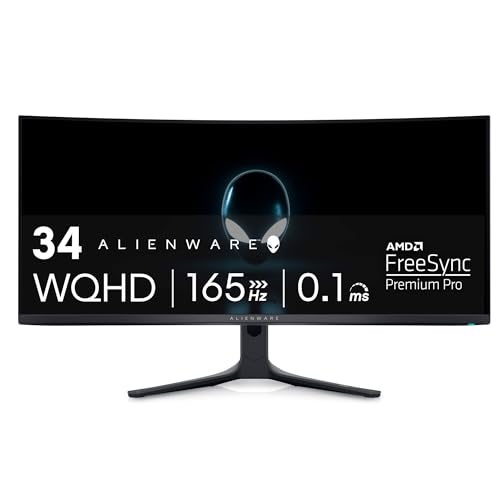
Alienware AW3423DWF — the ultrawide that proved OLED could do VRR gracefully
Badge: Best ultrawide example
- Panel: 34-inch curved QD-OLED, 21:9
- Refresh: 165Hz, 0.1ms response as listed
- VRR: AMD FreeSync Premium Pro per the listing
- Colour: 99.3% DCI-P3, VESA DisplayHDR 400 class
The AW3423DWF became the reference ultrawide for a reason relevant to this guide: its QD-OLED panel pairs FreeSync Premium Pro with the kind of pixel response that makes variable refresh look effortless, because OLED pixels change state almost instantly at any refresh rate, sidestepping the overdrive compromises discussed above. NVIDIA owners should note the listing’s certification is AMD’s; in practice this generation of Alienware ultrawides is widely used with GeForce cards over DisplayPort adaptive sync, but buyers who want NVIDIA’s own tested-and-approved promise on the box should weigh the LG below, which carries both badges explicitly. As a gaming display it remains superb — inky blacks, huge colour volume, a curve that wraps strategy games and racers around you — and as a VRR citizen it demonstrates that the AMD badge no longer confines a monitor to AMD systems in any practical sense.
Strengths
- QD-OLED response makes VRR feel seamless across the range
- Ultrawide immersion with strong HDR colour volume
- FreeSync Premium Pro guarantees low-framerate compensation
Trade-offs
- No G-Sync badge on the listing for buyers who want NVIDIA’s certification specifically
- 165Hz ceiling trails the 240Hz 16:9 OLEDs for pure esports use
- Ultrawide aspect needs game support to shine
Best for: immersive and mixed-genre players who want one spectacular screen. Not suited for: esports specialists chasing maximum refresh, or badge purists.

Samsung Odyssey OLED G8 (G81SF) — both badges, 4K, 240Hz
Badge: Best dual-certified 4K option
- Panel: 32-inch QD-OLED, 4K
- Refresh: 240Hz
- VRR: FreeSync Premium Pro and G-Sync Compatible per the listing
- HDR: DisplayHDR True Black 400
Samsung’s 32-inch Odyssey OLED G8 is the format war’s white flag rendered as a product: a single listing that advertises FreeSync Premium Pro and G-Sync Compatible side by side, at 4K and 240Hz, on a QD-OLED panel. For the purposes of this guide it is the cleanest possible recommendation for a buyer who refuses to think about camps at all. Feed it a Radeon and it speaks FreeSync; feed it a GeForce and NVIDIA’s driver recognises a validated panel. The 4K resolution at 32 inches delivers desktop-grade text clarity alongside gaming speed, and 240Hz gives competitive players headroom that 4K GPUs are only now learning to fill — which is precisely where VRR earns its keep, smoothing the large frame-rate swings of demanding 4K titles. The premium is real, and so is the requirement for a serious GPU to feed it, but as an answer to the question this article poses, no monitor states the truce more completely.
Strengths
- Dual certification removes camp anxiety entirely
- 4K clarity and 240Hz speed in one panel
- QD-OLED HDR with true blacks
Trade-offs
- Needs a powerful GPU to justify its resolution and rate
- Flagship pricing
- 32 inches of 4K demands desk depth for comfortable viewing
Best for: high-end buyers who want one monitor for the next GPU generation or two. Not suited for: mid-range systems, which will live at the bottom of its VRR range.

LG UltraGear 27GS93QE — the esports-sized dual citizen
Badge: Best 1440p competitive pick
- Panel: 27-inch OLED, QHD 1440p
- Refresh: 240Hz, 0.03ms response as listed
- VRR: FreeSync Premium Pro and NVIDIA G-Sync per the listing
- Connections: HDMI 2.1 and DisplayPort
If the Samsung is the truce at flagship scale, LG’s 27-inch UltraGear is the truce at the size competitive players actually choose. Its listing likewise carries both camps’ marks — FreeSync Premium Pro and NVIDIA G-Sync — wrapped around a 1440p OLED running 240Hz with the near-instant response that makes variable refresh invisible as a mechanism and obvious as a feeling. The 1440p resolution is the sweet spot this guide keeps returning to: demanding enough to look sharp at 27 inches, light enough that strong GPUs hold high frame rates, and forgiving enough that VRR dips land in the graceful middle of the range rather than at its floor. HDMI 2.1 also makes it a legitimate console display, where HDMI VRR from a PlayStation or Xbox works through the same panel. For a buyer with one desk, one PC and possibly one console, this is the least complicated excellent answer.
Strengths
- Both certifications at the competitive sweet-spot size and resolution
- 240Hz OLED response flatters every genre
- HDMI 2.1 extends its VRR life to consoles
Trade-offs
- 1440p gives up the 4K desktop clarity of the Samsung
- OLED care habits (varying content, avoiding static burn-in risks) apply
- Stand and styling are gamer-forward for a shared office
Best for: competitive PC players and PC-plus-console desks. Not suited for: buyers wanting 4K productivity clarity or an ultrawide canvas.
How to choose: a decision path by GPU and habit
If you own a GeForce card
Your ideal monitor carries G-Sync Compatible certification at minimum, because NVIDIA has then validated the panel’s behaviour with your driver. A hardware G-Sync or Ultimate module buys the fullest validation and historically the most graceful variable overdrive on LCDs, at a price premium that has become harder to justify in the OLED era. FreeSync monitors will very likely work — the driver supports adaptive sync over DisplayPort broadly — but an uncertified pairing occasionally exhibits brightness flicker in menus or at range boundaries, and NVIDIA’s own list is the tiebreaker when two monitors otherwise tie. Console players should additionally confirm HDMI VRR support, since a GeForce-focused monitor is not automatically a good console citizen.
If you own a Radeon card
FreeSync certification is your native promise, and Premium is the tier worth insisting on because its low-framerate compensation mandate protects exactly the dips that mid-range cards produce in new releases. G-Sync hardware-module monitors are the ones to avoid for you: the module’s ecosystem is NVIDIA-only, so a Radeon cannot use its variable refresh at all — the single remaining hard wall in this landscape, and it belongs to the oldest technology in the article. G-Sync Compatible monitors, which are adaptive-sync panels NVIDIA tested, will generally serve a Radeon through the same open mechanism, though the FreeSync badge is the one written for you.
If you play on console as well
Consoles speak HDMI VRR, so the monitor or television must support VRR over its HDMI ports at the resolution and rate your console outputs, and the cable must be an honest high-speed one. This requirement quietly eliminates some PC-first monitors with older HDMI implementations and elevates televisions and HDMI 2.1 monitors like the LG reviewed above. PC-plus-console desks should start their shopping from the HDMI specification and work backwards to the PC badges, because the PC side has become flexible while the console side remains exact.
If you are buying the GPU and monitor together
Then the camps should not drive the decision at all. Choose the GPU on performance and price, choose the monitor on panel quality, size and certified VRR range, and simply confirm the pairing appears on the GPU maker’s validated list or carries the matching badge. The era when a monitor purchase imprisoned you in a GPU brand for a decade has ended for everyone except buyers of hardware-module G-Sync displays, who should make that commitment with open eyes.
Setting up VRR correctly on a PC
Step one: use the right cable and port
Connect with DisplayPort for PC gaming where possible, or a certified high-speed HDMI cable for HDMI 2.1 setups. Bargain cables are the silent cause of a surprising share of VRR complaints — flicker, dropouts, ranges that will not enable — because variable refresh stresses a marginal cable in ways fixed refresh forgives. Use the cable that came with the monitor before buying anything exotic; manufacturers include one rated for the panel’s full specification.
Step two: enable VRR in the monitor’s own menu
Most gaming monitors ship with adaptive sync toggled in their on-screen display, sometimes under a gaming or picture menu, and occasionally it is off by default or disabled by certain picture modes. Turn it on at the panel first. While you are in the menu, disable any dynamic contrast or energy-saving features that modulate brightness, since those fight the same perceptual territory VRR is trying to stabilise.
Step three: enable it in the GPU driver
On the PC, open your GPU control panel and enable the variable refresh option for your display — G-Sync setup on NVIDIA systems, FreeSync in AMD’s software — choosing fullscreen or fullscreen-and-windowed according to how you play. Windowed support matters more each year as borderless modes dominate, but it is also where occasional desktop flicker appears on marginal panels; if your desktop misbehaves, restrict VRR to fullscreen and lose nothing in most games.
Step four: cap your frame rate just under the maximum
The classic finishing touch: set an in-game or driver frame cap a few frames below the monitor’s maximum refresh. This keeps the GPU inside the VRR range at all times, preventing the brief exits at the ceiling that reintroduce tearing or sync delay. A 240Hz panel capped around the high 230s, a 165Hz panel capped a few frames lower — the exact margin matters less than the habit. Pair the cap with in-game vertical sync off and let VRR do the work it was built for.
Step five: verify with a test pattern, not a feeling
Run a variable-refresh test — the classic pendulum-style demos and browser-based frame-rate tests — and sweep the frame rate slowly across your monitor’s range. You are looking for the absence of tearing throughout, smooth motion at every rate, and no brightness pulsing at the low end. Five minutes of this tells you more than a week of gaming impressions, and it catches cable and certification problems while returns are still easy.
Mistakes that make VRR feel broken
Expecting VRR to fix a bad frame rate
VRR smooths variation; it does not manufacture frames. A game averaging 35 frames per second will feel like 35 frames per second — evenly paced, tear-free, and still slow. Buyers disappointed in VRR have usually asked it to rescue settings their GPU cannot run. Lower the settings or the resolution until the average sits comfortably inside the range, and let the technology polish a healthy signal instead of embalming a sick one.
Running two different sync systems at once
Enabling in-game vertical sync on top of VRR, or layering driver-level sync modes blindly, can reintroduce the latency and judder the setup was meant to remove. The clean configuration is boring: VRR on at panel and driver, in-game vsync off, frame cap just under the ceiling. Deviate only with a specific reason and a test that proves the deviation helps your title.
Ignoring the range when choosing resolution
A 4K monitor paired with a mid-range GPU spends its life at the bottom of its VRR range, where compensation works hardest and motion clarity is weakest. The same money in a 1440p panel would live in the range’s graceful middle. Resolution ambition must be matched to GPU reality, or the VRR experience degrades precisely where the buyer expected it to shine.
Blaming the badge for a cable
Flicker and dropouts get attributed to certification politics when the true culprit is often a long, cheap or damaged cable, or a port that does not support the full specification. Swap the cable and the port before concluding anything about G-Sync or FreeSync. It is the cheapest diagnostic in this entire article and the most frequently skipped.
Final recommendation
Choose your monitor by panel, size, resolution and certified VRR range; choose your GPU by performance; then check that the two share a badge or a validated listing, which in 2026 they almost always will. GeForce owners should default to G-Sync Compatible or better, Radeon owners to FreeSync Premium or better, console players must insist on HDMI VRR, and everyone should avoid the one true lock-in left in the market — a hardware-module G-Sync monitor paired with any thought of switching GPU brands. Among the reviewed displays, the LG 27GS93QE is the balanced competitive answer, the Samsung Odyssey OLED G8 the no-compromise flagship, and the Alienware AW3423DWF the immersive ultrawide. The format war is over; what remains is simply buying a good panel whose variable refresh range matches the frame rates your system actually produces. If this guide leaves you with one habit, let it be reading the range before the refresh rate and the certification before the slogan — the two quiet specifications that decide how a monitor behaves on the worst frame of your heaviest game, which is the frame you will actually remember. Everything else in the G-Sync, FreeSync and VRR conversation is commentary on that single moment: the dip, and whether your display meets it gracefully or gives up and tears. Choose for the dip, and the highlights will take care of themselves every single time.
A short history of the problem VRR solved
To appreciate why three brands fight over this feature, remember what gaming looked like before it. For decades the player’s choice at any frame rate that was not a perfect divisor of the refresh rate was tearing or stutter, and the culture adapted around the flaw: competitive players turned sync off and learned to ignore tears for the sake of latency, while cinematic players enabled vertical sync and accepted a heavier, laggier image for the sake of cleanliness. Reviewers benchmarked cards at locked rates that real games never held. The first G-Sync monitors in the mid-2010s felt less like an incremental feature and more like a category error corrected — suddenly a game wandering between 45 and 90 frames per second looked calm, and the wandering itself became acceptable in a way it never had on fixed displays. FreeSync’s arrival on open standards then did to the price what G-Sync had done to the experience, and HDMI VRR carried the idea to televisions and consoles. The modern buyer’s confusion is a luxury problem: three names for a solved problem, competing mainly on certification and extras.
The flicker question, answered honestly
One artefact shadows VRR discussions and deserves a clear explanation: brightness flicker, most often noticed on loading screens and menus. On many LCD and some OLED panels, pixel brightness varies slightly with refresh rate, so when a game’s frame rate swings wildly — exactly what loading screens and uncapped menus cause — the panel’s brightness breathes in sympathy. Certification programs test for this, which is one concrete thing a badge buys, and panel quality varies enough that two monitors with identical specifications can behave differently. Practical mitigations exist: frame caps calm the swings that provoke flicker, and restricting VRR to fullscreen keeps desktop menus out of the equation. Buyers for whom flicker is a known sensitivity should prioritise models whose reviews specifically test low-framerate brightness stability, and should treat the return window as part of the purchase, because this is the one VRR trait that cannot be fully predicted from a specification sheet.
VRR beyond the desktop monitor
Televisions as gaming displays
The living-room television has become a legitimate gaming display largely because HDMI VRR let it behave like one. Modern gaming televisions offer variable refresh across a wide range, low-latency game modes and sizes no monitor matches, and for console-first players they are often the correct purchase outright. PC players borrowing the television should verify the VRR range at their resolution — some sets vary refresh fully at 4K but restrict it at the high-refresh modes PC players favour — and should expect the same cable discipline the desktop demands.
Laptop panels
Gaming laptops increasingly ship with adaptive-sync internal panels, branded under the same G-Sync and FreeSync umbrellas, and the benefit is arguably larger there than on any desktop: laptop GPUs throttle thermally, frame rates wander more, and VRR irons exactly that wandering. When comparing gaming laptops, an adaptive-sync panel should rank alongside the GPU tier as a purchase criterion, and buyers connecting an external monitor should confirm whether the laptop’s ports route through the discrete GPU, since that determines which sync ecosystem the external display can join.
Handhelds and the next frontier
Handheld gaming PCs have begun adopting variable refresh for the same reason laptops did — constrained power budgets produce wandering frame rates — and the smoothing effect at 40 to 60 frames per second transforms how demanding games feel on the go. The technology’s migration down to small screens completes its arc: what began as a premium monitor module is becoming the default assumption of any display meant for games, and future buyers will ask not whether a screen has VRR but why one would not.
How specific games expose VRR’s value
Not every genre spends the technology equally. Open-world titles with streaming landscapes produce the wildest frame-rate swings and gain the most visible calm from VRR. Competitive shooters, tuned to run at high and stable rates, gain the least in smoothness but value the tear-free image during the dips that explosions and new areas still cause. Strategy and simulation games, often CPU-bound with rates that sag as late-game complexity grows, become dramatically more pleasant when the sag is paced evenly instead of juddering. Racing games sit in between: high rates in clear air, dips in traffic and rain, and a strong sensitivity to tearing because the whole screen scrolls coherently. Reading your own library against that map tells you how much of your gaming life VRR will actually touch — for most mixed libraries, the honest answer is nearly all of it, which is why this guide treats a certified wide-range implementation as a default requirement for any gaming monitor bought today rather than an upgrade.
Reading a monitor listing for its VRR truth
Monitor listings scatter the relevant facts across marketing copy, so here is the order in which to hunt them. First, the badges: which certifications are named, and are they named for the panel or buried as a software feature? Second, the variable refresh range, stated as two numbers; a range that begins high, in the 60s or 70s, is a warning that the implementation expects high frame rates and will abandon you in dips. Third, the connection through which the full range works, because some monitors offer their best VRR over DisplayPort and a restricted version over HDMI, or the reverse. Fourth, low-framerate compensation, sometimes named outright and sometimes implied by a Premium tier badge. Fifth, the maximum refresh, which matters least of the five and is printed largest — a useful lesson in reading any specification sheet, where the order of emphasis is advertising’s order, not engineering’s. A buyer who checks those five facts in that sequence will understand a monitor’s real VRR character better than one who reads every word of the product page in the order it was written.
What the premium tiers actually charge for
It is fair to ask why a hardware G-Sync monitor costs more than an adaptive-sync equivalent, and the answer is a bundle: the module itself, NVIDIA’s validation programme, variable overdrive handled in hardware, and historically a wider guaranteed range. Whether that bundle is worth its premium depends on panel type. On LCDs, where overdrive behaviour across a variable range is a real engineering problem, the module’s polish can be visible. On OLEDs, whose pixels respond almost instantly at any rate, much of the module’s advantage evaporates, and the premium buys certification and extras rather than motion quality — one reason OLED has accelerated the market’s convergence on the open tiers. FreeSync’s Premium and Premium Pro tiers charge their smaller premium for a different bundle: mandated compensation behaviour, refresh floors, and in the Pro case HDR validation. In both camps the pattern is the same — the base technology is commoditised, and the money buys guarantees about its edges. Buyers who play in the middle of the range, at healthy frame rates, rarely touch the edges and should spend accordingly; buyers whose systems live at the edges should pay for the guarantees gladly.
A troubleshooting pass when VRR misbehaves
When a setup tears, flickers or refuses to enable, work the chain in order and change one thing at a time. Confirm the monitor’s own adaptive-sync setting is on and that the current picture mode has not disabled it. Confirm the driver’s variable-refresh toggle is enabled for the correct display — multi-monitor desks routinely configure the wrong screen. Replace the cable with the one supplied in the monitor’s box and move it to a different port. Restrict VRR to fullscreen temporarily to separate game behaviour from desktop behaviour. Update the GPU driver, and if the monitor offers firmware updates, apply them with the same caution you would give any firmware: power stable, session unhurried. Finally, test with the pendulum-style demo rather than a game, because a controlled sweep distinguishes a display problem from a game problem in minutes. The large majority of VRR faults surrender somewhere in that sequence, most often at the cable or the forgotten menu toggle, and almost never at the badge printed on the bezel.
VRR and HDR: the pairing modern games assume
High dynamic range and variable refresh arrived in gaming displays at roughly the same time and are now so intertwined that certification tiers treat them as one subject — FreeSync Premium Pro and G-Sync Ultimate both police HDR behaviour alongside refresh behaviour. The pairing matters because HDR raises the stakes of frame pacing: a tone-mapped image with deep blacks and bright highlights makes judder more visible, not less, and brightness flicker artefacts become more noticeable against HDR’s wider luminance range. Buyers shopping the current OLED generation get the pairing in its best form, since the panels’ per-pixel light control delivers HDR that LCD local dimming approximates, and their response speed flatters VRR at the same time. The practical advice is to evaluate the two features together in reviews rather than in separate checklists, and to be suspicious of any display that advertises extreme HDR brightness while offering a narrow or uncertified VRR range — spectacle without pacing is a demo reel, not a gaming monitor.
The esports corner: where VRR is deliberately switched off
One community dissents from this article’s enthusiasm, and its reasons are instructive. Some professional and aspiring competitive players disable VRR entirely, running fixed high refresh with sync off, because at frame rates far above the display’s range the variable system has nothing to smooth, and the absolute lowest input latency comes from an unsynced, uncapped pipeline that accepts tearing as the price. At 400 frames per second on a 240Hz panel, that arithmetic is defensible. The error is generalising it downward: the same settings copied onto a system that produces 90 wandering frames per second deliver the worst of every world. VRR is the technology of the realistic middle — systems that are strong but not absurd, games that are demanding rather than ancient — and that middle is where nearly all gaming actually happens. Readers should locate their own frame rates honestly before borrowing the settings of players whose machines live in a different regime.
Where variable refresh goes next
The trajectory is toward invisibility. Refresh ceilings continue to climb, which widens ranges and pushes the difficult low end further from everyday play; panel response continues to quicken, which erases the overdrive distinctions that once separated the camps; and the standards themselves continue to absorb the feature, so that a future display listing may no more boast about VRR than a current one boasts about having a power button. What will remain differentiated is the software around the panel — latency tools, per-game profiles, cross-device ecosystems — which is where both NVIDIA and AMD are already migrating their competition. For today’s buyer the implication is reassuring: a well-chosen VRR monitor is not a bet on a format that might lose, because the format has already won and merged. Buy the panel you love, with a wide certified range, and the logos will take care of themselves.
Worked examples: three buyers walk through the decision
The mid-range PC builder
A builder pairing a mid-range GPU with a 1440p monitor is the modal case in this market, and the decision path is short. Any 1440p panel with FreeSync Premium or G-Sync Compatible certification and a range beginning in the 40s will serve either GPU brand; the builder should spend their comparison energy on panel quality, ergonomics and price, in that order. Their games will live between 70 and 165 frames per second — the exact territory where VRR’s smoothing is most valuable — and low-framerate compensation will carry the heaviest scenes. This buyer is the reason the format war’s end matters: a decade ago their monitor choice would have dictated their next two GPU purchases, and today it dictates nothing but the picture in front of them.
The 4K enthusiast planning a GPU upgrade
An enthusiast buying a 4K high-refresh monitor ahead of the GPU that will fully feed it should choose the display for the destination, not the journey: dual certification or the badge matching the planned card, a wide range to survive the interim, and compensation behaviour to soften the months spent at low rates. The Samsung reviewed above exists for this buyer. The interim experience will still be visibly better than a fixed-refresh 4K panel, because VRR’s gift is precisely making inadequate frame rates feel intentional rather than broken — but the buyer should enter the arrangement knowing the monitor’s full character only arrives with the new card.
The console-first player adding a PC
A player whose PlayStation or Xbox came first should anchor on HDMI VRR and treat the PC badges as secondary, because the console’s requirements are rigid while the PC’s have become flexible. A television or HDMI 2.1 monitor that serves the console perfectly will almost certainly serve a new PC well through adaptive sync, whichever GPU the PC carries. The reverse journey — a PC-first hardware G-Sync display asked to host a console — is the one configuration in this entire guide that can genuinely fail, and it fails completely, with no variable refresh for the console at all. Sequence the purchases around the rigid device and the flexible ones will follow.
One more distinction: tearing, judder and blur are different complaints
Players often describe every motion flaw as tearing, and the misdiagnosis sends them shopping for the wrong cure. Tearing is a spatial fault: two frames visible in one refresh, split by a horizontal seam, and it is the specific fault VRR abolishes. Judder is a temporal fault: frames shown for uneven durations, so motion advances in uneven steps, and VRR’s even pacing is also its cure. Blur is an optical fault: pixels transitioning slowly, or the eye tracking a sample-and-hold image, and VRR does nothing for it at all — panel response and backlight behaviour own that problem, which is why OLED’s response advantage matters independently of any badge. A buyer who can name which of the three faults actually bothers them in their games can spend money with surgical precision: sync technology for the first two, panel technology for the third, and no amount of certification spending will substitute one cure for the other. Most players, watching a demanding game on an ageing LCD, are suffering all three at once, which is why a modern certified OLED feels like such a discontinuity — it is three separate upgrades arriving in a single box, and only one of them is the subject of this article.
A note on multi-monitor desks
Desks with two or three displays introduce a wrinkle the single-screen guides skip: variable refresh is configured per display, and mixed setups — one VRR gaming panel beside a fixed-refresh secondary — are entirely normal and fully supported. The practical points are three. First, enable VRR on the gaming display only, and make sure games actually launch on it; a title dragged to the secondary screen leaves the technology behind. Second, borderless games that span or sit near a boundary can inherit the compositor’s behaviour from the wrong display in rare configurations, which is one more argument for fullscreen mode on the primary panel for demanding titles. Third, mismatched refresh rates between displays used to cause stutter in the desktop compositor when video played on one screen and a game ran on another; modern operating systems handle this far better than they did, but a buyer planning a mixed desk should still expect the occasional quirk and should not mistake it for a failure of the gaming panel. None of this argues against multi-monitor desks — the productivity gains are real — only for configuring them deliberately rather than discovering their behaviour mid-match.
Measuring latency without fooling yourself
Players curious whether their VRR configuration is truly low-latency should be careful with home measurement, because the obvious tests mislead. Frame-rate counters report what the game renders, not when photons leave the panel; reaction-time websites measure the whole human, not the display; and comparing a capped VRR setup against an uncapped tearing one by feel alone usually measures preference for smoothness rather than delay. The tools that do isolate display latency — hardware analysers in the Reflex ecosystem, high-speed camera comparisons — are reviewer equipment, and the sensible amateur strategy is to borrow their conclusions for your panel model and then verify behaviour qualitatively with the sweep test described in the setup section. What you can measure at home, and should, is consistency: a setup whose frame times graph as an even line will feel faster than one with a lower average and a jagged line, because human perception punishes variance more than it rewards averages. VRR configured correctly is, above all, a consistency machine — which is the final reason the frame cap matters, the cable matters, and the badge matters least of all.
Frequently asked questions
Can a FreeSync monitor work with an NVIDIA card?
In the great majority of cases, yes. GeForce drivers support adaptive sync over DisplayPort on FreeSync monitors, and panels NVIDIA has validated carry the G-Sync Compatible badge as proof. Uncertified panels usually work too, with occasional flicker on a minority of models — one reason to prefer a listing that names both badges, as two of the monitors reviewed here do.
Can a G-Sync monitor work with an AMD card?
It depends which G-Sync. G-Sync Compatible monitors are adaptive-sync panels and generally serve Radeon cards through the open mechanism. Monitors with a hardware G-Sync module are NVIDIA-only for variable refresh — a Radeon connected to one gets a fixed-refresh display. Check which kind you are buying before assuming cross-brand peace.
Is VRR the same as FreeSync?
VRR is the generic technology — variable refresh rate — and also the name used in the HDMI standard. FreeSync is AMD’s implementation and certification of that technology, and G-Sync is NVIDIA’s. Saying a display supports VRR says it can vary its refresh; the badges say whose testing and extras stand behind that ability.
Does VRR add input lag?
Properly configured, VRR’s latency is far lower than traditional vertical sync, because frames display the moment they complete rather than waiting for a fixed cycle. The main latency trap is letting frame rates exceed the range and bounce against a sync ceiling, which the frame-cap step in this guide prevents.
What frame rate range should I look for?
Wider is better, and the low end matters most. A range beginning in the 40s with low-framerate compensation covers the dips of demanding games gracefully. Compare your GPU’s typical output in your games against the monitor’s range rather than admiring the maximum refresh in isolation.
Does VRR matter for consoles?
Yes — modern consoles support HDMI VRR, and it visibly smooths the many console games whose frame rates wander. The requirement is a display whose HDMI ports implement VRR at the console’s output, plus a proper high-speed cable. It is one of the strongest reasons for a shared desk to choose an HDMI 2.1 display.
Why does the picture flicker on some menus and loading screens?
Brief brightness flicker in menus is one of the most reported quirks of variable refresh, and it has a mundane cause. During a loading screen the frame rate can swing wildly between near-zero and very high values many times per second, and each swing asks the panel to change how long it holds each frame. Some panels answer those swings with small shifts in brightness, most visible on dark, static screens where your eyes have nothing else to track. Once actual gameplay settles into a steadier range, the effect usually vanishes, which is why it alarms new owners out of proportion to its importance. Practical responses are simple: leave the feature enabled for play, avoid judging a display by its loading screens, and check whether your monitor offers a narrower or standard variable refresh mode, since a gentler operating range sometimes calms the behaviour. Persistent flicker during stable gameplay is a different matter and deserves troubleshooting rather than tolerance.
Should I cap my frame rate while using variable refresh?
A modest cap set just below your display’s maximum refresh rate is one of the most reliable habits in this whole topic. Without a cap, a powerful system will regularly push past the top of the variable range, at which point the synchronisation you paid for quietly switches off and tearing returns at exactly the moments of highest performance. Holding the frame rate a few frames under the ceiling keeps the game inside the range where the display can follow it, and it also smooths the small stutters that occur when a system bounces against its limit. The cost is a handful of frames you were unlikely to perceive, traded for consistency you very likely will. Apply the cap in one place only, either the game’s own limiter or the graphics driver, because stacking two limiters can produce uneven frame pacing that feels worse than the problem you set out to solve.
Related guides
HDR explained for gaming in plain language
gaming display HDR standards compared
best gaming monitors we recommend
how much VRAM gaming actually needs