Disclosure: As an Amazon Associate, reviewstook.com earns from qualifying purchases. Links on this page are affiliate links; they cost you nothing extra. Prices and availability change often, so check the current Amazon listing before you buy.
Choosing between 1080p vs 1440p vs 4k gaming resolutions is really choosing what your graphics card spends its power on: frames, sharpness, or spectacle. There is no universally correct answer, because the three resolutions are not three rungs of one ladder — they are three different balances between pixel count, refresh rate, screen size, and cost, and the right balance depends on the games you play, the card you own, and how far you sit from the screen. This explainer walks through what each resolution actually delivers, the pixel and performance math behind it, where each one wins and loses, and the monitors that represent each tier today, so you can make the call with your eyes open.
The short answer
1080p is the performance resolution: the easiest to run, the home of the highest refresh rates, and still the competitive standard at 24 to 25 inches. 1440p is the balance resolution: about 78 percent more pixels than 1080p, crisp at 27 inches, and fast enough in its modern 165Hz to 240Hz forms for almost every player — for most people building or upgrading a gaming PC today, this is the sweet spot. 4K is the spectacle resolution: four times the pixels of 1080p, unmatched detail and immersion at 27 to 32 inches, and a serious demand on your GPU that only strong hardware satisfies at high refresh rates. If you want one sentence to carry away: match the resolution to your graphics card first and your ambitions second, because a resolution your card cannot feed will disappoint you at any size, at any refresh rate, and at any price — while a well-matched pairing at any of the three tiers will feel fast, sharp, and right every single day you sit down to play.
In this guide
1080p vs 1440p vs 4K Gaming: the numbers side by side
| Factor | 1080p (Full HD) | 1440p (Quad HD) | 4K (Ultra HD) |
|---|---|---|---|
| Pixel dimensions | 1920 x 1080 | 2560 x 1440 | 3840 x 2160 |
| Total pixels | About 2.07 million | About 3.69 million | About 8.29 million |
| Rendering load vs 1080p | Baseline | About 1.78x | About 4x |
| Sharpness at 27 in | About 82 ppi — soft | About 109 ppi — crisp | About 163 ppi — very sharp |
| Common gaming sizes | 24–25 in | 27 in (also 32 in) | 27–32 in |
| Typical refresh range | 144Hz–360Hz+ | 144Hz–240Hz | 120Hz–240Hz (premium) |
| GPU tier to feed it well | Entry to mid-range | Mid-range to high-end | High-end |
| Best-fit play | Competitive esports | Mixed libraries, most players | Story, sim, spectacle, console+ |
| Desktop/work quality | Cramped, soft text | Comfortable and crisp | Excellent with scaling |
What a resolution actually is (and why pixels per inch matters more)
A resolution is simply a count of pixels arranged in a grid: 1920 columns by 1080 rows for Full HD, and so on up the scale. Every frame your GPU draws, it has to decide the color of every one of those pixels, which is why total pixel count — not the marketing name — predicts performance cost so reliably. Doubling dimensions quadruples pixels, which is why the step from 1080p to 4K is a fourfold rendering burden while the step to 1440p is a gentler 1.78 times.
What your eyes judge, though, is not the raw count but the density: pixels per inch at your screen size and seating distance. The same 1080p grid looks reasonably tight on a 24-inch monitor, coarse on a 27-inch monitor, and frankly chunky on a television viewed up close. This is why resolution advice is always secretly size advice. 1440p earned its “sweet spot” reputation because at the most popular gaming size — 27 inches — it lands at roughly 109 pixels per inch, the density where text, HUDs, and game detail all look properly resolved from a desk chair. 4K at 27 inches reaches about 163 pixels per inch, sharp enough that many users run interface scaling for comfort; at 32 inches it sits near 140, a lovely density for immersive play. Keep this density idea in mind through everything below: you are not buying pixels, you are buying pixels per inch at the distance you sit.
1080p: the performance resolution
Full HD’s case rests on three pillars. First, cost of entry: modest graphics cards run modern games well at 1080p, and esports titles run at very high frame rates on almost anything recent. Second, refresh: because the panels are cheaper to make and the frames cheaper to render, 1080p is where 240Hz, 360Hz, and beyond live as realistic options rather than flagship fantasies — our head-to-head on 1080p 240Hz vs 1440p 144Hz covers that specific duel in depth. Third, competitive convention: tournaments, pros, and the whole esports ecosystem standardized on 24 to 25 inch 1080p high-refresh setups, so the settings knowledge, the hardware, and the habits all align there.
The weaknesses are equally clear. At 27 inches the image softens visibly, text work is the worst of the three resolutions, and in slow, detailed games you see aliasing and shimmer that higher resolutions smooth away. 1080p also ages fastest as an upgrade: a player who buys a stronger GPU next year will immediately want more resolution to show for it. None of this makes 1080p a bad choice — for competitive players and budget builds it remains the right choice — but it is a choice with a known ceiling.

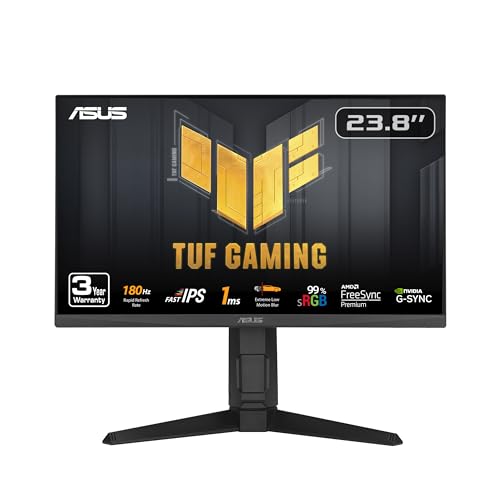
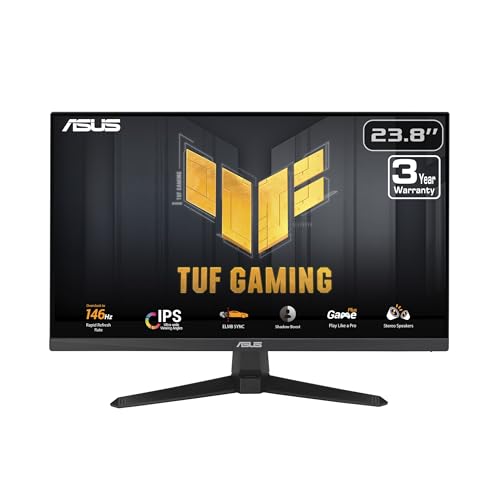
Representative 1080p pick: ASUS TUF Gaming VG249QE5A
Badge: The sensible 1080p starting point. This 24-inch (23.8 viewable) ASUS TUF monitor runs 1080p at 144Hz with an overclock to 146Hz, on an IPS panel with ELMB Sync, 1ms response, built-in speakers, and variable overdrive. It represents the honest core of the 1080p tier: high refresh, decent color, no flagship pricing — the screen a first gaming PC or a competitive setup on a budget should start from.
- Size / resolution: 23.8 in viewable, 1920 x 1080
- Refresh rate: 144Hz (overclock to 146Hz)
- Panel: IPS, 1ms, ELMB Sync
- Extras: built-in speakers, variable overdrive
Best for: budget builds and competitive players starting out. Not suited for: players who want a large, sharp all-purpose screen. Check price on Amazon
1440p: the balance resolution
Quad HD’s rise is the story of gaming hardware growing up. GPUs became strong enough that the 1.78x rendering cost stopped being scary for mid-range builds, panel makers standardized excellent 27-inch QHD screens at 165Hz and above, and players discovered that the sharpness jump from 1080p is the most visible upgrade in the whole comparison — the one you notice in every game, every menu, every document, rather than only in fast motion. 1440p also future-proofs gracefully: it looks right today, and a future GPU upgrade unlocks more refresh headroom on the same screen.
The honest caveats: you do need that mid-range-or-better card, especially in heavyweight releases where native rendering at high settings can still humble ambitious hardware; upscaling becomes part of the toolkit, though at 1440p output its quality modes are convincing. And the truly speed-obsessed still give up a little motion clarity versus 240Hz-plus 1080p panels — though with 1440p now sold at 240Hz in premium models, even that gap is closing for those willing to pay. For a deeper bench of options, see our roundup of the best 144Hz gaming monitors, most of which are this resolution in its modern 165Hz form.

Representative 1440p pick: LG UltraGear 27GP850-B
Badge: The sweet-spot benchmark. LG’s 27-inch Nano IPS monitor at 2560 x 1440 and 165Hz, with 1ms response, G-Sync compatibility, FreeSync Premium, and a fully adjustable stand, is the reference point for this tier: sharp, fast, color-rich, and equally at home in a ranked match, an open-world epic, or a spreadsheet.
- Size / resolution: 27 in, 2560 x 1440
- Refresh rate: 165Hz
- Panel: Nano IPS, 1ms (per listing)
- Stand: tilt, height, and pivot adjustable
Best for: the majority of gaming PC players. Not suited for: ultra-budget builds or 360Hz esports ambitions. Check price on Amazon
4K: the spectacle resolution
4K gaming is about detail density you can lean into: individual leaves, fabric weave, distant signage, the grain of a cockpit dashboard. At 3840 x 2160 the image stops looking like a rendering of a world and starts looking like a window into one, especially at 32 inches where the scale adds physical presence. Flight and racing simulation, slow exploration games, and cinematic story titles gain the most; it is also the resolution that pairs naturally with current consoles, which target 4K output (usually rendered internally at lower resolutions and upscaled) and with media, where 4K video content is now the default.
The price of spectacle is rendering load: four times the pixels of 1080p, every frame. High-refresh 4K — 144Hz and above — is a flagship-GPU experience in demanding games, full stop, and even then upscaling is typically part of the recipe. Players who chase 4K on mid-range hardware end up at 40 to 60 frames per second with compromised settings, an outcome most would trade happily for smooth 1440p. The tier also carries premium panel pricing, and at 27 inches its sharpness advantage over 1440p, while real, is subtler than at 32 inches. Buy 4K when your GPU is genuinely high-end, your games reward looking, or your screen doubles as a media and creative display — our dedicated roundup of the best 4K gaming monitors covers the tier’s leading models.

Representative 4K pick: LG UltraGear 27G810A-B
Badge: The flexible 4K option. This 27-inch LG pairs a 4K UHD IPS panel with a party trick that speaks directly to this comparison: a dual mode offering UHD at 180Hz or Full HD at 360Hz, with 1ms response, G-Sync and FreeSync Premium, DisplayHDR 400, and HDMI 2.1. One screen, two of this article’s three resolutions, switchable by game — competitive titles in the fast mode, story titles in the sharp mode.
- Size / resolution: 27 in, 3840 x 2160
- Refresh rate: 180Hz at UHD; 360Hz dual mode at FHD
- Panel: IPS, 1ms (per listing), DisplayHDR 400
- Connectivity: HDMI 2.1, G-Sync and FreeSync Premium
Best for: high-end GPU owners who play both competitive and cinematic games. Not suited for: mid-range builds that would starve the panel. Check price on Amazon

Also consider at 4K: ASUS TUF Gaming VG27UQ1A
Badge: The console-friendly 4K pick. ASUS’s TUF entry offers 27-inch 4K at 160Hz with ELMB Sync, 1ms response, 95 percent DCI-P3 color coverage per its listing, FreeSync Premium, and explicit console positioning for current PlayStation and Xbox systems. It is the straightforward high-refresh 4K route for players whose desk hosts both a PC and a console.
- Size / resolution: 27 in, 3840 x 2160 (4K)
- Refresh rate: 160Hz
- Panel: 1ms, ELMB Sync, 95% DCI-P3 (per listing)
- Sync: FreeSync Premium, G-Sync compatible
Best for: PC-plus-console desks wanting one sharp, fast screen. Not suited for: players whose GPU targets 1440p — buy for the card you have. Check price on Amazon
The GPU reality check: what each resolution demands
Strip away the marketing and the demand ladder looks like this. At 1080p, esports titles run at high refresh on entry-level and older hardware, and even demanding games are playable at sensible settings on modest cards. At 1440p, you step up one clear GPU tier: a modern mid-range card is the honest entry point for high-refresh play, with upscaling as an accepted assistant in the heaviest releases. At 4K, you step up again — high-end cards for high refresh, and a willingness to use upscaling and tuned settings even there. The pattern to remember is that resolution multiplies cost across the whole PC, not just the monitor line item.
Two technologies soften this ladder without breaking it. Upscaling (the various DLSS, FSR, and XeSS families) renders the game internally at a lower resolution and reconstructs the target output; it works best exactly where this comparison’s upper tiers live, because more output pixels give the reconstruction more to work with. Frame generation goes further by inserting synthesized frames, raising displayed smoothness without raising true rendering rate — helpful for spectacle gaming at 4K, less relevant to competitive latency at 1080p. Neither changes the ordering of the three resolutions; both compress the gaps between them, which is one reason 1440p and even 4K are more attainable now than their raw pixel counts suggest.
Variable refresh rate matters at every tier and matters most where frame rates fluctuate — which is the upper tiers in demanding games. A G-Sync or FreeSync display that tracks your GPU’s output between roughly 90 and 160 frames per second at 1440p will feel smoother than the raw numbers imply, and the same logic at 4K turns a 70-to-110 range into a perfectly pleasant experience. When comparing monitors within a tier, treat good adaptive sync implementation as a first-class feature, not a checkbox.
Refresh rate: the other half of every resolution
Resolution never travels alone; it is always paired with a refresh ceiling that your budget and GPU divide between them. At 1080p the ceiling is stratospheric and affordable. At 1440p the modern mainstream is 165Hz to 180Hz, with 240Hz at a premium. At 4K, 144Hz to 180Hz is the high end of sensible, with faster panels existing at flagship prices. Frame time translates these numbers into feel: 60Hz shows a new frame every 16.7 milliseconds, 144Hz every 6.9, 240Hz every 4.2. The perceived smoothness gains shrink as numbers climb — 60 to 144 transforms, 144 to 240 refines, beyond that polishes — while the sharpness gains from resolution are visible in every static moment. That asymmetry is why the balanced answer so often lands at 1440p with strong refresh rather than at either extreme.
One practical consequence deserves emphasis: your resolution choice should be made at your panel’s native setting, always. Running a 1440p monitor at 1080p to gain frames produces a softer image than a native 1080p screen, because the scaling is uneven; the correct way to gain frames at a higher resolution is in-game resolution scaling or upscaling, which handles the math properly. Dual-mode monitors like the LG 4K pick above are the exception that proves the rule — they switch panel modes cleanly at the hardware level, which is precisely why the feature is marketed.
Which resolution for which games
Competitive shooters and esports: 1080p high refresh remains the professional standard for the reasons covered in our 1080p 240Hz vs 1440p 144Hz head-to-head, with 1440p a legitimate choice in large-map titles. 4K is the wrong tool here — its frames are too expensive for the clarity competitive play actually uses.
Open-world, RPG, and story games: 1440p is the floor for the full experience and 4K is the ceiling worth aspiring to with the GPU to match. These games spend your attention on environments, and resolution is the upgrade they visibly reward.
Simulation and racing: resolution and screen size both matter, immersion is the product, and 1440p ultrawide or 4K at 32 inches are the connoisseur choices — see also our picks among curved gaming monitors for the wrap-around end of this world.
Strategy, indie, and retro: these genres are light to render and dense with fine detail and text, making 1440p or 4K nearly free upgrades in clarity once the panel is on your desk; refresh rate matters least here.
Console gaming: current consoles speak 4K and 120Hz; a 4K 120Hz-plus monitor or a good 1440p display that accepts their signals both work, while 1080p high-refresh panels waste most of their speed. Confirm signal acceptance on any listing before buying for console use.
How to decide: a five-step method
Step 1 — Name your GPU and its honest tier. Not its launch marketing, its current standing. This sets your ceiling: entry cards point to 1080p, mid-range to 1440p, high-end opens 4K.
Step 2 — Name your top three games and their pace. Fast and competitive pulls toward frames; slow and detailed pulls toward pixels. Mixed libraries land, as they usually do, in the middle.
Step 3 — Fix your size. Desk depth and seating distance decide 24, 27, or 32 inches, and size converts resolution into the density your eyes actually judge. Never buy a resolution without its size attached.
Step 4 — Set the refresh floor. Below 120Hz is yesterday’s gaming at any resolution. 144Hz-class is the modern baseline; above that, buy refresh with whatever budget remains after resolution and size are right.
Step 5 — Sanity-check the pair. Read your answers as one sentence — “a mid-range card, mixed games, 27 inches, 165Hz” — and notice that it describes 1440p, or whichever tier your answers describe. If the sentence contradicts the monitor in your cart, the cart is wrong. Then browse the class roundups for your tier and pick within it rather than across tiers.
How to set up and optimize each resolution
Universal first steps, any tier: connect with DisplayPort for PC gaming, set the panel’s native resolution and full refresh rate in your operating system’s advanced display settings, enable adaptive sync in both the GPU control panel and the monitor’s own menu, and confirm in one game that the video settings show the numbers you expect. A remarkable share of “this monitor underwhelms” stories end at this checklist, with a panel that had been running at 60Hz or a stretched non-native resolution since unboxing.
At 1080p, optimization means protecting frame rate. Use competitive settings in multiplayer titles — shadows, ambient occlusion, and post-processing are the usual first cuts — and prefer in-game resolution scaling over dropping the desktop resolution if a heavy title needs relief. If your panel offers motion-blur reduction, reserve it for titles where you can hold a near-locked high frame rate, and accept the brightness trade while it is on. Keep the panel at 24 to 25 inches if you are buying new; the density math in this guide is unforgiving about 1080p at larger sizes.
At 1440p, optimization means balancing. Start at native resolution with high textures — texture quality mostly costs memory, not frame rate, and it is where the resolution shows off — then tune the expensive lighting and shadow settings down until frame rate sits comfortably inside your panel’s variable-refresh range. Reach for upscaling at its quality preset before touching resolution itself. On the desktop, most users run 100 percent scaling at 27 inches; if text feels small, operating-system scaling at 125 percent keeps the sharpness advantage while restoring comfort, which is a luxury 1080p at this size cannot offer.
At 4K, optimization means honesty about your GPU’s tier and smart use of the tools. Upscaling at quality or balanced presets is the default recipe even on strong cards in demanding games; frame generation, where supported, suits story and spectacle titles. Set interface scaling for desktop comfort — 150 percent at 27 inches is common — and let games render at full 4K while the desktop scales independently. If your card is a genuine flagship, native rendering in slightly older or lighter titles is where 4K most obviously justifies itself, with a clarity that neither lower tier can imitate at any setting.
Panels, HDR, and the features that travel with each tier
Resolution is the headline, but the panel behind it decides contrast, color, and motion character. IPS-family panels dominate all three gaming tiers for their viewing angles and color, with Nano IPS and Fast IPS variants improving gamut and speed respectively. VA panels offer deeper contrast at value prices, with slower dark transitions as the historical trade. OLED has arrived at 1440p and 4K in force — near-instant response, perfect blacks, and per-pixel HDR that no backlit panel matches — at premium prices and with the standing advice to vary content and use the built-in panel-care features if the screen doubles as an all-day desktop. TN survives only at the extreme-refresh edge of 1080p, where its speed still earns a niche despite weak color.
HDR deserves a deflationary note. A DisplayHDR 400 badge, like the one on the LG 4K pick in this guide, certifies a brightness level but, without local dimming, delivers a modest HDR experience. Meaningful HDR gaming starts with high-brightness panels with many dimming zones or with OLED, and those live mostly at the 1440p-premium and 4K tiers. Treat HDR as a reason to step up within a resolution tier rather than a reason to change tiers: a great SDR 1440p experience beats a mediocre HDR 4K one at the same total spend, every time.
Connectivity quietly sorts the tiers too. Full-refresh 4K at high rates needs modern DisplayPort or HDMI 2.1 bandwidth — one reason the LG pick’s HDMI 2.1 matters for console owners — while 1440p high refresh is comfortably served by the DisplayPort connections on any recent card, and 1080p asks almost nothing of cabling at all. When a monitor and PC refuse to agree on a high refresh rate, the cable and port generation are the first suspects, ahead of the panel itself.
Work, study, and everything outside games
Because most gaming monitors live double lives, the non-gaming verdict belongs in this comparison. At 1080p, desktop life is cramped: two documents side by side feel squeezed, spreadsheets show few columns, and at 27 inches the soft text taxes long reading sessions. At 1440p and 27 inches, the same desk becomes genuinely productive — comfortable text, real side-by-side space, and enough clarity for photo and document work that does not demand professional color accuracy. At 4K, desktop quality is the best of the three once scaling is set, with text rendering like print; the cost is that very sharpness makes small interface elements tiny until scaling compensates, and older software occasionally handles that scaling clumsily.
Creators tilt the ladder further upward: video timelines, photo editing, and design work all spend resolution directly, and a 4K panel doubles as a reference display for the 4K content the creator is producing. Students and office workers, conversely, should notice that 1440p captures nearly all of the practical benefit at mainstream cost — which is the same conclusion the gaming analysis reached, from the opposite direction. When a single screen must do everything, the middle tier’s case compounds.
What frame rates to actually expect, by game type
Abstract pixel ratios become concrete when you sort games by how they are built. Esports titles are engineered to run fast on modest hardware: at 1080p, expect high-refresh territory even on entry cards; at 1440p, mid-range cards still reach the 165Hz zone in most of them; at 4K, these games are light enough that strong mid-range hardware surprises people. This is why competitive players have genuine freedom of resolution in their own genre — and why they still choose frames: the ceiling matters to them even when all three floors are high.
AAA action and open-world releases invert the picture. These are the games built to showcase hardware, and they price their resolutions honestly: 1080p at high settings is the mid-range comfort zone, 1440p wants a strong card or upscaling, and 4K at high refresh is flagship territory with upscaling assumed. If your library is mostly new big releases bought on day one, let this row of the table choose your resolution — it is the most demanding common case, and a monitor bought for it will handle everything lighter with ease.
Indie, strategy, and older catalog games barely tax any tier. Pixel-art and 2D titles gain little beyond crispness, strategy games gain real estate and text clarity at 1440p and 4K, and decade-old 3D games run at any resolution on anything. Players whose libraries lean here should buy resolution and size freely, because their GPU is not the constraint — the panel is the whole purchase, and it will be fully used.
Simulation titles sit in their own corner: flight and space sims are quietly among the most demanding games made, and their players value resolution, size, and immersion over raw refresh. The classic sim setup — 1440p ultrawide or 4K, refresh in the 100Hz-plus range, settings tuned for scenery — follows directly from those priorities.
Budget framing: where the money goes at each tier
Without naming prices — monitor pricing shifts too fast for print — the tiers have stable budget personalities. A complete 1080p high-refresh setup is the value play: the panel is the cheapest of the three classes and the GPU that satisfies it is a mainstream card, so the whole desk costs the least while still feeling unmistakably “gaming grade.” The 1440p tier is the mid-budget build’s natural home: panel and GPU each step up one sensible notch, and the total lands where most considered PC builds land. The 4K tier is a premium commitment in both line items at once, and it only makes sense as a deliberate flagship build or a combined gaming-and-creation workstation where the panel earns its keep outside games too.
The trap to avoid is the unbalanced build: flagship panel, mainstream card — or the reverse. Money spent on pixels your GPU cannot render, or on frames your panel cannot display, is money converted directly into disappointment. The balanced pairings in this guide’s opening table exist precisely to keep the two halves of a build in step, and if a sale tempts you across tiers, let it tempt the GPU and the monitor together or not at all.
Dual monitors and mixed-resolution desks
Many desks end up with two screens, and mixed resolutions are not only allowed but sensible. The classic competitive arrangement pairs a fast 1080p main panel with any inexpensive secondary screen for chat, guides, and video. The modern generalist arrangement pairs a 1440p high-refresh main with a smaller 1080p side screen in portrait for documents and feeds. A 4K main with a 1440p side screen suits creators. Operating systems handle per-screen scaling independently now, so the old advice to match resolutions exactly is obsolete — match each screen to its job instead, keep the gaming panel as the primary display in your settings, and remember that full-screen games will target whichever screen you designate.
Where the three resolutions go from here
The direction of travel is visible in the current market. 1080p is consolidating into its competitive and budget strongholds, with refresh rates there still climbing because that is the tier where frames are cheap. 1440p is absorbing the mainstream completely — faster panels, OLED options, and prices that keep pressing downward — and is the safe default recommendation for the foreseeable future. 4K keeps gaining as GPU upscaling matures: each improvement in reconstruction quality effectively lowers the hardware tier 4K requires, which is why dual-mode and console-friendly models like the picks above are proliferating. None of the three is disappearing; they are specializing. Your job as a buyer is simply to pick the specialization that matches your desk today, with a bias toward 1440p when genuinely torn, because it is the tier with the fewest ways to be wrong.
Viewing distance: the variable nobody measures
Every density figure in this guide assumes a typical desk distance of roughly two to two and a half feet. Move closer and every resolution looks coarser; lean back and they all converge. This is why racing-rig and couch-adjacent setups can happily use larger, lower-density screens, and why a player at a shallow desk with a 32-inch panel inches from their face should weight sharpness more heavily than any chart suggests. Before buying, sit at your actual desk, measure the distance from your eyes to where the screen will stand, and sanity-check the pixels-per-inch figure for your candidate size and resolution at that distance. Around 100 pixels per inch or above at desk distance is the comfort zone most people stop noticing pixels entirely; the further above it your combination lands, the more the purchase becomes about refresh, panel quality, and size rather than raw sharpness.
Vision and preference vary, too. Some players are acutely sensitive to aliasing and shimmer and will value 1440p or 4K more than any average suggests; others genuinely cannot see past motion clarity and will always take the faster panel. Neither is wrong, and both are reasons to audition screens in person when the purchase is large — your eyes are the final benchmark, and they do not read spec sheets.
Terminology cheat sheet
A few terms recur in every listing you will read. Native resolution is the panel’s true pixel grid; anything else is scaled and softer. PPI is pixels per inch — the density your eyes judge. Refresh rate, in hertz, is how many new frames the panel can show per second, and frame rate is how many your GPU actually produces; the lower of the two is what you see. Adaptive sync (G-Sync, FreeSync) matches the panel’s timing to the GPU’s output to prevent tearing and stutter. Upscaling renders below native and reconstructs upward for performance. Dual mode, as on the LG 4K pick, lets a panel trade resolution for refresh at the hardware level. With those seven definitions, every specification in this category becomes readable, and the tier logic of this whole guide follows from the first four alone. Keep this glossary open in a tab while you shop and the listings will suddenly read like plain language instead of alphabet soup designed to intimidate you into buying the most expensive box.
How to audition a resolution before you buy
You can approximate each tier surprisingly well with hardware you may already have. Most modern TVs are 4K: connect a PC or console, sit at a desk-like distance from a portion of the screen, and you have a rough feel for 4K density and scale. A laptop with a high-resolution display demonstrates the opposite end — very high density at small size — and downscaling its output resolution in a game shows how much softness 1080p adds. In stores, insist on seeing a game or at least a moving scene rather than a static slideshow, and view the screen from your real seating distance rather than the arm’s-length inspection distance everyone instinctively uses. Two minutes of honest auditioning settles arguments that two hours of forum reading cannot.
Common mistakes to avoid
- Buying resolution your GPU cannot feed. The most expensive mistake in this category; symptoms are low settings, low frames, and buyer’s remorse at 4K prices.
- Judging resolution without size. 1080p at 24 inches and 1080p at 32 inches are different products wearing the same name.
- Running a panel below native resolution for frames. Use in-game scaling or upscaling instead; non-native full-screen output looks worse than a native lower-tier panel.
- Chasing refresh you cannot render. A 360Hz panel fed at 120 frames per second is a 120Hz experience with a larger receipt.
- Ignoring consoles’ actual output. Console players gain nothing from refresh above their systems’ output and should verify signal support.
- Assuming the tiers are a ladder you must climb. 1440p is not a stepping stone to “real” gaming at 4K; for most players it is the destination.
The one-paragraph version for the undecided
If you have read this far and still feel torn, simplify ruthlessly. Competitive heart, mainstream card, smaller desk: 1080p, high refresh, no regrets. Mixed library, mid-range card, 27-inch desk: 1440p, and stop second-guessing — you are the player the modern market is built around. High-end card, cinematic taste, media and creation in the mix: 4K, in a flexible dual-mode or console-friendly form if your desk hosts more than one machine. Every other consideration in this guide — panel types, HDR tiers, upscaling modes, dual screens — is refinement layered on top of that single matching decision between your games, your graphics card, and your screen size. Get the match right and the refinements are pleasures; get it wrong and no refinement rescues the pairing. And if your answers point to two tiers at once — competitive games on weekdays, cinematic ones on weekends — remember that the modern market has an answer for that too, in the dual-mode and high-refresh 1440p panels covered above, which exist precisely because so many players live in both worlds and refuse to choose a single personality for their desk.
Final recommendation
For the majority of gaming PCs being built or upgraded today, 1440p at 27 inches and 165Hz or better — the LG UltraGear 27GP850-B pattern — is the answer this whole comparison converges on: sharp everywhere, fast enough almost everywhere, and priced like a mainstream purchase rather than a flagship. Competitive specialists should still choose 1080p high refresh without a moment’s guilt, and high-end spectacle seekers with the GPU to match should enjoy 4K, ideally in a flexible form like the dual-mode LG or the console-friendly ASUS above. The resolution that is wrong is only ever the one mismatched to your card, your games, and your desk — and now you have the math, the density figures, the frame-time comparisons, and the tier-by-tier expectations to avoid that mismatch with confidence, whichever of the three you choose.
Screen size, viewing distance, and the resolution nobody talks about: your desk
Resolution comparisons usually assume the same screen on the same desk, but in practice each resolution has a size range where it looks its best, and your viewing distance decides how much of the extra detail you can actually see. Getting the size and distance pairing right matters as much as the pixel count itself.
Where each resolution looks sharp
At small sizes, 1080p looks crisp because its pixels are packed tightly, and stepping up brings little visible gain. As screens grow, the same pixel count stretches thinner: 1080p at large sizes shows visible softness in text and fine game detail, which is where 1440p earns its keep. 4K comes into its own at larger sizes again, where its extra pixels keep big images clean at normal desk distances. This is why the same resolution can be the smart buy at one size and the wrong buy at another, and why recommendations in this guide always pair a resolution with a size.
Viewing distance changes the answer
Sit closer and you resolve more detail, so higher resolutions justify themselves; sit further back and the differences shrink. Racing players with wheels, flight-sim players with deep desks, and anyone using a large display on a wall mount all sit further away than a typical desk setup. If your seating position is unusually deep, a larger 1440p display can deliver a more impressive picture than a smaller 4K one, because immersion at distance is driven by how much of your view the screen fills.
The interface and streaming side effects
Your desktop, browsers, and video services also live on this panel. At 4K, operating-system scaling becomes part of daily life: most people run scaling so text stays readable, which works well in modern software but can make older programs look soft or oddly sized. Streaming video is another quiet factor — a great deal of everyday video is still delivered at 1080p or below, and it looks no better on a 4K panel, while native high-resolution content looks superb. None of this should veto 4K, but it belongs in an honest comparison.
Two players, two right answers in one household
Competitive players and story-game players want opposite things from the same budget. The competitive player values frame rate and clarity of motion, and is best served by 1080p or 1440p at high refresh. The story-game player values image richness and is best served by 1440p at moderate refresh or 4K. Households with both player types often do best with 1440p high-refresh as the shared screen, because it is the only tier that gives each player a genuinely good version of what they want rather than a compromise neither enjoys.
Resale and hand-me-down value
Monitors outlive graphics cards, and a panel bought today will likely serve a future, stronger PC. That argues for buying one tier above your current card when the price gap is modest, especially at 1440p, which has become the mainstream target for new games and hardware. It argues less strongly at 4K unless you already play the kinds of games that reward it, because a panel you cannot drive well for years delivers its value late. Think of the monitor as a five-year decision and the card as a three-year one, and let that difference guide where the extra money goes.
Frequently asked questions
Is 1440p really that much better than 1080p?
At the same 27-inch size, yes — the jump from about 82 to about 109 pixels per inch is visible in text, HUDs, foliage, and distant detail, and it is the upgrade players most consistently describe as obvious. At 24 inches the difference narrows, because 1080p is denser there. This is why the comparison must always be made at a stated size.
Can a mid-range GPU handle 4K gaming?
It can output 4K, but in demanding modern games it will typically mean modest frame rates, lowered settings, and reliance on upscaling — a compromised version of the 4K experience. The same card at 1440p delivers high settings and high refresh, which most players enjoy more. Reserve native 4K ambitions for high-end cards, lighter game libraries, or console play where upscaling is the platform norm.
Does 4K make sense at 27 inches, or should it be 32?
Both work, differently. At 27 inches, 4K is extremely sharp — so sharp that interface scaling is common — and suits desks that also do detailed work. At 32 inches the density relaxes to a still-crisp level while the physical scale adds immersion, which many gamers prefer. Competitive players should stay smaller regardless; this is a question for the spectacle end of the market.
What refresh rate should I pair with each resolution?
Treat 144Hz as the modern floor everywhere. At 1080p, 240Hz is the competitive sweet spot and higher is a specialist luxury. At 1440p, 165Hz to 180Hz is the mainstream target with 240Hz as the premium step. At 4K, 144Hz to 180Hz is the realistic high-refresh zone for strong GPUs. Always match the target to the frame rates your card actually produces in your games.
Is upscaling “fake” resolution that I should avoid?
No — modern upscaling is a legitimate rendering technique that trades a small amount of image purity for a large amount of performance, and at 1440p and 4K output resolutions its quality modes are difficult to distinguish from native rendering in motion. Purists can always run native where performance allows. Think of upscaling as the technology that moved both upper tiers within reach of mainstream hardware.
If I can only upgrade one thing, monitor or GPU, which comes first?
Upgrade the weaker link. If your GPU already produces frame rates your 60Hz monitor cannot show, the monitor unlocks performance you have already paid for. If your monitor is already high-refresh and your card struggles at its resolution, the GPU is the bottleneck. The balanced end-state is a panel and card from the same tier in the table at the top of this guide — that pairing, at any of the three resolutions, is a well-built gaming PC.
Is 1440p still worth it if I mostly play older games?
Often yes, and for a simple reason: older games are easy to run, so the frame-rate cost of 1440p barely applies to them, while the clarity gain applies in full. Menus, maps, text-heavy strategy games, and remastered classics all look cleaner, and most older titles scale to the resolution without trouble. The exceptions are a handful of very old games with fixed interface sizes that become tiny at higher resolutions; community patches fix many of them, but it is worth checking your favourite titles before assuming.
What resolution should I choose for a laptop with a gaming dock?
Judge by the laptop’s graphics hardware, not by the dock. Gaming laptops usually carry less graphics power than a desktop card with a similar name, and they sustain it under tighter thermal limits. For most gaming laptops, 1440p at high refresh is the ceiling that stays enjoyable across a whole library, with 1080p the safer choice for thinner machines. 4K external gaming from a laptop works for slower-paced titles and older games, but expecting it across new releases leads to the noisy fans and lowered settings that make people regret the purchase.
What if I split my time between gaming and photo or video work?
Then colour behaviour joins resolution at the top of your list, and it nudges the answer upward. Editing rewards the extra working space of 1440p or 4K, the cleaner text and interface scaling, and panels with wide, accurate colour coverage — qualities that overlap happily with what story-driven gaming wants. Competitive gaming is the only common use that pulls hard the other way. A creator who games casually will usually be happiest at 1440p with a colour-capable panel, stepping to 4K if the editing is professional and the desk is deep enough for a larger screen, because the work pays for the pixels every day while the games enjoy them every evening.