Disclosure: As an Amazon Associate, reviewstook.com earns from qualifying purchases. Links on this page are affiliate links; they cost you nothing extra. Prices and availability change often, so check the current Amazon listing before you buy.
Ask a room of gamers what hdr explained for gaming actually means and you will get the box copy: brighter brights, darker darks, more colour. All true, and all useless at the moment of decision — when a game’s HDR menu offers sliders, when a monitor’s HDR badge could mean three different things, when the same scene looks glorious on one screen and washed out on another. HDR is not a feature that is simply on or off. It is a chain of agreements between the game, the console or PC, and the display about how bright each part of the picture is allowed to be, and it only looks like the screenshots when every link in that chain is honest. This explainer builds the idea from the ground up — what dynamic range is, why brightness is measured in nits, what tone mapping does, why so many HDR experiences disappoint — and then turns practical: how to set HDR up properly, how to buy a display that can actually do it, and how to recognise the ones that merely say they can. Three verified gaming monitors anchor the buying section, each illustrating a different point on the HDR quality ladder.
The answer in brief
HDR — high dynamic range — is a way of describing a picture with a much larger span between its darkest and brightest elements, together with a wider range of colours, than the standard system it replaces. For games, real HDR requires three things at once: a game mastered to produce it, a source set to send it, and a display physically capable of showing it — which means high peak brightness in small areas, the ability to go genuinely dark beside those bright areas, and colour that extends beyond the old standard. Most disappointment with HDR traces to a chain with one weak link: a capable game shown on a display whose HDR is a badge rather than a capability, or a capable display fed settings that fight it. Understand the chain and you can fix most of it; the rest is knowing what to buy.
In this guide
Key takeaways
Dynamic range is about simultaneous contrast — bright and dark in the same frame — not about a screen that is simply brighter overall. Nits measure brightness, and the numbers only matter locally: a display that can put a thousand nits into a small highlight while the rest of the scene stays dark is doing HDR; one that raises the whole picture is doing the opposite. Tone mapping is the translation layer that fits a game’s intended brightness into your specific display, and its quality decides whether HDR looks rich or grey. And the HDR label on a box is the beginning of an investigation, not the end of one — the standards article linked from this page decodes the badges in full.
First principles: what dynamic range actually is
The campfire test
Picture a night scene in a game: a campfire in a dark forest. In the standard system — SDR, the technology of the last several decades — the fire and the forest must share a modest brightness budget. Make the fire convincing and the forest turns grey; keep the forest black and the fire becomes a dull orange smear. Your own eyes, standing at a real campfire, have no such problem: the fire is dazzling, the trees are near-black, and you perceive both at once, because human vision handles an enormous span between dark and bright simultaneously. Dynamic range is the name for that span, and HDR is the project of giving displays a span closer to the eye’s — not by making everything brighter, but by letting brightness vary over a far wider range within a single frame.
Nits, and why the small numbers lie
Brightness is measured in nits, and HDR marketing has made the numbers familiar: 400, 600, 1000 and beyond. The crucial qualifier is where those nits can be delivered. A display that reaches its peak only by brightening the entire screen — the behaviour of a cheap LCD whose backlight simply turns up — produces the washed-out, grey-black HDR that gives the technology a bad name, because raising everything destroys the span the technology exists to create. True HDR brightness is local: the sun glinting off water hits its peak while the shadowed bank beside it stays dark. That locality is a physical property of the panel technology and its backlight, which is why the buying section of this article is organised by panel type rather than by badge.
Colour rides along: the wider palette
HDR is also, inseparably, a colour expansion. The standard system describes colour within a palette defined for older displays; HDR content is mastered in a wider palette — you will meet the names DCI-P3 and Rec. 2020 — which includes saturated greens, reds and cyans that SDR literally cannot specify. A sunset in HDR is not just brighter; it contains oranges that do not exist in the SDR version of the same frame. Displays advertise their coverage of these palettes as percentages, and for gaming the practical point is simple: an HDR display should cover the DCI-P3 palette nearly completely, or the colour half of the HDR promise is unfulfilled however bright the panel gets.
Tone mapping: the translator between the game and your screen
Here is the piece most explanations skip, and the piece that explains most real-world HDR weirdness. A game is mastered to an ideal — its brightest element might be specified at several thousand nits, for a reference display that may not exist in your house. Your display has its own ceiling. Tone mapping is the process that fits the game’s brightness range into your display’s range gracefully: preserving detail in the highlights rather than clipping them to white, keeping shadow detail rather than crushing it to black. When tone mapping is done well, by a display that knows its own limits and a game that shares its mastering information honestly, HDR looks like the screenshots. When it is done badly — or when the display lies about its limits, or the game’s calibration screens are rushed — the picture greys, clips or crushes. The setup section of this article is largely about helping the tone mapper: the calibration screens in games and consoles exist so the chain can agree on the truth.
Why HDR so often disappoints: the four failure modes
The badge without the backlight
The commonest failure is a display that accepts an HDR signal — so the badge is technically honest — but cannot show one: an LCD with a single backlight for the whole screen and a modest peak brightness. Fed HDR, it raises the backlight, lifts the blacks to grey, and produces a picture worse than the SDR it replaced. This is the experience behind most “HDR is a gimmick” verdicts, and it is a verdict on the display, not the technology. Our standards companion article exists largely to help buyers identify these displays before purchase, by the certifications and specifications that separate capability from acceptance.
The raised-blacks problem on LCD
LCD panels make light with a backlight and block it with liquid crystals, and the blocking is imperfect — some light always leaks, which is why LCD blacks are dark grey in a dark room. Local dimming fights this by dividing the backlight into zones that dim independently; more zones, finer control, better HDR. At the low end, a handful of zones produces visible halos — bright objects wearing grey auras against the dark. At the high end, thousands of zones approach the per-pixel ideal. OLED sidesteps the entire problem by making each pixel its own light, which is why the monitors in this article’s buying section are OLED: their blacks are true black, their highlights are per-pixel, and their HDR is the reference the rest of the market chases.
Settings that fight the picture
A capable display can still be sabotaged by its own menu: a picture mode that processes the HDR image into dullness, dynamic contrast features that second-guess the tone mapping, a console sending a limited colour range to a display expecting full, a PC whose HDR toggle is on at the desktop — where SDR content is being stretched — convincing the owner that HDR looks washed out before a game is even launched. The setup section works these in order, because they are the cheapest picture-quality improvements in gaming: the equipment is already bought, and only the agreement between its parts is missing.
The game that barely tries
Finally, honesty about the source: not every game’s HDR is mastered with equal care. Some titles treat HDR as a conversion of their SDR image rather than a native grade, and their HDR modes add little or even subtract. The community learns which titles are reference material and which are not, and the calibration discipline in this article cannot rescue a grade that was never made. Judge HDR by its best implementations before judging it at all — the difference between a reference HDR game on a capable display and a converted one on a badge display is not a difference of degree; it is a difference of kind.
Displays that actually do it: three verified monitors, three lessons

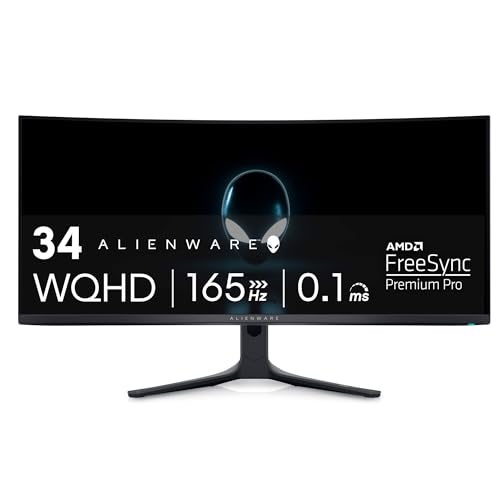
Alienware AW3423DWF — the QD-OLED ultrawide that made HDR believers
Badge: Best for immersive single-player HDR on PC
- Panel: 34-inch curved QD-OLED, 21:9 ultrawide (per the verified listing)
- Performance: 165Hz, 0.1ms response (per the verified listing)
- Colour: 99.3% DCI-P3 (per the verified listing)
- HDR: VESA DisplayHDR 400 True Black, AMD FreeSync Premium Pro (per the verified listing)
The AW3423DWF is the monitor most often credited with converting PC players to HDR, and its listing contains the lesson in its own wording: DisplayHDR 400 True Black. The “True Black” variant of the standard exists for emissive displays like OLED, whose blacks are genuinely black, and it certifies a different — and for HDR, more meaningful — capability than the plain DisplayHDR 400 badge on an LCD, which guarantees neither local dimming nor darkness. Same number, different universe: this is why the standards article matters. As a gaming display the Alienware pairs that HDR honesty with an ultrawide QD-OLED panel whose colour coverage and response times serve fast games as happily as cinematic ones. Its ceiling is the OLED ceiling — peak brightness in large bright areas is modest next to the best LCDs, so sunlit snowfields impress less than its campfires and neon cities, which are reference-class.
Strengths
- Per-pixel OLED light makes HDR contrast the real thing, especially in dark scenes
- Ultrawide shape and QD-OLED colour suit cinematic, immersive games
- True Black certification states its HDR capability honestly
Trade-offs
- Large-area peak brightness is OLED-modest compared with flagship LCD
- Ultrawide support varies by game, though it improves yearly
- OLED ownership asks the ordinary care with static images described later in this article
Best for: PC players whose HDR dreams are dark, rich and cinematic. / Not suited for: players who prioritise searing full-screen brightness, or whose games are all competitive titles played at maximum refresh.

Samsung Odyssey OLED G8 (G81SF) — 4K HDR with both sync badges
Badge: Best for 4K console-and-PC HDR at high refresh
- Panel: 32-inch QD-OLED, 4K (per the verified listing)
- Performance: 240Hz (per the verified listing)
- HDR: DisplayHDR True Black 400 (per the verified listing)
- Sync: AMD FreeSync Premium Pro and G-Sync Compatible (per the verified listing)
The Odyssey G8’s lesson is that modern HDR gaming is a systems specification, not a panel specification alone: 4K resolution for the consoles and high-end PCs that feed it, 240Hz for the fast games, True Black HDR for the dark ones, and both major variable-refresh ecosystems certified, so the display never becomes the reason a GPU’s features go unused. Samsung’s QD-OLED panel brings the same per-pixel virtues as the Alienware with a conventional 16:9 shape that suits console play and streaming better than an ultrawide. For the buyer whose HDR chain includes a PlayStation or Xbox beside the PC, this is the shape of the safe, complete purchase — every agreement in the chain pre-negotiated by the badges, leaving only the calibration screens between the owner and the picture the screenshots promised.
Strengths
- 4K, 240Hz and True Black HDR cover cinematic and competitive briefs in one panel
- Both FreeSync and G-Sync compatibility remove GPU-ecosystem risk
- 16:9 shape suits consoles as naturally as PCs
Trade-offs
- 4K at high refresh demands a powerful GPU to feed in demanding games
- OLED large-area brightness limits apply here as they do to the Alienware
- Premium positioning across every specification at once
Best for: players splitting time between a high-end PC and a console, who want one display to honour both. / Not suited for: modest GPUs, or buyers who game exclusively in bright, SDR-friendly titles.

LG UltraGear 27GS93QE — esports size, honest HDR
Badge: Best for competitive players who refuse to give up real HDR
- Panel: 27-inch OLED, QHD 1440p (per the verified listing)
- Performance: 240Hz, 0.03ms response (per the verified listing)
- HDR: DisplayHDR True Black 400 (per the verified listing)
- Connections and sync: HDMI 2.1, DisplayPort, FreeSync Premium Pro and G-Sync (per the verified listing)
The LG’s lesson is about the shape of the market’s maturity: a 27-inch, 1440p, 240Hz OLED — the exact specification a competitive player would have chosen in the SDR era — now carrying genuine per-pixel HDR as a matter of course. Nothing about its HDR is a compromise made for its speed, and nothing about its speed is a compromise made for its HDR; the two agendas that once traded against each other have converged in this class of panel. For the player whose library mixes ranked shooters with the occasional cinematic title, this is the proportionate purchase: the resolution a strong GPU can feed at high refresh, the size a desk and an esports posture prefer, and HDR that will not embarrass itself when the story games come out.
Strengths
- True competitive specifications — 240Hz, near-instant response — with real OLED HDR
- 1440p is the resolution strong GPUs can actually drive at those rates
- HDMI 2.1 keeps consoles fully welcome at the same desk
Trade-offs
- 27 inches gives cinematic games less presence than the larger panels above
- 1440p is not 4K for the player who prioritises resolution above all
- The OLED care notes in this article apply
Best for: competitive-leaning players who want HDR without leaving the esports format. / Not suited for: cinematic-first players, who should take the larger screens above.
Setting HDR up properly: the calibration discipline
On a console, run the system calibration and respect it
Both major consoles provide a system-level HDR calibration — a sequence of test patterns where you adjust until a symbol is just barely visible. This is not ceremony: it is how the console learns your display’s real ceiling and floor, the numbers every game’s tone mapping then depends on. Do it in the lighting you play in, do it slowly, and redo it when the display changes. Inside games, prefer the option that follows the system calibration where offered, and treat in-game brightness sliders as fine-tuning rather than as a second calibration fighting the first.
On a PC, the toggle, the game and the desktop are three different things
Windows offers HDR at the system level, and its desktop rendering of ordinary SDR content is a conversion that many users find washed out — the single most common false verdict on PC HDR. The working discipline is to enable HDR for the gaming session and judge it inside a well-mastered game, with the game’s own HDR settings configured: peak brightness set to your display’s honest capability where the game asks, paper-white or UI brightness set for comfort rather than drama. GPU control panels add colour-range settings that must agree with the display’s expectation — full range to full range — or the picture’s blacks and whites are quietly mis-scaled before tone mapping even begins.
On the display, choose the honest picture mode
Displays ship with picture modes tuned for shop floors. For HDR gaming, the correct mode is the accurate one — usually named game, or the HDR game variant — with dynamic contrast, dynamic tone mapping enhancements and other second-guessing features set deliberately: many players prefer the display’s dynamic tone mapping for its punch, others the stricter HGIG-style behaviour that follows the source’s intentions, and the honest answer is to try both in a dark scene and keep the one whose shadows and highlights retain more detail. What is not optional is disabling the eco and ambient-light features that ride the brightness up and down mid-scene; a tone mapper cannot agree with a display that keeps changing its mind.
Buying guidance: reading an HDR display like an engineer
Shop by physics first and badges second. Panel type is the primary fact: OLED gives per-pixel light and true blacks; LCD gives higher large-area brightness and depends entirely on its local dimming, whose zone count and behaviour you should research for the specific model. Peak brightness claims should be read for the window size they describe — a small-window figure is the HDR-relevant one. Colour coverage should be near-complete DCI-P3. The certification, decoded fully in our standards companion, then confirms the class: True Black certifications describe emissive displays whose darkness is real, while the higher plain DisplayHDR tiers describe LCDs with the brightness and dimming to earn their numbers. Finally, match the display to the chain it will join — resolution your GPU or console can feed, HDMI 2.1 where consoles or high-refresh 4K are involved, and the sync ecosystem your graphics card speaks, a subject our G-Sync and FreeSync coverage treats in full.
Mistakes that make HDR look broken
Judging HDR by the desktop or the menus
SDR content stretched into an HDR container is not HDR, and both the Windows desktop and many game menus are exactly that. The verdict on any HDR setup must be taken inside a well-mastered game’s gameplay — a dark scene with bright elements, the campfire test — or it is a verdict on a conversion, not on the technology.
Rushing the calibration screens
“Just barely visible” means what it says. Setting calibration patterns by impatience — cranking until the symbol is obvious — teaches the console a false ceiling, and every game’s tone mapping then compresses into the wrong range. Two careful minutes in the calibration screen are worth more than any slider touched afterward.
Stacking enhancements on top of tone mapping
Dynamic contrast, vivid modes, sharpening and motion smoothing each rewrite the picture the tone mapper carefully produced. In HDR especially, the display’s job is fidelity to a mastered image, and every enhancement is a small act of vandalism against it. Start from the accurate mode with processing off, and add back only what your eyes, in a dark scene, can prove is helping.
Final recommendation
HDR in games is real, and it is conditional. Give it a game mastered for it, a source calibrated honestly, and a display whose light is local — an OLED like the three verified monitors above, or an LCD whose dimming earns its badge — and it produces the single largest picture-quality step of this hardware generation. Starve any link of that chain and it produces the grey disappointment its critics describe. The technology is not a gimmick and not a guarantee; it is an agreement, and this article has tried to give you every term of it.
Related guides
gaming display HDR standards decoded
G-Sync, FreeSync and VRR explained
the best gaming monitors compared
fixing HDMI audio problems on the same chain
HDMI handshake failure and its cures
HDR across the genres: where it transforms and where it merely visits
Horror and dark adventures
The showcase genre, because its palette is the campfire test sustained for hours: darkness that is genuinely dark, pierced by torchlight, lightning, neon and muzzle flash. On an OLED the effect is not cosmetic but structural — the player reads the scene by its lights, hides in real shadow, and feels the contrast the designers graded. Horror mastered carelessly for HDR, with raised blacks, betrays itself instantly on a capable panel, which is why this genre also serves as the buyer’s best test content.
Open worlds and racing games
Sunlight is these genres’ material: low sun across water, headlights in a night stage, weather moving across a landscape. HDR’s contribution is the sky — a sky that can be bright without blowing to white, with clouds that hold their structure and a sun that dazzles through trees. Racing games add the specular pleasures: wet tarmac, chrome, brake discs at dusk. The wide colour palette earns its keep here too, in grass, paint and sunset that SDR compresses into approximation.
Competitive shooters and sports titles
The genres where HDR’s value is honesty-checked. Visibility is a competitive resource, and a dramatic grade that hides an opponent in beautiful shadow is a liability the player will disable — many titles therefore offer restrained HDR, and many players run SDR or the display’s flatter modes for ranked sessions. This is not HDR failing; it is HDR being correctly subordinated to the game’s actual purpose, and the capable display serves both masters by being fast enough for the ranked hours and honest enough for the cinematic ones.
HDR and the bright room problem
Most HDR demonstration happens in darkened rooms, and most gaming does not. Ambient light raises the effective black level of every display — reflections and room light wash the shadows the panel worked to keep dark — and it changes the buying calculus in ways reviews understate. In a bright room, an LCD’s higher large-area brightness can hold its image together where an OLED looks subdued, and matte screen finishes earn their keep. In a controlled or evening room, the OLED’s darkness reasserts itself as the decisive virtue. The honest buying question is therefore partly about your room: when do you play, and under what light? Answer it before the panel-type debate, because it can reverse the debate’s outcome — and if your room is bright and your hours are daytime, weight the brightness axis of the buying guidance accordingly and do not let anyone shame you out of the correct physics.
HDR, ray tracing and resolution: spending a GPU’s budget
Modern games offer three expensive beauties at once, and a gaming PC must apportion its power among them. HDR is the cheapest of the three in performance terms — the rendering cost is minor next to ray tracing’s lighting simulation or a resolution step — and often the largest in perceived quality on a capable display. The practical order of operations for a mid-range system follows: secure the frame rate your play needs, enable HDR and calibrate it properly, then spend what remains on resolution and ray tracing in that order, because a stable frame in a rich HDR grade beats a stuttering one with traced reflections for almost every player’s actual enjoyment. Consoles make most of these choices for you, which is why the console player’s HDR homework is calibration rather than configuration.
Where HDR gaming goes next
The technology’s frontier is standardisation of the good behaviour this article teaches manually. Source-side tone mapping initiatives aim to make the game and the display agree automatically, with the calibration done once at the system level and honoured by every title — the direction consoles have led and PCs are following. Adaptive formats from the film world continue their slow negotiation with gaming’s different needs. And the panels keep converging: OLED prices descend the sizes, LCD local dimming grows finer and cheaper, and the badge problem this article warns about shrinks as the capable hardware becomes the ordinary hardware. The buyer’s durable assets through all of it are the concepts — dynamic range, local light, tone mapping, honest calibration — because formats will rebrand again, and physics will not.
Troubleshooting HDR that still looks wrong after setup
Blacks are grey in HDR but fine in SDR
The signature of a range mismatch or a backlight behaving badly. Confirm the source’s output range and the display’s input range agree — full with full, limited with limited — because a disagreement re-scales every shade in the picture. On an LCD, confirm local dimming is actually enabled in the HDR picture mode; modes occasionally ship with it off, which converts the display into the badge-without-backlight case from this article’s failure modes. On an OLED, grey blacks in HDR point at the source’s settings rather than the panel, whose blacks have nowhere grey to come from.
Highlights clip to featureless white
The tone mapper has been given a ceiling lower than the game’s output, or the calibration overstated the display’s reach. Re-run the system or game calibration with the “just barely visible” discipline, and where a game asks for a peak-brightness figure, give it the display’s honest small-window capability rather than its marketing maximum. Clipping is the visible price of a flattering lie in the calibration screen.
Colours look oversaturated or oddly shifted
Check that the display is in its accurate HDR mode rather than a vivid one, that the source is sending the colour space the display expects, and that no wide-gamut setting is stretching SDR content — inside a game, native HDR content should sit in its proper palette without assistance. Oversaturation in HDR is almost always an enhancement or a mode, not the format itself.
HDR will not engage at all
Return to the chain: the port’s enhanced-format setting on the display, the cable’s category for the resolution and refresh in use, the intermediary in the middle whose generation may refuse the format — the handshake guide’s territory, and deliberately linked from here. HDR is the first casualty of a marginal chain because it travels with the most demanding signals; a chain that passes SDR and refuses HDR is telling you its ceiling, in the language our companion guide translates.
The same technology, in film and in games: one useful distinction
Readers who know HDR from films sometimes import expectations that games politely break. A film is finished: its brightest frame is known, its metadata describes it, and the display’s job is faithful reproduction. A game is rendered live, from a viewpoint nobody scheduled, and its HDR system must decide brightness continuously, in negotiation with a display it interrogates through calibration. That is why games ask you to calibrate where films do not, why two games’ HDR can differ more than two films’, and why the player’s own setup discipline — the unglamorous core of this article — carries more weight in gaming than in any other HDR medium. You are not merely the audience of a game’s HDR. You are part of its mastering chain, and the picture keeps the quality of your contribution.
A buyer’s walkthrough: three desks, three correct answers
The evening cinematic player
Plays after dark, favours story games, owns a strong PC or a current console. The Alienware ultrawide’s shape and darkness serve this desk best, and the calibration discipline will be repaid nightly. If a console shares the desk, the Samsung’s 16:9 completeness argues instead — the deciding question is which machine owns the evening.
The ranked competitor who watches films on the same screen
Needs the panel to disappear during matches and perform during everything else. The LG’s esports format with honest HDR is the proportionate answer, and this player’s HDR homework is deliberately light: calibrate once, prefer the flatter modes in ranked titles, and let the cinematic library justify the capability the rest of the week.
The bright-room household player
Plays in daylight, in a shared room, on whatever machine is free. This article’s bright-room section governs: weight large-area brightness and screen finish heavily, consider the high-end LCD class alongside the OLEDs linked here, and set expectations by the room rather than by the showroom. HDR still rewards this player — highlights and colour survive daylight better than shadow detail does — but the purchase should be made with the room as a co-author.
The vocabulary, gathered in one place
Because HDR’s confusion is partly a vocabulary problem, the article’s terms deserve one consolidated pass. A nit is a unit of brightness; peak brightness is the most a display can produce, and the window size attached to the claim says over how much of the screen. Black level is the brightness of the display’s darkest output, and on OLED it is effectively zero. Dynamic range is the span between the two, and simultaneous contrast is that span exercised inside one frame. Local dimming is an LCD’s zoned backlight control; per-pixel light is OLED’s native equivalent, perfected. A colour gamut is the palette a system can describe — sRGB the old standard, DCI-P3 the HDR-era working palette, Rec. 2020 the wider ambition content is mastered within. Metadata is the information content carries about its own brightness; tone mapping is the translation of that brightness into a specific display’s range; calibration is how the display’s true range is measured and declared. HGIG is the games industry’s initiative to make that declaration standard and honoured. None of these terms is decorative, and a reader who owns them can read any HDR specification sheet in the world — including the ones in the standards article that follows this one — as a set of claims to be checked rather than a spell to be believed.
Frequently asked questions
Is HDR worth it for competitive games?
Mostly it is neutral there, and honesty matters: ranked play prioritises visibility and consistency, and many competitive players prefer a bright, flat, instantly readable image to a cinematic one. HDR costs a capable display nothing in speed — the OLEDs in this article are among the fastest panels made — so the competitive player loses nothing by owning the capability, and gains the cinematic library at full glory. Buy the fast panel; let HDR be its second talent.
Why does HDR look washed out on my PC?
Work the usual suspects in order: you may be judging the desktop’s conversion of SDR content rather than a game’s native HDR; the colour range may be mismatched between the GPU’s output and the display’s expectation; the display may be in a vivid or eco mode that is fighting the tone mapping; or the display’s HDR may be acceptance without capability — the badge problem this article’s failure-modes section describes. Inside a well-mastered game, with range and mode correct, a capable display does not look washed out; if yours still does, the display itself is the finding.
What peak brightness do I actually need for good HDR?
Enough, locally, with darkness beside it. On OLED, the certified True Black class — with highlights in the several-hundred-nit range delivered per-pixel against true black — produces HDR that viewers consistently rate as excellent, because simultaneous contrast does the work. On LCD, higher peaks are necessary because the blacks are higher, and the meaningful figures climb toward a thousand nits in small windows with strong local dimming behind them. The lesson is that brightness divorced from black level is a meaningless number; judge the span, not the peak.
Do I need HDMI 2.1 for HDR gaming?
For HDR alone, no — HDR travels happily over older connections at moderate resolutions and refresh rates. HDMI 2.1 becomes necessary when HDR combines with the ambitious end of the other axes: 4K at high refresh from a console, or the full feature set of a high-end PC connection. Match the cable and ports to the whole signal you intend to send, as our handshake guide’s chain discipline teaches, rather than to HDR in isolation.
Will HDR wear out my OLED faster?
OLED’s known ageing mechanism is uneven pixel wear from static bright content, and HDR’s brighter highlights are part of that arithmetic — which is why the care advice is specific rather than anxious: vary content, let the display’s built-in maintenance run, avoid leaving static HDR images at full brightness for days, and use the panel the way gamers actually use panels, across many games and scenes. Under that ordinary use, modern OLED gaming monitors are built to last their owners years; the precautions are habits, not restrictions.
Is HDR10 the same as the HDR in games?
HDR10 is one of the formats HDR content can be delivered in — the baseline, royalty-free one, built on static metadata that describes the whole programme’s brightness once. Games complicate the picture usefully: they render dynamically and communicate with the display through the calibration and tone-mapping systems this article describes, which is why game HDR can adapt to your specific screen in ways a film’s static metadata cannot. Our standards companion decodes HDR10, its adaptive rivals and the gaming-specific initiatives in full.
Can my eyes actually see the difference, or is HDR a spec-sheet pleasure?
In a dark scene on a capable display, the difference is not subtle and does not require trained eyes: blacks that are black, a light source that glows rather than merely appearing, colour in the bright regions that SDR flattens. The viewers who report seeing nothing are almost always describing one of this article’s failure modes — a badge display, a mis-calibrated chain, SDR content in an HDR container — rather than the technology at its working best. If you are sceptical, arrange the honest test before spending: a reference HDR game, a dark room, an OLED or a properly dimmed LCD, calibrated. Scepticism that survives that test is information; scepticism formed before it is usually a review of somebody’s settings.
Should I turn HDR on for every game that offers it?
On a capable display with the calibration done, default to yes and let individual titles argue their way out. A minority of games ship careless HDR grades that their SDR presentations beat, and the community identifies them quickly; for those, SDR is the connoisseur’s choice rather than a defeat. The pattern to avoid is the global verdict — HDR always or never — because the variable was never the toggle. It was the chain, the calibration and the grade, in that order.
What is “paper white” in game HDR settings?
The brightness assigned to diffuse, ordinary surfaces — the white of a page, a shirt, a wall in daylight — as distinct from the peak reserved for light sources and glints. Setting paper white sensibly, in the low hundreds of nits, keeps the scene’s body at a comfortable level and reserves the display’s drama for the elements that deserve it. Players who find HDR fatiguing often have paper white set like a peak; players who find it dull often have the peak set like paper white. The calibration screens exist to separate the two, and five patient minutes there repay themselves in every session that follows.
Does HDR increase input lag?
Not meaningfully on a modern gaming display in its game mode. The tone mapping and processing that could add delay are exactly what game modes are designed to keep out of the signal path, and the OLED panels in this article pair HDR with the fastest response characteristics in the industry. The lag traps live elsewhere — a television left out of game mode, motion processing left on — and they punish SDR identically. Set the game mode, and HDR is not the variable to worry about.
My monitor says HDR400. Is that real HDR?
It depends entirely on which HDR400. DisplayHDR 400 True Black, the certification on the monitors in this article, describes an emissive display with true blacks and is a genuine HDR capability. Plain DisplayHDR 400 on an LCD certifies a peak brightness and little else — no local dimming requirement, no darkness — and is the badge this article’s failure modes warn about. The standards companion decodes the full ladder; the one-sentence version is that the words after the number carry the meaning.
Why do screenshots and streams of HDR games look wrong?
Because the screenshot pipeline usually converts the HDR image back into SDR for sharing, and the conversion is a tone map made by software defaults rather than by the game’s intent. Highlights flatten, colours shift, and the result testifies about the conversion, not the experience. Judge HDR in person, in a game, on a capable screen — the medium resists being shown second-hand, which is precisely why its reputation has lagged its reality.
Is HDR on a television different from HDR on a monitor?
The technology is identical and the products’ emphases differ. Televisions compete on size, film formats and bright-room presence, and their HDR is tuned for cinema first; monitors compete on refresh, response and desk-scale sizes, with HDR tuned for games. A television can be an excellent gaming HDR display — its game mode and calibration are the same disciplines this article teaches — and a monitor can show films beautifully. Choose by the room, the size and the machines it must serve, and let the HDR principles, which do not change across the furniture boundary, govern the settings either way.
Is HDR harder on the eyes during long sessions?
It can be, when it is set up for drama rather than for comfort — and the remedy lives in the settings this article teaches. A sensible paper-white level keeps the scene’s ordinary surfaces at office-like brightness; the peaks are then brief and local, the way sunlight through a window is brief and local, rather than a sustained glare. Players who report HDR fatigue usually discover a calibration that set everything high, or a bright-room mismatch the other way, where the eyes strain against a dim image. Set the base level for the room and the session’s length, and HDR’s dynamic range becomes the eyes’ friend: contrast does the work that raw brightness was doing.
Should streamers and content creators care about HDR?
With a caveat that saves disappointment: the HDR picture you play is not the picture your audience sees. Capture and streaming pipelines overwhelmingly deliver SDR, converting your HDR feed with varying grace, so a creator’s HDR setup is a private pleasure and a production variable at once — check how your capture handles the conversion before a broadcast depends on it. Play in HDR for yourself, by all means; just verify the stream’s version of the game with the same campfire honesty, because your viewers are judging a tone map your software chose.
How can I test whether my current display’s HDR is real?
With the campfire test, applied deliberately. In a darkened room, load a well-mastered HDR game’s darkest scene — a night exterior with a light source — and look at the shadows beside the light. If they are black, and the light glows against them, and the mid-tones between hold their detail, your display is doing HDR. If the shadows are grey, the whole scene is lifted as if by a veil, and the SDR version of the same scene looks darker and richer, you own the badge case, and no setting will cure physics. That five-minute test, honestly performed, is worth more than the specification sheet the display arrived with.
What does HDR do to older games that were not made for it?
Nothing by itself — an SDR game sends an SDR picture, and the display shows it as such. Operating systems and consoles offer automatic HDR conversion features that expand SDR games into an HDR container, and the honest assessment is that results vary by title: some games gain a pleasant lift in their highlights, others merely become their SDR selves at higher brightness. Treat auto-conversion as a bonus to be judged per game, never as the reason for the purchase, and never judge native HDR by it — the distinction between a mastered grade and a conversion is the distinction this article’s failure-modes section built its fourth case on.
Is a higher resolution or HDR the better upgrade from an SDR setup?
For most players, HDR — provided the display is genuinely capable, which is this article’s recurring condition. A resolution step refines detail you must sit close to appreciate; an HDR step changes the character of every dark scene, every sunset and every light source in every game you own, including the ones already in your library. The exception is the competitive player, whose currency is frames and clarity and whose upgrade order this article has already conceded. For the cinematic majority, dynamic range is the larger experiential jump available in this hardware generation, and it is not close.
Do all games on a console use the system HDR calibration?
Most modern titles honour it, and the trend strengthens yearly as the platforms encourage the shared standard; a minority still present their own calibration or fixed internal assumptions, which is why a per-game check of the HDR menu remains worthwhile. Where a game offers the choice between following the system values and setting its own, the system values are the better default — they were measured against your actual display, in your actual room, by the patterns designed for the purpose. A game’s own sliders then serve as taste, applied on top of a truthful base rather than as a substitute for one.
What should I do first when I bring an HDR monitor home?
Four things, in order, before judging anything. Connect it with the cable category the full signal needs and enable the port’s enhanced format if the display asks for it. Put the display in its accurate game mode and disable eco and ambient features. Run the console’s or PC’s HDR calibration slowly, in your playing light, with the “just barely visible” discipline. Then judge the result inside a well-mastered game’s darkest scene — not the desktop, not the menus. Owners who follow that order almost never write the disappointed reviews; the order is the difference between the technology and the rumour of it.