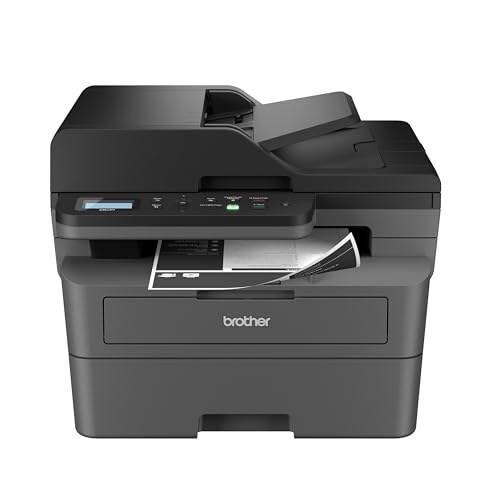
Disclosure: As an Amazon Associate, reviewstook.com earns from qualifying purchases. Links to Amazon on this page are affiliate links; they cost you nothing extra.
Quick answer: Both are compact wireless monochrome lasers with duplex. The Brother lists up to 32 ppm and a 250-sheet capacity; the HP lists up to 28 ppm single-sided, dual-band Wi-Fi, Ethernet and built-in security features.
This comparison is built from the product listings and manufacturer information on Amazon, not our own testing. Confirm details on the product pages before you buy.
By the Reviewstook Editorial Team. Last updated: October 31, 2026.

At a Glance
| Feature | Brother HL-L2350DW | HP LaserJet M207dw |
|---|---|---|
| Type | Compact monochrome laser | Monochrome laser |
| Speed (listing) | Up to 32 ppm one-sided | Up to 28 ppm single-sided |
| Automatic duplex | Yes | Yes |
| Paper capacity | 250 sheets | Not stated here |
| Wi-Fi | Wireless | Dual-band with self-reset |
| Ethernet | Not listed | Yes |
| Security | Not highlighted | Built-in security features |
In this guide
Key Differences
Speed
The Brother lists a higher speed.
Connections
The HP lists Ethernet and dual-band Wi-Fi.
Security
The HP highlights security features.
Which Should You Choose?

Choose the Brother HL-L2350DW if
you want faster rated speed and a 250-sheet tray.

Choose the HP LaserJet M207dw if
you want Ethernet and security features.

What the Differences Mean
A spec table shows what differs. This section explains why each difference matters.
Print technology
Lasers are quick and sharp for text; inkjets handle color and photos better; ink tank models cost less to run. Choose by what you print most. Here, Brother HL-L2350DW lists “Compact monochrome laser” while HP LaserJet M207dw lists “Monochrome laser”.
Speed
Maker speeds are best-case figures for plain black text. Color, photos and duplex are slower. Use the numbers to compare, not as a promise. Here, Brother HL-L2350DW lists “Up to 32 ppm one-sided” while HP LaserJet M207dw lists “Up to 28 ppm single-sided”.
Paper handling
Tray size sets how often you refill. Check supported sizes and media types such as envelopes and labels. Here, Brother HL-L2350DW lists “250 sheets” while HP LaserJet M207dw lists “Not stated here”.
Connection
How a printer connects affects setup and reliability. Wi-Fi is convenient for sharing, USB is the most dependable, and Ethernet suits offices. Check the Wi-Fi band and AirPrint or Mopria support. Here, Brother HL-L2350DW lists “Wireless” while HP LaserJet M207dw lists “Dual-band with self-reset”.
Which Is Right for Which Buyer
- If you print rarely, a low-cost model with cheap or long-life ink or toner avoids waste from dried ink.
- If you print a lot, prioritize a low cost per page, such as an ink tank or laser model.
- If you need to scan or copy documents, check for a document feeder.
- If you print photos, check the number of inks and paper support.
Before You Buy: A Five-Point Check
- Confirm the exact model on the product page; similar names often hide different features.
- Check the cost of replacement ink or toner.
- Check the Wi-Fi band and mobile printing support.
- Check the size of the printer against your space.
- Check the return window and warranty.
This comparison is based on the Amazon listings and manufacturer information, not our own testing. Treat it as a way to narrow the choice, then confirm the details that matter to you.
Toner Cost and Page Yield
For a monochrome laser, the price of the printer is only the start. Over a few years, toner often becomes the larger expense, so it pays to look at it before you choose between the Brother HL-L2350DW and the HP LaserJet M207dw.
Start by finding the exact toner cartridge each printer uses. The listing or the maker’s support page will name it. Many cartridges come in a standard version and a higher-capacity version, and the higher-capacity one is usually better value per page for anyone who prints regularly. Check the page yield the maker quotes and note the conditions, since quoted yields assume a standard amount of coverage on each page and your documents may use more.
Divide the price of a cartridge by its yield to get an approximate cost per page, then compare the two printers on that basis. The post on how to calculate printer cost per page can help with the steps. Do not rely on a headline number alone. A cheap starter cartridge that ships in the box may hold fewer pages than a full replacement, so find out whether the included toner is a starter or a full-size one.
Also consider the drum. Some Brother lasers use a separate drum unit that wears out on its own schedule, while others combine parts differently. Check each product page and manual to see which consumables you may need to buy over time. Your own volume is what counts. A person printing a few pages a week will care about shelf life and whether toner dries or degrades, and a person printing a stack every day will care about yield and replacement frequency.
Setting Up and Networking the Printer
Both models are wireless, and the HP listing also mentions Ethernet, so your network setup shapes how each will behave. Wi-Fi is convenient because the printer can sit anywhere with power, but signal strength matters. A printer placed far from the router or behind thick walls can drop off the network, so test the signal near where it will live.
The HP listing mentions dual-band Wi-Fi. Dual-band generally means the printer can join either of two common Wi-Fi bands. That can help in a crowded network, but some routers combine both bands under one name and others separate them, so read the setup guide to see which one to use. If you can, assign the printer a fixed address in your router so it is easy to find, and it does not move around after a restart.
Ethernet is the most stable option for an office or for a home with a wired router nearby. It avoids many of the dropouts people see with wireless connections. If the Brother listing does not mention an Ethernet port, check the product page and manual to find out which connections are provided, and consider a USB cable as a fallback.
During setup, use the maker’s app or driver package for your computer, and keep the printer firmware up to date as the manual advises. Print a test page from each device you plan to use, including phones and laptops, before you throw away the packaging.
Print Quality, Fonts and Everyday Documents
These are monochrome lasers, so they are built for text, forms, invoices, reports and school work, not for photos or color graphics. Laser output is generally crisp and smudge-resistant, because toner is fused onto the page rather than soaked in. That makes it handy for documents that get handled or highlighted.
Look at the resolution the listing quotes, and remember that resolution numbers do not always tell the full story. Paper quality, toner type and driver settings also play a role in how sharp the text looks. If you print small fonts, tables or fine lines, try both printers if you can and check the return window.
The print speed on each listing is a best-case rating. The first page can take a bit longer to arrive while the printer warms up, and duplex printing takes longer than one-sided output. If you mostly print one or two pages at a time, the first-page wait will matter more than the rated pages per minute. If you often print long documents, the sustained speed matters more.
Think about the paper you use. Standard letter paper is simple, but if you print envelopes, labels or heavier stock, check the supported media on each product page and in the manual. Some printers need a straight paper path for thicker media, and specific label sheets are made for laser printers only. Using the wrong media can jam the printer or damage parts.
Keep a few spare sheets handy for test prints, and set the printer to a draft or toner-saving mode if you only need a rough copy.
Maintenance, Jams and Printer Placement
Laser printers are generally low-maintenance, but a few habits keep them running smoothly. Place the printer on a flat, stable surface with space around the vents and the paper path. Avoid damp rooms and spots that get direct sun or a lot of dust, as these can affect paper and parts. Leave room above or behind so you can open covers and clear a jam.
Use paper that is stored flat and dry. Humid paper curls and can lead to feed problems. Fan the stack before loading it, do not overfill the tray and adjust the guides snugly to the paper size. Mixing different paper types in the tray is a common cause of jams.
If a jam happens, switch off the printer and follow the manual to remove the paper gently, in the direction of the paper path. The fuser area can be hot, so give the printer time to cool before reaching inside. Pulling hard can tear the sheet and leave scraps behind.
When you replace toner, follow the instructions, and handle the cartridge over a sheet of paper in case of spills. Toner is a fine powder and should not be inhaled or vacuumed with a household vacuum unless the maker says so. Wipe the outside of the printer with a dry or slightly damp cloth, and check the manual for guidance about cleaning the inside.
Signs that service or replacement is due include repeated jams, streaks that do not clear after changing toner, strange noises, and error messages that return after a restart.
Security and Shared Use at Home or in a Small Office
The HP listing highlights built-in security features, so it is worth thinking about why security matters for a printer. A network printer is a device on your network, and like any other it should be set up with care. Change default passwords on its settings page, keep firmware updated, and turn off features you do not use. Check the manuals for what each printer offers, because the listing summary does not cover every setting.
If the printer is shared by several people, consider who needs access. A home with a few users can usually rely on the network password, while a small office might want a separate guest network that keeps visitors away from the printer or from other files. Check how each device handles user access and whether it offers any form of secure release for sensitive documents.
Think about the documents you print. Tax forms, medical papers, contracts and student records are all things you may not want left in the output tray. Collect pages promptly, and do not leave important material sitting on the printer. If you work with sensitive data, check with your employer or IT contact about any rules for printing.
Also consider how third-party supplies are handled. Some printers detect the cartridge and may limit or warn about certain supplies, depending on the model and firmware. Read the product page and the support information from the maker to understand how supplies and updates work.
A few minutes of setup at the start can prevent problems later, whichever model you choose.
Decision Guide by Situation
Spec tables only go so far. A quicker way to settle between the Brother HL-L2350DW and the HP LaserJet M207dw is to begin with how you plan to use the printer, then see which one fits that picture.
| Your situation | What to look for |
|---|---|
| Student printing essays and forms | Easy wireless setup, low cost per page, quiet idle behavior |
| Home office with occasional invoices | Automatic two-sided printing, reliable network connection |
| Shared household of several people | Wired and wireless options, user accounts or guest access if available |
| Printing only a few pages a month | Toner that does not dry out, a small footprint |
| Long documents every week | Large input tray, published page yield for the toner you plan to buy |
Both models are compact monochrome laser printers, so neither will print in color or scan. If you need those, you are looking at a different class of machine.
A Short Glossary for Printer Shoppers
- Monochrome: black and shades of gray only.
- Duplex: printing on both sides of a sheet, automatically or by flipping the page by hand.
- Page yield: the number of pages a toner cartridge is expected to produce under standard test conditions set by the maker.
- Drum unit: the part that transfers the image to paper, which in some designs is separate from the toner.
- First page out time: how long it takes for the first sheet to come out after you press print.
- Duty cycle: a maker guideline for maximum monthly volume.
Pay attention to how the maker words each of these. Page yield and duty cycle figures come from the maker and can differ from real use, so treat them as comparison points rather than promises.
How to Read the Product Page Without Getting Lost
Listings often mix the printer, an introductory toner and optional accessories. Check what is included in the box, especially the toner cartridge that ships with the printer, since introductory cartridges are often smaller than the replacement size. Look for the exact model code on the page and in your order, because similar names exist across regions and generations. Confirm that the page mentions both Wi-Fi and Ethernet if you want a wired option.
When you compare running costs, use the replacement cartridge page yield and the cartridge cost from the seller, then divide. The result gives you a rough cost per page, which is far more helpful than comparing the purchase of the printer alone.
Setup Notes and When to Follow the Maker Instructions
Laser printers are easy to place, but a few details matter. Leave room around the unit for airflow and for paper to exit, avoid putting it in a damp or dusty spot, and keep the toner cartridge sealed until you are ready to install it. Remove all packing tape and protective film as the quick setup sheet shows.
For network setup, use the maker setup software or the guide printed in the box, and keep the printer close to your router during the first connection. If you manage a small office network, your IT person can advise on fixed addresses and access rules. If the printer jams repeatedly, makes grinding sounds or shows an error message that does not clear, consult the support page for your exact model or contact the maker service team rather than forcing the covers open.
Mistakes to Avoid When Choosing Between Two Similar Printers
When two machines look alike on paper, shoppers often fixate on a single number and miss the bigger picture. A small speed difference seldom changes daily life, while the cost of replacement toner changes the total spent over a few years. Compare the full running picture, not the first figure on the page.
Another slip is ignoring your network. If your router is far away or your office relies on a wired connection, check that the printer supports the setup you need. Also confirm that your computer or phone system is supported by the maker drivers or the print app. Read the supported systems list on the maker site for each model.
Lastly, do not overlook paper. Thick card, labels and envelopes can behave differently from plain paper, and the manual lists which types are allowed and which tray to use. Following that guidance reduces jams and protects the printer.
Life With a Monochrome Laser: The Quiet Workhorse Pattern
The Brother HL-L2350DW and the HP LaserJet M207dw belong to perhaps the most honest category in printing. A monochrome laser does one job, black documents, and does it with a steadiness that inkjets rarely match for text. Choosing between these two close models therefore depends less on whether the category fits and more on the details of your document life: how you connect, where the printer lives, how you buy toner and how your household or small office actually sends work to it. This section explores that daily pattern so the differences already compared in this article can be weighed in context rather than in the abstract.
The first pleasure of a laser is readiness after neglect. Toner does not dry out the way ink systems suffer during idle weeks, so a laser suits the bursty printer: the person who prints nothing for a fortnight and then needs a contract, a set of labels or a sheaf of school documents immediately. That readiness changes behaviour. People print more willingly when the first page is not a negotiation, and documents that would have been left on screen get printed, signed, filed and finished. If your frustration with previous printers centred on idle-period failures, a mono laser addresses the root cause, and either model here will feel like a personality change in your office.
Connection Choices and Where the Printer Lives
Connection looks like a minor specification until the printer moves. A machine that lives beside one computer has simple needs. A machine shared by a household, placed in a hallway cupboard or a small office corner, needs a connection that stays found by every device without a weekly rediscovery ritual. Think about where the printer will physically sit for the next few years, how strong the wireless signal is in that exact spot, and whether a wired network option would remove a whole class of mysteries. Test printing from every device that matters during the first week: the work laptop, the family computer, the phone you use for quick documents. A printer that only one device can find is a shared printer in name only.
Placement has physical needs too. Lasers vent warm air and need clearance, they appreciate a stable surface that does not wobble as pages feed, and they should be reachable for paper loading and the occasional jam without moving furniture. Keep the paper path area clean, store paper dry and flat, and leave the manual’s jam guidance accessible rather than buried. Jams in a laser are uncommon with decent paper loaded correctly, and most have humble causes: an overfilled tray, a sheet left from a previous jam, or paper that has curled in a damp room. The calm response is to follow the illustrated removal path fully, checking every point the manual names, because a torn fragment left inside guarantees the next jam.
Toner Planning and Honest Cost per Page
Toner planning is where laser ownership becomes genuinely economical or quietly wasteful. Learn how yield is measured, find the yield figures for the exact cartridges your chosen model takes, and divide honestly using your own monthly page count rather than a headline number. Starter cartridges and standard cartridges are not the same thing, and a buyer who knows that in advance plans the first replacement without resentment. Keep the model number and cartridge codes recorded with the printer, because similar model names take different supplies and ordering the near-miss cartridge is a rite of passage nobody needs.
Some laser models separate toner and drum, others combine them, and this comparison notes what applies to each machine. The practical point is to know, before purchase, what wears out, what you will be asked to replace over the printer’s life and what warnings mean. A drum warning is not a sales trick; it is a component reaching the end of its designed life. Budgeting for it calmly, when your page count says it is due, keeps the printer producing the crisp text that justified buying it. Owners who stretch worn components far beyond their life usually get the grey, tired documents they were trying to avoid paying to prevent.
Documents, Fonts and the Work These Printers Do Best
Crisp black text is the laser’s gift, and it shows in the documents that dominate real life: letters that must look formal, invoices, school work, legal and medical forms, knitting patterns, recipes and return labels. Small fonts stay legible, pages resist the smudging that damp hands can cause on some ink output, and long documents emerge in order at a pace that makes printing a report feel trivial. The honest boundary is equally clear. Photographs, colour charts and anything whose meaning lives in colour belong on a different machine. Many households therefore pair a mono laser for documents with occasional colour printing elsewhere, and that pairing, far from being a compromise, matches each technology to the work it does best.
Decide between these two printers, then, on the lived details: the connection that suits your printer’s home, the supply arrangement you understand, the paper handling your longest documents need and the controls you find clearest when something needs attention. Both are compact mono lasers aimed at the same work. The one that disappears into your routine, printing sharp documents after quiet weeks and busy ones alike, is the right one, and you will know within the first month because you will have stopped thinking about printing at all.
Document Workflows That Suit a Compact Mono Laser Perfectly
Some workflows feel designed for a printer like the two compared here, and recognising yours among them confirms the category before the model debate begins. The home legal and admin workflow is one: letters, forms, contracts and records that must be crisp, permanent-feeling and ready after weeks of printer silence. The student workflow is another: readings and drafts in bursts around deadlines, where the first page after a quiet fortnight matters more than any colour feature. The small business paperwork workflow is a third: invoices, packing documents and correspondence in black, day after day, where cost per page and unattended reliability outweigh everything else.
Each workflow rewards the same setup decisions. Set the default to the quality your documents actually need rather than the highest available, because laser quality settings trade speed and toner for darkness most documents do not require. Keep one paper type loaded consistently so the first page is predictable, and handle special media, envelopes and labels as deliberate jobs with the manual’s guidance rather than as improvisations. Save any repeated document settings where the driver allows it. A laser’s virtue is repetition without drama, and every saved, consistent choice extends that virtue.
Security and Sensible Sharing at Home
A shared network printer in a home or tiny office holds other people’s documents in its queue and sometimes in its output tray, so a little thought about privacy belongs in the setup. Print sensitive documents when you can collect them promptly rather than leaving them in the tray, clear a cancelled job properly instead of assuming it vanished, and be thoughtful about who on the network can print if the household includes guests or older children with their own devices. None of this requires enterprise tools. It requires the same awareness you would apply to a shared computer: the convenience of sharing and the courtesy of not reading what is not yours.
End-of-life thinking belongs here too, briefly and practically. Toner cartridges should be returned or recycled through the maker’s or retailer’s scheme where one exists, the printer’s data or network settings should be reset before it is passed on, following the manual, and paper and supplies should not be stored in damp conditions while a machine waits for a new home. A workhorse printer often serves more than one owner across its life. Handing it on cleanly, with its model and cartridge codes noted for the next person, is a small courtesy that costs nothing and continues the theme of this whole comparison: mono lasers reward owners who are deliberate.
Choose between the Brother and the HP, then, by the workflow you recognise, the connection that suits the printer’s home and the supply system you understand best. Set it up once, document it briefly, and let it become the least interesting appliance you own. For a document printer, that is the highest praise available.
Reading a Toner Warning Without Panic or Denial
Every laser owner eventually meets the low toner warning, and the calm response is a small skill worth learning before it arrives. A warning is an estimate based on coverage, not a countdown, so note it, check that a replacement path exists, whether that is a cartridge in the cupboard or a supplier you trust, and keep printing while watching output quality rather than the warning itself. Pages that stay crisp are good pages, whatever the estimate says. When output genuinely fades or streaks in the pattern the manual associates with an empty cartridge, change it then, following the handling guidance, and recycle the old cartridge through the available scheme.
Denial has its own failure mode: stretching a finished cartridge through weeks of grey documents that make the business or the student look careless. Panic has the opposite one: replacing early and often, discarding useful life. The middle path, planned replacement at genuine quality change, is where the laser’s economy actually lives. Owners who learn it stop thinking about toner as an emergency category at all, which is precisely the relationship a workhorse printer is supposed to create with the people it serves.
Edge Cases: The Student Leaving Home and the Retiring Inkjet
A compact mono laser is often bought at a transition, and transitions deserve a word. The student leaving home needs a printer that survives being moved, ignored through holidays and rediscovered at deadline time, which is a precise description of this category’s strengths. Pack it with its cable and its cartridge protected, document its supplies for a young owner who has never bought toner, and it will outlast several laptops. The household retiring an inkjet should perform the opposite ceremony: be honest about whether colour printing is truly ending or merely being wished away, because a mono laser bought in denial becomes a mono laser resented at the first school project. Keep a colour route in the plan if colour still lives in the house, even an occasional one elsewhere, and the laser can be loved for exactly what it is.
Small charities, clubs and community groups form a third transition case, printing minutes, notices and forms in bursts around meetings. For them the laser’s readiness after silence and its tolerance of many occasional users are decisive, and the setup gift that matters is documentation: cartridge codes, the paper routine and one named person who orders supplies. Groups run on volunteers, and volunteers run on instructions that survive the volunteer.
The Workhorse Standard
Hold both printers here to the workhorse standard and the choice simplifies to fit. A workhorse is not the fastest, the cleverest or the cheapest to buy. It is the animal that is ready every morning, does the day’s pulling without drama and asks for its feed on a predictable schedule. Set up either of these lasers as this article describes and it will meet that standard. The badge on the front will matter less with every month it does so, which is exactly how workhorses earn their names.
The Laser Printer’s Second Year: Fewer Decisions, Better Ones
A mono laser’s second year should contain almost no decisions, and that emptiness is the category’s triumph. The toner rhythm is known, the paper routine is settled, the connection has survived every device change the household threw at it, and the printer’s personality, ready after silence, crisp on documents, silent about everything else, has become part of the home’s background. The owner’s remaining duties are the ones this article has distributed across its sections: glance at supplies before the busy seasons, keep the paper dry, follow the manual when a jam or a warning appears and record what was done.
If a decision does force itself in the second year, let the evidence make it. A drum or component reaching its designed life is a planned event at a known page count, not a betrayal. A genuine change in workload, colour arriving in the house’s life or volume outgrowing the compact format, is a new requirement, not a failure of the old one. Owners who can tell the difference keep good printers for their full designed lives and replace them, when the time truly comes, with gratitude and a precise shopping list. That is the complete arc this comparison has been aiming at from its first table: two similar machines, one honest choice, and then years of not having to think about it again.
If You Only Remember Three Things From This Comparison
First, the category is the decision and the model is the detail: a monochrome laser suits document lives, bursty rhythms and households tired of idle-period ink failures, and both printers here serve that life well. Second, supplies are a system to learn once, cartridge codes, yields and the toner-versus-drum arrangement for your exact model, after which a laser asks almost nothing of its owner for months at a time. Third, placement and connection decide daily satisfaction more than any print specification, because a shared printer that every device can find, in a spot with clearance and calm paper handling, disappears into the household exactly as a workhorse should. Remember those, choose the badge that fits your details, and then enjoy the long silence of a printer that simply works.
A Closing Note on Boring Excellence
There is a kind of excellence that never trends and never gets unboxed on camera: the excellence of the appliance that is simply ready. A compact mono laser, chosen well and set up once, belongs entirely to that kind. It will not photograph beautifully, entertain visitors or anchor a desk’s identity. It will print the contract after a silent month, the school documents at midnight and the invoices on the busiest morning of the quarter, each time as if it had been waiting to be asked, because it was. Judge the Brother and the HP here by their capacity for that boring excellence, pick the one whose details fit your home for it, and then let it be boring for years.
Frequently Asked Questions
Do either scan?
No, both are print-only.
Which toner is cheaper?
Compare toner prices and yields.
Do they work with Mac?
The HP listing mentions Mac and AirPrint. Check Brother’s page.
Which one costs less to run?
Compare the replacement ink or toner price and page yield on each product page.
Can either print from my phone?
Most current printers support AirPrint, Mopria or an app. Check each product page.
What if I choose the wrong one?
Check the return window on Amazon and keep the packaging while you test it.
Do these printers come with full toner cartridges?
Some printers ship with a smaller starter cartridge. Check each product page or the manual to see what is included and how it compares with a standard replacement.
Is Ethernet worth having on a home printer?
It can make the connection more stable, particularly if the router is nearby. If you rely on Wi-Fi, check signal strength where the printer will sit.
What does duplex mean?
Duplex means the printer can automatically print on both sides of the paper. It saves paper, though it is usually slower than one-sided printing.
Can I print envelopes or labels?
It depends on the model and on the media. Check the supported paper types in the manual, and use label sheets made for laser printers.
How do I find the cost per page?
Divide the price of a replacement cartridge by its quoted page yield. Remember that real results depend on how much of each page is covered by text.
Do I need a drum replacement as well as toner?
Some laser printers use a separate drum unit, and others do not. Check the maker's support page for the model you are considering and look at its list of consumables.
Is a monochrome laser good for school work?
It is well suited to essays, worksheets and reports in black and white. If you need color diagrams or photos, you may want a different type of printer.
Why does a laser cope better with idle weeks than an inkjet?
Toner is a dry powder and does not dry out in the nozzles the way ink systems can suffer during long idle periods. That makes a mono laser well suited to bursty printing with quiet weeks between jobs.
What should I record about toner when I buy the printer?
Record the exact cartridge codes for your model, whether toner and drum are separate, and the yield basis for your cost estimate. Similar model names can take different supplies.
How can I reduce paper jams in a laser printer?
Use dry, flat paper, do not overfill the tray, and if a jam occurs follow the manual’s full removal path and check every named point. A fragment left inside is a common cause of repeat jams.
What work should not go to a monochrome laser?
Anything whose meaning depends on colour, such as photographs and colour charts. Mono lasers excel at crisp black documents; many households pair one with occasional colour printing elsewhere.
Bottom Line
Choose the Brother for speed and the HP for Ethernet and security. See best wireless laser printers.
Related Reading
- Types of Printers Explained: Inkjet, Laser, Ink Tank and More
- 7 Best Wireless Printers for Home Use
- Brother HL-L2460DW vs HP LaserJet M207dw: Compact Mono Lasers
- Brother HL-L3280CDW vs HP Color LaserJet Pro 3201dw
- Brother HL-L2350DW vs HL-L2460DW: Which Laser Should You Buy?
More Printer Guides
- Best Printers for Home Use
- Best All-in-One Printers
- How to Calculate Printer Cost Per Page
- Printer Terms Explained