Where to buy
Check the latest price, availability and delivery on Amazon. Orders are placed on Amazon. We may earn a commission from qualifying purchases.
- Best first RGB gaming PC: Skytech Omega Gaming PC, Ryzen 7 7700X, RTX 4070 Super, 32GB DDR5 RGB, White — Check on Amazon
- MSI Codex Z2 Gaming Desktop, Ryzen 7 8700F, RTX 5070, 32GB DDR5, 2TB SSD — Check on Amazon
- Skytech Omega Gaming PC, Ryzen 7 7800X3D, RTX 4070 Super, 32GB DDR5 RGB — Check on Amazon
- Thermaltake LCGS View i4770 Gaming Desktop, i7-14700KF, RTX 4070, 32GB DDR5 RGB — Check on Amazon
See 2 more Amazon options
- ASUS ROG Strix G15DS Gaming Desktop, Ryzen 7 7700X, RTX 4070, Aura Sync — Check on Amazon
- Acer Nitro 70 N70-130-UR13, Ryzen 9 7900, RTX 4070, 32GB DDR5 — Check on Amazon
Read the full guide ↓
Disclosure: As an Amazon Associate, reviewstook.com earns from qualifying purchases. Links to Amazon on this page are affiliate links; they cost you nothing extra. Listing details such as price and availability change often, so check the current Amazon listing before you buy.
If this is your first gaming PC, welcome — and take a breath, because this category is easier to buy well than the listings make it look. An RGB gaming PC is simply a normal gaming PC in a glass case with lights in it: glowing fans, glowing memory, sometimes a glowing cooler. The lights are the fun part, and the part most likely to confuse a first-time buyer, because listings shout about the glow and whisper about the hardware. So carry one sentence through this whole guide: the lights add no speed at all — not one frame. What makes these six machines fast is the graphics card inside them, and at $1,500 that card is a genuinely strong one. Buy the card first and the light show second, and you will buy well.
What does $1,500 honestly buy a beginner? A ready-built tower you unbox, plug in and play on the same evening — no building, no parts list, no screwdriver anxiety. The graphics cards in this guide (RTX 4070 Super, RTX 5070, RTX 4070) are the class that plays modern games properly at 1440p. Five of the six come with 32GB of memory, the amount you want; the one exception is named in big letters.
Two warnings before the picks. First, the prices move — a lot. Every machine below is a model that belongs in this under-$1,500 tier, but several also spend long stretches of the year priced well above budget, wearing the exact same listing. The machine does not change; the day does. So check the live price on Amazon before you buy, and if a machine is sitting above budget on the day you shop, wait for the next sale rather than stretching for the same hardware. Second, no honest machine at this budget contains an RTX 4070 Ti Super graphics card, whatever a headline implies — that claim always turns out to be a lesser card, a second-hand unit or a listing mistake. Read the specification, not the banner.
In this guide
Quick Picks
Short on time? Each row names a buyer type and the product that suits it.
| Buyer type | Pick | Why it stands out | Link |
|---|---|---|---|
| Best for most first-time buyers | Skytech Omega, Ryzen 7 7700X, RTX 4070 Super, White | The full glass-and-lights show and the strongest value in the guide — check price on Amazon | Check on Amazon |
| Best if you love playing with the lights | MSI Codex Z2, Ryzen 7 8700F, RTX 5070 | A light switch on the case, one app for the whole show, the newest graphics card, the biggest storage | Check on Amazon |
| Best for fast, competitive games | Skytech Omega, Ryzen 7 7800X3D, RTX 4070 Super | The same showpiece as our top pick, built around the best gaming processor in this guide | Check on Amazon |
| Best as a desk showpiece | Thermaltake LCGS View i4770, i7-14700KF, RTX 4070 | The most display-first design here, from a company that specialises in cases and cooling — only at its sale price | Check on Amazon |
| Best if your other gear is ASUS | ASUS ROG Strix G15DS, Ryzen 7 7700X, RTX 4070 | Its app can run your ASUS keyboard, mouse and monitor in the same show — but it has half the memory of the others | Check on Amazon |
| Best bargain when the price drops | Acer Nitro 70 N70-130-UR13, Ryzen 9 7900, RTX 4070 | The plainest lights here and a strong budget-tier value when it falls within budget — check price on Amazon | Check on Amazon |
How These Picks Were Chosen
Every machine in this guide is a real Amazon listing in this under-$1,500 tier in the United States. Prices for this category rotate: a machine can sit within budget one week and well above it the next, so check the live price on Amazon before you buy. Where a machine only makes sense when it falls within budget, the review says so plainly.
The first filter was the graphics card, the part that plays your games. This guide only includes machines carrying the RTX 4070 Super, RTX 5070 or RTX 4070 — the card class that belongs at $1,500. Prettier cases built around weaker cards were left out: a glowing box that struggles with new games is a lamp, not a gaming PC, and machines like that live in our Best RGB Gaming PC Under $1200 guide instead. The second filter was memory: 32GB is the right amount at this price, and five of these six have it. The one that ships with 16GB is included only because the rest of its package suits a particular buyer — and its shortfall is flagged wherever it appears, with the fix factored into the advice.
The third filter is the one this category is actually about: the lighting itself, checked like any other specification. Three questions were asked of every machine. Can the lights be set individually by software — each fan, the cooler, the memory — or do the fans simply replay one fixed rainbow forever? Does one app run the whole show, or will several apps end up fighting each other? And can you turn the lights down or off — because a glowing tower in a bedroom at 1 a.m. stops being charming quickly. Machines whose lighting is documented beyond the headline scored better than machines that merely say “RGB”.
A few honest notes on how this guide was put together. We did not use these machines ourselves; we worked from the makers’ listings and specification pages, independent coverage, and we describe performance by class — what a given graphics card is for — rather than inventing test numbers. Where a maker does not publish a specification, this guide says so instead of guessing: power supply wattage is published for the two Skytech machines and not for the other four, and that gap is flagged in the relevant reviews because it affects future upgrades. Nothing here assumes you will open the case, build anything, or know what the abbreviations mean. The glossary is next.
The Words, Translated: A Beginner’s Glossary
- Graphics card (GPU). The part that draws your games, and the one that matters most. In this guide: RTX 4070 Super, RTX 5070 and RTX 4070, strongest roughly in that order.
- Processor (CPU). The part that thinks — it runs the game itself, Windows and everything else. All six here are more than strong enough.
- Memory (RAM). The machine’s short-term workspace, in gigabytes (GB). 32GB is the comfortable amount at this price; 16GB works today but fills sooner. One machine here ships with 16GB, flagged every time.
- Storage (SSD). Where your games live, in GB or TB (1TB is roughly 1,000GB). 1TB fills faster than new buyers expect; 2TB, as in the MSI, is breathing room. It is the easiest thing to add later.
- RGB and ARGB. RGB means the lights glow in colours. ARGB — addressable RGB — means software can set each light’s colour individually. Fixed-effect fans are the third, unlabelled kind: one rainbow animation that no app can change. Listings use “RGB” for all three, which is why this guide checks the control software, not the title.
- Lighting ecosystem. The one app that conducts the show — MSI’s Mystic Light, ASUS’s Aura Sync, the pre-installed software on the boutique machines. Rival apps installed together overwrite each other’s settings at every start-up. Install only your machine’s one.
- Tempered glass. The window in the case’s side that turns the insides into the display. It does not harm cooling, but the PC becomes furniture: it will live where people can see it.
- Liquid cooler (AIO). A sealed loop of liquid that carries heat away from the processor, with glowing fans on its radiator. Quiet, pretty, maintenance-free — but when its pump wears out after some years, the whole unit is replaced.
- Power supply (PSU). The part that feeds electricity to everything else, in watts (W). You will never think about it — until you want a stronger graphics card years from now, when its size decides whether that swap is simple. Both Skytechs publish theirs: 750W.
- Refresh rate (Hz). How many times per second your monitor redraws the picture. Windows often leaves a new screen set to a slow 60Hz until you change it yourself — the walkthrough below includes that two-minute fix.
- 1440p and 1080p. The sharpness of the picture, in pixels. 1440p is the step up from the common 1080p and the resolution these machines are built for. A monitor is a separate purchase — see the spending section.
- Renewed, barebone, soldered — three words you can relax about here. A renewed PC is a refurbished second-hand machine; a barebone kit is an unfinished machine missing parts you must add yourself; soldered parts are fixed to the board forever and can never be upgraded. None of the six machines in this guide is any of those things. All six are brand-new, complete, ready-to-play towers whose memory and storage sit in ordinary slots.
- Prebuilt. What you are buying: a complete PC assembled, tested and covered by one warranty from one company. If anything inside fails, you make one phone call.
The 6 Best RGB Gaming PCs for Beginners Under $1,500
Skytech Omega Gaming PC — Ryzen 7 7700X, RTX 4070 Super, 32GB DDR5 RGB, White
Who it suits: The first-time buyer who wants the whole experience in one box: the strongest value in this guide, a complete light show, and nothing to fix on day one.
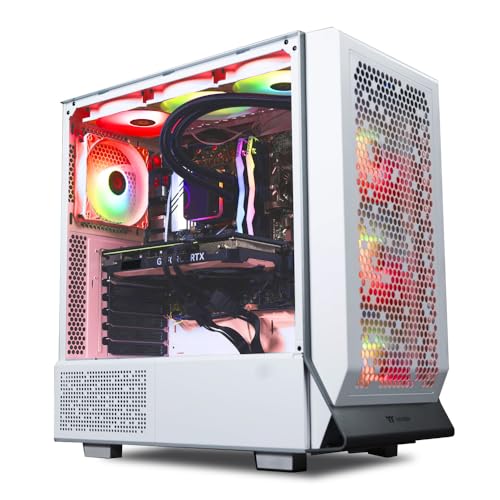
Start with what you will actually see. This machine (model ST-OMEGA2-1124-W-AM — keep that number; you will use it in the walkthrough below) is a white tower with a glass side panel, so the insides are the display: a liquid cooler with glowing fans at the top, and memory sticks that light up in the middle of the board. If the picture in your head is a beautiful glowing PC on your desk, this is that picture, executed completely.
Underneath the show, the specification is the one this guide would write for a beginner spending this money. The RTX 4070 Super plays modern games at high settings on a 1440p monitor, and the Ryzen 7 7700X is comfortably more processor than it needs. There is 32GB of memory, so a game, a browser and a chat app can all stay open at once, and 1TB of storage — the normal amount here, and something you add to later. Skytech also publishes its power supply — 750W, Gold-rated — a small gift: a stronger graphics card years from now is a documented possibility, not a guessing game. Windows 11 Home is installed; you will set it up, not install it.
Now the price, this review’s most important paragraph. This model is a premium-tier boutique build whose live price moves a lot from week to week, so check price on Amazon before you order. When it falls within this guide’s budget, it is the easiest recommendation here: the showpiece and the value pick are the same machine. When it is sitting well above budget, it is the same machine wearing an impatience surcharge, and you should wait for it to come back down. Two smaller notes: the exact brand of graphics card fitted can vary between production runs — normal for boutique builders, and it changes nothing about performance — and the sealed liquid cooler will one day be a replace-the-unit item rather than a repair.
- The complete show in one box: glass panel, liquid cooler, lit fans and memory, white finish.
- Nothing to fix on arrival: 32GB of memory, the tier’s benchmark card, a published power supply.
- Strong value within budget — at its best, the light show effectively costs nothing over a plain PC.
Honest limitation: Its live price is not always within budget — the listing commonly sits far above $1,500, so this is a “buy it when the sale is on” recommendation — check price on Amazon.
Choose it if it is live within budget and you want one machine that does everything. Skip it if you must buy today at whatever price it is wearing — wait rather than paying well over budget for this one.

MSI Codex Z2 Gaming Desktop — Ryzen 7 8700F, RTX 5070, 32GB DDR5, 2TB SSD
Who it suits: The beginner who will fiddle — changing the lighting colours on a Friday night just because they can — and who wants the newest graphics card and the most storage in the guide.
The reason this machine exists in a beginner’s guide is a small plastic button. The Codex Z2 (model A8NVP-436US) runs its lighting through MSI’s Mystic Light software, and it also has a dedicated case button that steps through dozens of effects, hands control to the software when held, and can switch every light off entirely — which matters more than any effect when the PC shares your bedroom. Inside the glass side panel sit a light-up air cooler and four glowing fans, and the case front is mesh rather than glass, so the fans can actually breathe: this is the machine whose show costs its cooling the least.
The hardware is the most current in the guide. The RTX 5070 is the newest graphics-card generation here, one step beyond the 4070 family, and the 2TB of storage is double what most of these machines carry — it postpones the day you must delete a game to install another. Memory is the full 32GB. The processor is a Ryzen 7 8700F, and the F is worth one plain sentence: this chip has no built-in graphics, so your monitor must be plugged into the graphics card — on this machine the motherboard’s sockets will show you nothing at all.
Pricing needs the same discipline as the Skytech, with interest: this listing’s live price swings widely, from within budget to well above it — among the widest swings in the guide — so check price on Amazon before you order. The recommendation is strictly a $1,500-or-under one. Two things to verify before you order: MSI does not publish the power supply’s wattage in the material behind this guide, so check the live listing if a future graphics-card swap matters to you; and weaker machines share the “Codex Z2” name, so match the model number A8NVP-436US in your cart.
- The friendliest lighting control here: one app, dozens of effects, a case button, a genuine lights-off mode.
- The newest graphics card in the guide and double the storage of most rivals.
- A mesh front, so the glowing fans get fresh air — the show that still breathes.
Honest limitation: The most unpredictable price in the guide, and the unpublished power supply means a future upgrade starts with checking a label inside the case.
Choose it if you will genuinely play with the lighting and you catch it at or under $1,500. Skip it if the live price has climbed — the Skytechs are better value when they fall within budget.

Skytech Omega Gaming PC — Ryzen 7 7800X3D, RTX 4070 Super, 32GB DDR5 RGB
Who it suits: The new buyer whose games are the fast kind — competitive shooters, racing, simulation — and who wants the top pick’s exact showpiece with a specialist’s processor inside.
Almost everything here is the same as our first pick, deliberately: the same glass case (model ST-OMEGA2-1126-W-AM), liquid cooler with lit fans, glowing 32GB of memory, 1TB of storage, published 750W Gold power supply and RTX 4070 Super. One part differs — the processor. The Ryzen 7 7800X3D carries extra cache memory stacked onto the chip precisely where games use it, and it is the best gaming processor in this guide. In most big, graphics-heavy games at 1440p the two Omegas feel identical, because the graphics card does the heavy lifting; in CPU-limited games — competitive titles chasing very high frame rates, big strategy and simulation games — this one pulls ahead.
Choosing between the two Omegas is a simple either/or with no wrong answer. This model sits at the premium end of the tier and tends to sit right around this guide’s ceiling when it qualifies, so check price on Amazon before you order. Any difference between the two Omegas is the processor; the lights, case, cooler and memory are identical, so nobody is charging you a lighting premium here. Choose this one if your games are the fast kind; choose its sibling if they are the pretty kind. The shared cautions apply as they did to its sibling: its in-budget moments are sale moments, the fitted graphics card’s brand may vary, and the sealed cooler is a years-from-now replacement item.
- The best gaming processor in the guide, inside the joint-best light show.
- Identical lighting, case, cooler and memory to the top pick — the difference buys processor, not prettier lights.
- The same published 750W Gold power supply, so the same clear upgrade path.
Honest limitation: When it qualifies, it sits right around the $1,500 ceiling, so there is no slack in it — if the live price is above budget, this recommendation pauses until the price comes back — check price on Amazon.
Choose it if you play competitive or simulation games, or own a high-refresh monitor. Skip it if your games are story-driven and graphics-heavy — the cheaper Omega shows the same lights and, in those games, the same pictures.
Thermaltake LCGS View i4770 Gaming Desktop — i7-14700KF, RTX 4070, 32GB DDR5 RGB
Who it suits: The buyer for whom the PC is furniture first — a glowing exhibit that anchors the desk — who also wants a strong processor for games plus creative work, and has the patience to wait for the right week.
Thermaltake is a case-and-cooling company that also builds whole PCs, and this machine (model V35S-B760-470-LCS) is what that heritage looks like: a white showcase from its View range, lit from within by glowing memory and cooled by a sealed liquid system — “LCGS” stands for Liquid Cooled Gaming System. Where the Skytechs are gaming PCs with a strong lighting package, this one is a display piece that also games very well — and there is no shame in that being the point of your purchase.
The substance is a step sideways rather than down. The Intel Core i7-14700KF is a many-core processor that excels when the machine splits its life between games and heavier work like video editing. The graphics card is the plain RTX 4070 rather than the Super in the Skytechs — still a proper 1440p card, just not the tier’s sharpest. Memory is the full 32GB, at a published 5600MT/s the fastest-specified in this guide. One beginner-relevant note: the KF means, like the MSI’s F, no built-in graphics — the walkthrough’s monitor rule applies here with full force too. And one tinkerer footnote: the motherboard’s B760 chipset locks away the processor’s overclocking features, which matters to almost no beginners.
The price is where this review must be strictest, because this listing is the guide’s clearest example of the wrong-day trap. It is sold and shipped by Amazon, but on a typical day it sits well above this guide’s budget — check price on Amazon before you order. When it falls within budget, it is a legitimate, beautiful pick. Bought well above budget, you have paid a premium for the same view. Set a price alert, or check back on sale weeks; do not negotiate with an above-budget price.
- The most display-led design in the guide, from a genuine case-and-cooling specialist.
- A many-core Intel processor that suits a games-plus-creative-work life.
- Full 32GB at the fastest published speed here, with liquid cooling as part of the exhibit.
Honest limitation: The strictest deal-only pick in the guide — it sits far above budget on ordinary days — and its card is the plain 4070, a half-step behind the Super cards.
Choose it if the desk display is genuinely the point and you will wait for it to rotate back within budget. Skip it if you are buying this week at the going price, or if frames per dollar matter more than the view.

ASUS ROG Strix G15DS Gaming Desktop — Ryzen 7 7700X, RTX 4070, Aura Sync
Who it suits: One specific beginner: the one whose keyboard, mouse, headset or monitor says ASUS or ROG — because this machine’s party trick only works if the rest of your desk speaks its language.
The trick is called Aura Sync, the most ambitious lighting idea in this guide. Every other machine here lights up itself; this one (model G15DS-DH774) is built to conduct the whole desk — the PC’s lights and any compatible ASUS peripherals you plug into it, all taking the same colour and effect from one app. If your desk already glows ASUS, that unification is a real feature no other machine here can offer; if it does not, be honest with yourself: the feature is worth much less, and the rest of this review contains a reason to choose differently. The PC itself is the practical member of the showcase family — airflow-zoned case, a carry handle rated to 20 kg, a headphone hook — and a wired keyboard and mouse are included. Inside sit the same Ryzen 7 7700X as our top pick and an RTX 4070.
Now the limitation, stated at full size because it is exactly the kind that surprises new buyers a month after delivery. This machine ships with 16GB of memory where every other pick in this guide has 32GB. Sixteen gigabytes plays today’s games, but it is the first thing a new owner feels — a big game plus a browser plus a chat app is a crowd — and upgrading means replacing or adding memory sticks, ideally ones whose lighting joins the Aura show. So judge this machine honestly: its true cost is the PC plus a matching 32GB memory upgrade, bought as part of the same decision. The second caution is the buy button: in-budget offers for this model have come through an Amazon marketplace seller rather than Amazon’s own shelf, so before ordering, spend one minute confirming the seller, the warranty route and the return terms — and check price on Amazon. The machine is a genuine ASUS model, but a marketplace purchase deserves that extra minute.
- Aura Sync: the only system here that runs your peripherals in the same show as the PC.
- Practical touches: carry handle, headphone hook, keyboard and mouse in the box.
- The same processor as the top pick, from a big brand.
Honest limitation: Half the memory of every other pick here — budget the 32GB upgrade in from the start — and the in-budget route is a marketplace offer needing a seller and warranty check.
Choose it if your peripherals are ASUS and one unified light show across the desk is what you are shopping for. Skip it if you want 32GB fitted at delivery and a machine sold by Amazon itself.

Acer Nitro 70 N70-130-UR13 — Ryzen 9 7900, RTX 4070, 32GB DDR5
Who it suits: The patient bargain-hunter — a beginner who likes a bit of glow in the case, refuses to pay extra for it, and is happy to let a price alert do the shopping.
Think of this machine as the guide’s measuring stick: it shows what the hardware costs when the show is kept modest. And the hardware is not modest at all. The Ryzen 9 7900 has twelve cores — the most in this guide — making this the strongest pick here for a PC that splits its time between games and heavier everyday work. The RTX 4070 is the same card the Thermaltake and ASUS carry. Memory is the full 32GB, storage is 1TB, Wi-Fi 6E is built in, and a keyboard and mouse come in the box. What is modest is the presentation: glowing case fans in a big-brand tower, rather than a glass exhibit. One documentation wrinkle, printed plainly: Acer’s own support material notes that its NitroSense lighting-and-fan control varies by exact model within the Nitro line, so what the app offers on your unit may be simpler than the brochure version.
The price story is the sharpest in the guide, in both directions. When it dips within budget, this model is among the strongest budget-tier values here — the same class of graphics card as its rivals and a stronger processor — so check price on Amazon. The in-budget route may come through Amazon’s other-sellers section, so it may be a third-party seller whose terms you should read before ordering. On most days, though, this machine sits well above budget and is simply not a $1,500 machine at all. The strategy writes itself: set the alert, wait for the dip, check the seller, and pounce. Caught at or under $1,500, it is arguably the smartest purchase here for anyone whose lighting ambitions stop at “the fans glow and the room looks good.”
- Strong budget-tier value when it dips within budget, for a full-strength specification.
- The most processor cores here, for a machine that works as hard as it plays.
- Big-brand support, fast wireless built in, keyboard and mouse included.
Honest limitation: The plainest light show here, lighting control that varies by exact model, and a price that lives well above budget on ordinary days — this pick is a price alert with a computer attached.
Choose it if it is live at or under $1,500 from a seller you are comfortable with. Skip it if it is sitting well above budget, or if the glass showcase was the whole point of your search.

Comparison Table
| Product | Graphics card | Memory | Storage | The lights, in one line | Link |
|---|---|---|---|---|---|
| Skytech Omega, 7700X (White) | RTX 4070 Super | 32GB, lights up | 1TB | Glass case, liquid cooler, glowing memory — the full show | Check on Amazon |
| MSI Codex Z2, 8700F | RTX 5070 | 32GB | 2TB | One app, a button on the case, a true lights-off mode | Check on Amazon |
| Skytech Omega, 7800X3D | RTX 4070 Super | 32GB, lights up | 1TB | The same full show, around the best gaming processor | Check on Amazon |
| Thermaltake LCGS View i4770 | RTX 4070 | 32GB, lights up | 1TB | The desk exhibit: glass showcase, liquid cooling, white finish | Check on Amazon |
| ASUS ROG Strix G15DS | RTX 4070 | 16GB | 1TB | Aura Sync can run your ASUS peripherals in the same show | Check on Amazon |
| Acer Nitro 70 N70-130-UR13 | RTX 4070 | 32GB | 1TB | Glowing fans in a plain tower — control varies by exact model | Check on Amazon |
Your First Evening: Setup, Step by Step
Every machine in this guide arrives assembled and tested, with Windows installed. Your first evening is about an hour of unhurried setup, the same for all six — do it in this order and you will dodge every classic beginner trap.
- Place it where it will live, and give it air. These are glass showpieces, so the natural home is on the desk. Leave a few inches of open air around the fans at the front, top and back — and never seal it inside a closed cabinet: a glass case still needs to breathe.
- Connect the power — and find the second switch. Plug the power cable into the back of the PC and into the wall, then flip the small rocker switch on the back panel near the power socket. This switch is the most common cause of “my new PC is dead” panic: the front button does nothing until the back switch is on.
- Plug the monitor into the graphics card — this is the step that matters most. The back of the PC has two clusters of sockets: a neat group on the motherboard, near the USB ports, and a separate row on the graphics card itself, lower down. Your monitor cable goes into the graphics card’s sockets, always. On two of these machines the rule is absolute: the MSI’s Ryzen 7 8700F and the Thermaltake’s i7-14700KF have no built-in graphics at all (that is what the F in their names means), so a monitor plugged into the motherboard shows a black screen and a convincing impression of a broken PC. On the other four the trap is sneakier: the motherboard sockets may show a perfectly normal desktop, powered by the processor’s tiny built-in graphics, while your games quietly run on that weak chip instead of the powerful card you paid for. Either way: card sockets, not motherboard sockets.
- Add your keyboard, mouse and a wired internet connection. Plug in your peripherals (the ASUS and the Acer include a wired keyboard and mouse in the box; with the others, use your own). Then, if you possibly can, run an Ethernet cable from your router to the PC for this first evening: everything in the next step is a download, and a cable makes it faster.
- Let Windows update, then update the graphics driver. Work through the Windows setup screens, then open Windows Update and let it do everything it offers, restarting when asked — this can take a while, and it is normal. Afterwards, update the graphics card’s driver through NVIDIA’s app or website: the factory driver is rarely the newest, and this update is worth more real performance than any setting you will ever tweak.
- Set your monitor’s real refresh rate. Fast monitors almost always arrive set to a slow 60Hz in Windows, which throws away the smooth picture you paid for. Go to Settings, then System, then Display, then Advanced display, and choose the highest refresh rate your monitor offers. Two minutes, once, forever.
- Check that the machine you received is the machine you ordered. Open Task Manager (right-click the taskbar) and look at the Performance tab: it names the processor and the graphics card and shows how much memory is installed. Compare it with what you ordered — and compare the model number on the box and order confirmation too: ST-OMEGA2-1124-W-AM for the white Skytech, A8NVP-436US for the MSI, ST-OMEGA2-1126-W-AM for the X3D Skytech, V35S-B760-470-LCS for the Thermaltake, G15DS-DH774 for the ASUS, N70-130-UR13 for the Acer. Names are families; model numbers are machines. On the ASUS, expect to see 16GB — its known shortfall, not a delivery error. If anything else does not match, you are inside the return window and this is the moment to act.
- Install a game store, download one game — and find your lights. Install Steam (or whichever store your games live on), set your downloads going, and while they run, open the lighting app that came installed — Mystic Light inside MSI Center on the MSI, Aura Sync on the ASUS, the pre-installed software on the Skytechs and the Thermaltake, NitroSense on the Acer. Set a colour you like, and — more important — find the brightness control and the off switch now, in daylight, rather than at midnight. Install only your machine’s own app; rival apps will fight it for control. Then play something.
What Else You Will Spend
The tower is the biggest purchase, not the only one. None of the costs below are folded into any pick in this guide: a machine’s catches should be counted as the machine plus its fix, so you always see the true picture. In rough order of importance:
- A monitor — first, and it deserves real thought. A PC like this is built for a 1440p screen, ideally a fast one, because that is the picture these graphics cards draw best. If you already own a 1080p monitor it will work perfectly well tonight, but the screen becomes the limit of what you see — a 1440p monitor is the natural first upgrade when budget allows. Choosing between spending more on the PC and spending on the screen? Choose the screen.
- The ASUS’s memory fix, if you choose the ASUS. Its 16GB is the one built-in catch in this guide. Count the machine as the PC plus a matching 32GB memory upgrade — ideally sticks whose lighting joins its Aura Sync show — and the package is still fair. Never judge it as the PC alone and call the difference a saving.
- More storage, eventually — not urgently. Five of these machines carry 1TB, and modern games are large enough that a keen new owner can fill that within a year or two. Adding a second drive later is the easiest upgrade in PC ownership, and it can wait; the MSI’s 2TB simply postpones that day the longest.
- Keyboard and mouse, only if you need them. The ASUS and the Acer include a wired set in the box — a perfectly good starting point. For the other four, use whatever you already own; a gaming-branded set is a later comfort purchase, not a requirement for tonight. This guide quotes no peripheral prices, because the research behind it documents none for these listings.
- A cable, a surge protector, and small mercies. An Ethernet cable for setup and a surge protector between the wall and a $1,500 machine are the least glamorous and most sensible small spends in this guide.
Upgrades, in Plain Terms
What you can change depends on two things: whether the parts sit in standard slots (they do, in all six — nothing here is soldered away), and whether the power supply has documented headroom for a stronger graphics card. That second condition is where the six split, and this guide only makes promises where the paperwork supports them.
- The two Skytech Omegas — a graphics-card swap is a real, documented plan. Both publish a 750W Gold power supply and are built in standard cases from standard parts. Years from now, a stronger card is a swap, not a rebuild.
- The MSI Codex Z2 — standard parts, an open power-supply question. MSI builds this machine from ordinary, replaceable parts — good news for repairs and for storage and memory growth. But because its power supply wattage is not published in the sources behind this guide, no swap promise is made here: when the day comes, read the label on the power supply inside the case and plan from the real number.
- The Thermaltake, ASUS and Acer — no swap promise, and here is why. Their power supplies are likewise unpublished in the material behind this guide, so this guide will not promise a graphics-card upgrade it cannot document. That is a paperwork gap, not a verdict — but a beginner deserves promises that are written down, and for these three the written-down growth is the easy kind: more storage in all of them, and more memory where slots allow (the ASUS’s 32GB upgrade being the planned example).
- What every owner can do, on every machine here. Add storage, add or replace memory (all six use ordinary slotted parts), replace the fans, and — on the liquid-cooled machines, years from now — replace the sealed cooler as a unit when its pump tires. None of it requires a new PC.
How to Choose Your First RGB Gaming PC
- Choose the graphics card first and the glow second. The card plays your games; the lights decorate the playing. At this budget the right cards are the RTX 4070 Super, RTX 5070 and RTX 4070. A cheaper listing that glows brighter but carries a weaker card belongs to the tier covered in Best RGB Gaming PC Under $1200, not this one.
- Decide how much you will actually touch the lights. If the honest answer is “set a colour once and forget it,” take the best value. If you will conduct the show weekly, the MSI’s button-and-app control is worth choosing on purpose — and if your peripherals are ASUS, the G15DS’s Aura Sync is the only system here that includes them.
- Hold the 32GB line, or count the exception. Five of these six ship with 32GB. The one that ships with 16GB is here for a specific buyer; if that is not you, treat 16GB at this price as a walk-away reason — and if it is you, add the cost of the upgrade to your comparison before deciding.
- Set your walk-away limit before you open the listing. Every recommendation in this guide rests on the machine falling within this budget, and these prices rotate widely. Decide your limit, check the live price on Amazon, then let the sale come to you.
- Check the seller as well as the spec. Two in-budget routes here — the ASUS’s marketplace route and the Acer’s other-sellers route — run through marketplace sellers. The machines are genuine; warranty and returns follow the seller’s terms, so read them.
- Match the processor to your games, loosely. Fast, competitive games favour the 7800X3D Omega; a machine that also edits video favours the many-core Intel and Ryzen 9 picks. For everyone else the processor is the least important choice on this page.
- Think about the room, not just the desk. Bedroom PC? Confirm a lights-off mode (the MSI’s button is the gold standard). PC going unseen under the desk? Then the show is worth nothing to you, and the Acer at its dip — or a plainer machine from Best Prebuilt Gaming PC Under $1500 — plus a better monitor is the smarter spend.
- Keep the whole picture in budget. If $1,500 must also cover a monitor and peripherals, start from a smaller tower budget — see Best Gaming PC For Beginners Under $1500 — because a humbler PC in front of a good 1440p screen beats a flagship glowing at a tired old monitor.
Common Beginner Mistakes
- Plugging the monitor into the wrong sockets. The motherboard’s row instead of the graphics card’s — a black screen on the MSI and Thermaltake, a silently slow picture on the rest. Step 3 of the walkthrough exists because this mistake is nearly universal.
- Paying a premium price for a sale machine. Models like the white Omega and the Thermaltake rotate between within-budget sale prices and well-above-budget everyday prices. Buying on the wrong day is the most expensive mistake — it costs more than any specification difference on this page.
- Believing a “4070 Ti Super under $1,500” headline. No verified machine with that card exists at this budget; the claim always dissolves into a lesser card, a renewed unit or an error when you read the full specification — so read the full specification.
- Counting the word “RGB” instead of the lit parts. Fans, cooler, memory — count what actually glows. Two machines can both say RGB and differ by half the show, and fixed-effect fans no software can address are the usual disappointment.
- Installing every lighting app you can find. Rival apps overwrite each other at every start-up and the lights become a daily argument. Your machine has one ecosystem; install that one and stop.
- Leaving the monitor at 60Hz. Windows does it by default and tells no one. Ninety seconds in the display settings is the difference between the smoothness you paid for and the smoothness you got.
- Skipping the arrival check. Ten minutes with Task Manager and the model number on day one catches a wrong configuration while returns are painless; in month two it is a warranty conversation.
Final Recommendation
- Most beginners: Skytech Omega, Ryzen 7 7700X — the complete show, the complete specification, and the guide’s best price when its sale is on.
- Lighting enthusiasts and storage-hoarders: MSI Codex Z2 — the friendliest controls, the newest card, double the storage.
- Competitive players: Skytech Omega, Ryzen 7 7800X3D — the same showcase, the specialist processor.
- The desk is the point: Thermaltake LCGS View i4770 — when it falls within budget, and only then.
- ASUS desks: ASUS ROG Strix G15DS — with the memory upgrade counted in from the start.
- Patient bargain-hunters: Acer Nitro 70 — when it dips within budget, it is one of the strongest-value full-strength routes in the guide.
For most first-time buyers, the choice is between two machines: the Skytech Omega with the Ryzen 7 7700X, which pairs the tier’s benchmark graphics card with the full glass-and-lights show at a within-budget price where the show costs nothing — and the MSI Codex Z2, which trades a little value for the newest graphics generation, twice the storage and lighting controls friendly enough that a beginner will actually use them, including the all-important off switch. Pick the Skytech for the best deal on the complete package; pick the MSI if the lights are a hobby, not a backdrop. Whichever you choose: buy when it falls within budget rather than at an above-budget everyday price, plug the monitor into the graphics card, set the refresh rate, and check the model number on arrival. If the room is tight, Best RGB Gaming PC For Small Spaces Under $1500 covers the same machines through the furniture lens; if you will stream from day one, Best RGB Gaming PC For Streaming Under $1500 grades them as broadcast rigs; and the resolution-by-resolution cut is at Best RGB Gaming PC For 1440p Gaming Under $1500.
Frequently Asked Questions
Do the lights make the PC faster?
No — not by a single frame. The lights are display, not computing power; what makes these machines fast is the graphics card, and when our top pick is on sale within budget, the show effectively costs nothing over a plain PC. Pay for lights as furniture and atmosphere, never as speed.
I have never owned a gaming PC. Which of these is the safest buy?
The Skytech Omega with the 7700X, bought when it falls within budget — check price on Amazon. It asks nothing of you: the full 32GB of memory is fitted, storage is the standard 1TB, the power supply is published (which keeps a future upgrade simple), and one whole-system warranty covers everything. Its only demand is timing — a buy-at-the-sale recommendation, not a buy-at-any-price one.
Is the ASUS’s 16GB of memory a real problem?
It is a real, priced-in compromise rather than a deal-breaker. Sixteen gigabytes runs today’s games, but fills sooner than 32GB when a browser and chat apps share the machine — and every other pick here sets 32GB as the standard. If you buy the G15DS for Aura Sync, budget a matching 32GB upgrade as part of the purchase; if you would rather have it fitted at delivery, choose any of the other five.
Why does the same PC cost so much more one month than the next?
Because this tier is priced in rotations. Builders cycle deep, short discounts through Amazon, with long, expensive stretches between them. Nothing about the machine changes; the day does. That is why every recommendation here is tied to this guide’s budget and a walk-away limit — check the live price on Amazon before you buy. For the plain-hardware version of this tier without the RGB lens, see Best Gaming PC Under $1500.
Can I upgrade one of these later, or am I locked in?
You are not locked in — all six are standard-parts towers with nothing soldered down, and storage and memory upgrades are open to every machine here. A future graphics-card swap is a documented plan on the two Skytechs, whose 750W Gold power supplies are published; on the other four the wattage is unpublished in our sources, so the honest answer is “check the label inside the case when the day comes” rather than a promise today.


