Some of the links in this guide are affiliate links, and this site may earn an affiliate commission when a reader buys through them, at no added cost to the buyer. That commission funds the research behind guides like this one. Every board below was chosen from manufacturer specification sheets, published wireless standards, and the selection criteria laid out in this guide, so the reasoning for each pick is written out on the page rather than hidden behind a score.
A motherboard with WiFi built in sounds like a small convenience until the alternative is priced honestly. The alternative is a desktop that needs an Ethernet run across the room, or a separate wireless card eating a PCIe slot, or a USB dongle hanging off the back panel with its antenna trapped behind a steel case. A board with the wireless module fitted at the factory arrives with the radio installed, the antenna posts mounted on the rear I/O panel where they belong, and Bluetooth riding on the same module for controllers, headsets, and peripherals. Nothing extra has to be bought, fitted, or kept track of.
That definition matters, because the motherboard market blurs it deliberately. Some boards advertise wireless readiness when all they actually carry is an empty M.2 Key-E slot waiting for a card the buyer must source separately. Those boards are excluded from this guide. Every pick below has its WiFi module pre-installed on the board, with the standard named in the specification: in this generation that means WiFi 7 on all six, though the details underneath that label differ more than the marketing suggests, and those differences are a recurring theme of the guide.
One expectation should be set before the shortlist. Integrated WiFi solves the desktop’s connection problem; it does not repeal the physics of the house. A router sealed in a basement cupboard or a masonry wall between the desk and the access point will tax any radio ever fitted to a motherboard. What a good wireless board does is remove every obstacle on its own side of the link — capable radio, proper antennas, current drivers — so that the remaining variable is the building, which the owner can then address on its own terms.
The six boards split cleanly into two camps that can never be swapped for one another. Four serve AMD’s AM5 socket across the B850 and X870E chipsets, from a value-leaning gaming board to an extended-ATX enthusiast flagship. Two serve Intel’s LGA1851 socket on the Z890 chipset for Core Ultra Series 2 processors, one styled as a white design piece and one built around a 10-gigabit wired port. This is not a ranking from best to worst; it is a map of two platforms, and the first decision is always which processor family the build starts from. Form factor is not the axis here — boards that compete on size are a different conversation — because the question this guide answers is narrower: given a platform, which boards integrate wireless properly, and what else do they give up or gain around that module?
What to look for in a motherboard with WiFi
WiFi 7 is a label, not a specification
All six boards in this guide carry WiFi 7, the 802.11be standard, and that shared label conceals the first real decision. WiFi 7 builds on the 6 GHz band opened up by WiFi 6E and adds wider channels, multi-link operation, and denser modulation. The widest channel the standard allows is 320 MHz, available only inside the 6 GHz band, and it is the figure behind the headline speeds on flagship boards: MSI publishes up to 5.8 Gbps for its WiFi 7 solution, and ASUS publishes up to 6.5 Gbps for the 2×2 radio in its X870E-E. Those are link-rate ceilings under ideal conditions, not promises about any particular room, router, or internet plan.
Not every WiFi 7 module uses the full width. The Realtek module in Gigabyte’s B850 AORUS Elite WiFi7 is specified at 160 MHz channels, and ASRock’s published specification for the X870E Taichi likewise lists 160 MHz channel bandwidth on the 6 GHz band. A 160 MHz WiFi 7 radio still gains multi-link operation and the efficiency work of the newer standard, and in a house with a WiFi 6E router it behaves much like a WiFi 6E board. What it does not do is reach the top link rates of the 320 MHz designs. Buyers comparing boards should read the channel width in the specification table rather than stopping at the WiFi 7 badge, because two boards wearing the same badge can be a full channel-width apart.
The conditions around the radio matter as much as the radio. The 6 GHz band is not licensed the same way everywhere, and every manufacturer here footnotes that 6 GHz availability depends on local regulation. WiFi 7 features also lean on the operating system: MSI notes its WiFi 7 and Bluetooth 5.4 support arriving with Windows 11 version 24H2, and Gigabyte states plainly that WiFi 7 features require a current Windows 11 build and that no Windows 10 driver is offered for its module. A WiFi 7 board paired with an older operating system, or with a router that stops at WiFi 6, is not broken — it simply negotiates the best standard both ends share, which is why the router already in the house belongs in this decision from the start.
The socket decides the processor, and the chipset decides the rest
A motherboard with WiFi is still a motherboard first, and the socket is a hard lock. AM5 boards accept AMD Ryzen 7000, 8000, and 9000 series desktop processors and nothing else; LGA1851 boards accept Intel Core Ultra Series 2 processors and nothing else. There is no adapter and no partial credit, so the platform choice precedes every other comparison in this guide. AM5 carries AMD’s published commitment to the socket across multiple processor generations, which makes the board a plausible home for a future CPU swap. LGA1851 is the newer Intel desktop socket, and its boards concentrate on the current Core Ultra generation.
Within AM5, the chipset splits the field. B850 is the mainstream enthusiast tier: PCIe 5.0 for the graphics slot and fast NVMe storage, generous USB, and no obligation to carry the most expensive extras. X870E is the flagship tier, where USB4 ports are part of the chipset brief and the boards add power delivery, storage count, and connectivity at the top of the range. The practical consequence is that a B850 board is not a cut-down mistake — it is the same socket and the same processors with a shorter extras list — while an X870E board earns its step up only when the build actually uses the extra M.2 slots, USB4, or power headroom. On the Intel side, Z890 is the full-featured chipset for LGA1851, and both Intel picks here use it, differentiating on wired networking, styling, and storage rather than on the chipset itself.
The antennas are part of the product
Integrated WiFi succeeds or fails at the antenna. Every board here ships with external antennas that connect to posts on the rear I/O panel, and their job is to lift the radio’s ears out from behind the metal case, the desk, and the tangle of cables that would otherwise smother the signal. A movable antenna on a short lead or a hinged base can be angled toward the router and raised above the desk surface; a fixed stub screwed flat against the back panel has fewer options. Placement guidance is unglamorous and decisive: antennas belong up and in the open, not dangling behind a tower on the floor.
The makers have turned antenna attachment into a small design contest. Gigabyte fits its recent boards with a quick-plug antenna design intended to install without repeated twisting, and describes the included antenna as a directional, high-gain design. ASUS uses its Q-Antenna quick-release fitting across its current ROG range. MSI’s latest boards use push-fit antenna connectors in place of the older threaded pigtails. These systems differ in feel rather than in radio performance, but they matter on build day and on every day the PC is moved for cleaning, because an antenna that reattaches in seconds is an antenna that actually gets reattached. What should not happen is leaving the antennas in the box: a WiFi board run without its antennas fitted is working with its signal strangled, and no module standard compensates for that.
Bluetooth rides on the same module
The wireless module that provides WiFi also provides Bluetooth, and all six boards here publish Bluetooth 5.4. That shared module is why a WiFi board quietly solves the peripheral problem as well: game controllers pair without a dongle, wireless headsets connect for calls, and keyboards and mice can drop their cables. Bluetooth versions have crept upward across generations, improving connection management and power behavior for low-energy devices, and 5.4 is the current step across this shortlist, so it does not separate the picks from one another.
What does separate them is driver support. The newest WiFi 7 modules are recent enough that a fresh Windows installation may not carry their drivers in the box, which produces the classic first-boot puzzle of a new build with no network connection to download the network driver. The workable sequence is to fetch the wireless and Bluetooth drivers from the board maker’s support page beforehand on another machine, or to make the first connection over Ethernet. Makers also publish updated drivers and BIOS revisions across a board’s life, and the wireless stack is one of the components those updates most often touch, so the support page for the exact model — not the chipset, not the series — is a bookmark worth keeping.
Power delivery and expansion: what the wireless module does not cost
A reasonable suspicion is that integrating WiFi steals resources from the rest of the board. On modern designs the module occupies its own dedicated slot and the cost shows up elsewhere: in the lane budget. AM5 and LGA1851 processors supply a finite set of PCIe lanes shared between the graphics slot, the M.2 storage slots, and chipset-fed extras, and flagship boards that pile on Gen5 M.2 slots sometimes reclaim lanes from the graphics slot when every storage position is filled. ASUS documents exactly this kind of sharing table for the X870E-E, and the honest reading of any board in this class is to check its manual’s lane-sharing notes before assuming five fast SSDs and a full-width graphics link coexist unconditionally.
Power delivery follows the chipset tiers. The B850 picks run capable multi-phase designs sized for the Ryzen range including its top models, while the flagship boards publish headline numbers — eighteen plus two plus two stages on the ASUS, a twenty-four plus two plus one phase design on the ASRock — that speak to sustained current and thermal headroom for the heaviest processors and for tuning beyond stock settings. For a build that will never leave stock clocks, these numbers are reassurance rather than a deciding factor. For a build that will, they are the difference between a board that treats a flagship CPU as a normal workload and one that treats it as an endurance event. Either way, the wireless module itself draws nothing meaningful from this budget; networking is not where these boards make their sacrifices.
Form factor is a fit question, not a networking one
Size enters this guide only as a constraint. Five of the six boards follow the standard ATX footprint that most mid-tower and full-tower cases accept without discussion. The exception is the ASRock Taichi, whose extended-ATX width buys its power design and slot spacing at the cost of a fit check: some cases route their cable grommets exactly where the wider board’s edge lands, and a build planned around tidy cable runs should confirm the pairing first. Beyond that check, form factor decides nothing about wireless quality. A compact board and a flagship board can carry the same radio module, which is why this guide refuses to rank by size and instead treats dimensions as a box to tick before the networking comparison begins.
In this guide
The best motherboards with WiFi

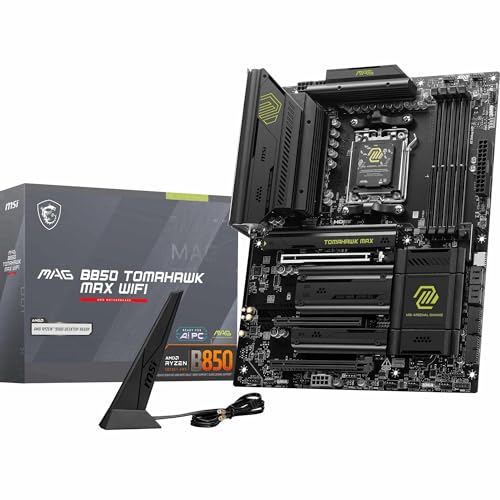
MSI MAG B850 Tomahawk MAX WiFi — the balanced AM5 all-rounder
The Tomahawk MAX WiFi is the board this guide would hand to an AM5 builder who wants the modern networking checklist complete without paying flagship tax. MSI fits its full WiFi 7 solution: 320 MHz channels on the 6 GHz band, multi-link operation, 4K-QAM modulation, and a published ceiling of up to 5.8 Gbps, with Bluetooth 5.4 on the same pre-installed module. The wired side is equally current — a Realtek 8126VB controller provides 5-gigabit Ethernet, which is faster than the 2.5-gigabit port that still dominates this class and gives the board a credible second act as a wired machine if a cable run ever becomes practical.
Around the networking, the B850 platform is specified generously. Four DIMM slots take DDR5 to a published 8400 MT/s and beyond under overclocking profiles, two M.2 slots run at PCIe 5.0 x4 with two more at PCIe 4.0 speeds, and the primary graphics slot is PCIe 5.0. The power design is published as a 14+2+1 arrangement with 80-amp smart power stages, which is squarely in the territory a Ryzen 9000 series build needs, including the top of the range at stock settings and reasonable tuning. Audio comes from a Realtek ALC4080 codec under MSI’s Audio Boost 5 banner, and the rear panel carries a healthy spread of USB including 10 Gbps Type-C.
The ownership details suit a first or second build. The wireless module is pre-installed rather than left as an empty slot, the board keeps a Flash BIOS button for processor swaps that need newer firmware, and MSI’s heatsink coverage extends over the primary M.2 positions. Its compromises are the honest ones of the tier: there is no USB4, the second full-length slot is a chipset-fed PCIe 4.0 connection rather than a second graphics-grade link, and builders chasing the widest possible storage array will count four M.2 slots and stop there. None of those touch the networking, which is the point of the board.
The platform underneath deserves a final word, because it shapes how long the board stays relevant. AM5 arrives with three Ryzen generations already published for the socket, and MSI maintains this model with the BIOS revisions each new wave of processors requires, flashable from a USB stick without a working CPU installed. A builder who starts with a mid-range Ryzen chip and upgrades within the socket later is using this board exactly as its tier intends.
Strengths
- Full-width WiFi 7 implementation with 320 MHz channels, multi-link operation, and Bluetooth 5.4
- 5-gigabit Realtek wired Ethernet, a step above the class norm
- Two PCIe 5.0 M.2 slots and a PCIe 5.0 graphics slot on the mainstream chipset
- Power delivery published with 80-amp stages, sized for the full Ryzen 9000 range
Trade-offs
- No USB4, where the X870E boards make it standard equipment
- Four M.2 slots total, the fewest storage positions among the AM5 picks here
- WiFi 7 features depend on a current Windows 11 build, per MSI’s own notes
Who it suits
Choose the Tomahawk MAX WiFi for a Ryzen gaming or general-purpose build that needs fast wireless today and a real wired fallback tomorrow, without flagship pricing. For the builder who wants the networking settled in one purchase and the rest of the budget left for the processor and graphics card, the MSI MAG B850 Tomahawk MAX WiFi is where the AM5 shortlist starts, so check price on Amazon.

Gigabyte B850 AORUS Elite WiFi7 — the easy-antenna value pick
Gigabyte’s B850 AORUS Elite WiFi7 takes the same mainstream AM5 brief and spends its effort on the parts a builder physically touches. The wireless module is Realtek’s RTL8922AE, a WiFi 7 design with Bluetooth 5.4, and Gigabyte pairs it with the company’s quick-plug antenna fitting and a directional, high-gain antenna intended to be aimed rather than merely attached. For a PC that lives under a desk two rooms from the router, that antenna hardware is not decoration; it is the difference between the radio the specification promises and the signal the room delivers.
The honest limitation sits in the channel width. Gigabyte specifies this module at 160 MHz channels, half the maximum width WiFi 7 allows, so the board’s wireless ceiling is lower than the 320 MHz designs elsewhere in this guide even though the WiFi 7 name is shared. In exchange, the board keeps every other part of the modern brief: multi-link operation and the rest of the 802.11be toolkit, a PCIe 5.0 graphics slot, Gen5 M.2 storage support, four DDR5 slots, and Gigabyte’s current BIOS and driver ecosystem. Wired networking is a Realtek 2.5-gigabit port — adequate for the overwhelming majority of home connections, and the one specification where this board visibly trails the 5-gigabit MSI above.
Gigabyte also publishes the bluntest operating-system footnote in the group: the full WiFi 7 feature set presumes a current Windows 11 installation, and this module simply has no Windows 10 driver at all. That is worth knowing before the build rather than after, and it applies in spirit to the whole generation even where other makers phrase it more gently. The board is also sold in a white ICE variant under a separate name, which is a different listing to match carefully rather than a color option on this one. As a package, the Elite WiFi7 is the pragmatic B850: slightly narrower wireless, slightly slower wired, and an antenna system that flatters real rooms.
The rest of the daily experience is conventional in the reassuring sense. Four memory slots, a full set of fan and lighting headers, and Gigabyte’s current BIOS interface make the board undemanding to build in and to live with. Its storage provision follows the chipset’s mainstream pattern rather than the flagship boards’ slot-count contest, which suits the single-fast-drive configuration most home builds actually run. Nothing about the Elite asks its owner to become a firmware hobbyist, and for a machine bought to work rather than to be worked on, that restraint is a feature in its own right.
Strengths
- Quick-plug antenna fitting with a directional high-gain antenna included
- WiFi 7 with Bluetooth 5.4 on the mainstream B850 chipset
- PCIe 5.0 graphics and Gen5 storage support where it matters most
- Clear published guidance on Windows 11 requirements for full WiFi 7 features
Trade-offs
- 160 MHz maximum channel width, below the 320 MHz WiFi 7 designs
- 2.5-gigabit wired Ethernet where rivals in this guide offer 5-gigabit
- The white ICE version is a separate model name that listings can blur
Who it suits
Choose the B850 AORUS Elite WiFi7 when the PC will live on wireless permanently, the router is WiFi 6E or an early WiFi 7 unit, and antenna placement will decide the connection quality more than headline link rates will. For a tidy AM5 build that values easy setup and honest specifications over spec-sheet trophies, the Gigabyte B850 AORUS Elite WiFi7 earns its place, so check price on Amazon.

ASUS ROG Strix X870E-E Gaming WiFi — the premium AM5 feature board
The Strix X870E-E is where the AM5 platform stops compromising. Its WiFi 7 radio is a 2×2 design running the full 320 MHz channel width, with ASUS publishing up to 6.5 Gbps and Bluetooth 5.4 alongside, and the antenna connects through the company’s Q-Antenna quick-release fitting. Wired networking is a Realtek 5-gigabit port. Around that networking sits the X870E chipset’s full brief: two USB4 Type-C ports on the rear panel, five M.2 slots mixing PCIe 5.0 and 4.0, and a power solution published as eighteen plus two plus two stages at up to 110 amps per stage, the kind of delivery intended to make the largest Ryzen processors an unremarkable workload.
That storage count carries the board’s one real condition. With five M.2 positions fed from a finite processor lane budget, ASUS publishes a sharing arrangement in which populating particular Gen5 slots reduces the bandwidth left for the graphics slot. Builders planning a single fast SSD and a flagship graphics card will never meet the condition; builders planning a wall of Gen5 drives should read the manual’s sharing table before ordering, and decide which device gets the lanes. This is not a defect so much as arithmetic that the flagship tier prefers to mention quietly, and it is better planned than discovered.
Elsewhere the board behaves like the top of a range should. The BIOS ecosystem is the deepest in this guide, with ASUS’s tuning and cooling controls layered over the standard firmware, the rear panel carries thirteen USB ports in total, and the audio solution pairs an ALC4080 codec with a dedicated amplifier stage. The board is ATX rather than extended, so it keeps standard case compatibility despite the feature count. What it asks in return is the flagship step in the range and a builder willing to read a manual — the lane table, the Q-connector pin block, the firmware notes. For the right build, that reading is the cheapest performance available.
The connectivity also serves the desk beyond the PC itself. Two USB4 ports mean a single-cable dock or a fast external drive enclosure runs at full speed from the rear panel, and the display outputs they carry let the processor’s integrated graphics drive monitors during troubleshooting or in a graphics-card-free workstation. Paired with the five storage slots, the board begins to resemble a small hub: drives inside, drives outside, network by wire or by air, and enough USB left over that a hub on the desk becomes optional. That breadth, more than any single benchmark figure, is what the flagship step purchases.
Strengths
- Full 320 MHz WiFi 7 with a published 6.5 Gbps ceiling and quick-release antenna
- Five M.2 slots and dual USB4, the fullest storage and connectivity set on AM5 here
- 18+2+2 power stages at up to 110 amps for flagship Ryzen processors
- 5-gigabit Ethernet backing up the wireless
Trade-offs
- Lane sharing can narrow the graphics link when specific Gen5 M.2 slots are filled
- Flagship pricing tier within the AM5 range
- Feature depth rewards manual reading that simpler boards do not demand
Who it suits
Choose the Strix X870E-E for a high-end Ryzen build that will accumulate fast storage over its life, run a top-tier graphics card, and stay on wireless without apology. For the builder who reads the specification sheet as a promise and wants the AM5 platform’s complete connectivity in one board, the ASUS ROG Strix X870E-E Gaming WiFi is the premium answer, so check price on Amazon.

ASRock X870E Taichi — the enthusiast flagship with the largest power design
The X870E Taichi is the board in this guide built for the AM5 builder who treats headroom as the product. ASRock publishes the largest delivery system here — a 24+2+1 phase design using 110-amp smart power stages for the processor core — feeding an extended-ATX board with two PCIe 5.0 x16 slots, one PCIe 5.0 M.2 slot backed by three PCIe 4.0 M.2 positions, two rear USB4 ports, and an audio path built around a Realtek ALC4082 codec with an ESS SABRE9219 DAC. The wireless specification is WiFi 7 with Bluetooth 5.4 and MU-MIMO, and wired networking runs through a Realtek RTL8126 controller at 5 gigabits.
Its wireless footnote deserves the same honest reading applied to the Gigabyte. the Taichi’s 2×2 module is specified with 160 MHz channels in the 6 GHz band, so despite the flagship price and the WiFi 7 badge, its wireless ceiling matches the value Gigabyte’s width rather than the 320 MHz ASUS and MSI designs. Whether that matters depends entirely on the router and the distance involved: across a typical house, with walls intervening and a router negotiating real-world rates, the practical gap narrows sharply. On paper, though, the board that costs the most in this guide does not carry its widest radio, and buyers choosing on wireless alone should know it.
The extended-ATX format is the other planning item. The Taichi is wider than a standard ATX board, and while many mid-towers accept the size, the fit should be confirmed against the case’s published motherboard support before purchase, particularly where cable-routing grommets sit close to the board edge. In return, the board offers ASRock’s toolless M.2 heatsink arrangement, a bottom heatsink for storage cooling, and a sense that nothing on the specification sheet was trimmed to meet a price. It is the enthusiast’s AM5 board in this guide — bought for power delivery, slot layout, and build quality, with wireless that is modern and complete rather than class-leading.
Builders in this tier also tend to keep their boards longest, and the Taichi is specified for that horizon. The dual full-length PCIe 5.0 slots leave room for configurations beyond a single graphics card, the four memory slots accept the platform’s largest published capacities, and the DAC-equipped audio path removes one of the usual reasons a workstation grows an external box on the desk. ASRock’s support cadence for its flagship line — BIOS releases tracking each Ryzen wave, driver packages kept current — is part of the purchase whether or not it appears on the box. A board bought for five years should be judged partly on the page it will be downloaded from in year four.
Strengths
- 24+2+1 phase power design with 110-amp stages, the largest in this guide
- Two PCIe 5.0 x16 slots and dual USB4 on the flagship X870E chipset
- 5-gigabit LAN and a DAC-equipped audio path above the usual standard
- Toolless M.2 heatsink design with additional storage cooling underneath
Trade-offs
- WiFi 7 module specified at 160 MHz channels, not the 320 MHz flagship width
- Extended-ATX width needs confirming against the case before purchase
- Priced and sized for enthusiast builds rather than compact or quiet-value ones
Who it suits
Choose the X870E Taichi for a flagship Ryzen workstation or tuning-focused build where power delivery and slot layout outrank everything, and where the wireless serves a strong supporting role. For the builder who wants ASRock’s fullest AM5 board and accepts a narrower radio channel as the trade, the ASRock X870E Taichi stands at the top of its range, so check price on Amazon.

MSI MPG Z890 Edge Ti WiFi — the white LGA1851 centerpiece
The Edge Ti WiFi is the Intel pick for builders who look at their PC while they use it. MSI builds the board on a white printed circuit board with silver heatsinks, a deliberate showpiece for white cases and glass panels, and then specifies it like a serious Z890: the wireless is Intel’s Killer BE1750x WiFi 7 module with 320 MHz channels, multi-link operation, 4K-QAM, headline link rates quoted up to 5.8 Gbps, and Bluetooth 5.4. The wired partner is Intel’s Killer E5000B controller at 5 gigabits, and the Killer software layer is designed to identify and prioritize game and voice traffic across whichever connection is active.
Storage and ports match the presentation. Five M.2 slots — one PCIe 5.0 and four PCIe 4.0 — give an LGA1851 build more NVMe room than most will use, two Thunderbolt 4 ports sit on the rear panel for docks and fast external drives, and memory support is published at four DDR5 slots with high overclocked ceilings for the Core Ultra platform. The antenna connectors are the current push-fit style rather than threaded pigtails, which suits a board whose owner is likely to move it for cleaning and photography more often than most. Power delivery is a sixteen-stage-class design appropriate to the Core Ultra range at stock and moderate tuning.
The cautions are about ecosystem rather than specification. Killer networking software is a genuine feature for players who want traffic prioritization handled automatically, and an unnecessary layer for owners who prefer their networking plain — it can be left uninstalled, but the choice should be conscious. White boards also show dust and cable shadows that black boards forgive, which is a maintenance temperament question rather than a performance one. Neither point dents the core proposition: on the Intel side of this guide, this is the board where the full-width WiFi 7 radio and the design brief arrive in the same box.
It helps that the white finish is more than a coat of paint. The heatsinks, slots, and shrouding follow the same pale scheme, so the board does not strand a white build with black islands across its center, and the layout keeps its headers and connectors in the positions a tidy cable run expects. The Edge Ti is best understood as a complete Z890 board that happens to photograph well, rather than a styling exercise with a specification attached.
Strengths
- Intel Killer WiFi 7 at full 320 MHz width with traffic-prioritization software
- 5-gigabit Killer wired Ethernet as the fallback connection
- Five M.2 slots and dual Thunderbolt 4 for an expansion-heavy Intel build
- White PCB and silver heatsink design unique among the six picks
Trade-offs
- Killer software layer will not suit owners who prefer unmanaged networking
- White finish shows dust and demands tidier cable work
- LGA1851 ties the board to the current Core Ultra generation alone
Who it suits
Choose the MPG Z890 Edge Ti WiFi for a Core Ultra build in a white or glass-sided case, where the board is part of the display and the wireless has to be as current as the styling. For the Intel builder who wants the showpiece without giving back the 320 MHz radio or the 5-gigabit wired port, the MSI MPG Z890 Edge Ti WiFi is the natural centerpiece, so check price on Amazon.

Gigabyte Z890 AORUS Master — the 10-gigabit flagship for Intel builds
The Z890 AORUS Master is the only board in this guide whose wired port outruns its wireless, and that is its identity. A Marvell AQtion AQC113C controller provides 10-gigabit Ethernet — double the 5-gigabit ceiling of the other five picks — for builders with a fast local network, a NAS that can feed it, or a switch already wired for multi-gigabit speeds. Alongside it, the wireless is Intel’s BE200 WiFi 7 module at the full 320 MHz channel width with Bluetooth 5.4, connected through Gigabyte’s quick-connect antenna system and the directional antenna the company ships for it. A board that treats both connections as flagships is rare; most rivals make one of them the supporting act.
The rest of the specification holds the same line. Power delivery is published as a twenty plus one plus two stage design, memory support reaches a published 9500 MT/s and beyond under overclocking profiles across four DDR5 slots, and storage runs to five M.2 positions with two of them at PCIe 5.0. Two Thunderbolt 4 ports anchor a rear panel with fourteen USB connections in total. This is Gigabyte’s flagship ATX for the LGA1851 platform, and the specification reads like it: nothing in the connectivity column is the lesser version of itself.
The trade is that the Master’s headline features only pay out when the surrounding equipment keeps up. A 10-gigabit port negotiates down to whatever the switch and cabling offer, and on a gigabit home network it behaves exactly like the port on a board costing far less; the same logic applies to 320 MHz WiFi 7 through a WiFi 6 router. Buyers with multi-gigabit infrastructure, or a concrete plan to install it, get the full value. Buyers without it are purchasing capacity as future-proofing, which is a legitimate reason — boards outlive routers — but should be a deliberate one. As with its B850 sibling, the WiFi 7 feature set assumes a current Windows 11 installation.
There is also a quieter argument for the Master that suits home servers and always-on machines. A board with both a 10-gigabit wired port and a full-width wireless radio gives a household system two independent paths to the network, so a switch replacement or a damaged cable never fully isolates the machine the family’s storage and media depend on. Redundancy is an unfashionable specification, rarely printed on a box, and it is one of the few that owners tend to appreciate precisely on the day everything else goes wrong.
Strengths
- 10-gigabit Marvell Ethernet, double the wired ceiling of every other pick
- Intel WiFi 7 BE200 at full 320 MHz width with Bluetooth 5.4
- Twenty-stage-class power design and the highest published memory ceilings here
- Five M.2 slots with two at PCIe 5.0, plus dual Thunderbolt 4
Trade-offs
- Headline networking needs multi-gigabit switches, cabling, and router to pay off
- Flagship pricing on the Intel side of the guide
- WiFi 7 features tied to current Windows 11 builds, per Gigabyte’s notes
Who it suits
Choose the Z890 AORUS Master for a Core Ultra workstation or flagship gaming build wired into a fast home network, where the board’s 10-gigabit port and full-width WiFi 7 will both be fed properly. For the Intel builder who wants the most complete networking specification in this guide and the infrastructure to use it, the Gigabyte Z890 AORUS Master is the flagship to build around, so check price on Amazon.
How the six compare
| Board | Platform | WiFi | Channel width | Wired LAN | Best for |
|---|---|---|---|---|---|
| MSI MAG B850 Tomahawk MAX WiFi | AM5, B850, ATX | WiFi 7 | 320 MHz | 5 GbE | Balanced Ryzen builds |
| Gigabyte B850 AORUS Elite WiFi7 | AM5, B850, ATX | WiFi 7 | 160 MHz | 2.5 GbE | Value builds, tricky rooms |
| ASUS ROG Strix X870E-E Gaming WiFi | AM5, X870E, ATX | WiFi 7 | 320 MHz | 5 GbE | Storage-heavy premium builds |
| ASRock X870E Taichi | AM5, X870E, E-ATX | WiFi 7 | 160 MHz | 5 GbE | Enthusiast power delivery |
| MSI MPG Z890 Edge Ti WiFi | LGA1851, Z890, ATX | WiFi 7 | 320 MHz | 5 GbE | White showcase Intel builds |
| Gigabyte Z890 AORUS Master | LGA1851, Z890, ATX | WiFi 7 | 320 MHz | 10 GbE | Fast wired home networks |
Read the table by columns rather than by rows. The platform column is a locked door: it decides the processor before any other merit is counted. The channel-width column is the quiet divider inside the shared WiFi 7 label, separating the boards that use the standard’s widest channels from those specified at half width. The wired column shows how seriously each maker treats the fallback connection, from a 2.5-gigabit port to the Master’s 10-gigabit one. A shortlist that answers those three columns honestly usually contains two boards, and the final choice between them turns on storage count, case fit, and styling rather than on networking at all.
Matching a board to the build you have
The router already in the house should have a vote. A WiFi 6 or WiFi 6E router caps every board in this guide at the standard it can speak, which argues for the B850 picks and against paying for radio width that cannot be used yet — unless a router upgrade is already planned, in which case buying the 320 MHz boards now is the cheaper sequence. A new WiFi 7 router reverses the logic and makes the full-width boards the coherent choice. Either way, the board and the router should be specified as a pair, because the link is only ever as modern as its slower end.
The case deserves the same honesty. Five of the six boards are standard ATX, but the Taichi’s extended width should be checked against the case’s published support and its cable-routing cutouts before the order is placed, and any build going into a compact case needs its dimensions confirmed rather than assumed. best cheap pc cases Builders choosing between the two Intel boards can let the network decide: the Edge Ti is the design-led all-rounder, while the Master only justifies itself when a multi-gigabit wired network exists or is genuinely coming. On the AMD side, the ladder is cleaner — B850 for value and balance, X870E for storage, power, and USB4 — and no rung of it is a mistake, only a mismatch waiting to be avoided.
First boot: setting the wireless up properly
A wireless board rewards a deliberate first hour. The sequence that avoids nearly every common frustration starts before the operating system does: download the wireless, Bluetooth, and chipset drivers for the exact model from the maker’s support page, using another machine if necessary, and keep them on the installation USB. The latest modules are new enough that a fresh Windows install may finish without recognizing the radio at all, and the builder who prepared the drivers experiences this as a two-minute step, while the builder who did not experiences it as a paradox — no network with which to fetch the network driver.
Fit the antennas before judging anything. They belong attached from the first boot, raised above the desk surface where the case position allows, and angled rather than left parallel and flat against the rear panel. Then let the router do its part: a modern router’s band steering will place the desktop on the fastest band it can hold, and the 6 GHz band in particular rewards a clear path, since its shorter range is the price of its empty spectrum. Where the router offers separate network names per band, a week spent observing which band the PC actually holds is worth more than any single speed test.
Finish with the firmware. Board makers ship BIOS updates that refine memory support, processor behavior, and occasionally the wireless stack’s own firmware companions, and a new build should take the current BIOS and driver set as its baseline before judging performance. After that hour, the networking on any board in this guide should recede into the background of the machine’s life — present at full strength when called on, unmentioned the rest of the time, which is the point of buying the module integrated rather than improvised.
Mistakes that undo a good board
The most expensive mistake in this category is buying the wrong twin. Nearly every model here has a sibling that shares most of its name: boards are sold in WiFi and non-WiFi versions, in MAX and standard trims, in black and ICE colorways, and the listing title is the only reliable witness to which one is in the basket. A non-WiFi variant is not a discount on the same board; it is a different product that fails this guide’s entire premise. The second mistake is leaving the antennas in the packaging, which strangles the radio the buyer paid for. The third is assuming WiFi 7 arrives by default: between operating-system builds, driver installation order, and regional rules for the 6 GHz band, the newest standard needs its conditions assembled deliberately.
Two quieter mistakes follow builds home. The first is filling every M.2 slot on a flagship board before reading its lane-sharing table, then blaming the graphics card for a narrower link that the manual predicted. The second is judging a wireless board by a speed test run once, in the router’s room, on day one. Real wireless quality is the connection’s behavior through two walls on a wet evening with the household online, and it is governed by antenna position and channel width far more than by the badge on the box. Set the antennas high, aim them with intent, and let the board settle into the room before declaring a verdict.
Reading the specification sheet honestly
Manufacturer specifications reward careful readers. The words “up to” precede every wireless speed in this guide, and they carry the meaning: those figures are the standard’s link-rate ceilings, achieved between matched equipment at close range, not a throughput promise for a house. Channel width hides one line deeper in the table, which is why this guide surfaced it for every pick. Bluetooth versions carry their own footnote — more than one maker here reserves that the Bluetooth specification may be updated by the module vendor — and the 6 GHz band always arrives with a regional asterisk. None of this is dishonesty; it is the normal grammar of specification sheets, and the defense is simply to read the footnotes as part of the product.
Frequently asked questions
Is motherboard WiFi as good as a separate WiFi card?
For the great majority of builds, yes, and it is usually tidier. The integrated module uses the same families of wireless chips found in add-in cards, and it gains two practical advantages: the antennas mount on the rear I/O panel at the back of the case rather than on a bracket deep inside it, and no PCIe slot is consumed. A high-end add-in card can still make sense for a board with no wireless at all, or for a niche requirement such as a specific enterprise feature set, but as a way to get a modern desktop online, the factory-fitted module is the cleaner engineering.
Do I need a WiFi 7 router for a WiFi 7 motherboard?
No. WiFi standards negotiate downward gracefully, so a WiFi 7 board connects to a WiFi 6E or WiFi 6 router at the best standard both ends support, including the 6 GHz band where a WiFi 6E router offers it. What the older router withholds is the WiFi 7 layer itself: the 320 MHz channels and multi-link operation. Buying the board first and the router later is a sensible sequence, since the board typically stays in service through more than one router generation.
Can WiFi be added later to a motherboard that does not have it?
Yes, through a PCIe add-in card or a USB adapter, and that route is the right repair for a board bought without wireless. It is worth distinguishing from the boards in this guide, though: a motherboard that merely provides an empty M.2 Key-E slot is asking the buyer to source and fit the module and antennas separately, which is a different product from one with the module pre-installed. If wireless is a requirement, buying it integrated avoids the slot hunt and guarantees the antennas and drivers were specified for the board.
Does WiFi 7 work on Windows 10?
Not reliably, and in some cases not at all. The makers in this guide tie their WiFi 7 feature sets to current Windows 11 builds — Gigabyte publishes that its module simply has no Windows 10 driver, and MSI links its WiFi 7 and Bluetooth support to Windows 11 version 24H2. A new build on any of these boards should plan on Windows 11 from the first installation, with the wireless drivers downloaded in advance over a wired connection or another machine, since the newest modules may not be recognized by a fresh install until their drivers are added.
Will the 6 GHz band work where I live?
It depends on national regulation, which is why every manufacturer here footnotes the band’s availability. The 6 GHz spectrum that WiFi 6E opened and WiFi 7 widens is authorized across North America and much of Europe and Asia, but the exact channels permitted vary, and a board’s driver enables only what the region allows. In practice the board handles this itself once the operating system’s region is set; the buyer’s task is simply to know that a 6 GHz network may not appear in every country, while the 2.4 and 5 GHz bands work everywhere regardless.
Six boards, two platforms, and one shared lesson: the wireless specification is a system of radio, antennas, drivers, and router, and the boards that respect every part of that system are the ones that disappear into daily use. Pick the platform first, read the channel width second, and fit the antennas like they matter — because a motherboard is the one component every other part must negotiate with, so choose the one whose networking never asks for a second thought, and the rest of the build quietly arranges itself around that certainty.