Disclosure: this site is reader-supported, and when you buy through links in this guide we may earn an affiliate commission. A gaming PC lives or dies by its motherboard more often than most builders expect. The graphics card gets the glory and the processor gets the benchmark charts, but the board underneath decides whether your Ryzen chip can hold its boost clocks through a three-hour session, whether your DDR5 kit actually runs at its rated speed, and whether the expensive PCIe 5.0 SSD you bought has anywhere fast to plug in. Pick badly and you end up with a system that is technically fast yet constantly annoying: coil whine from an overworked power stage, a BIOS that fights every memory tweak, a Wi-Fi antenna that drops packets mid-match. Pick well and the board simply disappears, which is exactly what a good motherboard should do.
AMD’s AM5 platform has matured into the most builder-friendly ecosystem in gaming right now. Every board in this guide uses the same socket, supports the same Ryzen 7000, 8000, and 9000 series processors, and will accept the X3D chips that currently dominate gaming performance charts. The differences that matter are subtler: how many power phases feed the CPU and how well they are cooled, whether the primary GPU slot and M.2 slots are wired for PCIe 5.0 or share lanes with each other, how much thought went into the rear I/O, and whether the BIOS feels like a tool or an obstacle. We have organized the six boards below by the kind of builder they suit, from a flagship X870E board for a no-compromises rig down to a budget B650 board that still gets the fundamentals right.
One thing worth saying up front: for pure gaming frame rates, the motherboard is not where your money buys performance. A mid-range B650 board and a flagship X870E board will deliver near-identical frame rates with the same CPU, GPU, and memory. What the extra money buys is headroom, connectivity, and longevity — stronger VRMs for future high-core-count chips, USB4 ports, WiFi 7, more M.2 slots, and better onboard audio. Spend according to how long you plan to keep the platform and how many drives and devices you realistically own, not according to benchmark envy.
Quick comparison: the six boards at a glance
| Board | Chipset | Best for | Wireless | Standout trait |
|---|---|---|---|---|
| ASUS ROG Crosshair X870E Hero | X870E | Flagship builds and heavy overclocking | WiFi 7 | The most complete AM5 feature set available |
| MSI MAG X870 Tomahawk WiFi | X870 | High-end gaming without flagship pricing | WiFi 7 | Strong VRMs and sensible lane layout |
| Gigabyte B650 Aorus Elite AX | B650 | Mainstream gaming builds | WiFi 6E | Proven, stable, and easy to tune |
| ASRock B650E Taichi Lite | B650E | Enthusiasts who want PCIe 5.0 everywhere | WiFi 6E | Serious power delivery at a stripped-down price |
| ASUS ROG Strix B650E-F Gaming WiFi | B650E | Gamers who want ROG polish for less | WiFi 6E | PCIe 5.0 GPU slot plus excellent BIOS |
| MSI B650 Gaming Plus WiFi | B650 | Budget-conscious first builds | WiFi 6E | The essentials done properly |
Read the table as a map, not a ranking. Every board here will run a Ryzen 7 7800X3D or 9800X3D at full speed in games; they diverge on storage expansion, networking, and how much manual tuning they reward. If you already know you will never add a second GPU-class device or a stack of NVMe drives, the B650 boards are the smart buy. If your build is a long-term platform you intend to upgrade across two CPU generations, the X870E and X870 boards earn their premium.
In this guide
What to look for in an AMD gaming motherboard
Socket AM5 and platform longevity
Every board in this guide uses AMD’s AM5 socket, the LGA1718 platform that replaced the long-lived AM4. AMD has committed to supporting AM5 for years, and the practical consequence for you is simple: a good board bought today should carry you through at least one future CPU upgrade without a platform swap. That makes the motherboard a longer-term investment than the processor in a way that was never true on the Intel side of the fence. It also raises the stakes on build quality. A board with marginal power delivery might handle a 120-watt Ryzen 7 today yet struggle with a future 16-core part pulling far more current under an all-core load. When we evaluate boards for this guide, we weight VRM quality and cooling more heavily than we would for a disposable platform, because you may still be using this board in 2028.
Chipset: X870E vs X870 vs B650E vs B650
The chipset name tells you how much connectivity AMD and the board maker wired up, and it is worth decoding before you spend anything. X870E is the flagship tier: it mandates USB4, supports PCIe 5.0 for both the graphics slot and at least one M.2 slot, and offers the most USB and SATA connectivity. X870 keeps the USB4 mandate and PCIe 5.0 graphics but trims some lanes and ports. B650E is the enthusiast sweet spot of the previous generation — the “E” means PCIe 5.0 is guaranteed for the GPU slot and storage, which is the part gamers actually care about. Plain B650 makes PCIe 5.0 optional, and most B650 boards route Gen 5 to one M.2 slot only, with the graphics slot running Gen 4. In practice, current graphics cards barely saturate PCIe 4.0 x16, so a B650 board costs you nothing measurable in frame rates today. The honest summary: buy the chipset for its ports and slots, not for imagined gaming speed.
PCIe 5.0 and lane sharing
Lane sharing is the trap hidden in many spec sheets. Ryzen 7000 and 9000 CPUs provide a fixed pool of PCIe 5.0 lanes, and board makers slice that pool between the primary GPU slot, M.2 sockets, and sometimes a second slot or USB4 controller. On some boards, populating a particular M.2 slot drops the graphics card from x16 to x8. PCIe 5.0 x8 equals PCIe 4.0 x16 in bandwidth, so even that worst case is painless with today’s GPUs, but you should know it is happening before you build, not after a benchmark looks odd. When we describe each pick below we note how its lanes behave. Storage is the other half of the story: a PCIe 5.0 NVMe drive can hit sequential speeds that make Gen 4 drives look slow, yet game load times improve by only a few percent. Buy Gen 5 storage for content creation and file-heavy work; for a pure gaming rig, one good Gen 4 drive and plenty of capacity beats a small, exotic Gen 5 drive.
VRM quality: the spec that actually matters
The voltage regulator module converts your power supply’s 12 volts into the precise, fluctuating voltage the CPU demands, and it does so dozens of times per second under changing load. Marketing counts phases; what matters is the quality of each power stage, the total current capacity, and — above all — the heatsinks sitting on top. A board with a modest phase count but chunky, finned heatsinks will outlast a board with inflated phase numbers under thin decorative plates. For a Ryzen 5 or Ryzen 7 gaming build, almost any board in this guide is comfortably sufficient. For a Ryzen 9, or for anyone planning to experiment with Precision Boost Overdrive and curve optimizer tuning, step up to the boards with 14 or more quality phases and real heatsink mass. Sustained all-core loads in rendering or shader compilation are where weak VRMs announce themselves, throttling clocks long before the CPU itself gets hot.
DDR5 memory support and EXPO
AM5 is DDR5-only, and the platform’s sweet spot remains DDR5-6000 with tight timings, running the memory controller in a 1:1 ratio. AMD’s EXPO profiles make hitting that speed a one-click affair on every board here, but boards differ in how gracefully they handle four sticks — the honest answer is that all AM5 boards prefer two. If you want 64GB, buy two 32GB sticks rather than four 16GB sticks. Memory training on AM5 can also be slow on first boot; a board that takes ninety seconds to POST after a memory change is behaving normally, not failing. Features like Memory Context Restore shorten daily boots considerably, and every pick in this guide supports it. Check the board’s QVL list if you plan an unusual kit, and update the BIOS before judging memory stability, because AGESA updates have steadily improved DDR5 compatibility since launch.
Networking: WiFi 7, WiFi 6E, and 2.5Gb Ethernet
All six boards include wireless networking, which was not true a generation ago. WiFi 7, found on the X870E and X870 picks, brings wider channels and multi-link operation that genuinely help in crowded apartment RF environments, provided your router speaks the same standard. WiFi 6E on the B650 boards is still excellent and opens the uncongested 6GHz band. For competitive play, though, the 2.5-gigabit Ethernet port fitted to every board here remains the right answer: wired latency does not spike when a roommate starts a video call. Pay attention to which LAN controller a board uses if you have strong feelings about driver quality, and note that a few boards add features like bandwidth prioritization software — nice to have, never a reason to choose one board over another.
Rear I/O, USB4, and headers
Count ports before you buy, because you cannot add rear I/O later. X870E and X870 boards carry USB4, which brings 40Gbps transfers and DisplayPort alt-mode output — genuinely useful if you run a fast external SSD or a single-cable desk setup. Beyond that, look for the headers your case and cooling demand: enough fan headers or a plan to use splitters, an ARGB header for lighting, front-panel USB-C support at the speed your case’s port implies, and a BIOS FlashBack button, which lets you update firmware with no CPU installed. FlashBack has saved more AM5 builds than any other single feature, because early boards shipped with BIOS versions that predated newer CPUs. Every pick below includes it or an equivalent recovery path.
Form factor and case fit
All six picks are full ATX boards, which suit the mid-tower cases most gamers use and give components room to breathe. If you are building small-form-factor, none of these apply directly, but the chipset guidance in this section still holds — you would simply shop the Mini-ITX equivalents. Within ATX, check the little things: whether the primary M.2 slot sits above the GPU where it stays cool or beneath it where it bakes, whether the board’s SATA ports are angled for tidy cable runs, and whether chunky VRM heatsinks crowd the CPU socket enough to fight an oversized air cooler. Clearance problems are the most common day-one surprise in PC building, and they are entirely avoidable with ten minutes of measurement.
Debug aids: the feature you only miss when it is gone
When a new build refuses to POST — and sooner or later, every builder meets one — the motherboard is either your diagnostic partner or a silent black box. The best boards carry a small two-digit Q-Code display that reports exactly where the boot process stopped, turning a guessing game into a manual lookup. Below that tier, a quartet of debug LEDs labeled CPU, DRAM, VGA, and BOOT achieves most of the same clarity for far less money, and every board in this guide includes at least the LED arrangement. The boards that frustrate us in reviews are the ones with neither, where a memory-training failure and a dead GPU present identically as a black screen. AM5’s long first-boot memory training makes these aids more valuable than they were on older platforms, because a healthy board can look indistinguishable from a broken one for a full minute while it trains. If you build PCs for friends and family, or if this is your first build and your troubleshooting confidence is still growing, treat visible debug feedback as a genuine selection criterion rather than a luxury — the first time it saves you an evening, it has paid for itself.
The best AMD gaming motherboards, reviewed

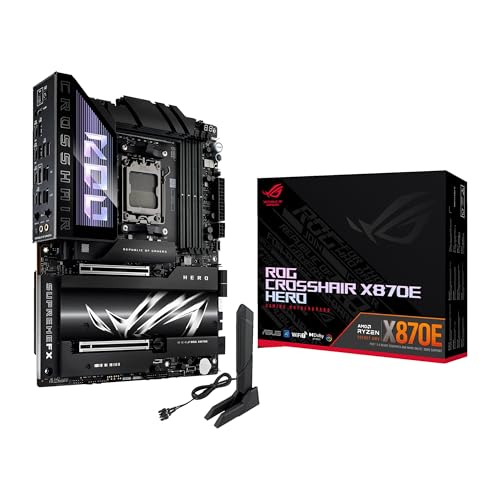
1. ASUS ROG Crosshair X870E Hero — the flagship that justifies itself
If you want the AM5 platform with nothing held back, the Crosshair X870E Hero is the board the rest of the market measures itself against. ASUS builds the Hero line as a showcase: an 18+2+2-phase power solution with high-current stages under some of the most substantial heatsinks in the business, tied together with a heatpipe so the whole VRM assembly behaves like one thermal mass. In practice that means a Ryzen 9 9950X can run sustained all-core workloads indefinitely without the board becoming the limiting factor, and there is headroom left over for aggressive PBO tuning. For a gaming-first build with a 9800X3D, this VRM is frankly more than you need — but flagship boards are bought for the whole package, not a single spec.
The connectivity list reads like a checklist of everything AM5 can do. USB4 is on board, as mandated by X870E, alongside a deep bench of USB ports in every speed tier. PCIe 5.0 runs to the primary graphics slot and to the M.2 slots, though you should read the manual’s lane-sharing table before populating all five M.2 sockets: filling certain slots negotiates the GPU down to x8, which, as discussed above, costs nothing measurable with current cards. WiFi 7 and 5-gigabit Ethernet cover networking, and ASUS’s Q-Release mechanisms — tool-free GPU removal and M.2 latches — are the kind of quality-of-life details you appreciate on the third rebuild, not the first. The onboard audio solution is among the best fitted to any motherboard, with a proper DAC stage that drives demanding headphones without an external amp.
The BIOS is where ASUS pulls furthest ahead. The UEFI interface is fast, searchable, and remembers your settings across updates through profile export. ASUS’s AI-assisted overclocking features are genuinely useful for beginners, while the manual controls go as deep as any enthusiast could want, including per-core curve optimizer access presented in a layout that does not require a map. NitroPath DRAM technology on this board improves signal integrity for high-frequency memory, and while DDR5-6000 remains the sensible gaming target, the Hero will happily train faster kits for those who enjoy the tuning process itself.
Strengths: The strongest, coolest-running VRM on any AM5 consumer board; USB4 plus WiFi 7 plus 5Gb Ethernet; five M.2 slots; best-in-class BIOS and build quality; tool-free hardware throughout; excellent onboard audio. Trade-offs: It sits firmly in the premium price tier — you could buy a B650 board and a faster GPU for the difference; lane sharing requires manual-reading before a full storage build-out; the feature depth is wasted on a set-and-forget builder.
Who it suits: Builders assembling a no-compromises Ryzen 9 or X3D flagship rig they intend to keep and upgrade for years, overclockers, and anyone running serious storage arrays or content-creation workloads alongside gaming. If your build budget forces a choice between this board and a better graphics card, choose the graphics card and buy the Tomahawk below instead. This is a premium-tier board in every sense. Check the current street price before you commit, and check price on Amazon.

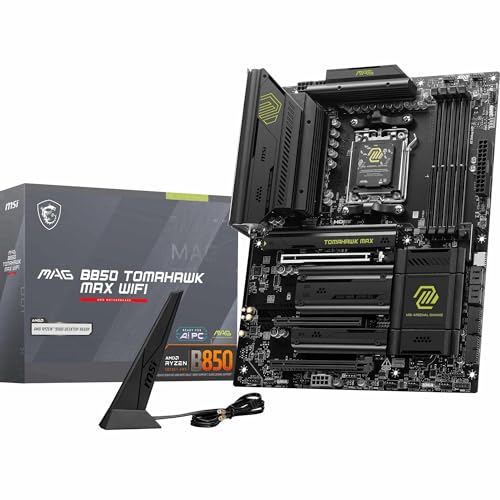
2. MSI MAG X870 Tomahawk WiFi — high-end gaming sense
The Tomahawk line has been the recommendation of choice for sensible high-end builds for several generations, and the X870 version continues that tradition with unusual discipline. MSI starts with a 14+2+1 power design using quality stages under large, finned heatsinks — less theatrical than the Hero’s array, but honestly sufficient for any AM5 processor including a tuned Ryzen 9, and it runs cool doing it. Where the Tomahawk earns its place in this guide is judgment: MSI spent the budget on things gamers use and skipped the decorative extras that inflate flagship prices.
Because this is an X870 board, USB4 is included, and the rear panel is generous: plenty of high-speed USB, a BIOS FlashBack button, and clear-CMOS access you can reach without opening the case. WiFi 7 and 2.5Gb Ethernet handle networking, with MSI’s well-regarded antenna design in the box. Storage covers four M.2 slots, with PCIe 5.0 to the primary slot and graphics. The lane layout is more forgiving than most: MSI publishes a clear sharing chart, and the common two-drive gaming configuration leaves the GPU at full x16 width. The EZ M.2 clips and tool-less shield design make installation genuinely pleasant, and the board’s diagnostic LEDs are positioned where you can actually see them once a large GPU is installed — a small mercy that troubleshooting builders will appreciate at 1 a.m.
MSI’s Click BIOS has improved steadily and now stands close to ASUS in usability, with a clean advanced mode, reliable EXPO application, and fan control that graphs curves the way you would draw them yourself. Memory support is strong; the board trains DDR5-6000 kits without drama and handles the popular 64GB two-stick configurations that sometimes trip up rivals. MSI’s Center software on the Windows side remains optional rather than necessary, which is how motherboard software should be. In long gaming sessions the board is a non-event — stable, quiet in its power delivery, and free of the USB dropouts that plagued some early AM5 designs.
Strengths: VRM quality well matched to real gaming loads; USB4 and WiFi 7 at a mid-premium price; clear lane layout; excellent diagnostic and tool-less touches; stable memory behavior. Trade-offs: One fewer M.2 slot than the flagship; onboard audio is good rather than great; the aesthetic is military-subtle, which not everyone wants in a showcase build.
Who it suits: The high-end gamer building around a 7800X3D or 9800X3D who wants flagship platform features — USB4, WiFi 7, PCIe 5.0 — without paying the flagship tax. It is the board we would buy with our own money for a single-GPU gaming rig meant to last two CPU generations. It sits in the upper-mid price tier, and it is worth comparing against B650E boards if your budget is tight. Check price on Amazon.

3. Gigabyte B650 Aorus Elite AX — the mainstream benchmark
Ask a room of system builders which B650 board they have installed most often and the Aorus Elite AX will come up again and again. It is not the flashiest board in this guide, but it may be the most thoroughly sorted. Gigabyte uses a 14+2+2 twin digital power design that handles everything up to a Ryzen 9 with composure, and the heatsinks, while less sculpted than the flagship boards’, do their job without thermal throttling in any realistic gaming or streaming workload. This is the board that proved, early in AM5’s life, that you did not need to spend flagship money to run flagship chips.
The feature set reflects B650’s position: three M.2 slots with PCIe 5.0 to the primary drive, a PCIe 4.0 graphics slot, WiFi 6E, and 2.5Gb Ethernet. For a gaming build, nothing on that list is a compromise that shows up in practice. Your Gen 5 SSD gets its full speed; your graphics card gets bandwidth it cannot yet use up; your network options cover both the 6GHz band and a proper wired connection. Gigabyte’s M.2 EZ-Latch and PCIe EZ-Latch mechanisms simplify installation, and the board’s layout keeps the primary M.2 under a real heatsink rather than a decorative plate. Rear I/O is adequate rather than generous — count your USB devices before buying — and Q-Flash Plus provides the all-important CPU-less BIOS update path.
Gigabyte’s BIOS has historically been the line’s weak point, and honesty requires saying the interface still feels a step behind ASUS and MSI in organization. The important functions are all present and reliable — EXPO applies cleanly, fan curves are fully adjustable, and curve optimizer access is complete — but finding a setting the first time can involve more menu archaeology than it should. Once configured, the board disappears, which is the real test. Stability across long sessions and many BIOS revisions has made this a favorite of prebuilt integrators, and that installed base means community knowledge is deep: whatever odd issue you encounter, someone has documented the fix.
Strengths: Proven stability and huge community knowledge base; VRM strong enough for any AM5 CPU; PCIe 5.0 storage; typically priced in the accessible mid tier; tool-less latches. Trade-offs: Graphics slot is PCIe 4.0, which matters only for future-proofing purists; BIOS interface lags the leaders; rear USB count is modest for device-heavy desks.
Who it suits: Mainstream gaming builders who want the AM5 platform’s benefits with zero drama and the budget left over for the GPU, where it belongs. It is also the easiest recommendation for a first-time builder, because its popularity means every question has an answered forum thread. A mid-range board in price and a genuinely safe pair of hands. Check price on Amazon.

4. ASRock B650E Taichi Lite — enthusiast hardware, stripped of the theater
The Taichi Lite is one of the most interesting boards ASRock has ever made, because its premise is subtraction. ASRock took the flagship Taichi’s electrical design — including a 24+2+1-phase power solution that embarrasses most X670E boards, let alone B650E rivals — and removed the cosmetic armor, RGB layers, and bundled extras that add cost without adding capability. What remains is a board that looks plain and behaves like a flagship. For builders who close their case and forget it, this trade is pure profit.
As a B650E board, PCIe 5.0 is guaranteed to both the graphics slot and storage, so the Taichi Lite actually out-specs the B650 boards here on the dimension future-proofers care about. Storage is more modest in count — the Lite trims the slot total compared to the full Taichi — but the slots present are fast and properly heatsinked. Networking covers WiFi 6E and 2.5Gb Ethernet. USB connectivity is solid rather than exhaustive, and there is no USB4, which is the clearest line between this board and the X870 picks. The E-ATX-adjacent dimensions of the full Taichi are tamed here, but do confirm case compatibility, as the Lite remains a generously sized board.
ASRock’s BIOS deserves more credit than it usually gets. It is dense, fast, and exposes tuning controls — including memory subtimings and curve optimizer — with a directness that experienced tuners love, though first-time builders may find the presentation utilitarian. ASRock has also been consistently quick with AGESA updates for this board, which matters on a platform where firmware revisions still bring real compatibility improvements. In testing across the community, the Taichi Lite has built a reputation as the board that runs difficult memory configurations and high-core-count chips without complaint, which is precisely what its power design promises.
Strengths: Flagship-grade 24-phase VRM at an upper-mid price; PCIe 5.0 for GPU and storage; fast BIOS update cadence; no money wasted on decoration. Trade-offs: Plain appearance with minimal lighting; no USB4; fewer M.2 slots than flagship boards; BIOS presentation is functional over friendly.
Who it suits: Enthusiasts and overclockers who read spec sheets for fun and would rather pay for copper and power stages than for acrylic and light shows. If you plan to run a Ryzen 9 now or suspect a future upgrade will tempt you that way, this is the most power delivery per dollar on AM5. Check price on Amazon.

5. ASUS ROG Strix B650E-F Gaming WiFi — ROG polish at a saner price
The Strix B650E-F exists for buyers who want the ASUS experience — the BIOS, the software ecosystem, the build finish — without stepping up to Crosshair money. Its 12+2 power stages are a clear tier below the Hero’s array, yet they remain entirely adequate for gaming loads on any current AM5 chip, including X3D parts and a Ryzen 9 used for gaming plus streaming. Where the board distinguishes itself from cheaper B650 rivals is the B650E chipset: the graphics slot is wired for PCIe 5.0, as is the primary M.2, so the two slots a future-proofer cares about are both covered.
Connectivity is well judged. Three M.2 slots handle storage, WiFi 6E and 2.5Gb Ethernet handle networking, and the rear panel carries a healthy USB selection with a BIOS FlashBack button. ASUS’s Q-Release button for the graphics slot solves a real and underrated problem — releasing a large GPU from a slot crowded by an air cooler is miserable on boards without it. The Strix aesthetic, with its angular shrouds and tasteful lighting, suits showcase builds, and the onboard SupremeFX audio solution is a cut above standard motherboard sound, with clean output that does justice to good headphones.
The BIOS is the headline, as with most ASUS boards. Everything the Hero does in interface quality, the Strix does too: fast navigation, sane organization, dependable EXPO behavior, and fan control through Q-Fan that remains the industry benchmark. Armoury Crate on the Windows side is more divisive — capable, but heavier than it needs to be — though nothing forces you to install it beyond lighting control. Long-term owners report the board as a stable daily driver, and ASUS’s BIOS update cadence for the Strix line has been dependable through AM5’s maturation. If your build involves a large dual-tower air cooler, check the clearance over the top PCIe slot and VRM shroud; the Strix’s styling adds height in places where minimalist boards stay flat.
Strengths: PCIe 5.0 GPU and storage on a mid-tier board; best-in-class BIOS; Q-Release GPU latch; strong onboard audio; polished build and looks. Trade-offs: VRM is adequate rather than generous for sustained Ryzen 9 all-core work; no USB4 or WiFi 7; ROG pricing means some B650 rivals undercut it.
Who it suits: Gamers who value the ASUS BIOS and finish, plan to keep their next graphics card for years on a PCIe 5.0 slot, and do not need flagship connectivity. It is the thinking person’s middle path between the Aorus Elite AX and the Tomahawk. A mid-to-upper tier board in price. Check price on Amazon.


6. MSI B650 Gaming Plus WiFi — the essentials, done properly
Every guide needs a board that answers the question: what is the least I can spend without buying something I will regret? On AM5, that answer is the MSI B650 Gaming Plus WiFi. Its power design is the most modest in this guide, and we will be precise about what that means: Ryzen 5 and Ryzen 7 chips, including the X3D gaming champions, run perfectly and indefinitely. A Ryzen 9 under sustained all-core rendering loads is where this board’s smaller heatsinks start to work hard, and buyers with workstation ambitions should step up to the Aorus or Taichi Lite. For a gaming machine — the subject of this guide — the Gaming Plus is not a compromise at all.
The fundamentals are all present and correct. Two M.2 slots, one of them PCIe 5.0 capable for a fast boot drive; a reinforced PCIe 4.0 graphics slot; WiFi 6E and 2.5Gb Ethernet, which still surprises at this price; and Flash BIOS for CPU-less updates. MSI resisted the temptation to cut the features that make a board livable — the rear I/O is honest, the fan header count covers a typical case plus CPU cooler, and the layout avoids the classic budget-board sins like an M.2 slot positioned to cook beneath the GPU’s backplate exhaust. The board’s plain black aesthetic will not win beauty contests, but it also will not clash with anything.
MSI’s BIOS in its EZ and advanced modes gives a first-time builder a gentle on-ramp: EXPO is one toggle, boot order is obvious, and the hardware monitor is readable. Memory support at DDR5-6000 is reliable with mainstream kits. What you give up versus the boards above is expansion headroom and tuning depth — fewer slots, fewer ports, less VRM margin — none of which a focused gaming build will miss in its first years. Paired with a 7800X3D and the strongest GPU the saved money allows, this board anchors the best-value gaming configuration in this entire guide.
Strengths: The lowest price in this guide with no critical feature missing; WiFi 6E and 2.5Gb Ethernet included; PCIe 5.0 storage slot; friendly BIOS for beginners. Trade-offs: Modest VRM heatsinks limit Ryzen 9 sustained-load ambitions; only two M.2 slots; plain looks and fewer rear ports.
Who it suits: First-time builders and value-focused gamers running Ryzen 5 or Ryzen 7 processors who would rather put every spare dollar into the graphics card. It is a budget-tier board that behaves like a mid-range one where it counts. Check price on Amazon.
X870E vs B650: which chipset should you actually buy?
Strip away the marketing and the chipset decision reduces to three questions. First: do you need USB4? If you move large files to external SSDs, run a Thunderbolt-style dock, or want DisplayPort over USB-C from the rear panel, X870E and X870 are the only answers on this list. Second: how many fast drives will you own? One or two NVMe drives live happily on any board here; four or five demand the flagship’s slots and your attention to its lane-sharing chart. Third: how long is this platform’s leash? A builder who upgrades GPUs every generation and keeps the board for six years benefits from the PCIe 5.0 graphics slot found on the B650E, X870, and X870E picks. A builder who replaces the whole system every three years will never see a B650 board’s Gen 4 slot become a limitation.
What the chipset does not decide is gaming performance. Controlled tests across the industry consistently show frame rates within noise of each other between B650 and X870E boards running identical components. Anyone who tells you a flagship chipset makes games faster is selling you something. Buy connectivity and confidence, not frames.
Pairing your board with the right Ryzen CPU
The board and CPU decision should be made together, because AM5’s range spans gentle 65-watt parts and 170-watt flagships. For pure gaming, the X3D processors — the Ryzen 7 7800X3D and its successor the 9800X3D — remain the obvious choices, and their modest power draw means every board in this guide runs them at full potential; pairing one with the MSI Gaming Plus and spending the savings on a GPU is the value play of this generation. Step up to a Ryzen 9 7900X, 7950X, 9900X, or 9950X and the calculus changes: those chips reward the VRM investment of the Taichi Lite, Tomahawk, or Hero, especially if your gaming sessions share the machine with streaming, recording, or background rendering. Non-X and X-series Ryzen 5 and 7 parts sit comfortably anywhere in this lineup. And remember the platform promise: buying a stronger board today than your current CPU strictly needs is rational on AM5 in a way it rarely was before, because the socket’s future is long.
Setup tips: BIOS, memory, and first-boot sanity
A few habits will make any of these boards behave. Update the BIOS before you do anything else, using FlashBack or Q-Flash if the installed version predates your CPU; then enable EXPO, confirm the memory is running at its rated speed in the BIOS summary, and set a fan curve before installing Windows, because default curves on several of these boards are tuned for silence in a review lab, not for a warm room in August. Turn on Memory Context Restore once your memory is stable to cut boot times dramatically, but leave it off while you are still dialing in timings, since it can mask marginal settings. Install the chipset drivers from AMD’s site rather than the board maker’s page — they are newer — and only then add vendor utilities if you actually need lighting control. Finally, save a BIOS profile once everything is stable; a corrupted CMOS or an overambitious tweak then becomes a thirty-second recovery instead of an afternoon of archaeology.
Common mistakes are worth naming because we see them constantly. Builders populate M.2 slots in the order that looks tidy rather than the order the lane chart prefers, and wonder why the GPU reports x8. They install four DDR5 sticks and blame the board for training failures that are really the memory controller’s physics. They seat a huge air cooler, discover the first RAM slot is decorative now, and blame the case. Every one of these is a five-minute manual read, and the manuals for all six boards here are genuinely decent — the lane-sharing and clearance diagrams alone are worth the download before your parts arrive.
One last setup habit separates smooth builds from haunted ones: test the core components outside the case first. Motherboard on its box, CPU and cooler on, one memory stick in the slot the manual specifies, GPU seated, power supply connected — five minutes of open-air assembly confirms the expensive parts work before they are buried behind cable management, and it gives you clear access to the debug display or LEDs if they do not. Every board in this guide is well suited to the ritual, and it remains the single highest-value habit a new builder can adopt.
best ddr5 ram for budget builds under 30
How we picked these six boards
AM5 has been on the market long enough that the catalog runs to dozens of boards, and narrowing it to six meant cutting some genuinely good hardware. Our criteria were consistent across the price tiers. First, power delivery had to be honest: real heatsinks, quality stages, and a track record of running the board’s supported CPUs without thermal throttling. Second, the board had to respect the platform’s longevity — a FlashBack-style recovery path, a manufacturer with a demonstrated BIOS update cadence, and memory support that does not collapse the moment you install a mainstream 64GB kit. Third, the layout had to survive contact with real hardware: large graphics cards, dual-tower air coolers, and cases with their cable grommets where cases actually put them. Boards that failed any of those tests, however impressive their spec sheets, did not make the cut. What survived is a list where the cheapest board is one we would build on ourselves, which is the only standard that matters in a guide like this.
Tuning on AM5: PBO, Curve Optimizer, and memory
Overclocking on AM5 looks different from the multiplier-hunting of a decade ago, and the motherboard’s role has changed with it. Ryzen processors already boost aggressively out of the box, so the meaningful gains come from Precision Boost Overdrive — raising the power and current ceilings so the chip can hold its boost longer — and from Curve Optimizer, which undervolts each core along its voltage-frequency curve to buy thermal headroom. A board with a strong VRM and good heatsinks will not make a bad silicon sample good, but it will let a good sample sustain what it is capable of, and it will keep power delivery temperatures boring while doing so. The Hero and Taichi Lite are the natural homes for this kind of tuning, with the deepest BIOS controls and the most thermal margin; the Tomahawk follows closely. On the B650 boards, the same features exist and work — AMD does not lock PBO behind chipsets — but you should watch VRM temperatures during long all-core tuning sessions on the Gaming Plus in particular.
Memory tuning is the other half of AM5 performance, and here the boards genuinely differ in temperament. The platform’s architecture rewards DDR5-6000 at a 1:1 memory-controller ratio with tightened secondary timings; beyond roughly DDR5-6400 the controller typically shifts to a 2:1 ratio that only pays off at much higher frequencies, which is why exotic 8000 MT/s kits are a hobby rather than a recommendation. Every board in this guide will run a mainstream EXPO 6000 kit at its profile with one click. The differences appear with four sticks, with Hynix versus Samsung ICs, and with how gracefully the BIOS recovers from a failed training attempt — the best boards here retry, fall back, and let you adjust without a CMOS clear and a flashlight. If memory tuning is your hobby, the Hero’s NitroPath hardware and the Taichi Lite’s enthusiast BIOS are worth their premiums. If it is not, buy the 6000 kit, click EXPO, and never think about it again; that is a perfectly respectable outcome on any of these six.
Onboard audio, headers, and the little things
Motherboard audio has quietly become good enough that the old advice — always buy a sound card — no longer applies to most gamers. The Hero’s DAC-equipped solution and the Strix’s SupremeFX implementation both drive typical gaming headsets and most audiophile headphones cleanly, with none of the hiss and GPU-load whine that plagued boards a decade ago. The mid-tier boards use standard Realtek codecs that are entirely fine through a headset; the honest difference appears only with high-impedance headphones, where the flagship solutions pull ahead. Similarly unglamorous and similarly important: fan and pump headers. A modern build with a 360mm radiator, three case fans, and an exhaust needs five or six headers or a hub; count them on the spec sheet, because the budget boards trim here first. ARGB headers, a temperature sensor header for coolant-based fan curves, and a front-panel USB-C header that actually runs at the speed your case advertises — these are the details that decide whether a build feels finished or merely assembled.
Ownership over time: firmware, support, and the second upgrade
A motherboard is the one component you will interact with for the entire life of the platform, mostly through its firmware. AMD’s AGESA updates have delivered real improvements since AM5 launched — faster boot training, wider memory compatibility, support for each new CPU generation — and the manufacturers in this guide have kept pace at different speeds. ASUS and ASRock have been consistently quick with this board generation; MSI close behind; Gigabyte’s cadence is adequate though its BIOS interface remains the least pleasant place to spend an update. The practical advice is unglamorous: update twice a year, read the changelog, skip beta releases unless one fixes a problem you actually have, and export your settings profile first. Support matters in the tail, too — a board from a maker with a responsive RMA process and an active support forum is worth a small premium over an anonymous spec-sheet bargain, because when a board fails it takes the whole machine with it.
Finally, think about the second upgrade when you buy the first board. AM5’s promise is that a future Ryzen generation drops into the same socket. That future chip may draw more power, want faster memory, or arrive alongside a graphics card that finally makes PCIe 5.0 x16 meaningful. The boards in this guide were chosen with that day in mind, in proportion to their prices: the Gaming Plus will carry a future Ryzen 7-class gaming chip happily, while the Hero and Taichi Lite are built to shrug at whatever the socket’s later years produce. Buying one tier above your current CPU’s strict needs is not waste on this platform; it is the entire point of it.
Building around a big GPU: clearance, spacing, and sag
Modern graphics cards have become three-and-a-half-slot furniture, and motherboard layout has not always kept up. Before buying, picture the finished build. The primary PCIe slot on all six boards sits in the standard second position, but what lives beneath it differs: on boards where the second M.2 heatsink or a chipset shroud rises close to the slot, a thick GPU can crowd out access to front-panel headers and USB connectors along the bottom edge, turning a five-minute cable job into tweezers work. The flagship boards generally space their slots and headers with big cards in mind; the budget boards require more patience. GPU sag deserves a mention too — none of these boards can repeal physics, but the reinforced metal-clad primary slots on the ASUS, MSI, and Gigabyte picks genuinely reduce flex at the connector, and pairing any of them with the support bracket most high-end cards now include keeps the slot healthy across years of thermal cycles. If you run a dual-tower air cooler as well, verify the overhang: on the Strix and Hero, tall VRM shrouds plus a wide cooler can shadow the first memory slot, which is one more reason this guide keeps recommending two-stick memory kits.
A short buyer’s checklist before you check out
Run through this list against whichever board you are about to buy and you will avoid nearly every AM5 regret we see. Confirm the BIOS version story: either the board ships with firmware new enough for your CPU, or it has FlashBack, Q-Flash Plus, or an equivalent CPU-less update path — all six picks here pass that test. Count your drives honestly, including the one you will inevitably add during a sale, and make sure the M.2 total and the lane-sharing chart accommodate them without surprising you. Count your USB devices, including the webcam, DAC, and controller dongles you forgot you owned, and compare against the rear panel. Check your case’s front-panel connectors against the board’s headers, especially USB-C. Decide now whether WiFi matters or whether the machine will live on Ethernet forever, because that choice alone can move you a full price tier. And keep the receipt and register the warranty; the board is the platform, and platforms are worth paperwork.
Frequently asked questions
Does a more expensive motherboard improve gaming FPS?
Essentially no. With the same CPU, GPU, and memory at the same settings, every board in this guide produces frame rates within a percent or two of each other. Expensive boards buy connectivity, power headroom, storage slots, and tuning depth. Spend on the GPU first.
Is PCIe 5.0 worth paying for on a gaming board?
For storage, it is a nice-to-have that shortens large file transfers far more than game loads. For the graphics slot, it is insurance for future GPU generations rather than a present-day benefit. B650E boards like the Taichi Lite and Strix B650E-F are the cheapest way to hold that insurance on both slots at once.
Can I use my old DDR4 memory on an AM5 board?
No. AM5 is DDR5-only, physically and electrically. Budget for a DDR5-6000 kit — two sticks, EXPO-rated — as part of any AM5 build, and sell or repurpose your DDR4 with the old platform.
Which board here is best for the Ryzen 7 9800X3D?
All six run it at full speed, because the 9800X3D is an efficient chip. The MSI MAG X870 Tomahawk WiFi is our default recommendation for a high-end 9800X3D build, while the MSI B650 Gaming Plus WiFi is the value answer when the GPU budget matters more than features.
Do I need WiFi 7, or is WiFi 6E enough?
For gaming, a wired Ethernet connection beats both, and every board here includes 2.5Gb Ethernet. WiFi 7 helps in dense wireless environments with a WiFi 7 router; WiFi 6E remains excellent otherwise. Do not choose a board on this spec alone.
Our verdict
Most gamers should buy the MSI MAG X870 Tomahawk WiFi for its balance of platform features and price, or the Gigabyte B650 Aorus Elite AX if the budget belongs to the graphics card; enthusiasts chasing power delivery should take the ASRock B650E Taichi Lite, and only true flagship builds need the Crosshair X870E Hero. Whatever you choose, remember that on AM5 the board is the foundation of a platform you may keep through two processors — so buy the foundation once, buy it well, and let it disappear beneath the games it was bought to play.