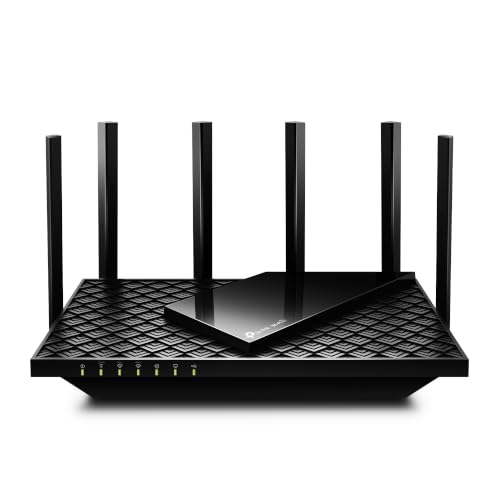
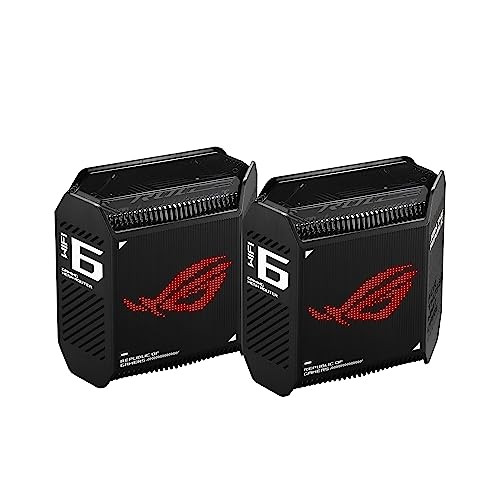
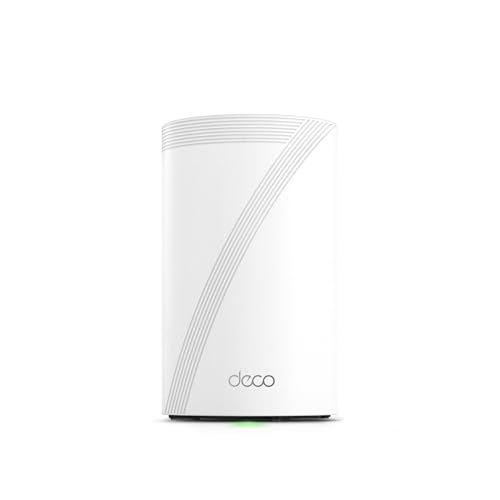
A modem router combo joins the modem and the wireless router into one box, which saves space, cables and a power outlet. It suits many homes, though the choice depends on your internet provider, your home size and the number of devices.
We have not used these products ourselves, so this guide does not claim any results. It describes how to choose one by thinking about your plan, the layout of your home, how many devices connect and which features you will actually use.
Think about your home before you compare boxes. A small flat needs little reach, while a large house with thick walls may need extra access points later. Count the devices that connect at once, from phones and laptops to speakers and cameras, and note which of them sit near a wired port, since that cuts load on the wireless side. Check what your plan offers too, because a fast box cannot lift a slow plan.
As an Amazon Associate we earn from qualifying purchases. Links on this site are affiliate links, and they do not change the information we give.

In this guide
Quick Picks
| Pick | Product | Best For |
|---|---|---|
| Best Overall | NETGEAR Nighthawk CAX80 | Fastest cable plans and busy homes |
| Best for Multi-Gig Wired Homes | ARRIS SURFboard G36 | Gigabit plans with wired devices |
| Best Mid-Range WiFi 6 | NETGEAR Nighthawk CAX30 | Apartments and mid-sized houses |
| Best for Xfinity Voice | Motorola MT8733 | Xfinity bundles with a phone line |
| Best Budget | ARRIS SURFboard SBG7600AC2 | Slower plans under 800 Mbps |
Our Picks
1. NETGEAR Nighthawk CAX80 — Best for Fast Cable Plans and Busy Homes
The CAX80 pairs a DOCSIS 3.1 cable modem with a dual-band WiFi 6 router rated at AX6000, so it covers both halves of this guide’s checklist in one box. NETGEAR rates the WiFi for homes up to 2,500 square feet and around 30 connected devices, which suits busy households running phones, laptops, cameras and streaming boxes at once. It is certified for Xfinity, Spectrum and Cox, and NETGEAR positions it for the fastest cable tiers those providers sell, which gives headroom if you upgrade your plan later. Around the back there are four gigabit Ethernet ports for wired devices such as consoles and desktop PCs. Setup and day-to-day management run through the Nighthawk app, where you can set up a guest network and check connected devices. Note the limits before you buy: it does not support bundled voice service, DSL or fiber, so it only fits cable plans without a phone bundle.
View NETGEAR Nighthawk CAX80 on Amazon
2. ARRIS SURFboard G36 — Best for Multi-Gig Wired Homes
The G36 combines a DOCSIS 3.1 modem with an AX3000 WiFi 6 router, and its wired side is the standout: one 2.5 gigabit Ethernet port sits alongside four 1 gigabit ports, so a fast desktop, NAS or switch can use a multi-gig link while the rest of the house runs on standard ports. ARRIS approves the G36 for cable plans up to 1.2 Gbps with Xfinity, Cox and Spectrum, which covers the gigabit tiers most households actually buy. The modem section uses 2×2 OFDMA channel support, the DOCSIS 3.1 feature that helps efficiency on busy networks. Dual-band WiFi 6 handles the wireless side for streaming, calls and smart home gear. Setup and management run through the SURFboard Central app, which walks through activation and basic settings. Choose the G36 if your plan is at or near a gigabit and you have wired devices that can use the faster port; smaller plans will not use its headroom.
View ARRIS SURFboard G36 on Amazon
3. NETGEAR Nighthawk CAX30 — Best Mid-Range WiFi 6 Combo
The CAX30 is the step-down Nighthawk combo: a DOCSIS 3.1 modem with an AX2700 WiFi 6 router, built for cable plans up to 2 Gbps. NETGEAR rates coverage at up to 2,000 square feet and capacity for more than 25 connected devices, a realistic fit for apartments and mid-sized houses. It is compatible with Xfinity, Spectrum and Cox, so it replaces the rental gateway on the plans most people hold. Four gigabit Ethernet ports cover wired staples like a TV, console and work PC, and a USB 3.0 port can share storage on the network. The Nighthawk app handles setup, guest access and device checks without digging through a web admin page. Pick the CAX30 when you want current WiFi and modem standards without paying for the CAX80’s extra speed ceiling, and skip it if your home is large enough to need mesh satellites from day one.
View NETGEAR Nighthawk CAX30 on Amazon
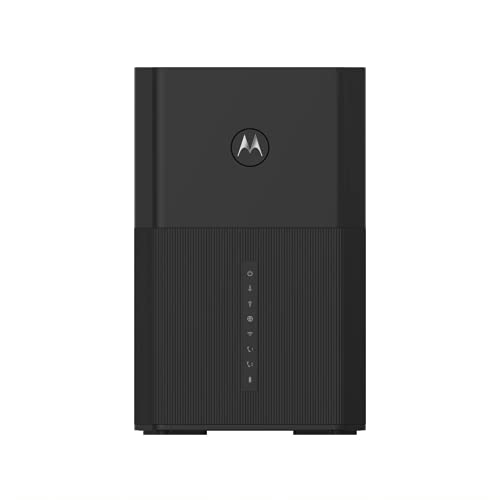
4. Motorola MT8733 — Best for Xfinity Voice Plans
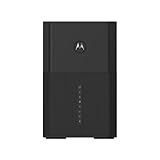
Most modem router combos cannot replace a voice gateway, and the MT8733 is the exception in this list. Built for Comcast Xfinity, it combines a DOCSIS 3.1 modem, an AX6000 WiFi 6 router and two RJ-11 phone ports that support up to two Xfinity Voice lines with features such as caller ID and call forwarding. Motorola rates it for Xfinity gigabit plans up to 2,500 Mbps. The wired side pairs one 2.5 gigabit Ethernet port with three 1 gigabit ports, so a fast PC or switch gets the multi-gig link. Management runs through the motosync app, which covers setup, parental controls and security alerts. The catch is scope: the phone ports work with Xfinity Voice only, and the unit is made for Xfinity service rather than other providers. If your household still keeps a landline on an Xfinity bundle, this is the combo that lets one box do everything.
5. ARRIS SURFboard SBG7600AC2 — Best Budget Pick for Slower Plans
Not every plan needs DOCSIS 3.1. The SBG7600AC2 is a DOCSIS 3.0 combo with 32 downstream and 8 upstream channels, approved for cable plans up to 800 Mbps, which still covers a large share of household tiers. Its dual-band AC2350 WiFi is a generation behind WiFi 6, so it handles fewer simultaneous devices gracefully, but for browsing, streaming and a handful of smart gadgets it remains a sensible match. Four 1 gigabit Ethernet ports give wired devices the same treatment as the pricier picks above. ARRIS lists compatibility with major providers including Xfinity and Cox; as the guide above stresses, confirm your provider and plan before ordering, because approval lists change. Setup runs through the SURFboard Central app. Choose this one to stop a rental fee on a sub-gigabit plan at the lowest sensible cost, and step up to a DOCSIS 3.1 model if a gigabit upgrade is likely soon.
View ARRIS SURFboard SBG7600AC2 on Amazon
What to Look For
| Factor | Why it matters | What to check |
|---|---|---|
| Provider compatibility | A unit that does not work with your provider is useless | Check the provider’s list of approved devices before you buy |
| Cable standard | Sets the top speed your plan can reach | Match the standard to your plan, from older to newer versions |
| Wifi generation | Affects speed and many-device performance | Look at the wifi standard and bands the maker lists |
| Coverage | Decides how far the signal reaches | Compare the maker’s stated area and consider home size and walls |
| Ports | Handle wired devices | Count ethernet ports and check their speed |
| Phone line support | Needed for some plans | Check for voice ports only if your plan includes them |
| Management features | Make it easier to run | Look for an app, parental controls, guest network and firmware updates |
Setup and Care Tips
- Place the unit in an open, central spot, not inside a cabinet.
- Change the default network name and password on first setup.
- Update the firmware when the app or page prompts you.
- Use the wired ports for gaming and streaming boxes when you can.
- Power cycle the unit now and then and keep the vents clear of dust.
Mistakes to Avoid
- Buying without checking provider compatibility.
- Choosing a model that tops out below your plan’s speed.
- Hiding the unit in a closet, which weakens coverage.
- Ignoring port count when you have wired devices.
- Skipping updates because the setup seems to work.
How Do You Check Modem Router Combo Compatibility With Your Provider?
Check your internet provider’s list of approved modems for the exact model you want, and match the cable standard to your plan. A modem router combo that your provider does not support cannot be activated.
Start with your provider’s website or support line. Many providers publish a list of devices that work on their network, and they sometimes list the maximum plan speed each device supports. The picks in this guide list providers such as Xfinity, Spectrum and Cox, but approval lists change, so confirm it again before you order.
- Connection type: These combos are for cable service. Fiber and DSL usually need different equipment.
- Plan speed: Make sure the modem’s supported speed tier is at or above your plan.
- Voice service: If your plan includes a home phone line, you need a unit with phone ports, such as the Motorola MT8733 for Xfinity Voice. Others, like the NETGEAR Nighthawk CAX80, do not support bundled voice service.
- Activation: Some providers require you to activate through an app, a web page or a phone call. Have your account details ready.
Also check whether your provider charges an equipment rental fee that you could avoid. Compare how long it would take to cover the cost of your own unit, and remember that you become responsible for the equipment, including replacement if it fails.
If the listing, the provider’s list and your plan do not agree, ask the provider before buying. A short call is easier than a return.
DOCSIS 3.0 vs DOCSIS 3.1: Which Cable Standard Do You Need?
Choose DOCSIS 3.1 if your plan is fast or you expect to upgrade, and DOCSIS 3.0 only if your plan is modest and likely to stay that way. The standard sets the top speed the modem part can reach.
DOCSIS 3.0 is the older standard. A unit like the ARRIS SURFboard SBG7600AC2 uses it and, as described above, suits plans below its stated limit. It can be a sensible, lower-cost match for light households.
DOCSIS 3.1 is the newer standard, used by the NETGEAR Nighthawk CAX80 and CAX30, the ARRIS SURFboard G36 and the Motorola MT8733. It handles higher speed tiers and is generally better prepared for busy networks.
Think in terms of your plan:
- Entry-level plan, few devices: DOCSIS 3.0 can be enough.
- Gigabit-class plan: choose DOCSIS 3.1.
- Plan upgrade likely within a year or two: DOCSIS 3.1 avoids a second purchase.
Remember that the modem standard and the wireless standard are separate. A DOCSIS 3.1 modem can still be paired with an older WiFi generation, and a newer WiFi radio does not raise your plan speed. Look at both specs on the listing.
A faster box cannot raise a slow plan, so do not pay for capacity your plan cannot use.
Will a Modem Router Combo Cover Your Whole Home?
One modem router combo can cover a small or mid-sized home if you place it centrally, but large or multi-floor homes often need extra access points. The maker’s coverage figure is a guide, not a promise for your walls.
Walls, floors, mirrors, metal appliances and distance all weaken the signal. A unit placed in a basement corner or a closet will reach fewer rooms than the same unit on an open shelf. Because the modem connects to the incoming cable, the router often ends up where the cable enters, which may not be central.
Ways to improve coverage:
- Place the unit high, in the open and away from thick walls and large metal objects.
- Run an Ethernet cable from the combo to a separate access point in a far room.
- Use wired ports for fixed devices like consoles and desktops, which frees wireless capacity.
- Check whether the unit works with add-on satellites or a mesh partner.
Bands matter, too. The 5 GHz band is faster at close range but weaker through walls, while 2.4 GHz travels farther but carries less speed. Many smart home gadgets use 2.4 GHz.
Interference is another cause of weak signal. Cordless phones, baby monitors and neighboring networks can crowd the same channels, so try switching channels or bands in the app if one room keeps dropping. Keep the antennas or the unit upright as the maker advises, and avoid stacking other electronics on top of it.
After setup, walk through your home with a phone and note where the signal drops. If dead spots affect rooms you use, add an access point rather than blaming the unit.
Which Modem Router Combo Should You Buy?
The best modem router combo is the one your provider supports and that matches your plan speed and home size. Use these matches as a shortlist.
- If you have a fast cable plan and a busy household, go for the NETGEAR Nighthawk CAX80.
- If you have a gigabit plan and wired devices that can use a faster port, choose the ARRIS SURFboard G36.
- If you live in an apartment or mid-sized house and want current WiFi, pick the NETGEAR Nighthawk CAX30.
- If you keep a landline on an Xfinity bundle, the Motorola MT8733 is the one that handles it.
- If your plan is modest and you want to stop paying rental fees at a sensible cost, consider the ARRIS SURFboard SBG7600AC2.
If you are unsure, answer three questions in order. First, does your provider support the unit? Second, does the modem tier match your plan, now and next year? Third, will the WiFi reach the rooms where you use it? The first question can rule out a pick entirely, so do not skip it.
Prefer a model with a wired port that matches your fastest device. Do not pay for a multi-gig port if no device can use it.
What Should You Check Before Buying, and Who Should Skip a Combo?
Before buying, confirm provider approval, plan speed, port needs and the return window. Skip a combo if you want to tune your network deeply or replace parts separately.
What to check before you buy:
- Your provider’s approved device list and your plan type.
- Highest speed tier the modem supports.
- Number and speed of Ethernet ports for wired devices.
- Whether you need phone ports for a voice line.
- What is included: power adapter, cable and setup guide.
- Warranty terms and return window on the listing.
- Whether the app needs an account.
What are the downsides? Everything sits in one box, so a fault in one part can affect the whole unit. Upgrading WiFi later means replacing the modem too. Advanced settings may be limited compared with a standalone router.
Is it worth paying more? A higher-priced combo makes sense if you need faster plan support, more ports or broader coverage. If your plan is modest, a simpler unit may be all you need.
Who should skip it? People who want a favorite router, mesh system or detailed controls, or who change providers often, may prefer separate devices. To finish, compare the picks above, check the current listing for compatibility and what is included, then choose the one that fits your plan and your home.
Choosing a modem router combo: A Deeper Look at What Matters
The shortlists and headline features only get you so far. The sections below dig into the qualities that separate a satisfying long-term purchase from a disappointing one, so you can weigh the picks in this guide against the way you will actually use them.
Provider compatibility and approval lists
A combo only works if your internet provider supports that exact model on your plan, and approval lists change. Check the provider’s own current list for your address and speed tier before anything else, because the best combo in the world is a paperweight if the network refuses it. Judge this against your own routine rather than a showroom impression, because the gap between two otherwise similar options usually shows up only after a week or two of regular use. Write down what you notice in the first few sessions: small annoyances in this area tend to grow with time, while small conveniences quietly compound. If a listing describes this point only in vague marketing language, treat that as a prompt to compare it with an option whose maker explains the detail plainly and in writing.
Cable standard and your speed tier
The cable standard decides the speeds the modem side can negotiate, and buying below your plan wastes money you already spend monthly, while buying far above it wastes money today. Match the standard to your current tier with one eye on the upgrade you are actually likely to take. A practical way to test this is to recreate your most common real situation, not the easiest one. Use the material, room, route or workload you deal with most weeks, and pay attention to where you have to compensate. Compensation is the tell: if you are constantly working around a weakness, that weakness will define your experience far more than any headline feature. Buyers who check this point carefully before ordering rarely regret the purchase, even when they spend a little longer deciding.
Wireless standard and real-world coverage
The router side’s wireless generation matters less than your home’s layout: walls, floors and distance decide coverage. A combo in a cupboard at one end of a long house will disappoint however modern its wireless is, so placement planning is part of the purchase. This matters more than it first appears because it affects almost every session, not just special occasions. Think about your longest typical session and your most rushed one, and ask whether the same choice serves both. Where makers offer options or settings that change this behaviour, learn what they do before you buy rather than after. A few minutes spent understanding the trade-off now is cheaper than an exchange, a return or a second purchase later in the year.
Ports, wired connections and future devices
Count wired devices honestly: computers, televisions, consoles, a work phone system, a network drive. Enough ports of the right speed, in the right place, prevents the switch-buying errand that so many combo owners make within a month. Compare this point across the picks in this guide side by side, using the same test for each one where you can. Consistency is what makes the comparison honest: changing the test between options hides exactly the differences you are trying to find. Also consider how this quality ages. Parts wear, skills improve and habits change, so a choice that feels merely adequate today can become the limit on your progress within a season of steady use.
Voice services and special features
Some households need the combo to carry a provider’s voice service, battery backup expectations or specific management features. These niche requirements eliminate models quickly, so surface them at the start rather than discovering them at activation. Beginners often overlook this point, while experienced users usually rank it near the top of their list, and that difference is instructive. Experience teaches where friction actually appears. If you are upgrading, recall what frustrated you about the gear you already own and check whether the new option genuinely fixes that frustration or simply moves it elsewhere. If you are buying for the first time, borrow, rent or try a similar item if you possibly can before committing.
Firmware, security updates and longevity
A combo is infrastructure: it should receive updates, support current security standards and be manageable without heroics. Check how the maker handles updates and whether the provider controls them, because that relationship decides the device’s useful life. Finally, weigh this against cost in a sober way. Paying more only helps when the extra money visibly improves this specific quality; a higher price tag attached to unrelated features does nothing for your day-to-day results. Read the maker’s own description closely, note exactly what is included, and be wary of bundles that pad the box with accessories you will never use instead of improving the core item itself.
a modem router combo in Real Life: Matching the Pick to the Situation
Most buyers do not have one single use; they have a handful of recurring situations, and the right choice is the one that handles their most frequent situation best while coping acceptably with the rest. Work through the situations below and note which ones sound like your week.
Busy family homes with many devices
For a house full of streams, calls, games and schoolwork, the combo needs processing headroom and sensible traffic handling as much as raw wireless speed. Judge it at the evening peak, not at midday with one laptop. In this situation the priority is reliability over novelty. Set things up the same way each time so your results stay predictable, and keep notes on what worked; a short note after each session saves guesswork later. People who do this regularly develop a simple routine within a few weeks, and the routine, more than the gear, is what keeps results consistent when conditions are less than ideal.
Apartments and smaller homes
In a flat, coverage is easy and interference from neighbours is the challenge. A mid-range combo placed centrally will outperform a flagship stuffed in a corner cabinet, every time. Here the common mistake is rushing. Give yourself a few extra minutes at the start and you will usually save far more time later, because most problems in this scenario trace back to a hurried setup or a skipped check. If you share the space or the equipment with others, agree on where things live and how they are left for the next person; that small discipline prevents most wear and most arguments.
Home offices and video-call work
Working from home adds a reliability requirement: stable calls, a wired option for the work computer, and a router that does not need weekly restarting. Place the combo near the office if the wiring allows. Conditions in this scenario are rarely perfect, so plan for the imperfect version: less light, less space, less time or more distraction than you would like. The option that copes gracefully with the awkward version will feel effortless on good days. Practise the awkward version deliberately once or twice at home, when nothing depends on the outcome, so the adjustments become automatic when they matter.
Houses with awkward layouts
Long, split-level or thick-walled houses defeat any single box eventually. A combo can still be the right purchase as the network’s base, with a mesh node or extender planned honestly as part of the same budget. This is where comfort and ergonomics quietly decide whether you keep up the habit. If the setup tires you, digs in, overheats or demands constant adjustment, sessions get shorter and results suffer no matter how capable the equipment is. Adjust fit, position and settings in small steps, one change at a time, so you can tell which change actually helped rather than guessing among several.
Replacing a rented unit to save money
The savings case is simple arithmetic: the rental fee against the purchase, over the years you will stay on this service. Keep the provider’s activation steps and a fallback plan for installation day, and the swap is painless. Treat this scenario as a system, not a single purchase. The main item, its accessories, the surface or room it works in and your own habits all interact. Improving the weakest link in that chain usually beats upgrading the strongest one. Before spending more, list the chain honestly and fix the link that actually limits you; it is often the cheapest one, and sometimes it is simply a habit.
Setup, First Sessions and Building Good Habits
A careful first setup pays for itself every session afterwards. Work on a clean, well-lit surface, keep the manual open beside you, and resist the urge to skip the boring steps: registration, updates, calibration and a full test at low stakes. The goal of the first session is not great results; it is a known-good baseline you can trust and return to whenever something later feels off.
Before activation day, photograph the old setup’s cables and lights, note your account details and the provider’s activation number, and schedule the swap when the household can tolerate an hour offline. Most combo misery is logistics, not technology.
Place the combo as centrally and openly as the cable entry allows: out of cupboards, off the floor, away from large metal objects and the microwave’s line of fire. Placement is the single largest free performance upgrade in home networking.
Set your own network name and a strong password, update the administrator password from its default, and connect devices in order of importance: work machines first, then entertainment, testing speed and call quality as you go.
Run a baseline test and write it down: wired speed at the combo, wireless speed in your main rooms, and how a video call behaves at the far end of the house. That baseline turns future problems from arguments into comparisons.
Troubleshooting: Problems Owners Actually Run Into
Work through problems in a fixed order: check the simplest physical causes first, then settings, then compatibility, and only then suspect a fault. Change one thing at a time and test after each change, otherwise you cannot tell what fixed it. Keep a short written log of symptoms and fixes; the same issues tend to recur seasonally or after updates, and a log turns a frustrating hour into a two-minute job the second time around.
Activation fails or the provider cannot see the modem
Confirm the model is on the provider’s list for your tier, read the device’s numbers to the agent exactly as printed, and check the cable connection is finger-tight plus a quarter turn. Most failed activations are a mistyped identifier or a loose connector.
Speeds far below the plan
Test wired, directly at the combo, before blaming wireless. If wired is slow, the problem is the line, the tier provisioning or the modem side; if wired is fast and wireless is slow, it is placement, interference or an old device negotiating down.
WiFi dead zones in some rooms
Move the combo before buying anything: a few metres and an open shelf change coverage dramatically. If the layout still defeats one box, add a mesh node or a wired access point rather than stacking extenders on a weak signal.
Connection drops that a restart fixes briefly
Check ventilation first, because combos in closed cabinets cook themselves slowly. Then update firmware, replace a suspect cable, and log the drop times; a pattern of evening drops points at the provider, not your box.
Devices that will not connect
Older devices sometimes dislike newer security modes or combined network names. Give the older device the compatibility setting or separate network name the router offers, and reserve your main network’s strongest security for devices that support it.
How the Picks Compare With Each Other
Every pick above earned its place for a different reason. The notes below compare them only with each other, using the roles and strengths already described in their reviews, to help you pick between them rather than re-rank them.
NETGEAR Nighthawk CAX80: Best for Fast Cable Plans and Busy Homes
It leads for the household on a fast tier with many devices, where the combo must be modem, router and traffic manager without breaking a sweat. Choose it if that role matches your most common situation; skip it if your routine looks more like one of the other roles described in this guide. Either way, judge it on the job it was picked for rather than asking it to be the best at everything, because none of the options here is.
ARRIS SURFboard G36: Best for Multi-Gig Wired Homes
Its strength is the wired side, suiting a home whose serious devices plug in and whose network backbone matters more than wireless showmanship. Its strength is focus. It does one job particularly well, and the compromises sit in areas its intended user is least likely to mind. If those compromises land exactly where you are sensitive, look at the neighbouring picks instead; if they do not, this is a confident, uncomplicated choice.
NETGEAR Nighthawk CAX30: Best Mid-Range WiFi 6 Combo
It is the balanced middle purchase: modern wireless and a capable modem for the household that wants an upgrade without flagship commitment. Think of it as the reference point for its category within this list. Other picks earn their place by beating it on a specific axis such as size, simplicity or specialised ability. Measure any alternative against it on that axis, and be honest about how often that axis actually decides your results.
Motorola MT8733: Best for Xfinity Voice Plans
It earns its place where the provider’s voice service must keep working, a requirement that quietly eliminates most of the market. Long-term satisfaction with this one tends to come from fit rather than novelty: it suits a clear routine and keeps suiting it as skills grow. Give it a fair first week, follow the setup guidance in this guide, and only judge it once the routine feels familiar rather than new.
ARRIS SURFboard SBG7600AC2: Best Budget Pick for Slower Plans
It suits a modest tier and a modest budget honestly, provided your plan’s speed and your home’s size stay within what it was built for. Before ordering, re-read what is included in the box and what you may still need, because the ownership experience starts with that first unboxing. If the listing is unclear about contents or compatibility, ask the seller a direct question and keep the answer with your receipt.
A Final Pre-Purchase Checklist
Run through this short list before you order any a modem router combo option from this guide. Each item takes a minute, and together they prevent most of the regrets buyers report afterwards.
- Write down your three most common situations before you order, and check the pick you favour against each one honestly.
- Confirm compatibility with what you already own, in writing from the maker’s own documentation, not from a forum guess.
- Check exactly what is included in the box, and list anything else you will need before the first proper session.
- Plan where the item will live when it is not in use; storage that is awkward quickly becomes storage that is skipped.
- Read the return terms before ordering, and keep the packaging until you have completed a few real sessions.
- Set a simple baseline test you can repeat, so later changes in performance are obvious rather than a vague feeling.
- Clean and inspect the item on a regular rhythm instead of waiting for a problem to force the issue.
- Keep the manual and your receipt together; both are invaluable if you ever need support or a warranty conversation.
- Revisit your settings after the first month, because the choices that suit a beginner rarely suit the same person later.
- If you buy accessories, add one at a time and judge each on whether your results or comfort genuinely improve.
- Ask an experienced user or teacher to watch one session and comment; outside eyes catch habits you cannot see yourself.
- Note what would make you upgrade in future, so a later purchase is a planned step rather than a frustrated reaction.
- Spend one session using only the basics well before exploring advanced features; mastery of the basics is what the advanced features build on.
- Check the item over in good light once a month: early wear, looseness or dirt is cheap to address and expensive to ignore.
- Keep spare consumables and the small tools the item needs in the same place as the item itself, so nothing is ever borrowed and lost.
FAQ
Is a combo better than separate devices?
A combo is simpler and takes less space. Separate units give you more upgrade options, since you can replace the router without changing the modem. Choose based on how much control you want.
Will it work with any internet provider?
Not always. Providers often limit which devices they support. Check their approved list or ask support before buying, and make sure the cable standard matches your plan.
Do I need a modem router combo or separate devices?
A combo is simpler and uses less space, while separate devices let you upgrade each part on its own. If you want fewer cables and easy setup, a combo is usually enough. If you want advanced control, consider separate units.
Can I use a modem router combo with fiber internet?
Usually not. The combos in this guide are for cable service, and fiber normally uses a different terminal. Check with your provider about the right equipment.
Will buying my own modem router combo save money?
It can if your provider charges a monthly rental fee, since you stop paying it. Compare the purchase cost with the rental fee over time. Remember you handle replacement if the unit fails.
How do I set up a new modem router combo?
Connect the cable line, power it on and follow the maker's app or setup page. You then activate it with your provider. Change the default network name and password afterward.
Does WiFi 6 make my internet faster?
It improves how the network handles many devices, but it cannot raise your plan speed. Your devices must support WiFi 6 to benefit. Older gadgets will still connect at their own speed.
Why is my WiFi weak in some rooms?
Distance, walls and the unit's position usually cause it. Move the unit to an open, central spot, or add an access point. Using a wired connection for fixed devices also helps.
How often should I restart my modem router combo?
Restart it when connections slow down or drop, and otherwise now and then. A restart clears temporary glitches. If problems repeat, check for firmware updates or contact your provider.
What happens if my provider drops support for my modem?
You may need to replace it, so check your provider's notices from time to time. Choosing a newer standard lowers that risk. Keep your purchase details in case you need support.
Questions to Ask Before You Buy
A combo unit replaces two boxes with one, so the questions below help you confirm it fits your connection before you commit.
- Does my internet provider publish a list of approved modems, and is the unit on it?
- What connection type do I have: cable, fiber with a separate terminal, or DSL?
- How many wired devices need a port, and do I need ports faster than the standard gigabit speed?
- Will one unit placed near the incoming line cover the rooms where I actually work and relax?
- Do I want to manage settings through an app, a web page, or both?
- Can I live with a single point of failure, or would I rather replace parts separately later?
Matching It to Your Home
Layout matters more than most spec sheets suggest. In a small apartment, a single combo unit near the entry point often covers every room without extra gear. In a multi-floor house, the wall jack is frequently in a corner of the basement or a utility closet, which is a poor spot for broadcasting. In that case, consider whether the unit supports adding satellite nodes or a mesh partner later, or whether you would simply run a cable to a separate access point.
Think about the plan you pay your provider for, too. A unit built for a modest plan can become a bottleneck if you upgrade the plan next year, so look at the highest speed tier the modem section supports rather than only the one you have today.
Feature Trade-offs
| Feature | Benefit | Trade-off |
|---|---|---|
| All-in-one design | Fewer cables and one power adapter | A failure in one part affects the whole unit |
| Newer wireless standard | Better handling of many devices at once | Older gadgets will not use the extra capability |
| Extra Ethernet ports | Room for consoles, desktops and storage | Larger body and more heat to manage |
| Built-in app control | Simple guest networks and schedules | Some features may need an account |
| Outdoor-facing antennas | Flexible aiming and placement | Can look bulkier on a shelf |
Who Should Skip It
If you like to tune your network, a combo may feel limiting, since advanced options are sometimes hidden or missing. Households that already own a favorite router, or that plan to switch providers often, may prefer a standalone modem so the rest of the setup can stay in place. Likewise, if your provider supplies equipment that you are happy with, a separate purchase only makes sense when it solves a problem you can name.
Finally, keep the return window in mind. Activate it and walk through the house with a phone before discarding the box.
How long does a modem router combo typically last?
Plan on several years, limited less by failure than by change: a faster tier, a new wireless generation your devices use, or the provider retiring support. Buying one tier of headroom above today’s plan is the usual way to stretch that life.
Can I use a combo with a mesh system later?
Often yes: the combo can serve as the modem and base while mesh nodes handle coverage, sometimes with the combo’s wireless switched off for cleanliness. Check the maker’s guidance for bridge or passthrough options before assuming.
What should I do with the rented unit after switching?
Return it exactly as the provider instructs and keep the receipt or tracking proof permanently. Unreturned-equipment charges are the most common way this otherwise sensible saving goes wrong.
Does a combo use much power or need ventilation?
It uses modest power but runs continuously, so it needs airflow more than anything: an open shelf, vents unobstructed, and dust kept off. Heat is the quiet killer of always-on network gear.
How do I know if a problem is the combo or the provider?
Test wired at the combo, check the provider’s outage information, and note whether neighbours on the same service suffer at the same times. A simple log of drop times and test results turns a support call from a debate into a diagnosis.
Should I keep the provider’s unit as a backup?
You cannot usually keep rented equipment without paying for it, but keeping your old purchased combo as a spare is wise if storage allows. A spare that gets you online during a failure is worth more than its resale value.
The Short Version
Choose by provider support, cable standard, wifi generation and coverage for your home. A modem router combo should be simple to set up and match your plan.
Related Guides
- 6 Best Gaming Keyboard and Mouse Combos for PC (2026)
- 6 Best Keyboard and Mouse Combos for Tablets (2026)
- 6 Best Wireless Keyboard and Mouse Combos (October 2026)
- 8 Best Robot Vacuum and Mop Combos by Price (2026)
- 7 Best Beginner Fishing Combos: KastKing, PLUSINNO (2026)