Where to buy
Check the latest price, availability and delivery on Amazon. Orders are placed on Amazon. We may earn a commission from qualifying purchases.
- Best overall: AOOSTAR GEM12 MAX Barebone Mini PC, Ryzen 7 8745HS, No RAM / No SSD — Check on Amazon
- MINISFORUM UM870 Slim Barebone Mini PC, Ryzen 7 8745H, No RAM / No SSD / No OS — Check on Amazon
- AOOSTAR MACO Barebone Mini PC, Ryzen 7 H 255, No RAM / No SSD / No OS — Check on Amazon
- AOOSTAR GEM12+ PRO Barebone Mini PC, Ryzen 7 PRO 8845HS, No RAM / No SSD — Check on Amazon
See 2 more Amazon options
- GMKtec NucBox K8 Plus Barebone Mini PC, Ryzen 7 8845HS, Without RAM / SSD / OS — Check on Amazon
- MINISFORUM UM890 Pro Barebone Mini PC, Ryzen 9 8945HS, Without RAM / SSD / OS — Check on Amazon
Read the full guide ↓
Disclosure: As an Amazon Associate, reviewstook.com earns from qualifying purchases. Links to Amazon on this page are affiliate links; they cost you nothing extra. Listing details such as price and availability change often, so check the current Amazon listing before you buy.
If this is your first PC build of any kind, a barebones mini PC is the gentlest place it could start — and the listing pages are the worst place to learn that. Here is the one fact everything else in this guide hangs on: the price on a barebones listing is not the price of a working computer. It buys you a small case with a motherboard, a processor already fitted, cooling and a power supply. It does not buy memory, it does not buy storage, and it does not buy Windows. Those three missing pieces are yours to choose, buy separately and click into place — which sounds like a catch, and is actually the entire point. You pick good parts instead of accepting whatever a factory fitted, and at this budget the finished machine usually costs less than the same computer bought ready-made.
So this guide never judges a kit by its sticker alone. Every pick below needs the parts a first-timer should standardize on — a 32GB memory kit and a 1TB drive — added before it becomes a working computer, so check price on Amazon for the kit and check the current price of those parts as well. All six picks were chosen to fit the budget frame in the title once completed. The second thing to know before you fall for any of them: every pick here plays games through the same built-in graphics, AMD’s Radeon 780M, because no barebones kit with a separate graphics card could be verified on Amazon as buyable and finishable under $800 — we looked, specifically, and this guide will not recommend a rumor. The 780M is genuinely good at 1080p gaming, and four of the six picks add a special port called OCuLink that lets a full desktop graphics card join later, when you and your budget are ready. If you would rather skip assembly entirely, complete machines are covered in Best Mini PC For Beginners Under $800; if you are willing to spend one evening with a screwdriver, start with the AOOSTAR GEM12 MAX below, or the AOOSTAR MACO if the friendliest first build matters more than the lowest price.
In this guide
Quick Picks
In a hurry? Each row matches a kind of first-time buyer to the kit that fits. Remember that the kit alone is not a finished computer — you still need memory and storage on top — so check price on Amazon for each kit and compare the completed setup, not just the sticker.
| Buyer type | Pick | Why it stands out | Link |
|---|---|---|---|
| Best overall | AOOSTAR GEM12 MAX Barebone | Lowest finished cost in the guide, and the future graphics-card port is built in | Check on Amazon |
| Best for a small desk | MINISFORUM UM870 Slim Barebone | The slimmest box here, with the newest Wi-Fi and a one-cable docking option | Check on Amazon |
| Easiest first build | AOOSTAR MACO Barebone (Ryzen 7 H 255) | Metal shell that opens with four screws, plus a fingerprint power button | Check on Amazon |
| Most features | AOOSTAR GEM12+ PRO Barebone | A little status screen, fingerprint sign-in and the tidiest graphics-dock wiring | Check on Amazon |
| Best if you like to tinker | GMKtec NucBox K8 Plus Barebone | Two network ports and a strong value case versus buying it ready-made | Check on Amazon |
| Most powerful | MINISFORUM UM890 Pro Barebone | The fastest chip and the strongest cooling, for long heavy sessions | Check on Amazon |
How These Picks Were Chosen
Three tests decided this list, and a beginner can reuse all three on any listing. First, the kit had to be a genuine barebone — a real Amazon listing whose own manual or maker’s chart confirms it ships with no memory, no drive and no operating system. Plenty of listings wear the word “barebone” loosely, and any kit whose empty status could not be confirmed against a manual or configuration chart was dropped. Second, the finished machine had to fit the budget: the kit plus our standard completion parts (32GB of DDR5-5600 memory and a 1TB PCIe 4.0 drive) had to stay within the budget frame in the title. Third, the graphics had to clear a gaming bar: at this money we required AMD’s Radeon 780M, the strongest widely available built-in graphics, which is why cheaper office-class kits and older 680M machines were excluded even when their stickers looked tempting.
We did not use these machines ourselves. We read the maker listings, the manuals published for each Amazon listing, and independent model databases and reviews, then compared processors, graphics, memory ceilings, storage slots, ports and networking, favoring sellers who publish their numbers in full. Two habits mattered throughout. Where a listing contradicts itself — and one pick below names an operating system in its spec fields that its own title correctly says is not included — the review flags the contradiction instead of copying it. And future-graphics claims were checked port by port: a dedicated OCuLink socket, an OCuLink adapter that borrows a storage slot, and plain USB4 are three different things, and listings blur them, so each pick below states exactly which one it has. Prices change often, and memory and drive prices are unusually jumpy in 2026 because of a widely reported component shortage, so check price on Amazon for the kit and re-check the parts the week you order.
Barebones, Translated: The Words on the Listing
Listing pages assume you already speak the language. You do not need much of it — these are the only terms standing between you and every pick below.
- Barebones / barebone. A computer sold deliberately incomplete: case, motherboard, processor, cooling and power supply are fitted; memory, storage and the operating system are not. “0+0” in a listing title means zero memory and zero storage.
- RAM (memory). The computer’s short-term workspace — the desk, not the filing cabinet. Games and apps sit here while they run. More memory, and faster memory, means smoother everything.
- SO-DIMM. The small size of memory stick that laptops and mini PCs use. Desktop memory (plain “DIMM”) is physically longer and will not fit. Every pick here takes DDR5 SO-DIMMs — buy exactly that phrase.
- Dual-channel. Fitting memory as a matched pair of sticks instead of one. This matters double here because the built-in graphics borrow system memory: a single stick can cost you a fifth or more of your game performance. Always buy a pair, such as 2×16GB for 32GB total.
- SSD, M.2 and NVMe. The drive — the filing cabinet where Windows, games and files live permanently. M.2 is its shape (a slim stick, usually “2280” size), NVMe is the fast connection standard, and PCIe 4.0 is the current speed generation. Every pick here has two M.2 slots.
- Operating system (OS) and license. Windows is software, sold separately from hardware. A barebone includes no license: you buy one, transfer an eligible one you already own, or install Linux, which is free. A spec field on a listing claiming an OS is included does not make it so — see the K8 Plus review.
- Integrated graphics (iGPU). Graphics built into the processor instead of on a separate card. The Radeon 780M in every pick here is the strong end of integrated graphics: fine for 1080p gaming, not a substitute for a real graphics card in demanding games at higher resolutions.
- OCuLink. A socket that connects an external dock holding a desktop graphics card at nearly full speed (a PCIe 4.0 x4 link, roughly 64Gbps). It is the upgrade door on four of these six picks. It is not hot-swappable — connect docks only with the machine off.
- USB4. The fast USB-C connection (40Gbps) that can carry data, a display signal and power at once. It can also host a graphics dock, a step slower than OCuLink.
- NPU. A small extra processor for on-device AI features. Two chip families here include one (8845HS, 8945HS); the 8745-based picks have none, and no part you add later can change that.
- 2.5G Ethernet. A wired network port two and a half times faster than the standard gigabit kind. Two of them lets a mini PC moonlight as a home server or firewall later.
The 6 Best Barebones Mini PCs Under $800 for Beginners
AOOSTAR GEM12 MAX Barebone Mini PC (Ryzen 7 8745HS)
Who it suits: First-time builders whose first priority is the lowest honest total — and who are comfortable that the cheapest box in the guide is also the fiddliest to open.
Start with the value, because this pick sits at the budget end of the guide. Check price on Amazon for the GEM12 MAX barebone — it is in the lowest tier of any verified kit here — and remember to add the standard completion parts before comparing it with ready-made systems. Finished yourself, it becomes a complete, current-generation, gaming-capable mini PC that compares well with many weaker ready-made systems. Inside is AMD’s Ryzen 7 8745HS: eight cores that boost to 5.1GHz, with the Radeon 780M graphics every pick in this guide shares. Your parts go into two memory slots and two M.2 2280 drive slots, and the connections around the case read like a machine twice the price — a dedicated OCuLink port for a future graphics dock, two USB4 ports, HDMI 2.1 and DisplayPort outputs for up to four screens, and two 2.5-gigabit network ports where cheaper kits usually fit one. AOOSTAR also sells this machine ready-made with 24GB of memory and a 1TB drive, which frames the barebone deal neatly: finish the kit yourself and you get more memory that you chose.
Two beginner-relevant warnings come with it. The 8745HS has no NPU — the AI accelerator the 8845HS picks below include — and because the processor is soldered down, that absence is permanent; if on-device AI features are part of your plan, this is the wrong box no matter how good the price is. And reviewers note this chassis is harder to open than most, which on a barebone is not a footnote: opening the case is literally step one of your first build. It is a patience tax, not a dealbreaker — nothing inside is fragile if you work slowly — but if the thought of prying a tight case already stresses you, the MACO below opens with four ordinary screws.
- Lowest-cost tier in this guide — check price on Amazon and add memory and storage to complete it.
- Dedicated OCuLink port plus two USB4 ports, so both future graphics-dock routes stay open.
- Two network ports and two drive slots, where budget kits usually cut one of each.
Honest limitation: No NPU in the chip, ever, and the case is the hardest here to open — an annoyance aimed precisely at the first thing a beginner must do.
Choose it if the total is what matters and you want the graphics-dock door kept open at the lowest price. Skip it if you need the AI accelerator, or want the calmest first build — the MACO and GEM12+ PRO are friendlier boxes.
MINISFORUM UM870 Slim Barebone Mini PC (Ryzen 7 8745H)
Who it suits: Beginners with a small desk or a tidy streak, who would rather the computer disappear behind the monitor than sit on display — and whose graphics ambitions stop at the built-in 780M.
The UM870 Slim is the small-spaces pick, and the tape measure is why: at roughly 130 × 127 × 50mm it is a slim slab rather than the cube shape of its rivals, and a wall mount in the box lets it hide behind a screen entirely. The listing sells it in plain language — “No DDR & SSD & OS” — as a budget-tier barebone, so check price on Amazon and remember that the finished machine still needs 32GB of memory and a 1TB drive on top. The Ryzen 7 8745H inside is a close cousin of the GEM12 MAX’s chip: eight cores boosting to 4.9GHz, the same Radeon 780M graphics, and the same lack of an NPU. Memory fits in two slots up to 96GB, storage in two M.2 slots, and the single USB4 port is a beginner’s friend — it carries display, data and 65–100W of power, so a one-cable desk setup with a suitable monitor or dock genuinely works. Its wireless is the best in this guide: WiFi 6E and Bluetooth 5.3, a step above the WiFi 6 elsewhere.
Its compromises are specific, so learn them before you buy. There is no OCuLink port at all: a graphics dock can only connect over USB4, which gives the card less bandwidth — fine for a casual upgrade, wrong for a serious dock build. There is one network port instead of two, which closes the second-career-as-a-router trick some rivals offer. And if you plan to install Linux, budget one extra step: this machine’s MediaTek wireless module has documented driver problems under Linux, and owners commonly swap in an Intel wireless card — an inexpensive fix, but one to know about before install day rather than during it.
- Slimmest case in this guide at about 50mm tall, with a wall mount included.
- WiFi 6E and Bluetooth 5.3 — the strongest wireless in this guide.
- USB4 port can power the machine itself, enabling a genuinely one-cable desk.
Honest limitation: No OCuLink — docks mean USB4 only — and the wireless card is a known Linux headache.
Choose it if space and tidiness lead and your gaming plans fit the built-in graphics. Skip it if a full-speed graphics dock is the whole point, or you want two network ports — the MACO below offers both in a similar tier.

AOOSTAR MACO Barebone Mini PC (Ryzen 7 H 255)
Who it suits: Beginners who want the least intimidating first build — a metal case that opens easily — and who do not mind learning one chip-naming secret along the way.
The MACO is AOOSTAR’s aluminum-bodied version of the same recipe, sitting in the budget tier of this guide — check price on Amazon and add the standard parts to complete it. The naming secret is the processor: the Ryzen 7 H 255 is a China-market rebadge of the same class of silicon as the 8745HS — eight cores boosting to 4.9GHz, Radeon 780M graphics running at 2600MHz, and no NPU. You are not buying a mystery chip; you are buying a familiar one wearing a regional name. What makes the MACO the beginner pick is how it treats you physically. The recycled-aluminum shell feels a class above the plastic boxes in this tier, the base comes off with four screws — the friendliest entry in this guide — and the power button doubles as a fingerprint reader, so Windows Hello sign-in works the way it does on a good laptop. The future-proofing is done properly too: a dedicated OCuLink port sits on the side under a rubber flap, wired so it does not consume either of the two M.2 drive slots, joined by two USB4 ports and two 2.5-gigabit network ports on Intel controllers. Memory headroom is the largest here, up to 128GB across two slots.
The caveats live at the edges. There is no VESA mount, so the behind-the-monitor trick the UM870 Slim offers is off the table unless you improvise a bracket. Testing found both rear USB-A ports running at old USB 2.0 speeds, so plug fast accessories into the front. And one reviewer hunting for BIOS and driver downloads found this model missing from AOOSTAR’s driver page — support caught up in their account, but expect to go looking for files rather than having them handed to you. None of that dents the core: this is the best-built box in its tier in the guide, and the one we would hand a nervous first-timer.
- Aluminum case with a four-screw base — the easiest machine here to open and work in.
- Dedicated OCuLink that leaves both drive slots free, plus two Intel network ports.
- Fingerprint reader in the power button, a rarity in this tier.
Honest limitation: No wall-mount option, slow rear USB ports, and a chip name that disguises a rebadged 8745-class processor with no NPU.
Choose it if build quality and an easy first assembly matter and mounting is not in the plan. Skip it if behind-monitor mounting is essential, or you want the NPU in the 8845HS picks below.
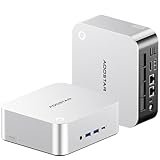
AOOSTAR GEM12+ PRO Barebone Mini PC (Ryzen 7 PRO 8845HS)
Who it suits: Beginners who like feedback from their machines — a little screen that shows what the PC is doing — plus the fullest feature set in this guide.
The GEM12+ PRO pairs the strongest mainstream chip here with the most welcoming extras. Its processor is the Ryzen 7 PRO 8845HS: eight cores to 5.1GHz, the shared Radeon 780M graphics, and the 16 TOPS NPU the 8745-based picks leave out. On the top panel sits a 2.68-inch status screen showing live temperatures and load — genuinely reassuring on a first build, because you can see the machine is healthy without opening any software — and a fingerprint sensor handles Windows sign-in. This is a mid-range barebone in this guide — check price on Amazon and add the standard parts to complete it. Underneath, it has the tidiest upgrade wiring in the guide: its OCuLink port runs on its own PCIe link, so attaching a graphics dock later does not cost you one of the two drive slots — a trade the UM890 Pro below does ask for. Memory headroom reaches 128GB, networking is two Intel 2.5G ports, there are two USB4 ports, and the BIOS offers power modes up to 70W for buyers who later want to lean on the chip. AOOSTAR also sells a ready-made 24GB/1TB version: finishing the kit yourself gets you 32GB of memory you chose instead.
Owner feedback adds three honest warnings. The screen’s control software is the least polished part of the package — it works, but expect roughness. The drivers arrive as one disorganized download rather than a tidy installer, so set aside a few extra minutes and a little patience on setup night. And at least one Amazon buyer reported receiving a unit that had plainly been opened and returned before — feet removed — yet sold as new. That is not this model’s fault alone, but it earns a rule you will find repeated in this guide: photograph the seals when any of these boxes arrives, and use the return window if they tell a story. Wireless is WiFi 6 rather than the UM870 Slim’s 6E, a step down few will notice.
- Dedicated OCuLink on its own link — both drive slots stay free with a dock attached.
- The 8845HS brings the AI accelerator the cheaper chips omit.
- Highest memory ceiling in the guide at 128GB, plus the reassuring status screen.
Honest limitation: Rough screen software, a messy driver bundle, and a documented case of a previously opened unit sold as new — inspect yours on arrival.
Choose it if you want the screen, the fingerprint sign-in and the cleanest dock path in one box. Skip it if you would never glance at a status screen — the GEM12 MAX delivers the same graphics in a lower tier.

GMKtec NucBox K8 Plus Barebone Mini PC (Ryzen 7 8845HS)
Who it suits: Beginners who suspect one hobby becomes two — a gaming box today that might moonlight as a home server, firewall or virtualization playground once the tinkering bug bites.
The K8 Plus is the guide’s all-rounder, and its listing is admirably blunt: the Amazon title ends with “(Without RAM/SSD/OS)” and the style is literally named “0+0”. This is a mid-range barebone in this guide — check price on Amazon, and note that GMKtec’s own store also sells the kit; a finished machine still needs 32GB of memory and a 1TB drive on top. The Ryzen 7 8845HS brings the NPU, memory runs to 96GB, and two M.2 slots accept up to 8TB between them. Its networking is the best here for infrastructure experiments — two Intel i226V 2.5-gigabit ports, the exact controllers home-server builders look for — and an OCuLink port covers the future graphics dock, alongside HDMI 2.1, DisplayPort and USB4 video outputs. The comparison with its ready-made version is persuasive: the same machine is also sold ready-made with 32GB and 1TB on Amazon, so finishing the barebone yourself is the value route in this tier. That is a clear answer in this guide to the beginner’s fair question — is the screwdriver evening actually worth it?
It is also the pick that teaches the guide’s most valuable listing lesson. This listing contradicts itself: the title and style name say no memory, no drive and no operating system, while a spec field on the same page names Windows 11 Pro as though it were installed. Believe the title. The box arrives empty; GMKtec’s ready-made versions are separate listings. Auto-filled spec tables inherit data from configured siblings all over this category, so on any barebones listing, read the title and the selected style name — those are the truth. Beyond that lesson, its compromises are mild: a plain black box with no screen or fingerprint reader, compact rather than tiny at 5.2 × 5 × 2.3 inches.
- Two Intel i226V network ports — the server-friendly hardware the others split or skip.
- A strong value case over its own ready-made version — check price on Amazon for the current barebone listing.
- 96GB memory ceiling and 8TB across two drive slots, so the box can grow into new jobs.
Honest limitation: The listing’s own spec fields contradict its title about an included operating system — confirm you are buying the barebone style before checkout.
Choose it if one box must game now and experiment later, and the ready-made price of the same machine offends you. Skip it if you want the screen-and-fingerprint experience of the GEM12+ PRO, or the slimmer shape of the UM870 Slim.

MINISFORUM UM890 Pro Barebone Mini PC (Ryzen 9 8945HS)
Who it suits: Beginners spending to the top of the budget for strength that lasts — streamers, creators and heavy multitaskers whose sessions hold the machine at full load for hours, not minutes.
The UM890 Pro is the flagship, sitting in the premium tier of this guide — check price on Amazon and add the standard completion parts, and the finished machine stays inside the budget, but near enough to its edge that the total-cost section below deserves your attention. What the step up buys over the 8845HS machines is the Ryzen 9 8945HS itself: the same eight cores pushed to a 5.2GHz boost, the Radeon 780M at its fastest 2800MHz clock, and Minisforum’s Cold Wave cooling, including a small active fan for the memory and drive bays, holding around 43dB in performance mode under sustained load. Around the chip: two memory slots to 96GB, two M.2 drive slots, two 2.5G network ports, two USB4 ports that can also power the machine over USB-C, and output for four displays. Against its own ready-made sibling — the 32GB/1TB version — the barebone route is the value route in this premium tier.
The compromise is printed in the box contents, and it is the one to weigh carefully. This machine’s OCuLink arrives as an included adapter plate that converts one of its M.2 slots into the port — so the day you dock a graphics card, you give up one of your two drive slots. For a games library that grows, that means choosing between a second internal drive and the dock, or living as a single-drive machine while docked. The GEM12+ PRO and MACO above carry dedicated ports that ask no such trade. At about 3.5 pounds barebone it is also the heaviest box here, tuned for performance rather than silence. Its shape is clear: the pick for buyers whose bottleneck is sustained power, not for buyers whose plan starts with a dock.
- Quickest processor in the guide: the 8945HS boosts to 5.2GHz and clocks its 780M at 2800MHz.
- Cooling built for sustained loads, including a fan for the memory and drive bays.
- Strong value versus its ready-made version — check price on Amazon for the barebone kit.
Honest limitation: Its OCuLink works through the included adapter, so docking a graphics card costs one of the two drive slots — a real trade the dedicated-port picks avoid.
Choose it if sustained performance leads and one internal drive is enough while docked. Skip it if your plan is “two big drives plus a dock” — that machine is the GEM12+ PRO.
Comparison Table
| Product | Chip & graphics | Tier | Price | OCuLink | Link |
|---|---|---|---|---|---|
| AOOSTAR GEM12 MAX Barebone | Ryzen 7 8745HS / Radeon 780M | Budget | Check price on Amazon | Yes, dedicated | Check on Amazon |
| MINISFORUM UM870 Slim Barebone | Ryzen 7 8745H / Radeon 780M | Budget | Check price on Amazon | No — USB4 only | Check on Amazon |
| AOOSTAR MACO Barebone | Ryzen 7 H 255 / Radeon 780M | Budget | Check price on Amazon | Yes, dedicated | Check on Amazon |
| AOOSTAR GEM12+ PRO Barebone | Ryzen 7 PRO 8845HS / Radeon 780M | Mid-range | Check price on Amazon | Yes, dedicated | Check on Amazon |
| GMKtec NucBox K8 Plus Barebone | Ryzen 7 8845HS / Radeon 780M | Mid-range | Check price on Amazon | Yes | Check on Amazon |
| MINISFORUM UM890 Pro Barebone | Ryzen 9 8945HS / Radeon 780M | Premium | Check price on Amazon | Via M.2 adapter | Check on Amazon |
A completed machine adds a 32GB (2×16GB) DDR5-5600 SODIMM kit and a 1TB PCIe 4.0 NVMe drive, which you buy separately — check price on Amazon for the kit and check current prices for the parts on the day you order. An operating system license is not included, because no barebone listing here bundles one. Memory and drive prices move quickly in 2026 — verify both on the day you order.
How to Choose, in Plain Terms
- Compare finished setups, never stickers. Add the same memory, drive and — if you need it — Windows license to every kit before judging, and check price on Amazon for each kit so the comparison uses current listings.
- Buy the graphics class, not the chip name. Every pick here runs the Radeon 780M, which is the honest gaming floor at this budget. The chip names — 8745H, 8745HS, H 255, 8845HS, 8945HS — differ in clock speeds and the AI accelerator, not in graphics class.
- Answer the dock question now. If a desktop graphics card might join later, you want a dedicated OCuLink port (GEM12 MAX, MACO, GEM12+ PRO, K8 Plus) that keeps both drive slots free. The UM890 Pro’s version borrows a drive slot; the UM870 Slim has none. This cannot be added afterwards.
- Always buy memory as a pair. The built-in graphics feed from system memory, so two matched DDR5-5600 sticks in dual-channel are worth real game performance — a single stick can cost a fifth or more. 32GB as 2×16GB is this budget’s sweet spot.
- Decide about the NPU once. The 8845HS and 8945HS include a 16 TOPS AI accelerator; the 8745 family and H 255 have none. If on-device AI features matter to you, that one line splits this guide in half — and it can never be upgraded.
- Count drive slots against your plans. Two M.2 slots is the norm. If one will be borrowed by a dock adapter or filled by a games drive immediately, size the first drive generously — swapping a too-small boot drive later costs more than buying right now.
- Read the style name, not the spec table. Barebone listings are polluted with auto-filled fields copied from ready-made siblings — operating systems that are not included, memory that is not fitted. The title and the selected style (“0+0”, “Without RAM/SSD/OS”) are the truth.
Your First Build: One Calm Evening
Assembling a barebone is closer to upgrading a laptop than to building a desktop: no cables to route, no paste to spread, nothing to wire. Allow an unhurried evening, and lay everything out before you start. Alongside the kit you need four things: your memory pair (2×16GB DDR5-5600 SO-DIMM), your drive (1TB M.2 2280 NVMe, PCIe 4.0), a small Phillips screwdriver, and your operating system plan — a Windows license and a USB stick with the installer made on another computer, or a Linux installer stick, which costs nothing. A monitor, keyboard and mouse you presumably have; if not, they are in the total-cost section below, not hidden in any pick’s price.
Step 1 — Inspect before you open. Photograph the box and its seals (one pick in this guide has a documented previously-opened-unit case), then check the kit against the listing: right model, right style name, power adapter present.
Step 2 — Open the case. Screws out, base off. The MACO’s four screws are the friendliest version of this; the GEM12 MAX asks for more patience. Work slowly, keep the screws in a saucer, and touch something metal first to discharge static.
Step 3 — Fit the memory. Each SO-DIMM slides into its slot at a shallow angle and presses down until both side clips click. Two sticks, two clicks each. If a stick resists, it is upside down — the notch only lines up one way; never force it.
Step 4 — Fit the drive. The M.2 stick also enters at an angle, then lies flat and is held by one small screw (sometimes a tool-free clip). Snug, not tight — that screw strips easily.
Step 5 — Close up and connect. Base back on, then power, monitor, keyboard and mouse. Leave the side panels’ screws slightly loose until the machine has booted once, in case you need to go back in.
Step 6 — First boot checks. Power on and enter the setup screen (usually Delete or F2 at the maker’s logo). Confirm three numbers before installing anything: the memory total reads 32GB, the drive appears at its full 1TB, and temperatures idle at sane levels. If the memory reads 16GB, one stick is not seated — power off and reseat it; this is the single most common first-build hiccup and it is a thirty-second fix.
Step 7 — Install the system and drivers. Boot from your installer stick, install the OS, then fetch drivers from the maker’s support page for your exact model — remembering the MACO caveat that you may have to hunt a little. Run every update, reboot, and only then install your game stores. Evening over; the machine is a computer now.
What the Sticker Price Leaves Out
Completing any pick in this guide means adding the two big missing pieces — memory and the drive. What that still does not include, because none of it is part of any pick, is everything around the machine. An operating system license, if you need to buy Windows rather than transfer a license or install Linux free. A small screwdriver, if your household genuinely lacks one. The desk itself: a monitor, keyboard and mouse, if this is your first computer rather than a replacement. And the optional someday items — a graphics dock and a desktop card are a major second purchase, not an accessory, and an Intel wireless card is a cheap optional swap for Linux users of the UM870 Slim. Check the current price of your own list honestly before ordering: the barebone route still wins its comparisons with those costs added, but it wins them truthfully.
Upgrades, in Plain Terms
Beginners often ask what can be improved later. On these machines the answer splits cleanly. Easy, any time: a bigger or second M.2 drive (every pick has two slots — remembering the UM890 Pro’s dock trade), and more memory up to each pick’s ceiling (96GB, or 128GB on the MACO and GEM12+ PRO). Possible, as a project: a desktop graphics card on an external dock, via OCuLink on four picks or USB4 on the UM870 Slim — connect it only with the machine powered off. Never: the processor and its built-in graphics are soldered, so the chip, the 780M and the presence or absence of an NPU are decisions you make at checkout, not later. That is the whole upgrade philosophy of the category: choose the chip and the ports carefully once, and let memory and storage grow as you do.
Common Buying Mistakes
- Comparing a barebone sticker against a ready-made PC’s price. The kit alone is not a finished computer, and a complete machine can be the cheaper finished product once parts are priced honestly — check price on Amazon for the kit and price the parts before judging.
- Expecting a separate graphics card at this tier. No verified barebones kit finishable under $800 has one — the tier is Radeon 780M class, with OCuLink as the later escape hatch.
- Believing a spec field that promises an operating system. Listings inherit metadata from ready-made siblings; if the title says no OS, there is no OS — the K8 Plus listing contradicts itself on exactly this point.
- Fitting one memory stick to save money. Built-in graphics feed from system memory, and single-channel can cut game performance by a fifth or more. Buy the matched pair.
- Buying desktop-sized memory. These machines take short SO-DIMM sticks; the longer desktop DIMMs physically cannot fit, no matter how good the deal looks.
- Buying the UM890 Pro for a dock build without noticing its adapter occupies a drive slot — then discovering the second drive has nowhere to go.
- Buying the UM870 Slim for a dock build at all. It has no OCuLink; USB4 docks work, but at lower bandwidth than the port you imagined.
- Ordering parts a month ahead of the kit. Memory and drive prices move in steps during the 2026 shortage — price everything the same week.
- Skipping the unboxing check. Previously opened units sold as new are documented in this category: photograph the seals and test every port inside the return window.
- Plugging or unplugging a graphics dock with the machine on. OCuLink is not hot-swappable, and the makers exclude the resulting damage from warranty.
Final Recommendation
- Most beginners: AOOSTAR GEM12 MAX Barebone.
- The calmest first build: AOOSTAR MACO Barebone (Ryzen 7 H 255).
- Tight desks and quiet rooms: MINISFORUM UM870 Slim Barebone.
- Features and future-proofing: AOOSTAR GEM12+ PRO Barebone.
- Gaming plus tinkering: GMKtec NucBox K8 Plus Barebone.
- Maximum sustained performance: MINISFORUM UM890 Pro Barebone.
Our top two at this budget are the AOOSTAR GEM12 MAX, for the lowest honest route to a finished 780M machine with a dedicated OCuLink port — if you can forgive its stubborn case — and the AOOSTAR MACO, for the beginner experience itself: a metal shell, four screws, a fingerprint button and the same graphics in the same budget tier. The GMKtec NucBox K8 Plus is the tinker’s pick, with a strong value case over its ready-made self; the GEM12+ PRO’s screen and slot-free dock wiring earn their premium if you will actually use them; the UM870 Slim is the one that disappears behind a monitor; and the UM890 Pro justifies finishing near the budget’s edge when your sessions run long and hot. Builders working to a tighter total should also see Best Barebones Mini PC Under $700, those whose plan starts with a docked desktop card should read Best Barebones Mini PC For 1440p Gaming Under $800, and anyone who would rather assemble a full-size machine should compare Best Gaming PC Build For Beginners Under $800. Price the memory and drive the same week you order the kit, read the listing’s style name twice, and check the live price before you buy.
Frequently Asked Questions
What does “barebones” actually mean for a mini PC?
It means the box turns up with its case, motherboard, processor, cooling and power supply already fitted — and nothing beyond that. The memory slots stand empty, the drive bays stand empty, and no operating system waits for you at first boot. All six picks in this guide are barebones in exactly that sense. A listing that does include memory, storage or an OS is selling the ready-made version, under a different style name.
Is building one actually hard for a beginner?
No — it is the gentlest build in PC hardware. There are no cables to route and nothing to wire: you open the case, click in two memory sticks, seat one drive stick with a single small screw, close up and install the operating system from a USB stick. The walkthrough above covers the whole evening, and the most common hiccup — a memory stick not fully clicked in — takes thirty seconds to fix.
What is the real total cost of a barebones mini PC under $800?
Start with the kit — check price on Amazon — and add the standard parts this guide builds around: 32GB of memory as two 16GB DDR5-5600 sticks, plus a 1TB PCIe 4.0 NVMe drive, which you buy separately. All six picks here were chosen to complete within the budget frame in the title on that basis. Buying a Windows license, should you need one, adds to the total for every pick, while Linux adds nothing. Memory and drive prices are volatile in 2026, so price the parts again in the week you actually order.
Can a barebones mini PC under $800 play games?
Yes, provided your target is 1080p. The Radeon 780M built into all six picks plays most games at medium settings at that resolution and runs esports titles considerably faster, as long as you feed it a dual-channel DDR5-5600 memory pair. What it cannot do is demanding games at 1440p or high settings — for that, four of these picks carry an OCuLink port, ready for a dock and a desktop graphics card whenever you choose to add them.
Is there a barebones mini PC with a discrete graphics card under $800?
None that we could verify on Amazon. Mini PCs with discrete graphics do exist — Minisforum’s AtomMan family is the familiar example — yet they reach the market as finished systems priced above this tier, and no barebone version could be matched to a live, priced Amazon listing that completes under $800. So the practical path at this budget runs the other way: start with a 780M kit that has an OCuLink port, and add the dock and desktop card later.
Do I need to buy Windows for a barebones mini PC?
Only when you want Windows and hold no transferable license already. Not one of the six barebone listings in this guide bundles an operating system, regardless of what a stray spec field suggests — one listing flatly contradicts its own title on the point. You can buy a retail license, move an eligible license you own, or install Linux at no cost. Settle the question before the parts arrive, not after.
What is OCuLink, and should a beginner care?
OCuLink is a socket that connects an external dock holding a desktop graphics card at near-full speed — a PCIe 4.0 x4 link of roughly 64Gbps, against 40Gbps for USB4 — so the card keeps nearly all its performance. You do not need it on day one; care about it at checkout, because it cannot be added later. Four picks here have it; check the implementation, since the UM890 Pro’s version borrows a drive slot via an adapter while the AOOSTAR and GMKtec ports are dedicated. Docks connect with the machine off — OCuLink is not hot-swappable.


