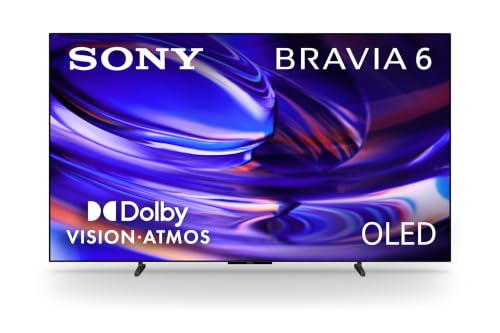
A 4K TV has about four times the pixels of a Full HD screen, which gives sharper detail on movies, sports, streaming shows and games when the content supports it. Modern sets also bring smart platforms, high dynamic range and gaming features, so the real differences now lie in panel type, brightness, motion handling and how the TV fits your room.
This guide is for anyone upgrading a living room or bedroom screen. We have not used these products ourselves; our comparisons rely on listing information and general knowledge, so confirm details such as ports, size and panel type on each listing.
As an Amazon Associate we earn from qualifying purchases. Links on this site are affiliate links, and they do not change the information we give.

In this guide
Quick Picks
| Pick | Product | Best For |
|---|---|---|
| 1 | LG C4 55-Inch OLED evo (OLED55C4PUA) | Best Overall |
| 2 | Samsung S90D 55-Inch OLED (QN55S90D) | Best for Gaming |
| 3 | Hisense U8N 65-Inch (65U8N) | Best for Bright Rooms |
| 4 | TCL QM8K 65-Inch (65QM8K) | Best Big-Screen Mini-LED |
| 5 | Samsung DU7200 55-Inch (UN55DU7200) | Best Budget Pick |
Our Picks

1. LG C4 55-Inch OLED evo (OLED55C4PUA) — Best Overall
The C4 is the set to beat for a mixed movie, streaming and gaming room. Its self-lit OLED evo panel turns each pixel off individually, so blacks stay true and contrast holds up in the dark media rooms the guide above describes. LG’s alpha9 AI Processor 4K drives picture processing and upscaling, and the set supports Dolby Vision and Dolby Atmos. Gamers are well covered: four HDMI 2.1 ports, a 120 Hz native panel that goes up to 144 Hz with a PC, plus G-Sync, FreeSync and VRR support. webOS 24 runs the apps, Alexa is built in, and the Magic Remote handles daily navigation. At 55 inches it suits typical sofa distances without dominating the wall. If you mostly watch in the evening and want one TV that does everything well, this is the shortlist’s anchor pick.

2. Samsung S90D 55-Inch OLED (QN55S90D) — Best for Gaming
The S90D is Samsung’s QD-OLED entry, pairing OLED’s perfect blacks with a quantum dot layer for strong color volume at high brightness. Its NQ4 AI Gen2 processor drives 4K AI upscaling, OLED HDR+ and the Real Depth Enhancer feature. Motion handling is the headline: Motion Xcelerator supports up to 144 Hz, which makes it a natural partner for current consoles and gaming PCs. Dolby Atmos and Object Tracking Sound Lite try to follow the action with the built-in speakers, and Samsung’s Tizen platform includes the Gaming Hub for cloud services. One honest caveat: Samsung supports HDR10 and HDR10+ but not Dolby Vision, so check which format your discs and streaming apps favor before choosing it over the LG. For a games-first room at 55 inches, though, the S90D is the pick that makes the fewest compromises.
View Samsung S90D 55-Inch OLED on Amazon
3. Hisense U8N 65-Inch (65U8N) — Best for Bright Rooms
If your sofa faces windows, start here. The U8N uses a Mini-LED backlight with Full Array Local Dimming Pro, and Hisense rates the 65-inch model at up to 3,000 nits of peak brightness, which is the kind of headroom that keeps HDR highlights and daytime sports readable in a lit room. The panel runs at a native 144 Hz, and Game Mode Pro adds variable refresh support with FreeSync Premium Pro for consoles and PCs. Dolby Vision IQ adjusts the picture to room light, Dolby Atmos is supported, and the built-in 2.1.2-channel audio is stronger than the thin speakers the guide warns about, though a soundbar still helps. Google TV runs the apps and works with Alexa. At 65 inches with this brightness, the U8N is the bright-room pick that does not ask you to pay OLED money.
View Hisense U8N 65-Inch on Amazon
4. TCL QM8K 65-Inch (65QM8K) — Best Big-Screen Mini-LED
The QM8K is TCL’s flagship QD-Mini LED line, built around the company’s Halo Control System, which coordinates the backlight lens, dimming zones and panel response to keep halos around bright objects in check. TCL lists its LD2500 precise dimming series and an HDR peak brightness figure of 3,000 nits, so treat that as the maker’s claim and compare it with the room you have. The panel handles 120 to 144 Hz for sports and gaming, and the anti-reflective wide-angle screen suits seating spread across the room, a point the guide raises for family viewing. Google TV supplies the apps, audio is tuned by Bang & Olufsen with Dolby Atmos support, and a voice remote is included. Choose the 65-inch QM8K when you want the largest screen and strongest backlight control on this list rather than an OLED panel.
View TCL QM8K 65-Inch on Amazon
5. Samsung DU7200 55-Inch (UN55DU7200) — Best Budget Pick
The DU7200 is the straightforward name-brand option for a bedroom, second room or first 4K upgrade. It is a Crystal UHD LED set: PurColor widens the color range beyond basic panels, and the Crystal Processor 4K upscales older broadcasts and DVDs to fill the screen. HDR support, Mega Contrast and Motion Xcelerator smoothing cover everyday movies and sports, while Object Tracking Sound Lite gives the built-in audio a little direction. Samsung’s Q-Symphony lets the TV speakers work alongside a Samsung soundbar instead of switching off, which makes a later audio upgrade painless. The Tizen platform carries the main streaming apps, and Alexa works with the remote. The panel is a 60 Hz design, so serious gamers should look at the picks above, but for everyday viewing at 55 inches this is the sensible-value way into Samsung’s range.
View Samsung DU7200 55-Inch on Amazon
What to Look For
| Factor | Why it matters | What to check |
|---|---|---|
| Panel type | Different panels handle contrast, color and viewing angles differently. | Check whether it is LED, QLED, OLED or another type and how it suits your room. |
| Brightness and HDR | Bright rooms and HDR content need strong peak brightness. | Look at the HDR formats supported and any maker brightness claims. |
| Refresh rate and gaming | Smooth motion helps sports and games. | Check native refresh rate, variable refresh support and low-latency mode. |
| HDMI ports | Consoles, soundbars and boxes all compete for ports. | Count the ports and see which ones support the newest features. |
| Smart platform | The interface affects daily use. | Check which apps are supported and how the remote works. |
| Audio | Built-in speakers are often basic. | See what the maker says about sound and whether a soundbar output exists. |
| Size and mounting | The TV must fit the wall, stand and viewing distance. | Check dimensions, stand width and the wall mount pattern. |
Setup and Care Tips
- Place the TV where windows do not cause glare on the screen.
- Choose a picture mode for the room, such as cinema for dark rooms and standard for bright ones.
- Turn off extra motion smoothing if movies look unnatural.
- Clean the screen with a dry microfiber cloth and avoid sprays.
- Keep ventilation space around the set and use a surge protector.
Mistakes to Avoid
- Buying on size alone and ignoring panel type and brightness.
- Assuming every HDMI port supports every feature.
- Sitting too close or too far for the screen size.
- Leaving the showroom picture mode on at home.
- Forgetting the cost of a wall mount or soundbar.
OLED or Mini-LED: which 4K TV panel suits your room?
OLED suits darker rooms where deep blacks matter most, while Mini-LED suits bright rooms where peak brightness matters most. Both can be excellent 4K TVs, so the room often decides the winner.
An OLED panel lights each pixel on its own, so a black pixel can switch off completely. That gives strong contrast in a dim room and wide viewing angles for seating across a sofa. The trade-off is that OLED screens are usually less bright than the best Mini-LED sets, so a sunlit room can wash them out.
A Mini-LED set uses a backlight made of many small LEDs grouped into dimming zones. It can reach high brightness, which helps HDR highlights and daytime sports. Black levels depend on how well the dimming zones work, and some sets show a faint glow around bright objects on dark backgrounds.
The LG C4 and Samsung S90D in the picks are OLED designs. The Hisense U8N and TCL QM8K are Mini-LED designs, and the Samsung DU7200 is a standard LED set.
- Dark room, movie nights: OLED is a natural fit.
- Bright living room, daytime viewing: Mini-LED has the edge.
- Mixed use: consider how often the room is bright, and whether the screen has an anti-reflective finish.
- Tight budget: a standard LED panel gives sound everyday picture quality.
Look at the maker’s description of the screen coating too. A matte or anti-glare finish can reduce reflections, while a glossy one can look richer in a dark room but show lamps and windows more clearly.
What screen size should you choose for a 4K TV?
Pick the largest size that fits comfortably in your room and your budget, then check it against your seating distance. A bigger screen feels more immersive, but only if you can sit far enough back to take it all in.
As a general rule, the larger the screen, the farther back you should sit so your eyes can take in the whole picture without constant head movement. Sitting too close to a big set can feel tiring, and sitting too far from a small one wastes its detail.
Instead of relying on a rule of thumb, measure your own room. Sit where you normally sit, estimate the distance to the wall or stand, and compare it with the TV dimensions on the listing. Because 4K has many pixels, you can sit closer than with older Full HD sets without seeing a pixel grid.
- Width of the stand or wall: check the full width of the set including its feet, not only the diagonal size.
- Stand position: some sets have feet at the edges that need a wide surface, while others use a central stand.
- Doorways and stairs: measure the route the box will take on delivery day.
- Weight: check the listed weight, especially for wall mounting.
Larger screens also show flaws in poor sources more clearly. Older broadcasts and low-quality streams can look soft when stretched across a big panel, even with good upscaling. If most of your viewing is standard broadcast, a mid-size screen may look cleaner than a very large one.
Viewing angle is part of the size decision as well. If people often sit off to the side, a panel that keeps its color and contrast from an angle will serve the room better than one that looks best only from the center seat.
The picks above include 55 and 65 inch sets. That range suits most living rooms and bedrooms, but your own measurements should have the final say.
Which 4K TV should you buy?
Choose by room and use: the LG C4 for all-round dark-room viewing, the Samsung S90D for gaming, the Hisense U8N or TCL QM8K for bright rooms, and the Samsung DU7200 for a simple budget set.
- If you want one TV that handles movies, streaming and games well, go for the LG C4 55-Inch OLED evo. It supports Dolby Vision and has several HDMI 2.1 ports according to the post.
- If gaming comes first and you play in a dim room, choose the Samsung S90D 55-Inch OLED. Remember the post notes it supports HDR10 and HDR10+ but not Dolby Vision.
- If your sofa faces windows, look at the Hisense U8N 65-Inch. It is built around a Mini-LED backlight and high peak brightness.
- If you want the biggest screen with strong backlight control, pick the TCL QM8K 65-Inch.
- If this is a bedroom or second TV on a sensible budget, the Samsung DU7200 55-Inch covers everyday viewing.
If two picks seem close, think about the platform too. The LG uses webOS, the Samsung sets use Tizen, and the Hisense and TCL use Google TV. A menu you enjoy using every day matters more than a small spec difference.
Sound is the other tiebreaker. If you plan to add a soundbar anyway, built-in speakers matter less, and you can put more of the budget into the panel.
What to check before buying a 4K TV
Check the ports, the size, the mounting pattern and the return terms before you order. A TV is large, so mistakes are inconvenient to fix.
- HDMI ports: count how many you need for a console, a soundbar and a streaming box, and see which ones support the newest features.
- HDR formats: confirm which formats the TV supports and whether your streaming apps and discs use them.
- Gaming features: if you game, check refresh rate, variable refresh support and low-latency mode on the listing.
- What is in the box: see whether the stand, remote and batteries are included, and whether a wall mount is sold separately.
- Mounting pattern: compare the TV mounting pattern with the bracket you plan to buy.
- Dimensions with stand: make sure it fits your media unit.
- Warranty and returns: read the listing terms, including who handles repairs and how long you have to return it.
- Delivery: check whether delivery is to the door or into the room, and whether a second person is needed to lift it.
- Apps: confirm that the streaming services you use are available on the TV platform.
After it arrives, inspect the screen and the box for damage before you dispose of the packaging. Keep the box until you are sure you are happy with the set.
Then spend a little time in the picture settings. Switch off the showroom mode, try a movie or cinema preset, and adjust brightness for your room. A few changes often improve the picture more than a pricier model would.
Is it worth paying more for a 4K TV, and who should skip an upgrade?
Paying more is worth it when you will notice the gains, such as better contrast, higher brightness or smoother motion, and it is not worth it if your viewing is mostly casual. Be honest about how you watch.
A higher-priced OLED or Mini-LED set usually brings better contrast control, stronger HDR, more HDMI features and better processing. A budget LED set gives a decent 4K picture, but it has less brightness and a lower refresh rate, as the Samsung DU7200 notes.
Know the trade-offs before you commit:
- OLED screens can be less bright, and static images shown for very long periods call for sensible use.
- Mini-LED sets can show blooming around bright objects in dark scenes.
- Budget sets may have limited gaming features and weaker built-in sound.
- Large screens need more space, and you may need a soundbar or mount on top.
You may want to skip an upgrade if your current TV still works well, if you mostly watch older broadcasts, or if the room is too small for a bigger screen. A new set makes the most sense when you have a clear reason, such as a new console, a brighter room or a broken screen.
Compare the picks above, check the current listing for size, ports and what is included, then choose the TV that fits your room and how you watch.
The First Evening: Setup Steps That Shape Every Picture Afterwards
A new television’s default settings are chosen to look striking on a shop floor, not accurate in a living room, so the first evening matters. Start by updating the firmware, then choose the picture mode aimed at faithful reproduction for your main input; most brands offer a filmmaker, cinema or movie mode that disables the heaviest processing. Turn motion smoothing down or off for films and dramas, since the interpolated frames that help sports look artificial with scripted content, and set any eco or ambient-light sensor deliberately rather than leaving it to dim the picture unexpectedly.
Work through each input separately, because many televisions store picture settings per source. A console, a streaming stick and a disc player can each end up with different modes, sharpness and motion settings if you only adjust one. Enable the enhanced format option on the HDMI port your console or player uses, since some sets limit bandwidth on a port until that setting is switched on, and label the inputs in the menu so family members can find them without help.
Finish with sound. Place the set so its speakers are not firing into a cabinet cavity, run any room-correction or dialogue-enhancement feature the set offers, and check that the audio delay is right by watching speech closely for a minute. Lip-sync errors are far easier to fix on setup day than after you have learned to tolerate them. These thirty minutes of methodical setup do more for long-term satisfaction than any later accessory.
Room, Light and Seating: Getting the Panel You Paid For
The same television can look reference-quality in one room and disappointing in another, because the room is half the display system. Reflections are the first variable: a screen facing a bright window mirrors the room back at you, and while brighter panels power through reflections better, repositioning a lamp or adding curtains often improves the picture more than any setting. Matte and glossy screen finishes behave differently here, so think about where light sources sit relative to the sofa, not just the television.
Viewing angle is the second variable. Some panel types hold their contrast and colour only when viewed fairly straight on, while others stay consistent for viewers spread across a wide sofa. If your seating wraps around the room, sit in the side seats during your first films and judge honestly; a panel that only impresses from the centre chair is the wrong panel for a family room, however strong its headline performance.
Seating distance completes the system. Sit too far from a smaller set and the benefit of 4K resolution fades, because your eyes cannot resolve the extra detail; sit too close to a large set and you see individual pixels and compression flaws in streamed content. The guide’s size advice works best combined with your actual content mix: households that mostly stream compressed video often prefer a slightly smaller, better panel over a larger one that exposes every artefact.
How the Five Picks in This Guide Differ in Practice
The LG C4 and Samsung S90D are both OLED sets, but they suit different rooms and habits. The C4 is the all-rounder: it supports the widest range of HDR formats among the picks, offers a full set of high-bandwidth ports for multiple consoles and a PC, and its platform is a safe default for mixed movie, streaming and gaming use. The S90D counters with a QD-OLED panel that holds colour strongly at high brightness and a gaming-focused platform with cloud services built in; its honest limitation, noted in its review, is the absence of one major HDR format, which matters if your discs and apps favour it.
The Hisense U8N and TCL QM8K make the Mini-LED case. The U8N is the bright-room pick, with the headroom to keep daytime sport and HDR highlights readable against window light, plus stronger built-in sound than most. The QM8K stretches that formula to a larger screen for viewers who want cinema scale from a Mini-LED panel. Both trade the perfect black levels of OLED for brightness and size value, a trade that makes sense in lit, shared rooms and less sense in a dedicated dark theatre.
The Samsung DU7200 is the budget anchor: a straightforward set for secondary rooms, casual viewing and buyers who would rather spend the difference on sound. Read the list as a decision tree: dark room and mixed use points to the LG, games-first to the Samsung OLED, bright room to the Hisense, biggest screen to the TCL, and a sensible spare-room set to the DU7200. Room and habit first, panel technology second.
Gaming Setup in Depth: Making the Console and TV Agree
A gaming television only performs when the console and the set are configured together. Connect the console to a port that supports the full bandwidth features, enable the enhanced or game mode on that input, and then run the console’s own display calibration so it knows the panel’s real brightness limits for HDR tone mapping. Skipping the console-side calibration is the most common reason HDR games look washed out on a capable set: the console guesses, and guesses conservatively.
Variable refresh rate smooths the judder that appears when a game’s frame rate wanders, and automatic low-latency switching lets the set drop into its fastest mode when a console is detected, then return to film-friendly settings for movies. Check that both are enabled rather than assuming. Input lag also changes with picture mode, so a set that feels responsive in game mode may feel sluggish in a cinema mode with heavy processing; if a game feels delayed, the picture mode is the first suspect.
PC gaming adds one more check: text clarity. Some panels arrange their subpixels in ways that make fine text look fringed at desktop distances, which matters if the set doubles as a monitor. Sit at your real distance, open a document, and judge. Gamers who also watch films should store two configurations they like, one for play and one for viewing, rather than compromising on a single set of settings for both.
Troubleshooting: Washed-Out HDR, Judder and Sound Problems
Washed-out HDR usually has one of three causes. The source may be sending an HDR signal the set is not recognising, which shows as a flat, grey image; check the set’s signal information display to confirm what is actually arriving. The picture mode may be applying a tone curve meant for a brighter panel, which the console-side or player-side calibration fixes. Or the room may simply be too bright for the content: HDR is mastered for dim rooms, and dark scenes in a sunlit room lose their shadow detail no matter the panel.
Judder in films, a rhythmic unevenness in slow pans, comes from the mismatch between film frame rates and panel refresh, handled differently by every brand’s motion settings. The remedy is a middle path: enable the set’s film-mode or judder-reduction control at a low level rather than full motion smoothing, which removes the stutter without adding the artificial smoothness that makes films look like video. Streaming apps add their own variable, since some output at rates the set handles less gracefully through one device than another; trying the same app on the television itself versus an external stick often isolates the culprit.
Sound problems over ARC and eARC are usually handshake issues. Reseat the cable in the correct labelled port, confirm the audio output format is set to pass through rather than decode where a soundbar or receiver should do the decoding, and power-cycle the whole chain in order. If lip sync drifts only on one app, the delay setting for that input alone is the fix, not a global change that breaks the others.
Sound in Depth: Dialogue, Bass and the Room’s Role
Television sound fails in predictable ways, and most are fixable without new equipment. Dialogue that disappears under music and effects is usually a dynamic range problem: the set is reproducing the full theatrical range in a room that needs a narrower one. Night or dialogue modes compress that range deliberately, raising speech relative to explosions, and for most living rooms they are the correct everyday setting rather than a compromise. Check also whether a centre-channel emphasis option exists in the sound menu, since speech lives in the centre.
Placement shapes sound before electronics do. A set pushed into a corner or a cabinet loads the room with bass from its rear or downward-firing speakers and muddies everything; pulling it a short distance from the wall and giving the speakers an unobstructed path to the sofa clarifies speech audibly. Hard floors and bare walls reflect sound into a glare that fatigues during long films, and soft furnishings, a rug, curtains, a stocked bookshelf, tame it for free.
When a soundbar or external system joins, set expectations and connections deliberately. Pass the audio through untouched where the external device decodes better, enable the eARC connection on the correct port, and accept the television remote controlling volume as the sign the handshake is right. The built-in speakers on the stronger picks in this guide are respectable for daily viewing, but no television speaker moves air like a dedicated system, and the upgrade path remains open whenever dialogue clarity becomes the household’s main complaint.
Streaming Quality: Why the Same Show Looks Different Night to Night
Viewers often blame a new television for flaws that belong to the stream. Streaming services vary their delivery with connection speed and server load, so the same episode can arrive crisp on Tuesday and soft on Friday. A wired connection or a strong, uncongested wireless signal stabilises the top quality tier, and closing other heavy downloads during a film is an unfashionable but effective picture setting.
Compression shows its hand in dark scenes, where large smooth areas break into bands and blocks, and in fine detail such as rain, confetti and crowds, which can dissolve into shimmer. Better panels reveal these artefacts more honestly, which feels like a downgrade until you compare a high-quality disc or a high-bitrate stream and see the panel’s real capability. Judging a television on a single streamed show is like judging a lens on a foggy day.
App behaviour differs by platform too. The same service may support different HDR formats or frame-rate handling through the television’s own app, a console and a streaming stick. If one source looks consistently better on your favourite service, use that source for it and stop troubleshooting the panel. The goal is the best picture from the content you actually watch, not theoretical purity across devices.
Wall Mounting and Cable Planning Done Properly
A wall-mounted television succeeds or fails on decisions made before the drill comes out. Height is the first: the centre of the screen belongs near seated eye level, and the common instinct to mount high, like a picture over a fireplace, produces neck strain and, on panels with narrower viewing angles, a visibly washed picture from the sofa below. Sit where you will sit, mark eye level, and let the mount follow.
Stud finding and mount rating are the unglamorous essentials. Large sets are heavy, and the mount must be rated for the weight and matched to the set’s mounting pattern, with fixings into studs or appropriate masonry anchors rather than plasterboard alone. A tilt mount earns its small premium in rooms with unavoidable reflections, letting you angle the screen a few degrees away from a window’s mirror image.
Cable planning is the difference between a clean installation and a permanent annoyance. Run power and signal with enough slack to pull the set forward for changes, add one more HDMI cable than you currently need while the wall is open, and consider a recessed box or trunking so the next device does not restart the project. Photograph the wall’s interior before closing anything; future you, drilling for a shelf, will be grateful.
Living With the TV: Updates, Settings Drift and Longevity
Smart televisions change after purchase, mostly for the better. Firmware updates add apps, fix handshake bugs and occasionally rearrange menus, so a setting you perfected may move or reset. Keep a short note of your calibrated picture settings for each input; restoring them after an update takes minutes with a note and guesswork without one. Automatic updates are worth enabling for most households, with a glance at the picture afterwards as the only discipline required.
Privacy and advertising settings deserve one deliberate pass. Modern platforms offer controls over viewing-data collection, personalised advertising and voice features; set them to your household’s comfort rather than accepting defaults in either direction. The same pass is a good moment to remove unused apps, sign out of services you no longer use, and set up profiles so recommendations stay separate between viewers.
Longevity is mostly environment and habit. Ventilation space around the set, protection from sustained direct sun on the screen, and a surge protector in storm-prone areas cover the physical side. For OLED sets, letting the automatic pixel-refresh run by using standby rather than a switched-off power strip is the one habit that matters. A television chosen for the room and set up carefully should give many years of service, and the picks in this guide are built to that expectation.
One Television, Many Kinds of Content: Settings by Use
A household television serves content mastered to very different standards, and a single picture configuration cannot flatter all of it. Films and prestige dramas reward the accurate cinema-style settings described earlier: no motion interpolation, restrained sharpness, correct colour temperature. Sport rewards the opposite instincts: motion handling turned up to keep fast pans and balls legible, brightness raised for daytime viewing, and tolerance for a little processing in exchange for clarity. News and talk content sits between, forgiving of almost everything except faces that look sunburned, which is a colour temperature and saturation problem rather than a motion one.
The practical solution is a small set of named configurations rather than one compromise. Most modern sets store settings per input and per picture mode, so assign the cinema configuration to the input your films arrive on, a sport-friendly configuration to the one carrying your broadcasts, and check that the set’s automatic mode switching, where offered for games, does not quietly override your film settings when a console is merely switched on. Ten minutes of this organisation ends the common household argument about why the football looks strange during a film and the film looks flat during the football.
Children’s content and older material deserve a mention. Animation is forgiving and benefits from the brighter, more vivid configurations children prefer, while older standard-definition material punishes aggressive sharpening and upscaling artefacts; a gentler configuration with noise reduction enabled suits archive television and old family recordings. None of this requires expertise, only the willingness to treat the picture menu as a set of tools matched to content rather than a one-time setup screen to escape from.
A final word on judging any of this at home rather than in a showroom. Retail lighting flatters brightness and punishes nothing, while your living room at night is the honest test: watch a dark film scene, a bright sports broadcast and an ordinary streamed drama across the first week, from every seat that matters. If the set satisfies in those three sittings, it is the right set, and remaining doubts are usually about settings, which this guide’s setup steps exist to settle.
FAQ
Is 4K really noticeable on a small TV?
On smaller screens at normal distance the difference is subtle, but it becomes clearer as size increases or when you sit closer.
Do I need an HDMI cable upgrade for 4K?
Older cables may limit the signal. Look for cables labeled for high-speed or ultra high-speed use, especially for gaming or high frame rates.
Is OLED better than Mini-LED for a 4K TV?
Neither is better in every case. OLED gives deep blacks and wide viewing angles in dim rooms, while Mini-LED reaches higher brightness for bright rooms. Choose based on your lighting and what you watch.
How far should I sit from a 4K TV?
Sit at a distance where the whole screen is comfortable to see without turning your head. Because 4K is sharp, you can sit closer than with older sets. Measure your room and compare it with the screen width on the listing.
Do I need a soundbar with a 4K TV?
Not always, but many people add one. Thin TVs often have small speakers, so a soundbar can improve dialogue and bass. Check that the TV has an HDMI port that supports audio return.
What does HDR do on a 4K TV?
HDR widens the range between dark and bright parts of the picture, so highlights look brighter and shadows keep detail. It needs HDR content and a TV that supports the format. Brightness of the panel affects how impressive it looks.
Is a 120 Hz TV worth it?
It is worth it if you game on a modern console or PC, or if you watch a lot of sports. For movies and general streaming, the difference is smaller. Check the native refresh rate rather than marketing terms.
Which HDMI port should I use for my console?
Use a port that the maker marks as supporting the newest features, often labeled for high frame rates. Not every port on a TV is equal. Check the manual to see which ports support what.
Can I wall mount any 4K TV?
Most TVs can be wall mounted, but you must match the mounting pattern and weight to the bracket. Check the listing and manual for the pattern. Make sure the wall can support the load.
Should I turn off motion smoothing?
Many people turn it off for movies because it can make film look unnatural. For sports and games, a small amount may be useful. Try a few settings and keep the one you prefer.
Questions to Ask Before You Buy
A television lives in your room for years, so a few practical questions pay off.
- How far is your sofa from the screen, and how wide is the wall or stand?
- Is the room bright during the day, or mostly dark for evening viewing?
- Do you watch movies, sports, games or a bit of everything?
- How many devices need HDMI ports: consoles, a sound bar, a streaming box?
- Will you wall mount it, and does the back follow a standard mounting pattern?
- Do you want built-in apps, or will you use external devices?
Matching It to Your Use
Bright living rooms
Look at the screen finish and peak brightness figures from the maker. Matte coatings can cut reflections.
Dark media rooms
Contrast and local dimming matter more. Wide viewing angles are less important if everyone sits in front.
Gaming
Check for ports that support high refresh rates, plus a game mode. Confirm the details in the maker’s manual and instructions.
Feature Trade-offs
| Feature | Helps with | Worth weighing |
|---|---|---|
| Larger screen | Immersive viewing | Needs more wall space and distance |
| Local dimming | Deeper blacks | Can vary by model |
| Smart platform | Fewer extra boxes | Menus and updates differ |
| Wide viewing angle | Seating across the room | Often traded for contrast |
Measure your space and the doorway before ordering. Large sets can be awkward to move, and a second person helps at delivery and mounting.
Who Should Skip It
If your current screen still works well and your content is mostly older broadcasts, an upgrade may bring modest change. Wait until you have a clear reason, such as a new console, a larger room or a broken set.
Installation Notes
Decide on a stand or a wall mount in advance. Check cable lengths, power outlet position and ventilation space behind the set. Follow the maker’s manual and instructions for mount patterns and weight.
Sound and Connections
Thin screens often have small speakers, so many owners add a sound bar or a receiver. Look for an HDMI port marked for audio return, and a digital audio output. Plan where each device will sit, and leave a gap for cables so the back of the cabinet stays tidy.
Should I use the TV’s built-in apps or a separate streaming device?
Built-in apps are convenient and keep one remote in charge, and modern platforms cover the major services well. A separate device earns its place when the set’s platform drops support for an app you use, feels slow, or when you want a consistent interface across several televisions. There is no picture-quality penalty either way for the same stream.
How do I clean a large TV screen safely?
Turn the set off and let it cool, then use a dry, clean microfibre cloth with light pressure. For marks, dampen the cloth slightly with water rather than spraying the screen, and avoid household glass cleaners and paper towels, which can damage coatings and leave fibres. Support the panel from behind on larger sets so pressure does not flex it.
Is screen burn-in still something to worry about?
Modern OLED sets include pixel-refresh routines and logo-dimming features that make permanent burn-in uncommon in mixed viewing. The risk rises with static content shown for many hours daily, such as news tickers or a fixed game interface. Vary content, let the set run its automatic refresh cycles by leaving it in standby rather than unplugging it, and the risk stays low for typical households.
What does a filmmaker or cinema picture mode actually change?
It aims for the standards content was mastered to: accurate colour temperature, no motion interpolation, correct frame-rate handling and restrained sharpness and noise reduction. The picture may look less punchy than the default mode at first, especially in a bright room, but faces, film grain and shadow detail appear as intended. Many viewers prefer it after a few evenings of adjustment.
Would a bias light behind the TV help?
A soft light behind the screen raises the perceived black level of the room without reflecting on the panel, which reduces eye strain during dark films and makes blacks on LED-based sets look deeper. It helps most in otherwise dark rooms. Choose a neutral white light and keep it dim; coloured lighting changes how you perceive the picture’s colours.
The Short Version
Pick a 4K TV by matching the panel and brightness to your room, then check ports, smart features and size. A little setup work often improves the picture more than a bigger spec sheet.