Where to buy
Check the latest price, availability and delivery on Amazon. Orders are placed on Amazon. We may earn a commission from qualifying purchases.
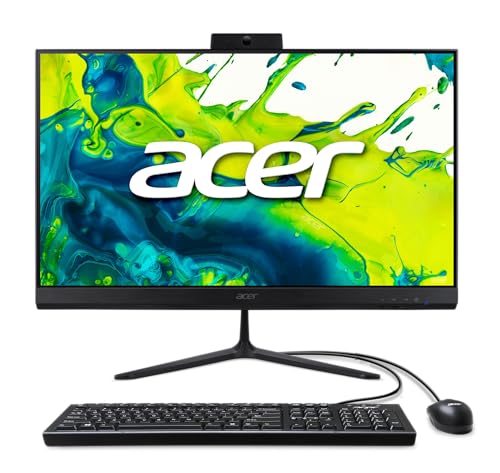
- Best first all-in-one for most beginners: Acer Aspire C27 All-in-One (Ryzen 5 7430U, 27″ 120Hz) — Check on Amazon
- Lenovo IdeaCentre AIO 3 24 (Ryzen 5 5500U, 16GB) — Check on Amazon
- Dell Inspiron 5400 24 Touch All-in-One (Core i5-1135G7) — Check on Amazon
- Acer Aspire C24-1700-UA91 (Core i3-1215U, 23.8″) — Check on Amazon
See 2 more Amazon options
- Acer Aspire C27-962-UA91 (27″, GeForce MX130) — Check on Amazon
- Lenovo IdeaCentre 24 A100 (Core i3-N305, 16GB) — Check on Amazon
Read the full guide ↓
Disclosure: As an Amazon Associate, reviewstook.com earns from qualifying purchases. Links to Amazon on this page are affiliate links; they cost you nothing extra. Listing details such as price and availability change often, so check the current Amazon listing before you buy.
If you have never bought a computer before — or the last one came with a tower, a separate monitor and a knot of cables — an all-in-one is the simplest kind of desktop there is. The whole computer lives inside the screen: no separate box, no matching parts to figure out, no cable puzzle behind the desk. You take it out of the box, plug in one power cord, connect the keyboard and mouse that come with it, and you are looking at a working computer. That simplicity is the entire point — and under $800 is where all-in-ones get good enough to buy with confidence, with big screens, enough memory and fast storage as standard.
Before any product names, here is the honest part, in plain words, because it decides whether this kind of computer is right for you at all. An all-in-one under $800 is not a gaming computer. Every machine in this guide draws its pictures with what is called integrated graphics — a small graphics helper built into the main processor, not a dedicated graphics card like the ones gaming PCs use. That is plenty for everyday life, for video, and for light games: popular online titles, older games, and simple indie games at modest settings. It is not enough for the big, new, realistic games you see advertised — those need a graphics card, and no all-in-one at this price has one. The second thing to know: the screen and the computer are one single item. If the computer part becomes too slow or something fails years from now, you cannot keep the nice screen and replace only the computer — the whole unit is the purchase. Neither fact makes these bad machines; it makes them machines for a particular job. This guide picks the six that do that job most fairly, explains every technical word before it uses it, and flags the traps a first-time buyer would not know to look for.
Words You Will See in Listings, Translated
Computer listings are written in shorthand. Here is every term this guide uses, in the plainest language we can manage.
- All-in-one (AIO): A desktop computer built into its own screen. One unit, one power cable, keyboard and mouse in the box.
- Processor (CPU): The computer’s brain — it does the actual work. Names like “Ryzen 5” (AMD) and “Core i5” (Intel) are brand families; the numbers after them are the specific model. Newer generations are faster than older ones even when the family name looks the same, which is why this guide always names the exact chip.
- Cores: A processor’s workers. More workers help when you do several things at once, but a few strong workers beat many weak ones — one pick below advertises “8 cores” and is still the slowest brain here, as its review explains.
- RAM (memory): The computer’s short-term workspace — the desk surface, not the filing cabinet. More RAM means more programs and tabs open at once without slowdowns. For Windows 11 in 2026, 16GB is comfortable; 8GB is workable for one person doing simple things.
- Storage (SSD vs hard drive): Where your files and programs live permanently. An SSD is electronic and fast — the computer starts in seconds and programs open quickly. A traditional hard drive has a spinning metal disk inside and is much slower at everything; in a new computer it makes even good parts feel broken. One pick here has a hard drive, flagged wherever it appears.
- Integrated graphics: Picture-making built into the processor, sharing the computer’s RAM. Fine for video, photos, everyday programs and light games. A graphics card (GPU) is a separate, powerful picture-maker that serious gaming requires — absent here, except one entry-level laptop chip its review describes honestly as roughly integrated-class.
- Full HD (1080p): The sharpness of the screen — 1,920 × 1,080 dots of picture. Standard at this price; crisp at 24 inches, slightly softer at 27 because the same dots are spread over a bigger area.
- Refresh rate (Hz): How many times per second the screen redraws. Almost everything here is 60Hz; one pick offers 120Hz, which makes scrolling and mouse movement feel smoother in everyday use, though it does not make games run faster.
- Wi-Fi 5 / 6 / 6E: Generations of wireless internet; higher numbers are newer. Wi-Fi 6 is what you want in 2026; Wi-Fi 5 (one older pick) still works fine in most homes.
- Windows 11: The current version of Microsoft’s operating system. Windows 10 stopped receiving free security updates in October 2025, so a machine arriving with Windows 10 needs the free upgrade to Windows 11 — one pick below arrives that way.
In this guide
Quick Picks
Short on time, or comparing several options at once? Each row below names a buyer type and the product that suits it, with a link to the listing.
| Buyer type | Pick | Why it stands out | Link |
|---|---|---|---|
| Best first all-in-one for most beginners | Acer Aspire C27 (Ryzen 5 7430U) | The biggest, smoothest screen here, 16GB of memory and fast storage — the one to buy if you simply want it to work | Check on Amazon |
| Best bargain, if you check the seller | Lenovo IdeaCentre AIO 3 24 (Ryzen 5 5500U) | Strong parts and 16GB of memory at an honest budget-tier price — but only from the right seller at the right price | Check on Amazon |
| Best if you want to touch the screen | Dell Inspiron 5400 24 Touch | The only touchscreen, with a clever hideaway camera — bought only at its sale price, for one reason explained below | Check on Amazon |
| Best for a small desk | Acer Aspire C24-1700-UA91 | The newest brain in the guide in a compact 24-inch body, with fast storage done properly | Check on Amazon |
| Biggest screen for the least money | Acer Aspire C27-962-UA91 | 27 inches seen far below its old list price — an older machine with one chore attached | Check on Amazon |
| Best for simple, light jobs | Lenovo IdeaCentre 24 A100 (i3-N305) | 16GB of memory and fast storage at a budget-tier price — for email, web and calls, not heavy work | Check on Amazon |
How These Picks Were Chosen
The budget was treated as a ceiling, not a goal: every machine below is a real Amazon listing that fits this guide’s under-$800 budget, or has a clear record of doing so. All-in-one prices wander more than most — several of these are previous-generation models sold by a mix of Amazon itself and independent sellers — so this guide talks about prices the way you will actually meet them: the maker’s list price, the prices the listing has genuinely been seen at, and the price below which a machine earns its place here. Two picks only make sense at their sale prices, and their reviews say so plainly.
We did not use these products ourselves. We read the manufacturers’ listings and specification sheets and the Amazon product pages, and compared the things that decide whether a first computer is pleasant or miserable: the size and quality of the screen you can never change; the age and strength of the processor; how much memory is fitted and whether it can ever be added to; the type of storage above all else, because that single part decides whether a computer feels quick or broken; the wireless standard; the camera; and what is actually in the box. Integrated graphics were judged as integrated graphics — nothing here was credited with gaming ability it does not have — and where a listing’s wording stretches the truth, the review translates it.
Two beginner-specific filters sat on top of that. The first is the screen filter: because this screen is forever, no pick is smaller than 23.8 inches or less than a clear, wide-viewing Full HD panel; the dim, washed-out screens on the very cheapest all-in-ones were excluded however little they cost. The second is the no-surprises filter: every pick includes a keyboard and mouse, has a camera for calls, and runs Windows 11 — or, in one clearly flagged case, can be upgraded to it for free.
The 6 Best All-in-One PCs Under $800 for Beginners
Acer Aspire C27 All-in-One — Ryzen 5 7430U, 27″ 120Hz (C27-2G)
Who it suits: The first-time buyer who wants the safest possible answer — the biggest screen, the most complete set of parts, and the least to think about afterwards.
Begin with the part you will look at every day. This Acer’s screen is 27 inches across — about the size of a modest TV — with a clear IPS panel, the kind that stays readable from an angle instead of washing out when you lean back. It also refreshes at 120Hz, twice the usual rate: in plain terms the picture redraws itself 120 times a second, so web pages scroll without judder, windows glide instead of jumping, and the whole machine feels calmer and more expensive than it is. That smoothness is an everyday pleasure, not a gaming feature — it will not make games run faster. Behind the screen is AMD’s Ryzen 5 7430U, a processor with six workers (cores) that handles the real beginner workload — email, a dozen browser tabs, documents, photo sorting, video calls — without making you wait. It comes with 16GB of memory, the comfortable amount, and 512GB of fast SSD storage.
Two details lift it above the rest for a beginner. First, the memory sits in standard laptop-style slots (called SO-DIMM slots) rather than being permanently soldered in — socketed memory can be added to years later by any repair shop; soldered memory never can. It starts with enough that you may never need to, but the option is worth money in a computer whose other parts are fixed forever. Second, the camera has a little sliding privacy shutter, so covering the lens is a physical act, not a settings menu you have to trust. The wireless is the newest here (Wi-Fi 6E), Windows 11 is installed, and a keyboard and mouse are in the box. On price: it sits at the premium end of this budget, so check the live price on Amazon before you buy. Either way, it is the most complete machine in this guide.
- A 27-inch screen that refreshes at 120Hz — the smoothest, roomiest display here.
- 16GB of memory in slots that can be upgraded later, plus fast SSD storage that makes the machine feel quick from day one.
- A camera with a physical privacy shutter, the newest Wi-Fi, Windows 11 ready to go, and keyboard and mouse included.
Honest limitation: The picture-making is integrated graphics, so this is a computer for everyday life and light games, not for big modern games — and the keyboard and mouse in the box are wired on Acer’s standard configuration, so two cables remain on the desk.
Choose it if you want to buy once, set it up in an evening, and not think about your computer again for years. Skip it if playing the latest games matters to you — no all-in-one at this price does that, and the money is better spent on a different kind of machine — or if you specifically want a touchscreen.

Lenovo IdeaCentre AIO 3 24 — Ryzen 5 5500U, 16GB (F0G1008MUS)
Who it suits: The careful shopper — someone happy to spend ten minutes checking who is selling a machine and what it costs today, in exchange for the best bargain in this guide.
Judged purely on the parts inside, this Lenovo is nearly the Acer’s equal. The screen is a little smaller at 23.8 inches, still clear Full HD, and the Ryzen 5 5500U processor is a well-proven six-worker chip that takes office work, schoolwork, streaming and a family photo library in its stride. Crucially, it gets the two beginner-critical numbers right: 16GB of memory, so several programs at once is no problem, and 512GB of fast SSD storage. It even has a built-in DVD drive — a genuine rarity now, and useful if your home still has discs. Windows 11 is installed, and it sits comfortably inside this budget when sold at its proper price.
So why does this review come with homework? Because this model is from a previous generation, and the story is in who sells it now. When Amazon itself sold this listing, its price stayed comfortably inside budget. Today the listing sits mostly with independent marketplace sellers, whose asking prices for a new one can run above this budget — for an older machine. That gap is the whole lesson of this pick: the same product page can be a bargain or a rip-off depending on the seller and the day. The rule is simple and absolute. At a fair price inside this budget, from a seller with a good track record and clear returns, this is arguably the best value in the guide. Before ordering, read the listing title and confirm it says 16GB of memory and 512GB of storage — lesser versions of this family exist — and check the seller’s name under the buy button. At an over-budget asking price, walk away: the Acer at the top of this guide is newer, bigger-screened and similarly priced on its sale days.
- A strong six-core processor with 16GB of memory and fast storage — the specification a beginner actually needs, done right.
- A built-in DVD drive, which almost no modern all-in-one still offers.
- A genuine bargain when you catch it at a fair price from Amazon itself.
Honest limitation: Independent sellers currently ask over budget for it, so this pick only works at a price inside this budget — and you must check the seller and the exact configuration in the title before buying.
Choose it if you find it at a fair in-budget price from a seller you trust and you enjoy getting the most machine for the money. Skip it if the only offers are above this budget, or if the checking sounds like a chore — the Acer above asks nothing of you.
Dell Inspiron 5400 24 Touch All-in-One — Core i5-1135G7
Who it suits: Families and tablet-habituated buyers who genuinely want to touch the screen — and who will only buy it at its sale price, having read the warning below first.
The Dell is the friendliest machine here to approach. Its 23.8-inch screen is a touchscreen: tap a photo to open it, pinch to zoom a recipe, swipe through a slideshow — the gestures anyone who has used a phone or tablet already knows. It is the only pick here that offers it. Its camera is equally thoughtful: it physically pops up out of the top of the screen when a call starts and sinks back out of sight when you press it down, so privacy is something you can see. The Core i5-1135G7 processor is a capable, honest chip for documents, schoolwork and media, and its Iris Xe integrated graphics are among the stronger of their generation — light games at modest settings are within its reach. It comes from Dell, with a proper support network and a clear model number (i5400-5876SLV-PUS). Windows 11 Home is installed.
Now the warning — the most important paragraph in this review. This model’s 512GB of storage is a mechanical hard drive — the old spinning-disk kind — not a fast SSD. A hard drive makes a computer start slowly, open programs reluctantly and take forever over updates. It is the single part most likely to make a beginner think their new computer is broken when it is merely slow, and it is why this Dell is recommended only as a sale purchase. Its list price sits over this budget, so it only makes sense as a sale purchase — check the live price on Amazon. At a genuine sale price it earns a look: the touchscreen and camera are genuinely lovely, the processor is good, and the slow storage is a known weakness accepted with open eyes at a discount (a handy person or a repair shop can swap a hard drive for an SSD later — more than can be said for most all-in-one flaws). Its 8GB of memory is also merely adequate. At anything near its list price, you would be paying new-computer money for the slowest-feeling machine in this guide — leave it.
- The only touchscreen in the guide — natural for families, kids and anyone who reaches for the screen out of habit.
- A pop-up camera that hides inside the body when not in use, and a solid processor with stronger-than-usual integrated graphics.
- A machine to buy on sale, never at list — check the live price on Amazon.
Honest limitation: Its storage is a spinning hard drive, not an SSD — the slowest storage here by a wide margin, and the reason this machine will feel sluggish starting up — and its 8GB of memory is adequate, not comfortable.
Choose it if touch is the feature you actually want and you find it at a genuine sale price. Skip it if it is priced near its list price, or if waiting for a computer to start each morning would quietly drive you mad — it would be this machine’s defining habit.

Acer Aspire C24-1700-UA91 — Core i3-1215U, 23.8″
Who it suits: One person with a small desk — a bedroom, a dorm room, a compact apartment — who wants the newest parts in the guide and a machine that simply feels quick.
This is the smaller sibling of the Acer at the top: the same slim design wrapped around a 23.8-inch Full HD IPS screen, so it takes up noticeably less desk while keeping the picture clear. Its processor teaches the most useful beginner lesson in this guide. The chip is called a Core i3-1215U, and if “i3” sounds like the slow one, set that aside: this is a six-worker processor (two strong workers plus four smaller helpers) from a newer generation than the i5 chips in the Dell above and the older big Acer below — and in computers, newer usually beats grander. For the things an all-in-one does all day — documents, browsing, calls, streaming, light spreadsheets — it is quick and responsive, helped by storage done properly: a 512GB SSD of the fast NVMe kind. Wi-Fi 6 is built in, Windows 11 Home is installed, and the whole thing is a tidy one-cable presence on a small desk.
Its compromises are about capacity rather than quality. The memory is 8GB — the workable amount from the glossary, fine for one person doing office work and streaming, but the first thing that will feel tight if your habits grow to dozens of tabs, a video call and a photo program at once. Its Intel UHD integrated graphics are the plainest here: video and casual use, nothing beyond. There is no touchscreen. And its price needs the same calm checking as the other sale-sensitive picks: its list price sits inside this budget, but independent sellers have recently been asking prices at the very top of this budget, where it competes with its own 27-inch sibling whenever that one goes on sale. The rule is easy: if your desk is the constraint, this is the pick, and anything at or under list is fair; if you have room for 27 inches and see the bigger Acer near the same money, take the bigger screen and double memory instead.
- The newest processor platform in the guide — proof that a recent i3 can feel faster than an older i5.
- Fast NVMe SSD storage and Wi-Fi 6: the modern basics, done properly, in a compact body.
- A clear 23.8-inch IPS screen that leaves a small desk with room to actually work.
Honest limitation: 8GB of memory limits how much it can juggle at once and will feel tight sooner than the 16GB picks, and its basic integrated graphics rule out anything beyond casual gaming; recently seen at the top of this budget from independent sellers.
Choose it if your desk is small and your routine is one person’s work, study and streaming. Skip it if you keep many things open at once — the 16GB machines will age more gracefully — or if the 27-inch Acer is available for similar money.

Acer Aspire C27-962-UA91 — 27″, Core i5-1035G1, GeForce MX130
Who it suits: The buyer who wants the biggest possible screen for the least possible money, understands this is an older machine at a clearance-style price, and does not mind one setup chore.
Every guide has a pick that exists because of a single number, and here it is: a 27-inch all-in-one from a proper brand, selling at a budget-tier price well below its original list price. Twenty-seven inches makes split-screen work — a document beside a web page, a spreadsheet beside an email — genuinely comfortable, and is easier on the eyes from a little further away, which is why shared family desks and anyone who prefers larger text love it. Behind the screen sits a Core i5-1035G1 processor with 12GB of memory and a 512GB SSD, and the fast storage keeps everyday work feeling respectable. This is also the only pick with a separate graphics chip, a GeForce MX130 — and exactly where a beginner deserves a straight translation. The MX130 is an entry-level laptop chip from its era, roughly on a level with good integrated graphics rather than a step above them. It runs older and lighter games a touch more happily than the other picks; it is not, at any setting you would enjoy, a modern gaming card, and the badge should add nothing to what you pay.
Everything else about this machine is from 2020, and buying it well means buying it as a 2020 machine. The processor is several generations old, the wireless is the older Wi-Fi 5 (still fine in most homes), there is no touchscreen, and it arrives with Windows 10 installed. That last point is the chore mentioned above: free security support for Windows 10 ended in October 2025, so do not leave this machine as it arrives. The good news is that its processor is on Microsoft’s official list of chips Windows 11 supports, so the upgrade should be free — check that the listing says the same, and plan to run the upgrade on your first evening, following the setup section below; it takes time and a few restarts, and then the machine is current and safe. On those terms it earns its place, and its budget-tier price is the entire argument for it.
- A 27-inch screen at a budget-tier price — the most screen for the money in this guide by a distance.
- 12GB of memory and SSD storage keep daily work feeling respectable despite the machine’s age.
- The guide’s only separate graphics chip — a small, honestly-described help for older and lighter games.
Honest limitation: A 2020-era machine: an older processor, Wi-Fi 5, no touchscreen, and Windows 10 installed — run the free Windows 11 upgrade (its processor is supported) rather than use an operating system that no longer gets free security updates.
Choose it if screen size for the money is what matters most and the one-evening upgrade chore does not put you off. Skip it if you want the longest, simplest life from a purchase — that is the newer Ryzen Acer at the top of this guide.

Lenovo IdeaCentre 24 (A100) — Core i3-N305, 16GB
Who it suits: Genuinely light-duty desks — a grandparent’s email-and-photos computer, a kitchen family screen, a reception or check-in counter — where the jobs are simple and the lowest price with 16GB of memory is the attraction.
This pick needs its headline translated before it can be recommended, so let us translate it. The listing leads with “Intel 8-Core i3-N305,” and the chip does have eight workers — but they are all small, low-power workers from Intel’s N-series, a line designed to sip electricity rather than to hurry. In the glossary’s terms, eight weak workers lose to six strong ones: this is the slowest processor in the guide. What is equally true: for web browsing, email, documents, video calls and streaming video, it feels perfectly fine — those jobs simply do not ask much. Its limits show on anything heavy or sustained: editing video, wrestling a huge photo library, many demanding programs at once, or games beyond the very lightest. Everything around the chip, though, is specified the way beginners are told to specify: a full 16GB of memory — double the Dell and the small Acer — a 512GB fast SSD, a clear 23.8-inch Full HD IPS screen, Wi-Fi 6, Windows 11, and a wireless keyboard and mouse in the upgraded bundles. In that upgraded form it sits at a budget-tier price — among the most affordable picks here. Check the live price on Amazon.
Two more translations protect you. First, this listing is put together by resellers: independent sellers take Lenovo’s A100 and fit the memory and storage themselves, so the seller, the exact contents of the box, and who honours the warranty differ from offer to offer. Buy from a seller with a strong record, and read the listing’s own description of what is included. Second, the “Lifetime Office 365 for Web” in the title is the free browser version of the Office apps — the one anyone can use with a free Microsoft account, worth exactly zero extra dollars in your decision. With those eyes open, the value is real: the cheapest route in the guide to a tidy 24-inch desk machine with comfortable memory and fast storage, and for a genuinely light workload it will feel responsive for years. Just be honest about the workload — if this will be a busy household’s main machine, asked to grow into heavier jobs, its ceiling is fixed and low.
- 16GB of memory and fast SSD storage at a budget-tier price in its upgraded form.
- A clear 23.8-inch screen, Wi-Fi 6 and Windows 11, with wireless keyboard and mouse in upgraded bundles.
- A quiet, low-power design that suits always-on, light-duty desks.
Honest limitation: The i3-N305 is a low-power chip despite the “8-core” headline — the slowest processor here — and because sellers configure this listing themselves, the seller, bundle and warranty vary; the bundled “Office 365 for Web” is the free version, not a subscription.
Choose it if the workload is honestly light — web, mail, documents, calls, streaming — and you want comfortable memory for the least money. Skip it if this will be a main computer for a busy household; the Ryzen-powered picks have far more room to grow.
Comparison Table
| Pick | Display | Processor | RAM / Storage | Graphics | Price sighting | Link |
|---|---|---|---|---|---|---|
| Acer Aspire C27 (Ryzen 5 7430U) | 27″ FHD IPS, 120Hz | Ryzen 5 7430U (6C/12T) | 16GB / 512GB NVMe SSD | Integrated Radeon | Check price on Amazon | Check on Amazon |
| Lenovo IdeaCentre AIO 3 24 | 23.8″ FHD | Ryzen 5 5500U (6C/12T) | 16GB / 512GB SSD | Integrated Radeon | Check price on Amazon | Check on Amazon |
| Dell Inspiron 5400 24 Touch | 23.8″ FHD touchscreen | Core i5-1135G7 (4C/8T) | 8GB / 512GB hard drive | Intel Iris Xe | Check price on Amazon | Check on Amazon |
| Acer Aspire C24-1700-UA91 | 23.8″ FHD IPS | Core i3-1215U (6C/8T) | 8GB / 512GB NVMe SSD | Intel UHD | Check price on Amazon | Check on Amazon |
| Acer Aspire C27-962-UA91 | 27″ FHD | Core i5-1035G1 (4C/8T) | 12GB / 512GB SSD | GeForce MX130 | Check price on Amazon | Check on Amazon |
| Lenovo IdeaCentre 24 (A100) | 23.8″ FHD IPS | Core i3-N305 (8C/8T, low-power) | 16GB / 512GB NVMe SSD | Intel UHD | Check price on Amazon | Check on Amazon |
Your First Evening: Setting Up, Step by Step
Whichever pick you buy, the first evening follows the same gentle script, and you can pause between steps as long as you like.
Step 1 — Unbox and place it. Lift the unit out by its body, not by the screen edges, and set it where it will live. An all-in-one needs one power cable and a little air space behind it. Connect the keyboard and mouse: wired ones plug into the back or side; wireless ones use a tiny USB receiver from the box (sometimes tucked into the mouse’s battery compartment). Press the power button.
Step 2 — Answer the welcome questions. Windows will ask for your language, your Wi-Fi network and its password (have it ready — it is usually on a sticker on your router), and ask you to sign in with a Microsoft account. If you do not have one, creating one is free and takes a few minutes; it also lets the machine back up your settings. You can accept the offered defaults throughout — none of them are traps.
Step 3 — Let it update, and be patient. A new computer almost always has updates waiting, and the first round can take a while and restart the machine more than once. This is normal, not a fault. Start them from Settings → Windows Update, and make tea. If you bought the older Acer C27-962, this is also when you run its Windows 11 upgrade: the same screen should offer it, because its processor is on Microsoft’s supported list — let it complete before you settle in.
Step 4 — Meet your programs. The web browser, email, photos and video calling are already installed. Word and Excel are not automatically included with any computer: the free way to write documents is the web versions of the Office apps in your browser (the “Office 365 for Web” one listing advertises), and the paid way is a Microsoft 365 subscription for the full installed programs.
Step 5 — Understand where games come from. Games are not pre-installed; they are downloaded from stores inside the computer, mainly Steam and the Xbox app, both free to install. Choose games the way the reviews describe: popular online titles, older games and simple indie games run happily at modest settings. There is also a second route that surprises most beginners — cloud gaming services such as Xbox Cloud Gaming and GeForce NOW play the game on a distant powerful computer and stream the picture to yours over the internet, so even big new games can appear on a modest all-in-one with a good connection. What will not work is downloading a big new game and expecting the machine itself to run it well. That is the one hard limit of this category, and knowing it now saves real disappointment later.
Step 6 — Set up one safety habit. Before the machine fills with photos and documents, decide how they will be backed up: an inexpensive external drive you plug in occasionally, or a cloud storage account. In an all-in-one the screen and the storage live in the same body — a backup is the difference between an inconvenience and a loss.
How to Choose an All-in-One PC Under $800
First, be sure an all-in-one is the right shape of computer for you. The honest comparison: the same budget spent on a mini PC plus a separate monitor buys a faster machine whose memory and storage can be upgraded in minutes, and a screen that survives the computer — our Best Barebones Mini PC Under $800 guide covers that route. The all-in-one wins on a clean desk with one cable, a camera and speakers built in and pointed the right way, and zero decisions at setup. If those wins are worth real money to you — a kitchen counter, a parent’s desk, a small flat — buy the all-in-one gladly. If you are chasing power for the money, buy the mini PC. The only wrong purchase is an all-in-one bought while expecting gaming-PC speed.
Put the screen first, because it is forever. In a normal desktop, a disappointing monitor is a mistake you fix next month. Here it is the computer. Insist on 23.8 inches or larger and a clear IPS-type panel; at Full HD, 24 inches looks a touch sharper, while 27 inches gives roomier side-by-side work and easier reading from further away. A faster refresh rate (the top pick’s 120Hz) is a genuine everyday luxury. Touch is a preference: delightful for shared family use, pointless for a desk where the mouse never leaves your hand.
Two non-negotiables: fast storage, and enough memory. Storage must be an SSD — the one hard-drive pick here is priced and flagged as the exception that proves the rule, because spinning storage makes every other part feel slow. Aim for 512GB, which holds Windows, your programs and years of photos comfortably. For memory, 16GB is the comfortable figure for a machine to serve five years or more; 8GB is workable today for a disciplined single user. Where memory sits in slots rather than being soldered in, an 8GB machine can be rescued later — worth checking if you are choosing between two finalists.
Read processor names the way this guide does. Ignore the size of the family name and the core count in the headline. Ask instead: how new is this chip, and what class is it? A current-generation i3 outperforms a five-year-old i5 at everyday work; an “8-core” chip from the low-power N-series is the gentlest processor here; a six-core Ryzen 5 is this budget’s sweet spot. If a listing shouts core counts and “beats i7” claims instead of naming the exact chip, the seller is telling you something about the chip.
Do the two-minute checks before ordering. Confirm the exact configuration in the listing title — memory, storage and Windows version — because model families are sold in lesser versions too. Check who the seller is and who honours the warranty, especially on seller-configured listings. Confirm a keyboard and mouse are included and whether they are wired. And if a machine ships with Windows 10, confirm its processor supports Windows 11 and plan the free upgrade for day one, as with the older Acer above.
What the Price Does Not Include
Each price in this guide is the price of the machine with its included keyboard and mouse — nothing in a review adds extras to a pick’s cost, and nothing a pick needs is missing from the box. What a beginner may still choose to spend on, separately and entirely optionally: a Microsoft 365 subscription, only if the free web versions of Word and Excel are not enough (many people never need it); an external backup drive or cloud storage plan, recommended for everyone but costing the same whatever computer you buy; a surge protector for the wall socket; and, on the wired-peripheral picks, a wireless keyboard and mouse later if the cables bother you. None is required on day one, none is hidden inside the prices above, and together they are the same list you would face with any computer at any price.
Upgrades, in Plain Terms
Beginners often ask whether they can “make it faster later,” and all-in-ones have a short, honest answer: partly, sometimes, and never the parts you would most want. The screen can never be upgraded — it is the computer. The processor can never be upgraded. What can sometimes be changed is memory and storage, and only on models built with standard parts: the top pick keeps its 16GB of memory in standard slots, so a repair shop could raise it years from now; the Dell’s one great flaw, its hard drive, can likewise be swapped for a fast SSD by a confident owner or a shop, which is precisely why that pick exists at its sale price. On other models the memory is soldered permanently or the case is sealed, and what you bought is what you keep — the A100’s sellers fit its memory before it reaches you, for example. The rule follows: buy the memory and storage you need on the day you order, treat any upgrade path as a bonus, and never pay extra today for the promise of upgrading a part the listing does not explicitly describe as replaceable.
Common Mistakes When Buying a First All-in-One
- Expecting it to play big new games. Integrated graphics run popular online titles, older games and indie games at modest settings, and cloud gaming covers more — but the machine itself is not a gaming PC. If gaming is the priority, our Best All In One PC For 1440p Gaming Under $800 guide shows exactly where this category’s ceiling sits.
- Skipping the storage line in the specification. One word — “hard drive” instead of “SSD” — is the difference between a computer that feels new and one that feels broken, and it hides quietly in spec lists.
- Paying whatever the first seller asks. The Lenovo AIO 3 in this guide has been sold by Amazon at fair in-budget prices and offered by independent sellers at prices above this budget. Same machine. Check the seller, the configuration in the title, and the returns terms before you pay.
- Believing headline numbers. “8-core” on a low-power chip is still a low-power chip, and “Lifetime Office 365 for Web” is the free web version anyone can open in a browser.
- Leaving a Windows 10 machine on Windows 10. Free security support has ended. If the processor supports Windows 11 — the older Acer’s does — the upgrade is free and belongs in your first evening.
- Assuming you can upgrade it later like a tower. You cannot change the screen or the processor, ever, and memory only on some models. Buy the specification you need today.
- Saving money on the screen. A smaller or dimmer panel is the one saving you will look at, literally, every day for the life of the machine.
Final Recommendation
- Most beginners: Acer Aspire C27 (Ryzen 5 7430U).
- Bargain hunters willing to check the seller: Lenovo IdeaCentre AIO 3 24.
- Touchscreen and video calls, at the sale price only: Dell Inspiron 5400 24 Touch.
- Small desks and single users: Acer Aspire C24-1700-UA91.
- The biggest screen for the least money: Acer Aspire C27-962-UA91.
- Simple jobs on the smallest spend: Lenovo IdeaCentre 24 (A100).
If you buy one machine from this guide, make it the Acer Aspire C27 with the Ryzen 5 7430U: the best screen here, a proper 16GB-and-fast-storage specification, current wireless, and a fair in-budget price — check the live price on Amazon — the pick that asks the least of a first-time buyer and gives the most back. The Lenovo IdeaCentre AIO 3 24 matches its core parts for less money, provided you catch it at a fair in-budget price from a seller you trust. The Dell is the specialist: the only touchscreen, bought strictly on sale with its hard drive understood. The little C24 is the same Acer idea for a smaller desk; the older C27-962 is screen size for the money plus one upgrade chore; the A100 serves honestly light desks at a budget-tier price. If your budget is smaller, the same advice at lower prices lives in Best All In One PC For Beginners Under $700; if you can stretch for a longer-lived machine, see Best All In One PC For Beginners Under $1200; and the full field is compared in Best All In One PC Under $800, with space-saving angles in Best All In One PC For Small Spaces Under $800 and the streaming question answered frankly in Best All In One PC For Streaming Under $800. Whatever you choose, do the two checks this guide keeps returning to — the live price and the seller’s name — and your first computer will be a good one.
Frequently Asked Questions
Can an all-in-one under $800 play games at all?
Yes — the right games, honestly framed. Every pick here runs popular online titles such as League of Legends and Rocket League at modest settings, along with older games and the huge world of simple indie games. What they cannot do is run big, new, realistic games on the machine itself: that needs a separate graphics card none of them has (the one separate chip here, the older Acer’s MX130, is roughly integrated-class). There is also a beginner-friendly workaround: cloud gaming services play the game on a powerful distant computer and stream the picture to yours, so with a good connection even demanding titles can appear on these screens. If gaming is the main event rather than a side pleasure, a mini PC or tower at the same money is the right category.
I have never set up a computer. Is this really something I can do?
Yes, and an all-in-one is the easiest kind to start with. There is one unit and one power cable; the keyboard and mouse come in the box; and Windows walks you through language, Wi-Fi and signing in with plain questions. The setup section above follows the whole first evening in order, including the one thing that surprises people — the first round of updates can take a while and restart the machine a few times, which is normal. Allow an unhurried evening, and nothing in the process can go wrong in a way that matters.
Is 8GB of memory enough, or should I insist on 16GB?
For one person doing email, browsing, documents and streaming, 8GB works today — two picks here have it, recommended with that noted. But memory is the part of a computer that feels old first, because programs and web pages grow heavier every year. If this machine should serve five years or more, or several family members, 16GB is the safer buy; if the price gap decides it, choose an 8GB model whose memory sits in upgradeable slots rather than one where it is soldered forever.
What happens if it breaks? Is the whole thing one repair?
Essentially, yes — that is the trade at the heart of the category. The screen and computer share one body and one warranty, so a failure usually means the whole unit goes for repair, and out of warranty a failed screen or main board can cost enough that replacement makes more sense. This is why the guide favours known brands, clear model numbers and sellers who honour warranties, and why the backup habit in the setup steps matters: your files should never live in only one place.
Should I buy the cheaper older Acer and do the Windows upgrade myself?
If the big screen at a budget-tier price draws you, it is a reasonable bargain — with two conditions. First, confirm on the listing that the machine is the configuration described (Core i5-1035G1, 12GB, 512GB SSD); its processor is on Microsoft’s supported list, so the Windows 11 upgrade should be free. Second, actually run that upgrade on your first evening, because Windows 10 no longer receives free security updates. If either condition sounds like more fuss than the saving is worth, the newer Acer C27 at the top of the guide is the same big-screen idea with none of the chores.
Is a touchscreen worth having on a desktop?
For some households, genuinely yes: children, anyone who struggles with a mouse, cooks following recipes, and families sorting photos together all reach for the screen naturally. For a single user doing office work, most find the mouse faster and stop touching the screen within a month. It is a preference, not an upgrade — and the touchscreen pick here carries the hard-drive warning, so touch should only win the decision at its sale price.


