Where to buy
Check the latest price, availability and delivery on Amazon. Orders are placed on Amazon. We may earn a commission from qualifying purchases.
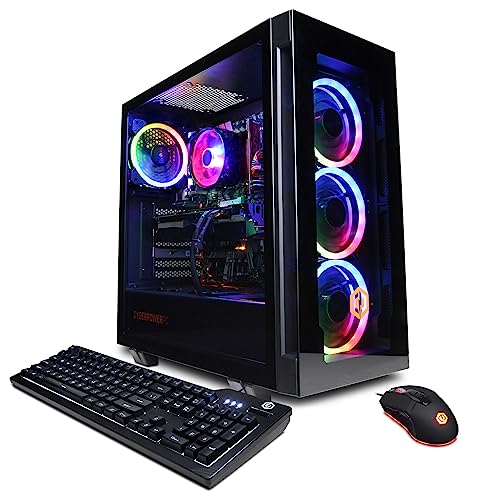
- Best overall for single-PC streaming: CyberPowerPC Gamer Xtreme VR, Intel Core i7-13700F, GeForce RTX 4060 Ti 16GB — Check on Amazon
- Newest encoder generation: Thermaltake LCGS Quartz i1460, Intel Core i5-14400F, GeForce RTX 5060 — Check on Amazon
- Most memory and storage for recording: Skytech Archangel, Intel Core i5-14400F, GeForce RTX 4060, 32GB DDR5, 2TB SSD — Check on Amazon
- Skytech Nebula, AMD Ryzen 5 5600X, GeForce RTX 4060 Ti — Check on Amazon
See 2 more Amazon options
- Cheapest way into NVENC streaming: CyberPowerPC Gamer Xtreme VR, Intel Core i5-13400F, GeForce RTX 4060 — Check on Amazon
- Compact streaming tower: Skytech Blaze4 Mini, AMD Ryzen 7 5700, GeForce RTX 4060 Ti — Check on Amazon
Read the full guide ↓
Disclosure: As an Amazon Associate, reviewstook.com earns from qualifying purchases. Links to Amazon on this page are affiliate links; they cost you nothing extra. Listing details such as price and availability change often, so check the current Amazon listing before you buy.
Streaming from the same PC you play on is a different purchase from gaming alone, and at $1,200 it is finally a comfortable one. A gaming-only machine spends its whole budget on frames. A streaming machine has to do two jobs at once: render your game at 1080p on a high-refresh monitor in front of you, and simultaneously compress a clean 1080p60 picture for the people watching. Those two jobs fight over the same hardware unless you buy the right kind — and the good news is that every machine in this guide carries the one component that settles the fight, a modern NVIDIA graphics card with a dedicated hardware encoder. When the encoder does the compressing, the game keeps almost all of the graphics card’s rendering power, and single-PC streaming stops being a compromise.
It helps to define the workflow precisely, because “streaming PC” gets used loosely. In this guide it means: you play at 1080p on your own monitor, ideally a 144Hz or faster panel; OBS or Streamlabs captures that gameplay; the graphics card’s NVENC encoder compresses it to a 1080p60 output; and that feed goes out at the bitrate your platform allows — roughly 6,000 kbps CBR on Twitch, or a noticeably higher bitrate on YouTube, which accepts more generous uploads for the same 1080p60 picture. Nothing in this guide is about streaming at 1440p or 4K, and nothing here is a two-PC setup. If your plan is a dedicated second machine purely for encoding, the picks below still work as the gaming half, but that is not the job they were graded on.
The grading, then, is not the grading of our plain gaming guide. Raw frame rates matter less here than encoder generation, graphics memory, core counts and system memory, because the second job — the broadcast — draws on all four. A card with 16GB of graphics memory can hold a demanding game’s textures and still leave room for the encoder and OBS’s own compositing. A processor with spare cores absorbs the browser sources, chat bots, alerts and voice apps that pile up around a live stream. And 32GB of system memory, where a pick has it, is the difference between a stream that runs all evening and one that starts swapping to disk in hour three. Where a machine is a great gaming PC but a merely adequate streaming PC, the reviews say so.
One boundary before the picks: a PC is not a stream. The microphone, camera, second monitor and lighting that make a broadcast watchable are not inside any of these boxes, and this guide costs them separately, further down, rather than pretending the tower is the whole purchase. Budget for the tower first, but budget honestly.
In this guide
Quick Picks
Six machines, one job each. Every pick below streams a single-PC 1080p60 broadcast through NVENC; they differ in how much headroom they leave for the game, the recording and everything else running beside them.
| Pick | Machine | Why it streams well | Price signal |
|---|---|---|---|
| Best overall | CyberPowerPC Gamer Xtreme VR (i7-13700F, RTX 4060 Ti 16GB) | 16GB of graphics memory plus a 16-core processor: the most headroom for game, encoder and OBS at once | Check price on Amazon — buy only at $1,200 or under |
| Newest encoder | Thermaltake LCGS Quartz i1460 (i5-14400F, RTX 5060) | Blackwell-generation NVENC with AV1 encoding, the newest encoder silicon in this guide | Check price on Amazon |
| Best for recording | Skytech Archangel (i5-14400F, RTX 4060, 32GB, 2TB) | Double the memory and storage of the field — room for OBS, apps and hours of local VOD files | Check price on Amazon |
| 4060 Ti value | Skytech Nebula (Ryzen 5 5600X, RTX 4060 Ti 8GB) | The stronger Ti card at one of the friendliest price points in this guide when its price dips | Check price on Amazon — buy only at $1,200 or under |
| Budget streamer | CyberPowerPC Gamer Xtreme VR (i5-13400F, RTX 4060) | Full Ada-generation NVENC and 10 cores at a budget price well under the ceiling | Check price on Amazon |
| Compact pick | Skytech Blaze4 Mini (Ryzen 7 5700, RTX 4060 Ti 8GB) | 4060 Ti encoding in a small case, with 8 cores for the apps around the stream | Check price on Amazon |
If you only read one line: the encoder is free on all six, so the money in this guide buys headroom — graphics memory first, then processor cores, then system memory and storage. The reviews below grade each machine on exactly that.
How These Picks Were Chosen
Every machine here was carried over from the verified research behind our main 1080p gaming guide at this budget, then re-graded for streaming. The six graphics cards split into three encoder generations, and that split matters more than the small frame-rate gaps between them. The RTX 4060 and 4060 Ti carry NVIDIA’s Ada-generation NVENC, which encodes H.264 — the format Twitch runs on — at high quality, and adds AV1 encoding, which YouTube already accepts and which produces a cleaner picture at the same bitrate. The RTX 5060 in the Thermaltake carries the newer Blackwell-generation encoder, a step up again in AV1 quality. All of them encode on dedicated silicon: the stream does not meaningfully slow the game, which is the entire reason a single PC can do both jobs at this budget.
Graphics memory was the second filter, because streaming quietly consumes it. The game itself loads textures into VRAM; OBS composites your scene — game capture, camera, overlays, alerts — on the GPU as well; and the encoder needs its own working space. On an 8GB card playing a texture-heavy game at high settings, those demands can collide, and the symptom is a stream that stutters while the game feels fine. The one 16GB card in this guide exists at the top of the ranking largely because it removes that collision. The 8GB picks are not disqualified — at 1080p, with sensible texture settings, they stream well — but their reviews name the limit honestly.
Processor cores were judged on the streaming workload, not the gaming one. OBS itself is light when NVENC does the encoding, but a real stream surrounds it: a browser with dashboards and chat, Discord or another voice app, music, alert software. Ten cores is comfortable; sixteen is generous; the six-core pick in this guide works because its encoder does the heavy lifting, and its review says what to close before going live. System memory follows the same logic — 16GB is the workable floor, 32GB is breathing room — and storage was graded on recording: a 1080p60 local recording at good quality consumes several gigabytes per hour, which is why the one 2TB machine is flagged as the recording pick.
Finally, price discipline. Prebuilt prices at this tier swing by hundreds of dollars between deal events, and two of these six machines spend part of the year listed above $1,200. Where that is true, the article says so at the pick, in the mistakes section and again in the FAQ: the recommendation is conditional on the price at the moment you buy. A streaming PC bought well over its deal price is the same hardware with a worse story.
The 6 Best 1080p Gaming PCs for Streaming Under $1,200
1. CyberPowerPC Gamer Xtreme VR — i7-13700F, RTX 4060 Ti 16GB (model GXiVR8040A14)
Who it suits: the streamer who plays demanding games and refuses to think about headroom. If your titles are texture-heavy AAA releases and your stream runs browser sources, a camera and alerts on top, this is the machine in the guide built for that pile-up.
The streaming case rests on two numbers: 16 and 16. The RTX 4060 Ti here is the 16GB version, double the graphics memory of every other pick, and that space is exactly what a single-PC stream consumes — game textures, OBS scene compositing and the encoder all drawing on the same pool. Where an 8GB card asks you to trim texture settings on the heaviest games, this one simply absorbs both jobs. Its Ada-generation NVENC encodes H.264 for Twitch and AV1 for YouTube, so the platform choice costs you nothing. Behind it, the Core i7-13700F brings 16 cores, the most in this guide, which is not about the game — it is about everything else staying responsive while the game runs: dashboards, chat, voice, recording software.
Pros: double the VRAM of the field; the strongest multitasking processor here; 1TB NVMe storage; two DisplayPort outputs plus HDMI, which makes a second monitor easy. Honest limitation: system memory is 16GB, the guide’s workable floor rather than its comfort zone, and the price is a deal price — this configuration is a recommendation only when it is listed at or under this guide’s ceiling, and it also spends stretches listed above it.
Choose it if you catch it at $1,200 or under and want the least compromised single-PC stream at this budget. Skip it if the live price is above the ceiling — above the ceiling you are paying over-budget money for this guide’s job, and the correct move is to wait for the deal to return. Check on Amazon
2. Thermaltake LCGS Quartz i1460 — i5-14400F, RTX 5060 (model S2QT-B760-560-LCS)
Who it suits: the streamer who cares most about the picture leaving the PC — especially anyone streaming to YouTube, where AV1 encoding is live today and rewards the newest encoder silicon.
The RTX 5060’s Blackwell-generation NVENC is the newest encoder in this guide, a generation ahead of the Ada encoders in the other five picks. For Twitch’s H.264 world the practical gap is modest, but for AV1 — YouTube’s preferred modern ingest — the newer encoder produces the cleanest output at a given bitrate, and it is the most future-proof encode hardware $1,200 buys. The Core i5-14400F’s 10 cores handle the game-plus-apps load without drama, and the 600W Gold power supply is a published, respectable figure rather than a mystery. Check its price on Amazon — it is a mid-range pick that typically sits comfortably under the ceiling, not at it.
Pros: newest encoder generation; honest mid-range pricing; current-generation platform with DDR5-era longevity in the processor line. Honest limitation: the 5060 carries 8GB of graphics memory, so the VRAM collision described earlier is managed with texture settings on the heaviest titles, not eliminated; and this configuration pairs the new GPU with 16GB of DDR4 system memory — perfectly functional, a half-step behind the DDR5 picks for long-term upgrades.
Choose it if your stream is YouTube-first or you simply want the newest encoder and a price that leaves room in the budget for a microphone and camera. Skip it if you play the most texture-hungry games at maximum settings while streaming — pick 1’s 16GB card is the safer tool for that exact habit. Check on Amazon
3. Skytech Archangel — i5-14400F, RTX 4060, 32GB DDR5, 2TB SSD (model ST-ARCH4-1247-W-AM)
Who it suits: the streamer who also records. If you keep local 1080p60 recordings of every session for editing, clips or archives, this is the only pick whose storage treats that habit as normal.
Local recording is the silent budget-eater of streaming setups: a high-quality 1080p60 recording takes several gigabytes an hour, and a 1TB drive shared with a game library fills in a season. The Archangel’s 2TB SSD doubles the field, and its 32GB of DDR5 memory doubles that too — the combination means OBS, the game, a browser full of dashboards and a recording pipeline all run without the machine negotiating for memory. The RTX 4060’s Ada NVENC is the same encoder generation as the Ti cards, so stream quality is not the sacrifice here; the plain 4060 renders fewer frames than the Ti, which at 1080p high-refresh means strong rather than extreme frame rates in demanding titles. Its price swings with deal events and it can sit right at the ceiling itself, so check the price on Amazon — timing matters.
Pros: 32GB memory and 2TB storage, both double the typical pick; full Ada NVENC with AV1; published 650W Gold power supply. Honest limitation: the plain RTX 4060 is the weakest renderer among the Ti-and-above picks, and when it sits at the ceiling you are paying ceiling money for capacity rather than card — the value case is strongest when its price dips.
Choose it if recording and multitasking matter as much as the live broadcast, ideally on a price dip. Skip it if you never record locally and want maximum frames per dollar — the Ti picks spend the same money on the card instead. Check on Amazon
4. Skytech Nebula — Ryzen 5 5600X, RTX 4060 Ti 8GB (model ST-NEBULA-0762-B-AM)
Who it suits: the patient buyer. The Nebula’s price swings are the widest in this guide — which makes it either the best-value 4060 Ti streamer here or an over-budget listing, depending entirely on the week you buy it.
When the price behaves, the hardware case is straightforward: the same Ada NVENC and 4060 Ti rendering as the guide’s top pick, at what has been the lowest entry price for that card in this lineup. For streaming specifically, the Ti’s encoder and rendering headroom at 1080p are more than the job requires, and 1TB of storage plus a published 600W Gold power supply keep the supporting cast respectable. The Ryzen 5 5600X is a 6-core processor, the fewest cores here — with NVENC doing the encoding that is enough for the game and OBS, but a heavy stack of browser sources and background apps will make itself felt sooner than on the 10- and 16-core picks. Memory is 16GB of DDR4, on the older AM4 platform.
Pros: 4060 Ti encoding and rendering at a budget-friendly price point when it dips; proven, well-understood hardware. Honest limitation: it has listed above $1,200 for stretches, and the 6-core, DDR4 platform is the oldest foundation in this guide — fine for streaming now, with the least upgrade runway.
Choose it if the live price is at or under $1,200 — at its dip prices it is arguably the guide’s best deal. Skip it, without hesitation, if the listing sits above the ceiling the day you shop; the guide’s other Ti pick does the same streaming job without the wait. Check on Amazon
5. CyberPowerPC Gamer Xtreme VR — i5-13400F, RTX 4060 (model GXiVR8060A24)
Who it suits: the new streamer spending carefully. This is the cheapest route in the guide to the full modern streaming toolkit, and the money it saves buys the microphone and second monitor that a first broadcast actually needs.
Do not let the plain RTX 4060 undersell what it does for a stream: its NVENC is the same Ada generation as the Ti cards, with the same H.264 quality for Twitch and the same AV1 support for YouTube. The encode your viewers see is not a budget encode. What the lower price buys down is rendering headroom — high-refresh 1080p in esports titles is easy, demanding AAA titles ask for sensible settings — and that trade is exactly right for a first-year streamer whose audience cannot see frame rates anyway. The Core i5-13400F’s 10 cores cover the game plus the streaming stack, 16GB of DDR5 is the workable memory floor, and 1TB of Gen4 storage is standard for the tier.
Pros: full modern NVENC at the guide’s friendliest price point; 10 cores; leaves real room in the budget for the broadcast kit. Honest limitation: the least rendering headroom here for future demanding games, and 16GB of memory means the streaming stack and a heavy game together are a fit, not a luxury.
Choose it if you are starting out and would rather fund the whole broadcast than the tower alone. Skip it if you already own the kit and play demanding titles at high refresh — spend the ceiling on pick 1 or 2 instead. Check on Amazon
6. Skytech Blaze4 Mini — Ryzen 7 5700, RTX 4060 Ti 8GB (model ST-BLAZE4MINI-1266-B-AM)
Who it suits: the streamer short on space. A compact tower that still carries a 4060 Ti and its encoder is a genuinely useful combination for a desk that also has to hold two monitors, a microphone arm and a camera.
The Blaze4 Mini’s streaming credentials are the real thing: Ada NVENC with AV1, Ti-class rendering for high-refresh 1080p, and a Ryzen 7 5700 with 8 cores — two more than the Nebula — for the apps around the broadcast. Its price dips well under the ceiling at its best, so like the Nebula it rewards a well-timed purchase — check the price on Amazon — though its swings stay mostly inside the budget. The supporting specs are mid-pack: 16GB of DDR4 memory, 1TB of storage, a published 650W Gold power supply.
Pros: 4060 Ti streaming in a small footprint; 8 cores; deal prices well under the ceiling. Honest limitation: the mini case is the constraint — compact towers have less room for future graphics cards and cooling upgrades, and the DDR4/AM4 platform is a finished generation, so this is a buy-it-as-it-is machine rather than a platform to grow.
Choose it if desk space is a real constraint and you want Ti-class streaming without a full-size tower. Skip it if you plan to upgrade the graphics card in two or three years — the standard towers in this guide give that plan more room. Check on Amazon
Comparison Table
The columns below are the streaming columns: encoder generation, graphics memory for the game-plus-encode load, cores for the apps around the broadcast, and the memory and storage that decide how the machine feels in hour three of a session.
| Machine | GPU / encoder | VRAM | CPU (cores) | RAM | Storage | Price signal |
|---|---|---|---|---|---|---|
| CyberPowerPC Gamer Xtreme VR (GXiVR8040A14) | RTX 4060 Ti / Ada NVENC + AV1 | 16GB | i7-13700F (16) | 16GB DDR5 | 1TB NVMe | Check price on Amazon; buy only at $1,200 or under |
| Thermaltake LCGS Quartz i1460 | RTX 5060 / Blackwell NVENC + AV1 | 8GB | i5-14400F (10) | 16GB DDR4 | 1TB NVMe | Check price on Amazon |
| Skytech Archangel | RTX 4060 / Ada NVENC + AV1 | 8GB | i5-14400F (10) | 32GB DDR5 | 2TB SSD | Check price on Amazon |
| Skytech Nebula | RTX 4060 Ti / Ada NVENC + AV1 | 8GB | Ryzen 5 5600X (6) | 16GB DDR4 | 1TB NVMe | Check price on Amazon; buy only at $1,200 or under |
| CyberPowerPC Gamer Xtreme VR (GXiVR8060A24) | RTX 4060 / Ada NVENC + AV1 | 8GB | i5-13400F (10) | 16GB DDR5 | 1TB Gen4 SSD | Check price on Amazon |
| Skytech Blaze4 Mini | RTX 4060 Ti / Ada NVENC + AV1 | 8GB | Ryzen 7 5700 (8) | 16GB DDR4 | 1TB SSD | Check price on Amazon |
One PC, Two Jobs: How the Streaming Load Actually Works
It is worth understanding what your viewers’ picture costs, because it explains every ranking in this guide. When you stream from one PC, three things happen at once. The game renders at 1080p on your monitor — at high refresh, if your panel supports it, because the smoothness you play at is yours alone. OBS captures that image and composites your full scene: gameplay, camera frame, overlays, alerts. Then the encoder compresses the composited scene into the 1080p60 stream that leaves your house. The crucial fact is that step three runs on the NVENC silicon inside every graphics card in this guide, not on the parts the game is using. That separation is why a budget machine can broadcast a picture as clean as a ceiling-priced machine’s: the encoder generation is the same, and the extra money buys headroom around it, not a different broadcast.
Bitrate is where the platforms diverge, and it shapes what “good” looks like. Twitch’s standard ceiling for most streamers is about 6,000 kbps with constant bitrate for a 1080p60 H.264 stream — a tight budget that punishes fast motion and fine detail, and the reason encoder quality matters there. YouTube accepts substantially higher bitrates for 1080p60 and supports AV1 ingest, so the same encoder produces a visibly cleaner picture for the same gameplay. Practical consequences: on Twitch, prefer NVENC’s quality preset and consider that a slightly softer game setting can paradoxically look better to viewers, because bits saved on rendering noise go to motion. On YouTube, use AV1 where your card offers it — and every pick in this guide does, from the RTX 4060 up. What none of them changes is your upload connection: a stable 10–15 Mbps of real upload headroom is the floor for a comfortable 1080p60 stream, and no PC in this guide fixes a connection below that.
The last piece is the one beginners miss: your game settings and your stream settings are separate dials. Viewers watch 1080p60 regardless of whether you play at high-refresh 1080p with everything maxed or with textures trimmed. When an 8GB card starts to stutter on stream while the game feels smooth, the fix is almost never a new PC — it is lowering texture quality one notch so the game, the compositor and the encoder stop contesting the same memory. The 16GB pick exists for people who would rather not make that adjustment; everyone else can make it for free.
When something does go wrong mid-stream, OBS tells you which of the three jobs failed, and the three failures have three different cures. Dropped frames blamed on the network mean the upload path faltered — the cable rule again, or a bitrate set above what your connection sustains. Frames missed from rendering lag mean the GPU was too busy compositing the scene, which points back to texture settings and graphics memory on the 8GB picks. Frames skipped from encoding lag should be rare on NVENC; if they appear, you have usually selected CPU encoding by accident. Learning to read those three counters turns most “my PC can’t stream” conclusions into a settings fix — and it is why this guide grades headroom rather than promising that any machine makes streaming foolproof. The hardware removes the common bottlenecks; the last few percent is configuration, and it is learnable in an evening.
Record While You Stream: The Second Encode
One advantage of encoder-based streaming that rarely makes the buying guides: the same NVENC hardware can run a second, completely separate encode at the same time. Streamers who edit videos from their broadcasts should use it. Send the live feed out at your platform’s bitrate — around 6,000 kbps for Twitch — and simultaneously record a local copy at a much higher quality setting, using a quality-based rate control rather than a fixed bitrate. The streamed version is compressed hard because the platform demands it; the local version does not have to be, and it is the local version your edited videos, clips and thumbnails will come from. Editing from the local recording instead of downloading your own VOD is one of the largest free quality upgrades in streaming, and every machine in this guide has the encoder headroom to do both jobs at once.
This is also where the picks separate in practice. Two simultaneous encodes plus a demanding game is the heaviest combined load in this guide, and it draws on graphics memory from the same pool as everything else — another reason the 16GB card sits at the top of the ranking, and another reason the Archangel, with its 2TB drive and 32GB of memory, is flagged as the recording pick: an evening’s high-quality local recording is measured in tens of gigabytes, and it accumulates fast. On the 8GB, 1TB picks the workflow still works; you simply manage textures and clear out old recordings on a schedule rather than treating storage as infinite.
OBS Settings Worth More Than Hardware
Before any upgrade, these settings decide more of your broadcast quality than the difference between any two machines in this guide. Set the encoder to NVENC — on these cards it will appear as the NVIDIA hardware option — and leave CPU encoding alone. Use constant bitrate for the live feed, matched to your platform: around 6,000 kbps for Twitch at 1080p60, higher on YouTube where the ingest allows it. Set the keyframe interval to 2 seconds, which the platforms expect. Run the encoder’s quality-oriented preset rather than its performance preset; NVENC has the headroom, and the preset is where fast-motion clarity comes from. Multipass encoding, where offered, is worth enabling at the same logic — it costs encoder capacity you have and buys picture quality your viewers can see.
Audio deserves the same thirty seconds of attention, because viewers forgive soft video far sooner than bad sound. Feed the microphone at a consistent sample rate everywhere — mismatched rates between Windows, OBS and your apps are a classic cause of drift and crackle — and give the audio track a healthy bitrate rather than the leftovers. If you record locally for editing, put the microphone and the game on separate audio tracks in the recording; that single habit makes later editing dramatically easier and costs nothing but a checkbox. None of this is hardware. All of it is the difference between a budget tower sounding professional and a ceiling-priced tower sounding amateur.
The Kit That Is Not in the Box
None of the six prices above includes the equipment your audience actually hears and sees you through, and a guide that ignored that would be misleading you about the cost of starting. Costed separately — deliberately not folded into any pick’s price — a sensible first broadcast kit runs roughly: a USB microphone, which matters more to viewers than any other single item; a 1080p webcam if you stream on camera; a second monitor — a basic panel is a budget-tier purchase — which is where chat and OBS live while you play; and, only if you also stream console games, a capture card, a mid-range add-on. Together the kit is a meaningful extra cost above the tower for a complete PC-streaming setup, less if you skip the camera or already own a monitor. This is also why pick 5 exists: a budget-priced tower leaves room in a $1,200 total budget for the kit; a tower bought at the full ceiling does not.
How to Choose a Streaming PC Under $1,200
Start with your platform. Twitch streamers should weight encoder quality at low bitrate and rendering headroom; every pick qualifies, and the Ti cards’ extra frames are for you, not your viewers. YouTube streamers should weight AV1 — universal here — and can justify the Thermaltake’s newer encoder generation as a genuine, if modest, picture advantage.
Then count your other jobs. Stream only, with a tidy desktop? Any pick works, and the budget CyberPowerPC is the rational buy. Stream plus local recording for edited videos? The Archangel’s 2TB and 32GB stop being luxuries. Stream plus a heavy browser stack, bots and a VTuber rig or elaborate scenes? Cores and memory climb the priority list, toward pick 1’s sixteen cores — or accept closing applications before you go live on the 6-core Nebula.
Respect the wired rule. Every machine here includes Wi-Fi, and every one of them should stream over an Ethernet cable anyway. Wi-Fi jitter drops frames in bursts that no encoder setting can repair, and “my stream lags” traced to a wireless hop is the most common and most avoidable failure in first-year streaming. If your desk cannot reach the router, budget for a long cable or powerline adapters before you budget for a bigger graphics card.
Check the price, not the listing. Two picks in this guide cross the $1,200 line between sales. The recommendation travels with the deal price, not the product name: if the CyberPowerPC 4060 Ti 16GB or the Nebula is listed above the ceiling on the day you buy, the correct action is to wait or choose another pick — the hardware does not change, but the value case this guide made for it does.
Match the monitor to the machine. These PCs earn their keep feeding a 144Hz-or-faster 1080p panel. On a 60Hz monitor the same money buys smoothness you cannot see, and a cheaper tower plus a monitor upgrade is the better total purchase. Your viewers, watching at 60 frames per second, were never the reason to buy the refresh rate — you are.
Common Buying Mistakes
Paying the non-deal price. The CyberPowerPC 4060 Ti 16GB and the Skytech Nebula both spend stretches listed above this guide’s ceiling. Both are recommendations at or under $1,200 and mistakes above it. Check the live price on Amazon before you buy anything at this tier.
Streaming over Wi-Fi because the spec sheet brags about it. Wireless is for convenience, not for a broadcast. Dropped frames from a jittery connection look identical to an underpowered PC, and streamers replace good hardware chasing this fault. Cable first; it is the cheapest upgrade in this entire guide.
Encoding on the CPU when NVENC is sitting there. New streamers sometimes select x264 encoding in OBS out of habit or old advice. On these machines that moves the compression onto the processor, costs game performance, and usually looks worse at Twitch bitrates than the dedicated encoder. If your GPU is in this guide, NVENC is the correct setting — the hardware was the point of the purchase.
Spending the whole $1,200 on the tower. A silent microphone-less stream from a ceiling-priced PC loses to a well-lit, clearly audible stream from pick 5 every time. The kit section above is part of the budget whether you plan it or not; plan it.
Maxing texture settings on an 8GB card, then blaming the stream. When the game, OBS and the encoder contest limited graphics memory, the broadcast stutters first. One notch down on textures is the standard fix and costs your viewers nothing — they were watching a compressed 1080p60 feed, not your raw frame buffer.
Buying for a 60Hz monitor. If your display cannot show high-refresh gameplay, the premium these machines charge over a lower tier buys frames you will never see. Upgrade the panel, or step down a tier and put the difference toward the streaming kit.
Final Recommendation
For most people streaming from one PC at this budget, the answer is the CyberPowerPC Gamer Xtreme VR with the RTX 4060 Ti 16GB — bought at $1,200 or under, on one of its recurring deals. It is the only pick that removes the graphics-memory question entirely, and its 16-core processor leaves the rest of the streaming stack nothing to fight about. If it is listed above the ceiling when you shop, do not stretch: the Thermaltake LCGS Quartz i1460 — check its price on Amazon — gives you the newest encoder generation and leaves money for a microphone, which your audience will notice more than the difference between the two towers.
Record everything locally and the Archangel is your machine; wait for a Nebula dip and it is the value play of the guide; start from zero on a total budget and pick 5 plus the kit is the most honest way to spend $1,200 on streaming. Whichever you choose, run a cable to it — that part is not optional.
Frequently Asked Questions
Can one PC really game and stream at the same time at this budget?
Yes — that is precisely what the hardware encoder makes possible. On every pick here, OBS hands the compression to the NVENC block on the graphics card, which is separate silicon from the parts rendering your game. The realistic ceiling is a 1080p60 broadcast while playing at 1080p on your own monitor, and at $1,200 that combination is comfortable rather than strained.
Is the RTX 4060 Ti actually better for streaming than the RTX 4060?
For the broadcast itself, barely — the encoder generation is the same, so your viewers see essentially the same picture. The Ti’s advantage is yours: more rendering headroom and, in the 16GB configuration, far more graphics memory for the game and OBS to share. Buy the Ti for the game side of the load, not because the stream demands it.
How much upload speed do I need?
Plan on a stable 10–15 Mbps of real upload headroom. A Twitch 1080p60 stream runs around 6,000 kbps, and YouTube at higher quality settings wants more; the headroom above the stream’s own bitrate is what absorbs the fluctuations every home connection has. Test wired, not wireless, before blaming the PC.
Why does my stream stutter when the game runs fine?
Almost always one of three causes: the stream is running over Wi-Fi, the encoder is set to CPU (x264) instead of NVENC, or an 8GB graphics card is running out of memory with the game, OBS and encoder combined. The fixes are a cable, a settings change and one notch lower on textures, in that order — all free.
Should I stream at 1080p60 or drop to 720p?
At this budget, 1080p60 is the right default on YouTube, where bitrate room exists. On Twitch at roughly 6,000 kbps, fast-motion games can look cleaner at a slightly reduced output resolution, because the encoder spends its limited bits more effectively. That is a per-game setting in OBS, not a hardware limitation — every pick here can output either.
Do I need a capture card?
Not for PC gaming — your stream is captured on the same machine that renders it. A capture card only enters the picture if you also stream a console through this PC. It is costed separately in this guide and is included in none of the six prices.
What if a pick is listed above $1,200 when I check?
Then it is not, at that moment, a pick in this guide. The CyberPowerPC 4060 Ti 16GB and the Skytech Nebula both spend stretches above the ceiling; their recommendations are tied to catching them at or under the ceiling. Either wait for the price to return or choose one of the picks that lives under the line full-time, such as the Thermaltake Quartz or the budget CyberPowerPC.
Is 16GB of RAM enough for streaming, or do I need 32GB?
Sixteen gigabytes is enough to stream well — five of these six picks ship with it. The game, OBS and a normal set of streaming apps fit, with discipline about what else stays open. Thirty-two gigabytes, as in the Archangel, removes the discipline: more browser sources, heavier scenes, a recording pipeline and a large game all at once, with nothing swapping to disk mid-stream. It is a comfort upgrade, not an entry requirement, and it is the easiest upgrade to add later to any of these towers if you outgrow the base configuration.
Can I record high-quality video while I stream?
Yes — run two encodes. The stream goes out at the platform’s bitrate while a second NVENC session records locally at a quality-based setting for editing. Every pick here can do it; the practical limits are graphics memory on the 8GB cards with the most demanding games, and storage everywhere, which is why the 2TB Archangel is the recording pick and why the section above covers the workflow in full.
Still deciding? Compare this guide with the base Best 1080p Gaming PC Under $1200 rankings, the step-down options in Best 1080p Gaming PC For Streaming Under $800, the step-up set in Best 1080p Gaming PC For Streaming Under $1500, our dedicated Best Streaming PC Under $1200 guide, and the first-PC advice in Best 1080p Gaming PC For Beginners Under $1200. If your desk is small, see also Best 1080p Gaming PC For Small Spaces Under $1200, and for the resolution step up, Best 1440p Gaming PC Under $1200.


