Disclosure: As an Amazon Associate, reviewstook.com earns from qualifying purchases. Links on this page are affiliate links at no extra cost to you; prices and availability change frequently, so check Amazon for the latest.
Barebones Mini PC Pros and Cons: The Honest Balance Sheet
Any honest account of barebones mini pc pros and cons has to start by admitting that the category’s biggest advantage and its biggest disadvantage are the same fact: the computer arrives unfinished. You choose the memory, the storage and the operating system — and you must choose the memory, the storage and the operating system. Everything in this article flows from that sentence. We will argue both sides properly, with the real kits on sale today as evidence, because a pros-and-cons list written in the abstract helps nobody decide anything.
Our verdict, in advance: for tinkerers, home-server builders, value hunters and anyone who has ever replaced a prebuilt PC’s tiny drive in the first month, the pros win comfortably. For buyers who want one box, one warranty and zero decisions, the cons are real and a prebuilt from Best Mini Pcs is the better purchase. The interesting readers are in the middle, and this article is written for them. The practical companion is Barebones Mini PC Buying Guide; the choosing process itself is in How To Choose A Barebones Mini PC.
In this guide
Key Takeaways
- Pro: you pay only for the parts you actually want, at the capacities you actually need.
- Con: the kit price is not the computer price — RAM, storage and an operating system are extra, always.
- Pro: the build is the easiest in computing on NUC-style kits, and genuinely educational on DeskMeet kits.
- Con: the processor in a palm-sized kit is permanent, and integrated graphics cap gaming ambitions.
- Pro: home servers, media boxes and network appliances are where barebones beats prebuilt most clearly.
- Con: support is split between the kit maker and your component makers, so the first diagnostic step is yours.
Where to Buy
Every kit below was verified against Amazon’s own product data for this guide. Barebones pricing moves with RAM and SSD bundles and seasonal promotions, so use the links to check the live figure rather than trusting any number quoted elsewhere. This page is published by reviewstook.com, and the kits are sold through Amazon, which handles payment, shipping and returns.
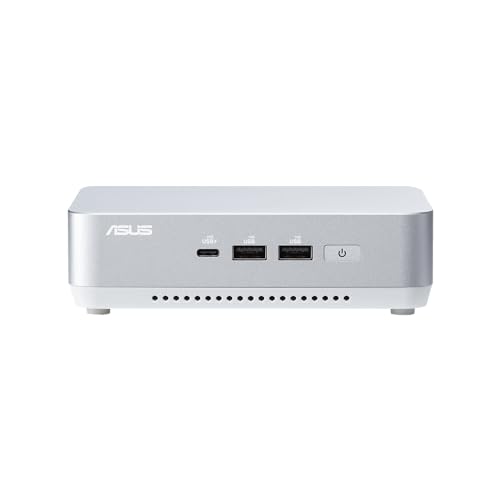
Proven Balance: ASUS NUC 14 Pro+ Barebone Kit — check the latest price on Amazon via the review links below.
The Upgrade Argument: ASRock DeskMeet X600 Mini-PC Kit — check the latest price on Amazon via the review links below.
The Simplicity Argument: ASUS NUC 14 Essential (N150) — check the latest price on Amazon via the review links below.
The Networking Argument: ASUS ExpertCenter PN54-S1 Barebone Kit — check the latest price on Amazon via the review links below.
The Safe Pair of Hands: Intel NUC 13 Pro NUC13ANHi5 (GEEK+) — check the latest price on Amazon via the review links below.
The Value Argument: ASRock DeskMeet X300 Mini PC Barebone Kit — check the latest price on Amazon via the review links below.
The Pros and Cons at a Glance
| Pros | Cons |
|---|---|
| You choose RAM and SSD capacity and quality | You must buy RAM, an SSD and an OS separately |
| No paying for bundled parts you would replace | Total cost can match or exceed a prebuilt on offer |
| Your choice of operating system, including free Linux | Split warranty and support between several makers |
| Simple, fast build; easy later memory/storage service | Processor is fixed on NUC-style kits — no CPU upgrades |
| Socketed DeskMeet kits allow CPU and GPU upgrades | Integrated graphics only on palm-sized kits |
| Ideal foundations for servers, media and lab roles | Near-identical kits under multiple sellers demand careful listing checks |
The Pros, Argued Properly
Pro 1: Your money lands where it matters. Prebuilt small PCs are notorious for pairing a decent processor with a small, slow drive and modest memory, because those are the corners a price point cuts. A barebones kit inverts the economics: the foundation is fixed and competent, and every additional unit of budget goes into the components you feel daily — a larger, faster SSD and memory sized for your real workload. Owners feel this difference every time the machine boots, loads and multitasks, which is to say constantly.
Pro 2: No waste, no duplicate parts. Anyone who has bought a prebuilt and immediately replaced its drive owns a small, slow SSD in a drawer. Barebones eliminates the drawer. You buy the drive you intend to keep, once. The same logic applies to the operating system: Linux users are not paying for a bundled Windows licence they will wipe, and Windows users are not subsidising anything else.
Pro 3: The build is genuinely easy — and useful knowledge. A NUC-style build is memory, one SSD and a cover. Ten to fifteen unhurried minutes, no cabling, no paste, no sharp edges. Yet even that small build teaches the layout of a computer, which pays off the first time any machine needs a memory upgrade or a drive swap. DeskMeet builds teach more — processor, cooler, graphics card — inside a forgiving small case, which is why they make such good first gaming-PC projects.
Pro 4: Service and upgrades where they count. The components most likely to need attention over a small PC’s life are storage and memory, and on a barebones kit both are user-serviceable by design. A full drive in year three is a swap, not a crisis. On the DeskMeet kits the service story extends to the processor and graphics card, giving those machines a genuine second life that sealed PCs cannot match.
Pro 5: Perfect foundations for always-on roles. Home servers, media libraries, smart-home controllers and network appliances reward exactly what barebones offers: low power draw, your choice of operating system, storage you sized yourself, and networking options — 2.5G LAN on the Essential kits, dual LAN on the ExpertCenter PN54-S1 — that prebuilt consumer boxes rarely prioritise. A large share of barebones kits sold never sit on a desk at all, and they are better for it.
Pro 6: Honest, comparable pricing. Because the variable parts are yours, comparing foundations is unusually clean: processor, ports, networking, warranty. The current ASUS NUC Pro and ExpertCenter kits carry three-year warranties, a support signal that matters more, not less, when you are supplying the remaining parts yourself.
The Cons, Argued Just as Properly
Con 1: The headline price lies by omission. A barebones kit can look dramatically cheaper than a prebuilt PC while being, in truth, most of a computer. Memory, storage and an operating system are not accessories; they are a substantial second purchase, and buyers who budget only for the kit experience a rude second checkout. This is the category’s most common source of regret, and it is entirely a budgeting failure rather than a product failure — but a pros-and-cons article that did not lead the cons with it would not be honest.
Con 2: On palm-sized kits, the processor is forever. The Core or Ryzen chip in a NUC-style kit is soldered. When it stops suiting the job, the machine’s story ends, however healthy its memory and drive remain. Buyers mitigate this by purchasing a tier up for long-term desks, but mitigation is not elimination, and it is the structural opposite of the DeskMeet kits’ socketed freedom.
Con 3: Integrated graphics draw a hard line under gaming. Esports, indie and older games, yes; cloud gaming, absolutely; demanding modern releases at high settings, no — and no upgrade path changes that on a NUC-style kit. Buyers who blur this line because a marketplace title used gaming language are the second most common source of regret in the category.
Con 4: Support is a team you manage. Kit maker, memory maker, drive maker, operating-system vendor: when something misbehaves, the first diagnosis — usually reseating or swapping a part — is yours. Most faults in practice are a memory stick not fully seated, which is a two-minute fix, but a buyer who wants a single support number for the whole machine is describing a prebuilt, and should buy one.
Con 5: The parts-compatibility homework is real. DDR4 does not fit DDR5 slots. A single-slot kit takes one stick. A DeskMeet graphics card must fit an 8-litre case and a 500W supply. None of this is hard, but all of it is unforgiving of ordering in a hurry, and the NUC 13 generation’s circulation under several seller brands — with differing wireless modules between near-identical listings — adds a verification step that prebuilt buyers never face.
Con 6: Resale and hand-me-down logic is murkier. A finished prebuilt is a simple thing to sell or gift. A barebones kit’s value depends on what its owner fitted, and a kit sold without its memory and drive is a harder conversation. A minor con, but a real one for serial upgraders.
The Kits as Evidence: Six Arguments in Hardware

Proven Balance — ASUS NUC 14 Pro+ Barebone Kit
Strengths
- Balanced Core Ultra 5 125H performance for office, creative and home-server work
- Dual Thunderbolt 4 ports make single-cable desk setups easy
- Toolless access and a three-year warranty lower the risk for first-time builders
Trade-offs
- No RAM, SSD or operating system in the box — the extras are mandatory, not optional
- Integrated graphics limits demanding games and heavy GPU workloads
- WiFi 6E rather than WiFi 7, if you are chasing the newest wireless standard
| Processor | Intel Core Ultra 5 125H (installed) |
|---|---|
| Memory | No RAM included — add your own SO-DIMM |
| Storage | No SSD included — add your own M.2 SSD |
| Operating system | No OS installed |
| Networking | WiFi 6E, 2x Thunderbolt 4 |
| Design | Toolless chassis, 3-year warranty |
The NUC 14 Pro+ is the pros’ Exhibit A for balance: a current Core Ultra 5 125H, a toolless build a beginner finishes in minutes, dual Thunderbolt 4 and a three-year warranty. Its cons are the category’s cons in miniature — parts extra, processor fixed, graphics integrated — which is precisely why it is the honest representative of the mainstream barebones idea.
Buyers who read its trade-offs and nod are barebones buyers. Buyers who read them and bristle should buy prebuilt, and this kit will have done them a service by making that clear before purchase.
Best for: buyers who accept the category’s terms and want its most balanced expression / Not suited for: buyers for whom the cons list reads as a deal-breaker
Check on Amazon — check the latest price on Amazon before you commit the rest of the parts list.

The Upgrade Argument — ASRock DeskMeet X600 Mini-PC Kit
Strengths
- The only style of kit here that takes a real desktop graphics card via its PCIe 4.0 x16 slot
- Socketed AM5 processor means genuine CPU upgrades later, not a soldered dead end
- 500W power supply included, so the GPU plan does not need a separate PSU hunt
Trade-offs
- Largest box in this group at 8 litres — compact, but not palm-sized
- You supply the CPU, cooler considerations, RAM, storage and GPU, so the parts list is the longest here
- WiFi-ready is not the same as WiFi included — check what your build still needs
| Socket | AMD AM5 — bring your own Ryzen 9000/8000/7000 CPU (65W) |
|---|---|
| Memory | DDR5, supports 7200+ OC speeds per listing |
| Expansion | PCIe 4.0 x16 slot for a discrete graphics card |
| Storage | Gen5 M.2 support |
| Power supply | 500W PSU included |
| Chassis | 8-litre case, triple display support, WiFi-ready |
The DeskMeet X600 exists to refute Con 2. Its AM5 socket makes the processor a choice today and an upgrade tomorrow, and its PCIe 4.0 x16 slot with a 500W supply refutes Con 3 in the same breath — this barebones kit games properly, because you can fit the graphics card yourself.
Its counter-cons are size and involvement: 8 litres, a real build, a longer parts list. The pros-and-cons ledger for the X600 is the fullest in this article, in both directions, which is what genuine flexibility looks like.
Best for: builders who want barebones economics with desktop upgrade paths / Not suited for: buyers who want the smallest, quietest, simplest box
Check on Amazon — check the latest price on Amazon before you commit the rest of the parts list.

The Simplicity Argument — ASUS NUC 14 Essential (N150)
Strengths
- The natural starter kit: one RAM slot and one storage bay keep the first build simple
- 2.5G LAN and triple-display support are generous for an Essential-tier box
- VESA mount in the box makes tidy desk and signage installs immediate
Trade-offs
- Single RAM slot caps memory upgrades — buy the capacity you will need, once
- N150 performance suits browsing, office apps, media and light servers, not heavy gaming
- Single storage design means no second internal drive later
| Processor | Intel Processor N150 (installed) |
|---|---|
| Memory | Single DDR5-4800 RAM slot |
| Storage | Single storage design |
| Displays | Triple display support |
| Networking | 2.5G LAN, Wi-Fi 6E, Bluetooth 5.3 |
| Mounting | VESA mount included |
The NUC 14 Essential N150 argues the simplicity pro at its purest: one slot, one bay, VESA mount included, 2.5G networking that shames pricier boxes. As a first build, a media foundation or a small server, its pros are immediate and its build is the easiest here.
Its cons are equally pure: the single memory slot makes capacity a one-time decision, and the efficiency processor fixes its ceiling low. It is the right kit when the role is fixed — and the wrong kit the moment the role might grow, as Barebones Mini PC Reviews also concludes.
Best for: fixed-role builds: media, kiosk, light office, small servers / Not suited for: any role with growth ambitions
Check on Amazon — check the latest price on Amazon before you commit the rest of the parts list.

The Networking Argument — ASUS ExpertCenter PN54-S1 Barebone Kit
Strengths
- Dual LAN is rare at this size and ideal for firewalls, home labs and network appliances
- WiFi 7 keeps wireless current even though the processor is an entry model
- Business-grade ExpertCenter line with a three-year warranty
Trade-offs
- Ryzen 3 210 is the slowest processor in this group — fine for appliances, light for heavy multitasking
- Still needs RAM, storage and an operating system before it does anything
- Fewer headline display features than the NUC Pro models above it
| Processor | AMD Ryzen 3 210 (installed) |
|---|---|
| Memory | No RAM included — add your own SO-DIMM |
| Storage | No SSD included — add your own M.2 SSD |
| Operating system | No OS pre-installed |
| Networking | WiFi 7, Dual LAN |
| Design | Toolless chassis, 3-year warranty |
The ExpertCenter PN54-S1 makes the networking pro concrete. Dual LAN turns a mini PC into a firewall, router or segmented lab node — jobs prebuilt consumer machines simply do not address — while WiFi 7 and a toolless, warrantied business chassis keep the rest of the package current.
Its con is a modest processor for desktop ambitions. That is the correct trade for an appliance and the wrong trade for a heavy desk PC, and the pros-and-cons framing exists to surface exactly that distinction before money moves.
Best for: network appliances, home labs and always-on infrastructure roles / Not suited for: demanding desktop multitasking
Check on Amazon — check the latest price on Amazon before you commit the rest of the parts list.

The Safe Pair of Hands — Intel NUC 13 Pro NUC13ANHi5 (GEEK+)
Strengths
- Proven Arena Canyon NUC 13 Pro design with quad-display support for serious desk setups
- Core i5-1340P is a strong, efficient all-rounder for office and home use
- Thunderbolt 4 keeps docking and fast external storage on the table
Trade-offs
- Previous-generation platform, so no WiFi 7 and an older processor family
- Seller branding differs from the original Intel retail box — verify the exact kit contents on the listing
- Integrated graphics only, as with all the palm-sized kits here
| Processor | Intel Core i5-1340P (installed) |
|---|---|
| Memory | NO RAM included |
| Storage | NO SSD included |
| Operating system | NO OS included |
| Displays | 8K/4K quad display support |
| Networking | WiFi 6E, Bluetooth 5.3, Thunderbolt 4 |
The NUC 13 Pro argues the maturity pro: a documented platform, quad-display support, Thunderbolt 4 and a Core i5-1340P whose behaviour in every operating system is a known quantity. For offices and signage, known quantities are worth money.
Its cons are generational — an older processor family, no WiFi 7 — plus the category’s listing-verification homework, since these kits are sold under several brands. Read the contents, confirm the wireless, and the maturity pro is real.
Best for: offices, signage and buyers who value proven platforms / Not suited for: buyers chasing the newest generation
Check on Amazon — check the latest price on Amazon before you commit the rest of the parts list.
The Value Argument — ASRock DeskMeet X300 Mini PC Barebone Kit
Strengths
- AM4 and DDR4 parts are widely available, which keeps the total build cost under control
- PCIe 3.0 x16 slot still allows a proper discrete graphics card for gaming
- Dual M.2 storage gives room for a fast boot drive plus a larger games drive
Trade-offs
- AM4 is a mature platform with no future CPU generation coming — upgrades top out within the family
- PCIe 3.0 rather than 4.0, a small penalty with some newer graphics cards
- Like the X600, the parts list you must supply yourself is long
| Socket | AMD AM4 — supports Ryzen 5000/4000/3000G CPUs |
|---|---|
| Memory | DDR4-3200MHz |
| Expansion | PCIe 3.0 x16 slot |
| Storage | Dual M.2 slots |
| Front ports | USB 3.2 Gen2 Type-C |
| Power supply | 500W PSU included |
The DeskMeet X300 argues value: the DeskMeet formula — socket, graphics slot, 500W supply, dual M.2 — on AM4 and DDR4 parts that are easy to buy well. For a compact gaming build, its pros per unit of total budget are the strongest in this article.
Its con is the platform’s horizon: AM4’s ceiling is known and final. Value buyers accept that trade knowingly; future-chasers should pay for the X600 instead, a judgement Is A Barebones Mini PC Worth It examines in cost terms.
Best for: value gaming builds from mature, widely available parts / Not suited for: buyers who need future CPU generations
Check on Amazon — check the latest price on Amazon before you commit the rest of the parts list.
Pros and Cons by Use Case: Where the Balance Tips
For gaming. The ledger splits cleanly by family. On NUC-style kits the cons dominate for gaming-first buyers: integrated graphics, no card slot, no appeal to settings sliders. Esports and cloud gaming soften that verdict, but a buyer whose main job is gaming should read the NUC pros — size, silence, price of entry — as irrelevant virtues. On DeskMeet kits the ledger flips: the pros of chosen processor, chosen graphics card and a real upgrade path are the exact pros a gaming build wants, and the cons reduce to case size and build involvement. Same category name, opposite conclusions — the single best illustration of why pros and cons must be read per use case, never in the abstract.
For office and study. Here the pros win on points. The build is trivial, the finished machines are quiet and invisible, memory and storage sized to real workloads beat bundled prebuilt compromises, and the cons — a second parts order, a split warranty — are one-week inconveniences amortised over years of daily use. The only office scenario where the cons take the round is the managed workplace, where a fleet of identical prebuilts with a single support contract is an operational virtue that no amount of per-machine value can outvote.
For home servers and labs. This is the pros’ strongest round in the entire article. Operating-system freedom is total, storage is sized by the builder, idle power draw is low, networking options include 2.5G and dual LAN, and the machine can be repurposed by swapping a drive rather than replacing a computer. The cons barely register: server builders expect to manage their own support, and a fixed processor matters little when the workload is serving files and containers. If the barebones category had been invented for one audience, it would be this one.
For media and living-room use. The pros — silence, size, VESA mounting, storage sized to a film library — align almost perfectly with the job, and the cons reduce to the modest processor ceilings of the quietest kits, which media playback does not trouble. A media buyer comparing a barebones Essential kit against a streaming stick or a prebuilt should weigh the drive-swap future: libraries grow, and the kit that lets you fit a bigger drive in year three wins the long argument.
For creators and heavy multitaskers. The honest answer is split. Processor-heavy work on the Core Ultra kits is genuinely well served, and memory fitted generously is a real pro. But buyers whose work is graphics-bound will hit the integrated-graphics wall that no NUC-style kit can move, and for them the pros-and-cons exercise points either to a DeskMeet build with a proper card or out of the mini category altogether. Naming that boundary is a service, not a criticism of the kits.
The Cost Ledger in Detail
Cost deserves its own section because both sides claim it. The pros’ cost case: you never pay for parts you will replace, you can reuse a drive, memory or licence you already own, you can time the parts purchases to your own budget rhythm, and the foundation itself — particularly a warrantied ASUS kit or a DeskMeet chassis with its power supply included — concentrates spending on things that last. The cons’ cost case: the four-line total can quietly exceed a discounted prebuilt of similar headline specification, shipping arrives in several parcels, and the small extras — an adapter here, a mount there — accumulate in a way a single-box purchase never does.
The tiebreaker is specification honesty. Compare your four-line total, with the memory and storage capacities you actually chose, against a prebuilt fitted with those same capacities — not against the prebuilt’s base configuration with its smaller drive. Run that comparison and the barebones cost case usually survives; run the lazy comparison and it often does not. The category rewards buyers who compare like with like, which is a fair summary of the category as a whole.
Longevity and Waste: The Quiet Pro
One pro rarely makes marketing copy: a barebones kit generates less waste across its life. No bundled drive is discarded in month one. A failed or full drive is a component event, not a computer event. A machine retired from desk duty can be re-roled as a server with a drive swap, because its owner already knows how it comes apart. Set against that, the honest con: a soldered processor means the kit’s ceiling is fixed, and a machine whose job outgrows that ceiling is replaced whole. Longevity in this category is therefore a choosing skill — buy the ceiling for the job’s future, not its present — and the buyers who practise it get unusually long service from unusually small machines.
Common Arguments, Tested Against the Kits
‘Barebones is just a prebuilt with pieces missing.’ Half true, and the false half matters. The missing pieces are precisely the ones owners most often upgrade, licence or replace, and the foundation that remains — board, cooling, power delivery, case, and on NUC-style kits the processor — is the part of a computer least suited to amateur assembly. The DeskMeet kits disprove the claim entirely: a socketed chassis with a graphics slot is not an incomplete prebuilt, it is a platform.
‘You save a fortune.’ Sometimes, modestly, and sometimes not at all — see the cost ledger above. The durable saving is not the purchase price; it is avoiding the second purchase of parts you already paid for once inside a prebuilt. Buyers who repeat the fortune claim are usually comparing a kit price against a finished price, which is Con 1 wearing a pros costume.
‘Building is risky.’ On the evidence of these kits, largely false. The NUC-style build has no hazardous step: no paste, no cabling, no mains wiring, and toolless designs on the current ASUS models remove even the screwdriver from the story. The realistic risks are a lost M.2 screw and an unseated memory stick, both recoverable in minutes. DeskMeet builds add a processor install, which deserves care and rewards it. Risk, honestly graded, belongs in the cons column as a small entry — not the headline one.
‘Small means weak.’ Refuted by the top of this range. A Core Ultra 7 NUC or a DeskMeet with a current graphics card is not a weak computer by any ordinary standard; it is a strong computer in a small box with specific, nameable limits — integrated graphics on the palm-sized kits, thermal and size ceilings on the DeskMeets. Precision about which limit applies to which kit is the difference between a useful pros-and-cons article and a slogan.
The Ownership Ledger: Months Two to Sixty
Purchase-week pros and cons get the attention, but ownership writes the longer ledger. In month two, the barebones owner notices the quiet pros: the machine has exactly the storage the job needs, the operating system carries no bundled clutter, and the desk has no tower on it. In year two, the service pros arrive: a drive upgrade or a memory addition is an evening’s small task on a kit designed to open, where a sealed prebuilt turns the same job into a warranty question. In year four, the cons collect their due — on a NUC-style kit, the processor’s ceiling is now a fact of daily life, and the owner’s year-one tier decision is vindicated or regretted. DeskMeet owners, by contrast, may be shopping for a processor or a card in year four, which is the socket’s long dividend.
There is also a knowledge dividend no prebuilt pays. An owner who has fitted memory and storage once reads every future computer purchase differently: specifications stop being marketing and become a parts list they understand. Families who build a DeskMeet gaming PC together report the build itself as part of the value, which no unboxing of a finished machine has ever matched. Weigh that honestly in the pros column — not as sentiment, but as a real, repeatable benefit that shows up in every later technology decision the household makes.
A Note on Reliability and Returns
One more entry belongs on both sides of the ledger. Because a barebones machine is assembled from parts with separate warranties, a component failure is usually isolated and cheap to resolve: drives and memory sticks are commodity parts with straightforward replacement processes, and the kit itself — warrantied for three years in the case of the current ASUS NUC Pro and ExpertCenter models — is a compact thing to return if the fault is in the foundation. Set against that, the diagnostic burden genuinely sits with the owner for the first step: is it the kit, the stick or the drive? The practical answer is that the swap test resolves most cases in minutes, since memory and storage can be reseated or substituted faster than any support queue can be navigated. Buyers who keep their parts receipts and the kit’s contents listing from purchase day will find the whole process unremarkable — one more instance of this category rewarding a small amount of organisation with a long, quiet ownership.
How to Live With the Cons: Practical Mitigations
Most cons in this article shrink with three habits. First, budget in fours — kit, memory, storage, operating system — and compare that total against prebuilts, which neutralises Con 1 entirely. Second, buy the processor tier for the machine’s whole intended life on NUC-style kits, and fit single-slot memory at final capacity, which converts Con 2 from a trap into a known parameter. Third, keep the build ritual boring: prepare the operating-system installer in advance, seat memory until both clips click, verify everything in the BIOS before installing anything, and keep the kit’s contents listing from purchase day. The gaming line in Con 3 has no mitigation — only the DeskMeet detour — and recognising which cons are habits and which are physics is the real skill this category teaches.
Problem: first boot shows a black screen -> fix: reseat the memory before anything else; it is the cause in the overwhelming majority of cases. Problem: the finished total crept past a prebuilt’s price -> fix: check whether your memory and storage choices outclass the prebuilt’s bundled parts — they usually do, which reframes the comparison honestly. Problem: a part does not fit -> fix: stop, re-read the kit’s stated memory generation and bay type, and exchange rather than force; nothing in these kits rewards force.
Who Should Buy Barebones — and Who Should Not
Buy barebones if you have ever customised anything and enjoyed it; if the machine is destined for a server, media, lab or network role; if you already own a suitable SSD, memory or operating-system licence; or if you are building a first gaming PC with a young builder and want the project as much as the machine. Skip barebones if the computer is for someone who will never open it, if a single warranty and a single support number genuinely matter to you, if your timeline is ‘working tonight, no exceptions,’ or if the honest total in your four-line budget loses to a prebuilt you would be equally happy with. Neither list is a judgement. They are the same list, read from two directions — and the full single-product verdict in Barebones Mini PC Review shows how these trade-offs feel on one specific machine.
Finally, weigh the reversibility of each side. A buyer who chooses barebones and dislikes the experience has lost an evening and gained a working computer whose parts remain useful in any future machine. A buyer who chooses a sealed prebuilt and discovers its storage, memory or operating system is wrong for the job has lost the ability to fix the problem at component prices. Asymmetry like that rarely appears in pros-and-cons tables, because it is about the shape of regret rather than the product — but regret, in the end, is what these articles exist to prevent. The barebones route’s mistakes are correctable at the level of a stick or a drive; the prebuilt route’s mistakes are correctable at the level of a new computer. For many households, that single asymmetry settles the argument more decisively than any specification in this guide.
Score the article, then, the way an owner would after a year: the cons cost a careful buyer one attentive evening of choosing, one honest four-line budget and fifteen minutes with a memory stick. The pros pay out every day the machine runs — in the storage that fits the library, the memory that fits the workload, the operating system that fits the owner, and the small, quiet box that fits the room. Categories are rarely that lopsided once their terms are accepted, which is why our final recommendation is not really about kits at all. It is about reading the terms before you sign them.
If you take one habit from this article, take the four-line budget. It converts the category’s biggest con into a non-event, it makes every comparison honest, and it takes less time than reading the marketing copy on a single listing. Buyers who budget in fours almost never regret a barebones purchase; buyers who budget by headline price supply most of the category’s unhappy stories. The hardware, as the six kits above show, is the easy part.
And if the balance still feels close after all of this, let the machine’s intended role break the tie, because roles are where the ledger stops being close at all. Servers, labs, media boxes and first gaming builds tilt it decisively toward barebones; gift purchases, managed fleets and zero-patience timelines tilt it just as decisively away. The category does not ask to be loved. It asks to be matched.
Final Recommendation
On balance, the pros win for the readers this site serves — people willing to trade fifteen minutes and a parts list for control over the components that decide how a computer feels. The cons are real but they are front-loaded: they all live in the buying and building week, while the pros pay out for the machine’s whole life. If that exchange sounds fair, start with the balanced NUC 14 Pro+, the upgradeable DeskMeet X600, or the role-perfect kit your use case names. If it does not, a prebuilt is a perfectly respectable answer, and knowing that is also a successful pros-and-cons article.
Frequently Asked Questions
What exactly is missing from a barebones mini PC?
The processor and the box itself are present in most kits in this guide, but memory, storage and an operating system are not. The DeskMeet kits go further and leave the processor itself to you, because they use socketed desktop CPUs. Before any barebones kit becomes a working computer you should expect to add at least one stick of compatible RAM, one SSD, and either a Windows licence or a free Linux distribution. Budget for those three items from the start and the category holds no nasty surprises.
Is building a barebones mini PC difficult for a beginner?
Honestly, no — the palm-sized kits are among the easiest first builds in all of computing. The typical job is sliding off a cover or undoing a few screws, clicking a RAM stick into its slot until the clips close, seating an M.2 SSD under a single screw, and replacing the cover. There is no cabling, no thermal paste and no power-supply wiring on a NUC-style kit. The DeskMeet kits add a CPU install, which takes more care, but even that is a well-documented ten-minute step.
How much RAM and storage should I add?
For office work, browsing, media and light home-server duties, a single 16GB stick and a 512GB SSD is the sensible floor, and it is what we would fit to the Essential kits. For heavier multitasking, virtual machines, photo work or a machine you plan to keep for many years, 32GB of RAM and a 1TB SSD age far better. Kits with a single memory slot, like the NUC 14 Essential models, force the decision up front, so buy the capacity you will want in year three, not just month one.
Can a barebones mini PC play games?
It depends entirely on which style of kit you mean. The palm-sized NUC-style kits rely on integrated graphics, which handle esports titles, older games, indie games and cloud gaming comfortably, but struggle with demanding modern releases at high settings. The DeskMeet X300 and X600 are different machines altogether: their PCIe x16 slots accept a discrete desktop graphics card, and with one fitted they are legitimate gaming PCs that simply happen to live in an 8-litre case.
Do I need to buy Windows for a barebones kit?
Only if you want Windows. Every kit here arrives with no operating system, so the choice is yours: buy a Windows licence, reuse an eligible licence you already own where its terms allow, or install a free Linux distribution such as Ubuntu, which runs superbly on all of this hardware and is the default choice for home-server and home-lab builds. Factor the licence cost into any comparison against a prebuilt mini PC, because prebuilts usually include it.
What tools do I need for the build?
A small Phillips screwdriver covers almost everything. The current ASUS NUC Pro and ExpertCenter kits use toolless designs, so even that is optional for the RAM and SSD install. A clean, static-aware workspace, the kit manual open on your phone, and fifteen unhurried minutes are the real requirements. Keep the tiny M.2 screw in a dish rather than on the desk — it is the one part everyone loses.
Will a barebones kit work as a home server or media PC?
Very well, and for many buyers that is the real point. Low idle power draw, small size, VESA mounting and — on several kits here — 2.5G or dual LAN make them natural fits for media servers, file storage front-ends, smart-home controllers and always-on download or backup boxes. The dual-LAN ExpertCenter PN54-S1 is the standout for network appliance roles such as firewalls and routers built from PC hardware.