Disclosure: As an Amazon Associate, reviewstook.com earns from qualifying purchases. Links on this page are affiliate links at no extra cost to you; prices and availability change frequently, so check Amazon for the latest.
Mini PC Buying Guide: How to Choose a Small Computer That Still Feels Big
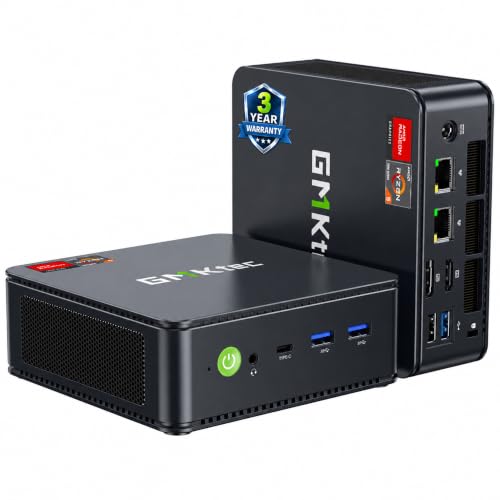
This mini PC buying guide is for the buyer standing between two honest questions: how can something this small possibly replace a desktop, and how do I avoid picking the wrong one? A mini pc has matured from a novelty into the default answer for a huge range of desks — home offices, family computers, media setups, student rooms, reception desks and even light gaming rigs — because the modern versions are not cut-down curiosities. They are laptop-grade computers in a box smaller than a hardback book, and the best of them run multiple 4K monitors, stay quiet, sip power and leave your desk almost empty. If you are also weighing up the wider small-PC landscape, start with our overview of the category Best Mini Pcs and then come back here for the decision framework.
The trap this guide exists to disarm is specification fog. Mini PC listings throw processor codes, memory types and port counts at you in a wall of text, and the differences that actually decide your next five years of daily use hide inside that fog. A cheap machine with the wrong processor class will annoy you every single day; a modest machine with the right balance will disappear into your routine. So this buying guide works in a deliberate order: first what you will do with the machine, then the processor class that work requires, then memory, storage, graphics, ports and operating system — and only at the end, specific models. The companion piece on the decision process itself goes deeper on sequencing How To Choose A Mini PC, while this guide concentrates on what each specification means and which verified machines embody it well.
Every model named and linked here comes from a pick sheet verified against Amazon’s own catalogue data, with exact titles confirmed before a single link was placed. Where a machine is discussed without a link, that is deliberate: it means we could not verify the exact listing, and we would rather describe a product honestly than link you to a guess. Prices are not printed anywhere in this guide because they move too often to be trustworthy in print; use the check-price links to see the live figure for the exact configuration described, on the day you buy.
Where to Buy
Buy from the verified listings below rather than searching the model name from scratch, because mini PC line-ups contain near-identical names with very different processors and memory inside. Every model below was checked against the verified pick sheet for this guide on reviewstook.com, and each link goes to the exact listing whose title was confirmed, so you are never guessing which configuration you are about to buy.
- GMKtec M6 Ultra Gaming Mini PC
- ACEMAGIC Mini Gaming PC
- Apple Mac mini (M6 chip)
- GMKtec M5 Ultra Gaming Mini PC
- Glorlin Mini PC (Ryzen 5 3500U)
- KAMRUI AK1PLUS Mini PC
In this guide
Start With the Job, Not the Specification Sheet
Every good mini PC purchase begins with a workload inventory, written down rather than imagined. List the applications you open daily, the heaviest single task you perform weekly, the number of monitors you use or want, and whether games, virtual machines, media serving or creative software appear anywhere in your real life. Be honest about the weekly heavy task: a machine bought for email that must also edit a monthly video or run a quarterly data job will fail you precisely when it matters.
Four workload families cover nearly everyone. The first is essentials computing — browsing, documents, email, video calls and streaming — which entry-level machines handle beautifully. The second is productivity-plus: heavy multitasking, big spreadsheets, light photo work, coding and multiple monitors, which is the natural home of mid-range Ryzen U-series machines. The third is creation and play: photo and video projects, development with virtual machines, and gaming on integrated graphics, which demands the performance tier. The fourth is infrastructure: home servers, network services, media libraries and always-on duties, where dual LAN ports, Linux support and low idle power matter more than raw speed. Most buyers are firmly in one family with occasional visits to another; buy for your home family and your most frequent visits, not for a hypothetical future you have no concrete plan for.
It is also worth deciding what the machine will never do. Ruling out gaming, for example, releases you from the integrated-graphics race entirely and lets a quieter, cheaper machine win. Ruling out macOS-only or Windows-only software settles the operating system question in seconds. Constraints are not limitations in this process — they are what turns a confusing market into a short list.
The processor decides more about a mini PC than any other single part, because in a box this small the chip also supplies the graphics, the memory controller and most of the power and heat behaviour. At the entry level sit low-power chips such as the Intel Celeron N5095 in the KAMRUI AK1PLUS. Those parts were designed for fanless or near-silent machines, school and office basics, point-of-sale terminals and media playback. They feel perfectly responsive with a handful of browser tabs, documents and email, and they sip power while doing it. What they cannot do is pretend to be something else: heavy multitasking, large spreadsheets with live recalculation, photo editing with big files and any modern 3D game will expose the ceiling quickly.
One step up, AMD’s U-series Ryzen chips — the Ryzen 3 Pro 7330U, Ryzen 5 3500U, Ryzen 5 5300U and Ryzen 7 7730U in this cluster — are the sweet spot for most desks. Four to eight cores, proper boost clocks and integrated graphics that can drive multiple 4K monitors make them feel like a full desktop for office suites, web work, light photo editing, coding and media. At the top of the mini PC world sit H/HS-series chips such as the Ryzen 5 7640HS and Ryzen 7 7735HS, plus Apple’s M-series silicon. Those are laptop-performance parts with stronger integrated graphics — the Radeon 680M in the 7735HS is the standout — and they are the only integrated solutions worth considering if games are part of the plan.
The practical rule is to buy the workload, not the badge. Count your heaviest regular task, not your lightest: if the heaviest thing you do is a video call over a slide deck, an entry chip is honest value. If the heaviest thing is a 40-tab research session next to a code editor and a virtual machine, you need the U-series or better, and no amount of cheap storage will compensate for choosing below that line.
Integrated graphics are the most misunderstood part of any mini PC, largely because the same phrase covers an enormous performance range. At the bottom, basic integrated graphics exist to put pixels on screens: they accelerate video playback, handle desktop compositing and can drive multiple 4K monitors for office work without breaking a sweat. That is genuinely all a non-gaming desk needs, and it is why a modest machine can run three displays beautifully while still being hopeless at games — display output and 3D rendering are different jobs.
In the middle, AMD’s Vega-generation integrated graphics in the U-series Ryzen chips add light creative capability: photo editing, casual video work and older or lightweight games at modest settings. At the top, the Radeon 680M in the Ryzen 7 7735HS and the graphics in the Ryzen 5 7640HS are in another league, able to run popular esports titles smoothly and many bigger games at reduced settings, while Apple’s M6 GPU serves macOS-native and properly ported titles well. None of these replace a discrete graphics card for demanding modern games at high settings — physics and thermals in a one-litre box see to that — but the top tier turns “no gaming at all” into “a real, enjoyable gaming library with sensible settings.”
Memory matters to integrated graphics more than most buyers realise, because the GPU borrows from system RAM. A machine with more, faster memory feeds its graphics better, which is one reason the 24GB and 32GB configurations in this cluster punch above what their chip names alone suggest. If gaming matters to you, treat memory capacity as a graphics specification, not just a multitasking one.
How Much Memory and Storage Does a Mini PC Actually Need?
Memory sizing for a mini PC follows simple, testable logic. Eight gigabytes, as fitted to the KAMRUI Pinova P1 and BOSGAME E5 11 Pro, is enough for focused work: one main application, a browser with a modest tab count, documents and calls. It is the right amount for a single-purpose desk — a reception machine, a home-office PC for one suite of apps, a Linux box running services — and it will feel tight the moment you stack a browser, a chat client, a spreadsheet and a video call on top of each other.
Sixteen gigabytes is the comfortable mainstream: it absorbs heavy browsing, office suites, light photo work and development tools without the system swapping to storage, and it is the minimum we suggest for anyone keeping a machine for several years. Above that, 24GB and 32GB configurations serve multitaskers, virtual-machine users and — importantly — gaming on integrated graphics, since the GPU shares this pool. The Apple Mac mini complicates direct comparison because its unified memory is shared between CPU and GPU by design and managed differently by macOS; treat its 16GB as a complete-system figure rather than a Windows-equivalent number, and remember it cannot be changed after purchase.
Upgradeability is the hidden variable. Some mini PCs use standard laptop memory slots you can upgrade later; others solder memory to the board. If a listing does not make this clear, assume the configuration you buy is the configuration you keep, and size accordingly. Buying one tier above your current need is cheaper than replacing the whole machine in two years.
Storage in this cluster starts at 256GB and rises to 1TB, and the right size depends on what lives on the machine rather than in the cloud. A 256GB drive suits a desk whose files live in cloud storage, whose media streams rather than downloads, and whose software list is short — with the warning that operating system updates, caches and one large game can consume a surprising share of it. The 512GB configurations are the stress-free middle: room for a real application library, local documents, photos and a handful of games. The 1TB drive in the GMKtec M6 Ultra suits creators, game libraries and anyone who treats the PC as their primary archive.
Speed matters as well as size. All of the main picks here use solid-state storage, and NVMe drives in particular keep boot times, application launches and file copies feeling instant. Two expansion details are worth knowing: the KAMRUI AK1PLUS accepts an additional 2.5-inch SSD, which is a cheap way to add bulk storage for media or backups later, and several machines use standard M.2 drives that a confident owner can swap. External storage is the other pressure valve — a fast USB or USB4 drive is a perfectly good home for a game library or media collection that does not need to live on the internal drive.
Whatever size you choose, keep a simple backup habit from day one: cloud sync for documents, and an external drive image for the system. A mini PC is small enough to be knocked off a desk, and the data on it is the only part you cannot replace.
Ports, Displays and the Desk Test
Ports are where a mini PC either disappears into your setup or becomes a daily annoyance, so count your peripherals before you buy. The good news in this cluster is display support: most of these machines drive two or three 4K monitors using combinations of HDMI, DisplayPort and USB-C or USB4 video output, which makes a mini PC a legitimate multi-monitor workstation rather than a compromise. Check which standards your monitors use and confirm the machine offers them natively, so you are not dependent on adapters from day one.
For data, the spread matters. USB4 on the GMKtec M6 Ultra is the premium option, opening the door to fast docks, rapid external storage and single-cable desk setups. USB-C display output on the KAMRUI Pinova P1 and GMKtec M5 Ultra serves the same docking idea at a lower tier. Wired networking is a quiet strength of this category: dual 2.5GbE LAN on the GMKtec machines and the BOSGAME suits home labs, network storage and anyone whose WiFi is unreliable, while WiFi 6 or 6E covers the rest. Bluetooth 5.x across the range handles keyboards, mice, headsets and controllers without dongles.
The practical test is to list everything on your desk — monitors, keyboard, mouse, headset, webcam, external drives, a phone charger — and count the ports and the cables. A machine that needs a hub for your basics is the wrong machine; a machine with one or two ports to spare is the right one.
The desk itself is a feature of this category, and it deserves a section of its own. A mini PC can sit invisibly behind a monitor, mount to the back of a display, tuck under a shelf or simply occupy less space than a paperback book — and each of those placements changes how a room feels and works. Cables become the main visual problem, and they are solvable: route display and power cables together, use the machine’s rear ports for permanent connections, and keep one front or side port free for the drive or cable you plug in daily.
Small size also changes security and portability. A mini PC can be locked in a drawer at night in a shared space, carried between home and office in a jacket pocket (with its power supply, the one part people forget), or shipped to a family member without drama. For renters, students and anyone whose desk is also a dining table, that flexibility is not a novelty — it is the reason the category exists.
Set the machine up properly on day one and it disappears: firmware and system updates applied, backup running, cables managed, vents clear. The best mini PC setup is the one you stop noticing, which is the highest compliment a desk computer can earn.
Windows, macOS or Linux: Picking Your Platform
Operating system choice is the one decision in this category that cannot be undone with an upgrade, so make it deliberately. The Windows machines in this cluster run Windows 11, with the ACEMAGIC notably shipping Windows 11 Pro — relevant if you need its remote desktop hosting, drive encryption management or domain features for work. Windows offers the widest software and game compatibility and is the default assumption of most workplaces.
The Apple Mac mini runs macOS, which is either the whole point or a complete mismatch depending on your software list. If your tools are Apple’s, or cross-platform applications you already know run natively on Apple silicon, the Mac mini is a polished, quiet and efficient desk machine. If your work depends on Windows-only software or your games live in Windows-only libraries, no amount of hardware elegance will fix the mismatch.
Linux is the third path, and the BOSGAME E5 11 Pro explicitly supports it, down to SSH-based headless use. A mini PC makes a superb small home server, development box or network services machine, and several buyers in this category purchase with exactly that second life in mind. Whichever system you choose, spend the first hour removing bundled extras you do not need, applying updates, and turning on the built-in backup and encryption tools — an hour of setup hygiene pays for itself for years.
Heat, Noise and Living With a Small Machine
Heat and noise are the physics tax on small computers, and every mini PC negotiates that tax differently. Entry-level chips produce so little heat that their machines stay near-silent under office loads; you will hear a home’s ordinary room sounds over them. Performance chips work harder: under a sustained gaming or rendering load, a small fan in a small chassis becomes audible, though well-tuned machines keep the tone smooth rather than whiny, and under everyday loads they settle back to a murmur.
Placement is your half of the bargain. Give the machine air on all sides, never seal it in an unventilated cabinet, and keep vents clear of papers and dust. Mounting the PC behind a monitor with a VESA bracket — a classic mini PC trick — is excellent for desk space and usually fine for airflow, as long as the monitor’s own heat is not blasting straight into the intake. A can of compressed air every few months, used gently with the machine off, keeps dust from insulating the heatsink.
Expectations calibrated this way rarely disappoint: judge a mini PC’s noise under the load you will actually run most of the time, not under a synthetic stress test, and remember that a machine working hard for ten minutes during an export is behaving normally, not failing.
Six Verified Picks That Cover the Whole Market

GMKtec M6 Ultra Gaming Mini PC
Flagship of this cluster. The Ryzen 5 7640HS, 32GB of DDR5 memory and a 1TB SSD make it the mini PC we would hand to someone who refuses to think about specifications again for years: heavy multitasking, development work, media projects and gaming on capable integrated graphics all fit. Dual 2.5GbE LAN, USB4 and triple 4K display support complete a machine with no obvious weak port or bottleneck.
| Processor | AMD Ryzen 5 7640HS |
|---|---|
| Memory | 32GB DDR5 |
| Storage | 1TB SSD |
| Networking | Dual 2.5GbE LAN, WiFi 6, Bluetooth 5.2 |
| Displays | Triple 4K via HDMI 2.0, DisplayPort and USB4 |
| Key port | USB4 |

ACEMAGIC Mini Gaming PC
Built around the best integrated graphics in the group, with memory to match. If one machine must cover a working day and an evening of esports and back-catalogue games, this is the configuration shaped for it.
| Processor | AMD Ryzen 7 7735HS |
|---|---|
| Graphics | AMD Radeon 680M integrated graphics |
| Memory | 24GB RAM |
| Storage | 512GB SSD |
| Networking | 2.5Gbps LAN, WiFi 6 |
| Displays | Triple 4K |
| Operating system | Windows 11 Pro |


Apple Mac mini (M6 chip)
The ecosystem pick. Apple’s M6 chip with a 12-core CPU and GPU and 16GB of unified memory makes this the most polished machine here for macOS users: silent-leaning, efficient and superb with Apple’s own applications and optimised creative tools. The constraints are equally clear — macOS only, memory fixed at purchase, and a 256GB drive that pushes media libraries toward external storage.
| Processor | Apple M6 chip, 12-core CPU and 12-core GPU |
|---|---|
| Memory | 16GB unified memory |
| Storage | 256GB SSD |
| Operating system | macOS |
| Best role | macOS desk work, media and creative apps |
| Note | Unified memory is fixed at purchase |

GMKtec M5 Ultra Gaming Mini PC
The balanced middle of the range: strong processor, modern WiFi 6E, dual fast LAN and three-display support, with storage as the deliberate economy.
| Processor | AMD Ryzen 7 7730U |
|---|---|
| Memory | 16GB RAM |
| Storage | 256GB SSD |
| Networking | Dual NIC LAN 2.5GbE, WiFi 6E, Bluetooth 5.2 |
| Displays | Triple 4K via HDMI 2.0, DisplayPort and USB-C |
| Best role | Mid-range all-rounder |

Glorlin Mini PC (Ryzen 5 3500U)
The storage-generous budget pick. Its older Ryzen 5 3500U is a capable everyday processor, and the combination of 16GB of memory with a 512GB NVMe SSD is more comfortable than many newer-named rivals manage. WiFi 6, Bluetooth 5.3 and three 4K display outputs make it an easy home-office recommendation for buyers who keep files locally.
| Processor | AMD Ryzen 5 3500U (4 cores / 8 threads, up to 3.7GHz) |
|---|---|
| Memory | 16GB RAM |
| Storage | 512GB NVMe SSD |
| Networking | WiFi 6, Bluetooth 5.3 |
| Displays | Three 4K screens via dual HDMI and DisplayPort |
| Best role | Budget home office with generous storage |

KAMRUI AK1PLUS Mini PC
Entry tier done properly: modest processor, sensible memory, solid-state storage and room to add a second drive later. It is the machine for a first home-office desk, a family PC or a dedicated single-purpose workstation.
| Processor | Intel Celeron N5095 (up to 2.9GHz) |
|---|---|
| Memory | 16GB RAM |
| Storage | 256GB SSD, supports 2.5-inch SSD expansion |
| Networking | WiFi, Bluetooth, Ethernet |
| Displays | Dual 4K |
| Best role | Everyday office and home basics |

Read those six as a map of the market rather than a league table. The GMKtec M6 Ultra and ACEMAGIC machine anchor the performance end, the Apple Mac mini serves its own ecosystem, the GMKtec M5 Ultra holds the balanced middle, and the Glorlin and KAMRUI AK1PLUS prove how far the budget end has come. If your workload inventory points between two of them, choose by the part you cannot upgrade — processor and, on fixed-memory machines, memory — and let storage be the flexible variable. For a second opinion framed as a single-machine deep dive, our dedicated review examines the flagship in far more detail Mini PC Review, and the roundup format compares the field head-to-head Mini PC Reviews.
How to Set Up a New Mini PC in the First Hour
Setup is genuinely simple, which is part of the category’s charm, but the order matters. First, connect one monitor, a keyboard and a mouse, and power — nothing else — and let the machine complete its first boot and updates without interruption. Second, apply every operating system and firmware update offered, restarting as asked, because mini PCs often ship with early firmware that later updates noticeably improve for fan behaviour and display compatibility. Third, connect your remaining monitors and peripherals one at a time, confirming each works before adding the next; if something misbehaves, you will know exactly which addition caused it.
Fourth, decide placement before cable-managing yourself into a corner: vents clear, air able to circulate, and the power supply reachable. Fifth, turn on the essentials — backup, encryption and a password or PIN you will actually use — and uninstall bundled software you do not recognise or need. Finally, install your real applications and copy your files last, once the machine is stable. The whole process takes under an hour, and our step-by-step companion walks through the choosing logic that precedes it How To Choose A Mini PC. If a problem appears, the pattern is almost always one of three: a monitor connected to a port that carries no video on that model, an update interrupted mid-install, or a peripheral drawing more power than a front port supplies — each fixed by reseating, completing updates, or moving the device to a rear port.
Common Mistakes Mini PC Buyers Make
The first mistake is buying the processor by brand family instead of by exact model: “Ryzen 7” describes several very different chips, and the number after the family name is the truth. The second is starving integrated graphics of memory — choosing a minimal memory configuration and then wondering why games and heavy multitasking feel strangled. The third is ignoring the desk: failing to count monitors and peripherals, then living with a rat’s nest of adapters that a better-chosen port selection would have avoided.
The fourth mistake is treating 256GB of storage as plenty because it sounds like a phone number you are used to; a desktop operating system, its updates and one large game disagree. The fifth is forgetting the second life and the long term: a machine with no storage expansion, fixed minimal memory and a single network port has nowhere to grow. And the sixth is skipping the value check in our analysis of whether the category earns its money at all Is A Mini PC Worth It — a mini PC is a brilliant buy for the right desk and a pointless one for a desk that needs a discrete graphics card. Finally, buyers comparing a standard mini PC against a gaming-branded one should read the direct comparison before paying for performance they may not use Mini PC Vs Mini Gaming PC.
Final Recommendation
If you take one sentence from this mini PC buying guide, take this: buy the processor class your heaviest weekly task requires, give it at least 16GB of memory unless the machine has one narrow job, and choose the model whose ports match your desk without adapters. Follow that sentence and every pick above becomes easy to place. Heavy multitaskers and players should start at the GMKtec M6 Ultra and ACEMAGIC; macOS households should go straight to the Mac mini; balanced desks belong to the GMKtec M5 Ultra; and focused, budget desks are genuinely well served by the Glorlin and the KAMRUI AK1PLUS. Weigh the trade-offs honestly with the full balance sheet Mini PC Pros And Cons, check the live price on the exact configuration you have chosen, and buy once, properly.
Form Factors Within the Category: Not All Small Boxes Are the Same
Mini PC is an umbrella term, and understanding its sub-forms prevents a subtle category of disappointment. The mainstream form — every pick in this guide — is the self-contained box: processor, memory, storage, networking and ports in one finished unit that needs only a display and input devices. Within it there are size gradations, from machines that mount invisibly behind a monitor to slightly larger performance models whose extra volume buys quieter cooling; the difference matters if you plan a VESA mount or a sealed cabinet, and it is worth checking dimensions against your intended hiding place before ordering.
Beyond the mainstream sit two neighbouring forms worth knowing by name. Barebones machines ship without some combination of memory, storage and operating system, rewarding confident builders with customisation and punishing everyone else with homework; our coverage of that landscape lives alongside this guide Best Barebones Mini PC Under $400. Stick and micro streaming devices, meanwhile, are not really computers in this sense at all — they are playback accessories, fine for a television and useless for a desk. If a listing’s price looks impossibly low for its headline processor, check which form you are actually looking at: the barebones explanation accounts for most of those mirages.
There is also a premium design tier — Apple’s Mac mini is its ambassador here — where the enclosure itself is part of the product: machined, silent-leaning, and priced accordingly. Whether that tier is worth it depends on whether you experience your computer as furniture. Plenty of buyers do, and there is nothing irrational about it; a machine you see every day for five years is allowed to be pleasant to look at.
What Support, Warranty and Returns Should You Expect?
The unglamorous section that separates a good purchase from a lucky one. Mini PCs from established marketplace sellers typically carry a standard warranty measured in months-to-a-year territory, with support quality varying more by brand maturity than by price. Three habits protect you regardless. First, buy the exact verified listing rather than a lookalike storefront with a similar name — after-sales support attaches to the actual seller. Second, test the machine against your peak workload in the first days, while returns are painless; a mini PC that strains in week one will not improve in year two. Third, keep the packaging until the machine has survived a fortnight of real use — returns of small computers are easy precisely when the box survives.
Firmware and driver support deserve one question before purchase: does this brand publish updates visibly and recently? Mini PCs improve noticeably across their first year of firmware — fan curves, display compatibility, sleep behaviour — and a brand with a living support page is quietly worth money. The machines in this guide come from brands with established line-ups rather than one-off listings, which is part of why they are in this guide.
Budgeting the Whole Desk, Not Just the Box
A realistic mini PC budget has four lines beyond the machine. The display, if you do not own one — and remember that a good monitor outlives two or three computers, so it is the worst place to economise. Input devices you will touch for thousands of hours. The small infrastructure of the setup: a mount if you plan one, cables of the right standards, possibly a hub if your peripheral count demands it. And the unglamorous essentials: a surge protector, and an external drive or cloud subscription for backup, because the best time to buy backup is before you need it.
Sequencing helps if the budget is tight. Buy the machine at the right tier first — under-buying it is the one economy that cannot be patched later. Reuse every peripheral you already own, however humble. Then upgrade the desk around the machine over the following months: monitor next, since your eyes live there; input devices after; cosmetics last. This sequence is the practical opposite of the common failure mode — a flagship box glowing beneath a tired old screen — and it produces a desk that improves steadily instead of a single expensive day followed by years of small dissatisfactions.
When Should You Buy, and When Should You Wait?
Mini PC generations follow the laptop processor calendar, which means new chip families periodically reset the value ladder: last year’s flagship class becomes this year’s mid-range, and genuinely new integrated-graphics generations — the moments that matter most for gaming buyers — arrive in steps rather than smoothly. The practical guidance is undramatic. If your current machine works and a known processor launch is weeks away, waiting is cheap. If your current machine is failing, or your need is a desk that exists now, buy now at the correct tier: the performance you will use this year outweighs the specification you might admire next year.
What you should never do is buy a tier below your workload as a placeholder while waiting for something better. A placeholder mini PC still costs most of a real one, performs its disappointment daily, and — unlike a tower — cannot absorb the future processor when it arrives. Buy once, at the right class, and let the calendar do what it wants.
A Spec-Sheet Decoder: The Abbreviations, Translated
Listings compress their truths into codes, and a buyer who can decode them shops twice as fast. HS and U after a Ryzen name describe the processor’s power class: HS parts are the performance tier, tuned for speed in plugged-in machines; U parts are the efficiency-performance balance most desks want. DDR4 and DDR5 are memory generations — DDR5 is the newer, faster standard, and it matters most where integrated graphics share the memory. NVMe describes the fast storage protocol behind the quickest SSDs; a listing that says only “SSD” without NVMe is usually describing a slower drive, adequate for basics and noticeably less eager everywhere else. GbE is gigabit Ethernet, and the 2.5 figure before it means two and a half times that — relevant when a machine talks to network storage or a wired network daily. WiFi 6 and 6E are successive wireless generations, 6E adding a less crowded band that dense apartment buildings appreciate. USB4 is the current high-end connector standard, the one that enables fast docks and single-cable desks. None of this requires memorisation — it requires only that you never let an abbreviation substitute for a decision: each code above answers to one of the sections of this guide, and the guide’s order — job, processor, memory, storage, ports, platform — remains the order that produces good purchases.
Room by Room: Matching the Machine to the Space
The home office gets the full framework above and usually lands mid-ladder. The kitchen and family room reward the entry tier’s silence and the discipline of a machine nobody is tempted to over-specify. The student’s room rewards portability and the gaming question asked honestly. The living room rewards near-silence above all — an entry or balanced machine, mounted behind the television, with storage sized for the media library rather than the operating system. The workshop, studio and small-business counter reward the dual-LAN, always-on-capable machines and the dignity of a computer that can be replaced in an afternoon without an IT department. Naming the room before naming the machine is a small trick with an outsized effect: rooms have stable requirements even when workloads are described optimistically, and a machine bought for a room tends to fit the life actually lived in it.
The Networking Dimension Most Buyers Miss
One capability separates this generation of mini PCs from the last, and it hides in the port list: serious wired networking. Dual 2.5GbE machines — the GMKtec pair and the BOSGAME in this guide — are not merely faster on a wire; they can occupy two networks at once, which unlocks the home-lab pattern (one interface to the household network, one to a storage or lab network), the small-office pattern (a machine that bridges duties without additional hardware), and the simply-reliable pattern (a wired connection that never negotiates with a neighbour’s router). Buyers with network storage should treat dual LAN as a headline feature rather than a footnote, because the daily difference — files that move at wire speed, backups that finish — compounds across years. Buyers without wired infrastructure lose nothing by its presence; it is the rare specification that costs the uninterested nothing and pays the interested daily.
A Final Word on Confidence
Buyers sometimes apologise for finding this category confusing, and the apology is misplaced: the confusion is manufactured by listings that benefit from it. A market that names five different processors with the same family badge and hides configurations inside variant selectors is not a market a reasonable person navigates by instinct. The framework in this guide — job first, processor class second, memory and storage by rule, ports by desk test, platform by software — exists to replace instinct with sequence, and sequence is learnable in the time it takes to read this page. Run it once, on your real workload, and the category never looks foggy again: the machines sort themselves, the finalists number two or three, and the purchase becomes the least interesting part of the process. That is what a buying guide is for, and it is why the verified picks above are presented as illustrations of the framework rather than substitutes for it. Choose by the framework, confirm by the listing, and the small computer on your desk will feel — in the only sense that matters — exactly the right size.
Frequently Asked Questions
What is the difference between a mini PC and a regular desktop?
Size, power draw and expandability. A mini PC uses laptop-class components in a very small case, sips electricity and typically offers storage — and sometimes memory — upgrades, but no graphics card or processor upgrades. For office work, media and light gaming it performs like a desktop; for heavy gaming or workstation loads, a tower still wins.
Can a mini PC run two or three monitors?
Yes — most picks in this guide drive two or three 4K displays via HDMI, DisplayPort and USB-C or USB4. Confirm the exact port mix against your monitors before buying, and prefer native connections over adapters.
Is 8GB of memory enough in a mini PC?
For a focused, single-purpose machine, yes. For general family or home-office use with heavy browsing and multitasking, 16GB is the comfortable minimum, and 24GB or 32GB suits virtual machines and gaming on integrated graphics.
Can a mini PC play games?
The performance models can. Machines built around the Radeon 680M or the graphics in the Ryzen 5 7640HS run esports and older titles well at sensible settings. Demanding new games at high settings still require a discrete graphics card in a larger PC.
Do mini PCs come with an operating system?
The Windows picks here ship with Windows 11 (the ACEMAGIC with Windows 11 Pro), the Mac mini with macOS, and the BOSGAME-class machines also suit Linux. Always confirm the licence on the listing before purchase.
How long should a mini PC last?
Bought at the right tier, four to six years of daily service is a reasonable expectation, after which many machines retire into media, server or family roles. Choosing memory and processor headroom up front is what makes that lifespan possible.
Should I buy a mini PC or a laptop?
If the machine will live on one desk with a proper monitor and keyboard, a mini PC gives you more performance per unit of cost and a better desk setup. If it must travel, the laptop wins by definition. Some households own the mini PC as the shared desk machine and a modest laptop for mobility.