Disclosure: As an Amazon Associate, reviewstook.com earns from qualifying purchases. Links to Amazon on this page are affiliate links; they cost you nothing extra.
A solid state drive is the single upgrade that most improves how a computer feels. Windows boots in seconds, games load faster, and the system stops stalling when it reads data. But the SSD market is crowded with confusing labels: SATA and NVMe, PCIe Gen 3, 4 and 5, TLC and QLC, DRAM and DRAM-less, form factors like 2280 and 2230, and speed numbers in the thousands. Two drives with the same capacity can differ in price by a factor of two, and sometimes in real-world behavior too.
This guide explains what actually matters when you choose an SSD: the interface and form factor your device supports, how fast you really need a drive to be, the memory type and cache that decide sustained performance, capacity and endurance, cooling, and how to install and check a drive. It is based on general storage knowledge rather than lab tests of specific models, so always confirm compatibility in your device’s manual and the drive’s specification sheet.
By the Reviewstook Editorial Team. Last updated: November 1, 2026.
SSD vs Hard Drive: Why Upgrade
A hard drive stores data on spinning platters and reads it with a moving arm. An SSD stores data in flash memory chips with no moving parts. That one difference explains the experience gap.
- Speed. SSDs access data almost instantly, which matters most when the system opens many small files, as the operating system and many games do.
- Durability. No moving parts means better resistance to shocks, which matters for laptops and portable drives.
- Silence and power. SSDs are silent and use less power.
- Cost. Hard drives still cost less per terabyte, so they suit bulk storage and backups.
For the operating system and your most-played games, an SSD is the right choice. Use a hard drive only for large archives. Our guide to fixing stuttering in PC games explains why moving a game from a hard drive to an SSD can remove loading hitches.
In this guide
Interface and Form Factor: Match Your Device First
The most important step is checking what your computer supports. A fast drive that does not fit or connect is useless.
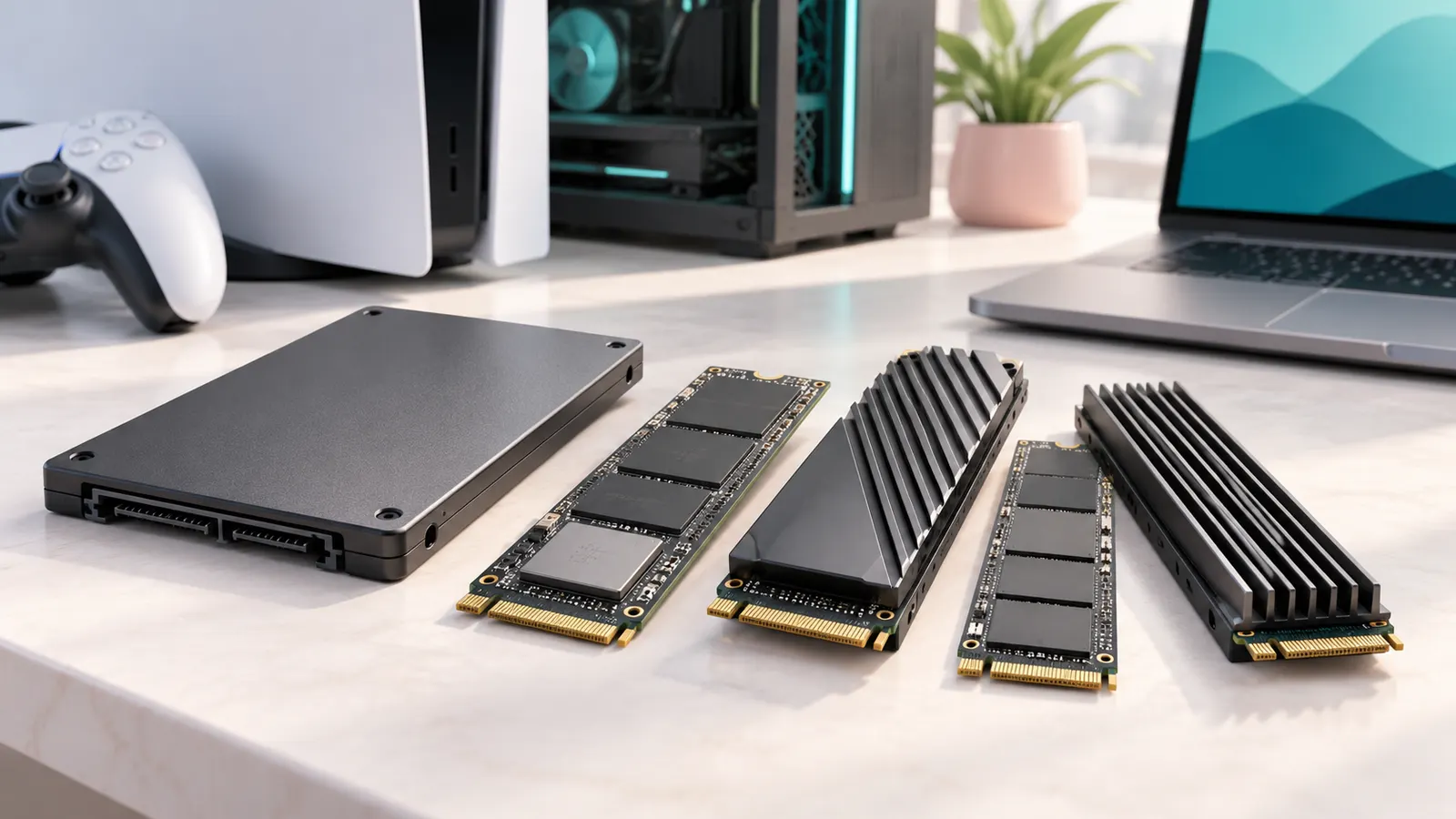
| Type | Shape | Connection | Typical sequential speed | Used in |
|---|---|---|---|---|
| SATA SSD (2.5 inch) | Slab, like a thin hard drive | SATA data and power | About 500 to 550 MB/s | Older desktops and laptops, upgrade bays |
| M.2 SATA | Small stick | M.2 slot using SATA | About 500 to 550 MB/s | Some laptops and small PCs |
| M.2 NVMe, PCIe Gen 3 | Small stick | M.2 slot using PCIe | Up to about 3,500 MB/s | Older and budget systems |
| M.2 NVMe, PCIe Gen 4 | Small stick | M.2 slot using PCIe 4.0 | Up to about 7,000 MB/s and beyond | Current gaming PCs, PS5 |
| M.2 NVMe, PCIe Gen 5 | Small stick | M.2 slot using PCIe 5.0 | Over 10,000 MB/s on top models | Newest high-end platforms |
Speeds are rough ranges, not guarantees. Check four things:
- Does the device have an M.2 slot, and does it support NVMe? Some M.2 slots support SATA only. Your motherboard or laptop manual will say.
- What length does it take? The common sizes are 2280 (80 mm), 2242 and 2230. Handheld PCs usually need the short 2230 size. Desktop motherboards usually take 2280.
- What PCIe generation does the slot offer? A Gen 4 drive works in a Gen 3 slot at the lower speed.
- Is there a heatsink or space for one? Fast drives run hot.
Our motherboard buying guide explains slot counts and chipsets.
How Fast Do You Really Need?
Headline speeds are sequential read numbers, the speed when reading one large file. Real use is different.
- Everyday use and gaming. The jump from a hard drive to any SSD is huge. The jump from SATA to a fast NVMe drive is much smaller in loading times for most games.
- Large file copies and video editing. Here, fast NVMe drives show their advantage, especially with sustained writes.
- Newer game technologies. Some games stream data directly from storage and benefit from fast drives, but a good Gen 4 drive covers current needs.
For most gamers, a solid Gen 4 NVMe drive is the sweet spot. A Gen 5 drive costs more and runs hotter for gains that most users will not notice. A SATA SSD is perfectly fine for an older system or a secondary drive.
Flash Memory Type: SLC, TLC and QLC
SSDs store bits in cells, and the number of bits per cell affects cost, speed and endurance.
| Type | Bits per cell | Cost | Speed and endurance |
|---|---|---|---|
| SLC | 1 | Highest | Fastest and most durable; mainly used as cache |
| MLC | 2 | High | Good; now uncommon in consumer drives |
| TLC | 3 | Moderate | Good balance; the common choice |
| QLC | 4 | Lowest | Cheaper and denser; slower sustained writes and lower endurance |
TLC drives are a safe default for a main drive. QLC drives can be fine for game libraries and mostly-read storage, but they may slow considerably when writing a lot of data, especially when nearly full. If you write large files often, prefer TLC.
Cache: DRAM, HMB and the SLC Cache
Caches let drives respond quickly. There are two types you will see mentioned.
DRAM cache
Some drives include a small memory chip that stores the table mapping where data lives. Drives with DRAM tend to deliver more consistent performance under heavy workloads. DRAM-less drives are cheaper and many use a feature that borrows a small amount of system memory (Host Memory Buffer). They are fine for ordinary use and are common in budget drives, but may be slower in heavy, sustained work.
SLC cache
Most consumer drives use part of their flash as a fast write buffer. Short writes are fast. When you copy a very large file, the cache can fill, and speeds drop to the drive’s native speed. This is why a drive can advertise high write speed but slow down during a long copy. Drives with larger caches or faster native speeds hold up better. Reviews that test sustained writes show this behavior.
Capacity and Free Space
| Capacity | Suits | Notes |
|---|---|---|
| 250 to 500 GB | Operating system and a few programs | Fills up quickly with modern games |
| 1 TB | A practical minimum for gaming | Good balance of price and space |
| 2 TB | Large game libraries and creative work | Often the best value per terabyte |
| 4 TB or more | Very large libraries, video work | Higher cost, check availability in your slot size |
Leave free space. SSDs perform better and wear more evenly when they are not packed full. Many people aim to keep roughly a fifth of the drive free. Bigger drives also tend to be faster than smaller ones of the same model because they use more chips in parallel, so the larger capacity can be worth the extra cost.
Endurance and Warranty
Flash cells wear out after many writes. Makers rate endurance in TBW (terabytes written), the amount of data the drive is rated to handle during its warranty. For typical home use, even modest ratings are far beyond what most people write. The practical use of the number is as a quality signal and a comparison tool.
- Check the warranty length. Three to five years is common for reputable drives.
- Check the TBW rating if you write a lot of data, such as video editing or recording.
- Prefer known brands that publish full specifications.
- Beware of unknown brands with high claims and unclear specifications, and of counterfeit drives from untrustworthy sellers.
Cooling and Heatsinks
Fast NVMe drives generate heat under load. When they get too hot, they slow down to protect themselves (thermal throttling). This mainly shows up during long writes, not everyday use.
- Many motherboards include M.2 heatsinks. Use them.
- If your drive sits under a hot graphics card, consider a heatsink or a position with airflow.
- A PS5 requires a heatsink on the drive. Our PS5 SSD list covers suitable models.
- Laptops and handheld PCs have little room. Choose drives designed for them, often with lower power and temperature.
- Check the height. A heatsink that is too tall will not fit in a laptop or console slot.
Special Cases
PlayStation 5
The PS5 accepts compatible NVMe drives with a fast PCIe Gen 4 interface and a heatsink, within the size limits set by the console. Check Sony’s requirements and the drive’s compatibility notes before buying.
Handheld gaming PCs
Handhelds typically use short 2230 drives. Not every capacity or model is available in that size. Check what your device supports.
Laptops
Many laptops have one or two M.2 slots. Some use soldered storage that cannot be upgraded. Look up the exact laptop model to see what it supports.
External drives
An internal drive in an enclosure becomes a portable SSD. For simpler use, a ready-made portable SSD is easier. Speed depends on the USB version and the cable.
Older PCs with only SATA
Even a basic SATA SSD transforms an old computer that boots from a hard drive. It is the cheapest big upgrade.
How to Install and Set Up an SSD
Installing an M.2 NVMe drive
- Power off, unplug and open the case.
- Find the M.2 slot, remove the heatsink and the small screw.
- Insert the drive into the slot at an angle, then press it down and secure it with the screw.
- Reattach the heatsink with its thermal pad.
- Close the case and boot.
Installing a 2.5-inch SATA drive
- Mount the drive in a bay or bracket.
- Connect a SATA data cable to the motherboard.
- Connect a SATA power cable from the power supply.
Setting up the drive
- Check the drive appears in the BIOS.
- For a new second drive, open Disk Management in Windows, initialize the disk and create a volume.
- For a new boot drive, either clone your old drive with the maker’s tool or install Windows fresh.
- Update the drive’s firmware if the maker provides updates.
- Move your games to the new drive using the launcher’s library tools.
Our guide to building a gaming PC includes M.2 installation as part of a build.
Checking Drive Health and Speed
- Use the maker’s utility or a reputable tool to check health, temperature and firmware.
- Run a benchmark once to confirm the drive reaches roughly its rated speed. If it is far lower, check the slot, the cable or the interface.
- Keep an eye on temperature during long writes.
- Back up important data. No drive is immune to failure.
Common Mistakes
- Buying an NVMe drive for a slot that supports only SATA.
- Getting the wrong length for a laptop or handheld.
- Paying extra for Gen 5 speeds that your system or tasks cannot use.
- Choosing a QLC drive for heavy, sustained writing.
- Filling the drive to the last gigabyte.
- Ignoring heatsink clearance.
- Buying from unknown sellers and receiving fake capacity.
- Relying on a single drive for important data.
- Forgetting to enable the right SATA or NVMe mode in the BIOS.
- Using an old USB cable and blaming the portable SSD.
Ready to Buy? Start Here
If this guide helped you decide what to look for, these links take you to the next step.
Compare specific products
- 7 Best Internal SSDs (November 2026)
- 6 Best NVMe SSDs (November 2026)
- 6 Best M.2 NVMe SSD Enclosures (October 2026)
Gear for this guide
- M.2 SSD heatsinks on Amazon
- External SSD enclosures on Amazon
- SATA to USB adapters on Amazon
- Laptop 2.5 inch drive mounting brackets on Amazon
As an Amazon Associate we earn from qualifying purchases. Prices and availability are shown on Amazon.
A Plain-English Glossary of SSD Terms
Drive listings are full of abbreviations that sound intimidating. Here is a short glossary to decode the most common ones.
- NVMe: A protocol designed for fast drives that connect directly to the computer’s expansion lanes, usually as a small stick-shaped module.
- SATA: An older connection type used by many 2.5 inch drives and some small modules, with a lower speed ceiling than NVMe.
- M.2: A physical shape and connector. An M.2 slot may support SATA, NVMe or both, so check your motherboard or laptop manual.
- TBW: Terabytes written, a figure makers use to describe endurance.
- DRAM cache: A small memory chip some drives use to keep mapping tables handy for steadier performance.
- TLC and QLC: Types of flash memory that store three or four bits per cell, affecting speed and endurance.
- Controller: The chip that manages data movement within the drive.
With this vocabulary, spec sheets become far less confusing. The key idea is that the connection type and the flash design both influence the experience you get.
Internal Drive, External Drive or Portable SSD
| Format | Where it lives | Best for |
|---|---|---|
| Internal M.2 module | Inside a laptop or desktop slot | Boot drive and main storage |
| Internal 2.5 inch | Drive bay with a data cable | Upgrading an older machine |
| Portable external | Connects through a cable | Backups, travel and moving files |
| Enclosure with a bare module | Self-assembled external drive | Reusing a spare drive |
If you plan to use the drive in a games console or a camera, check the maker’s compatibility notes first, since some devices accept only certain types or sizes.
Capacity Planning Without Overspending
Capacity is where many buyers either overbuy or run out of room fast. Add up your system files, programs, games and a working buffer for files. Free space matters because drives tend to perform more consistently when they are not packed to the brim.
Photos, video and games grow quickly, so it can be sensible to leave room for growth. If you work with large video files, consider keeping a second drive for archive material. Cloud storage and a regular backup routine are not replacements for each other, so think about a plan that keeps copies in more than one place.
Installation and Migration Tips
Before installing, back up your files and check which slot the drive fits. Open the case or laptop only if you are comfortable doing so and follow the device maker’s guidance, as some laptops have warranty conditions. Touch a grounded metal surface before handling parts. After installing, use the maker’s cloning or migration utility if you want to keep your current setup.
Reading Speed Claims Realistically
Speed numbers on boxes describe best-case sequential transfers. Everyday tasks such as opening apps rely on small random operations, so a fast headline figure does not always translate into a snappier machine. Check that your computer’s slot and cable can actually reach the speeds the drive offers, since the slowest link sets the pace.
Mistakes to Avoid When Shopping for a Drive
Storage shopping is full of small traps, and a few careful checks help you avoid them.
- Buying the wrong form factor. A drive that does not match your slot is a wasted purchase. Confirm the length of M.2 modules and the number of slots your device offers.
- Ignoring heat. Fast modules can run warm, and some devices need a heatsink or airflow. Check the maker’s notes on cooling before installing in a tight space.
- Forgetting about the cable or port. A portable drive can only reach its advertised speed if the cable and port support it. A slow cable becomes a bottleneck.
- Judging by capacity alone. Two drives with the same size may differ in endurance, cache design and performance consistency.
- Skipping backups. Any drive can fail, so keep important files in more than one location.
- Trusting unclear listings. If a page does not state the interface, flash type and capacity clearly, be careful about what you are really getting.
When you receive a new drive, check its health information using the maker’s own utility if one is offered, and apply firmware updates only as the maker instructs. A little caution at the outset makes the drive far more satisfying over the years.
Keep the receipt and the product box until you have confirmed the drive works with your device, because returns are usually simpler while everything is still in its original state.
Going Deeper: What the Numbers on an SSD Listing Really Mean
Sequential speed figures dominate SSD marketing because they are big and easy to print, yet they describe long, straight-line transfers such as copying a huge video file. Everyday responsiveness, game loading and operating system behavior depend much more on small, random reads and writes, on how the drive behaves when it is nearly full, and on how it sustains writes once any fast cache area is exhausted. Two drives with similar headline speeds can therefore feel different in a real system, and a modest drive from a reputable maker often behaves more predictably than a bargain drive with an eye-catching peak number.
Write endurance deserves a plain explanation. Every drive can write a finite amount of data before its memory cells wear out, and makers express this as a warranty limit based on total writes. Normal gaming and office use writes far less than most people fear, so endurance is rarely the deciding factor for a typical home PC, but it matters for anyone recording lots of video, running heavy downloads constantly, or buying a very small drive that will be filled and rewritten often. Buying a little more capacity than you need helps twice: it leaves room for growth and it spreads writes across more cells.
Cache Behavior and the Nearly-Full Drive
Many modern drives use a portion of their storage as a fast write cache. While the cache lasts, large copies look spectacular; once it fills, speed settles to the underlying memory rate, which can be much lower. This is not cheating, it is a design trade-off, but it explains why a drive that benchmarked brilliantly can slow during a huge game installation. Leaving a sensible amount of free space helps the drive manage itself, because the controller needs room to shuffle data, collect garbage and keep performance steady. As a habit, treat a drive that is completely full as a drive asking for trouble, and move finished projects or rarely played games to cheaper storage instead.
Choosing Capacity by How You Actually Use a PC
Operating systems, launchers and modern games all grow over time, and the most common SSD regret is buying too small rather than too slow. List what must live on the fast drive: the system itself, your everyday programs, and the games you are actively playing. Everything else, such as photo archives, old projects and a backlog of unplayed titles, can live on a second, cheaper drive or be re-downloaded. That split lets you spend on quality and reliability for the drive that matters while keeping total cost sensible.
Think in terms of headroom over the next few years, not this month. A drive that is comfortable today but nearly full by next year forces awkward choices and constant shuffling, while one size up usually removes storage management from your life entirely. Laptops with a single slot make this decision sharper, because upgrading later means cloning or reinstalling everything, so laptop buyers should be a little more generous with capacity than desktop builders who can simply add a second drive when needed.
SATA or NVMe in an Older System
Owners of older machines often ask whether a modern fast drive is wasted on them. The honest answer is that any solid-state drive transforms an old hard-disk system, and the difference between interface generations is smaller in everyday feel than the difference between spinning rust and solid state. Check what your motherboard supports before ordering, including whether an add-in slot shares bandwidth with other ports, and confirm the physical size fits. If a full platform upgrade is coming within a year or two, buying a drive that can move into the new build is smart; if the old machine will serve for years as a media or family PC, a dependable drive matched to its interface is money well spent.
Installing, Cloning and Setting Up
Installation is mostly about care. Power the system fully off, handle the drive by its edges, seat it firmly without forcing connectors, and secure any small mounting screw without overtightening. For a fresh installation, let the operating system installer create its partitions and format the drive, then install motherboard and storage drivers from the maker support page if the system needs them. For a move from an old drive, cloning software from the drive manufacturer usually handles the transfer; keep the old drive untouched until the new one has booted cleanly several times, so you always have a way back.
Health Checks and Troubleshooting
If a system feels slow despite an SSD, work through the simple causes first. Check how full the drive is, look for a runaway program writing constantly, confirm the drive is connected at its proper link speed, and review temperatures, because a hot drive tucked under a graphics card can throttle under sustained writes. Drive makers offer toolbox software that reports health and firmware status; an occasional look is enough for most users. Backups remain non-negotiable regardless of drive quality: any drive can fail, be stolen or be encrypted by malware, so keep copies of irreplaceable files on a separate device or service, and test that you can actually open those copies.
Finally, secure-erase or factory-reset a drive before selling or giving away a PC, using the maker tool rather than a quick format, so your data does not travel with the hardware. Keep purchase records for warranty purposes, and note that a drive replaced under warranty will be empty, which is one more reason the backup habit matters more than any single specification in this guide.
Decision Workshop: Three Storage Problems, Three Different Drives
Consider a gamer whose PC still boots from a hard drive. Their problem is not peak speed, it is that everything, starting the system, loading a game, opening a launcher, happens through the slowest possible bottleneck. Almost any reputable solid-state drive transforms this machine, and the buying priority should be capacity and reliability at a fair price rather than the fastest interface their board may not even support well. They should clone or reinstall carefully, keep the old drive as a backup of the original system until the new setup has proven itself for a few weeks, and enjoy the single largest quality-of-life upgrade an older PC can receive.
Consider instead a creator who records and edits video weekly. Their problem is sustained writing: long captures and exports that punish drives whose fast cache runs out, plus a genuine need for capacity that grows every month. This buyer should weight sustained-write behavior, endurance ratings and a larger capacity tier more heavily than a gamer would, and should think of storage as a pipeline, fast space for current projects, cheaper space for finished work, and a separate backup that is not the same device as either. For them the cheapest drive per unit of storage can become the most expensive once a failed deadline is priced in.
Finally consider a laptop owner with one slot and a drive that is nearly full. Their problem is headroom, and their purchase should be the largest sensible capacity they can justify, because the cost and disruption of upgrading twice dwarfs the saving from buying small today. They should plan the migration in advance, back everything up first, confirm the physical size and interface their exact laptop model accepts, and keep the old drive in an inexpensive enclosure afterward as portable storage or a backup, turning a replaced part into a useful one.
More Questions Buyers Ask
Do I need a heatsink on my drive? It depends on the drive speed class, your case airflow and where the slot sits. Many motherboards include a heatsink plate for the main slot, and using it is sensible for fast drives under sustained loads, especially in compact cases or slots tucked beneath a hot graphics card. A drive that only ever handles bursty game loading rarely gets hot enough to matter. If you add an aftermarket heatsink, confirm the total height still fits under your graphics card before closing the case and calling the job done.
Why does my new drive show less capacity than the box says? Two honest reasons explain nearly every case. Makers measure capacity in decimal units while operating systems report in binary units, so the same drive shows a smaller number on screen, and a portion of space is reserved by formatting and system partitions. Nothing has been stolen and the drive is not faulty. Judge a drive by its usable space in the system, compare like with like when shopping, and leave the free-space headroom this guide recommends rather than filling any drive to its reported limit.
Can I mix an old and a new drive in one system? Yes, and it is one of the smartest layouts available. Put the operating system and the games you are actively playing on the fastest drive, keep a media library, downloads and older titles on the slower one, and use the arrangement to keep the fast drive comfortably below full. Just be deliberate about install locations in each launcher, because programs default to the system drive and will quietly refill it if you let them. A five-minute settings change in each launcher keeps the layout working as intended.
What should I do before disposing of or selling an old drive? Back up anything you might want, because this decision is final, then use the manufacturer secure-erase tool or a full overwrite method appropriate to solid-state drives rather than relying on a quick format, which leaves data recoverable. If the drive held sensitive information and cannot be erased because it has failed, physical destruction or a reputable recycling service that certifies destruction is the responsible route. Drives remember everything; treat their retirement with the same care as their purchase.
Is it worth paying more for a longer warranty? A long warranty signals the maker confidence and gives you a replacement path if the drive dies, but it never replaces a backup, because a warranty returns hardware, not data. Weight warranty length as a tiebreaker between otherwise similar drives, keep your proof of purchase somewhere findable, and remember that the cheapest protection for your files is a second copy on a different device, which costs less than most warranty upgrades and works even when the failure is theft, fire or your own mistake.
Ownership Notes: A Storage Routine That Prevents Emergencies
Give your drives a light quarterly routine. Glance at free space on each drive and move or remove what has quietly accumulated, because drives that creep to completely full degrade in both speed and behavior. Check the drive health report in the manufacturer toolbox or the operating system tools, not because you expect trouble, but because a drive that is beginning to fail often whispers before it shouts, and a whisper caught early is a calm replacement instead of a data emergency. Confirm your backups ran, and open one backed-up file at random to prove the copy is real; a backup you have never tested is a hope, not a backup.
Keep a simple inventory somewhere you can find it: which drives are installed, their capacities, roughly what lives on each, and their purchase dates for warranty purposes. When a system has several drives, that one small document prevents the classic confusion of formatting the wrong device during a reinstall or assuming a file was backed up when it lived on the one drive that was not. Storage is invisible when it works, which is exactly why a written map matters: the day something fails is the worst day to reconstruct your layout from memory.
Planning the Next Drive Before You Need It
The best time to plan a storage upgrade is when a drive passes comfortably full rather than when an installation fails for lack of space. Watch the trend of your game library and project folders, and when the next size up becomes a matter of when rather than if, buy on value and timing instead of urgency. Planned storage is cheaper, calmer and better chosen than emergency storage, and moving data to a new drive as a deliberate weekend project, with backups verified first, is a completely different experience from migrating under pressure with a dying drive ticking in the background.
A Practical Migration Day, From Old Drive to New
Plan the migration like a small project with a beginning, a middle and a verification, not like a chore squeezed between other things. The day before, back up everything that matters and confirm the backup opens. Gather what the job needs: the new drive, any mounting screws or heatsink parts, the cloning or installation software ready, and enough uninterrupted time that a slow step never tempts you to skip a safety step. A migration done calmly in one sitting succeeds; a migration done in fragments across a week, with a half-cloned drive and a memory of where things stood, is how data gets lost by careful people.
During the job, change one thing at a time and keep the old drive completely untouched, because it is your undo button. If you are cloning, let the process finish and verify sizes before booting from the new drive. If you are installing fresh, keep the old drive disconnected until the new system boots on its own, so there is never a question about which drive the machine is actually using. Once the new system runs, live in it for several days, opening your important files and running your usual programs, before you repurpose, erase or sell the old drive. That probation period costs nothing and is the entire difference between a migration story and a migration anecdote.
Finish with the housekeeping that future you will thank present you for. Label the drives in your inventory note, set your launchers and programs to install to the intended locations, confirm your backup routine now covers the new layout, and store the old drive, if you keep it as a spare, in a labeled enclosure rather than a drawer of mysteries. Storage upgrades feel like pure hardware on the day and reveal themselves as data management over the following month; the owners who do this final ten minutes are the ones whose new drive simply becomes the way things are, with no lingering uncertainty about where anything lives.
What Fast Storage Changes Beyond Loading Screens
New owners are often surprised by where the upgrade shows up after the first week. It is not the loading bar, which they expected, but the thousand small waits that vanish: the launcher that opens instantly, the photo library that scrolls without stutter, the update that finishes while the kettle boils, the game that streams its world without a hitch as you cross it at speed. Judge the purchase by those moments after a month, not by a benchmark on day one, because responsiveness is a texture that spreads across the whole machine, and it is the real product you bought.
Choosing Your Second Drive: The Layout Grows Up
Sooner or later almost every owner adds a second drive, and the layout decision deserves the same care as the first purchase. The fastest drive keeps the system and the current games, because that is where speed is felt; the second drive takes the library, the media and the projects, where capacity per cost matters more than peak figures. Decide the split before installing, set every launcher and program to respect it, and resist the slow drift that refills the system drive with downloads and forgotten installations. A two-drive layout maintained deliberately is the closest thing storage has to a permanent solution, because each drive is doing the job it was bought for.
Backups belong in this conversation at layout time, not after a scare. One of your storage locations, an external drive, a network location, a cloud service, must hold copies that do not share a fate with the PC itself, and the second-drive moment is when that architecture is easiest to build, because you are already thinking in terms of what lives where. Draw the little map: system here, library there, copies elsewhere. Owners who can draw that map from memory own their data; owners who cannot are renting it from luck, and luck charges its rent at the worst possible moment.
A Note on Handing a Drive Down
When a faster or larger drive arrives, the old one usually cascades: into a family PC, a laptop, an enclosure on the desk. Prepare it properly for its second life, back up and erase it with the tools this guide describes, check its health report so its new owner inherits facts rather than surprises, and include its story, age, capacity, health, when you pass it on. A drive with a known history is a useful gift; a mystery drive is a problem wearing a ribbon. The cascade is one of the quiet economies of PC ownership, and it works only when each handover is honest.
Energy, Heat and the Desktop Environment
A fast drive also changes the room it lives in, in small ways worth knowing. Solid-state storage draws little power and produces little heat compared with the spinning drives it replaces, which is part of why laptops gained battery life and quiet when the technology arrived, and why a desktop with its system on solid state feels calmer under the desk. None of that should drive a purchase by itself, but it completes the picture of why the transition happened everywhere at once: the drives were not merely faster, they were simpler citizens of the machine, silent, shock-tolerant and indifferent to orientation. When you choose capacity and quality with the method in this guide, you are buying into that whole package, and the loading screens are only the most visible part of it.
One last habit completes the ownership picture: firmware. Drive makers occasionally release firmware that fixes real bugs or improves compatibility, and the maker toolbox is where it will appear. Check it during your quarterly routine, read what an update actually changes, and apply it with your backups current and the machine on reliable power, because interrupting a firmware update is one of the few ways to turn a healthy drive into a paperweight. Most owners will apply few updates in a drive life, and that is fine; the point is that the channel exists, you know where it is, and a problem that turns out to be a known, fixed bug never gets misdiagnosed as failing hardware.
Frequently Asked Questions
Is NVMe worth it over SATA?
For a modern PC with an M.2 slot, yes for large transfers and heavy workloads. In everyday use and many games the difference is small, and a SATA SSD is still a big upgrade over a hard drive.
How much SSD storage do I need for gaming?
1 TB is a practical minimum and 2 TB gives more room, since modern games are large.
Do I need a DRAM cache?
Not for everyday use, but DRAM drives tend to be more consistent under heavy workloads. DRAM-less drives suit budget builds.
What is the difference between TLC and QLC?
TLC stores three bits per cell and QLC stores four. QLC is cheaper but has slower sustained writes and lower endurance.
Do SSDs wear out?
Flash cells have limited writes, but typical use rarely reaches the limit before you replace the drive for other reasons.
Do I need a heatsink for my NVMe drive?
It helps under heavy use, and a PS5 requires one. Many motherboards include one.
Can I use a PCIe Gen 4 drive in a Gen 3 slot?
Yes, but it runs at the slower Gen 3 speed.
Will an SSD fix stutter in games?
It helps if the game streams data from a slow hard drive. It will not fix stutter from shader compilation, overheating or a CPU limit.
Bottom Line
Check what your device supports first: interface, slot, length and clearance. Then choose a drive by what you need, not by headline speed. For most gamers, a TLC PCIe Gen 4 NVMe drive of 1 to 2 TB from a reputable brand is the sweet spot, and a SATA SSD is a great upgrade for older systems. Leave free space, add a heatsink where needed, check warranty and endurance, and keep backups of anything important.
Related Reading
- Best Internal SSDs
- Best NVMe SSDs
- Best PS5 SSDs
- Motherboard Buying Guide
- How to Build a Gaming PC
- Fix Stuttering in PC Games
- All Storage guides


