Disclosure: As an Amazon Associate, reviewstook.com earns from qualifying purchases. Links to Amazon on this page are affiliate links; they cost you nothing extra.
The motherboard is the circuit board that every other part plugs into. It does not draw frames or run games, so it rarely gets the attention that graphics cards and processors do. Yet it decides which processor you can use, what memory you can install, how many drives you can fit, which ports you get and how easy the PC will be to upgrade. A wrong choice can force you to rebuild the machine to add a feature that a better board would have included.
This guide explains what a motherboard does, how to read the key specifications, how form factor, socket, chipset, memory support, expansion slots, storage, networking and power delivery fit together, what you need for gaming, and which features are a waste of money. It is based on general motherboard knowledge rather than testing of specific boards, so always check the maker’s specifications and the processor compatibility list before buying.
By the Reviewstook Editorial Team. Last updated: November 1, 2026.
What a Motherboard Does
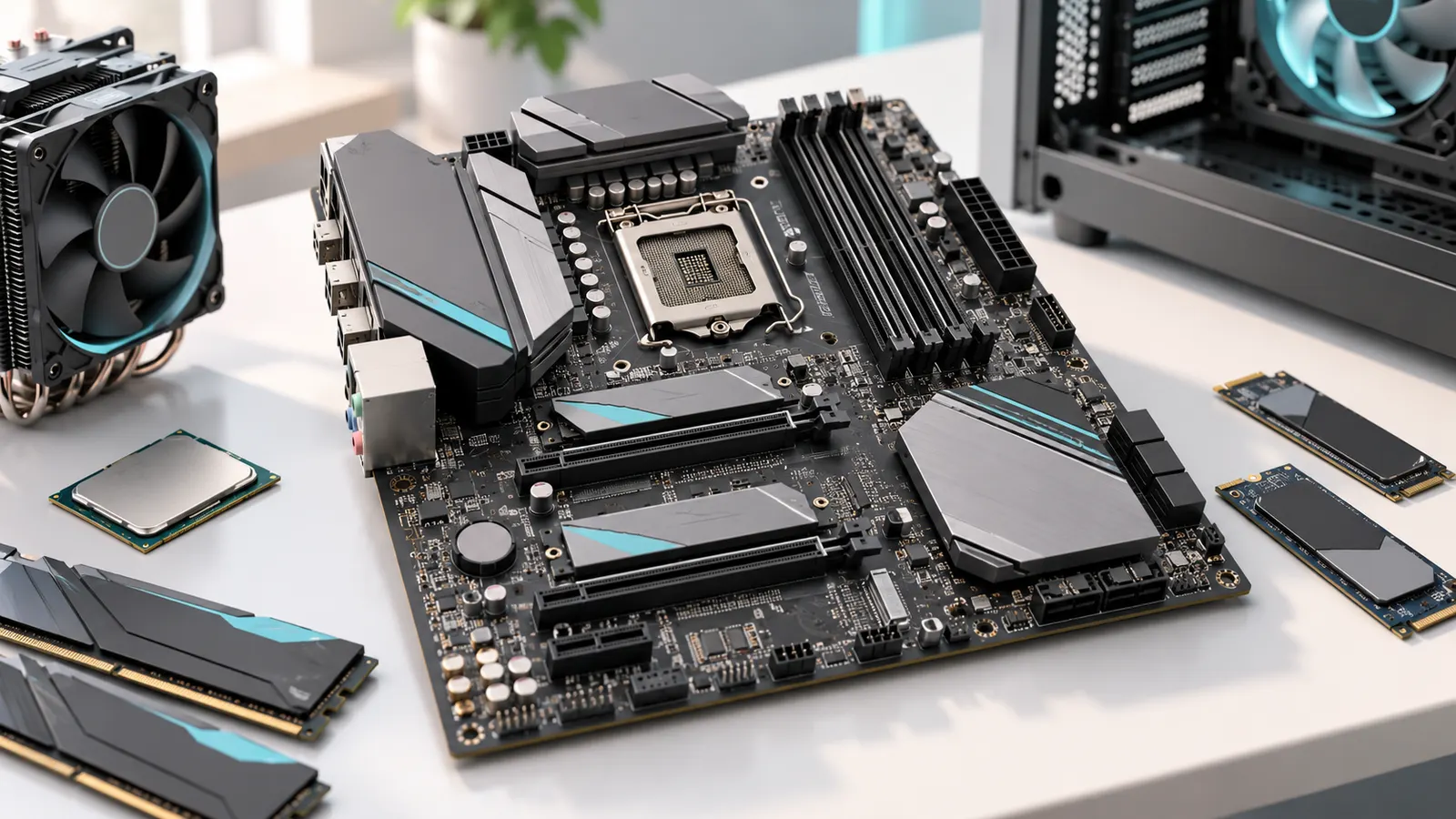
The motherboard connects, powers and coordinates all the parts of the PC. It holds the processor socket and memory slots, provides slots for the graphics card and drives, and carries the ports on the back and the connectors for the front panel, fans and lighting. It also contains the BIOS or firmware, which starts the computer and lets you change hardware settings.
The board sets limits. A board with two memory slots cannot hold four sticks. A board with one M.2 slot limits fast drives. A board with a weak power delivery system may not support the fastest processors well. That is why choosing a board is about fit and features, not just price.
In this guide
Form Factor: Size Comes First
The form factor is the board’s physical size. It must match your case.
| Form factor | Size | Typical features | Best for |
|---|---|---|---|
| E-ATX | Larger than ATX | Most slots and features | Enthusiast builds in big cases |
| ATX | Standard full size | Many slots, ports and M.2 slots | Most gaming PCs |
| Micro-ATX | Smaller than ATX | Fewer slots, still capable | Compact builds and budgets |
| Mini-ITX | Very small | One expansion slot, two memory slots | Small form factor PCs |
A case supports specific sizes, usually its own size and anything smaller. An ATX board will not fit in a micro-ATX case. Smaller boards cost the same or more for fewer features, so use them when size matters. Our PC case list includes cases for each size.
Socket and Chipset: The Compatibility Core
Socket
The socket is the physical connector for the processor. A processor fits only a board with the matching socket. Examples include AM4 and AM5 for AMD, and LGA1200 and LGA1700 for Intel. A board’s page lists the supported processors. Some processors need a BIOS update to run on an older board, so check the compatibility list for the exact processor and BIOS version.
Chipset
The chipset is a set of controllers that provides features: the number of USB ports, PCIe lanes, SATA ports and whether overclocking is supported. Makers sell several chipsets for each socket, from entry-level to high-end. Higher chipsets generally offer more connectivity and enthusiast features, not necessarily better gaming performance.
| Chipset tier | Typical features | Who it suits |
|---|---|---|
| Entry | Basic features, fewer ports, limited tuning | Office and budget builds |
| Mainstream | Good balance of ports, M.2 slots and PCIe support | Most gaming PCs |
| High-end | Most connectivity, more PCIe lanes, overclocking | Enthusiasts and heavy multitaskers |
For most gamers, a mainstream chipset is the sweet spot. The names differ by brand and generation, so check the maker’s chart to see what each chipset offers. Our gaming CPU buying guide explains how the processor choice drives the platform.
Memory Support
- Type. A board supports DDR4 or DDR5, not both. This follows the platform.
- Slots. Most ATX and micro-ATX boards have four slots. Mini-ITX has two. Two sticks in a dual-channel pair is the simplest, most stable choice.
- Maximum speed. Boards list supported speeds, often higher with overclocking profiles. Four sticks can limit speed.
- Maximum capacity. Check the board’s limit.
- Profiles. XMP and EXPO let memory run at rated speeds.
Our guide to RAM speed, latency and dual channel explains configuration, and our DDR5 RAM list compares kits.
Expansion Slots and PCIe
PCIe slots hold the graphics card and other add-in cards, such as capture cards, network cards and sound cards.
- The main x16 slot. Holds the graphics card. Check its PCIe generation. A newer generation gives more bandwidth, though many cards do not need it.
- Other slots. Smaller x1 and x4 slots serve extra cards. Large graphics cards can cover neighboring slots.
- Slot reinforcement. Some boards have metal-reinforced slots to support heavy cards.
- Lane sharing. On some boards, using certain M.2 slots disables PCIe or SATA ports. The manual explains.
If you plan a capture card, a sound card or extra network cards, count the slots you will use and ensure that the layout leaves room for your graphics card’s thickness.
Storage: M.2 Slots and SATA Ports
Modern boards have one or more M.2 slots for fast NVMe drives.
- Number of M.2 slots. Two or three is comfortable for gaming PCs, with room to add drives later.
- PCIe generation of the slots. Check which slots are the fastest. Often only one or two support the newest speeds.
- Heatsinks. Many boards include M.2 heatsinks, which help fast drives avoid throttling.
- SATA ports. Four to six is typical, for older drives and optical drives.
- Tool-free designs. Some boards offer easy latches for M.2 drives.
Our SSD buying guide and NVMe SSD list help you choose drives to match.
Rear and Front Connectivity
| Feature | What to look for |
|---|---|
| USB ports | Enough for your devices; some fast USB-C ports for drives and docks |
| Front USB-C header | Needed if your case has a front USB-C port |
| Display outputs | Needed only if you use the processor’s integrated graphics |
| Ethernet | 2.5 gigabit is common; faster on high-end boards |
| WiFi and Bluetooth | Built in on many boards; saves buying a card |
| Audio | Fine for most; use headsets or a DAC for better quality |
| BIOS update button | Lets you update the BIOS without a processor installed |
Count the ports you need. A board with too few USB ports leads to hubs. If your case has front USB-C, make sure the board has a matching header. If you want built-in WiFi, check the generation and whether the board has antennas included.
Power Delivery (VRM) and Cooling
The voltage regulator module (VRM) supplies clean power to the processor. A strong VRM helps high-power processors run at full speed and last long. Heat sinks on the VRM help with cooling.
- Entry-level boards have lighter VRMs, suited to low and mid-power processors.
- Mid-range boards handle most gaming processors.
- High-end boards support the most demanding processors and overclocking.
Match the board to the processor. A flagship processor on a very basic board may throttle. Reviews that test VRM temperatures under load are useful for high-power combinations. Fan headers matter too: look for enough headers for your CPU cooler, pump and case fans.
BIOS and Software
The BIOS is where you set memory profiles, fan curves and boot order. A good BIOS is clear and stable.
- Check that the board can update the BIOS easily.
- Some boards have a BIOS flashback feature, which is valuable if you pair a new processor with an older board.
- Companion software for lighting and fans varies in quality. You can usually ignore it.
- Updates improve compatibility, especially with new memory and processors.
Extras That Rarely Matter
- RGB lighting and decorative covers. Cosmetic and add cost.
- Extreme overclocking features. Useful only to enthusiasts.
- Premium audio. A separate headset or DAC often does more.
- Too many ports. Pay for the ports you will use.
- Brand names on chipsets. Choose by features, not logo.
Matching the Board to Your Build
| Build | Board focus |
|---|---|
| Budget gaming PC | Mainstream or entry chipset, micro-ATX, enough ports |
| Mid-range gaming PC | Mainstream ATX or micro-ATX, two or more M.2 slots, WiFi |
| High-end gaming PC | Strong VRM, high-end chipset, fast M.2 slots, 2.5 gigabit network |
| Streaming and creator PC | More USB ports, PCIe slots for capture cards, extra M.2 slots |
| Small form factor PC | Mini-ITX with the features you need, check cooler and case fit |
If you are buying a graphics card and power supply too, see our power supply guide. If you are building, follow our gaming PC build guide.
Compatibility Checklist Before You Buy
- Confirm the socket matches your processor.
- Check the processor support list and the BIOS version required.
- Confirm the memory type, speed and capacity.
- Check the form factor against your case.
- Count M.2 slots and SATA ports.
- Check PCIe slots and layout around the graphics card.
- Check USB ports, front-panel headers and networking.
- Check fan headers for your cooling.
- Check the warranty and the quality of the BIOS support.
Common Mistakes
- Buying a board that does not support the processor generation without a BIOS update.
- Choosing the wrong memory type.
- Ignoring the case form factor.
- Not counting M.2 slots and fast storage needs.
- Paying for features such as extreme overclocking that you will not use.
- Expecting a motherboard to boost gaming performance by itself.
- Choosing a basic VRM for a hot, high-power processor.
- Forgetting a front USB-C header for a case that has the port.
- Skipping BIOS updates when stability issues appear.
Working Out the Right Board for a Specific Processor
The processor is the anchor decision, and the motherboard follows from it. Start by finding the socket your processor uses, then list the chipsets that support that socket. Within those, narrow by what you need: how many storage drives, which expansion cards, how many USB ports and what kind of memory. The processor maker’s official page lists supported chipsets, and the motherboard maker’s page lists the exact processors each board supports, along with the minimum BIOS version needed. Both pages are more reliable than a retailer’s summary.
Watch for the BIOS note. A board may support a newer processor only after a BIOS update, and if the board shipped with an older version it may not start with the new chip until updated. Some boards offer a flashback feature that lets you update with only a USB drive and no processor installed. If a board lacks this feature, look for a retailer who confirms the BIOS version or offers updating, or borrow an older compatible processor for the update.
Finally, confirm the memory type. Different platform generations use incompatible memory types, and the physical slot is keyed so wrong modules will not fit. Check the supported speeds in the board’s specification and note how many slots exist; four slots allow later expansion, while two keep prices down and often run faster at higher speeds.
Sample Pairings by Build Type
A compact living-room gaming PC suits a small form factor board and a small case, with a processor that runs cool and a graphics card that fits the case. Prioritize the number of M.2 slots and the quality of cooling rather than extra expansion slots you cannot use. A mainstream gaming desktop in a mid-tower case typically pairs well with a mid-range chipset board in ATX or micro-ATX size, offering enough memory slots, a couple of M.2 slots and decent front-panel connections without paying for features you will not use.
A workstation that edits video or runs virtual machines may need more memory capacity, more fast storage slots and more USB or networking options, so a higher-tier chipset with more lanes can be justified. A budget office or media PC may only need an entry-level board with basic connectivity. A builder who plans to overclock should look for a chipset that allows it and a board with strong power delivery and cooling, while someone running processors at stock settings can often save by choosing a simpler board.
Reading the Spec Sheet Without Getting Lost
Spec sheets pack in jargon, so focus on a short list. Look at the socket, chipset, memory type and maximum capacity, the number and type of M.2 slots, the PCIe slot layout, the rear and front USB ports, networking and audio. Note which M.2 slots share bandwidth with SATA ports, since using one can disable another. Check the layout diagram or manual to see whether a long graphics card will block other slots or headers.
Ignore marketing terms until you have checked the basics. Names like gaming, extreme or pro do not guarantee anything specific. Instead, compare concrete features across two or three boards at similar prices. Read reviews for notes on BIOS quality, fan control, stability and layout, since those factors affect your daily experience. Also read the manual online before buying, particularly the connector diagram, to ensure the board has enough fan headers and front-panel connectors for your case.
Installation Tips That Prevent Common Failures
A little care during installation saves troubleshooting. Install the standoffs in the case to match your board’s size, and make sure none are placed where the board has no hole, since a stray standoff can short the circuitry. Fit the rear I/O shield if your board does not have one built in. Seat the processor carefully following the notch alignment, never forcing it, and close the retention mechanism firmly. Apply thermal paste as the cooler’s instructions describe, and fasten the cooler evenly.
Insert memory firmly into the recommended slots, as shown in the manual, until the clips click. Connect the main power cable and the separate processor power cable, which is easy to forget. Plug the front-panel connectors according to the labeled diagram. On first boot, enter the BIOS, confirm all parts are recognized, enable the memory speed profile and set the boot drive. If the board shows diagnostic lights or codes, consult the manual rather than guessing.
Warranty, Support and Longevity
A motherboard is the part everything else connects to, so its reliability and support matter. Look at the warranty length offered by the maker, and note how easy it is to find BIOS updates, drivers and manuals. Brands with consistent firmware updates tend to support new processors and fix bugs, which extends the useful life of the board. Keep the retail box, receipt and serial number in case you need a replacement.
Think about the whole lifespan, not only the purchase price. A board that supports the next generation of processors, offers spare storage slots and has solid connectivity can stay in service through more than one upgrade. A bargain board with minimal features may save money now but force a replacement sooner. Match the board to your realistic plans, rather than to the largest feature list.
Troubleshooting a Board That Will Not Start
A new build that stays dark is rarely a dead board. Work through the likely causes in order. First confirm power: the main 24-pin connector and the separate processor power cable must both be fully seated, and the power supply switch must be on. Next, reseat the memory, trying a single module in the slot recommended in the manual. Check that the graphics card is pushed fully into its slot and that its own power cables are connected, and that the monitor cable goes to the graphics card.
Look at the board’s diagnostic indicators. Many boards have small lights or a code display that signals a problem with the processor, memory, graphics or boot device. The manual explains what each pattern means. If lights point at the processor, verify the BIOS supports it and check that the socket is clean, with no bent pins on socket types that have them. Remove extra devices and try booting with the minimum parts. If nothing helps, contact the maker’s support with the symptoms and what you have tried.
Take your time with this process. Rushing and forcing connectors causes the damage that turns a simple fix into a costly replacement.
Ready to Buy? Start Here
If this guide helped you decide what to look for, these links take you to the next step.
Compare specific products
Gear for this guide
As an Amazon Associate we earn from qualifying purchases. Prices and availability are shown on Amazon.
Going Deeper: Chipsets, Lanes and the Language of Expansion
Under every motherboard sits a budget of high-speed connections, called lanes, shared between the graphics slot, storage slots, chipset and ports. This invisible budget explains many listing mysteries: why fitting a second fast drive can slow another slot, why some ports vanish when a particular slot is populated, and why two boards with the same chipset can offer different storage layouts. You do not need to memorize lane diagrams, but you should read the sharing notes in a board manual before buying if you plan several fast drives, a capture card or other expansion hardware, because those notes, not the box art, decide whether everything can run at full speed at once.
Chipset tiers ration these connections and features. Higher tiers generally allow more fast storage, more high-speed USB and processor overclocking, while lower tiers cover the needs of a typical single-graphics-card gaming build completely. The honest way to choose is to list the devices you will connect over the board whole life, including the drive you will add when the first one fills, and buy the tier that covers that list with a little room to spare.
VRM Quality in Proportion
Power delivery stages convert and clean the power your processor consumes. Their quality matters in direct proportion to the processor appetite and the length of heavy loads. A board that is perfectly stable with a mid-range gaming chip during games may run its power stages hot with a flagship chip rendering video for hours. Heatsink coverage, the maker published support list, and measured reviews are your evidence. If you are buying a board as the foundation for a later processor upgrade, this section of the board is where extra spending is defensible; if the processor is fixed for the board life, match the board to it and save the money.
Storage Planning: M.2 Slots and Beyond
Plan storage as a timeline rather than a single purchase. The first drive holds the system and current games; the second, added later, holds the growing library; and an old SATA drive often ends up as backup or media storage. Check how many M.2 slots a board offers, which speeds each supports, whether heatsinks are included, and whether using a slot disables a SATA port you were counting on. Physical access matters too: a slot that requires removing the graphics card for every drive change is a minor annoyance you will meet repeatedly if you tinker often.
Also consider how you will back the machine up. An external port fast enough for painless backups, or a spare internal bay for a dedicated backup drive, is a feature that protects everything else you bought. Boards are the connectivity center of the PC, so judging them partly as backup infrastructure is more practical than judging them by decorative lighting.
Headers, Fans and the Small Print
Fan and pump headers, temperature sensors and lighting headers sound like trivia until a build is missing exactly one. Count your case fans, note whether your cooler needs a pump header, and check where headers sit on the board relative to your cable runs. Front-panel audio and USB headers differ between cases and boards, and a mismatch on the fast front USB connector is a classic disappointment discovered mid-build. Reading the manual connector diagram for five minutes before ordering is the cheapest compatibility insurance in PC building.
BIOS, Drivers and Living With the Board
A motherboard relationship lasts years, and much of it is software. Before buying, visit the maker support page for the exact model: a clear page with current BIOS versions, drivers and a readable manual is a good omen, while a neglected page warns of future frustration. After building, update the chipset and networking drivers from that page, enable your memory profile, set fan curves, and save a known-good profile before experimenting with any tuning. Keep BIOS updates purposeful: install them for processor support, security fixes or a problem you actually have, follow the instructions exactly, and never let the machine lose power during an update.
Troubleshooting a Build That Will Not Boot
New-build panic usually ends at a simple cause. Work in order: power cables fully seated at both ends, memory pushed home until the latches click and placed in the slots the manual specifies for two sticks, graphics card seated and powered, and the display cable plugged into the graphics card rather than the motherboard on systems without integrated graphics. Use the board debug lights or codes if fitted, try a single memory stick, and clear the firmware settings if a change made things worse. This calm sequence solves the overwhelming majority of first-boot failures and teaches you the machine you will own for years, which is a fair return on an anxious half hour.
Choose the board that passes these practical tests, fits your processor and case, and covers your device list without drama, and it will do its job invisibly. Invisibility, for a motherboard, is the highest compliment there is.
Decision Workshop: Planning a Board Around a Five-Year Life
Imagine the machine at three moments: build day, the upgrade two years from now, and the day it becomes a second PC for the household. A board chosen well serves all three. On build day it needs the right socket, memory standard and enough storage for today library. At the upgrade it needs a spare storage slot, power delivery that welcomes a stronger processor, and ports for the device you have not bought yet but probably will. In its second life it needs to be complete, with its wireless antennas, spare screws and manual still findable, which is an argument for keeping the box in a cupboard from day one. Walking a candidate board through those three scenes takes two minutes and exposes most bad purchases before they happen.
The same exercise exposes false economy. A board that saves a little today but forces its own replacement at the first processor upgrade is the expensive board, while a board with modest headroom that survives two processor generations is the cheap one, whatever their relative prices on build day. This is not an argument for flagships; it is an argument for matching the board horizon to your actual upgrade habits, which you know better than any reviewer does.
More Questions Buyers Ask
What size board should I choose? Let the case decide the maximum, then let your expansion list decide within it. Most gaming builds are happiest on the standard full-size format, which offers the most slots and the easiest build experience. Compact formats serve small cases and simpler builds well, provided their reduced port and slot counts match your device list. Problems arise when a builder chooses a size for appearance and discovers the compromise mid-build, so measure the case, count your devices, and only then fall in love with a particular board.
Do I need PCIe slots beyond the graphics card? Most gamers do not, and that is fine. The honest exceptions are capture cards for console streaming, extra storage controller cards in unusual builds, and specialist audio or networking hardware. If none of those is in your present or plausible future, an empty-slot count should not steer your purchase. If one of them is, check not just that a slot exists but that it remains usable when a thick graphics card is installed, because on many boards the slot directly beneath the card is a slot in name only.
Why are there so many USB port speeds? Because the board serves devices with wildly different needs. Keyboards and receivers ask almost nothing of a port, external drives and capture devices can use everything a fast port offers, and front-panel ports inherit whatever the case connector supports. The practical approach is to reserve the fastest rear ports for the devices that move data, use any port for input devices, and confirm the front-panel connector type on the board matches your case if fast front access matters to you. Beyond that, port speed is a specification to note, not a hobby to collect.
What is a BIOS flashback feature and do I need it? It lets the board update its firmware from a USB drive without a working processor installed, which turns a potential dead end, a new processor the shipped firmware does not recognize, into a ten-minute task. You need it most when buying a board and processor from different generations of the same socket, or when you value recovery from a bad update. It costs little where offered and is one of those features whose value is zero until the day it is everything, so count it as a genuine plus between otherwise equal boards.
Can a motherboard affect noise? Indirectly, yes, through its fan control. A board with flexible fan curves, enough headers and the ability to tie fan speeds to the temperatures that matter lets you build a machine that is quiet at the desktop and composed under load. Boards with crude fan control force a choice between noise and cooling that better software would have avoided. If a quiet PC matters to you, read the fan-control section of board reviews with the same attention you give its port layout.
Ownership Notes: The Board as the Machine Archive
Treat the motherboard box as the archive of the whole PC. Into it go the manual, the spare screws and cables, the driver disc you will never use but keep anyway, and your own handwritten or printed notes: purchase dates, firmware versions, the memory profile you run, which slots are populated, and where each cable runs. Every future event in the machine life, an upgrade, a fault, a sale, a hand-me-down, becomes easier with that archive in one place, and every builder who has ever bought a used board with nothing in the box understands exactly why this paragraph exists.
Digitally, keep one folder for the machine with the same contents: the manual PDF, the firmware files you have applied, driver installers for your exact board, and a photograph of the interior cabling taken when everything worked. When a problem arrives at midnight, and problems keep office hours of their own choosing, that folder is the difference between a guided repair and a scavenger hunt across a manufacturer website that has reorganized itself since your last visit.
Knowing When the Board Is Done
A board is done when your plans outgrow its socket or its connections, rarely when it fails. Ports that no longer match your devices, a processor ceiling below your needs, or storage standards that have moved on are all honorable retirements. When that day comes, the archive habit pays out one last time: a complete board with its accessories and a note of its working state is a useful gift or a fair sale, while a bare board with mystery revisions is neither. Plan the succession, keep the box, and the most invisible component in your PC gets the visible respect it earned.
A Practical Pre-Order Review of Your Own Shortlist
Take your final two or three boards and subject each to the same five-minute audit. Open its manual online and find, with your own eyes, the memory slot order, the storage sharing notes, the header map and the firmware update method. Open its support page and judge whether you would enjoy needing it at midnight. Check its dimensions against your case specification rather than assuming the format name settles it. Then write, for each board, the one compromise it asks of you, in a single sentence. A board whose compromise sentence you cannot write is a board you do not understand yet, and a board whose sentence you can accept happily is very likely your board.
This audit feels slow and is in fact the fastest known route through motherboard shopping, because it replaces the endless scroll of almost-identical listings with documents that cannot exaggerate. Manuals are where marketing goes to be specific, and five minutes inside one teaches more than an hour of comparison tables. Do it with a drink in hand the evening before you order, and build day becomes the reward for homework already done.
The Sensible Place to Stop
When a board passes your audit, fits your platform, and asks only compromises you chose knowingly, further comparison is entertainment, not diligence. Buy it, keep its box as your machine archive, and spend the reclaimed hours on the parts of the build that reward attention daily: cooling, cable care, fan curves, and the games the whole enterprise exists for. A motherboard chosen this way does not need to be defended in forums. It needs to be installed once, correctly, and then forgotten, which is the highest achievement available to it.
Three Builds, Revisited Through Their Boards
The living-room build that must be invisible and silent needed a board whose fan control could be taught manners and whose wireless could be trusted through a wall, and it found both in a mid-priced model that a benchmark chart would have scrolled past. The creator workstation needed storage honesty above all, slots that stayed fast when populated and a layout that let drives be swapped without dismantling the machine, and its board cost more than the gaming build while making games no faster at all, correctly. The teenager first build needed forgiveness: clear printing on the board itself, diagnostics that spoke plainly, and a manual written for a human, because its builder was learning and the board was the teacher.
Three boards, three different virtues, zero of them visible in a frame-rate graph. That is the whole argument of this guide in one paragraph: a motherboard is the machine connective tissue, and connective tissue is judged by how the whole body moves, not by how it photographs. Choose for the movement you need, verify with the manual, and build with the calm this guide prescribes, and the board will repay you in the only currency it deals in, years of not being thought about.
A Note on Second-Hand Motherboards
Boards are the component to buy used with the most care, because so much of their value is completeness and condition: bent socket pins, missing wireless antennas, absent storage screws and a vanished input-output shield all hide in listings that photograph beautifully. If you buy used, buy complete, from a seller who shows the socket close up and includes the box contents, and test every slot and port you care about within the return window, because a board fault often lives in the one connector nobody tried. New, with a warranty and an archive box that starts empty and fills with your own notes, remains the calmer purchase for a main machine, and the price difference is frequently smaller than the risk difference.
Frequently Asked Questions
Does the motherboard affect gaming performance?
Not directly in most cases. It affects what parts you can use and how well they run. A good board lets a processor and memory perform properly.
Do I need an expensive motherboard?
No. Mainstream boards from reputable makers suit most gamers. Spend more only for features you will use.
What is the difference between ATX and micro-ATX?
ATX is larger with more slots and features. Micro-ATX is smaller, often cheaper, with fewer slots.
Can I use any processor with any motherboard?
No. The socket must match, and the board must support the specific processor, sometimes after a BIOS update.
How many M.2 slots do I need?
Two is comfortable for most gaming PCs. Three or more is useful for heavy storage needs.
Do I need WiFi on the motherboard?
Only if you cannot use Ethernet. Built-in WiFi saves buying a card.
What is a BIOS flashback feature?
A way to update the BIOS using a USB drive without a processor installed. It is helpful for new processors on older boards.
Should I upgrade my motherboard separately?
Changing a motherboard usually means changing the processor and memory too if you switch platform, and reinstalling Windows may be advisable.
Does a motherboard need to match my case?
Yes, in size. A case lists the board sizes it supports, such as ATX, micro-ATX or mini-ITX, and the board must fit those mounting points. A smaller board fits in a larger case, but not the other way around. Also check cooler height, graphics card length and front-panel connector compatibility.
How do I find out what motherboard I have?
On Windows, open System Information and read the baseboard manufacturer, product and version fields. You can also run a free hardware information tool or read the printed model on the board itself. Use that exact name to look up the manual, BIOS updates and supported processors on the maker’s site.
What is a chipset in a motherboard?
The chipset is the set of controllers on the board that determine features like the number of USB ports, storage lanes, overclocking support and expansion options. Chipsets are tiered, so a higher-tier one usually offers more connectivity. Your processor’s socket determines which chipsets you can choose from.
Do I need to update my motherboard BIOS?
Not always. Update if you need support for a newer processor, a fix for a specific bug or improved memory compatibility. Follow the maker’s instructions exactly and avoid interrupting power during the update. If the system is stable and working, there is usually no need to rush an update.
Are RGB lighting and heatsink designs worth paying for?
Lighting is cosmetic and not needed for performance. Heatsinks on voltage regulators and M.2 slots can matter for sustained loads and fast drives, so some cooling is useful. Prioritize concrete features such as slots, ports and power delivery, and treat lighting as an optional extra if you like the look.
Bottom Line
Choose a motherboard by compatibility first: socket, memory type and form factor. Then match the chipset and features to your needs, with enough M.2 slots, USB ports and networking for how you will use the PC. Make sure the power delivery suits your processor, and pay only for features you will use. A mainstream board from a reputable maker is the right choice for most gaming PCs, and checking the processor support list and BIOS version before buying avoids most problems.
Related Reading
- Best Gaming Motherboards
- Gaming CPU Buying Guide
- Best DDR5 RAM Kits
- Best NVMe SSDs
- SSD Buying Guide
- PC Power Supply Guide
- Best PC Cases
- How to Build a Gaming PC
- All PC Components guides