Disclosure: As an Amazon Associate, reviewstook.com earns from qualifying purchases. Links to Amazon on this page are affiliate links; they cost you nothing extra.
Both store data, but they suit different jobs.
Last updated: November 1, 2026.
Speed and durability
SSDs win. See external SSDs.
In this guide
Capacity and cost
HDDs win. See 4TB drives.
Best of both
Use an SSD plus an HDD backup.
How Each Drive Stores Your Data
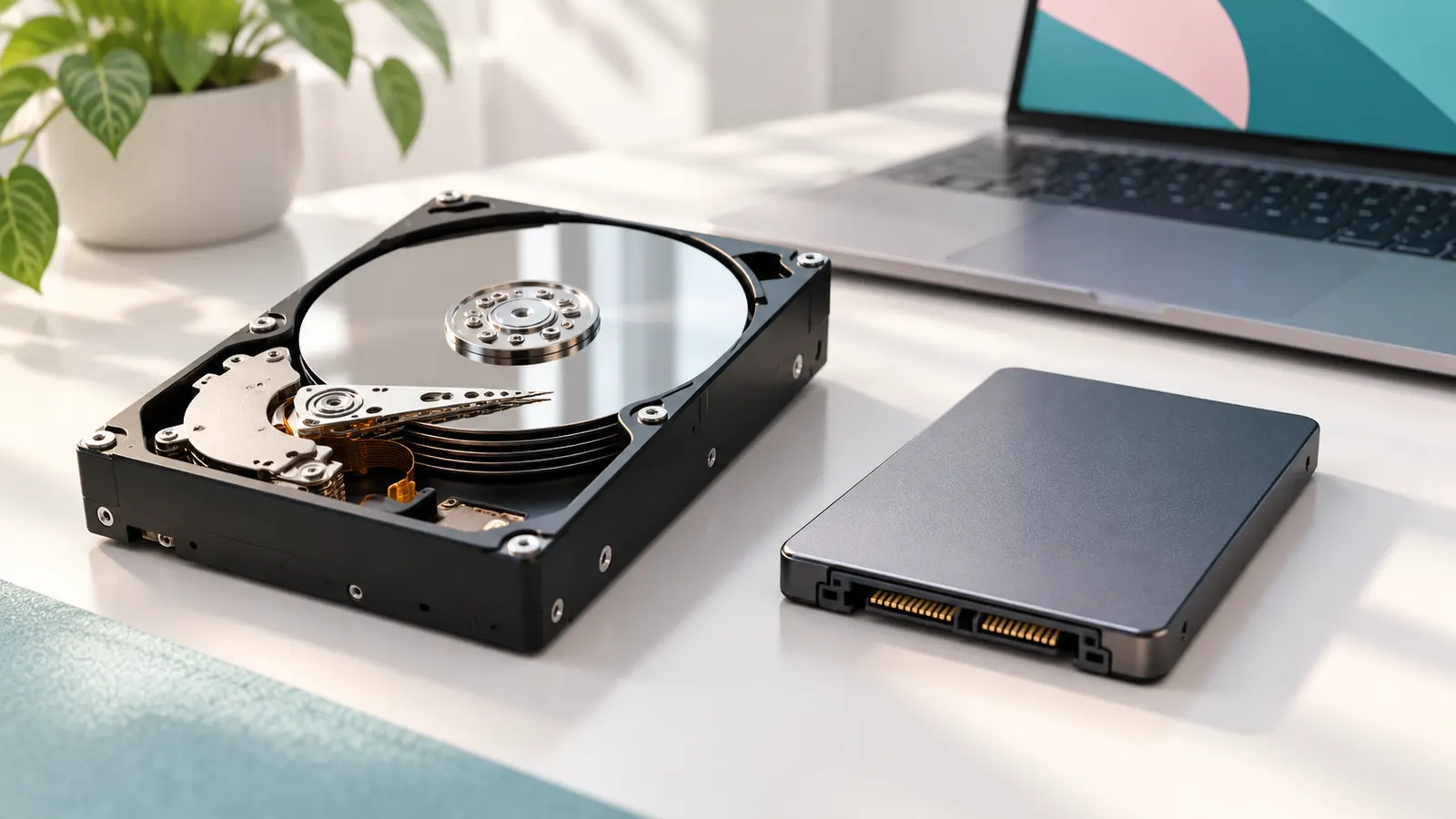
A hard disk drive (HDD) stores data on spinning magnetic platters read by a moving head. A solid-state drive (SSD) stores data in flash memory chips with no moving parts. That one difference explains most of what follows: SSDs start quickly, open files quickly and are quiet, while HDDs are mechanical, can make noise, and are more sensitive to knocks while spinning.
Neither is better in every case. An HDD gives you a lot of space for the money, which is why it remains common for archives and backups. An SSD gives you responsiveness, which is why it is the usual choice for the drive your computer starts from. Knowing which job you are buying for is the most important step.
Which Jobs Suit Which Drive
Think about what the drive will do day to day.
- System drive for a computer: an SSD makes startup and everyday use feel quicker.
- Game library: an SSD reduces loading times in many games, although the gain varies by title and platform.
- Photo and video archive: an HDD is a sensible fit when you need lots of space and speed is less critical.
- Backups: HDDs are widely used because of capacity and cost per gigabyte.
- Portable work drive: an SSD tolerates travel better since it has no moving parts.
Many people use both: an SSD for the active drive and an HDD for the bulk and backup copies.
Interfaces and Compatibility Checks
Before you buy, check what your device can accept. Internal drives come in different sizes and connection types, and not every laptop or desktop supports every format. Look at your device’s manual or specifications to find which connectors and sizes it uses. A drive that does not fit or connect is a common and avoidable mistake.
For external drives, check the port on the drive and the port on your computer. A fast SSD in an enclosure connected to a slow port will not reach its potential. Cables also matter, so use the one that comes with the drive or one with a suitable rating. For game consoles, check the console maker’s guidance on which external drives are supported.
Reliability, Failure Signs and Data Safety
All drives can fail, and neither type is a safe place for your only copy of important files. HDDs often give warning signs before they fail: clicking or grinding sounds, very slow file access, or files that will not open. SSDs can fail with less warning, sometimes by suddenly disappearing from the system.
Flash memory has a finite number of write cycles, but for typical home use this is rarely the main concern. The practical answer is the same for both: keep backups. Use a second copy on a different drive, and ideally one more somewhere else. If a drive shows warning signs, copy your files off promptly and do not keep using it for critical data.
Questions to Ask Before You Buy
A short checklist helps you avoid paying for the wrong thing.
- How much space do I need now, and how much will I need in a couple of years?
- Will it be internal or external, and does my device support it?
- Is speed or capacity more important for this job?
- Will it be moved around, and does it need to tolerate bumps?
- What does the warranty cover, and for how long? Check the listing.
If your budget is tight, consider an SSD for the main drive and a cheaper HDD for storage. If you only need one, decide by the main job rather than by general claims about speed.
Drive Formats Compared Before You Shop
The words SSD and HDD each cover several physical formats, and the format decides whether a drive works in your device at all. Internal hard drives usually come in a larger desktop size and a smaller laptop size. Internal SSDs come in a similar small casing, and also as a slim card-like module that plugs straight into a slot on the motherboard. These are not interchangeable, so read your computer’s manual or specification page before you pick one.
External drives are simpler to choose because they plug into a port. A portable external drive is small, bus-powered and meant to travel. A desktop external drive is larger, usually needs its own power adapter and tends to hold more data. Some people also buy a bare internal drive and an enclosure separately, which can work well but adds a compatibility check between the drive and the enclosure.
- Internal drive: best for the main computer, but you must match size, connector and available bays or slots.
- Portable external: convenient for carrying files and quick backups; check the cable and port type.
- Desktop external: suits a fixed spot on a desk where capacity matters more than size.
- Enclosure plus bare drive: flexible, but confirm that the enclosure supports the drive you intend to put inside.
When a listing is vague about the format, treat that as a reason to look at the manufacturer’s page or ask the seller before ordering.
Sizing Capacity Sensibly
Buying the right amount of space is partly arithmetic and partly honesty about habits. Start by checking how much your current drive holds and how full it is. Then add what you expect to accumulate over the next couple of years: new photos, video projects, downloads, game installs. Large files such as video and modern games grow faster than most people expect.
A drive that is nearly full tends to behave worse. Many SSDs slow down when they are close to full, and an HDD that is packed to the edge becomes awkward to manage because you have nowhere to move things while reorganizing. Leaving some free room is a practical habit for both types. Check the manufacturer’s guidance if you want a specific figure.
Remember also that the capacity printed on the box is not the space you see in your operating system. Formatting and the way capacity is counted both reduce the usable amount, so a drive will appear a little smaller than advertised. That is normal and not a defect.
If you are torn between two sizes, think about the job. For a system drive, choose enough room for the operating system, your programs and a comfortable buffer. For an archive, buy larger, because the cost per unit of space is usually lower on bigger HDDs and you will rarely regret the extra room. For a backup drive, it should be at least as large as everything it protects, with space left over for older versions of files.
Moving to a New Drive Without Losing Anything
Replacing or adding a drive is easier when you plan the order of steps. First, make a complete backup of anything you care about and confirm that you can open a few of the backed-up files. Do this before touching hardware, because a mistake during installation or cloning can wipe data.
Next, decide whether you want a fresh start or a copy of what you have. A fresh installation of the operating system on a new SSD can feel clean, but you will need to reinstall programs and restore settings. Cloning copies the whole existing drive to the new one, which saves time but also carries over any clutter or problems. Many drive makers offer free cloning or migration tools, and your operating system may include its own options; check the instructions for your specific drive.
- Back up first and verify the backup.
- Check that the new drive fits and connects as expected.
- Clone or reinstall, following the maker’s guide.
- Confirm the computer starts from the new drive before wiping the old one.
- Keep the old drive untouched for a while as a safety net.
If you are adding a second drive rather than replacing one, the new drive will usually need to be initialized and formatted before it shows up for use. Your operating system’s disk tools walk you through this, but be careful to select the new drive and not one that holds data.
Care, Heat and Everyday Handling
A few simple habits extend the useful life of any drive. Keep drives away from heat sources and make sure laptops and enclosures have airflow. Heat is hard on electronics of every kind, and a drive packed into a hot, closed space is under more stress than one with room around it.
With an HDD, avoid moving or bumping the drive while it is running, since the platters are spinning and the head sits very close to them. Set external hard drives on a stable surface and do not carry them around while they are active. Wait for the drive to finish activity before unplugging.
With any external drive, use the eject or safely remove option in your operating system before disconnecting. Pulling the cable during a write can corrupt files or damage the file system. This matters just as much for an SSD as for an HDD.
Store spare or backup drives in a dry place and avoid leaving them in a hot car or in direct sun. A padded case helps for drives that travel. Finally, label your drives and note what is on them so you do not accidentally format the wrong one. These are small details, but they prevent many of the data-loss stories that come from simple handling errors.
Budget Approaches by Need
You do not have to buy the most expensive option to get a good result. It helps to think in tiers described by purpose rather than price.
- Tight budget: put the money where you notice it most. A modest SSD for the system drive usually improves daily use more than any other change. Use whatever storage you already have for the bulk of your files, and add a basic backup drive as soon as you can.
- Middle range: an SSD sized with comfortable room for your programs, plus a larger HDD for archives and backups. This is the most common sensible setup.
- Higher spend: larger or faster SSDs for demanding work such as editing large video files, plus more than one backup drive so you can follow a proper multi-copy plan.
Whatever tier you choose, do not trade away backup space to fund a faster main drive. A fast drive with no backup is riskier than a slower drive with good backups. Also be wary of listings that look unusually cheap for the capacity claimed, and read the warranty details and return policy so that a faulty drive can be replaced without a fight.


Ready to Buy? Start Here
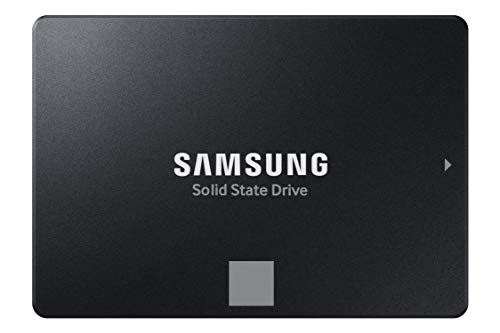
If this guide helped you decide what to look for, these products are a place to start.


As an Amazon Associate we earn from qualifying purchases. Prices and availability are shown on Amazon.
A Decision Guide by Situation
The choice between a hard drive and a solid-state drive is easier when you begin with how you will use the computer, not with the spec sheet. Use the situations below to narrow the field.
| Situation | Often suited to | Reason |
|---|---|---|
| Main system drive for everyday tasks | SSD | Faster boot and application loading |
| Bulk archive of photos and videos | Hard drive | More capacity for the space |
| Gaming library | SSD, with a hard drive for older titles | Quicker level loading |
| Backups that sit on a shelf | Hard drive | Large and practical for storage |
| Laptop used on the move | SSD | No moving parts and lower power use |
| Video editing project files | SSD for active work | Fast reads and writes |
Many people combine both: an SSD for the main system and active programs, and a hard drive for storage. Check your computer’s manual to confirm which drive types and sizes it supports.
How to Read a Drive Listing
Drive pages list many numbers, and they do not all mean the same thing. Capacity is the headline figure, though the usable space shown by your computer will be slightly smaller. Speed figures for SSDs are usually shown as sequential read and write rates, and real-world speed depends on your computer and the type of task.
- Interface: SATA, NVMe and USB each have different connection requirements.
- Form factor: 2.5 inch, 3.5 inch and M.2 sizes fit different slots.
- Endurance: some listings show total writes, which suggests how much data can be written over time.
- Cache and memory type: may influence sustained performance.
- Warranty length: shown by the maker and worth comparing.
Mistakes to Avoid and Backup Reminders
- Buying the wrong interface. Confirm which slot or port your computer actually has.
- Skipping backups. Any drive can fail, so keep copies of important files in more than one place.
- Using a hard drive in a machine that is moved while running. Shock can harm moving parts.
- Ignoring firmware updates. Check the maker’s support page for tools.
- Filling a drive to the brim. Leave some free space for smooth running.
When replacing a drive in a laptop or desktop, follow the maker’s guide, and consider a professional if you are not comfortable opening the device.
Capacity Planning: How Much Space Do You Need?
Estimate your current usage first by checking how much storage your files, programs and photos occupy. Then add room for growth, since libraries tend to expand quickly. Games, video projects and high-resolution photos are large, while documents and music are small. As a general guide, leave space free for updates and temporary files so the drive runs smoothly. If you are unsure, choose a drive one size up from your estimate, and consider an external drive for archives that do not need to be fast.
Finally, remember that moving to a new drive means moving your data. Plan time for cloning or reinstalling, and follow the maker’s migration tool instructions if one is offered.
Worked Examples: Four Buyers, Four Different Right Answers
Abstract comparisons settle nothing until they meet a person, so consider four. The first is a writer whose laptop is five years old, whose documents are small, and whose complaint is that everything takes longer than it did. Her data would fit on any drive in the shop, so capacity is not her problem; responsiveness is, and responsiveness is the solid-state drive’s home ground. An SSD as her laptop’s main drive, with the old spinning drive retired to an enclosure as her backup, transforms the machine she actually uses every day. For her, the HDD-versus-SSD question was never really open.
The second buyer runs a small business’s file server and a growing archive of project records that must be kept for years and opened rarely. His problem is the opposite: terabytes that sit still. Spinning drives in a redundant arrangement give him that archive at a cost per terabyte no SSD lineup can approach, and the archive’s stillness means the SSD’s speed would be paid for and never used. His right answer is hard drives, plural, with the money saved spent on the second copy and the off-site arrangement, which protect him more than speed ever could.
The third is a parent building the family computer, which must hold games that demand speed, a photo library that demands capacity, and a budget that demands choices. Her right answer is the hybrid this guide keeps recommending: a modest SSD for the system and the current games, a large hard drive for the library and the rest, each technology doing the job it is good at. She is not compromising; she is allocating. Most households that think hard about the question end where she ends, because most households, like hers, contain both kinds of data.
The fourth buyer is a video hobbyist whose projects are huge, active and time-sensitive, and whose old hard drive has begun the clicking that this guide’s health sections describe. He needs working speed now and archive capacity soon, and his right answer is staged: an SSD for the active projects immediately, because his deadlines are real, and a large hard drive for the archive when the budget recovers, with the dying drive copied in order of irreplaceability before either purchase, because no new drive matters if the footage never reaches it. Four buyers, four answers, one method: name the job, name the data, and the technology chooses itself.
The Total Cost Picture: What Each Choice Really Commits You To
The price on the listing is the beginning of a drive’s cost, not the whole of it, and comparing the two technologies honestly means counting the rest. A hard drive’s full cost includes its shorter patience: it will want replacing sooner in heavy service, it asks for gentler handling, and in a laptop it spends battery and tolerates no drops. An SSD’s full cost includes its capacity ceiling: the day your data outgrows it arrives sooner and costs more to escape, and its failure, when it eventually comes, tends to arrive with less warning than a spinning drive’s decline, which raises the value of the backup discipline around it.
Time is a cost too, and it cuts both ways. An SSD returns time daily, in booting, opening and copying, in amounts too small to measure and too constant to ignore; over years, that is the real product being bought. A hard drive costs time in those same moments and returns money at the purchase, which for an archive drive is the correct trade and for a system drive is usually a false one. Owners who count only the listing price systematically buy slow system drives and fast archive drives, which is the exact reverse of wisdom, and they do it one reasonable-seeming purchase at a time.
The final cost is the exit, and it belongs in the decision from the start. Every drive will be migrated from, and the migration is easier when it was planned: a drive bought with its successor in mind, its role written down, its contents organised, is replaced in an afternoon. A drive bought as an afterthought, filled chaotically and forgotten, is replaced in a weekend of archaeology, if it lives long enough to be replaced at all. Whichever technology you choose after reading this guide, buy it as the current holder of a role in a system, keep the system’s other copy current, and the total cost of your storage, in money, time and peace of mind, will be the lowest version of itself.
Planning a Drive’s Replacement Before It Forces the Issue
Every drive in this guide will be replaced one day, and the only real choice is whether that happens on your schedule or on the drive’s. Planned replacement is calm and cheap: you buy the successor when it suits your budget, copy at leisure, verify, and retire the old drive with everything intact. Forced replacement starts with a failure, a deadline and a partial copy. The difference between the two experiences is large enough that it is worth deciding, for each drive you rely on, what its retirement signals will be: a set age, a health report crossing a line you chose in advance, a pattern of small errors, or simply running out of room with no safe way to prune.
Age alone is a reasonable trigger for spinning drives that hold the only copy of anything. Mechanical parts wear whether or not the drive reports problems, and a drive that has spent years in daily service has given you your money’s worth. Keep a note, even a label on the drive itself, with the month and year you put it into service; memory is unreliable about such things, and people routinely discover their trusted backup drive is far older than they believed. When you buy a replacement, that label habit also gives you a baseline health reading and a purchase record in one place, which is exactly what you want if a warranty question ever arises.
Migration day deserves a small amount of ceremony. Connect the new drive, format it the way your setup requires, and copy in order of importance: the irreplaceable files first, then the merely inconvenient ones, so that if anything interrupts the process, what matters most is already safe. Copy rather than move, leaving the original untouched until the new drive has been verified, and verify by opening a sample of files from every major folder rather than trusting a progress bar. Only when the new drive has proven itself do you wipe or repurpose the old one, and even then, keeping it as an extra offline copy for a few months costs nothing but shelf space.
Decide in advance what the retired drive becomes. A healthy but ageing drive makes a fine third copy, a scratch disk for downloads, or a hand-me-down for a family member whose needs are lighter, as long as its history travels with it and nobody mistakes it for a primary backup. A drive retired for health warnings should be wiped and recycled rather than passed on, because its next failure is a matter of time and the files it takes with it will belong to someone who trusted your judgement. Either way, update your notes: which drive now holds what, and when it entered service. That one-page record is the whole management system most home setups ever need.
Organizing a Large Drive So It Stays Useful
Capacity creates its own problem: a big drive fills with everything, arranged by nothing, until finding a file takes longer than the transfer that put it there. The fix is a shallow, boring folder structure decided once and kept. Top-level folders by kind of content or by project, then by year, is enough for most people; deep trees of nested subfolders feel organised and behave like a maze. The test of a structure is whether you can predict where a file from two years ago lives without searching. If you cannot, the structure is serving the tidying impulse rather than the retrieval need, and simpler is better.
Names do the rest of the work. A file named with a date first, then a plain description, sorts itself and stays meaningful when its folder context is lost. Rename things at the moment they land on the drive, while you still know what they are; a folder of camera-default filenames is a debt you will pay with interest later. Keep one consistent pattern rather than several clever ones, and resist encoding too much into a name: the folder already supplies the project, so the filename only needs the date and the subject. Search tools help, but they help most on a drive where names were chosen by a human on purpose.
Separate the working set from the archive. Files you are actively using deserve the fastest, most accessible storage you have; finished projects, old photo years and installers you keep just in case belong in archive folders that are copied, verified and then left alone. This split makes backups smarter too, because the working set changes daily and needs frequent backing up, while the archive changes rarely and can be protected with a slower, simpler routine. When an archive folder is truly closed, consider writing it to a second drive as well and noting the date, turning it from a pile of files into a kept record.
Finally, schedule a light purge. Every few months, sort the drive’s largest folders by size and look honestly at the top entries: duplicate exports, abandoned downloads, three copies of the same video project. Deleting with intent is not the same as deleting in a panic when the drive is full and a backup is failing. Keep a staging folder for things you are unsure about, review it on the same cycle, and empty it only when nothing in it has been touched for a full cycle. A drive kept this way stays fast to back up, easy to replace, and genuinely useful at the size you paid for, instead of becoming a larger and larger attic.
Verifying That a Copy Really Copied
A progress bar reaching the end is evidence that a copy was attempted, not that it succeeded perfectly. Files can arrive truncated, corrupted by a failing cable, or quietly skipped by an error you clicked past, and the copy looks identical to a good one until the day you open the wrong file. Verification is the unglamorous step that separates people who have backups from people who have backup-shaped objects. At its simplest it means opening a sample of copied files, especially the largest and most important ones, and confirming they behave: photos display, documents open, videos play past the first few seconds rather than merely starting.
Comparing counts and sizes catches a surprising amount. After a big copy, check that the destination folder holds the same number of files as the source and that the total size matches closely; small differences can be harmless system files, but a missing gigabyte is a missing something. Many copy tools and backup programs offer a verify or checksum option that reads the data back and compares it mathematically with the original. It takes longer, sometimes much longer, and for irreplaceable archives it is worth every minute, because it catches the silent corruption that file counts cannot: a file that is present, the right size, and wrong inside.
Verification matters most at three moments. The first is when a drive is new and you are trusting it with an archive for the first time. The second is after any copy that was interrupted, by a disconnect, a flat battery or a system crash, because resumed copies are where gaps hide. The third is periodically, on archives that sit untouched for months: storage media can degrade in the drawer, and an annual spot-check, opening files from each year of the archive and re-running a health check on the drive, turns that slow risk into a managed one. If a check fails, copy from your other backup while you still have one, which is the entire point of keeping more than a single copy.
Build verification into the way you finish any important transfer. Eject only after the check, not before. Name archive folders with the date they were verified, or keep a tiny text file in the folder noting when the copy was made and when it was last checked, so future-you knows the state of play at a glance. And when you retire a source drive after copying from it, wait until the copy has survived at least one verification and one real use before wiping the original. Storage is cheap compared with the things stored on it, and patience at this step is the whole difference between a migration and a loss.
Storing Drives Safely Between Uses
A drive spends most of its life doing nothing, and how it spends that time decides much of how long it lasts. The enemies at rest are heat, damp, dust and knocks. Store drives somewhere that stays near room temperature, away from radiators, sunny shelves and the top of warm electronics, and out of spaces that swing between cold and humid, like garages and lofts, where condensation can form inside the casing. A drawer or cupboard in the living space of the house is better than any clever container in a bad location, because the climate your belongings are comfortable in is roughly the climate drives prefer too.
Physical protection matters even on a shelf. Spinning drives are at their most fragile when they are off and being handled, because a short drop onto a hard floor delivers a shock far beyond anything they meet in use. Keep portable drives in a padded case or at least a sleeve, never loose in a bag with keys and chargers, and stand desktop drives where they cannot be knocked or have things stacked on them. Solid-state drives shrug off shocks that would kill a spinning drive, which is one reason they suit travel, but their connectors and casings still deserve the same basic respect, and a lost drive is just as lost whatever its technology.
Frequently Asked Questions
Can I mix them?
Yes.
Do HDDs fail?
Yes; back up.
SSD lifespan?
Long for most users.
Is an SSD worth it for an older computer?
Often yes, because storage speed is a common bottleneck in older machines. Check that your computer supports the drive's size and connector first.
Which drive is better for backups?
HDDs are widely used for backups because of the capacity per cost. An SSD works too and is more shock-tolerant. Keep more than one copy either way.
Do SSDs wear out?
Flash memory has a limited number of writes, but typical home use rarely reaches the limit. Check the manufacturer's stated endurance and warranty if you do heavy work.
Can I use an SSD and an HDD together?
Yes. Many setups use an SSD for the system and active files and an HDD for bulk storage or backups.
What are the warning signs that an HDD is failing?
Clicking or grinding noises, very slow access, repeated errors or files that will not open. Copy your data off promptly if you see these.
Are portable SSDs more durable than portable HDDs?
They have no moving parts, so they tolerate knocks better. Still handle them with care and keep backups.
Does a faster port make my drive faster?
Only if the drive and the port can both use the speed. A fast drive on a slow port is limited by the port, and the cable matters too.
Can I swap my laptop's drive myself?
Often yes, but it depends on the model. Check the manual for the drive size and connector, and whether the case is designed to open. If in doubt, ask the maker or a technician before starting.
Should I clone my old drive or install fresh?
Cloning is faster and keeps your programs and settings as they are. A fresh install can feel cleaner but takes longer to set up again. Either way, make a backup first.
Why does my new drive show less space than advertised?
Formatting uses some space, and the way capacity is counted differs between the box and your operating system. A small difference is normal. A very large gap is worth checking against the listing.
Do I need to format a new drive?
Often yes. Many drives need to be initialized and formatted before use, and some arrive ready. Use your operating system's disk tools and take care to select the correct drive.
Is it fine to fill a drive to the brim?
It is better not to. Some SSDs slow down when nearly full, and any drive becomes harder to manage with no free room. Leave a comfortable buffer.
Should I buy an enclosure and a bare drive instead of a ready-made external?
It can work well if you want to pick the parts yourself. Confirm that the enclosure supports the drive's size and connector, and check the cable and port that come with it.
How do I safely disconnect an external drive?
Use the eject or safely remove option in your operating system and wait for it to confirm. Unplugging during a write can corrupt files, on SSDs as well as HDDs.
When should I replace an old drive?
Replace it when you see repeated errors, odd noises, unusual slowdowns or files that vanish. Also consider replacing very old drives before they fail, and keep backups in the meantime.
If I can only afford one drive today, which technology should it be?
The one that matches the job the drive must do first. A computer that needs to feel responsive needs the SSD; a pile of data that needs a home needs the hard drive’s capacity. If both needs are urgent, the SSD usually wins the tie, because a slow computer taxes you every day while data can temporarily live in more than one squeezed place.
Do SSDs need defragmenting like hard drives did?
No, and you should not defragment them; the process was designed for spinning platters and only adds wear to an SSD. Modern operating systems know which technology they are talking to and maintain each appropriately, so the correct action for owners is to let the system handle it.
Can I tell how worn an SSD is before buying a used one?
Health tools can report an SSD’s wear level and total data written, and a reputable seller of a used drive should expect the question. Even with a good report, treat any used drive of either technology as a home for copies, never for the only version of anything.
Why do game consoles and older devices still use hard drives?
Because at the capacities they need, hard drives are far cheaper, and a console under a television does not suffer a spinning drive’s weaknesses the way a laptop in a bag does. The technology follows the job, which is the argument of this entire guide in miniature.
Should my backup drive be the same technology as my main drive?
It does not need to be, and often should not be: a hard drive makes an excellent, capacious backup for an SSD-based computer, because backups do not need speed, they need room and reliability. Matching technologies matters far less than having the backup at all, current and tested.
Bottom Line
Pick by job: speed or capacity.
More Storage Guides
- 3-2-1 Backup Rule
- NAS vs External Drive
- Best 2TB Portable Hard Drives for Backups
- Best 4TB Portable and Desktop Hard Drives
- Best Large External Hard Drives
- Best High-Capacity Desktop Hard Drives
- Best Portable External Hard Drives for Travel
- Best PlayStation External Hard Drives for PS4 Games


