Disclosure: As an Amazon Associate, reviewstook.com earns from qualifying purchases. Links to Amazon on this page are affiliate links; they cost you nothing extra.
A NAS and an external drive solve different problems.
Last updated: November 1, 2026.
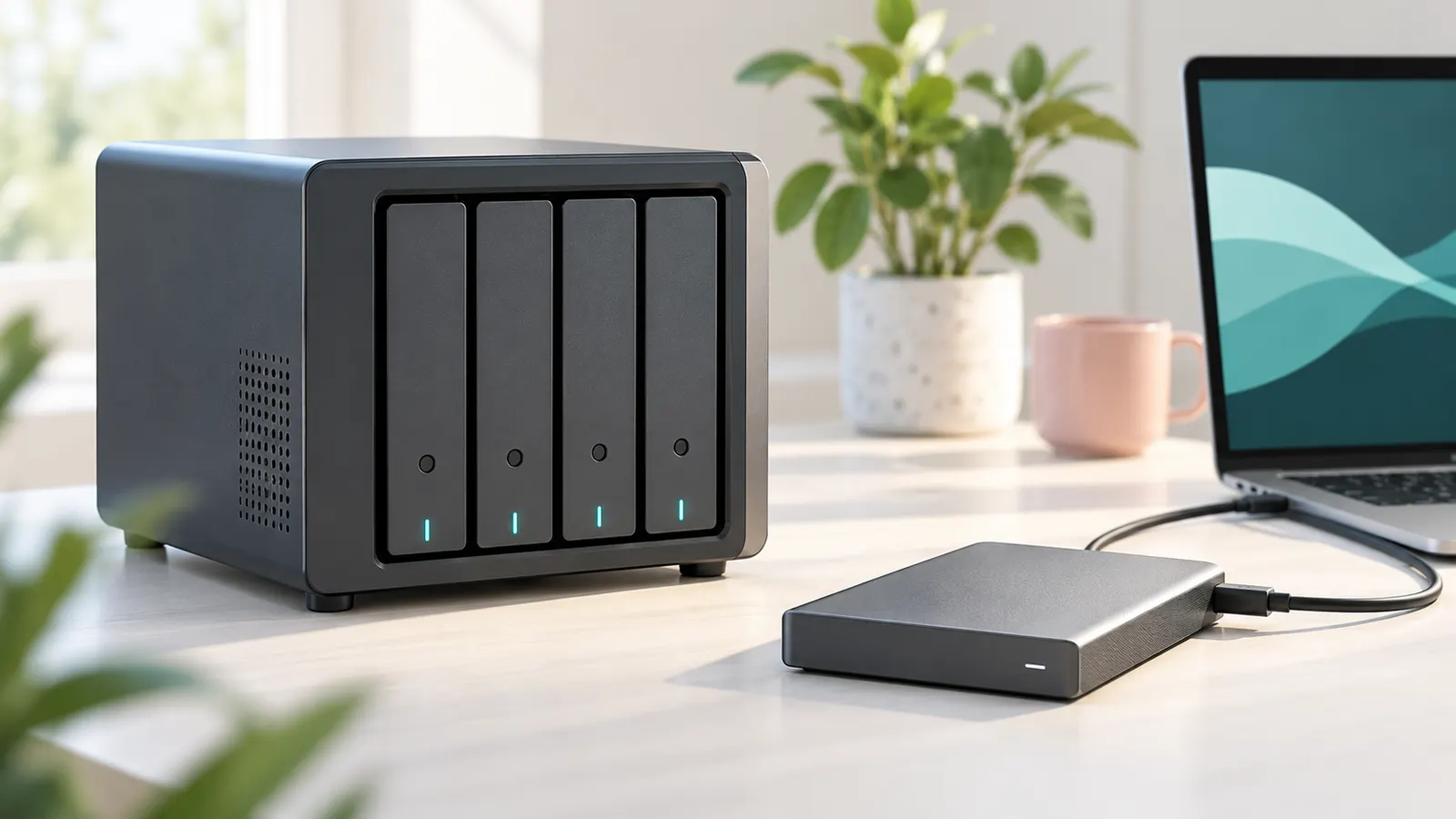
Simple storage
See portable drives.
In this guide
Shared storage
See NAS hard drives.
Backups
Back up either one.
What a NAS Actually Is
A NAS, short for network-attached storage, is a small computer built to hold drives and share them over your home or office network. You connect it to your router, and devices on the network can reach the files. Many models run their own software, so they can do more than simple storage, such as sync folders, stream media or manage user accounts. The features differ by model, so read the listing.
An external drive, by contrast, plugs directly into one computer and acts as extra storage for that machine. It has no network features of its own, though you can connect it to a router that supports sharing. The core difference is that a NAS is a shared system and an external drive is a personal tool.
Setup Effort and Ongoing Upkeep
An external drive is close to plug and play. Connect it, format it if needed, and copy files. A NAS takes more steps: install drives, connect to the network, set up accounts and shares, and keep the software updated. None of this is difficult for a patient user, but it is more than most people do with a USB drive.
- External drive: minimal setup, little maintenance.
- NAS: network setup, user permissions, updates and drive monitoring.
Consider who will manage it. If you are the only person comfortable with the settings, think about what happens when you are not around. Check whether the manufacturer provides clear setup guides and ongoing support.
Redundancy and RAID in Plain Terms
Many NAS units hold more than one drive and can arrange them so that a single drive failure does not lose data. This is often called RAID. Some arrangements mirror data across drives, others spread it with extra protection. The details and the number of drives needed vary, so check the manual.
It is important not to confuse redundancy with backup. If you delete a file by mistake, or malware encrypts the contents, a mirrored copy changes too. Redundancy protects against a drive failing, while backups protect against everything else. A NAS can be one copy in a backup plan, but not the only one.
Access, Speed and Remote Use
A NAS is accessed over the network, so its speed is limited by your network, whether wired or wireless. A wired connection is typically steadier, and is a good idea for large transfers. An external drive connects directly, so its speed depends on the drive and port.
Some NAS units let you reach your files from outside your home. That is convenient but needs care: use strong passwords, keep software updated, and read the manufacturer’s guidance on secure remote access. If you only need files on one computer, an external drive avoids this extra exposure.
Total Cost, Power and Who Each Option Suits
A NAS usually costs more up front, because you need the unit and the drives, and drives often sold separately. It also draws power continuously if left on. An external drive costs less and uses power only when connected.
A NAS suits households with multiple computers, shared photo libraries, media streaming or small offices. An external drive suits a single user who wants simple extra space or a straightforward backup target. If your needs are mixed, some people use both: a NAS for shared files and an external drive as an additional backup copy. Choose by who needs access and how much upkeep you want.
The 3-2-1 Backup Idea Applied to Home Storage
A common rule of thumb in backup planning is called 3-2-1: keep three copies of important data, on two different types of storage, with one copy stored somewhere else. It is a guideline, not a law, but it gives a useful way to judge both a NAS and an external drive. Neither device alone satisfies it, because each is one copy in one place.
Here is how the pieces can fit together. Your working files sit on your computer, which is copy one. An external drive kept at home can be copy two on a different device. A NAS can serve as a shared copy for the household, and a cloud service or a drive stored at a relative’s home or in an office can be the copy kept off site. The exact mix depends on how much data you have and how much you would hurt if you lost it.
This is where the confusion often starts. People buy a NAS and assume the job is done, but a fire, theft, power surge or flood can damage everything in one room. A drive in the same room as the computer protects against a computer failure but not against those events. Think about the realistic risks in your home, and decide which copy lives elsewhere.
- Count how many separate copies of your important files exist today.
- Check that at least one copy is not in the same building.
- Test restoring a file now and then, since an untested backup is only a hope.
Choosing Drives for a NAS and for Backup
The drives inside a NAS work differently from the drive in a portable enclosure. A NAS runs for long periods, often around the clock, and several drives sit close together in one case, so heat and vibration matter. Drives sold for NAS use are designed with that in mind, and the NAS maker’s compatibility list will tell you which models are supported. Check the list before you buy drives, and check the listing to see whether any drives are included.
Capacity planning is the next step. Add up what you store now and think about growth over several years: photo libraries, video, device backups and downloads. Remember that redundancy reduces usable space. In a mirrored setup, usable capacity is lower than the total of the drives. The manual explains how each arrangement works. Buying a little more than you think you need is usually cheaper than migrating later.
For an external drive used as a backup target, think about whether you want a small portable unit or a larger desktop one with its own power supply. Portable drives are convenient and quiet but are easier to knock over or lose. Desktop drives tend to offer more capacity. Check the interface on both the drive and your computer, because a fast drive on a slow port is limited by the port.
Mixing drive models or ages in a NAS is possible in some setups, but the details vary, so read the manual first.
Where to Put It and How to Protect It
Placement affects reliability. A NAS or desktop drive needs airflow, so avoid enclosed cabinets, carpets and spots near heaters. Keep it away from places where it could be knocked or where liquids could spill. Dust builds up over time, so wipe vents with a dry cloth now and then according to the maker’s guidance.
Power protection is worth considering. A sudden power cut while a drive is writing can corrupt files. A surge protector helps against spikes, and a small battery backup unit, often called a UPS, can give a NAS time to shut down safely. Check whether your NAS supports automatic shutdown through a connected backup unit, and read the maker’s notes on compatibility.
For a portable external drive, the main habit is to eject it properly before unplugging. Pulling the cable during a transfer risks damage to files. Handle it gently, especially if it is a traditional hard drive with moving parts, and avoid moving it while it is spinning. Store it in a case, not loose at the bottom of a bag.
Physical security matters as well. A drive in plain sight is easy to take. If the data is sensitive, consider encryption features that the device or your computer offers, and keep a record of any password, because losing it can make the data unreadable.
Keeping a NAS Secure on Your Network
Because a NAS lives on your network and often holds family photos and documents, security deserves real attention. Start by changing any default administrator account or password during setup, and use a strong, unique password. Create separate user accounts for each person instead of sharing one, and give each person access only to the folders they need.
Keep the software updated. The maker releases updates that fix problems, and an old version left unpatched is a common weakness. Check whether the NAS can update automatically or whether it only notifies you. Turn off features you do not use, such as remote access, file sharing protocols or media services, because every open feature is another possible entry point.
If you decide to use remote access, follow the manufacturer’s guidance and consider options that avoid exposing the NAS directly to the internet. Check your router settings too, since opening ports without care can create risk. Ask yourself whether you really need access from outside, or whether a simple cloud copy of key files would be enough.
- Use strong, unique passwords and separate accounts.
- Install updates and review which services are switched on.
- Back up the NAS itself, since it can be hit by the same threats as any computer.
Everyday Use Cases Compared
Looking at real situations makes the choice clearer. A single person with one laptop who wants to back up documents and photos is usually well served by an external drive and a regular backup routine. The setup is short, the cost is low and there is little to maintain. Add a cloud copy for the off-site part.
A family with several phones, tablets and computers faces a different problem: files end up scattered. A NAS gives everyone a shared place for photos, documents and media, and many models can back up devices automatically over the network. It also lets a smart TV or media player stream stored video, if the model and the player support it. Check the features of the specific unit.
A small office or home business may want shared folders, user permissions and scheduled backups. A NAS fits, but the owner has to take on updates and monitoring or hire someone to do it. For a creator who edits large video files, think about speed: a direct-attached drive on a fast port may be quicker than a NAS over a wireless network, while a wired NAS connection can be fine.
Students and travelers usually want portable, rugged and simple. A small external drive fits better than a NAS, and encryption is worth considering for lost or stolen property.
Common Mistakes and Signs of Trouble
The most common mistake is treating one device as a complete backup. The second is buying a NAS without drives and discovering the extra cost afterward. Others include ignoring the network, so that a wireless NAS feels slow, buying too little capacity and leaving default passwords in place. Also avoid filling a drive to the brim, since a nearly full drive can slow down and leaves no room for new backups.
Watch for warning signs. Clicking or grinding sounds, drives that disappear from the computer, very slow transfers, repeated errors, files that will not open and health warnings from the NAS software all deserve attention. If you see any of them, copy the important files elsewhere right away, then investigate. Do not keep running a drive you suspect is failing for longer than needed.
It is time to replace a drive when it reports health problems, when errors keep returning, or when it is much older than your comfort level for something you rely on. Replacing on a schedule you set is cheaper than recovery after failure. If a NAS drive fails in a redundant setup, follow the manual to replace it and let the system rebuild, while keeping your separate backup safe. Recycle old drives responsibly and wipe them first.


Ready to Buy? Start Here
If this guide helped you decide what to look for, these products are a place to start.


As an Amazon Associate we earn from qualifying purchases. Prices and availability are shown on Amazon.
Who Actually Needs a NAS: Three Household Scenarios
The abstract comparison between a network drive and a plugged-in drive becomes clearer when you picture real homes. Look at these three situations and see which one resembles yours.
The solo user with one laptop. If you mostly copy documents and photos from a single computer, an external drive is a straightforward answer. Plug it in, run a backup program, unplug it and store it somewhere safe. There is no network to configure and nothing left powered on all day.
The family with several devices. Phones, tablets and two or three computers each hold pieces of the family archive. A NAS gives them one central place on the home network, so a photo saved by one person can be opened by another without passing a drive around the house. Some units also back up phones automatically when they join the WiFi.
The media collector. Large film and music libraries streamed to a TV or media player suit a NAS, because the files stay available without anyone carrying a drive to the living room.
- One computer, occasional backup: external drive.
- Multiple people sharing files: NAS.
- Streaming around the house: NAS.
- Travel with files: external drive.
Habits That Protect Either Option
Neither device is a complete safety net by itself. A drive can fail, be stolen, or suffer damage in a fire or flood. Many people follow the idea of keeping several copies of important files on different media, with at least one copy stored away from home, such as an encrypted cloud service or a drive kept at a relative’s house.
| Task | External drive | NAS |
|---|---|---|
| Initial setup | Plug and format | Install drives, join the network, create accounts |
| Ongoing upkeep | Occasional manual backup | Check updates and drive health notices |
| Power use | Only while connected | Usually stays on |
| Fixing failure | Replace the drive and restore | Follow the maker’s steps for the drive bay |
Whichever you choose, run a trial restore of a few files every so often. A backup you have never opened is only a hope. Keep passwords and the NAS administrator account in a safe place, and follow the maker’s instructions for firmware updates. Consult the manual before changing drive arrangements, because mistakes there can put data at risk.
If you are still undecided, a middle path works nicely: begin with an external drive for backups today, and revisit a NAS later when the number of devices or the size of your library outgrows it. Nothing you copy now is wasted, because the same files can be moved onto a network drive whenever you are ready.
Write down the date of each backup in a simple note or calendar entry, so you always know how recent your safety copy is before you delete anything from your computer.
NAS vs External Drive: The Decision Points That Actually Matter
The headline specs make these two look more different than they feel in daily life, and less different than they feel in year three. An external drive is a single-purpose tool: it stores your files, attached to one computer at a time. A NAS is a small always-on computer whose whole job is sharing storage with every device you own. The right choice depends less on capacity or speed and more on how many people and devices need the files, and how much set-and-forget automation you want.
Start with access. If the files in question live and work on one computer — a photo archive edited at one desk, a backup target for a single laptop — an external drive does the job with zero network configuration and nothing to maintain. The moment two people need the same library, or you want to open files from a laptop on the couch, a tablet, and a TV box without plugging anything in, the drive becomes a bottleneck and the NAS earns its place. Sneakernet with a USB drive works right up until the day someone needs the file that is on the drive currently sitting in another room, in a bag, or at another house.
Then consider automation. A NAS runs backup jobs, media servers, and sync tasks on its own schedule whether or not any particular computer is switched on. Phones can upload photos to it overnight; computers can back up to it over the network while you sleep. An external drive only works when it is plugged into a running computer, which makes it a better fit for deliberate, scheduled backup sessions than for continuous background protection.
Performance in the real world
For large sequential transfers — copying a video project or a full photo library — a modern external drive connected directly to your computer is hard to beat, because there is no network in the way. A NAS is limited by your home network: wired gigabit connections move big files respectably, while Wi-Fi transfers of thousands of small files can feel slow regardless of how fast the drives inside the NAS are. If your main job is feeding a media library to a TV or sharing documents, network speed is a non-issue. If your main job is editing huge files directly off storage, local and direct usually wins, or you edit locally and archive to the NAS.
Noise and power draw are the unglamorous factors people forget. A NAS runs around the clock, so it belongs somewhere its fan and drive sounds will not bother anyone, and it adds a small but constant amount to the electricity bill. An external drive draws power only when connected. For a household that only needs shared access a few hours a day, that difference is worth an honest thought.
Redundancy is not backup — on either option
A two-bay NAS with mirrored drives survives one drive failure without losing data, and that convenience seduces people into calling it a backup. It is not. Mirroring copies deletions, corruption, and ransomware instantly to both drives, and the whole box shares one location and one power supply. Whichever option you choose, it should be one layer in a wider plan with at least one copy somewhere else. The same warning applies in reverse: a single external drive holding the only copy of anything is a countdown, not a strategy.
Living With Each Option: Setup, Care and Troubleshooting
An external drive asks almost nothing of you: format it for your operating system, name it clearly, and store it somewhere cool, dry, and off the floor. Its failure modes are equally simple. If it stops appearing, try a different cable and port before assuming the worst — cables fail far more often than drives do. Clicking or grinding sounds, by contrast, mean stop: power it down and treat any further use as risking the data you are trying to save.
A NAS asks for an afternoon of setup — creating user accounts, shared folders, and permissions — and then small amounts of ongoing attention: installing updates, replacing a drive when the system warns you one is degrading, and checking that scheduled backups report success. Put it on a small uninterruptible power supply if you can; most NAS data damage comes from abrupt power loss, not from drive wear. Keep its admin password unique and stored safely, turn on automatic security updates, and never expose its login page directly to the internet unless you fully understand the risk — remote access should go through the manufacturer’s relay or a VPN.
Troubleshooting shared problems is methodical on both. Slow transfers: test with one large file to separate network or interface limits from small-file overhead. Missing files: check whether a sync or backup job, rather than the storage itself, is the culprit. Strange capacity loss: look for old snapshots, recycle-bin features on NAS systems, and version history quietly consuming space — all three are features working as designed, just invisibly.
When to upgrade or switch
People usually outgrow an external drive when a second computer joins the household workflow, when the drive fills and version history starts getting pruned, or when plugging and unplugging becomes the reason backups get skipped. People outgrow a first NAS when they need more bays, faster networking, or enough processing power for heavier media duties. In both cases the migration is painless if you treat the new device as an additional copy first: copy everything across, verify, and only then retire the old hardware — ideally into service as the offsite layer of your backup plan, which turns an upgrade into an improvement twice over.
More Questions About NAS and External Drives
Can I start with a drive and move to a NAS later? Yes, and it is the path most households take. Your files copy across unchanged, and the old drive becomes an excellent backup target for the NAS itself. Nothing about starting simple locks you in.
How many drive bays do I need? For most homes, two bays mirrored is the sweet spot of cost, simplicity, and protection against a single drive failure. Four bays make sense when you expect capacity to grow a lot or want more flexible storage layouts. A single-bay NAS gives you network access but no drive-failure protection at all, which puts it closer to an external drive in spirit.
Should the NAS drives be special models? Drives rated for NAS or surveillance use are built for always-on, multi-drive environments and are the safer default inside a NAS. For a USB external drive used a few hours a week, a standard desktop drive is fine. Either way, buy capacity with headroom: storage you fill to the brim performs worse and leaves no room for version history.
What happens to my files if the NAS itself dies? With mirrored drives, your data usually survives on the drives themselves, but reading them outside a similar system can be fiddly, which is one more reason the NAS should never hold the only copy. Keep the backup-of-the-backup habit and a hardware failure becomes an inconvenience instead of a disaster.
Is an external drive safer from hacking than a NAS? A drive that is unplugged most of the time is unreachable by definition, and that air gap is genuinely valuable for backup copies. A NAS is a networked computer and should be maintained like one — updates on, strong unique password, remote access configured carefully. The risk is manageable, but it is not zero, and it is the honest price of always-on convenience.
A Practical Checklist Before You Decide
Before you commit, write down the three jobs you most need home storage to do well, in order, and judge every option in this guide against that list rather than against a specification sheet. Specifications describe what a product can do on its best day; your list describes what it must do on your ordinary days, and the distance between those two standards is where most disappointing purchases live. If a feature does not serve one of your three jobs, let it go without regret, even when it is the feature the marketing shouts about loudest.
Ownership has a rhythm worth planning for from day one. Set a small recurring appointment with yourself — monthly is enough for most people — to check that everything still works the way it did in the first week: the consumables are fresh, the storage is not silently full, the mounts and connections are sound, and one real result from the past month looks the way you expect. Equipment rarely fails dramatically; it drifts, and a short monthly look catches drift while it is still a five-minute correction instead of a ruined occasion.
Teach one other person the basics of how your setup works. A partner, a family member, or a friend who knows where things live, how to check that a result was captured properly, and what to do when something looks wrong doubles the reliability of the whole system, because the day you most need everything to work is often the day you are busiest, traveling, or otherwise occupied. Reliability that lives in only one person’s head is a single point of failure, whatever the hardware costs.
Keep your expectations calibrated to the category rather than to advertising. Every option in this guide involves honest trade-offs between convenience, capability, and ongoing effort or cost, and the right choice is the one whose trade-offs point in directions you do not mind. A slightly less capable option that you use constantly will outperform a theoretically superior one that annoys you into a drawer, a glovebox, or a shelf — the best gear is reliably the gear that is present, charged, ready, and understood.
When something goes wrong, change one variable at a time and test before changing another. Random adjustment feels productive and teaches nothing; methodical adjustment feels slow and solves the problem permanently. Note what you changed and what happened, even in a single line on your phone. Within a few months those notes become a personal manual for your exact setup in your exact conditions, which is worth more than any generic advice — including much of what appears in guides like this one.
Finally, revisit the decision once a year with fresh eyes. Your needs will have shifted — a new vehicle, a new property, a new hobby phase, a new family member — and the setup that was right last year may be quietly wrong for this one. The options in this guide will have successors, your skills will have grown, and the honest annual question is not whether you bought the best thing, but whether what you own still matches the life you are actually living. Adjust in small steps, keep what works, and let experience, not novelty, drive the upgrades.
Worst Days, Whole Costs and First Weeks
Consider the worst realistic day, not the average one. For home storage, the average day forgives almost any choice; the worst day — the deadline, the storm, the once-a-year family gathering, the incident you actually bought protection for — is the day your decision is really about. Walk your shortlist through that day honestly: what runs out, what overheats, what confuses you, what takes too long. The option that survives the worst-day test with the fewest apologies is usually the right purchase, even when a rival looks better across a spreadsheet of ordinary days.
Budget for the whole system, not the headline item. Every category in this guide has a supporting cast — consumables, storage, mounts, spare parts, subscriptions, or accessories — and the true cost of ownership is the cast’s cost added to the star’s. A cheaper main purchase that demands expensive consumables can cost more within a year than the pricier option with modest running costs. Tally a full year of realistic use before deciding which option is actually the economical one, and keep a small reserve for the one accessory you will inevitably discover you needed.
Buy for the person who will actually use it, which is not always the person doing the research. If home storage will be shared with a partner, a parent, a teenager, or a colleague, their patience and habits are part of the specification. The technically best option that a second user finds intimidating will be quietly avoided, and avoided equipment delivers no value at all. When a purchase is shared, simplicity is not a compromise — it is the feature that determines whether the thing gets used on the day it matters.
Plan the first week as deliberately as the purchase. Unbox, set up, and run your first real test in low-stakes conditions, while returning or exchanging is still painless and your attention is fresh. Most dissatisfaction in this category is born in a rushed first setup that never got revisited: a default left wrong, a position never adjusted, a feature never discovered. A calm first week, with one honest test of the exact job you bought it for, converts a gamble into a known quantity.
Keep the packaging and paperwork longer than feels necessary. Receipts, warranty cards, and serial numbers belong in one folder — physical or digital — created the day the product arrives, not reconstructed during a warranty claim a year later. Photograph the serial label with your phone as insurance. This sounds like housekeeping rather than buying advice, but the difference between a smooth warranty replacement and an abandoned claim is almost always paperwork, and it costs two minutes on a day when two minutes are easy.
Resist the accessory spiral in the first month. New owners routinely buy every mount, case, and add-on in an enthusiasm surge, then discover that two of them do all the work. Live with the core purchase first; let real friction tell you what is missing. An accessory bought to solve a problem you have actually had is money well spent, while a shelf of speculative accessories is the purchase price quietly doubling itself. The exception is genuine consumables and spares, which are never a waste because running out is the one failure you can schedule in advance.
Share what you learn. A short note to a friend, a review that mentions your real conditions, or a conversation with the next person in your circle facing the same choice multiplies the value of your own research. Categories like this one run on accumulated owner experience — the tips in this guide began as exactly such notes — and your worst-day story, told honestly, is the single most useful thing you can hand to the next buyer.
Long-Term Ownership: Support, Storage and Second Lives
Think about where the product will live when it is not in use, because storage is a silent determinant of lifespan in this category. Heat, humidity, dust, and casual knocks in a garage or a bag do more cumulative damage than the work the product was bought for. A defined home — a shelf spot, a case, a drawer — with the cables and small parts kept together means the setup is always complete and ready, and ‘ready’ is the state in which equipment actually gets used instead of worked around.
Learn the manufacturer’s support landscape before you need it: where the manual lives online, how firmware or parts are obtained, what the warranty actually covers, and how other owners describe the company’s responsiveness. Two otherwise equal options in this guide can differ enormously here, and the difference only becomes visible on the worst day. A maker that publishes clear documentation and answers owners in public forums is telling you something about year three of ownership on the day you buy.
Set up a simple log, however informal. A note on your phone with the purchase date, the settings you settled on, the consumables you bought, and anything that surprised you becomes, within months, the most useful document you own about this product. Settings get reset, memories fade, and the question ‘what did I change last time this happened’ is unanswerable without the note. Future you is a different person; leave them instructions.
Frequently Asked Questions
Is a NAS worth it?
If you share files.
Can a NAS replace backups?
No.
Which is simpler?
External drives.
Do I need drives for a NAS?
Many NAS units are sold without drives, so you need to buy them separately. Check the listing to see what is included and which drives are supported.
Is RAID the same as a backup?
No. RAID protects against a drive failing, but deleted files or malware can affect all copies. Keep a separate backup as well.
Can I use a NAS with just one drive?
Often yes, but then there is no protection against that drive failing. Check what the model supports.
Is a NAS faster than an external drive?
Not necessarily. A NAS is limited by the network, while an external drive is limited by its own port and speed. Wired connections help a NAS.
Is remote access to a NAS safe?
It can be if you use strong passwords, update the software and follow the maker's guidance. If you do not need remote access, leave it off.
Can I connect an external drive to my router to share it?
Some routers support this, but features and speed vary. Check your router's manual. A NAS is designed for sharing and is typically more capable.
How long do NAS drives last?
There is no set lifespan. Monitor drive health, keep backups and replace drives that show errors.
What is the 3-2-1 backup rule?
It suggests keeping three copies of your data, on two kinds of storage, with one copy off site. It is a guideline that helps you see gaps, such as having every copy in the same room.
Should I use special drives in a NAS?
Many makers recommend drives designed for NAS use because they run for long periods in a shared case. Check the NAS maker's compatibility list and the listing before you buy.
Do I need a battery backup for a NAS?
It is not required, but a sudden power loss during writing can cause problems. A surge protector helps against spikes, and a battery backup can allow a safe shutdown. Check what your NAS supports.
Can a NAS stream video to my TV?
Many models can serve media to compatible players and smart TVs, but the features differ by model and by app. Check the listing and the app support on your TV.
How much capacity should I buy?
Add up what you store now, allow for several years of growth, and remember that redundancy reduces usable space. Buying a little extra is usually easier than migrating later.
What should I do if an external drive stops being recognized?
Try a different cable and port first, then another computer. If it still fails, stop using it to avoid more damage and consider professional help for important data. Check the warranty too.
Is cloud storage a replacement for a NAS?
They serve different needs. Cloud storage gives off-site access and protection, while a NAS keeps data under your control at home. Many people combine them, and the cloud copy can be the off-site part of a backup plan.
Bottom Line
Choose by who needs access.
More Storage Guides
- Best 2TB Portable Hard Drives for Backups
- Best 4TB Portable and Desktop Hard Drives
- Best Large External Hard Drives
- Best High-Capacity Desktop Hard Drives
- Best Portable External Hard Drives for Travel
- Best PlayStation External Hard Drives for PS4 Games
- Best Xbox External Hard Drives for Game Storage
- Best Mac-Compatible External Hard Drives and SSDs


