Disclosure: As an Amazon Associate, reviewstook.com earns from qualifying purchases. Links to Amazon on this page are affiliate links; they cost you nothing extra.
Check recording type and warranty.
This guide is built from Amazon product listings and maker specs, not our own testing, so confirm compatibility, capacity and current price on each product page.
Check the current price on Amazon before you buy.
Last updated: November 1, 2026.
In this guide
Quick Picks
| Product | Type | Best for |
|---|---|---|
| Seagate IronWolf 16TB NAS Hard Drive | NAS internal HDD | NAS storage |
| WD Red Plus 4TB NAS Hard Drive | NAS internal HDD | NAS storage |
| Seagate IronWolf Pro 14TB NAS Hard Drive | NAS internal HDD | NAS storage |
Our Picks

Top pickBest for nAS storage
1. Seagate IronWolf 16TB NAS Hard Drive
A Seagate IronWolf 16TB NAS Hard Drive (nas internal hdd), per the listing. Check price on Amazon.
Good for: NAS storage. Watch out: High price.


Best for nAS storage
2. WD Red Plus 4TB NAS Hard Drive
A WD Red Plus 4TB NAS Hard Drive (nas internal hdd), per the listing. Check price on Amazon.
Good for: NAS storage. Watch out: Check CMR vs SMR on the listing.

Best for nAS storage
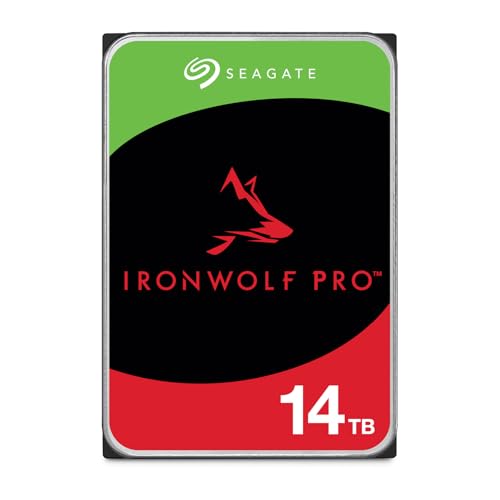
3. Seagate IronWolf Pro 14TB NAS Hard Drive
A Seagate IronWolf Pro 14TB NAS Hard Drive (nas internal hdd), per the listing. Check price on Amazon.
Good for: NAS storage. Watch out: High price.
How to Choose
3.5 vs 2.5 inch
Desktops use 3.5-inch; laptops use 2.5-inch.
Workload
NAS and surveillance drives are built for 24/7 use.
CMR vs SMR
Check recording type for NAS and RAID.
How Recording Method Affects Array Behavior
Hard drives write data in one of two broad ways. Conventional magnetic recording (CMR) writes each track separately, so a write lands where it is meant to and the drive responds in a steady way. Shingled recording (SMR) overlaps tracks like roof shingles to fit more data on each platter, which means changing data in one place can force the drive to rewrite neighboring tracks. For light archive use that overhead often goes unnoticed, but it can show up as long pauses during sustained writes.
This matters most when a drive is part of a RAID array. During a rebuild after a failure, the array writes a large amount of data to the replacement drive in one go, and a drive that slows sharply under sustained writing can stretch a rebuild out for a long time. Some arrays also treat a very slow response as a fault and drop the drive. That is why this post flags the CMR versus SMR question on the listing.
Do not assume the recording type from the product name or the capacity. Look for it in the maker’s datasheet or the product listing, and if it is not stated, ask the seller or choose a different model. A NAS-oriented line is not automatically CMR across every capacity, so check each size you are considering rather than the whole family.
RAID Levels and Usable Capacity
The number printed on the drive is not the space you get to use. Most home enclosures offer several ways to combine drives, and each trades capacity for protection. A mirrored pair keeps two copies of everything, so you get the space of one drive. Parity-based layouts across three or more drives give up roughly one or two drives’ worth of space to survive a failure. Striping without redundancy uses all the space but loses everything if any single drive fails.
Work backward from what you need to store. Add up your current data, estimate yearly growth, and then pick a layout and drive count that leave comfortable headroom. A common mistake is buying one very large drive and planning to add protection later, only to find the enclosure needs a second matching drive and the first cannot be converted without copying everything off.
Also check how your enclosure handles mixed sizes. Some systems use only the smallest drive’s capacity on every member, which wastes space if you combine different sizes. Others have flexible pools that make better use of mixed drives. Your enclosure manual explains which approach it takes, and it is worth reading before you decide between fewer large drives and more small ones.
Heat, Noise and Vibration in a Drive Bay
A drive that runs around the clock produces heat, and several drives packed into a small enclosure produce more. Higher rotation speeds and larger platter counts tend to run warmer and louder, which is the tradeoff the existing FAQ on rotation speed refers to. A quiet cabinet in a hallway tolerates this differently from a unit sitting on a desk next to your bed.
Good airflow does more for drive life than most buyers expect. Leave space around the enclosure, keep vents clear of dust and avoid placing it inside a closed cupboard. Many units let you view drive temperature in their management page, so you can see whether a hot room is pushing the drives outside the range given in the maker’s documentation.
Vibration is the other concern. Drives in a multi-bay unit shake each other slightly, and NAS-oriented models are generally designed with that in mind, while desktop drives may not be. If you put the unit on a hard surface and hear a hum or rattle, a soft pad or a shelf with some give can reduce noise. Check the manual for the supported operating temperature before choosing a location. If the enclosure sits in a bedroom or home office, also consider the fan noise it adds on top of the drives, and check whether the management software lets you set quieter fan profiles or schedule heavy tasks for daytime hours.
Watching Drive Health and Knowing When to Replace
Drives rarely fail without warning, but the warnings are easy to miss if you never look. Most NAS software reports a health status and can run scheduled checks of the drive’s built-in monitoring data. Turn on email or app notifications so a problem reaches you, rather than waiting until you open the management page by chance.
Signs worth acting on include reallocated or pending sectors that keep increasing, repeated read errors, a drive that drops out of the array, new clicking or grinding sounds, and temperatures that stay high even after you improve airflow. A single odd reading does not always mean failure, but a trend does. Compare what your software reports against the explanations in the maker’s support pages.
When a drive is flagged, replace it promptly instead of waiting. Confirm your backup is current first, since a rebuild puts extra stress on the remaining drives. Keep the warranty paperwork or order record handy, because many makers handle replacement through the seller or their own claims process. Some owners keep a spare matching drive on the shelf so a rebuild can start the same day. Write the purchase date, model and serial number of each drive in a note kept outside the NAS, because warranty claims and replacement orders go much faster when those details are close at hand.
Backups and Protecting More Than the Array
Redundancy keeps your files available when a drive dies, but it does not protect against accidental deletion, a corrupted file, malware, a power surge, theft or a house fire. A deleted folder is deleted on every mirrored copy at once. That is why a NAS works best as one part of a plan, not the whole plan.
A widely used habit is keeping several copies of important data, on more than one kind of storage, with at least one copy kept somewhere else. In practice that can mean the NAS for daily access, an external drive you connect periodically and an online or off-site copy for the files you cannot replace. Many enclosures include built-in tools to schedule these copies automatically.
Consider snapshots if your software supports them. They keep earlier versions of files so you can roll back after a mistake or an infection. A small uninterruptible power supply is another inexpensive protection, since sudden power loss during a write can damage data. Finally, test a restore now and then. A backup you have never restored is only a hope, and finding gaps early is much better than finding them after a failure. Whatever mix you choose, put a reminder in your calendar to review backup jobs every few months, since a schedule that quietly stopped running is one of the most common ways people lose data.
Planning Capacity and Room to Grow
The most common regret with a home server is not a failed drive but a full one. Before you compare models, estimate what you store today and how fast it grows. A household that archives phone photos and video, a few hundred gigabytes a year of documents, and a media library that keeps expanding will fill a small array faster than the arithmetic on the box suggests. A rough rule many people use is to size the array so current data fits in about half of the usable space, which leaves a few years of growth before you need to touch the hardware again.
Remember that usable space is always less than the sum of the labels. Redundancy takes a share, the file system takes a little more, and you should leave free space so the volume does not slow down as it fills. With the three drives in this guide, the 4TB WD Red Plus, the 14TB IronWolf Pro and the 16TB IronWolf, the capacity gap is wide enough that the bay count and RAID choice matter as much as the drive itself. Four small drives in a mirrored pair arrangement can give you less usable space than two large drives in a simple mirror.
Think about the upgrade path too. Many enclosures let you replace drives one at a time with larger ones and then expand the volume once the last swap is done. That works well, but it only pays off when the enclosure and its software support online expansion. Check that before you commit to a small starter drive on the assumption you can grow cheaply later.
Why Rebuild Time Grows With Drive Size
When a drive in a redundant array fails, the system reconstructs its contents onto a replacement. That job reads every surviving drive end to end. On a 4TB drive the process is measured in hours; on a 14TB or 16TB drive it can run for a day or more, depending on the load and how full the array is. The exact duration depends on the enclosure, the RAID level and whether you keep using the NAS during the rebuild, so treat any figure you read as a rough guide.
This matters because the rebuild window is when the array is most exposed. With a single parity or a simple mirror, one more failure during reconstruction means data loss. Longer windows raise that exposure, and the stress of a full read pass can reveal weak sectors on drives that looked healthy. This is not an argument against large drives. It is an argument for pairing them with the right protection.
- With large drives, consider dual parity or a mirror with a spare rather than single parity across many disks.
- Keep a tested backup before you start any rebuild, since the process is when problems surface.
- Avoid heavy writes to the array while it rebuilds so the job finishes sooner.
- If the enclosure supports a hot spare, remember that it shortens the time you spend degraded because reconstruction starts on its own.
Reading Warranty Terms and Workload Ratings
Two lines on a listing tell you more about how a maker sees a drive than the marketing copy: the warranty length and the workload rating. Drives sold for network storage commonly carry a longer warranty than desktop models, and the step-up lines in a family, such as the IronWolf Pro compared with the standard IronWolf, often add a longer term and a higher stated workload. Read the actual terms on the product page rather than relying on a family name, because they vary by capacity and sometimes by region.
A workload rating is usually expressed as the amount of data transferred per year that the drive is designed to handle. For a home user streaming media and storing backups, even modest ratings are rarely approached. For a small office with many users, constant syncing or surveillance recording alongside file sharing, the higher tier is easier to justify. Ask how many people and devices hit the NAS at once, and how much of that traffic is writing rather than reading.
Also check how the warranty is serviced. Some makers offer data recovery add-ons with certain lines, and some require you to go through the seller or the maker directly. Keep the order record and note the serial number when you install each drive so a claim is straightforward later.
Burn-In and Migration Before You Trust a New Array
A new drive that fails is far more likely to fail early than in the middle of its life. That is why careful owners spend a few days testing before moving anything important. After you install a drive, run the extended self-test that the enclosure or the drive utility offers, then write and read a large amount of throwaway data across the whole surface. Watch the health attributes for reallocated or pending sectors. A clean result is not a guarantee, but a drive that shows trouble in the first week should go back.
Migration deserves the same patience. Copy your data to the new array while the old storage stays intact, verify the copy by spot-checking files and comparing folder sizes, and only retire the old drives once you have lived with the new setup for a while. If you are moving from a single external disk, keep that disk as a backup copy rather than wiping it the same day.
- Label each drive with its install date and bay number.
- Record serial numbers in a notes file stored away from the NAS.
- Test your notification emails so you hear about a fault the day it happens.
- Schedule regular scrubs or consistency checks if the software supports them.
None of this takes long, and it turns a purchase into a system you can rely on. The point is to find problems while a refund or replacement is still easy and your only copy of anything is not on the line.
The Three NAS Picks Compared: Scale, Simplicity and the Pro Tier
With only three drives in this guide, the comparison is refreshingly direct, because each pick represents a different scale of home server. The WD Red Plus at 4TB is the modest, sensible starting point: a NAS-rated drive sized for a small array in a home or small office, where the data is documents, photos and media for a household rather than an archive of everything. The Seagate IronWolf at 16TB is the capacity pick, four times the room, aimed at the owner whose media library and backups have outgrown small drives and who would rather buy space once than migrate repeatedly. The Seagate IronWolf Pro at 14TB sits near the IronWolf on size but a tier up in intent, built and warranted for harder, longer service in busier systems.
The real decision is about your array’s future. A small array of Red Plus drives is cheaper to start, quieter, and kinder to power bills, and for many homes it is honestly all that is ever needed. Its limit is arithmetic: when it fills, every drive must grow, and migrating a full small array is a project. The big IronWolf drives invert the problem: a large upfront cost and more noise and heat per drive, in exchange for years of headroom. The Pro’s premium buys its keep when the NAS works for a living, serving a business, a busy household of streamers and backup clients, or a owner who simply wants the longest service life and the strongest warranty posture of the three.
Mixing is possible but should be deliberate. An array generally performs to its slowest, smallest member, so a single small drive among large ones wastes the large ones’ room, and a desktop-class drive among NAS drives undermines the design assumptions of the whole set. Owners often add one of these picks as a spare or a cold backup drive instead, which is a quietly excellent use: a NAS drive kept outside the array, holding a periodic copy of the array’s most important shares, protects against the failures RAID cannot, including the ones the owner causes personally.
Whichever scale you choose, buy the array’s drives as a considered set, note their purchase dates, and keep one eye on the exit: the day these drives retire, their replacements will be larger, and the migration will go exactly as smoothly as your backups deserve. The pick matters less than the plan around it, and the plan starts with admitting which of the three scales your household actually is, rather than the one it might become in an optimistic year.
Running a Home NAS Month to Month: The Owner’s Routine
A NAS asks for a different kind of ownership from an external drive, because it works while you sleep and fails, if it fails, on its own schedule. The monthly routine is short. Read the system’s health report and actually look at each drive’s status rather than the reassuring summary. Check the free space trend, because a NAS filling steadily is a NAS planning your next purchase for you. Confirm the backups of the NAS itself completed, since the array’s redundancy protects against a dead drive, not against deletion, ransomware or a stolen box, and those backups are the part owners most often discover they configured once and never verified.
Quarterly, give the machine its physical due. Dust is the slow enemy of anything with fans and bays: check the vents and filters, confirm the drives’ temperatures sit in their normal range, and listen. A NAS that has grown louder over months is telling you about a fan, a drive or a mounting that has changed, and in a device designed to be ignored, a change in sound is one of the few alarms you get for free. While you are there, test the alert path: most systems can send a test message, and an alert that would have gone to a dead email address is no alert at all.
Annually, rehearse the bad day. Pull your notes on how the array is configured, where the spare drive is, and what order recovery steps run in, and read them as if you were a stranger, because the person who needs them will be a stressed version of you at an inconvenient hour. Check that the spare strategy still matches the array: a spare bought for a smaller generation of drives may no longer serve. And review what the NAS holds against what it should hold, since these machines accumulate shares, snapshots and forgotten shares-within-shares. A NAS run this way is boring in the best sense: it stores, it serves, it warns early, and it never becomes the emergency it was bought to prevent.
Reading Drive Health Signals Before Trouble Starts
Drives rarely die without saying anything first; the trouble is that their warnings are easy to miss or easy to explain away. The clearest early signal is a change in behaviour. A drive that used to mount instantly now takes half a minute. Copies that ran at a steady pace now stall, surge and stall again. Folders take a moment too long to open, or the drive briefly vanishes from the computer and reappears. Any one of these can have an innocent cause, but a pattern of them, growing over weeks, is the drive telling you its mechanics or its memory cells are struggling. Write down when you notice them, because a dated note turns a vague worry into evidence you can act on.
Most drives report internal health data, known as SMART, that tools on both major operating systems can read. You do not need to understand every attribute in the report. Look at the overall verdict the tool gives, and at whether the counts of reallocated or pending sectors are climbing between checks: a stable small number on an old drive is a footnote, while a number that grows every week is a countdown. Solid-state drives report wear differently, as a percentage of their expected life used, and a drive deep into that percentage deserves a planned replacement rather than a wait-and-see approach. Check health when you buy a drive too, so you have a baseline to compare against later.
Sound matters for spinning drives. A healthy hard drive makes a soft whir and the occasional quiet seek noise. Clicking that repeats in a rhythm, grinding, scraping, or a drive that spins up and down repeatedly without mounting is describing mechanical damage, and every extra minute of power gives the damage more time to spread. If a drive starts making those noises, stop experimenting with it. Copy the most irreplaceable files first, in small batches, resting the drive between attempts if it runs hot, and accept that the drive’s career is over even if you rescue everything. Data recovery services exist for the truly desperate cases, but they are priced like emergency services because they are.
Build the health check into habits you already have. When you sit down to do your monthly file tidy-up, glance at the drive’s health report and free space at the same time. When a backup finishes suspiciously fast or suspiciously slowly, investigate rather than shrugging. And when a drive does start to fail, replace it in the right order: get the new drive, copy or restore everything, verify the copy, and only then retire the old one. The old drive, wiped, can still serve as a scratch disk or a third copy for files you could afford to lose, clearly labelled so nobody mistakes it for a trustworthy backup again.
Planning a Drive’s Replacement Before It Forces the Issue
Every drive in this guide will be replaced one day, and the only real choice is whether that happens on your schedule or on the drive’s. Planned replacement is calm and cheap: you buy the successor when it suits your budget, copy at leisure, verify, and retire the old drive with everything intact. Forced replacement starts with a failure, a deadline and a partial copy. The difference between the two experiences is large enough that it is worth deciding, for each drive you rely on, what its retirement signals will be: a set age, a health report crossing a line you chose in advance, a pattern of small errors, or simply running out of room with no safe way to prune.
Age alone is a reasonable trigger for spinning drives that hold the only copy of anything. Mechanical parts wear whether or not the drive reports problems, and a drive that has spent years in daily service has given you your money’s worth. Keep a note, even a label on the drive itself, with the month and year you put it into service; memory is unreliable about such things, and people routinely discover their trusted backup drive is far older than they believed. When you buy a replacement, that label habit also gives you a baseline health reading and a purchase record in one place, which is exactly what you want if a warranty question ever arises.
Migration day deserves a small amount of ceremony. Connect the new drive, format it the way your setup requires, and copy in order of importance: the irreplaceable files first, then the merely inconvenient ones, so that if anything interrupts the process, what matters most is already safe. Copy rather than move, leaving the original untouched until the new drive has been verified, and verify by opening a sample of files from every major folder rather than trusting a progress bar. Only when the new drive has proven itself do you wipe or repurpose the old one, and even then, keeping it as an extra offline copy for a few months costs nothing but shelf space.
Decide in advance what the retired drive becomes. A healthy but ageing drive makes a fine third copy, a scratch disk for downloads, or a hand-me-down for a family member whose needs are lighter, as long as its history travels with it and nobody mistakes it for a primary backup. A drive retired for health warnings should be wiped and recycled rather than passed on, because its next failure is a matter of time and the files it takes with it will belong to someone who trusted your judgement. Either way, update your notes: which drive now holds what, and when it entered service. That one-page record is the whole management system most home setups ever need.
Cables, Ports and the Small Faults That Cause Big Problems
When an external drive misbehaves, the drive itself is often innocent. The cable is the most handled, most bent and most borrowed part of the whole setup, and it fails quietly: a connector that has been flexed a thousand times develops intermittent contact, so the drive connects, disconnects mid-copy, and reconnects, leaving corrupted transfers and confusing error messages behind. Before you blame any drive in this guide, swap in a different cable, ideally the one that came with the drive or another short, good-quality one, and repeat the task that failed. A remarkable share of storage mysteries end at exactly that step, and it costs nothing to test.
Ports matter almost as much. A port on the front of an old case, on a cheap hub, or on a worn laptop may deliver less power or a less stable connection than a port on the machine itself, and bus-powered drives sit right at the edge of what a weak port can feed. If a drive clicks, spins down, or only works sometimes, plug it directly into the computer, on a different port, before drawing conclusions. Keep the port you trust for the drive that matters most, and be suspicious of any connection that needs the cable held at an angle to stay alive: that is a connector at the end of its life, and it will choose the largest, most important transfer to fail on.
Ejecting properly is the cheapest data protection there is. Operating systems finish writing to drives in their own time, keeping some data in memory briefly before committing it, so pulling a cable the moment a progress bar closes can still cut a write short. Use the eject or safely-remove step every time, and if the system says the drive is busy, believe it: close the programs that might be holding files open, wait a few seconds, and try again. For drives that hold backups, make ejection part of the ritual of finishing a work session, like saving the document itself. The habit takes seconds and prevents the particular corruption that surfaces weeks later as a folder that will not open.
Give the physical setup a moment’s thought as well. A drive perched on the edge of a desk, cable taut, will eventually be dragged off it by a passing sleeve or a pet. Route cables with a little slack, keep drives flat and clear of speakers, heaters and direct sun, and avoid stacking spinning drives on top of each other, where heat and vibration combine. If a drive travels, coil its cable loosely rather than wrapping it tightly around the case, which strains the connector. None of this is glamorous, and all of it together is the difference between a drive that serves for years and one that fails mysteriously in its second year.
Organizing a Large Drive So It Stays Useful
Capacity creates its own problem: a big drive fills with everything, arranged by nothing, until finding a file takes longer than the transfer that put it there. The fix is a shallow, boring folder structure decided once and kept. Top-level folders by kind of content or by project, then by year, is enough for most people; deep trees of nested subfolders feel organised and behave like a maze. The test of a structure is whether you can predict where a file from two years ago lives without searching. If you cannot, the structure is serving the tidying impulse rather than the retrieval need, and simpler is better.
Frequently Asked Questions
Is 7200 RPM worth it?
Faster, but louder and warmer.
Can I use a desktop drive in a NAS?
Not recommended.
How do I install?
SATA cable and power connector.
How many drives should I start with in a NAS?
It depends on the layout you want. A mirrored pair is the simplest protected setup, while three or more drives allow parity layouts that use space more efficiently. Check your enclosure manual for the minimum drive count each layout needs.
Do all the drives in my array need to be the same size?
Not always, but many systems use only the smallest drive's capacity across every member of a standard array. Some enclosures offer flexible pools that handle mixed sizes better. Your enclosure documentation explains which applies.
Is RAID a replacement for backup?
No. RAID keeps data available if a drive fails, but it copies mistakes, deletions and malware to every drive. Keep a separate backup, ideally with a copy stored elsewhere.
How long does a NAS drive usually last?
It varies with workload, temperature and luck, so no fixed figure is reliable. Watch the health reports, keep the drives cool and compare the warranty length shown on each listing.
Should I buy all drives from the same batch?
Buying identical models is fine and often recommended for matching performance. Some owners prefer to buy at different times or from different sellers so drives are less likely to share the same age and any batch-related fault.
What should I do before upgrading to larger drives?
Confirm your enclosure supports the new capacity, take a fresh backup and read the maker's steps for replacing drives one at a time. Allow the array to finish rebuilding after each swap before changing the next drive.
Can I leave my NAS running all the time?
Drives sold for this purpose are designed for continuous use. Make sure the unit has airflow, a stable power source and ideally a small battery backup unit to protect against sudden power loss.
How long does a RAID rebuild take on a large NAS drive?
It depends on drive size, RAID level, how full the array is and whether you use the NAS meanwhile. Small drives may finish in hours, while 14TB to 16TB drives can take a day or longer. Keep a backup first and limit heavy writes during the rebuild.
What does the workload rating on a NAS hard drive mean?
It is the maker’s stated yearly data transfer the drive is designed to handle. Home users rarely approach it, but busy small offices or surveillance setups may. Compare the figure on the product page for the exact capacity you plan to buy, since it can differ between lines.
Should I burn in a new NAS drive before using it?
It is a sensible step. Run the extended self-test, write and read a large amount of test data, and check the health attributes for reallocated or pending sectors. Early failures are the most common, so catching one in the first week makes a return simple.
Can I replace NAS drives with larger ones later?
Often yes. Many enclosures let you swap drives one at a time and expand the volume after the last swap. It requires software support and a redundant array so each rebuild completes. Check the enclosure manual before buying small drives on the assumption you can grow cheaply.
Questions to Ask Before You Buy
- How many bays does your enclosure have, and how many will you fill on day one?
- Does the enclosure maker publish a compatibility list that includes the drive you are considering?
- Will the unit run around the clock, and does the drive listing describe continuous use?
- How will you handle backups, since a single enclosure is not a complete safeguard on its own?
- What warranty length does the maker’s listing show, and how is a replacement handled?
- Can your enclosure cope with the heat and noise a full set of drives produces?
Compatibility Checks
Before ordering, open the manual or support page for your network storage unit and note the drive interface, the supported sizes and any limit on capacity per bay. Some older units cannot recognize very large drives, and firmware updates sometimes change that. It also helps to check whether the enclosure expects matching drives in the same array or allows mixing.
Look at the connector type and the mounting method too. Tool-free trays are convenient, but some trays need screws, and not every drive ships with them.
Matching It to Your Use
A household that keeps family photos and shared documents has very different needs from a small office running several users at once. Light use may be fine with a modest array, while video editing, surveillance footage or frequent large transfers place more demand on the drives. Think about how quickly your data will grow over the next few years, and leave headroom rather than filling the array immediately.
Who Should Skip It
If you only need to carry files between a couple of computers now and then, a simple external drive may be enough. If you will not keep up with updates, or you want someone else to manage storage for you, a cloud service could be easier. Check the maker’s listing and instructions before deciding.
Can I start with one drive in my NAS and add more later?
Many systems allow it, but understand what you are running in the meantime: a single drive has no redundancy, so it is a network drive, not a protected array, until a second drive joins it. Plan the second drive’s purchase as part of the first one’s budget.
Should the spare drive live inside the NAS or on the shelf?
A spare inside the array as a hot spare starts rebuilding automatically when a drive fails, which is valuable if you travel. A spare on the shelf stays unused and unworn. Either beats no spare; choose based on how quickly you could realistically respond to a failure alert.
How do I know my NAS drives are compatible with my enclosure?
Check the enclosure maker’s compatibility list for the exact model, and confirm the physical basics: bay size, connector and any capacity limits of older hardware. NAS-rated drives like the picks here are the right class; the list settles the specifics.
Is it worth running my NAS on a battery backup?
For most home servers, yes: a small uninterruptible power supply lets the NAS shut down cleanly through outages instead of being cut mid-write, and clean shutdowns are cheap insurance for both the drives and the file system. It also keeps the network alive long enough to send you the alert.
What should I do when one drive in the array reports warnings?
Treat warnings as the system doing its job. Confirm your backups of the NAS are current, replace the warned drive with a suitable spare or new drive, and let the array rebuild while you resist the urge to rearrange everything else. One warned drive is maintenance; ignoring it until a second drive struggles is how arrays are lost.
Bottom Line
NAS drives are made for 24/7 use. Check CMR recording.
More Storage Guides
- Best Hard Drives for DVRs and NVRs
- Best 3.5-Inch Internal Hard Drives for PCs
- Best High-Capacity Enterprise HDDs
- Best Laptop and PS4 Hard Drive Upgrades
- Best External Enclosures for 2.5 and 3.5-Inch Drives
- Best Drive Cloners and Docking Stations
- Best USB 3.0 Hubs for Multiple Drives
- Best Cases for Portable Hard Drives


