Disclosure: As an Amazon Associate, reviewstook.com earns from qualifying purchases. Links to Amazon on this page are affiliate links; they cost you nothing extra.
Backups fail without a plan.
Last updated: November 1, 2026.
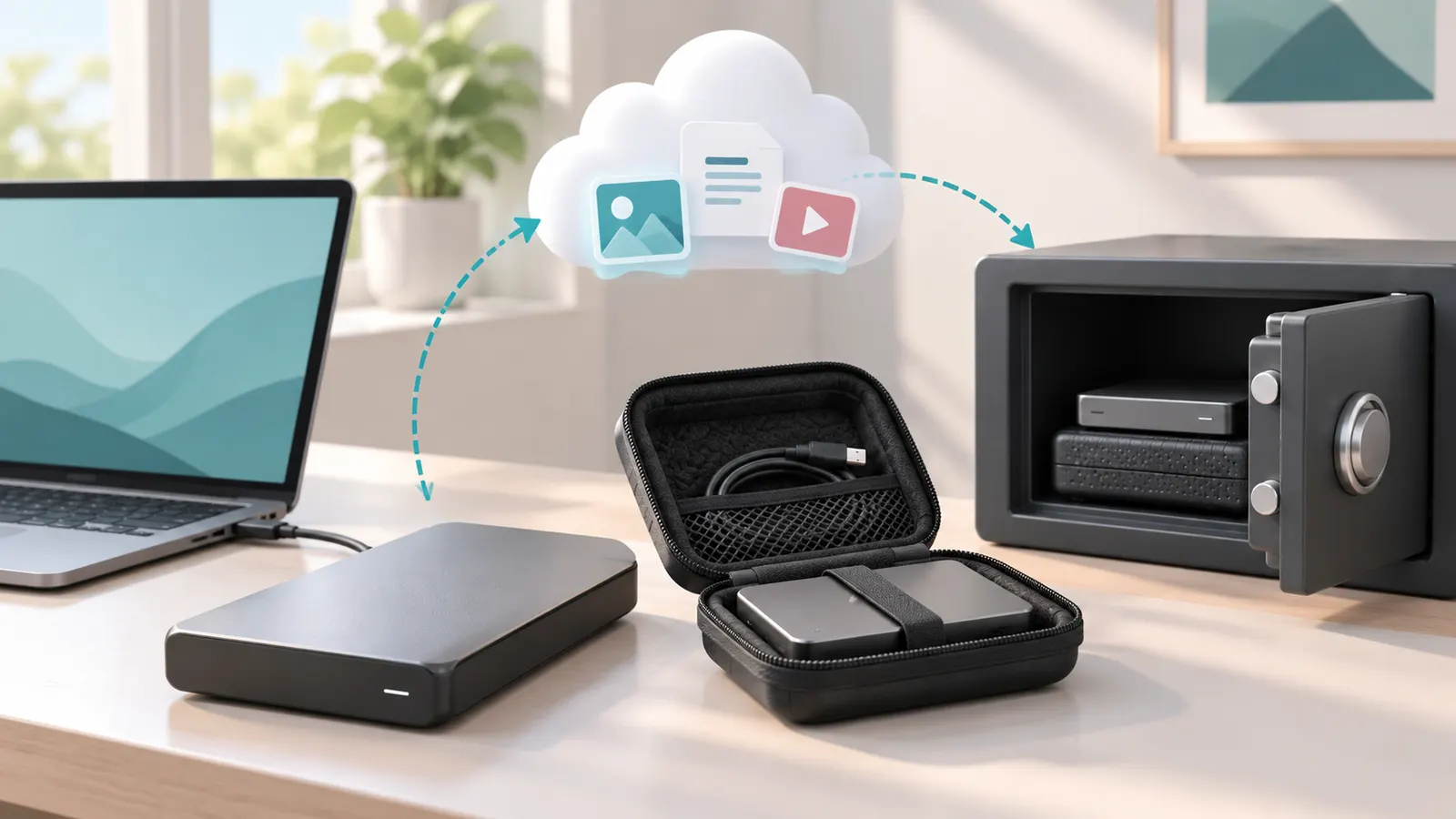
The rule
Three copies, two media types, one off-site.
In this guide
Gear
See photographer drives and drive cases.
Automation
Schedule backups.
What Counts as a Real Backup
A backup is a separate copy of your files that survives if the original is lost, damaged or deleted. A file that exists in one folder and is mirrored to a second folder on the same drive is not much protection, because one failure takes both. Likewise, a synced folder can be a trap if a deletion or corruption on one device is copied to all the others. Syncing and backing up are related but not identical.
Good backups have history, so you can recover an earlier version of a file, not only the newest. Check whether your chosen tool or service keeps older versions and for how long. Think about what would hurt most to lose, such as family photos, tax records and work files, and make sure those are covered first.
Deciding What to Protect First
You rarely need to back up everything with the same care. Programs and system files can be reinstalled; your own files cannot. Start with the folders that hold irreplaceable items.
- Personal photos and videos: the most common thing people regret losing.
- Documents and financial records: contracts, taxes, receipts, identity papers.
- Work and creative projects: drafts, source files, exports.
- Settings and licenses: keys and configuration you cannot easily recreate.
Once these are covered, extend the plan to the rest of the system if you want a full image of your computer. Estimate how much space you need, then buy drives with room to grow.
Local Copies and Off-Site Copies in Practice
The 3-2-1 rule asks for one copy to be away from the others. At home, the second copy is typically on an external drive kept apart from the computer. The off-site copy can be a cloud storage service or a drive stored at a different location, such as a relative’s home or a workplace. The aim is that a fire, flood, theft or power surge cannot destroy every copy at once.
If you use cloud storage, check what is included, how it handles file versions and whether you can restore easily. If you use a physical off-site drive, set a rhythm for swapping it, because an old off-site copy is better than none but still leaves a gap. Encrypting drives that leave your home is a sensible precaution; check your operating system’s tools or the drive’s instructions.
Testing Restores and Checking Health
A backup you have never restored from is an assumption, not a plan. Every so often, pick a few files and restore them to a different folder, then open them. This catches problems like corrupted files, missing folders or settings that quietly stopped running.
Also look at the health of the backup drives. Watch for odd noises, error messages or backups that start taking much longer. Backup software usually reports failures, but only if you read the messages, so set up notifications where possible. Replace drives you have used for years before they cause trouble, since drives do not last forever.
Common Backup Mistakes to Avoid
A few mistakes come up repeatedly. People keep the backup drive plugged in beside the computer at all times, where a power surge or malware can reach both. They rely on a single external drive and never replace it. They forget phones and tablets, which often hold the only copies of recent photos. And they assume a cloud sync is a backup without checking version history.
Keep it simple enough to maintain. A plan you follow with two drives and a cloud service beats an elaborate plan you abandon. Write down where each copy lives and how to restore it, so that a family member could find it if needed.
File Backups, Incremental Backups and Full System Images
Not every backup works the same way, and the method you choose changes how much space you need and how you recover. It helps to know the main types before you set anything up.
- File-level backup: copies selected folders such as documents and photos. It is simple, uses less space and lets you restore a single file easily.
- Full system image: captures the whole drive, including the operating system, programs and settings. It is useful when a drive dies and you want to get back to a working computer quickly.
- Incremental backup: after one complete copy, later runs save only what changed. This saves time and space, and many tools keep earlier versions so you can step back.
- Mirror copy: makes the destination match the source. It is easy to understand, but if a file is deleted by mistake the deletion may be mirrored too.
For most households, a good pattern is a file-level backup of personal data that runs often, plus an occasional full image taken before big changes such as a major system update or a hardware swap. The first backup always takes the longest because everything must be copied. After that, regular runs are quicker.
Check what your operating system already provides, since both Windows and macOS include built-in backup tools. Read the instructions for the version you use, because menu names and features change between releases. A built-in tool you actually run is better than a fancy one you never configure.
Picking Where Each Copy Should Live
The rule asks for different media, and there are several practical choices. Each has strengths and weak points, so it is worth mixing them.
External drives are the most common second copy. They are affordable, quick to restore from and entirely under your control. Their weakness is that they sit in your home, so they share its risks, and they can fail like any drive. See our guides on hard drive types if you are unsure whether to buy a portable or desktop model.
A network storage device sits on your home network and can back up several computers automatically. It suits households with more than one machine and a lot of data, but it takes more setup and a little more care to maintain. It also lives in your home, so it still needs a copy elsewhere.
Cloud storage is the easiest off-site option. Your data is held in another location and you can reach it from anywhere. Look at how much space your plan includes, how long deleted files and older versions are kept, how restores work and how the service handles privacy. Uploading a large first backup over a slow connection can take a long time, so plan for that.
A drive stored elsewhere is the low-tech alternative. It costs nothing ongoing but depends on your discipline to bring it back, update it and take it away again.
Choose the combination you will really maintain. Two local copies with one cloud copy is a common, workable arrangement.
Setting Up Automatic Backups That Keep Running
People forget manual backups. Automation removes that weakness, but it still needs a sensible setup. Start by choosing what to include, then choose a destination, then a schedule. Keep the schedule tied to how much work you would hate to redo: frequent for active projects, less often for old archives.
Think about when the backup runs. If the computer is asleep or the drive is unplugged at the scheduled time, the run may be skipped. Choose a time when the computer is usually on and the backup drive is connected, or use a setting that runs the backup the next time the drive appears. Check your tool’s options, since behavior differs from one program to another.
Turn on notifications for failures if the software offers them, and read them. A backup that quietly fails for months is one of the most common causes of lost data. Look at the backup log or status page now and then to confirm the last successful run is recent.
Think about power and sleep settings on laptops too. A laptop that is rarely plugged in may never complete a backup unless you allow it to run on battery or set a reminder to plug in. Finally, keep your backup software and your operating system updated, but test the backup again after major updates, since a change can occasionally break a schedule or a connection to the destination.
Protecting Backups From Malware and Accidents
A backup is only useful if it survives whatever damaged the original. Malicious software that locks or corrupts files can spread to any storage connected to the computer, including a backup drive that is always plugged in and a synced cloud folder. This is why the rule insists on separate copies and why at least one copy should be out of reach most of the time.
- Keep one backup disconnected except when it is being updated.
- Use cloud storage or software that keeps older versions, so you can go back to a time before the damage.
- Avoid using the same account and password everywhere; protect cloud accounts with strong, unique passwords and any extra sign-in protection the service offers.
- Keep the computer’s security software and updates current.
Accidents matter as much as attacks. A mistaken deletion, an overwritten document or a failed update can destroy work just as effectively. Versions and a delay between your working files and the oldest backup give you time to notice and recover.
If you encrypt a backup, store the password separately from the drive, for example in a password manager or on paper in a safe place. An encrypted backup with a forgotten password is the same as no backup. Also write down how to get into your cloud account if you ever need to restore on a new computer.
Restoring After a Loss and Moving to a New Computer
The real test comes when something goes wrong. Before you restore anything, stop and work out what happened. If a drive is failing, avoid heavy use of it, since more activity can make things worse. If malware is involved, clean the computer first so the restored files are not damaged again.
Restore to a different location first when you can, then check the files before replacing anything. For a single lost file, use the version history in your backup tool or cloud service. For a full failure, you may need to install a drive, boot from recovery media and restore a system image, so it helps to know where your recovery instructions are before you need them.
A backup is also a convenient way to move to a new computer. Restoring your files from a recent copy can save time, and it doubles as a real-world test of whether your backup works. Keep the old computer and its drive untouched for a while until you confirm that everything arrived and opens correctly.
Write a short recovery note listing where each copy is, how to reach it and what the first steps are. Store it with your important papers. In a stressful moment, a clear note is worth more than a clever setup.

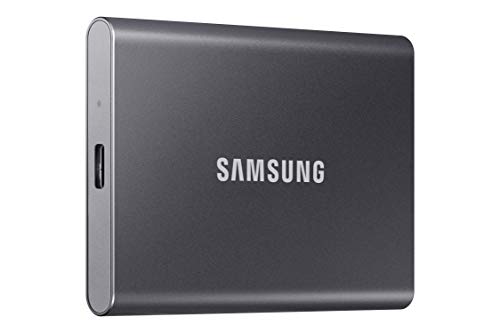
Ready to Buy? Start Here
If this guide helped you decide what to look for, these products are a place to start.


As an Amazon Associate we earn from qualifying purchases. Prices and availability are shown on Amazon.
Choosing Storage for Each of the Three Copies
The 3-2-1 rule asks for three copies on two kinds of storage with one kept off site. The rule does not say which gadgets to use, so it helps to think about what each copy is for.
| Copy | Purpose | Typical home |
|---|---|---|
| Working copy | The files you open every day | Your computer or phone |
| Local backup | Fast recovery after a failed drive or a deleted folder | An external drive or a home network storage box |
| Off-site backup | Survival after a fire, flood or theft | An online backup service, or a drive stored elsewhere |
Two different media types matters because a single flaw, such as a firmware bug or a power surge, can hit identical devices at once. Mixing a drive with an online service covers that gap neatly.
A Weekend Setup Plan
You do not need a perfect system on day one. A short plan, done in order, gets you most of the protection quickly.
- List the folders you could not bear to lose: photos, documents, tax records, creative projects.
- Check how large that pile is, so you know what capacity to look for.
- Pick a local backup tool that comes built into your computer or with your drive.
- Sign up for an off-site service and select the same folders.
- Run the first backup overnight, since the opening upload takes the longest.
- Set a recurring reminder to look at the status messages.
Resist the urge to back up everything blindly. Program files and system caches can be reinstalled, while your own files cannot.
Habits That Keep the Plan Alive
A backup system is a habit more than a purchase. Name your backup folders clearly so you can find them in a hurry. Keep a short written note of where each copy lives and how to unlock it, and store that note with something other than the computer itself. If you use encryption, keep the recovery key somewhere safe and separate. Once a season, open a few random files from the backup and make sure they load properly. If something looks wrong, check the tool maker’s support pages before trying to repair a drive yourself, and for a drive that makes odd noises, stop using it and consider a professional recovery service.
Warning Signs That a Backup Is Failing
Backups rarely fail loudly. They fade out: a drive that is unplugged for months, a subscription that lapsed, a folder that was never added. Watch for these signals and act on them early.
- The last successful run is more than a week old.
- The tool reports skipped files or access errors.
- The drive is almost full, so older versions are being dropped.
- You moved or renamed a main folder and never updated the settings.
- The drive clicks, disconnects or takes longer than usual to appear.
When any of these show up, fix the cause the same day. Replace aging drives before they quit rather than after.
Putting the 3-2-1 Rule Into Practice, Step by Step
Knowing the rule is the easy part. Making it survive real life — a spilled coffee, a stolen laptop, a ransomware pop-up at the worst possible moment — is where most home backup plans quietly fall apart. The difference between a plan that works and a plan that only sounds good is routine: copies that update on a schedule you do not have to remember, stored in places that do not share the same risks, and tested often enough that you trust them before you ever need them.
Start by sorting your files by how painful they would be to lose, not by where they happen to sit today. Family photos and videos, scanned documents, tax records, and creative work you cannot recreate belong in the top tier and deserve all three copies. Downloaded installers, streaming rips, and anything you can fetch again in an afternoon can live with a single local copy. This triage keeps the system affordable, because the expensive part of any backup plan is capacity, and capacity should follow irreplaceability.
Next, decide what each copy actually is. Copy one is the working original on your computer. Copy two should be a local external drive or NAS that updates automatically — daily for active work folders, weekly for archives. Copy three is the offsite layer: a cloud backup service, or a second drive that lives at a relative’s house, in a desk at work, or in a safe deposit box and gets swapped on a fixed rotation. The medium matters less than the separation. Two drives on the same desk are one fire, one flood, or one break-in away from being zero drives.
A realistic weekly routine
Pick one fixed moment in the week — Sunday evening works for many households — and make it backup o’clock. Plug in the offsite drive if it rotates, glance at the backup software’s last-run status, and confirm the cloud copy shows a recent completion time rather than an error you have been ignoring for a month. The whole check takes five minutes, and it catches the silent failures that are the number one reason people discover a broken backup only after a drive dies.
Once a quarter, do a real restore test. Pick a handful of files at random — an old photo folder, a document from last year — and actually copy them back from each layer. A backup you have never restored from is a hope, not a backup. Note the date of the test somewhere you will see it, and treat a failed restore as an urgent repair job, not a someday task.
Versioning: the quiet feature that saves you
A mirrored copy is not the same as a backup. If you accidentally delete a folder, or a file becomes corrupted, a simple sync will faithfully copy that mistake to every destination within minutes. Good backup software keeps versions: yesterday’s copy, last week’s copy, and last month’s copy, so you can roll a file back to before the damage happened. When you set up each layer, turn versioning or snapshot retention on and give it enough history to cover the gap between a mistake happening and you noticing it — thirty days is a sensible floor for most people.
Ransomware is the scenario versioning was made for. Encrypted working files are bad; encrypted working files that have also overwritten your only backup are catastrophic. An offsite or cloud layer with version history, ideally one that requires separate sign-in credentials from your everyday accounts, breaks that chain because the malware on your machine cannot reach back and rewrite history it does not control.
Common 3-2-1 Mistakes and How to Avoid Them
The most common failure is treating a single cloud sync folder as a complete backup. Sync services are excellent at keeping the same files on several devices, but deletion and corruption sync too, and most keep only a limited recovery window. Use sync for convenience by all means — just do not let it be your only offsite copy.
The second mistake is the backup drive that never leaves the building. A drive in the same room as the computer protects against exactly one scenario, a failed internal drive, and against nothing else. Theft, fire, flood, and power surges do not respect the distinction between original and copy. If a true offsite location is impractical, a cloud backup layer covers the same ground, and the two approaches can be mixed freely.
The third mistake is backing up everything except the things that matter. People carefully protect a downloads folder while the photo library lives only on a phone, or the one folder of scanned family documents sits outside the backup set because it was created after the original setup. Revisit your backup set whenever you start a new kind of project — a new baby, a new business, a house purchase — because new irreplaceable files tend to appear exactly when life gets busy.
Finally, watch for the full-drive trap. Backup drives fill up, software starts failing quietly, and months pass. Size each destination with generous headroom over your current data, and let the software prune old versions rather than stop entirely. A slightly shorter version history that keeps running beats a perfect plan that stalled in March.
Backing up more than one computer
Households rarely have just one machine anymore. The cleanest pattern is one shared local destination — a NAS or a large external drive that each computer backs up to on its own schedule — plus one offsite layer per person or one family cloud plan. Keep each computer’s backups in separate folders or accounts so one machine’s restore never overwrites another’s, and make sure the person who set it all up is not the only one who knows where the recovery keys and passwords live. A plan only one family member understands is a single point of failure wearing a disguise.
More Questions About the 3-2-1 Rule
How much storage do I need for each copy? Add up the data you actually care about, then multiply by roughly one and a half to leave room for version history and growth over the next couple of years. Photos and phone videos dominate most households’ totals, so measure those first; documents are usually a rounding error by comparison.
Does a second internal drive count as the second copy? It counts as a second copy on a different medium only in the loosest sense — it still shares the same machine, the same power supply, and the same room. It is better than nothing and fine as an extra layer, but it should not replace a genuinely separate local drive or the offsite copy.
How often should the offsite copy update? Match it to how much work you can bear to redo. A cloud layer can update continuously and is the easiest to keep current. A rotating drive updated monthly means accepting up to a month of loss for the newest files in the worst case, which is why many people pair a monthly rotating drive with continuous cloud backup for their most active folders.
What about phones? Your phone probably holds the only copies of your newest photos. Turn on the manufacturer’s cloud photo backup or include the phone in your regular backup routine, and make sure those photos eventually land in the same three-copy system as everything else — phones are the most commonly lost and broken devices in the house.
Is the newer 3-2-1-1-0 idea worth adopting? That extension adds one immutable or air-gapped copy and zero errors after verification. For a household, the practical translation is simple: keep one copy that malware cannot rewrite, such as a cloud backup with version history or a drive that is normally unplugged, and actually test your restores. If you do those two things, you have captured most of the benefit without enterprise complexity.
A Practical Checklist Before You Decide
Before you commit, write down the three jobs you most need your backup setup to do well, in order, and judge every option in this guide against that list rather than against a specification sheet. Specifications describe what a product can do on its best day; your list describes what it must do on your ordinary days, and the distance between those two standards is where most disappointing purchases live. If a feature does not serve one of your three jobs, let it go without regret, even when it is the feature the marketing shouts about loudest.
Ownership has a rhythm worth planning for from day one. Set a small recurring appointment with yourself — monthly is enough for most people — to check that everything still works the way it did in the first week: the consumables are fresh, the storage is not silently full, the mounts and connections are sound, and one real result from the past month looks the way you expect. Equipment rarely fails dramatically; it drifts, and a short monthly look catches drift while it is still a five-minute correction instead of a ruined occasion.
Teach one other person the basics of how your setup works. A partner, a family member, or a friend who knows where things live, how to check that a result was captured properly, and what to do when something looks wrong doubles the reliability of the whole system, because the day you most need everything to work is often the day you are busiest, traveling, or otherwise occupied. Reliability that lives in only one person’s head is a single point of failure, whatever the hardware costs.
Keep your expectations calibrated to the category rather than to advertising. Every option in this guide involves honest trade-offs between convenience, capability, and ongoing effort or cost, and the right choice is the one whose trade-offs point in directions you do not mind. A slightly less capable option that you use constantly will outperform a theoretically superior one that annoys you into a drawer, a glovebox, or a shelf — the best gear is reliably the gear that is present, charged, ready, and understood.
When something goes wrong, change one variable at a time and test before changing another. Random adjustment feels productive and teaches nothing; methodical adjustment feels slow and solves the problem permanently. Note what you changed and what happened, even in a single line on your phone. Within a few months those notes become a personal manual for your exact setup in your exact conditions, which is worth more than any generic advice — including much of what appears in guides like this one.
Finally, revisit the decision once a year with fresh eyes. Your needs will have shifted — a new vehicle, a new property, a new hobby phase, a new family member — and the setup that was right last year may be quietly wrong for this one. The options in this guide will have successors, your skills will have grown, and the honest annual question is not whether you bought the best thing, but whether what you own still matches the life you are actually living. Adjust in small steps, keep what works, and let experience, not novelty, drive the upgrades.
Worst Days, Whole Costs and First Weeks
Consider the worst realistic day, not the average one. For your backup setup, the average day forgives almost any choice; the worst day — the deadline, the storm, the once-a-year family gathering, the incident you actually bought protection for — is the day your decision is really about. Walk your shortlist through that day honestly: what runs out, what overheats, what confuses you, what takes too long. The option that survives the worst-day test with the fewest apologies is usually the right purchase, even when a rival looks better across a spreadsheet of ordinary days.
Budget for the whole system, not the headline item. Every category in this guide has a supporting cast — consumables, storage, mounts, spare parts, subscriptions, or accessories — and the true cost of ownership is the cast’s cost added to the star’s. A cheaper main purchase that demands expensive consumables can cost more within a year than the pricier option with modest running costs. Tally a full year of realistic use before deciding which option is actually the economical one, and keep a small reserve for the one accessory you will inevitably discover you needed.
Buy for the person who will actually use it, which is not always the person doing the research. If your backup setup will be shared with a partner, a parent, a teenager, or a colleague, their patience and habits are part of the specification. The technically best option that a second user finds intimidating will be quietly avoided, and avoided equipment delivers no value at all. When a purchase is shared, simplicity is not a compromise — it is the feature that determines whether the thing gets used on the day it matters.
Plan the first week as deliberately as the purchase. Unbox, set up, and run your first real test in low-stakes conditions, while returning or exchanging is still painless and your attention is fresh. Most dissatisfaction in this category is born in a rushed first setup that never got revisited: a default left wrong, a position never adjusted, a feature never discovered. A calm first week, with one honest test of the exact job you bought it for, converts a gamble into a known quantity.
Keep the packaging and paperwork longer than feels necessary. Receipts, warranty cards, and serial numbers belong in one folder — physical or digital — created the day the product arrives, not reconstructed during a warranty claim a year later. Photograph the serial label with your phone as insurance. This sounds like housekeeping rather than buying advice, but the difference between a smooth warranty replacement and an abandoned claim is almost always paperwork, and it costs two minutes on a day when two minutes are easy.
Resist the accessory spiral in the first month. New owners routinely buy every mount, case, and add-on in an enthusiasm surge, then discover that two of them do all the work. Live with the core purchase first; let real friction tell you what is missing. An accessory bought to solve a problem you have actually had is money well spent, while a shelf of speculative accessories is the purchase price quietly doubling itself. The exception is genuine consumables and spares, which are never a waste because running out is the one failure you can schedule in advance.
Share what you learn. A short note to a friend, a review that mentions your real conditions, or a conversation with the next person in your circle facing the same choice multiplies the value of your own research. Categories like this one run on accumulated owner experience — the tips in this guide began as exactly such notes — and your worst-day story, told honestly, is the single most useful thing you can hand to the next buyer.
Long-Term Ownership: Support, Storage and Second Lives
Think about where the product will live when it is not in use, because storage is a silent determinant of lifespan in this category. Heat, humidity, dust, and casual knocks in a garage or a bag do more cumulative damage than the work the product was bought for. A defined home — a shelf spot, a case, a drawer — with the cables and small parts kept together means the setup is always complete and ready, and ‘ready’ is the state in which equipment actually gets used instead of worked around.
Learn the manufacturer’s support landscape before you need it: where the manual lives online, how firmware or parts are obtained, what the warranty actually covers, and how other owners describe the company’s responsiveness. Two otherwise equal options in this guide can differ enormously here, and the difference only becomes visible on the worst day. A maker that publishes clear documentation and answers owners in public forums is telling you something about year three of ownership on the day you buy.
Set up a simple log, however informal. A note on your phone with the purchase date, the settings you settled on, the consumables you bought, and anything that surprised you becomes, within months, the most useful document you own about this product. Settings get reset, memories fade, and the question ‘what did I change last time this happened’ is unanswerable without the note. Future you is a different person; leave them instructions.
Frequently Asked Questions
What is off-site?
Another location or cloud.
How many drives?
At least two.
Test restores?
Yes.
Is cloud sync the same as a backup?
Not exactly. Sync copies changes everywhere, including deletions and corruption. A backup keeps separate copies, ideally with older versions you can restore.
How often should I back up?
It depends on how much work you would lose. Automatic daily or continuous backups suit active work, while archives may need less frequent updates. Pick a schedule you will keep.
Should I keep my backup drive plugged in?
Leaving it connected makes automatic backups easy, but a surge or malware could affect it too. Some people keep one copy disconnected between backups.
Do I need to back up my phone?
Yes, if it holds photos, messages or files you could not replace. Use the phone's built-in backup tool or copy files to a computer or drive.
Is encryption needed for backups?
It is a good idea for drives that leave your home or hold private data. Keep the password safe, because a lost password can mean lost data.
How long do backup drives last?
There is no fixed lifespan. Watch for errors, strange noises and slowdowns, and replace aging drives before they fail instead of waiting for a fault.
What should I back up first?
Start with irreplaceable files like photos, documents and creative work. System files and programs can generally be reinstalled.
What is the difference between a file backup and a system image?
A file backup copies chosen folders such as documents and photos. A system image captures the whole drive, including the operating system and programs, so you can restore a working computer. Many people use both.
Do I need a network storage device?
Not necessarily. It suits households with several computers and a lot of data, but a couple of external drives plus a cloud copy is enough for many people. Consider it if you want automatic backups for many devices.
Is an incremental backup safe?
It is widely used and saves space, because only changes are saved after the first full copy. Check that your software keeps older versions and verify restores from time to time.
How much space should my backup drive have?
At least as much as the data you are protecting, plus extra room for older versions and growth. Check how your software handles version history, since that affects how much space it needs.
What should I do if my backup keeps failing?
Read the error message, check that the drive is connected and has free space, and make sure the destination is healthy. If failures continue, try another drive and look at the software's help pages.
Can I back up to the same drive my files are on?
Doing so gives little protection, since one failure takes both. Use a separate drive or a cloud service for the copy.
How do I protect backups from ransomware?
Keep at least one copy disconnected or in a service that keeps older versions, and keep your system updated. That way a damaged set of files does not overwrite every good copy.
Should I back up before a major update?
Yes, it is a sensible habit. An image or a fresh copy before a large update or hardware change gives you a way back if something goes wrong.
Bottom Line
Automate backups and keep one copy off-site.
More Storage Guides
- NAS vs External Drive
- Best 2TB Portable Hard Drives for Backups
- Best 4TB Portable and Desktop Hard Drives
- Best Large External Hard Drives
- Best High-Capacity Desktop Hard Drives
- Best Portable External Hard Drives for Travel
- Best PlayStation External Hard Drives for PS4 Games
- Best Xbox External Hard Drives for Game Storage


