Gaming mice use either optical or laser sensors to track movement. Today most gaming mice use optical sensors. Here is how they differ.
By the Reviewstook Editorial Team. Last updated: October 31, 2026.

Optical sensors
Optical sensors use an LED and a small camera to track the surface. Modern optical sensors are accurate and widely used in gaming mice, including the PixArt sensors named in many listings.
In this guide
Laser sensors
Laser sensors use a laser and can track on more surfaces, including glass, but can be less consistent on cloth pads. They were common on older gaming mice.
Which is better for gaming?
Most gamers choose optical sensors for their consistency on cloth and hard pads. Some newer optical sensors also track on glass, according to makers.
Sensor quality matters more than type
Look for tracking accuracy and low smoothing rather than the maximum DPI figure. See our gaming mouse buying guide.
Your mouse pad
The surface affects tracking. See XL mouse pads and hard mouse pads.
What the Differences Mean
A spec table shows what differs. This section explains why each difference matters, so you can weigh the rows that apply to you.
Which Is Right for Which Buyer
- If you play competitive shooters, prioritize weight or key response, a layout you can control and a stable connection over extra features.
- If you play strategy or MMO games, look at the number of programmable buttons or keys and whether profiles can be stored on the device.
- If you use the same device for work, pay attention to comfort, noise and Bluetooth support.
- If you are on a budget, check the price on the day you buy and the return policy, and skip features you will not use.
Before You Buy: A Five-Point Check
- Confirm the exact model on the product page; similar names often hide different features.
- Check dimensions against your hand or desk.
- Look at the warranty and return window.
- Read what the companion software is required for.
- Keep the packaging for the first couple of weeks.
This comparison is based on the Amazon listings and manufacturer information, not our own testing. Treat it as a way to narrow the choice, then confirm the details that matter to you.
How Each Sensor Reads the Surface
Both sensor types work like a tiny camera that takes many pictures of the surface every second and compares them to work out how far and in which direction the mouse moved. The difference is the light source and how deeply the light penetrates. An optical sensor uses an LED that skims across the surface, so it mostly reads the very top texture. A laser sensor uses an infrared laser that is more focused and can read finer detail, including texture slightly beneath the surface.
That extra detail is why laser sensors work on surfaces such as glossy desks or glass where an older optical sensor struggled. It is also why they can be less predictable on cloth mouse pads. The sensor may pick up the weave of the fabric and every tiny fibre, which can cause small inconsistencies in how the cursor moves, particularly during slow movements. Optical sensors tend to read the surface in a more uniform way, which many players prefer for repeatable aim.
It is worth remembering that these are general tendencies, not guarantees. A well-implemented sensor of either type can work well, and a poorly tuned one can feel off. The maker’s sensor name, the firmware and the way the sensor is mounted all affect the result. If a listing names the sensor, look up independent reviews that describe how it behaves on the kind of pad you use, rather than judging by the sensor type alone.
Tracking Terms Worth Understanding
Spec sheets use many terms that are easy to misread. Knowing a few of them helps you avoid paying for numbers you will never use.
- DPI or CPI: how far the cursor moves for each inch the mouse moves. A higher value makes the cursor more sensitive. It is a setting, not a quality score, and most players use a moderate value that suits their screen and play style.
- Polling rate: how often the mouse reports its position to the computer. Higher rates can feel smoother and reduce delay, but they can also use more battery on wireless models and more processor time on weaker computers.
- Tracking speed and acceleration: the maximum speed and acceleration the sensor can follow before it loses track. Fast flick shots in shooters are the usual test. Makers state these figures, but check the conditions they were measured under.
- Lift-off distance: how far you can raise the mouse before the sensor stops tracking. A low lift-off distance helps when you reposition the mouse, so the cursor does not drift.
- Smoothing and acceleration: processing that alters the raw movement. Players who want raw input generally look for a sensor that does not add either one by default.
Treat the maximum figures on the box as ceilings. What matters is whether the sensor stays accurate at the speed and sensitivity you actually use. A mouse with a moderate maximum number and a well-tuned sensor often feels better than one that advertises a much larger number.
Matching the Sensor to Your Play Style
The right sensor depends on what you play and where you play it. First-person shooter players generally value consistent tracking at low and medium sensitivity, a short and predictable lift-off distance, and stable performance at high swipe speeds. For them a modern optical sensor on a cloth or hard pad is the common choice, and the main focus is on shape, weight and button quality rather than sensor type.
Strategy and MMO players move the cursor less aggressively and use many buttons. For them the sensor is rarely the limiting factor, and the number of programmable buttons, grip comfort and onboard profiles deserve more attention. Casual players who use a mouse on varied surfaces, such as a desk, a couch cushion or a table, may value a sensor that is advertised to track on many surfaces, though they should read the product page to see which surfaces are listed and how the maker describes performance.
If you travel with a mouse or use it for work as well as gaming, think about the surfaces you meet in practice. A hotel desk or glossy table can defeat a sensor designed for pads, while a sensor tuned for mixed surfaces might be more forgiving. A cheap pad can fix many tracking complaints without any change in sensor, so test your setup before blaming the mouse. When reading product pages, favour specific statements about glass or gloss tracking over generic claims such as works everywhere.
Weight, Shape and Grip Matter as Much as the Sensor
Most modern gaming mice have sensors that are good enough for nearly everyone, so comfort often decides which mouse you enjoy. Start with hand size and grip style. A palm grip rests the whole hand on the mouse and generally suits a larger, taller shape. A claw grip arches the fingers and tends to suit a mouse with a higher back. A fingertip grip uses only the fingers and works well with a smaller, lighter shape.
Weight affects fatigue and control. A lighter mouse is easier to flick and move for long sessions, while a heavier one can feel more stable for slow, precise movements. Lighter designs sometimes use perforated shells, so check whether you are comfortable with the look and whether dust can enter. Cable choice matters too. A wired mouse has no battery weight or latency worries, but a stiff cable can drag; a flexible cable or a cable bungee helps. A wireless model removes the drag but adds a battery, so look for the stated battery life and the charging method.
Finally, inspect the buttons and scroll wheel. Switches differ in click feel and noise, and the side buttons should be placed where your thumb naturally rests. The best test is to hold a mouse for a few minutes. If you cannot, choose a seller with a generous return window and plan to use the mouse for a full week of normal play before deciding to keep it.
Setup, Care and When to Replace
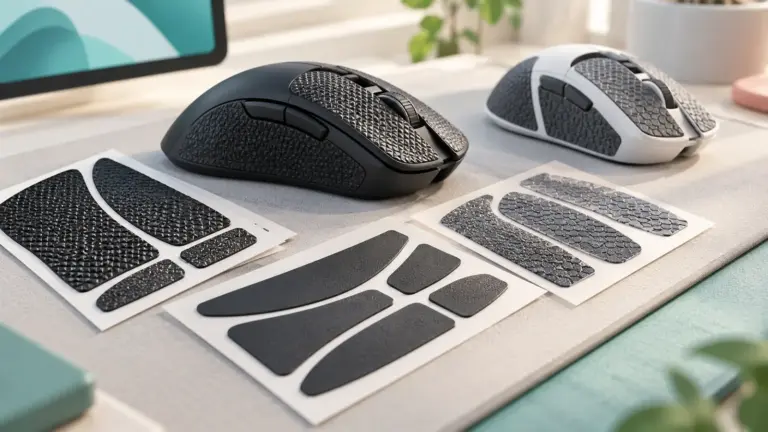
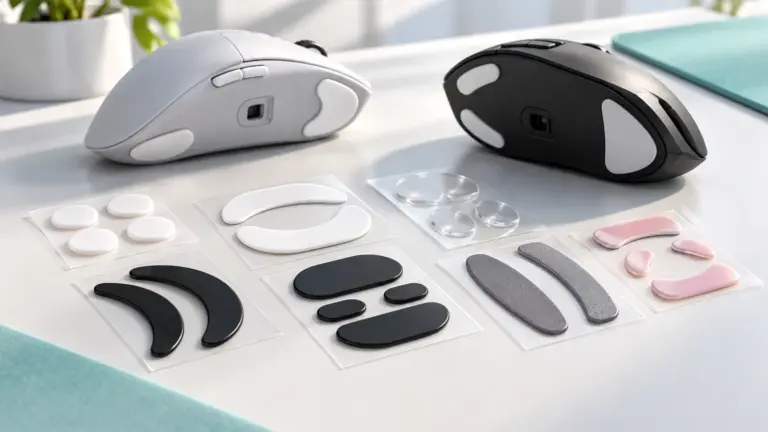
A mouse needs little maintenance, but a few habits keep tracking steady. Wipe the underside and the sensor window with a dry or slightly damp lint-free cloth, because dust and hair can cause jitter. Clean the feet, which are the glides on the bottom, and check them for wear. Worn or dirty feet add friction and can make the mouse feel inconsistent; some makers sell replacement feet, so check the listing.
When you first set up a new mouse, begin with a modest DPI and adjust in small steps rather than changing several things at once. Turn off pointer acceleration in your operating system if you want one-to-one movement, and use the maker’s software only if you need extra features such as button mapping or lighting. If the software is Windows-only, check that your system is supported or look for onboard memory so that profiles stay on the mouse.
Signs that it is time to replace a mouse include a double-click when you press once, a scroll wheel that jumps or fails, a sensor that spins or skips on a clean pad, battery capacity that no longer lasts a few days, and feet that are worn through to the base. Check the warranty first, since some faults may be covered. When buying a replacement, keep what you liked about the old one in mind, such as shape and weight, and use the checks above rather than the sensor type alone.
A Short Shopping Checklist for a Gaming Mouse
Sensor type gets a lot of attention, yet it is only one of several things that shape how a mouse feels in a long session. Before you choose between optical and laser designs, run through these points so the sensor decision sits in its proper place.
- The surface you will use: a cloth pad, a hard pad, a bare desk or glass.
- Your grip style, which may be palm, claw or fingertip, and your hand size.
- The weight you prefer, from very light to a heavier body with removable weights.
- Wired or wireless, and how you feel about charging or replacing batteries.
- The types of games you play, from slow tactical shooters to fast-moving action titles.
- The number of buttons you actually need, including thumb buttons.
Write down your top three priorities, then check which mice satisfy them. You may find that the sensor type is already decided by your surface and your habits.
How Each Sensor Works in Plain Terms
Both kinds of mouse track movement by taking very fast pictures of the surface beneath them and comparing one image with the next. An optical sensor lights the surface with an LED, usually red or infrared, and reads the reflected pattern. A laser sensor uses a laser diode, which is a more focused light source that can pick up finer detail on certain surfaces.
That difference explains the common claims. A laser sensor can sometimes track on glossy or uneven surfaces where an LED struggles, but it may also read tiny surface texture that you did not intend it to follow. An optical sensor tends to produce steady, predictable tracking on a good mouse pad. Modern designs in both categories have improved so much that the sensor type alone no longer predicts quality.
Reading Spec Sheets Without Being Fooled
Listings highlight numbers such as DPI, polling rate and maximum tracking speed. DPI describes how far the cursor moves for a given amount of hand movement, and higher is not automatically better. Most players run a moderate setting and adjust it in software. A huge DPI figure on the box mostly signals marketing.
Look instead at the sensor model named by the maker, the polling rate options, the lift-off distance setting and whether the mouse uses on-board memory for profiles. A mouse that lets you save settings can follow you from one computer to another. Check also the switch type and its stated lifespan, the cable flexibility if it is wired, and the weight in grams.
Which Buyer Suits Which Sensor
| Buyer | Direction to consider |
|---|---|
| Uses a cloth mouse pad | An optical sensor is the usual match |
| Plays on a bare, glossy or uneven desk | A laser sensor may cope better, or add a pad |
| Competitive player | Focus on the specific sensor model and shape |
| Casual player and office worker | Either type works; comfort comes first |
| Travels with a laptop | A compact wireless mouse with reliable tracking |
Treat the table as a sorting aid. Real comfort in your hand matters more than the label on the sensor.
Setup, Care and Common Mistakes
After you connect the mouse, install the maker’s software if you want to adjust DPI, buttons and lighting. Pick one DPI setting, play with it for a few days and change it only when you feel a need. Many players are most accurate at a moderate setting with their sensitivity adjusted in the game.
Keep the sensor window clean by gently wiping away dust and lint, and clean the pad according to the maker’s advice. Replace worn mouse feet when the glide becomes scratchy. If tracking jitters, test a different surface before blaming the mouse. When switches begin double clicking or the scroll wheel misfires, check the warranty and contact the maker for support.
Choose by Desk Surface: A Decision Guide
The sensor type matters most when you think about what the mouse will glide across. Use this table to match the sensor to your setup, and read the maker’s notes for each model.
| Surface | What to consider |
|---|---|
| Standard cloth mouse pad | Both optical and laser sensors are commonly used here |
| Hard plastic or metal pad | Check the maker’s notes on tracking for the model |
| Bare wooden desk | Results vary, so a pad is a safe choice |
| Glossy or glass-like surface | Some sensors struggle, so look for a model that lists support |
| Travel use on different tables | Look for a sensor the maker describes as working on many surfaces |
Sensor Terms Explained
Gaming mouse listings are full of numbers. This glossary helps you read them without being swayed by big figures.
- DPI: dots per inch, a measure of how far the pointer moves for a given hand movement.
- Polling rate: how often the mouse reports its position to the computer.
- Lift-off distance: how high you can raise the mouse before it stops tracking.
- Acceleration: when pointer speed changes with how fast you move your hand.
- Smoothing: processing that evens out the movement, which some players prefer to avoid.
- Angle snapping: software that straightens lines, often turned off for gaming.
Higher numbers do not always mean better aim. Many players choose a moderate DPI and fine-tune the in-game sensitivity. Test settings in a practice mode and write down the numbers that feel right.
Clean the sensor window with a dry cotton swab if the pointer jumps, check the feet for wear, and use the maker’s software for firmware updates.


Products Worth a Look
As an Amazon Associate, Reviews Took earns from qualifying purchases. These picks come from our guide: 5 Best XL and XXL Gaming Mouse Pads (Desk Mats, 2026).
-
Corsair MM350 PRO Extended XL
 CORSAIR MM350 PRO Spill-Proof Cloth Gaming Mouse Pad – Extended XL – Black
-
SteelSeries QcK XXL
 SteelSeries QcK XXL Gaming Mouse Pad
-
Large Extended Gaming Mouse Pad (stitched edge)
How Each Sensor Behaves on Real Desks and Pads
The cleanest way to understand the optical-versus-laser question is to watch what each sensor actually does on the surfaces people really use. An optical sensor lights the surface with an LED and takes rapid pictures of the texture underneath, comparing each picture with the last to work out movement. It loves texture: a cloth pad, a matte desk or a hard pad with a fine grain all give it plenty to read. On a glossy, transparent or mirror-like surface there is almost no texture to photograph, and tracking can skip or fail entirely. That single behaviour explains most real-world optical complaints.
A laser sensor uses a laser light source that can pick up detail from deeper within a surface, including some smooth materials that defeat optical sensors. That is why laser mice earned their reputation as the ones that work anywhere, including glass desks in offices. The trade-off historically appeared at the other extreme: on soft cloth, some laser sensors read the weave so deeply that they picked up extra surface noise, which players experienced as a slight unwanted acceleration feel, where fast and slow movements of the same distance did not produce quite the same cursor travel. Modern implementations have narrowed these differences a great deal, but the underlying characters remain: optical is happiest on a proper pad, laser is more tolerant of odd surfaces.
The mouse pad is part of the sensor system
Because the pad is what the sensor reads, changing pads can change tracking as surely as changing mice. A worn cloth pad with a shiny flattened centre reads differently from its edges, and players sometimes blame a sensor for inconsistency that is really a tired pad. Dark, even-coloured pads with a consistent weave are the safest match for optical sensors. Very colourful pads with sharp printed patterns occasionally confuse sensors at the boundary between colours, and glass or metal pads suit some sensors better than others. If tracking feels uneven, test the mouse on a plain sheet of matte paper or a different pad before concluding anything about the sensor type.
Acceleration, Jitter and the Terms That Actually Matter
Three behaviours decide whether a mouse feels trustworthy, and none of them is the sensor’s light source by itself. The first is acceleration consistency: move the mouse the same distance slowly and then quickly, and the cursor should travel the same distance both times. Any difference comes from the sensor and its processing, and it is the flaw players dislike most, because muscle memory depends on distance meaning distance. The second is jitter: at rest or during slow movement, the cursor should sit still and move in clean lines rather than trembling. Jitter often appears at very high DPI settings, where the sensor’s smallest readings get amplified, which is why many players use moderate DPI even on mice that advertise enormous maximums.
The third is behaviour at speed. During a fast flick, a good sensor keeps reading the surface accurately instead of spinning out or skipping. This is usually expressed in tracking-speed terms on a spec sheet, and any modern gaming sensor, optical or laser, handles speeds far beyond what a human arm produces. In practice, sensor quality, firmware and the lens design separate good mice from bad ones far more than the optical-or-laser label does. Two mice with the same sensor type can feel noticeably different, and a well-made laser mouse will out-track a poorly made optical one every time.
Lift-off distance and why it matters
Lift-off distance is how high you can raise the mouse before it stops tracking. Low-sensitivity players lift and reposition constantly, and a mouse that keeps tracking while lifted drags the crosshair during every reset. Optical gaming mice usually offer low lift-off, sometimes adjustable in software, which is one of the practical reasons they dominate gaming line-ups. If you play at low sensitivity, check lift-off behaviour before you worry about sensor type; a mouse that tracks cleanly the moment it lands, and stays silent while lifted, will feel precise regardless of its light source.
Matching the Sensor to Your Games and Habits
For competitive shooters played on a cloth or hard gaming pad, an optical gaming mouse is the straightforward recommendation, not because laser cannot work, but because the entire gaming ecosystem — shapes, weights, pads, software — is now built around optical sensors, and you get the widest choice and the most predictable behaviour. For a mixed desk where the mouse must work on whatever surface is available, including a bare desk during travel, a laser model’s surface tolerance is a genuine advantage, and for office-style games and everyday play the difference in feel is unlikely to decide anything.
MMO, strategy and simulation players should weigh buttons, shape and comfort first, since their tracking demands are modest and sessions are long. Players who share one mouse between a gaming PC and a work laptop may value a model that behaves well on both a pad and a desk, which again points to surface tolerance. And players with an older laser mouse they already like should not feel pushed to replace it on sensor grounds alone: if it tracks consistently on your pad, fits your hand and its clicks are healthy, it remains a perfectly serviceable gaming mouse. Replace for fit, weight or failing parts, not for a label.
Testing a sensor fairly at home
You can learn a lot with three simple checks. First, the distance test: mark two points on your pad, move slowly between them and note where the cursor lands, then repeat at speed several times; consistent landings mean consistent tracking. Second, the line test: draw slow diagonal lines in a paint program at your normal DPI; clean lines without trembling or stair-stepping at odd angles suggest a healthy sensor and a suitable surface. Third, the flick test: swipe fast across the pad repeatedly; the cursor should never spin to a corner or freeze. Run the same checks on any new mouse during its return window, on the pad you actually use, in the games you actually play.
Care, Wear and Troubleshooting
Most tracking problems are housekeeping problems. Dust and hair collect around the sensor lens and cause skipping that feels like a dying sensor; a gentle blast of air and a dry cotton bud around — not on — the lens usually fixes it. Wireless mice add their own variables: a receiver buried behind a metal case, a low battery, or interference can all mimic sensor faults, so test wired and close to the receiver before blaming the sensor. Frayed cables on wired mice cause dropouts that look like tracking failures too. Work through the cheap explanations first: clean the lens, change the surface, move the receiver, swap the port, and only then consider replacement.
Mouse feet wear as well, and worn feet change the glide and can tilt the mouse slightly, altering the sensor’s height above the surface. If an older mouse feels scratchy and less consistent than it used to, fresh feet often restore it. Keep the pad clean for the same reason; a pad washed and fully dried reads more evenly than one loaded with months of dust and skin oils. These small maintenance habits protect tracking quality on either sensor type, and they cost almost nothing compared with a new mouse.
The short version
Optical and laser describe how a sensor sees the surface, not how good the mouse is. Optical suits the pad-based gaming setup most players have and dominates current gaming ranges for practical reasons: predictable tracking, low lift-off and huge choice. Laser remains the tolerant traveller for mixed surfaces. Within either camp, judge the individual mouse — its consistency, shape, weight, clicks and software — because those are the qualities your hand will actually judge every day.
Surfaces, Room Lighting and Other Quiet Variables
One variable rarely mentioned in sensor debates is the surface colour and finish under the mouse. Optical sensors illuminate the surface and read contrast, so a pad with very low contrast in the lit colour can occasionally track less confidently than a busier texture. In practice this shows up as a mouse that feels perfect on one pad and slightly vague on another, with no fault in either product. Laser illumination reads a different kind of detail, which is why the same pad can reverse the result. The lesson is not to memorise which combinations work, but to treat mouse and pad as a pair: when you change one, give the other a fair test before judging.
Room lighting almost never matters, because the sensor brings its own light and works in a sealed space under the mouse. What does matter is surface contamination. A pad that has absorbed months of dust, crumbs and skin oil presents a changing texture, and tracking slowly degrades in a way players attribute to the mouse ageing. Washing a cloth pad with mild soap, rinsing it well and letting it dry completely flat restores a surprising amount of consistency. Hard pads need only a wipe. If an older setup feels less precise than it did when new, clean or replace the pad before shopping for a sensor of either type.
Hard pads, glass desks and hybrid setups
Hard pads give optical sensors a fine, consistent grain and a fast glide, and many competitive players prefer them for exactly that predictability. Glass desks are the opposite case: a surface with almost no readable texture, where laser designs historically earned their keep and where many optical mice simply refuse to track. Hybrid players who game at a desk but also work from a sofa arm, a bed or a presentation room should be honest about how often the mouse leaves the pad. If that happens daily, surface tolerance deserves real weight in the decision. If it happens twice a year, optimise for the pad and borrow a desk mat when travelling.
How the Industry Arrived Here
Laser sensors first attracted gamers because they offered higher maximum DPI figures and worked on more surfaces, and for a while they sat in many flagship mice. Optical designs then improved rapidly: better lenses, better processing and firmware that kept tracking consistent across speeds. As competitive players compared notes, the mice that felt most consistent on cloth — the near-universal tournament surface — were optical, and makers followed the players. That history explains the current shelves better than any single technical verdict. Optical did not win because laser failed; it won because the standard gaming environment standardised around it.
This matters for buyers because older advice lingers. A forum post praising laser as the premium choice may date from the era when that was true at the top of the market, just as a post dismissing laser entirely may ignore how much current implementations have improved. Judge today’s individual models on today’s behaviour: consistency at speed, behaviour on your pad, lift-off, and the shape and software around the sensor. The year a piece of advice was written is part of its meaning.
DPI headlines and sensor quality
Maximum DPI is the easiest sensor number to advertise and the least useful to compare. What matters is how cleanly a sensor behaves at the settings people actually use, which for most players sit in a moderate band rather than anywhere near the maximum. At extreme settings, tiny hand tremors become cursor movements and many sensors smooth or struggle. A mouse that is honest and consistent at everyday settings is a better gaming tool than one boasting a gigantic maximum it handles poorly. When two mice use sensors from the same family, differences in feel usually come from firmware tuning, lens height and the mouse’s weight and feet — another reason the optical-versus-laser label predicts less than the whole design.
Choosing in Specific Situations
A tournament-focused shooter player with a quality cloth pad should simply buy the optical mouse whose shape and weight suit them best, and spend remaining budget on a spare pad and feet. A laptop gamer who plays in libraries, trains and kitchen tables should weight surface tolerance heavily and may be better served by a laser model or by carrying a thin pad, which solves the problem for either sensor type. A player whose desk is glass and who refuses a pad on principle has the clearest brief of all: test before committing, keep the receipt, and expect the laser designs and the newest glass-capable optical models to be the realistic candidates.
Households sharing one mouse between a gaming PC and general family use should prioritise comfort, battery life and a sensor that behaves on the family desk, in that order. Players returning after years away, with an old laser mouse in a drawer, should clean it, test it with the distance and line checks described earlier, and only replace it if it fails those checks or no longer fits. And anyone choosing between two specific models should compare them on the same pad, in the same game, at the same sensitivity, on the same day — the only comparison method that has ever settled this debate for an individual player.
What to do with conflicting reviews
Reviews of the same mouse sometimes disagree about tracking, and the disagreement is usually real rather than mistaken: different pads, different sensitivities and different games expose different behaviours. Weight most heavily the reviews that describe a setup like yours, and treat any review that never mentions its test surface as incomplete. Your own return-window testing remains the final authority, which is why buying from a seller with a fair returns policy is part of sensor shopping, not an afterthought.
Angle Snapping, Smoothing and Other Processing
Between the sensor’s raw readings and the cursor sits a layer of processing, and two features there are worth understanding. Angle snapping tries to help draw straight lines by correcting slight wobbles toward horizontal or vertical. For office drawing that can feel helpful; for gaming it interferes with the fine diagonal control that aiming constantly uses, and gaming mice therefore leave it off or make it optional. If a mouse ever feels as though it resists small diagonal adjustments, check the software for a snapping or line-straightening option before blaming the sensor.
Smoothing is the other common feature. At very high DPI settings some sensors average readings to hide jitter, which can add a faint sense of delay or softness to fast movements. This is one more reason experienced players favour moderate DPI: the sensor works in its cleanest range and needs the least correction. Neither feature is tied to the optical-or-laser choice — both sensor types can ship with either behaviour — yet both change feel more than the light source does. A short settings audit when a mouse is new, turning off anything that corrects your input, is one of the highest-value habits in this whole topic.
Prediction is the third, rarer behaviour: firmware guessing where movement is heading to make tracking feel responsive. Well-judged, it is invisible; overdone, it overshoots during flicks. You cannot spot it on a spec sheet, which is why the simple home tests described earlier — the distance test, the line test, the flick test — remain the practical way to judge any individual mouse. Trust those tests on your own pad over any general claim about a sensor family, including the claims in guides like this one.
Frequently Asked Questions
Are optical mice better than laser?
For gaming, most players prefer optical for consistency.
Can a gaming mouse work on glass?
Some newer sensors list glass tracking. Check the product page.
Does DPI depend on the sensor?
The sensor sets the maximum DPI, but you use a modest value. See best mouse DPI for gaming.
Is the first or the second better for beginners?
Pick the one that fits your hand or desk and your budget. Features matter less than comfort for most beginners. See the verdict above for the main difference.
Can I use either with a Mac?
Basic functions normally work on any system, but companion software may be Windows-only. Check each product page.
What if I choose the wrong one?
Check the return window on Amazon and keep the packaging while you test it.
Do I need a special mouse pad for an optical sensor?
Not usually. Most optical sensors work on cloth and hard pads, and a plain, non-reflective surface gives the most consistent tracking. Very glossy or transparent surfaces may need a mouse that lists support for them.
Is a higher DPI better for gaming?
No. DPI is a sensitivity setting. Most players use a moderate value and adjust it with in-game sensitivity. A very high figure on the box is a ceiling, not a sign of better quality.
What is polling rate and does it matter?
It is how often the mouse reports its position to the computer. Higher rates can feel smoother, but they may shorten battery life on wireless mice and use more computer resources. Pick a rate your system handles comfortably.
Why does my mouse jitter or skip?
Common causes are a dirty sensor window, a reflective or worn surface, or interference on a wireless connection. Clean the underside, try another pad and move the wireless receiver closer.
Is a wired mouse better than wireless?
Wired mice avoid battery and signal concerns, while good wireless models remove cable drag. Check the listed battery life and the wireless mode described on the product page before choosing.
How often should I replace my gaming mouse?
There is no fixed schedule. Replace it when buttons double-click, the scroll wheel fails, the sensor tracks poorly on a clean surface, or the shape no longer suits you. Check the warranty before you buy a replacement.
Does mouse weight affect aim?
It affects comfort and control. Lighter mice are easier to move quickly, while heavier ones can feel steadier. The best weight is the one you can use for long sessions without strain.
Bottom Line
Choose a good optical sensor and a suitable pad.
Related Reading
- 6 Best Gaming Mice Under $50
- 6 Best Gaming Keyboard and Mouse Combos for PC
- 6 Best Gaming Mice for FPS: Valorant, CS, Fortnite and Warzone
- Best Mouse Grip for Gaming: Palm, Claw and Fingertip Explained
- Best Windows Mouse Settings for Gaming: Pointer Speed, Precision
More Gaming Mouse Guides
- Gaming Mouse Buying Guide
- Best Wireless Gaming Mice
- Best Lightweight Gaming Mice
- Best Mouse DPI for Gaming