Disclosure: As an Amazon Associate, reviewstook.com earns from qualifying purchases. Links on this page are affiliate links; they cost you nothing extra. Prices and availability change often, so check the current Amazon listing before you buy.
Learning how to use a trackball mouse is a short project with an unfair reputation, because the first hour feels like writing with the wrong hand and the first month ends with a skill most converts refuse to give back. A trackball keeps the device still and moves only the ball, which inverts everything a lifetime of conventional mice taught your arm: no more dragging, lifting, and re-centring a mouse across a desk, no more running out of mousepad at the decisive moment, and no more shoulder involved in what is fundamentally a fingertip job.
This guide teaches the technique in the order your hands will learn it: choosing between thumb and finger control, setting sensitivity so the ball’s physics work for you, the grip and finger placement that make precision possible, the spin-and-catch method for crossing large screens, and the accuracy drills that compress the learning curve from weeks into days. It also covers the settings, habits, and honest expectations that separate the people who convert permanently from the people who return the device inside a fortnight.
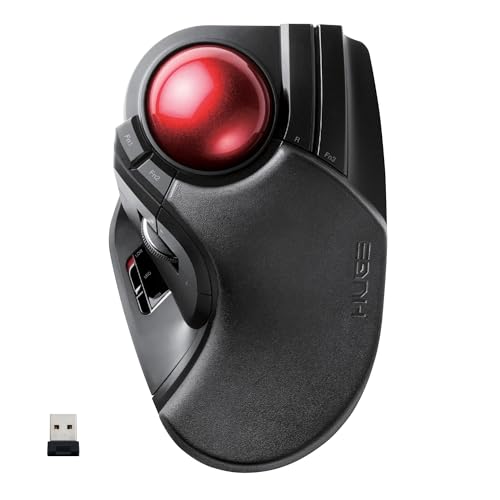
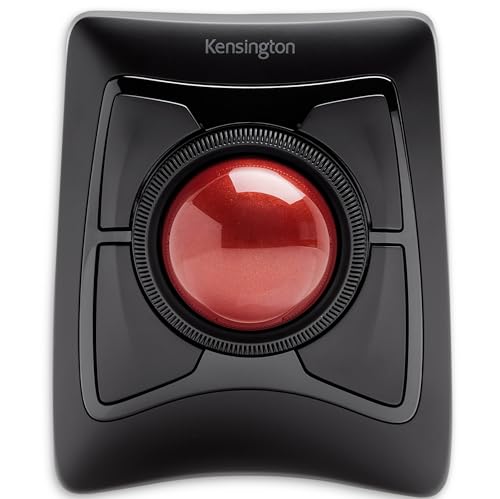
No products are recommended here, deliberately, because technique is the variable this article can actually change for you. The companion cleaning guide linked below covers keeping whichever trackball you own rolling freely, and the Elecom and Kensington guides cover the hardware landscape. This page’s subject is the twenty centimetres between the ball and your brain, which is where trackball success is decided.
Key takeaways
- Give the conversion two honest weeks; the first days measure unfamiliarity, not suitability
- Set sensitivity so a comfortable flick crosses the screen and a fingertip’s small roll lands precisely
- Precision comes from small finger movements on a settled hand, not from gripping harder
- The spin-and-catch technique is the trackball’s signature skill and worth drilling deliberately
- Cleanliness is technique: a filmed ball cannot be aimed, whatever your settings say
In this guide
The two control styles at a glance
| Style | Control | Feels like | Learning curve |
|---|---|---|---|
| Thumb-operated | Thumb rolls a ball in a mouse-shaped shell | A mouse that stays put | Gentler for mouse converts |
| Finger-operated | Index and middle fingers roll a large central ball | A precision instrument | Steeper start, higher precision ceiling |
Neither style is the correct one; they are different instruments that happen to share a principle. The sections below teach both, marking where their techniques diverge, because a surprising number of failed conversions are really style mismatches: a precision worker fighting a thumb ball’s coarseness, or a casual user wrestling a large finger ball that asks more of them than their tasks require.
First principles: what changes and what does not
Everything you know about pointing still applies: the pointer moves, buttons click, the wheel scrolls, and your software neither knows nor cares which device produced the motion. What changes is the muscle group authoring the motion. A conventional mouse is operated by the arm and wrist, sweeping a sensor across a surface. A trackball is operated by fingers or thumb rolling a captive sphere while the hand rests still, and the desk space the device needs is exactly the space it occupies, which is why trackballs thrive on cramped desks, in server rooms, on the arms of chairs, and in the laps of people working from sofas.
That stillness is the ergonomic heart of the matter, stated carefully: a trackball removes the repeated arm sweeping and the wrist’s steering work, and many users find that changes their comfort across a long day, particularly those whose discomfort lives in the shoulder or forearm. It is not a medical device and this guide makes no treatment claims; it is a different distribution of the same work, onto smaller muscles that fatigue differently. The honest trial described later is how any individual discovers whether the redistribution suits their own body.
The learning curve’s shape is worth knowing in advance because it predicts your feelings. Day one is clumsy for everyone. By the end of the first week, ordinary pointing, windows, documents, browsing, feels natural and the remaining awkwardness concentrates in precision tasks: small targets, text selection, drawing, and gaming. Those yield across the second and third weeks to the drills in this guide. Converts who quit almost always quit in the first three days, at the point of maximum unfamiliarity and minimum evidence, which is why this guide asks for a fortnight’s honest trial before any verdict.
Thumb-operated trackballs: technique for mouse converts
A thumb ball sits in a shell shaped like the mouse you already know, and that familiarity is its strategy: your hand position, your buttons, and your wheel are where a mouse put them, and only the thumb has a new job. Rest your hand on the shell exactly as you would on a mouse, let the thumb settle onto the ball without pressing down into it, and roll the ball with the thumb’s pad rather than its tip. Movement should come from the thumb’s middle joint flexing, not from the whole thumb sliding, because the joint’s motion is finer and repeatable.
The thumb’s weakness is diagonal and vertical precision, since the thumb naturally sweeps in an arc. Compensate in settings first, with the sensitivity guidance below, and in technique second, by making large movements with a confident roll and then settling into the target with two or three small corrective rolls rather than trying to land exactly in one motion. Every trackball style uses that two-phase pattern, rough travel then fine settle, and the thumb ball teaches it fastest because its imprecision makes the pattern necessary from the first hour.
Clicking deserves a sentence of its own on thumb models: keep the thumb resting lightly on the ball while your fingers click, and resist the beginner’s habit of lifting the thumb away for every click, which loses your pointer position and your patience simultaneously. A light resting thumb holds the ball still against the click’s small jolt. If your clicks keep nudging the pointer, the sensitivity is likely a touch high for your current stage, and the settings section’s advice to start lower and raise gradually exists precisely for you.
Finger-operated trackballs: the precision instrument
A finger ball places a large sphere at the centre of a broad, often symmetrical base, worked by the index and middle fingers together while the thumb and ring finger manage buttons and, on classic designs, a scroll ring around the ball itself. Rest your hand so the fingers fall onto the ball’s top with their pads, the wrist supported by the base’s palm rest or the desk, and roll the ball with both fingers acting as one wide fingertip. Two fingers share the work because their combined contact is steadier and their disagreements cancel out, which is the mechanical secret of this style’s precision reputation.
The large ball’s gift is resolution: a big sphere turned by long fingers can be moved in increments far smaller than a thumb’s ball allows, and it can also be spun. Flick the ball and let it roll on its bearings, then catch it with a fingertip placed gently in its path, and you have the spin-and-catch technique that crosses a multi-monitor desk in one gesture without any sensitivity heroics. Practise the catch against a screen edge first, where an overshoot costs nothing, and within days the flick’s weight becomes calibrated to your screens’ widths.
Scroll rings, where fitted, are operated by the thumb and ring finger rotating the ring around the ball, and they reward the same two-phase discipline: a confident turn for travel, small rocking motions for line-by-line reading. Users coming from a wheel should expect the ring to feel strange for a week and then, for long documents, superior, because the ring never needs the repeated finger lifting that a wheel demands across a hundred pages. Give it the fortnight like everything else in this guide.
Sensitivity, acceleration, and the settings that teach your hands
Set the pointer speed so that one comfortable full roll of the ball, not a violent flick, crosses most of your main screen, and so that a small, slow roll moves the pointer by a few pixels rather than a few centimetres. If one setting cannot do both, and on a single monitor it usually can, prefer the precise end and use spin-and-catch for distance. Most operating systems and many trackball utilities let you assign a precision or sniper function to a spare button, which drops sensitivity while held; that button is training wheels and a professional tool in one, and using it is not cheating.
Pointer acceleration, the setting that makes fast ball movements travel disproportionately further, divides trackball users. It genuinely helps small balls cover large screens, and it genuinely costs the consistency that muscle memory is built from, because the same roll produces different distances at different speeds. The recommendation for learners is firm: turn acceleration off while you learn, so your hands calibrate against an honest device, and revisit the question in a month if screen distance still feels laboured. Most finger-ball users never turn it back on; the spin does acceleration’s job with better manners.
DPI or sensitivity controls on the device itself, where offered, should be set once and then left alone during the learning period. Every change resets a portion of your calibration, and learners who adjust daily are chasing a moving target of their own manufacture. Pick the setting that satisfies the full-roll test above, write it down, and forbid yourself from touching it for two weeks. The itch to adjust is strongest exactly when the hands are about to consolidate, and recognising the itch as a milestone rather than a malfunction is a senior trackball skill.
Precision work: text, spreadsheets, drawing, and small targets
Text selection is the task that humbles new trackball users most reliably, because it demands a slow diagonal drag with a button held, three skills at once. Break it into the two-phase pattern: roll to the start, settle precisely, press and hold the button with the thumb or the finger assigned to it while the ball fingers make the slow journey, then release at the end point you settled on a half-second before arriving. Selecting by words rather than characters, double-clicking to anchor a word and then extending, reduces the precision demanded and is how experienced users actually work in documents.
Spreadsheets and interface work reward a different trick: approach small targets along one axis at a time. Roll horizontally until the column aligns, then vertically into the row, because a staircase path of two easy movements beats one diagonal of hard movement while your control is young. Within weeks the staircase becomes invisible, executed as a smooth curve your fingers compose automatically, but in the learning period it converts impossible targets into two possible ones, and morale is a training variable worth engineering for.
Drawing and photo work set the highest bar, and honesty requires saying that some artists keep a conventional mouse or a pen tablet for those tasks while using the trackball for everything else, a hybrid arrangement this guide endorses without embarrassment. Where you do draw with the ball, use the software’s own aids, zoom in so the required precision shrinks, enable stroke stabilisation where offered, and use the precision button if your device has one. The ball’s steadiness at slow speeds, once your hand is trained, surprises most sceptics; it simply asks for the fortnight first.
Gaming with a trackball: realistic expectations
Games divide sharply. Strategy, simulation, city builders, turn-based titles, and most single-player adventures play beautifully on a trackball, and some veterans prefer the ball’s ability to spin a camera view and stop it dead with a fingertip. Fast competitive shooters are the hard case: the ball cannot match a gaming mouse’s combination of huge sweeping turns and instant micro-correction for most players, and while a small number of dedicated players do compete on trackballs after long adaptation, a new convert should not buy one for that purpose on a promise.
If you game in the friendly categories, two settings matter. Turn off any in-game mouse smoothing or acceleration so the ball’s input stays honest, and bind the precision function, if your device offers one, to a key you can hold during careful shots or delicate manoeuvres. Expect your first sessions to feel like playing with the wrong hand and your tenth to feel ordinary. The adaptation is the same motor learning as the desktop drills, merely wearing a more entertaining costume.
Hand position, posture, and the still hand
The trackball’s ergonomic promise depends entirely on whether the hand actually rests. Set the device where your hand falls naturally with the elbow supported and the forearm roughly level, not pushed to the desk’s far corner where the shoulder must reach for it all day. The ball should sit under your fingers’ resting curl, so that contact happens without stretching or hovering. Hovering is the silent failure mode of trackball posture: a hand held tensely above the ball, fingers poised, is doing more muscular work than the mouse ever asked of it, and it will report the fact by evening.
Let the device’s base or a palm support carry the hand’s weight, keep the wrist in a neutral line rather than bent back, and notice whether your shoulder has crept upward during concentrated work, a habit many people bring from mouse use where the shoulder was a working part. On a trackball the shoulder is retired, and consciously dropping it during the first weeks teaches the body the new arrangement. Small position experiments, a centimetre closer, a slight rotation of the base to match your hand’s natural angle, pay disproportionate comfort dividends, because the device stays exactly where you put it all day.
Ambidextrous finger-ball designs offer an option no mouse can match: swapping hands. Some users alternate hands by day or by task, distributing the work across both sides of the body, and the symmetrical base makes it merely a settings change for the button order. Even if you never swap, the option is a useful diagnostic: if one hand takes to the ball markedly faster than the other, you have learned something about which side should be doing your precision work.
Buttons, wheels, and remapping: making the device yours
A trackball’s spare buttons are where a generic device becomes your device. The assignments that repay thought are consistent across users: a precision or sniper function if the hardware supports it, a middle-click for the tab-opening and CAD-panning work that wheels make awkward, and, on finger-ball models with several buttons, a dedicated back button for browsing. Assign sparingly at first, because every mapping is a habit you must build, and three well-worn mappings outperform eight forgotten ones.
The scroll function deserves deliberate practice in whichever form your device offers it. Wheel users should learn to scroll with the fingertip’s side while the ball fingers hold position, so reading does not cost you your place on the page. Ring users should practise the slow rock for fine reading and the full rotation for travel. Chording, pressing two buttons together for a third function, exists on some models and is best left until the basic mappings are automatic; it is a graduation exercise, not a first-week one.
Drag lock, a feature on many trackballs that holds the left button electronically after a click, transforms long drags and text selections for users who find holding a button while rolling awkward. It is worth an afternoon’s experiment during your second week: some users adopt it permanently and wonder how they worked without it, others find the extra click to release it more annoying than the hold it replaces. Features like this are why the honest-trial philosophy runs through this guide: the device has more configurations than any review can rank for you, and your hands are the review board.
Multi-monitor desks and ultrawide screens
Large screen estates are where the trackball’s design stops being a preference and becomes an argument. A mouse crosses three monitors by travelling, lifting, and travelling again, spending desk and shoulder on geography. A trackball crosses them with a spin and a catch, and its user calibrates the flick to the total pixel width the way a pianist knows the distance to an octave. If your desk carries an ultrawide or a pair of large displays, the spin technique in this guide is not an advanced flourish; it is the main event, and it deserves the largest share of your practice time.
Settings should be tuned to the estate rather than to one screen. Set sensitivity so the deliberate roll is precise on your primary display, and let the spin handle the journeys, rather than raising sensitivity until the journeys are rolls and precision is lost everywhere. Operating systems that allow per-display scaling complicate the geometry slightly, since the pointer’s speed in pixels differs from its speed in centimetres between screens, but the hands adapt to this within days if the settings are then left alone, which is yet another argument for the two-week settings freeze this guide keeps recommending.
Window management habits complete the adaptation. Users of large estates get the most from a trackball when their windows come to the pointer’s neighbourhood: snapping, virtual desktops, and keyboard shortcuts for moving windows reduce the longest journeys more than any sensitivity setting can. The trackball rewards a tidy digital desk exactly as it rewards a tidy physical one, because both reduce the distance its user must travel to the work.
Trackballs away from the desk: sofas, beds, and presentation work
A trackball’s stillness makes it the pointing device of rooms without desks. On a sofa arm, a bed tray, or the presenter’s lectern, anywhere a mouse would need a surface to travel across and would find a cushion instead, the ball works at full capability in the space of its own base. Home-theatre PC users discovered this decades ago, which is why the category’s living-room lineage is long: the device that controls a media PC from the sofa is very often a trackball, cradled in one hand or resting on the cushion beside its user.
Technique adjusts to the venue in small ways. A device used in the hand, as some compact models invite, is operated with the thumb while the fingers support the base, and its sensitivity should be set a touch lower because the platform itself is less stable than a desk. A device resting on upholstery should sit on a book or a small board if the fabric is deep, not for the sensor’s sake, since the ball does not care, but for the base’s stability under clicking. Wireless models earn their keep in these rooms; a cable across a sofa is a trip hazard wearing a disguise.
Presenters and teachers are the other natural constituency. A trackball on the lectern lets a speaker advance, point, and annotate without the laser-pointer dance or the walk back to a laptop, and its learning curve in that setting is gentler because presentation pointing is all large targets and confident gestures. If your work includes standing to present, trial the device there even if your desk verdict is mixed; several committed trackball users in this niche keep a mouse at the desk and a ball at the lectern without any sense of contradiction.
Troubleshooting the conversion: a symptom-by-symptom guide
Pointer overshoots every target: sensitivity is high for your current stage, or acceleration is on and punishing your faster rolls. Lower the setting one step, confirm acceleration is off, and spend a day at the new setting before judging it, because each change costs a day of calibration and daily changes cost the whole fortnight. Pointer undershoots and needs repeated rolls for ordinary distances: the opposite diagnosis, with the spin technique as the other half of the cure on finger-ball models.
Pointer is accurate in the morning and wild by afternoon: suspect fatigue and grip. As hands tire they press and clutch, and the ball’s behaviour degrades with the hand’s tension rather than with any setting. Shake the hand out, drop the shoulder, lighten the touch, and notice whether accuracy returns with the looseness. If it does, your remaining training is not in the drills but in the breaks, and a day’s structure that includes them will outperform any settings expedition.
One direction is harder than the others, usually vertical on a thumb ball or one diagonal on a finger ball: this is anatomy, not defect, and every user has a weak direction determined by their joints’ natural motions. Drill the weak direction deliberately for two minutes a day, rolling lines on the screen in that axis alone, and it strengthens like any exercised movement. Within a fortnight the weak direction usually stops being identifiable, which is a satisfying proof that the difficulty was a muscle pattern and not a verdict on you or the device.
Clicks keep moving the pointer at the last instant: the click’s finger is jolting the whole hand. Rest the ball fingers or thumb with deliberate lightness during clicks, slow the click itself down for a few days until it separates from the pointing, and consider whether the device’s button placement suits your hand’s size. On finger-ball models, assigning the primary click to the thumb, where the design usually puts it, isolates the click from the ball fingers entirely, which is one of that layout’s quiet structural advantages.
Children, accessibility, and shared computers
Trackballs have a long second career in accessibility, and the reasons are visible in everything this guide has taught: the device does not travel, so limited reach is no barrier; the ball can be moved by any part of the hand, a knuckle, or the heel of the palm, so grip differences matter less; and large-ball models can be operated with gross movements for travel and fine ones for targets, all from a fixed position. For users whose hands fatigue, shake, or have limited range, a trackball is often the difference between a computer that accommodates them and one that argues with them.
Children take to finger balls with an ease that embarrasses adult learners, partly because the ball is intrinsically playful and partly because no mouse habit competes. A large ball on a family computer can be a child’s first precision instrument, and the two-phase pattern, travel then settle, is a genuinely useful motor lesson disguised as a game. Supervise the ball’s removability around very young children, for whom a loose sphere is a toy with its own ideas, and the device is otherwise among the most shareable in the house.
Shared workstations benefit from the trackball’s indifference to its user. It needs no desk space cleared by the previous occupant, works identically left or right handed in its symmetrical forms, and its settings can live in per-user profiles. Hot-desking offices that issue trackballs report the small, telling detail that nobody steals them, because the device’s value is locked in a skill its thief would have to learn. There are worse security models.
Knowing whether the conversion worked, and what to do if it did not
The day-fourteen assessment should be a working test, not a vibe. Repeat the tasks from your first day, the small links, the text selections, the spreadsheet corners, the full-width screen crossings, and compare times and error counts honestly. Most converts discover the comparison is not close. If it is close, extend the trial by a week with drills aimed at the lagging tasks, because conversions that complete late complete just as permanently. The device deserves the same fairness you would give a new pair of glasses, whose prescription is also strange for a week.
If the verdict is genuinely negative, extract the information before returning anything. Was it the control style, which the other family might fix? The size, since trackballs span a wide range of scales and a ball that is wrong for your hand teaches you nothing about the right one? Or the principle itself, your work being dominated by the fast combined movements where mice remain champions? Each answer points somewhere different, and only the last one points back to a mouse with the question settled rather than merely postponed.
And if the verdict is positive, protect the investment the way this guide has hinted throughout: keep the ball clean so its behaviour stays constant, keep the settings frozen so your calibration stays valid, and keep the old mouse in its drawer for another month, not from superstition but because the day you realise you have not thought about pointing in weeks is the day the conversion quietly completed itself.
The trackball at work: offices, studios, and control rooms
Certain workplaces adopted trackballs generations ago and never left, and their reasons are instructive for home users. Audio and video editing suites value the ball’s ability to scrub a timeline with a spin and park a playhead with a fingertip’s patience. Control rooms and trading desks, where a dozen screens hang over a shallow worktop, value the zero footprint. CAD stations value the still hand during long pan sessions. In each case the pattern is the same: work that mixes long travel with fine placement, performed in limited space, by people who sit for hours, is the trackball’s natural habitat.
If your job resembles those, your conversion deserves a professional’s seriousness: run the fortnight, configure the spare buttons for your application’s own shortcuts, and consider keeping a second identical unit for a second workstation, because a learned trackball is a personal instrument in a way a mouse never quite becomes. Users who switch between a familiar ball and an unfamiliar mouse across locations feel the difference daily; users who standardise on their ball stop feeling anything at all, which is the definition of a tool that fits.
A short history that explains the designs you will meet
The trackball is older than the mouse it is forever compared with, having guided radar plots and flight systems in the middle of the last century before descending, by way of arcade cabinets and early home computers, to the desk. That ancestry explains the two families in this guide: the large finger ball descends from the console instruments, built for a seated operator’s fingertips and a panel that never moved, while the thumb ball is a later, domestic invention that wrapped the principle in a mouse’s familiar shape to make it welcome in homes and offices.
Knowing the lineage helps a buyer read the market without confusion. Finger-ball flagships change slowly and prize their bearings, their ball finish, and their button feel, because their design was settled by professionals decades ago. Thumb-ball models evolve with the mouse market’s fashions, wireless standards, and shapes. Neither lineage is a museum piece; both are living answers to the same question of how a hand should move a pointer, and your fortnight with one of them is a vote in a seventy-year-old design argument that shows no sign of concluding.
The first fortnight: a day-by-day conversion plan
Fourteen days of short, deliberate practice will carry most people from clumsy to competent. Keep your old mouse in a drawer during the fortnight, present but exiled, so the new skill is not optional.
Days one and two: survive ordinary computing
Use the trackball for everything, slowly, and forgive the clumsiness completely. Set sensitivity by the full-roll test, turn acceleration off, and spend ten minutes twice a day simply opening windows, following links, and moving files, tasks with large forgiving targets. End each day by noting the one action that felt worst; that action is tomorrow’s drill. Do not game competitively and do not judge the device yet, because you are measuring your first hours with an unfamiliar instrument, nothing more.
Days three to five: the precision drills
Add two ten-minute drills daily. First, the target drill: open a page of small links or a settings screen and click each item in sequence, using the two-phase pattern of travel then settle. Second, the text drill: select individual words, then lines, then paragraphs in a document, using word-anchoring where it helps. These drills attack the exact weaknesses the first days exposed, and their effect is usually visible by day five as a sudden, satisfying drop in missed clicks.
Days six to nine: distance and the spin
Practise crossing your screens deliberately: flick or roll the ball the full width, catch it cleanly, and settle onto a target at the far side. On finger balls, drill spin-and-catch against the screen edges. On thumb balls, drill the long confident roll followed by small corrective rolls. Also begin scrolling long documents with the wheel or ring for minutes at a time, because scrolling stamina is its own small skill and your reading life will thank you for it within the week.
Days ten to fourteen: your real work, at your real standards
Bring the trackball to your most demanding ordinary tasks, the spreadsheet, the detailed document, the photo cull, and work at your normal standard rather than a learner’s discount. Note which tasks still resist and give those a final targeted drill each. On day fourteen, make the honest assessment the next section describes. Most people who reach this day with the practice done keep the trackball; the fortnight’s purpose was to let the device be judged by your trained hands rather than your first-hour ones.
Conversion mistakes that send trackballs back
Judging the device inside the first weekend
The first days of any motor-skill conversion measure the cost of switching, not the value of the destination. Returning a trackball on day three is like returning a piano after the first lesson because the recital went badly. The fortnight is not a marketing trick; it is the known timescale of the underlying learning, and it is the single strongest predictor of whether a conversion succeeds.
Cranking the sensitivity to compensate for impatience
High sensitivity feels like progress because the pointer moves far with little effort, and it destroys the fine control the device exists to provide, so every target becomes a negotiation. Learners then conclude the trackball is imprecise, when the imprecision was a setting they chose. Start low, use the full roll and the spin for distance, and raise sensitivity in small steps only after a week of stability at the current one.
Gripping the ball and pressing down
Force is the enemy of finesse on a trackball. Pressing the ball into its socket adds friction, gripping the shell tenses the whole hand, and both habits produce the jerky, tiring experience converts complain about. The correct touch is embarrassingly light: the ball should roll under fingertips that feel like they are barely persuading it. If your hand aches in the first days, looseness, not endurance, is usually the missing ingredient.
Skipping the cleaning and blaming the technique
A ball filmed with a week’s desk life stutters at slow speeds in a way that feels exactly like personal incompetence, and learners have abandoned devices over a problem a cloth solves. Keep the ball clean from day one with the routine in the companion guide, especially during the learning period, because you cannot calibrate your hands against a device whose behaviour changes with its dirt level.
Keeping the old mouse beside it ‘for precision tasks’
The exiled mouse that stays within reach gets reached for, and every reach interrupts the new skill’s consolidation. Worse, it reserves the hardest tasks, the ones whose mastery would complete the conversion, for the old device. Put the mouse in a drawer for the fortnight. It will keep, and if the honest assessment at day fourteen goes against the trackball, the drawer opens then with your verdict actually informed.
Final recommendation
At the end of the fortnight, judge by tasks rather than feelings: can you select text, hit small targets, cross your screens, and work a full day without thinking about the device? If yes, you have converted, and the remaining polish arrives free with use. If specific tasks still resist, drill those for one more week before deciding. If the whole style fights you, consider the other control family before abandoning the principle, because a thumb-ball refugee is often a finger-ball natural, and the reverse is equally common.
What you are buying with the fortnight, in the end, is a desk that works differently: a pointer that never runs out of room, a hand that stays home, and a ball that answers fingertips with a precision that surprises everyone who only tried one for an hour. Give it the fourteen days. The hour-one verdict is the only wrong one available.
One closing observation from the converted: nobody evangelises about a mouse, because a mouse is simply what computers come with, while trackball users tend to become quietly devoted, because they chose the device, learned it on purpose, and feel the difference in every session. That devotion is not fanaticism; it is the memory of the fortnight, kept. Whether you join them is, as this guide has insisted from its first page, a question only your own two trained weeks can answer.
Frequently asked questions
How long does it really take to get used to a trackball?
Ordinary desktop work feels natural within the first week for most people who practise daily, and precision tasks settle across the second and third weeks. The full sense of the device disappearing, where you stop being aware of using anything unusual, typically arrives within the first month or two of exclusive use. The variables are exclusivity and practice: converts who keep the old mouse in service for hard tasks extend their own apprenticeship considerably, which is why this guide’s fortnight insists on the drawer. Judge your progress weekly rather than daily, because motor learning consolidates in steps that daily inspection cannot see.
Is a thumb ball or a finger ball easier for a beginner?
For a lifelong mouse user, the thumb ball usually feels easier in the first days because the hand’s posture and the buttons are familiar, and only one digit has homework. The finger ball asks more at the start and repays it with a higher precision ceiling and the spin technique, which is why precision workers and multi-monitor users gravitate to it. Neither is objectively better for a beginner; the honest test is which one’s awkwardness you mind less during the fortnight. If your work is precision-heavy, consider starting with the finger ball despite its steeper first week, so the learning is spent on the instrument you actually need.
Can a trackball be as precise as a mouse?
For the pointing tasks that fill most working days, yes, once the user is trained, and in one respect it surpasses the mouse: a trackball can be inched with a stillness that a mouse, which must overcome friction with the desk every time it starts moving, struggles to match. The mouse keeps its crown in fast, large, combined movements, the competitive gaming case discussed in this guide. Precision is not one quality but a family of them, and the two devices divide the family between them. Your tasks, honestly listed, say which half of the family you live in.
Why does my pointer jump or skip when I roll slowly?
Slow-speed skipping has three usual causes, and only one of them is you. First, dirt: a filmed ball or dusty sensor window degrades exactly the slow tracking you are attempting, so clean the device with the companion guide’s routine before any other diagnosis. Second, sensitivity set so high that the sensor’s smallest reportable step is several pixels, which the settings section’s lower-and-slower advice addresses. Third, a ball bearing or socket that is worn or obstructed, which cleaning reveals. Work the list in that order and slow rolling becomes the trackball’s party trick rather than its embarrassment.
Should I use the software that came with my trackball?
If your device offers a configuration utility, it is worth installing for three things: assigning the spare buttons, including a precision function if offered; storing sensitivity profiles if you use the device on more than one computer; and updating firmware, which occasionally improves tracking behaviour materially. Beyond those, the operating system’s own pointer settings are sufficient for most users, and layering multiple utilities that each adjust sensitivity is a reliable way to confuse both the pointer and yourself. One authority over the settings, whichever you choose, is the rule.
Can I use a trackball for CAD or detailed design work?
Many people do, particularly for the pan-and-review phases of design work, where the spin-and-settle pattern shines, and for users whose desks or wrists argue against a mouse’s travel. For the drawing phases, preferences split honestly: some designers adapt completely, especially with a precision button and generous zoom habits, while others keep a pen tablet or a mouse for line work and the trackball for everything else. The pragmatic answer is to trial the trackball through the fortnight on your real projects, because CAD packages differ enough in their navigation demands that no general verdict, including this one, outranks your own two weeks of evidence.
Can I use a trackball with my non-dominant hand?
Yes, and symmetrical finger-ball models are designed for exactly that, with button order switchable in settings. Learning with the non-dominant hand takes longer than with the dominant one, roughly the difference you would expect, but it is a genuinely useful skill for distributing work across the body or for coping when the dominant hand is injured or occupied. Thumb-ball models are handed and must be bought in the correct orientation. If you intend to alternate hands, choose a symmetrical finger ball and expect the second hand’s fortnight to be shorter than the first, because the concepts transfer even where the muscles must still learn.
Do trackballs work on glass desks and other surfaces?
The question dissolves on inspection, which is one of the device’s quiet advantages: a trackball’s sensor watches its own ball, not the desk, so the surface beneath the device is irrelevant to tracking. Glass, fabric, a lap, an aeroplane tray, all serve identically, provided the base sits stably. The only surface consideration is stability and comfort for your hand. Owners moving from a mouse, whose sensor made the desk part of the system, often find this independence the first benefit they actually feel, before the technique has even begun to settle.
Will a trackball help my wrist or shoulder pain?
This guide cannot promise that, and you should be suspicious of any product page that does. What can be said honestly is mechanical: a trackball removes the arm sweeping and wrist steering of mouse work and relocates the effort to fingers or thumb, and many users report that the change suits them, while others find the load lands somewhere they like less. The only reliable test is the fortnight described here, ideally discussed with whoever treats your pain if you have ongoing symptoms. Treat the device as an experiment in load distribution, keep your old mouse available in its drawer, and let your own body’s evidence outrank every testimonial, including the enthusiastic ones in this article.
How do I scroll long documents comfortably on a trackball?
Match the method to your device and then practise it as its own skill for a few days. Wheel models reward scrolling with a fingertip’s edge while the ball fingers rest, so the pointer’s place survives the reading. Ring models reward the slow two-finger rock for careful reading and the full spin of the ring for travel. In both cases, your reading software helps more than your hardware: page-down keys, reader modes, and smooth-scroll settings turn a hundred-page document from a scrolling endurance event into a series of comfortable jumps. Judge your scrolling after the fortnight rather than during the first clumsy days, because it is consistently the last sub-skill to settle and the one early quitters cite most.
Can I take a trackball on a plane or use it for travel work?
It is arguably the best travel pointer there is. It needs no surface beyond its own footprint, works on a tray table at any angle the base can sit, and never wanders off the edge of an airline tray mid-gesture the way a mouse does. Wireless models remove the cable from the equation entirely. Pack it in a pouch, because a loose ball-bearing device in a bag will collect the bag’s dust in its socket, and give the ball the thirty-second cloth roll described in the cleaning guide when you arrive. Travellers who convert often report the desk at home becoming the second place they use it.
My trackball feels great for browsing but hopeless for my photo editing. Should I persist?
Persist with a partition rather than a verdict. Use the ball for the eighty percent of your computing it already serves well, and keep a mouse or pen for the specific editing gestures that resist, while continuing one short precision drill a day aimed at exactly those gestures. Many users find the partition dissolving over a month as the drills land; others settle into a permanent and perfectly contented hybrid. Either outcome is a success, because the goal was never ideological purity. It was a desk whose pointing serves your work, and a hybrid desk that does so beats a converted desk that fights you in the software you use most.