Disclosure: As an Amazon Associate, reviewstook.com earns from qualifying purchases. Links on this page are affiliate links; they cost you nothing extra. Prices and availability change often, so check the current Amazon listing before you buy.
A dark ethernet port invites the worst interpretation, but ethernet port lights not blinking is a symptom with a grammar, and learning to read it saves both money and panic. Those small LEDs report on the physical layer of the connection — the part of networking that is about voltages on copper pairs, not passwords, providers, or settings buried in menus. A port normally carries two indicators, or one indicator doing two jobs. The link light says whether the two devices at the ends of the cable can electrically hear each other at all. The activity light blinks when frames actually cross. Read separately, the combinations tell distinct stories: no link light at all means the conversation never started; a steady link light with no blinking means the conversation exists but nobody is talking; blinking with a dead connection on screen means the physical layer is fine and your problem lives higher up the stack, in addressing or software.
This guide reads each of those stories in turn and gives the substitution sequence that isolates the cause: cable, port, device, settings, in that order, because that is the order of failure frequency and of replacement cost. The three products listed map onto the three hardware verdicts the sequence can reach — a tester to prove a hidden cable run guilty or innocent, a replacement cable for the run that fails, and a small gigabit switch to stand in for a port or a whole unit that has genuinely died. Many readers will need none of them: a sleeping device, a software-disabled port, or an LED switched off by an eco setting produces the same darkness for free. The checks come first in this article, deliberately, and the products are framed as what to reach for when a check convicts a piece of hardware.
Key takeaways
- No link light means no electrical connection: work through power at the far end, cable seating, cable swap, and port swap before suspecting anything expensive.
- A steady link light with no activity blinking is often normal on an idle device; generate traffic — a ping, a page load — before treating stillness as a fault.
- If the computer’s own status screen shows a live connection while the port looks dark, suspect the LED itself or an eco setting that turns indicators off.
- Change one variable at a time: the same cable into a different port, then a different cable into the original port, separates cable faults from port faults cleanly.
- Ports die individually, usually after surges or years of plug cycles; a switch with one dark port among lit neighbours is describing a local failure, not a network outage.
In this guide
The brief verdict on Ethernet Port Lights Not Blinking
Begin with the cheapest observation in all of troubleshooting: is the device at the other end of the cable switched on? A port connected to a powered-down PC, a sleeping console, or an unplugged set-top box is dark for the correct reason — there is nothing at the far end generating the link pulses the LED reports. Wake the far device, watch the port as it boots, and note whether the light appears during startup and vanishes later, which points at power management, or never appears at all, which points at the physical path. Next, reseat both plugs with a firm push until each clicks; a plug held by friction a millimetre short of full insertion can leave one pair unconnected and the link unborn. These two checks, power and seating, close a surprising share of dark-port callouts, and they cost ninety seconds.
If the port stays dark, run the substitution ladder. Move the cable to a neighbouring port on the same switch or router: light there convicts the original port; darkness there moves suspicion to the cable or the far device. Substitute a known-good cable for the existing one, ideally a short lead tested between two devices you have watched link up: light now convicts the old cable. Connect a different device — a laptop is ideal — to the original port with the good cable: light now convicts the first far device, meaning its network adapter, its settings, or its power state. Every rung of the ladder changes exactly one component, which is what makes the verdict trustworthy. Skipping rungs, or changing cable and port simultaneously, produces the classic outcome where the light returns and nobody knows why, so the fault’s return a month later restarts the whole investigation from zero.
One more observation belongs at the start, because it can end the investigation immediately: compare the port with the connected device’s own account of itself. If the computer reports a live wired connection at full speed and moves data normally while its switch port appears dark, the connection is innocent and the lamp is guilty — LEDs fail, and some equipment ships with indicators that can be dimmed or extinguished in settings. If the computer reports “network cable unplugged,” that message is the operating system’s translation of exactly what the dark LED is saying: no link pulses are arriving. The two reports agreeing means you can trust the fault is physical and climb the ladder with confidence. The two reports disagreeing — device happy, lamp dark, or lamp lit while the device insists the cable is out — is itself diagnostic, pointing respectively at a failed indicator or at a link established with one device in the path, such as a mid-span injector or a media converter, while the far device beyond it stays silent.
Tools and models that genuinely help
| Item | Status | Entry |
|---|---|---|
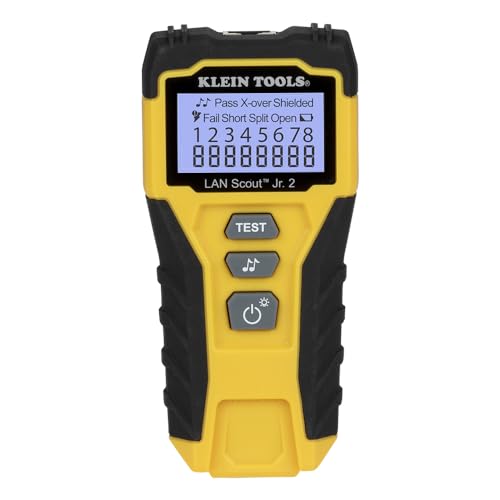
| Klein Tools LAN Scout Jr. Cable Tester | Checked page | Check price on Amazon |
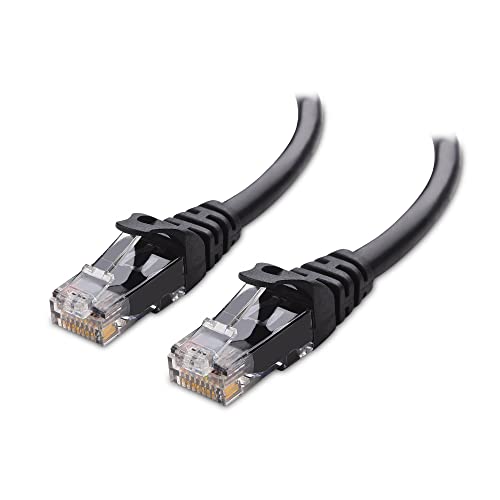
| Cable Matters Cat 6A Shielded Ethernet Cable | Verified entry | Check price on Amazon |
| Netgear GS305 Gigabit Switch | Verified listing | Check price on Amazon |
The ladder above tells you which component is guilty; these three products correspond to acting on that verdict. The tester is for the case the ladder cannot fully resolve — when the suspect cable disappears into a wall and cannot simply be substituted, the tester and its remote read the hidden run conductor by conductor. The long shielded replacement cable is for a convicted run in a place where a temporary or permanent re-route is practical, and its length exists precisely because the rooms where ports go dark are rarely the rooms where the switch lives. The switch is for a convicted port or unit: it restores wired service immediately and, during diagnosis, serves as a known-healthy reference that any suspect device can be plugged into. Nothing here is a first step; each is the answer to a question the ladder asks.
How the lineup was chosen
Products were admitted only if a specific diagnostic outcome calls for them and if their listings, verified through the site’s own Amazon data when this article was prepared, state the properties the job needs. The tester’s listing names the cable categories it covers and confirms the remote unit is in the box, which is what makes two-room testing possible alone. The replacement cable’s listing states its category, shielding construction, conductor gauge and material, and bandwidth — the details that determine whether a long re-routed run will carry gigabit cleanly. The switch’s listing confirms gigabit ports and unmanaged plug-and-play operation, which matters because a diagnostic reference must not introduce its own configuration questions. Products that merely decorate a network — premium cables promising speed beyond the standard, managed switches whose features this fault never uses — were left out on purpose.
One more admission rule shaped the list: each item had to remain useful after the lights come back. A cable tester joins the household toolkit for every future wiring question. A fifty-foot quality cable becomes the emergency run, the garden-office feed, the ladder’s known-good reference at length. A five-port gigabit switch absorbs the next console, camera recorder, or work laptop without a second thought. Troubleshooting purchases that only make sense during one fault tend to be bought in a panic and regretted; these three are bought against a named verdict and kept for named future jobs.
Detailed reviews

Klein Tools LAN Scout Jr. Cable Tester
The verdict-reader for cables you cannot see. The verified listing describes a tester kit for CAT5e and CAT6/6A cables with RJ45 connectors, supplied with the tester, a remote unit, and batteries. Its role in a dark-port investigation is to answer the one question substitution cannot: whether the eight conductors inside a fixed run each arrive at the far end, in the right order, unshorted. A port stays dark when the link pairs never complete their circuit, and a run can break that circuit in ways invisible from outside — a conductor severed by a staple inside the wall, a wire that slipped out of its punch-down slot at one socket, a plug at the far end crimped onto the jacket instead of the wires. The tester reports each conductor individually, so the result is not merely “bad cable” but “pair open at the far termination” or “two wires crossed,” which is the difference between re-punching one socket and re-running fifty feet of cable.
| Unit | Klein Tools LAN Scout Jr. Cable Tester |
|---|---|
| Family | Networking Guides |
| Headline extras from its listing | testing functions |
| Tag | Check price on Amazon |
The working method is simple and worth describing because it disciplines the whole diagnosis. Unplug both ends of the suspect run — a tester must never be connected to live equipment ports. Put the remote on the far socket, the tester on the near one, and run the test; then swap ends and test again, because some faults, like a marginal crimp, present differently depending on which end drives the signal. Record the result per room on a sketch of the building. A run that passes continuity in both directions while its port stays dark has been genuinely cleared, and suspicion moves, with evidence, to the ports at its ends or the devices behind them. That clearing function is half the tester’s value: it is as useful to prove a cable innocent as guilty, because every cleared suspect shortens the ladder for the next person.
Strengths
- Per-conductor results pinpoint opens, shorts, and crossed wires instead of returning a vague pass or fail.
- The included remote turns two-room, in-wall runs into a one-person test.
- Covers the CAT5e and CAT6/6A installations that make up nearly all home and small-office wiring.
Trade-offs
- It tests continuity and wire order, not bandwidth or the health of the ports at either end — a passing run can still connect two ports, one of which is dead.
- Both ends must be unplugged and reachable, so a run whose far end is genuinely lost inside the building still needs tracing first.
- It reports the fault’s location only approximately; opening the convicted termination is still manual work.
Best for: dark ports fed by in-wall cabling, and anyone maintaining several wired rooms who needs runs proved rather than presumed. Not suited for: a fault the ladder already convicted to a patch lead or a port, where the tester adds ceremony without information. Check price on Amazon

Cable Matters Cat 6A Shielded Ethernet Cable
The long replacement run for a convicted cable. The verified listing describes a snagless shielded Cat 6A cable, S/FTP construction, 26 AWG bare copper conductors, 550MHz bandwidth, gold-plated RJ45 connectors, in a 50-foot length, rated for 10Gbps operation. Length is the headline property for this fault: when a wall run is convicted and re-running inside the wall is not a this-weekend job, a fifty-foot surface run — along skirting, under a rug runner, through a doorway with a proper protector — restores the connection today and doubles as the ladder’s long reference cable. The Cat 6A specification with its stated bandwidth gives the run headroom so that length does not become the next negotiation problem, and bare copper conductors avoid the brittleness and resistance penalties of copper-clad aluminium in a cable that will be flexed at doorways.
| Whole | Cable Matters Cat 6A Shielded Ethernet Cable |
|---|---|
| Line | Networking Guides |
| What its listing leads with | 10Gbps-rated Cat 6A, S/FTP shielded, 26 AWG bare copper, 550MHz bandwidth |
| Cost | Check price on Amazon |
Shielding needs an honest paragraph, because it is the feature buyers most often misread. S/FTP construction wraps each pair and the whole bundle in foil, which rejects electrical interference along runs that pass near mains wiring, fluorescent ballasts, or motor cables — plausible neighbours for a long improvised route. Shielding only works as intended when the connected equipment provides a ground path through shielded ports; plugged between ordinary unshielded ports it does no harm, but it also cannot perform its interference trick, so buy this cable for its length, conductors, and build — and treat the shielding as a bonus that pays off where the route is electrically noisy or the equipment grounded. The snagless boot, meanwhile, protects the plug’s locking tab, the small plastic part whose breakage leaves plugs sitting loose and links flickering between lit and dark as furniture moves.
Strengths
- Fifty feet reaches the rooms where faults actually are, making it both a repair and a diagnostic reference.
- Bare copper conductors and a bandwidth specification with gigabit headroom keep length from becoming the next fault.
- Shielded construction suits long routes past mains cables and other interference sources.
Trade-offs
- Shielded cable is stiffer than unshielded, so tight corners and tidy cable channels fight back during installation.
- A surface run is a compromise — visible, and vulnerable at doorways unless protected — compared with repairing the in-wall run properly.
- Shielding delivers its benefit only with grounded, shielded ports at the ends; with ordinary ports it is inert.
Best for: restoring a convicted long run immediately, feeding an outbuilding or far room, and serving as the household’s long known-good test lead. Not suited for: short desk hops, where its stiffness and surplus length are pure inconvenience. Check price on Amazon

Netgear GS305 Gigabit Switch
The known-healthy port bank for a convicted switch or router port. The verified listing describes a five-port gigabit unmanaged switch for home and office networks, plug-and-play, with silent operation and desktop or wall-mount options. In a dark-port investigation it plays two roles. As a diagnostic instrument, it is a reference: plug the suspect device into the GS305 with a known-good cable, and plug the GS305 into a router port you have watched work — if the device lights and connects, its own adapter is innocent and the original port stands convicted; if it stays dark here too, the device itself is the problem and no switch anywhere will change that. As the repair, it simply replaces the convicted hardware: a router with one dead LAN port gains five healthy ones through this box, and a failed old switch is retired without ceremony.
| Variant | Netgear GS305 Gigabit Switch |
|---|---|
| Class | Networking Guides |
| Headline extras from its listing | gigabit ports |
| Price | Check price on Amazon |
Unmanaged operation is the right character for both roles. There is no interface in which a port could be administratively dark, no firmware menu between you and the verdict; each port negotiates automatically with whatever is plugged in, and its LED reports the result. Silent, fanless operation suits the bedrooms, studies, and TV cabinets where these boxes live, and wall-mounting keeps it out of the cable tangle it is meant to organise. Five ports cover the standard cluster behind a desk or television with one spare for the diagnostic laptop — and that spare-port discipline matters, because a reference switch that is always full forces you to unplug something living for every test, which is how new faults get introduced while hunting old ones.
Strengths
- Provides ports known to be healthy, which converts port suspicion into port certainty in one plug-in.
- Gigabit on every port, so it repairs speed faults at the same time as darkness faults.
- Plug-and-play with no configuration layer that could hide a disabled port.
Trade-offs
- It cannot revive a dead adapter in the far device; it only proves that is where the death is.
- Five ports are a ceiling as well as a convenience — a growing wired household may outgrow it.
- Wall-mounting and a separate power supply add small installation chores a router’s built-in ports never asked for.
Best for: homes with a convicted router or switch port, and troubleshooters who want a permanent reference bank on the shelf. Not suited for: darkness caused by cabling or by the far device, which this switch will reproduce faithfully on healthier ports. Check price on Amazon
Buying walkthrough: what really determines Ethernet Port Lights Not Blinking
What each LED colour and state really reports
Manufacturers agree on the grammar and disagree on the vocabulary. The near-universal pattern is two functions: link, shown steady, and activity, shown by blinking in step with traffic. Beyond that, conventions scatter. Many switches light the link LED green for gigabit and amber for a 100 Mbps link; others reverse the meaning or use colour for duplex instead. Some routers combine everything into one LED per port that is off for no link, steady for link without traffic, and flickering for traffic. A few devices use the port LEDs to report Power over Ethernet delivery rather than data link at all, which confuses anyone reading a camera or access-point port. The practical consequence: never diagnose from colour memory carried over from another brand. Diagnose from state changes — dark to lit when the far device wakes, steady to flickering when traffic starts — and confirm against the operating system’s own report of the connection, which no LED convention can contradict.
Three states deserve their own readings. A port that blinks in a slow, perfectly regular rhythm, roughly once or twice a second regardless of what you do, is often not showing traffic at all: some devices blink their LEDs in a pattern during boot, during a firmware fault, or while a port cycles through a loop-detection or error-disable recovery. A port that lights for a few seconds, drops, lights again, and repeats is describing a link that keeps renegotiating — classic for a marginal crimp, a damaged pair making intermittent contact, or two ends that cannot agree on speed and duplex. A port that is dark while the connected computer insists it is connected and passing traffic is describing a dead LED or an indicator disabled in settings, and the correct response is to believe the computer. Each pattern is a different fault wearing the same small lamp, and watching the lamp for thirty full seconds, rather than glancing at it, is what separates the patterns.
Power over Ethernet adds a further dialect that traps the unwary. Ports feeding cameras, wireless access points, and desk phones may carry separate indicators for power delivery and for data, and a device can receive power while its data pairs stay silent, glowing in a way that reads as “connected” to a quick glance while the network sees nothing. Injectors and mid-span power supplies complicate the picture further: the switch port lights because it is linked to the injector, while the run beyond the injector — the half that actually reaches the device — is the broken half, and its darkness is visible only at the far end, if anywhere. Where PoE equipment is in the path, diagnose in segments at each powered junction rather than end to end, and remember that a camera or access point rebooting on a schedule will blink its port’s story on that schedule too, which can look exactly like an intermittent fault until someone checks the device’s own power settings.
Cable and port substitution ranking
The substitution ladder deserves a formal ranking because improvised troubleshooting usually climbs it in the wrong order. First, power and seating at both ends — free, instant, and responsible for a large share of cases. Second, the neighbouring-port move, which splits the world into “this port” versus “everything else” in one gesture. Third, the known-good cable substitution, which is the single most informative test in the whole fault family and the reason every networked household should own one cable it trusts absolutely. Fourth, the known-good device substitution, bringing a laptop to the port rather than moving the installation to the laptop. Fifth, and only now, instruments and replacements: the tester for the runs that cannot be substituted, the reference switch for the ports that stand convicted. The ranking is by information gained per minute and per unit of disruption — the early rungs disturb nothing and decide most cases, while the later rungs spend money or an afternoon and should only be climbed with the early evidence in hand.
Device grip and wake controls
A large family of dark ports is really a family of sleeping devices. Network adapters in modern computers are power-managed aggressively: the operating system may allow the adapter to power down to save energy, Wake-on-LAN may be half-configured so the adapter listens dimly or not at all, and laptops on battery may keep their wired adapter off entirely until traffic demands it. The symptoms mimic hardware death — dark port, no connection — but the port lights within seconds of the device genuinely waking, opening its lid, or being plugged into mains power. Consoles and streaming boxes behave similarly in their rest modes, and some smart TVs shut their ethernet port down in standby by design. The checks are specific: in the adapter’s properties, clear any option that lets the system turn the device off to save power; confirm the adapter is not disabled in the operating system’s network settings — a disabled adapter shows no link and lights nothing; and in the computer’s firmware setup, confirm the onboard LAN controller itself is enabled, because a controller switched off there is invisible to the operating system and indistinguishable, from the switch’s side of the cable, from a severed wire.
Switches and routers contribute their own software darkness. Smart and managed switches can have ports administratively disabled, rate-limited, or shut by storm-control and loop-protection features after an incident the owner never noticed; a port that went dark immediately after a cabling change or a thunderstorm deserves a look at the switch’s management page before it is declared dead. Some routers offer an eco or LED-off mode that extinguishes indicators while the ports work normally — the giveaway is a whole row of dark ports on a network that is functioning, and the fix is a display setting, not a repair. Green-ethernet features that power down ports they judge idle can also misjudge, particularly with far devices that sleep deeply; if one port’s darkness tracks the far device’s sleep cycle, energy features on both ends belong on the suspect list together.
When a dead port means hardware replacement
Hardware genuinely dies, and its death has signatures. Surge damage from a nearby lightning strike is the dramatic one: ethernet ports are a known entry path, and the pattern is one or two ports dead on a switch, or a router whose wired side failed while its wireless side works on, because the radios and the switch chip took different shares of the event. Mechanical death is slower: the contact springs inside a socket fatigue after years of plug cycles, corrode in damp rooms, or bend when a plug is yanked sideways, and the port becomes intermittent before it becomes dark — a history of “it works if I wiggle it” is the overture to a dark port. A single dead port among healthy siblings on the same device is almost always local hardware, because software settings rarely single out one port unless someone set them that way. The economic reading is calm: one dead router port is absorbed by adding a small switch; a dead adapter in a desktop is a card or a USB adapter; a dead port in a laptop with no replaceable card is the one genuinely expensive verdict, and it should only be accepted after the ladder, a second cable, and a second network have all agreed.
There is a neighbouring symptom worth separating before the scenarios, because it shares the hardware but not the diagnosis: the port lights, the link exists, but it has negotiated at a reduced speed or drops whenever the device works hard. That is not a darkness fault — it is a marginal-contact fault, treated in depth in the companion guide to links limited to 100 Mbps — and its ladder emphasises cable pairs and negotiation settings rather than power and wake states. The distinction matters because the remedies diverge: darkness sends you to power, seating, and port life; a lit-but-limited link sends you to conductors and duplex. Reading which of the two families your symptom belongs to, in the first minute, is the difference between an efficient afternoon and a thorough investigation of the wrong layer.
Ethernet Port Lights Not Blinking in actual routines
Situation: a desktop that lost network following a stormy night
The morning after a storm, the desktop reports no connection and its switch port is dark while the household’s other wired devices work. The ladder still applies, but the prior probabilities shift: surge damage moves up the list. Work it in order anyway — reseat, port swap, cable swap — because storm nights also loosen plugs through a dozen other small disturbances, and because the port swap now carries extra information: if the desktop lights on a neighbouring port, the original port took the hit; if the desktop stays dark on every port while a laptop lights on all of them with the same cable, the desktop’s adapter took it. Test the suspect port with the known-good laptop before retiring it, since a port condemned on one device’s evidence alone may simply have met an adapter it cannot negotiate with. Whatever the verdict, note it on the device with a dated label; surge-weakened ports sometimes fail fully weeks later, and the label turns that second failure into a confirmation rather than a new mystery.
Scenario: a console that connects in one room but not another
The console works in the living room and is dark in the bedroom, which exonerates the console, its adapter, and its settings in one stroke — the fault is in what differs between the rooms: the bedroom’s wall run, its socket, or the switch port feeding it. Move the test to the network cabinet: find the switch port that feeds the bedroom and watch it while someone plugs the console in; then plug the laptop into the bedroom socket; then, if the run stays suspect, put the tester on it. Room-specific faults are termination faults until proven otherwise, because the run and its two sockets are the only handmade parts of the path. A bedroom wired as an afterthought — by a satellite installer, a previous owner, a hurried renovation — often has one socket punched down in the wrong wire order, and it will have been dark, unnoticed, since the day it was fitted.
Situation: a switch where one port in eight holds dark
Seven ports glow and blink; the eighth, feeding a printer that worked last month, is dark. Start at the printer: many printers sleep so deeply that their ports go electronically quiet, and waking the printer — opening its panel, sending it a job from another machine — may light the port before you touch a cable. If the printer is awake and the port stays dark, swap the printer’s cable into a lit port’s socket and a lit device’s cable into the dark port; the pattern of what lights where resolves it in two moves. Printers and similar appliances are also frequent victims of their own cable being borrowed — the dark port sometimes feeds a cable that now ends, unplugged, behind a cabinet, the device having been moved to Wi-Fi during an office tidy and nobody remembering the wired path was abandoned rather than broken.
Arrangement and initially-seven mornings how-to
Stage 1 for Ethernet Port Lights Not Blinking: watch the port for thirty seconds while the far device wakes
Observation precedes intervention. Restart or wake the far device and watch both ends’ indicators continuously: lights that appear during boot and vanish at the desktop suggest power management; lights that never appear suggest the physical path; lights that cycle suggest renegotiation. Write down which pattern you saw — memory edits these details within the hour, and the pattern is evidence the later steps depend on.
Move 2 for Ethernet Port Lights Not Blinking: reseat every plug in the path, one click at a time
Unplug and firmly reinsert each connector from device to switch to router, listening for the locking click at each. Inspect each plug as it comes out: a cracked tab, a contact row with one pin sitting low, or a plug whose wires visibly stop short of the contact blades each explain a dark port on the spot. Re-test after reseating before changing anything else.
Step 3 for Ethernet Port Lights Not Blinking: run the port and cable substitutions in ladder order
Neighbouring port first, then known-good cable, then known-good device, checking the lights after each single change. Keep the combinations straight by working on paper if the path is long. The rung at which light returns names the guilty component; the rung at which nothing returns, with everything substituted, names the far device or the fixed wiring.
Step 4 for Ethernet Port Lights Not Blinking: clear the software suspects on both ends
On the computer, confirm the adapter is enabled, remove permission for the system to power it down, and check the firmware setup for a disabled LAN controller. On the switch or router, look for a port disabled in management, an eco mode darkening indicators, or a protection feature that shut the port after an incident. Restore defaults for the affected port only, and re-test before widening the reset.
Shift 5 for Ethernet Port Lights Not Blinking: prove fixed runs with a tester and label the verdict
If the path runs through walls, test it conductor by conductor with a tester and remote, from both directions. Then label everything you have established — the convicted cable coiled and marked faulty, the dead port taped and dated, the healthy runs noted on your sketch — so the next dark port in this building starts from your conclusions instead of from folklore.
Common mistakes with Ethernet Port Lights Not Blinking
Declaring the motherboard dead before swapping cords
The leap from a dark port to a dead motherboard skips every rung of the ladder, and it is usually made because the port in question is on the computer itself, where the LED’s absence feels personal. Yet the computer’s port is dark whenever anything in the whole path fails, including a cable that cost almost nothing and a switch port at the other end of the house. A laptop brought to the same cable settles the computer’s innocence or guilt in one minute; without that minute, owners have replaced boards, then whole machines, and plugged the new machine into the same faulty cable to watch the same darkness return.
Overlooking a switch port disabled in software
Ports switched off in a management interface look exactly like ports destroyed by lightning, and they are far more common in homes that inherited equipment — a previous owner’s configuration, a provider’s provisioning profile, a protection feature that latched during a storm and never released. Any smart or managed device in the path earns a look at its port-status page before hardware verdicts are issued. The same applies at the computer end, where a disabled adapter is a two-click fault that mimics total hardware failure perfectly.
Testing with a lead that was extended faulty
The known-good cable is the foundation of the ladder, and it is often not known or good — it is the spare from the drawer, retired there precisely because it once misbehaved, or a cable so old its plugs are strangers to firm contact. Every conclusion drawn through a faulty reference cable is inverted: good ports look dead, the guilty cable looks cleared. Certify your reference cable between two devices you trust, label it, and keep it out of everyday service so it stays certified.
Head-to-head: separating the selection
The three products correspond to the ladder’s three hardware verdicts, and choosing between them is really choosing which verdict your evidence supports. The tester comes first logically: it is the only item that produces information rather than replacing a part, and it is indispensable exactly where substitution fails — the fixed run inside the wall. The long Cable Matters cable is the remedy when a run stands convicted and service must be restored now, whether as a permanent surface route or as a bridge until the wall is opened properly; its length, conductors, and build are chosen for that distance work. The Netgear switch is the remedy when a port or a whole unit stands convicted, and it doubles as the reference bank that makes future port verdicts instant. A household that works the ladder honestly will usually buy one of the three, in the order the evidence dictates — tester to know, cable to bypass, switch to replace — and will know, for each purchase, precisely which dark port justified it.
Sequencing the three purchases against a real household budget makes the same point from the wallet’s side. The tester is bought once per building, not once per fault, and households that wire cameras, access points, and several rooms will use it for years of small questions beyond this one. The long cable is bought once per convicted route, and a route convicted honestly stays fixed. The switch is bought once per convicted device and then quietly becomes infrastructure. What none of them should be is bought together in a single anxious order before the ladder has run: three boxes arriving at once means three new variables in a system you were trying to simplify, and the fault, if it survives them, has become harder to see, not easier. One verdict, one purchase, one re-test — the rhythm that fixes networks is the same rhythm that diagnoses them.
Living with the decision: mind and longevity
Ports and cables age on a schedule set by plug cycles, furniture, damp, and luck, so the goal after a fix is a network whose next dark port is a five-minute diagnosis instead of an evening’s dread. That is mostly a matter of records and references: one certified test cable kept aside, a sketch of which switch port feeds which room with test results noted, dead ports taped and dated rather than left as traps for the next device plugged into them, and faulty cables destroyed or marked so decisively that they cannot drift back into service. Add one habit — glancing at the switch when any wired device misbehaves, the way you glance at a breaker panel when a room goes dark — and the lights become what they were designed to be: a status display you read fluently, not an omen.
Surge protection belongs in the longevity conversation for a practical reason: ethernet runs between buildings, and long runs within them, are genuine entry paths for lightning-induced surges, and the ports at their ends are the components that absorb the energy. Where a run leaves the building — to a garage office, a gate camera, a garden studio — a surge protector rated for network lines at each end is cheap insurance for the switches and adapters attached, and it converts the storm scenario in this guide from a recurring expense into a rarer one. Inside the building, the simpler disciplines dominate: do not yank plugs out by their cables, do not let switch ports live under tension from too-short leads pulled taut, and vacuum the dust from network cupboards occasionally, because heat and grime are the slow background causes behind a share of ports that simply stop one day.
Final recommendation
Read the port before you spend on the port. Thirty seconds of watching, a reseat, and the substitution ladder — neighbouring port, trusted cable, trusted device — resolve or precisely locate the overwhelming majority of dark ethernet ports, and the software checks clear most of the remainder. Reserve purchases for verdicts: a tester when a hidden run must be proved, a long quality cable when a run must be replaced or bypassed, a small gigabit switch when a port’s death is established and its duties need a new home. Worked in that order, ethernet port lights not blinking stops being a premonition of expense and becomes what it actually is — the network’s simplest diagnostic display, waiting to be read in order.
Frequently asked prompts
What signifies most when choosing for ethernet port lights not blinking?
The verdict your substitution tests reach matters more than any product feature. A convicted hidden run calls for a tester; a convicted cable calls for a replacement of adequate length and honest construction; a convicted port calls for a switch with healthy gigabit ports. Choosing before the ladder has spoken means buying for a fault you have not located, and the three remedies do not substitute for one another.
How much should a beginner budget for ethernet port lights not blinking?
Begin at zero: watching, reseating, swapping ports, and checking power and adapter settings resolve most cases and cost nothing but method. Budget enters with a verdict — a tester sits at the considered tier and pays for itself across a houseful of runs, a long replacement cable is a mid-tier practical purchase, and a small gigabit switch is the modest tier that also adds ports you will use later. The expensive outcome is not any of these; it is replacing a computer or motherboard that a one-minute laptop test would have cleared.
Which error do customers of ethernet port lights not blinking regret most?
Condemning hardware — usually the computer — before running the cable and port substitutions. The regret is structural: the dark port accused the nearest expensive device, the owner replaced it, and the fault, sitting untouched in a cable or a switch port, greeted the replacement with the same darkness. The runner-up regret is testing with an uncertified spare cable and inverting every conclusion, clearing the guilty lead and condemning healthy ports in sequence.
How long does it take to get used to a fixed ethernet port setup?
The diagnosis is the time-consuming part — typically under an hour for the full ladder and software checks. Living with the remedy takes no adjustment at all: a replaced cable or an added switch disappears into the background the day it is installed, and the only lasting change is the useful one, that you now read port lights as information. If a tester joined the toolkit, its learning curve is one careful afternoon spent mapping your own building’s runs.
When is the premium alternative in ethernet port lights not blinking really worth it?
The tester is the premium item, and it earns its place when runs are hidden, numerous, or both — the moment substitution stops being able to reach the suspect. In a single-room setup where every cable can be swapped in minutes, it is a luxury; in a house wired room to room, it is the difference between evidence and folklore for every future fault. Premium cables and managed switches, by contrast, answer questions this fault never asks.
What should I confirm at the outset if my ethernet port lights not blinking purchase disappoints?
Confirm the purchase was aimed at the component the ladder convicted. A new switch that changes nothing means the port was innocent — re-test the cable and the far device. A new cable that changes nothing means the run was innocent — re-test the ports at both ends and the software state of each. Disappointment is diagnostic information: it removes one suspect with certainty, and the ladder, resumed from that rung, is shorter than it was.
Related guides
Best Wifi Extenders With Ethernet Port
Best Christmas Projector Lights
One more angle: lead and port substitution sequence, revisited
If darkness returns months after a successful fix, climb the same ladder again rather than assuming the same culprit. Ports and cables fail independently and at unrelated times, and last time’s verdict biases this time’s search. The ladder’s discipline — one change, one observation — is what keeps a repeat fault from inheriting a stale conclusion.
One more angle: what each LED colour and state actually reports, revisited
When you add any new switch, router, or adapter to the network, spend one minute learning its LED conventions from its own documentation and note them on your network sketch. Colour meanings are the least standardised part of home networking, and the minute is repaid the first time a port changes colour at midnight and you can read it without hunting for a manual.
One more angle: when a dead port means hardware replacement, revisited
A port that failed during storm season deserves a note in the building’s records even after it is bypassed, because surge events sometimes weaken neighbouring ports and adapters that fail over the following months. If a second port on the same device dies within the season, retire the device rather than absorbing a third loss — the pattern has told you the unit’s remaining health is borrowed time.