Disclosure: As an Amazon Associate, reviewstook.com earns from qualifying purchases. Links on this page are affiliate links; they cost you nothing extra. Prices and availability change often, so check the current Amazon listing before you buy.
Seeing ethernet limited to 100mbps on a connection you pay to run much faster is one of the most misleading faults in home networking, because the number looks precise while hiding its cause. A link that negotiates at 100 Mbps is not running slowly in the way a congested Wi-Fi channel runs slowly. It has agreed, at the electrical level, to use an older and narrower mode of operation, and something in the chain between your computer and your router told it to do exactly that. Gigabit ethernet needs all four pairs inside the cable carrying clean signals in both directions. Fast ethernet, the 100 Mbps mode, needs only two pairs. That single fact explains most cases: one damaged conductor, one badly crimped plug, one wall socket punched down with a pair crossed or left loose, and the two devices at either end quietly fall back to the mode that still works. The connection feels stable, web pages load, video streams — and every large download takes ten times longer than it should.
This guide works through the fault in the order a technician would: confirm what speed the link actually negotiated, isolate which segment of the chain is responsible, and only then spend money. The three products listed are not magic fixes. They are the three tools that map onto the three most common root causes — a replacement cable for the run you cannot inspect, a known gigabit switch to replace or bypass a 100 Mbps bottleneck, and a cable tester that tells you which pair inside a hidden run has failed instead of leaving you to guess. If your fault turns out to be a driver setting or a duplex mismatch, the fix costs nothing, and the diagnostic sections below cover those cases before any product is mentioned as a solution.
Key takeaways
- A link capped at exactly 100 Mbps has almost always negotiated down, not slowed down — check the negotiated link speed in your operating system before running any internet speed test.
- Gigabit ethernet uses all eight conductors in the cable; 100 Mbps uses four. A single broken, crossed, or poorly terminated pair is the most common cause of the cap.
- Every device in the chain must be gigabit-capable: one Fast Ethernet switch port, one old powerline adapter, or one 100 Mbps wall plate uplink silently limits everything behind it.
- Change one thing at a time and re-check the negotiated speed after each change, or you will never know which change fixed it.
- Forcing 1 Gbps full duplex in driver settings can make a marginal cable fail completely; auto-negotiation is the correct setting on healthy cabling.
In this guide
The compact answer on Ethernet Limited to 100mbps
Start by separating two numbers people constantly confuse. Your internet speed test measures throughput to a distant server, through your provider, and it varies with congestion. Your link speed is the rate your network adapter and the device at the other end of your cable agreed to speak at, and it is either 100 Mbps or 1,000 Mbps with almost nothing in between. On Windows, open the network adapter’s status window and read the Speed field. On macOS, check the wired adapter in System Settings, where the negotiated rate is shown in its hardware details. In Linux, the ethtool command reports the link speed directly. If that number says 100, no setting in your browser, no DNS change, and no router reboot aimed at the internet connection will move it. The negotiation itself is the fault.
Once you know the link negotiated at 100, the search becomes a chain audit. The chain is: adapter in the computer, the cable from computer to wall or switch, any wall cabling inside the building, any switch in the middle, the cable from switch to router, and the router port itself. Exactly one link in that chain is negotiating at 100, and every device behind it inherits the cap. The fastest isolation method is substitution in a deliberate order. Connect the computer directly to the router with one short, known-good cable, skipping switches and wall runs entirely. If the link now reads 1,000, your computer and router are innocent, and the fault lives in whatever you bypassed. Add the removed pieces back one at a time until the cap returns. That binary search usually finds the culprit in under fifteen minutes and costs nothing.
Tools and products that genuinely aid
| Item | Status | Entry |
|---|---|---|
| Cable Matters Cat 6 Ethernet Cable | Checked entry | Check price on Amazon |
| TP-Link TL-SG105 Gigabit Switch | Confirmed page | Check price on Amazon |
| Klein Tools LAN Scout Jr. Cable Tester | Checked entry | Check price on Amazon |
Read the table as a decision tree rather than a shopping list. The replacement cable is the right purchase when your substitution test points at a patch lead — the flexible cable between computer and wall, or switch and router — because patch leads are the most handled, most kinked, and most often counterfeited part of any installation. The gigabit switch is the right purchase when the bypass test shows your existing switch, or a port on it, is the ceiling. The tester earns its place only when the suspect segment is inside a wall or ceiling, where swapping is not an option and you need to know which pair failed before re-terminating anything. Buying all three at once, before any testing, is the mistake this guide is structured to prevent.
How the shortlist was chosen
Each product here had to pass three filters. First, it had to be verified through the site’s own Amazon data on the day this article was prepared, with a listing title that states plainly what the product is — the cable’s listing specifies its category, conductor material, and bandwidth rating; the switch’s listing states gigabit ports and an unmanaged, plug-and-play design; the tester’s listing states which cable categories it tests and that a remote unit is included. Second, the product had to solve a cause that the diagnostic sections identify as common, not an edge case. Third, it had to be the kind of purchase that remains useful after this fault is fixed: a spare quality patch lead, a small gigabit switch, and a continuity tester all stay in a household toolkit for years.
Just as important is what was excluded. No premium audiophile-style network cables appear here, because ethernet is a digital standard — a cable either carries gigabit within specification or it does not, and paying for exotic construction does not change negotiation behaviour. No managed switches appear either, because the faults in this article are physical-layer and negotiation faults; a managed switch’s extra controls would only matter for the rare software-disabled-port case, which the guide covers as a settings check on equipment you already own. Wi-Fi equipment is absent for an obvious reason: nothing wireless can raise a wired link’s negotiated rate.
Detailed reviews
Cable Matters Cat 6 Ethernet Cable
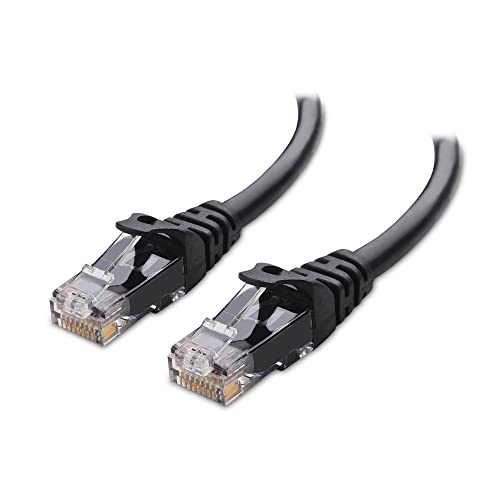
Best first replacement when a patch lead is the suspect. The verified listing describes a snagless Cat 6 cable rated for 10Gbps operation, built with 24 AWG bare copper conductors, gold-plated RJ45 connectors, and a 550MHz bandwidth rating, in a 25-foot length in black, with PoE++ support. Each of those details matters to this specific fault. Bare copper conductors are the point: the cheapest patch leads on the market use copper-clad aluminium, which has higher resistance, work-hardens and cracks at bends far sooner, and is a recurring hidden cause of pairs that pass a casual wiggle test yet fail under sustained gigabit signalling. A Cat 6 specification with a stated 550MHz bandwidth gives headroom above the gigabit requirement, so a cable built honestly to that specification negotiates at 1,000 Mbps without drama.
| Variant | Cable Matters Cat 6 Ethernet Cable |
|---|---|
| Segment | Networking Guides |
| Page highlights | 10Gbps-rated Cat 6, 24 AWG bare copper, 550MHz bandwidth, PoE++ support |
| Page tag | Check price on Amazon |
The snagless boot deserves a sentence of its own, because the locking tab on an RJ45 plug is the most frequently broken part of any patch lead, and a plug whose tab has snapped sits fractionally loose in the socket — loose enough, sometimes, to disturb one pair’s contact and produce exactly the intermittent fall-back to 100 Mbps this article is about. A boot that protects the tab removes one whole failure mode. The 25-foot length suits the two jobs this cable is bought for: replacing a suspect lead between a desk and a wall socket, and serving as the known-good test cable for the direct-to-router bypass check described earlier. For that second job, length is a virtue, because the test only works if the cable can physically reach from computer to router in one run.
Strengths
- Bare copper conductors rather than copper-clad aluminium, removing the most common hidden cause of pair failure in budget leads.
- Specification headroom well above gigabit, so the cable itself should never be the negotiating ceiling in a home or small-office run.
- Snagless boot protects the locking tab, keeping the plug seated firmly enough that all eight contacts stay made.
Trade-offs
- A replacement patch lead fixes nothing if the failed pair is inside the wall run behind the socket — the substitution test must point at the lead first.
- Twenty-five feet is generous for a tidy desk and will need coiling; excess cable should be looped loosely, never kinked or trapped under furniture legs.
- It cannot repair a badly terminated wall socket; if the fault is at the punch-down block, re-termination or a tester-led repair is the fix instead.
Best for: anyone whose bypass test or cable swap shows the flexible patch lead is the weak link, and anyone who wants one trustworthy test cable in the drawer. Not suited for: faults already traced to in-wall cabling or to a switch port, where this cable will simply reproduce the same 100 Mbps result in a different colour. Check price on Amazon
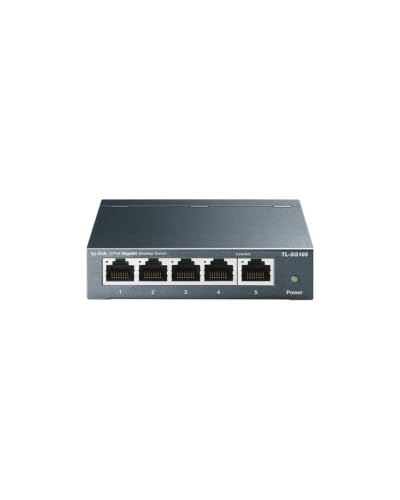
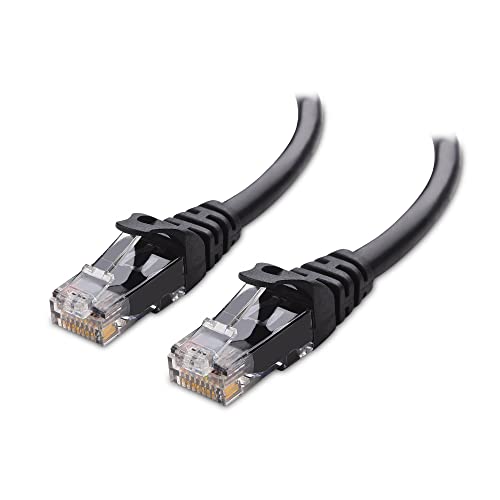
TP-Link TL-SG105 Gigabit Switch
The known-good gigabit reference point for the middle of the chain. The verified listing describes a five-port gigabit unmanaged switch with a fanless metal housing, shielded ports, plug-and-play operation, and traffic optimisation features. In the context of a 100 Mbps cap, its most valuable property is boring reliability at gigabit on every port. Countless home networks contain a switch bought so long ago that nobody remembers it is a Fast Ethernet model — its ports top out at 100 Mbps by design, and every device plugged into it inherits that ceiling no matter how good the cabling is. Other networks contain a gigabit switch with one damaged port that negotiates down while its neighbours behave. Replacing the suspect unit with a switch whose every port is gigabit removes the entire category of doubt in one step.
| Model | TP-Link TL-SG105 Gigabit Switch |
|---|---|
| Category | Networking Guides |
| Page highlights | gigabit ports |
| Entry price | Check price on Amazon |
Because it is unmanaged, there is no configuration interface in which a port could be limited by a forgotten setting — a real cause covered later in this guide for managed and smart switches. You plug in power, plug in cables, and each port negotiates the best rate the attached device and cable can sustain. The fanless metal case matters for placement: these switches usually live behind desks, inside TV cabinets, and in warm network cupboards, and a fanless design cannot clog, whine, or fail mechanically, while the metal shell sheds heat better than thin plastic. Five ports suit the typical cluster — router uplink plus a PC, a console, a TV, and one spare — and the device also serves as a diagnostic instrument: moving a capped computer’s cable from a suspect switch to this one, with everything else unchanged, is a clean one-variable experiment.
Strengths
- Every port is gigabit, so the switch itself can be eliminated as the ceiling in a single swap.
- Unmanaged design means no settings layer where a port speed limit could hide.
- Fanless metal housing tolerates the hot, dusty places small switches actually live.
Trade-offs
- Five ports fill quickly in a media-heavy room; count your devices before choosing this size.
- No management features means no per-port diagnostics — if you need to read negotiation logs, a smart switch is a different purchase.
- It cannot lift a cap caused by the cable plugged into it or by the router port feeding it; it only clears the middle of the chain.
Best for: households whose bypass test incriminates an old or partly faulty switch, and anyone adding wired drops to a room that currently relies on a Fast Ethernet unit. Not suited for: faults already traced to cabling or to the computer’s own adapter settings, where a new switch changes nothing. Check price on Amazon

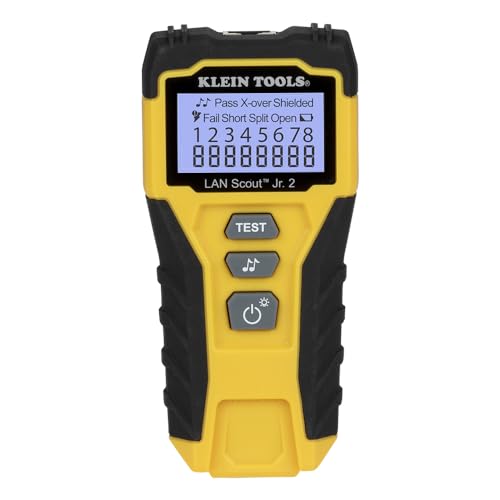
Klein Tools LAN Scout Jr. Cable Tester
The instrument that names the failed pair instead of guessing at it. The verified listing describes a cable tester kit for CAT5e and CAT6/6A cabling with RJ45 connectors, including the tester, a remote unit, and batteries. Its job in this fault is precise: gigabit needs all four pairs continuous, correctly ordered, and unshorted, and a continuity tester checks each conductor individually. You unplug both ends of the suspect run, attach the tester at one end and the remote at the other, and the unit reports pair by pair whether each wire arrives where it should. A run that shows pairs one and two healthy but pair three open is a run that will carry 100 Mbps happily and gigabit never — and now you know the fault is in that run, and often, from which end’s termination looks disturbed, where to re-punch or re-crimp.
| Unit | Klein Tools LAN Scout Jr. Cable Tester |
|---|---|
| Segment | Networking Guides |
| Functions named on its entry | testing functions |
| Entry tag | Check price on Amazon |
The included remote is what makes in-wall testing practical for one person: without it, testing a run between two rooms means walking back and forth for every reading or shouting to a helper. With the remote left at the far socket, one person can test every wall drop in a house in a single pass and write the results on a plan of the building, which turns a mysterious one-slow-room problem into a documented map. Klein’s background in electricians’ tools shows in the intended workflow — this is a trades-style continuity and wire-map tester, not a certification instrument, and that distinction is worth stating plainly. It will tell you a pair is open, crossed, split, or shorted. It will not measure crosstalk or certify that a run meets a category specification at full bandwidth. For the 100 Mbps fault, continuity and wire-map are the questions that matter, because negotiation falls back on missing pairs, not on marginal crosstalk in short home runs.
Strengths
- Tests each conductor individually, which is exactly the information a four-pair gigabit failure hides.
- Included remote unit makes whole-house wall-run testing a one-person job.
- Covers the CAT5e and CAT6/6A cabling found in nearly all home and small-office installations.
Trade-offs
- It diagnoses; it does not repair — a failed run still needs re-termination, which may mean a punch-down tool or a professional visit.
- Continuity testing cannot certify bandwidth, so a run that passes can still be worth swapping if every other suspect is cleared.
- Both ends of the cable must be unplugged and accessible, which is awkward for runs disappearing into sealed walls with no visible far end.
Best for: anyone whose fault survives cable and switch swaps and therefore points into the walls, and anyone maintaining several wired drops. Not suited for: a fault already isolated to a patch lead, where a tester only confirms what a five-minute swap proved for free. Check price on Amazon
Buying walkthrough: what truly decides Ethernet Limited to 100mbps
Cable category and damaged pairs
The printed category on a cable jacket is a claim, not a measurement. Genuine Cat5e handles gigabit over the distances found in homes; genuine Cat6 handles it with more headroom. The problem is that the market is full of cable that wears a category label it has not earned — copper-clad aluminium conductors, pairs with too little twist, plugs crimped onto stranded wire with contacts meant for solid core. Any of those can pass 100 Mbps, which needs only the orange and green pairs, while failing gigabit, which additionally needs the blue and brown pairs to carry data in both directions simultaneously. Physical damage produces the same signature more honestly: a cable run over by a chair caster, folded sharply behind a desk, stapled through its jacket during installation, or chewed by a pet can lose one conductor years after it was installed, and the link degrades gracefully to 100 instead of dying — which is precisely why the fault goes undiagnosed for so long.
Wall cabling deserves separate suspicion because its terminations are handmade. Each wall socket is punched down wire by wire, and the classic errors are specific: a pair untwisted too far before the punch-down, which bleeds signal; two wires swapped within a pair, which the link tolerates at 100 and rejects at gigabit; and split pairs, where wires from different twisted pairs are combined into one logical pair — continuity testers that only check pin-to-pin order can miss split pairs, and they are a notorious cause of links that pass simple tests yet refuse to negotiate gigabit. If your home was wired by an electrician rather than a data installer, split pairs and long untwists are the first things to suspect.
Two cable styles deserve specific suspicion. Flat ethernet cables, sold for running under carpets and around door frames, achieve their profile by laying the pairs side by side with far less of the twisting that protects each pair from its neighbours’ signals; short flat leads usually work, but long ones are disproportionately represented among runs that refuse gigabit. Very long runs compound every other weakness: a termination that is slightly untwisted, a conductor slightly resistive, a bend slightly tight may each pass at short distance and fail in combination at distance, because the receiver’s margin shrinks as the signal weakens along the run. This is why the bypass test uses a short cable — it does not merely remove segments, it removes length — and why a wall run that tests as continuous can still be the convicted segment when the same devices link happily at gigabit across the room. When that happens, the repair order is terminations first, since they concentrate the untwisting and the hand-made errors, and only then the cable in the wall itself.
Port speed on switch and router
Every hop in the chain negotiates independently, and the slowest hop sets the ceiling for everything behind it. Router LAN ports on modern equipment are gigabit, but older routers, some provider-supplied gateways, and many small switches are Fast Ethernet throughout. Powerline adapters and ethernet-over-coax bridges are frequent hidden hops: several widely sold generations top out at 100 Mbps on their ethernet port regardless of the headline rate printed on the box for the link between adapters. The audit is mechanical — list every box the signal passes through, from computer to router, and confirm each one is gigabit on its wired ports. Product names are unreliable guides here, because marketing names often advertise the wireless or powerline headline rate while the physical port quietly runs at 100.
Individual ports fail as well as whole devices. A switch port that took a static discharge, a router port with a bent contact spring, or a socket with corrosion from a damp wall can each negotiate down while their neighbours run at full speed. That is why the substitution sequence includes moving the same cable to a different port on the same device: if the cap follows the port, the device is the fault; if the cap follows the cable, the cable is. LED colour conventions can hint at the answer — many switches use one colour for a 100 Mbps link and another for gigabit — but conventions differ between brands, so treat the LED as a prompt to check the operating system’s reported link speed, not as the verdict itself.
Auto-negotiation and duplex controls
Ethernet links decide speed and duplex by auto-negotiation: the two ends advertise their abilities and settle on the best common mode. Duplex describes whether both ends can speak at once — full duplex — or must take turns — half duplex. A duplex mismatch is the nastiest variant of this fault family: one end forced to full duplex, the other auto-negotiating and falling back to half, produces a link that connects, shows a plausible speed, and then sheds errors under load, with late collisions corrupting frames whenever traffic gets busy. The usual origin is a well-meant manual setting on one side only. The rule is absolute: either both ends are set to automatic, or both ends are forced to the identical speed and duplex. In homes, automatic on both ends is correct in effectively every case.
Forcing 1 Gbps full duplex deserves its own warning because it is the most recommended bad advice on forums for this fault. If the cable genuinely cannot carry gigabit — because a pair is broken — forcing the setting does not repair the pair. It removes the fallback, and the link either refuses to come up at all or flaps between states. A link that negotiates to 100 is giving you diagnostic information; overriding the negotiation destroys the information and the connection. Restore any forced settings you find to automatic, then fix the physical cause the negotiation was reporting.
Driver and energy-saving options on the PC
When the hardware chain is proven clean — the same computer links at gigabit on a short cable directly into the router — attention turns to the adapter itself. Outdated or generic drivers can mishandle negotiation, and the fix is the adapter vendor’s current driver rather than the one the operating system installed by default. Inside the adapter’s advanced properties, several energy features can also cap or destabilise a link: Energy Efficient Ethernet lets the link drop into a low-power idle state that some switches handle badly; Green Ethernet and similar vendor-named power-saving modes reduce transmit power in ways that interact poorly with long or marginal cable runs; and operating-system power management that allows the adapter to be switched off to save power can wake it in a reduced state. Disabling these features one at a time, with a link-speed check after each, is a legitimate final diagnostic step — after cabling, ports, and negotiation settings have been cleared, not before.
Error counters give the duplex and cabling stories a measurable fingerprint, and they are worth reading before you conclude anything from a link that shows the right speed. Most operating systems and many router interfaces expose receive errors, CRC errors, and dropped frames for the wired adapter. A healthy link accumulates essentially none of these over an ordinary day. A link with a duplex mismatch accumulates errors rapidly whenever traffic flows in both directions at once — a large upload running alongside a video call is the classic trigger — while sitting deceptively clean when idle. A link with a marginal pair shows errors that climb with cable movement or with sustained gigabit transfers and may renegotiate down mid-transfer, which appears in the adapter’s event history as repeated link-down and link-up entries. Screenshotting the counters, running a five-minute heavy transfer, and reading them again converts suspicion into evidence: errors that grow only under load point at negotiation or duplex; errors that grow when the cable is gently flexed near a plug point at that plug’s crimp; a perfectly clean counter sheet with a stubborn 100 Mbps negotiation points back at a device in the chain that simply cannot offer more.
USB ethernet adapters add one more ceiling: an adapter on a USB 2.0 bus cannot physically move gigabit traffic regardless of what its ethernet port negotiates, and some budget adapters negotiate a gigabit link while delivering a fraction of it. Docks and hubs can hide the same limit. If the computer’s only wired connection is through an adapter or dock, test with the machine’s built-in port if it has one, or with a different adapter, before condemning the house wiring.
Ethernet Limited to 100mbps in real routines
Situation: a new gigabit fibre install testing at ninety-something
The provider installs a fast fibre service, the technician tests at the router with a laptop and a short cable, confirms full speed, and leaves. Your desktop, two rooms away, then tests at ninety-something and the provider’s support line suggests the problem is yours. It usually is — not because you broke anything, but because the desktop’s path runs through wall cabling installed when 100 Mbps was the ceiling anyone imagined, or through a switch bought in that era. The sequence that resolves it: check the desktop’s negotiated link speed, confirm 100, then carry the desktop’s cable to the router — or the router’s test to the desktop — and watch which segment’s removal restores 1,000. In this scenario the culprit is most often the in-wall run or the intermediate switch, and a tester reading on the wall run settles arguments with the provider, because it shows the house wiring, not the service, is the ceiling.
Scenario: a gaming PC that slowed following a space rearrangement
The PC was fast before the desk moved and capped afterwards, with no settings changed. Rearrangement faults are mechanical: the cable now runs under a chair mat where casters roll over it daily, it is pinched behind a heavier desk, it was swapped during the tidy-up for a thinner lead found in a drawer — often the flat, unmarked cable bundled with some long-forgotten device — or the plug at one end took a sideways yank that cracked a conductor inside its crimp. The diagnostic shortcut is to restore the old geometry mentally: replace the current lead with a known-good cable routed loosely in the open, and check the negotiated speed. If gigabit returns, route the replacement properly — along walls, with gentle bends, away from casters and pinches — rather than recreating the path that killed the original.
Scene: a home office where solely one wall socket misbehaves
Every other room links at gigabit; one socket caps at 100. A single-socket fault points at that socket’s own termination or its individual run, not at shared equipment. Unscrew the faceplate — with the cable unplugged — and look before touching: a wire visibly out of its punch-down slot, a pair untwisted for an inch or more, or green corrosion on the contacts each explain the symptom. Re-punching a loose wire with the correct tool often restores gigabit in minutes. If the termination looks clean, test the run with a tester and remote: an open on one pair confirms the run or its far termination; a clean test with a persistent cap shifts suspicion to the socket module itself, whose internal contacts can fatigue. Socket modules are replaceable parts, and swapping the module is cheaper than re-running cable through a wall.
Arrangement and at the outset-spell how-to
Step 1 for Ethernet Limited to 100mbps: read the negotiated speed, not a speed test
Open the adapter status on the affected computer and write down the link speed. This is your baseline and your finish line: every later step is judged by whether this number changes. Ignore internet speed tests until the link reads 1,000, because they measure a path with far more variables and will send you chasing provider problems that do not exist.
Move 2 for Ethernet Limited to 100mbps: bypass everything with one direct cable
Connect the computer straight to a router LAN port with a single known-good cable, no switches, no wall sockets, no adapters. Check the link speed again. Gigabit here proves the computer and router healthy and convicts the bypassed middle. Still 100 here means the fault is in the computer, its adapter settings, the router port, or the test cable itself — swap the router port and the cable before suspecting anything deeper.
Move 3 for Ethernet Limited to 100mbps: restore the chain one segment at a time
Add back exactly one element — the switch, then the wall run, then the original patch lead — checking the link speed after each addition. The step at which 1,000 falls back to 100 names the faulty segment. Resist adding two elements at once to save time; the minutes saved are repaid in ambiguity when the cap returns and two suspects share the blame.
Stage 4 for Ethernet Limited to 100mbps: audit the convicted segment
For a cable, inspect plugs for broken tabs and kinked sections, and test it between two known-gigabit devices. For a switch, try each port and check whether the unit is a Fast Ethernet model. For a wall run, inspect both terminations, then test with a cable tester and remote. For the computer, reset the adapter’s speed and duplex to automatic and update its driver from the vendor. Each convicted segment gets its specific audit rather than a generic one.
Stage 5 for Ethernet Limited to 100mbps: verify under load and record the fix
With the link at 1,000, copy a large file between two wired devices or run a sustained download and confirm the rate holds without the link dropping and renegotiating. Then write down what the cause was and label the removed cable or switch as faulty before it goes back into a drawer — unlabelled bad cables are how this fault returns in eighteen months wearing a different disguise.
Common mistakes with Ethernet Limited to 100mbps
Replacing the router before testing the cable
The router is the most expensive box in the chain and statistically one of the least likely culprits, yet it is the first thing replaced because it is the most visible. A new router plugged into the same damaged cable negotiates the same 100 Mbps, and the owner concludes the fault is supernatural. The substitution sequence in this guide exists to order suspicion by evidence: cables and terminations fail constantly, ports fail occasionally, routers fail rarely, and the test that distinguishes them costs fifteen minutes.
Trusting a cord’s printed class lacking inspecting its plug
A jacket printed with a category rating says nothing about the plug at its end, where most failures live. Cracked crimps, a missing locking tab, contacts recessed by a bad crimp, or a plug wired in the wrong order all sit under your fingers while the jacket’s print reassures you. Inspect both plugs against the light: all eight gold contacts should sit at the same height in a neat row, the jacket should be gripped by the plug’s strain relief rather than the individual wires, and the coloured wires visible through a clear plug should follow the same order at both ends.
Testing over Wi-Fi and blaming the wired chain
A speed test run on a phone or a wireless laptop measures the wireless link, the server, and the provider — everything except the wired segment under suspicion. Worse, a router can be configured with per-device limits or quality-of-service rules that throttle one machine’s internet throughput while its link speed is perfect. Diagnose wired faults with wired measurements: the negotiated speed readout first, then a device-to-device transfer on the local network, and only then an internet test once the local numbers are clean.
Head-to-head: separating the lineup
The three products answer three different questions, so the comparison that matters is which question your testing has left open. The Cable Matters lead answers “is the flexible cable the problem?” — it is the cheapest experiment and the most common fix, and it doubles as the reference cable every later test depends on, which is why it leads the list even for people whose fault turns out to be elsewhere. The TP-Link switch answers “is the middle of my network the ceiling?” — it replaces the single most common hardware bottleneck and, because it is unmanaged, it cannot introduce configuration doubt of its own. The Klein tester answers “which pair, in which hidden run, has failed?” — it buys information rather than a fix, and information is the right purchase precisely when the suspect cannot be swapped: inside walls, across ceilings, between floors.
Sequenced honestly, most households need at most one of the three. The substitution tests route you: a cap that vanishes when the patch lead is bypassed needs the cable; a cap that vanishes when the switch is bypassed needs the switch; a cap that survives both bypasses and points into the building fabric needs the tester — or a professional, whose first act will be to use one. Buying in the order the tests dictate keeps the total spend at the level of the actual fault.
There is also an honest comparison to be made between the tester and its alternative, which is paying a network or electrical tradesperson to diagnose the run. A single professional visit typically resolves the fault outright, including the re-termination labour the tester only informs, and for a household with exactly one wired drop and no appetite for ladder work that can be the rational spend. The tester’s case strengthens with every additional drop in the building and every future fault it will shorten, and it is the only one of the three products whose value is information that stays true for the life of the installation. Conversely, the switch is the only one whose absence can be a fault in itself: a network with no spare gigabit port forces every new wired device onto Wi-Fi or onto a daisy-chained compromise, so households regularly adding consoles, TVs, and work machines should read its five ports as a budget to manage rather than a formality.
Living with the pick: maintenance and longevity
A gigabit link restored is not a link guaranteed forever, because the causes of this fault are mostly slow physical processes. Cables behind desks get rolled over, kinked by cable tidies pulled too tight, and chewed by heat vents drying their jackets. Wall terminations loosen as buildings move and as plugs are inserted and removed over years. The maintenance habit that catches all of it early is trivial: when any wired device feels slower than it should, read its negotiated link speed before doing anything else — a ten-second check that converts a vague complaint into a precise fault report. Keep one labelled, known-good cable out of circulation for testing, keep removed faulty cables out of the spares drawer entirely, and when you add any new box to the chain — a switch, an adapter, a bridge — check the link speeds on both sides of it the day it is installed, not the month something feels wrong.
Documentation is the unglamorous half of longevity. When a run is tested, write the result on a strip of tape at both ends — date, pairs healthy, negotiated speed — because the person diagnosing the next fault, who may be you in three years with no memory of this one, starts from whatever the labels say. Photograph wall terminations before closing faceplates after a repair, so the wire order at each end can be compared later without opening both sockets again. Note which switch ports feed which rooms on the switch itself. None of this takes more than minutes while the tools are out, and all of it converts the next occurrence of this fault from an investigation into a lookup.
Final recommendation
Treat the 100 Mbps readout as a sentence with a subject: something specific in your chain asked for that speed, and the chain will tell you what, if you remove its parts one at a time and listen after each removal. Run the bypass test first, the port swap second, the settings audit third, and let those results — not frustration, not forum folklore about forcing gigabit — choose between a replacement lead, a gigabit switch, and a tester. The households that fix this fault permanently are the ones that find the pair, the port, or the setting responsible and deal with that one thing, then verify under load. Do that, and the number in the adapter status window becomes boring again, which is exactly what infrastructure should be.
Frequently asked queries
What signifies most when choosing for ethernet limited to 100mbps?
Evidence from your own chain matters more than any product choice. The decisive question is which segment your substitution tests convict — a patch lead, a switch, a wall run, or the computer’s own adapter — because each conviction points at a different remedy and the other remedies will not work. Only after the segment is known do product qualities matter: bare copper conductors in a cable, gigabit on every port in a switch, per-conductor testing in a tester.
How much should a beginner funds for ethernet limited to 100mbps?
Nothing, at first. The diagnostic sequence in this guide — reading the link speed, bypassing with a borrowed or spare cable, swapping ports, resetting negotiation to automatic — costs only time and resolves or precisely locates most cases. Money enters when a segment is convicted: a replacement patch lead is the modest tier, a small gigabit switch the middle tier, and a cable tester the considered tier, justified when hidden runs must be diagnosed. Spending before testing usually buys the wrong tier.
Which error do customers of ethernet limited to 100mbps regret most?
Forcing the adapter to 1 Gbps full duplex. It is the most recommended shortcut and the most reliably regretted, because on a cable with a damaged pair it turns a working 100 Mbps connection into a link that will not connect at all — and the owner, having changed a setting and a cable’s behaviour in their memory at once, no longer knows which state anything is in. The runner-up regret is replacing the router first and discovering the new one negotiates identically on the same cable.
How long does it take to get used to the repaired gigabit setup?
The diagnosis usually takes under an hour: minutes to read the link speed, fifteen minutes of substitution tests, and a focused audit of whichever segment is convicted. The repair itself ranges from seconds — reseating or replacing a patch lead — through an evening for re-terminating a wall socket carefully, to a booked visit if cable must be re-run through finished walls. Nothing about the result needs getting used to; a healthy link simply stops being a topic.
When is the premium alternative in ethernet limited to 100mbps really worth it?
The tester is the premium purchase here, and it earns its price in one situation: when the fault is inside the building fabric and you maintain more than a couple of wired runs. Then its per-conductor answers prevent repeated guesswork across every future fault, not just this one. For a single patch-lead fault it is money spent confirming what a swap already proved. Premium cables, by contrast, are never the answer to a negotiation fault — a correctly built standard cable carries gigabit fully.
What should I check initially if my ethernet limited to 100mbps purchase disappoints?
Check whether the purchase was aimed at the convicted segment. A new cable that changes nothing means the fault was never in the patch lead — return to the substitution sequence and test the switch and the wall run. A new switch that changes nothing points back at cabling or the router port feeding it. Disappointment after a purchase almost always means the diagnosis skipped a step, and the sequence, repeated patiently, will find the step that was skipped.
Associated guides
Ethernet Port Lights Not Blinking
A Complete Guide to Elecom Trackballs
Action Camera Unhurried Motion Tips And What Frame Rate to Pick
Amazing Walkthrough to the Last Minute Valentine Date Gifts for Your Sweetheart
Aperture Focus vs Handbook Form for Shooting Video And Which to Choose
One more angle: port speed on switch and router, revisited
If the cap ever returns after a successful fix, audit the middle of the chain again before the cables. Switches and bridges are the components most often swapped, borrowed, or “temporarily” downgraded during other projects, and a Fast Ethernet box reintroduced during a tidy-up reimposes the ceiling silently. The link-speed check after any change to the chain remains the cheapest insurance in home networking.
One more angle: cord class and damaged pairs, revisited
When a replacement cable is bought, route it as if its pairs matter — because they do. Keep bend radii gentle, keep casters and chair legs off it, keep it out of the pinch zone behind drawers, and never staple or tightly zip-tie a data cable. Most damaged pairs are not manufacturing defects; they are injuries inflicted slowly by furniture and fixings after installation day.
One more angle: driver and energy-saving options on the PC, revisited
After any major operating-system upgrade, glance at the wired link speed once. Driver replacements during upgrades are a quiet way for energy-saving link features to return with defaults changed, and a link that was gigabit in October can be negotiating 100 in November with no hardware touched. Ten seconds in the adapter status window settles whether the upgrade changed anything.
One more angle: auto-negotiation and duplex options, revisited
Households with one technically confident member accumulate forced settings the way kitchens accumulate gadgets. If a link in your home misbehaves and the cabling tests clean, ask who might have set what, and return every speed and duplex control on both ends of the link to automatic before deeper work. More duplex mysteries end there than anywhere else.