Disclosure: As an Amazon Associate, reviewstook.com earns from qualifying purchases. Links to Amazon on this page are affiliate links; they cost you nothing extra.
A Chromebook is simple and cheap; a Windows laptop runs more software.
Last updated: October 31, 2026.
Chromebooks
Chrome OS suits web, docs and school. See Chromebooks.
In this guide
Windows Laptops
Windows runs desktop apps and games. See best laptops.
Which Should You Pick?
If your tools run in a browser, a Chromebook can be enough. See laptops for students.
Software and app checklist before you decide
The most reliable way to choose between a Chromebook and a Windows laptop is to list every program you use regularly. Write down your work tools, school platforms, creative apps and games. Then check whether each one has a web version, an Android version or a Windows-only installer.
If everything on the list runs in a browser, a Chromebook is a strong fit. If even one critical tool needs a Windows desktop installer, such as specialized accounting, engineering or design software, a Windows laptop is the safer path. Do not assume a workaround exists. Check the software maker’s support page for the platforms it lists.
Some Chromebooks can run Android apps and some support Linux apps, but support varies by model and by app. Treat these as extras rather than guarantees. Look at the product listing and the maker’s support information before relying on them for work.
- Web-only workflows: email, documents, streaming, video calls and online classes suit a Chromebook.
- Desktop software needs: Windows is safer for anything with a Windows-only installer.
- Mixed needs: consider a Windows laptop, or keep a second device for the one tool you cannot run.
Update support and lifespan
Both types of laptop get software updates, but the length of support differs by model. Chromebooks list an automatic update expiration date, and after that date the device may stop receiving new features and security fixes. Before you buy, check the maker’s published update policy for the exact model. This is the most important detail for long-term value.
Windows laptops also depend on hardware support, since newer Windows versions have minimum requirements. A modern Windows laptop usually gets many years of updates, but older or very low-spec models can fall behind sooner.
Hardware wear matters too. Battery capacity drops with use, hinges loosen and keyboards wear. When comparing, think about the total time you plan to use the laptop, not only the first year.
A cheaper device you replace in a few years may cost about the same as a pricier one that lasts longer. Check warranty terms, battery replacement options and whether the device is easy to repair. If it is for a student, consider how many school years it needs to cover.
Storage, offline use and performance
Chromebooks often ship with modest local storage because they rely on cloud services. That works well if you have steady internet access. If you travel often or work offline, check which apps and files can be saved locally, and whether your tools offer an offline mode.
Windows laptops usually offer more storage options, and many let you add or swap drives. This matters for large photo libraries, video projects and games. Check the listing for the storage type and size, and whether the memory can be upgraded.
On performance, a Chromebook can feel quick for light tasks because the operating system is lean. A Windows laptop needs more memory and a stronger processor for the same smoothness. If you plan to keep many browser tabs open, look at the RAM amount on either type. See the RAM guide on this site for more detail on sizing.
Ports and wireless standards also vary. Check for the USB ports, HDMI or USB-C video output and Wi-Fi support you need for your monitor, printer and accessories.
School, work and family use
Different users have different priorities. For young students, a Chromebook’s simple setup, easy account controls and low maintenance can be appealing. Check with the school first, because some schools specify supported devices or require certain apps for testing and coursework.
For office work, compatibility with your employer’s software and security tools is key. Some workplaces require specific management software, so ask IT before buying. Remote workers who rely on video calls should check the webcam and microphone quality in the listing.
For families sharing one device, consider multiple user profiles and parental controls. Both platforms offer them, but the setup differs.
Creative users, such as photo or video editors, usually need Windows or another full desktop platform for professional software. Hobbyists who only edit lightly may manage with web tools.
- Students: check school requirements, then pick for battery life and durability.
- Office staff: confirm software compatibility with your employer.
- Creators and gamers: lean toward Windows for software choice.
Security and maintenance habits
Both systems need good habits. Chromebooks handle updates in the background and use a simpler security model, but you should still use strong passwords and two-step sign-in. Windows laptops need updates, built-in security tools and careful downloading, since they can install a wider range of software.
Keep your files backed up either way. Cloud sync is convenient on a Chromebook, while Windows users can pair cloud storage with an external drive. Review the storage and backup guides on this site for a simple plan.
Look after the hardware. Clean the vents of dust, avoid blocking airflow on soft surfaces, and use the maker’s charger or a trusted compatible one. Replace the battery or the device when it no longer lasts through your day. Signs it is time to replace include missed updates, slow performance on basic tasks, a swollen battery or a cracked screen that affects use.
Before purchase, check the return window so you can test the laptop with your real tools and send it back if something does not work.
Reading the Spec Sheet Without Getting Lost
Laptop listings pack in a lot of numbers, and the same numbers mean different things on the two platforms. The most useful approach is to focus on a few that affect daily use and ignore the rest.
Memory (RAM)
Many Chromebooks ship with 4 GB or 8 GB of RAM, and that can be enough for browser-based work because ChromeOS is lightweight. Windows laptops generally need more, and 8 GB is a common practical minimum for smooth multitasking, with 16 GB giving more headroom. If you keep dozens of browser tabs open, extra memory helps on either platform.
Processor
Chromebooks use a range of chips, from entry-level processors to more capable ones that handle video calls and many tabs well. On Windows laptops, the processor class affects heavy tasks such as photo editing and software development. Read independent reviews for specific models, because brand names alone do not tell you how fast a chip really is.
Storage
Entry Chromebooks often have 32 GB to 128 GB, and much of your data lives in the cloud. Windows laptops typically offer 256 GB or more, since the operating system and programs take more room. Check whether storage is replaceable or soldered, as that affects how long the machine can stay useful.

Screen and battery
Resolution, brightness and panel type matter more than size alone. A bright, higher-resolution screen is easier on the eyes in long sessions. Battery claims on product pages come from manufacturer tests, so real use is often shorter, especially with video calls.
Example Buyer Profiles
Examples help make the decision concrete. These are general illustrations, not guarantees for any model.
- A middle-school student whose assignments are submitted through web portals and Google tools: a Chromebook is often a sensible fit, with a modest budget and easy management by a parent or school.
- A college student in engineering or design: a Windows laptop is usually safer, because required programs may not run on ChromeOS. Check the course software list first.
- A retiree who mostly browses, emails and video chats with family: either platform works, and the deciding factors are simplicity and screen comfort. Chromebooks are known for quick start-up and few settings to manage.
- A small-business owner who relies on accounting software and printers from many brands: a Windows laptop typically offers broader compatibility with desktop programs and peripherals.
- A traveler who wants a light, long-lasting second computer for writing and browsing: a Chromebook can fit well, provided the tasks work offline or with a hotspot.
Accessories, Peripherals and Printers
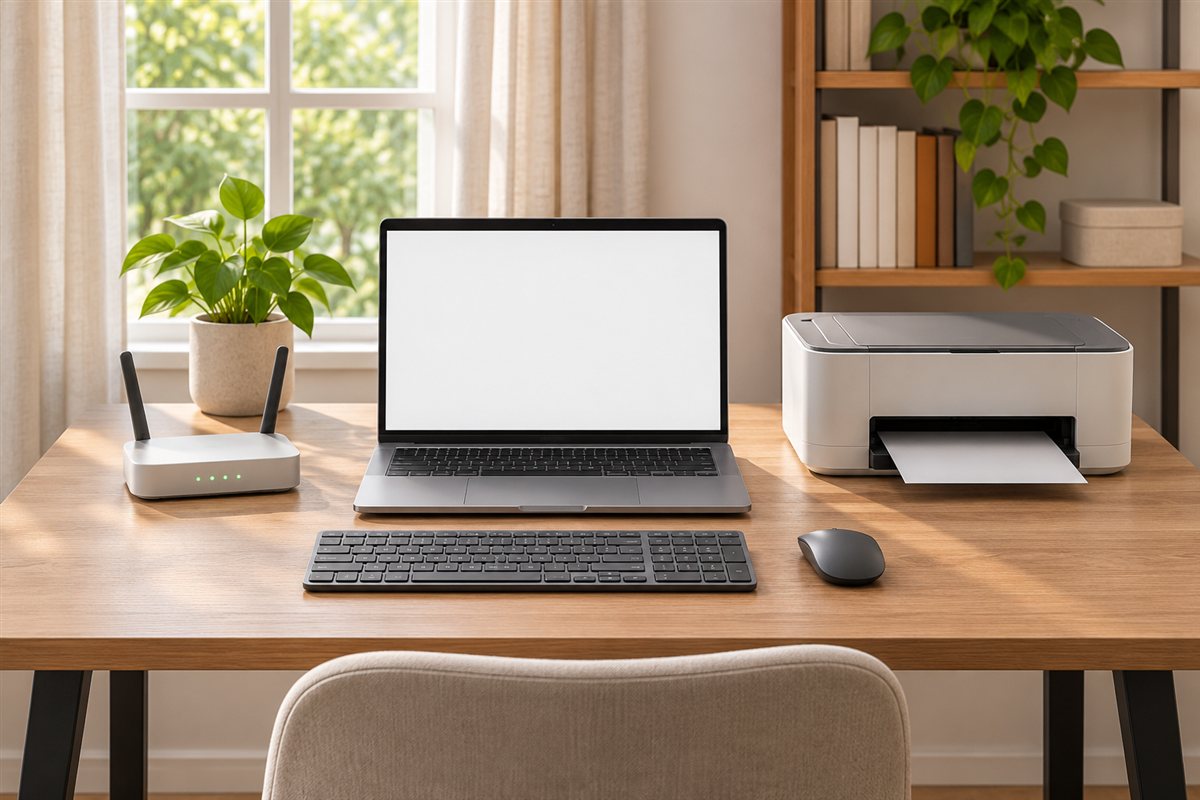
Before buying, think about what you plug in or connect. Most USB mice, keyboards and external drives work on both platforms, but some drives use file formats that need extra steps. Printers are worth special attention. Many modern printers support wireless printing from ChromeOS, but older models may depend on Windows drivers. Check the printer maker’s support page for the exact model before buying either laptop.
Other accessories to consider include a docking station for a home desk, a sleeve or case, and a spare charger. Verify that ports match your needs. Some thin laptops only offer USB-C, so adapters may be required for older HDMI, USB-A or SD card devices.
Total Cost of Ownership
The price tag is only part of the cost. Think about what you will pay over several years. Windows laptops may need antivirus software if you prefer a paid option beyond the built-in tools, plus occasional repairs or upgrades. Chromebooks usually have fewer maintenance needs, but you may pay for cloud storage or subscription services. Software you already own on Windows may need replacing with web-based alternatives on a Chromebook.
| Cost factor | Chromebook | Windows laptop |
|---|---|---|
| Purchase price | Often lower at entry level | Wide range, from budget to premium |
| Software | Mostly web and Android apps, many free | Large catalog, some paid |
| Storage upgrades | Cloud plans or external drives | Internal upgrade on some models |
| Repairs | Often simpler, fewer parts | Varies by model and brand |
| Update support | Fixed period per model | Typically long, tied to Windows releases |
Switching From One Platform to the Other
Moving to a Chromebook is easier if your files are already in the cloud. Back up documents, photos and bookmarks first. Then sign in with a Google account, install the web apps you use, and test your key tasks for a week before letting go of the old computer. Keep the old laptop around during this trial, so you can still reach any program that does not work on ChromeOS.
Moving to Windows from a Chromebook usually involves creating or signing in with a Microsoft account, moving files from cloud storage, and installing programs. Plan time for updates on first start-up, since new laptops often need several rounds. Set a restore point or backup before making big changes, and use built-in security tools.
A Practical Decision Checklist
Run through this list before you buy. Write down every program you must use. Check each one for ChromeOS or web support. Decide your budget and your must-have specs for RAM, storage and screen. Confirm that your printer and other devices connect. Find the stated update support period for any Chromebook you consider. Read recent reviews for the specific model rather than the brand. Check the return window and keep the packaging until you are sure.
If everything on the checklist works on a Chromebook, it is a strong, low-fuss option. If even one essential program fails, a Windows laptop is the safer path. When the answer is truly close, think about who will use the laptop and who will be fixing it when something goes wrong. The easiest machine to support is often the best one for that household.
Questions to Ask a Seller or Check in Reviews
Whether you buy online or in a store, a few questions reveal a lot. For a Chromebook, ask for the automatic update expiration date, since it varies by model and affects how long you will receive security fixes. Ask whether the storage can be expanded with a card, and whether the laptop supports the Android or Linux apps you might want. For a Windows laptop, ask whether the storage and memory can be upgraded later, whether the model ships with extra preinstalled software you may want to remove, and what the warranty covers.
Reviews help with details specs hide: keyboard feel, trackpad quality, screen brightness, fan noise and hinge sturdiness. Look for comments about the same issue repeating across reviews, and prefer recent ones, since manufacturers sometimes change components between production runs. Check the return policy, because a laptop you cannot comfortably use is a bad deal at any price.
Making the Final Call
If you still feel torn, borrow or try both types for an afternoon. Use the actual websites, documents and programs you rely on. Notice how quickly each starts, how the keyboard feels over an hour, and how the screen looks in your usual lighting. Small details like these tend to matter more than a spec table. Remember that neither choice is permanent. A laptop is a tool for your tasks, and the best one is the one that keeps getting out of your way.
Setting Up Either Laptop Safely
Whichever you choose, spend the first hour on setup. Install all pending updates, create a strong password, and turn on any built-in device-finding feature. Enable automatic backups or cloud sync for important files, and keep one extra copy on an external drive. Remove preinstalled trial software you do not need, and review privacy settings for location and camera access. A careful first setup avoids many of the problems people blame on the laptop later.
Common Buyer Regrets and How to Avoid Them
Buyers of both laptop types report similar regrets. Some pick a very cheap model with a dim screen and a slow drive, then find it frustrating within months. Others pay for power they never use. Avoid both by setting a floor for screen quality, memory and storage, and spending extra only where your tasks need it. Another regret is ignoring the keyboard, even though you will touch it all day. If you can, type a paragraph on the model before you buy. Finally, do not skip the warranty details, since accidental damage is rarely covered by default.
Ready to Buy? Start Here
If this guide helped you decide what to look for, these products are a place to start.

 View HP Chromebook x360 14 on Amazon
As an Amazon Associate we earn from qualifying purchases. Prices and availability are shown on Amazon.
A Deeper Look at the Three Starting Points Listed Here
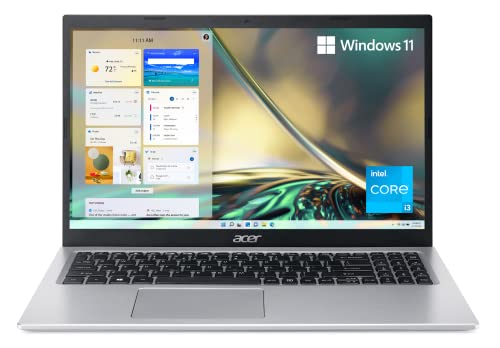
The shortlist at the end of this guide names two Chromebooks and one Windows laptop, and that mix is deliberate: it reflects the real fork in the road. The Acer Chromebook Spin 714 and the HP Chromebook x360 14 represent the convertible Chromebook path, while the Acer Aspire 5 represents the conventional Windows path. Comparing them properly means comparing what a day on each platform feels like, not just reading three separate listings side by side.
The convertible Chromebook route
A convertible Chromebook such as the Spin 714 or the x360 14 is built around a simple promise: open the lid, sign in, and be working in the browser within moments, with updates handled quietly in the background. The folding hinge adds a second way of working that suits reading, presenting, watching lessons and annotating material on a desk or a sofa. For students moving between classrooms, for families sharing one machine for homework and browsing, and for anyone whose tools already live in web apps, that simplicity is a genuine strength rather than a compromise. Battery routines also tend to be forgiving, because the platform is designed around efficient, browser-centred work.
The honest limits are the ones this guide has already flagged, and they deserve weight rather than a footnote. If a required course platform, a workplace tool or a favourite game only exists as a Windows desktop program, no hinge design can fix that. Offline work needs planning rather than assumption: files must be made available deliberately, and web apps differ in how gracefully they handle a lost connection. Storage is typically modest, which is fine when documents live in the cloud and a problem when large local media or project files are the norm. A convertible Chromebook suits a buyer who has checked their software list and found it browser-friendly. It does not suit a buyer who hopes the software question will somehow resolve itself after purchase.
The conventional Windows route
The Acer Aspire 5 stands in for the traditional Windows laptop: a familiar desktop, the widest software compatibility of the two platforms, and the freedom to install the full desktop versions of the tools most workplaces and courses assume. For a buyer whose list includes specialised accounting, engineering, design or exam software, or who simply wants one machine that will run whatever next term or next job demands, that breadth is the deciding argument. Windows also handles local storage, external drives, printers and older peripherals with fewer questions asked, which matters in homes and small offices full of equipment bought over many years.
The trade-offs are about upkeep rather than capability. A Windows machine asks more of its owner: updates that need scheduling, security software to keep in good order, and a little more attention to what gets installed over time. It can feel heavier to maintain for a young student or a relative who wants a machine that simply stays out of the way. Performance also depends more on the exact configuration chosen, so the spec-sheet sections of this guide — memory, processor, storage, screen and battery — matter more here. The Aspire 5 route suits a buyer who values compatibility and control. It suits less well a buyer whose top priority is the lowest possible maintenance for a browser-only routine.
Choosing between the two Chromebooks
Buyers who settle on the Chromebook platform still face a choice between the two convertible options listed here, and the sensible way to make it is by routine rather than by brand loyalty. Consider where the machine will mostly live: a desk at home, a school bag, or a commute. Consider how the convertible hinge will actually be used — daily for reading and presenting, or rarely enough that a simpler shape would do. Check the update support horizon for each specific model, because the remaining years of updates are part of what you are buying, and check the ports, screen and keyboard against the accessories and rooms you already have. Neither machine can rescue a software mismatch, so once the platform decision is sound, these everyday fit questions are the right ones to decide on.
Living With Each Platform Month After Month
The first week with any laptop is misleading, because everything is new, empty and fast. The differences between these platforms reveal themselves across a school term or a working quarter. On a Chromebook, the long-term experience is defined by consistency: the machine starts quickly, stays close to its day-one behaviour, and rarely asks its owner to troubleshoot. The discipline it imposes is storage discipline. Downloads, screenshots and offline files accumulate quietly, and owners who never review them eventually meet a full drive at an awkward moment. A monthly habit of clearing downloads and confirming that important files are safely stored in the cloud keeps the experience as light as it began.
On a Windows laptop, the long-term experience is defined by accumulation of a different kind: more installed programs, more background helpers, more choice. That freedom is the platform’s strength, and it rewards a light touch of housekeeping — removing programs you no longer use, keeping the startup list honest, and letting updates complete rather than postponing them indefinitely. Owners who do that small amount of maintenance find a Windows machine stays capable for years. Owners who never do it often blame the hardware for what is really an untended software load. Neither platform is maintenance-free; they simply ask for different kinds of attention, and matching that attention style to the owner is a legitimate part of the choice.
Accessories tell a similar story over time. Both platforms handle everyday mice, keyboards, headsets and external screens well, and both benefit from the chargers, stands and sleeves covered in the related guides. The differences appear at the edges: specialist hardware with Windows-only driver software, older printers in schools and offices, and docking setups built around particular ports. If your desk already contains equipment you depend on, test the assumption that it will work with a browser-centred machine before committing, not after. A short compatibility check in week zero prevents a long frustration later.
Households, Classrooms and Sharing
Many of these laptops are not personal machines at all, but shared ones, and sharing changes the recommendation. A Chromebook handles multiple sign-ins gracefully, with each person’s files and settings kept separate and a guest mode for visitors, which makes it a calm choice for a family machine or a classroom set. Supervision and school management tools are also a natural fit, since many schools administer Chromebooks centrally and expect homework platforms to run in the browser. If the school issues or recommends a platform, that recommendation should usually win, because compatibility with the classroom matters more than any abstract comparison.
A shared Windows laptop can also work well, with separate accounts for each user, but it asks the household’s informal administrator — there is always one — to keep accounts, updates and security in order for everyone. In a home where that person exists and does not mind the role, Windows sharing is fine. In a home where nobody wants the role, the lower-upkeep platform usually produces fewer weekend support requests. Be honest about which household you are. The best laptop for a family is often the one nobody has to think about, and that answer differs depending on the software the family’s school and work actually require.
Gifting follows the same logic. A laptop given to a child, a parent or a relative living elsewhere should match the support you can realistically offer from a distance. A browser-centred machine that updates itself and resists casual software clutter is easier to support by phone. A Windows machine is the kinder gift only when the recipient’s software genuinely needs it, or when they are confident managing it themselves. Thinking about the second year of ownership, not just the unwrapping, is what separates a thoughtful purchase from an expensive gesture.
When the Honest Answer Is Both, or Neither Yet
Some households reasonably end up with both platforms: a Windows laptop as the main machine for work that demands desktop software, and a Chromebook as the light, long-lasting second machine for travel, the kitchen, homework overflow or the sofa. That combination is not indecision; it assigns each platform the jobs it does best, and the total experience can be better than forcing one machine to cover everything. It works especially well when files live in cloud storage both machines can reach, so the choice of which lid to open never becomes a question of where a document is trapped.
There is also an honest neither-yet answer. If your current laptop still does its job, if a required software decision is about to change — a new school, a new job, a course platform being replaced — or if update support dates and model line-ups are mid-transition, waiting a short while with a clear checklist in hand can be the wisest move. Use the waiting time productively: write the software list, check each item against both platforms, note the peripherals that must keep working, and decide what you will do about storage and backups. When the moment to buy arrives, that preparation turns a confusing comparison into a quick confirmation, whichever platform you choose.
Mistakes Buyers Make When Comparing the Two Platforms
The first mistake is deciding by price alone without asking what the price buys on each side. A lower-priced Chromebook with years of update support remaining can be better value than a similarly priced Windows machine with a configuration that will feel cramped quickly, while a well-chosen Windows laptop can outlast several cheap replacements. Compare total cost of ownership, as this guide suggests, including the accessories, storage and software your routine actually needs. The second mistake is assuming a workaround will appear: that a Windows program will gain a web version, that an Android app will be good enough, or that a borrowed machine will always be available for the one task your laptop cannot do. Workarounds that depend on luck stop working at deadlines.
The third mistake is ignoring the update horizon on a Chromebook or the configuration headroom on a Windows machine — the two different ways each platform ages. The fourth is forgetting the people around the purchase: the school’s platform, the employer’s requirements, the family member who provides tech support. And the fifth is skipping the setup basics once the box is open. Whichever platform you bring home, sign in with an account you control, turn on the backup or sync you intend to rely on, set up a second way to recover the account, and test your most important program and your printer in the first days, while returning or exchanging is still simple. A decision checked early is a decision you can trust for years.
Testing Your Shortlist Before You Commit
Whichever platform you are leaning towards, a short period of deliberate testing beats months of hoping. Start with the software list this guide asks you to write, and physically work through it. Open your actual school or work platform, your actual documents, and your actual call app on the kind of machine you plan to buy, even if that means borrowing one for an afternoon or using a store display with your own accounts signed out afterwards. Check the tasks that are easy to forget in a showroom: printing a real document, joining a real call with your usual headset, opening your largest spreadsheet or project file, and working for a while on battery rather than plugged in beside the till.
Test the offline question honestly as well. Put the machine in flight mode and try the journey you actually take: the train with patchy coverage, the classroom with overloaded Wi-Fi, the relative’s house where the router password is a mystery. On a Chromebook, confirm which files and apps you prepared in advance carry on working. On a Windows laptop, confirm that the same work does not depend on a cloud feature you assumed would be there. The platform that survives your real journey, rather than the one with the better brochure, is the one to buy.
It is also worth testing the human side of the purchase. If the laptop is for a student, let the student type on the keyboard, carry the machine in their usual bag, and try the trackpad with their own hands. If it is for a relative, watch whether the sign-in, the updates and the everyday controls make sense to them without you standing nearby. Comfort and confidence are not soft extras; a machine that its owner finds awkward is a machine that gets left in a drawer, whatever platform it runs. A short, honest trial of fit, software and daily routine tells you more than any comparison table, and it is the natural final step before the buying advice in this guide turns into a decision.
Protecting the Purchase After You Decide
A few closing habits protect either platform equally well. Keep the account recovery details current, because the account is the key to the machine on both systems. Decide where important files live — cloud storage, an external drive, or both — and check once, properly, that the arrangement works by opening a file from the backup location. Note the update support horizon for a Chromebook or the warranty position for a Windows laptop somewhere you will find it again, so the machine’s future is a known date rather than a surprise. And keep the charger, ports and vents treated with the same care you would give any tool you rely on daily, since the related guides on chargers, stands and cooling exist precisely because small physical habits decide how gracefully a laptop ages.
A One-Week Setup Plan for Either Platform
The first week decides whether a new laptop becomes a trusted tool or a lingering chore, so give it a simple plan. On the first day, sign in with the account you intend to keep, apply the waiting updates, and set up the backup or sync you have chosen before you move any important files across. On the second day, install or bookmark the small set of tools you use every day, and only those, resisting the temptation to fill the machine with programs you might need one day. By the middle of the week, test the printer, the headset and the external screen if you use one, while exchanging the machine is still painless.
Use the rest of the week for one real piece of work from start to finish: a full assignment, a complete working day, a real family project. Notice where friction appears. Is a file in the wrong place, a program missing, a shortcut unfamiliar? Fix those small things immediately, while they are small, and write down anything you had to work around so you can judge whether the workaround is acceptable or a sign you chose the wrong platform while a return is still possible. Most buyers who follow this unglamorous plan never think about the platform question again, which is exactly the point. The right laptop, on either system, is the one that disappears into the work.
If the laptop belongs to a student, add one more step to the week: agree where school files live, how they are named, and how a lost or broken machine would be handled. A shared folder structure and a working backup turn a mid-term disaster into an inconvenience. Families who settle those habits in week one rarely need to revisit them, and the machine can simply get on with being useful.
Frequently Asked Questions
Can Chromebooks run Windows apps?
Not natively.
Are Chromebooks cheaper?
Often.
Which lasts longer?
Check update support.
How do I check if my software works on a Chromebook?
List the programs you use and check each maker's support page for a web, Android or Linux version. If a program only offers a Windows installer, a Chromebook is unlikely to run it. Test during the return window if possible.
What happens when a Chromebook reaches its update expiration date?
The device usually keeps working, but it may stop receiving new features and security fixes. Check the maker's published update policy for the exact model before you buy.
Can I use a Chromebook without internet?
Some tasks work offline if you set them up in advance, such as certain document and media features. Many tools need a connection, so check what your key apps support offline.
Is a Windows laptop better for gaming?
Windows has a much wider range of games and launchers, and gaming models add dedicated graphics. Chromebooks can handle simple games, but check the listing and the game's requirements.
Which is easier to maintain for a child?
Chromebooks are often simpler to manage because of their lean setup, but Windows also has family controls. Check what your school supports, then choose based on durability and battery life.
Should I buy extra storage for either laptop?
If you keep large files such as photos or videos, plan for more local space or an external drive. Cloud storage can help, but it depends on your connection and plan.
How do I know when to replace my laptop?
Replace it if updates stop, basic tasks feel slow, the battery no longer lasts through your day or the screen or hinges are damaged. Compare the repair cost with the value of the device.
Do Chromebooks work with printers?
Many do, especially recent wireless printers that support standard cloud or network printing. Older printers that rely on Windows drivers may not work. Before buying, check the printer manufacturer’s support page for ChromeOS compatibility with your exact model, and consider that a USB or network connection may be needed.
How much RAM do I need on a Chromebook or Windows laptop?
For a Chromebook, 4 GB can handle light browsing, while 8 GB is more comfortable with many tabs. For Windows, 8 GB is a common practical minimum, and 16 GB suits heavier multitasking. Your actual needs depend on the programs you use, so check their requirements.
Can I install Microsoft Office on a Chromebook?
You can use Microsoft 365 through a web browser, and some Android versions may be available on certain devices. The web versions have fewer features than the desktop programs. If you depend on advanced Excel macros or add-ins, test your files first or choose Windows.
Is a Windows laptop safer from viruses than a Chromebook?
Chromebooks are generally considered to have a strong security design, with sandboxing and automatic updates. Windows includes built-in security tools and is widely used, so it faces more threats. On both, safe habits such as updating, avoiding suspicious downloads and using strong passwords matter most.
Which is better for video calls?
Both handle common video call services well. Look at webcam quality, microphone placement and screen brightness rather than the operating system. Check that your preferred call app works in a browser or as an installed program. A decent camera and good lighting often make a bigger difference than the laptop type.
Bottom Line
Choose a Chromebook for simplicity and a Windows laptop for flexibility.
More Laptop Guides
- Best Laptops
- Best Gaming Laptops
- Best OLED Laptops
- Best Touchscreen Laptops
- Best 2-in-1 Laptops
- Best Chromebooks
- Best Laptops for Students
- Best Laptops Under 500
- Best Business Laptops
- Best Thin and Light Laptops
- Best Laptop Backpacks
- Best Laptop Cooling Pads
- All laptop guides