Disclosure: As an Amazon Associate, reviewstook.com earns from qualifying purchases. Links to Amazon on this page are affiliate links; they cost you nothing extra.
A 2-in-1 flips or detaches into a tablet. Windows models run full apps; Chromebooks are simpler and cheaper.
This guide is built from Amazon product listings, not our own testing, so confirm specs, configuration and current price on each product page. Laptop configurations change often.
Check the current price on Amazon for each pick before you buy.
Last updated: October 31, 2026.
In this guide
Quick Picks
| Product | Type | Best for |
|---|---|---|
| HP OmniBook X Flip 2-in-1 (16-inch) | 2-in-1 laptop | 16-inch 2K touch convertible |
| Lenovo 500e Yoga Chromebook Gen 4 | 2-in-1 Chromebook | Rugged-style 12.2-inch convertible |
| Acer Chromebook Spin 314 | Convertible Chromebook | Core i3-N305 convertible |
| Lenovo Chromebook 2-in-1 (Intel N150) | 2-in-1 Chromebook | 14-inch WUXGA touch convertible |
| ASUS Zenbook Duo (2026) | Dual-screen OLED laptop | Two 14-inch OLED screens |
Our Picks
Top pickBest for 16-inch 2K touch convertible
1. HP OmniBook X Flip 2-in-1 (16-inch)
An HP OmniBook X Flip 2-in-1 with a 16-inch 2K IPS touchscreen and Intel Core Ultra 7 256V, per the listing. Check price on Amazon for the current listing.
Listing details: 16-inch display, 1 TB storage, 1920×1200 resolution, Windows 11 Pro (from the Amazon product details; confirm on the page).
Good for: 16-inch 2K touch convertible. Watch out: large for a 2-in-1.

Best for rugged-style 12.2-inch convertible
2. Lenovo 500e Yoga Chromebook Gen 4
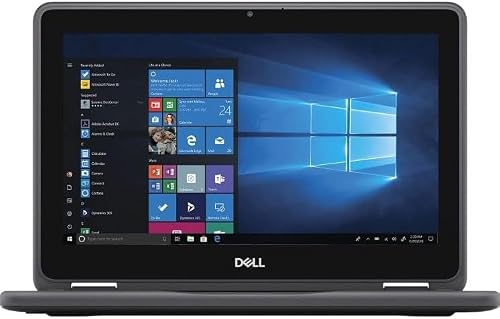
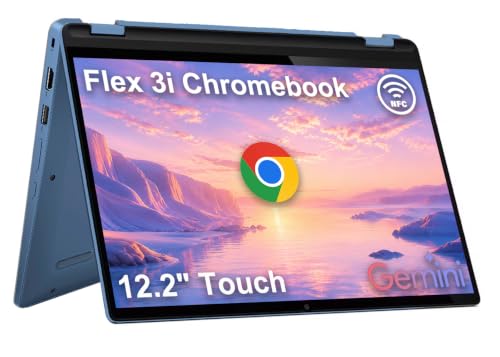
A Lenovo 500e Yoga Chromebook Gen 4 2-in-1 with a 12.2-inch WUXGA touch display, Intel N100, 8GB RAM and 64GB eMMC, per the listing. Check price on Amazon for the current listing.
Listing details: 12.2-inch display, 64 GB storage, Chrome OS (from the Amazon product details; confirm on the page).
Good for: Rugged-style 12.2-inch convertible. Watch out: small eMMC storage.


Best for core i3-N305 convertible
3. Acer Chromebook Spin 314
An Acer Chromebook Spin 314 convertible with Intel Core i3-N305 and a 14-inch WUXGA IPS touch display, per the listing. Check price on Amazon for the current listing.
Listing details: 14-inch display, 128 GB storage, 1920 x 1200 resolution, Chrome OS (from the Amazon product details; confirm on the page).
Good for: Core i3-N305 convertible. Watch out: Chrome OS only.
Best for 14-inch WUXGA touch convertible
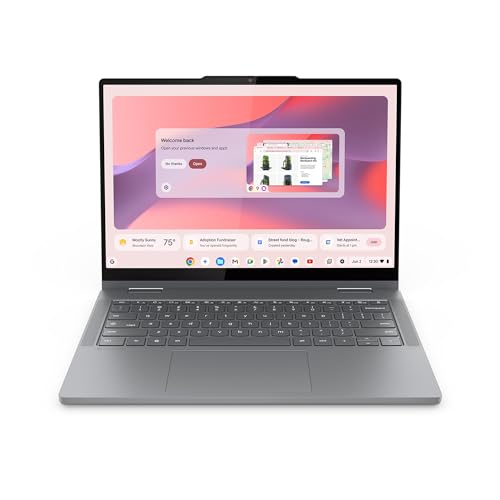
4. Lenovo Chromebook 2-in-1 (Intel N150)
A Lenovo Chromebook 2-in-1 with Intel N150 and a 14-inch WUXGA IPS touch display, per the listing. Check price on Amazon for the current listing.
Listing details: 14-inch display, 128 GB storage, 1920 x 1200 resolution, Chrome OS (from the Amazon product details; confirm on the page).
Good for: 14-inch WUXGA touch convertible. Watch out: Chrome OS only.

Best for two 14-inch OLED screens
5. ASUS Zenbook Duo (2026)
An ASUS Zenbook Duo (2026) with dual 14-inch OLED 3K 144Hz touch displays and an Intel Core Ultra 9, per the listing. Check price on Amazon for the current listing.
Listing details: 14-inch display, 1 TB storage, 2880 x 1800 resolution, Windows 11 Home (from the Amazon product details; confirm on the page).
Good for: Two 14-inch OLED screens. Watch out: very high price.
Best Picks by Category
These labels summarize the Amazon listings. They are a data summary, not hands-on test results.
- Highest listed rating (limited feedback): HP OmniBook X Flip 2-in-1 (16-inch). This is not an independent product-quality award.
- Most reviewed: Lenovo Chromebook 2-in-1 (Intel N150).
- Lowest price: Lenovo Chromebook 2-in-1 (Intel N150).
- Premium option: ASUS Zenbook Duo (2026).
Price, Rating and Review Comparison
This table lists the picks with their price tier. Check price on Amazon for the current price of each pick.
| Product | Price | Rating | Ratings | Price tier |
|---|---|---|---|---|
| Lenovo Chromebook 2-in-1 (Intel N150) | Check price on Amazon | See listing | See listing | Mid-range |
| Lenovo 500e Yoga Chromebook Gen 4 | Check price on Amazon | See listing | See listing | Mid-range |
| Acer Chromebook Spin 314 | Check price on Amazon | See listing | See listing | Mid-range |
| HP OmniBook X Flip 2-in-1 (16-inch) | Check price on Amazon | See listing | See listing | Premium |
| ASUS Zenbook Duo (2026) | Check price on Amazon | See listing | See listing | Premium |
What the Listings Say
Below are the concrete details each seller states on the Amazon listing, followed by how much customer feedback backs up the rating. Check the live listing for the latest specs before you buy.
HP OmniBook X Flip 2-in-1 (16-inch)
The listing gives few concrete specifications.
Lenovo 500e Yoga Chromebook Gen 4
The listing states: 2-in-1 Chromebook built for learning, with a 12.2-inch WUXGA (1920 x 1200) 10-point touchscreen protected by Corning Gorilla Glass.; Intel N100 processor with integrated Intel UHD Graphics, 8GB LPDDR5 memory, and 64GB eMMC 5.1 storage for everyday productivity.; Front HD 720p camera with privacy shutter, dual 2W stereo speakers optimized with Waves MaxxAudio, and dual-array microphones.; Reliable connectivity with Wi-Fi 6 and Bluetooth 5.1, plus USB-A, USB-C with Power Delivery and DisplayPort, HDMI 1.4, and combo audio jack.. Amazon did not show a rating count for this listing.
Acer Chromebook Spin 314
The listing states: Plus get 5TB of storage – all in one plan.; Starts Fast, Won’t Slow You Down: Chromebooks start up in under 10 seconds, and run automatic updates behind the scenes to deliver performance that s full speed ahead.; Never Had a Virus – No Need to Worry: Breathe easy knowing your security and privacy are covered with built-in protection and the Titan C2 security chip.; Easily access Microsoft 365, Minecraft, Adobe Express, and more..
Lenovo Chromebook 2-in-1 (Intel N150)
The listing states: TAKE HITS KEEP MOVING Sleek, light, and built to last- the Chromebook 2-in-1 is just 0.69 thick and 3.3lbs.; PERFORMANCE THAT MATCHES YOUR HUSTLE Fuel your ideas with an Intel Core processor and 128GB storage.; Boot up in under 10 seconds to start the day powerfully efficient.; FLEX YOUR CREATIVITY ANYWHERE, ANYTIME Create, work, or unwind your way with a versatile 2-in-1 design..
ASUS Zenbook Duo (2026)
The listing states: Paired with 32 GB RAM and 1 TB storage, demanding workloads stay smooth and efficient.; All-Day Power A 99Wh battery setup keeps you moving through busy days, and fast-charge technology brings you to 60% in just 49 minutes.; Included in the Bundle Comes with a protective sleeve and ASUS Pen 3.0 with wireless charging and MPP 2.6 support for precise control and on the go productivity..
How to Choose
Hinge
360-degree hinges flip into tablet mode.
OS
Chrome OS is simpler; Windows runs full apps.
Size
Smaller convertibles are easier to hold as tablets.
Convertible, Detachable or Dual-Screen: Know the Form Factor
The phrase 2-in-1 covers several different designs, and picking the wrong one is the most common source of disappointment. The differences are about where the keyboard goes and how the screen moves, and they change how the machine feels in daily use.
- Flip convertibles: The screen is attached to a hinge that rotates fully around, so the keyboard ends up behind the display in tablet mode. The keyboard stays physically attached, which keeps the machine feeling like a regular laptop. Most products in this guide are of this type, including the HP OmniBook X Flip and the Chromebook models.
- Detachables: The keyboard separates from the screen, so the tablet is lighter on its own. The trade-off is that the screen half usually holds all the hardware, which can make the machine top-heavy on a lap and the kickstand or keyboard cover less stable than a rigid hinge.
- Dual-screen laptops: The ASUS Zenbook Duo sits in this group, with two 14-inch OLED screens. Rather than flipping into a tablet, it uses the second panel as an extended workspace or a keyboard surface. It is a different idea from a typical convertible, and it is priced accordingly.
If you mostly type and occasionally fold the screen back to watch a video or sketch, a flip convertible is a sensible choice. If you want a tablet that sometimes becomes a laptop, a detachable may suit better. If you want extra screen space for multitasking, a dual-screen design is worth considering only if you can justify the weight and cost.
Matching a 2-in-1 to the Way You Work
Students
Classroom use rewards light weight, long battery life and the ability to take handwritten notes. A 12 to 14-inch convertible fits in a backpack and works on a small desk. The Lenovo 500e Yoga listing describes a 12.2-inch screen with Gorilla Glass protection and a rugged-style design, which is a classic education configuration. Check whether your school requires Windows for any specific software, or whether web-based tools are enough.
Remote workers and office staff
Video calls, spreadsheets and multiple browser tabs call for more memory and a stronger processor than a basic classroom machine. A Windows convertible with a modern processor and plenty of storage is a better match. The HP OmniBook X Flip is described as running Windows 11 Pro, which includes business-oriented management features, though you should confirm what your employer requires.
Artists and note-takers
Pen support is the deciding factor. Look for a screen that supports an active stylus, and verify whether a pen is included or sold separately. The ASUS Zenbook Duo listing states that a pen is part of the bundle, which is a notable point for people who want to sketch or annotate documents. Drawing also benefits from good palm rejection and a screen that sits at a comfortable angle.
Travelers
Weight and battery decide this one. The Lenovo Chromebook 2-in-1 is listed at 3.3 pounds and 0.69 inches thick, which gives a sense of the size you can expect from a 14-inch convertible. Larger screens like the 16-inch OmniBook are comfortable for work but harder to carry and awkward to hold as a tablet.
Processors, Memory and Storage Without the Jargon
Specs on a 2-in-1 listing can look like alphabet soup. The practical question is whether the machine will feel responsive for what you do.
Entry-level processors such as the Intel N100 or N150 found on the budget Chromebooks here are designed for light work: web browsing, documents, streaming and video calls. They run cool and use little power, which suits a fanless or quiet design, but they can slow down when many tabs and apps compete at once. The Core i3-N305 on the Acer Spin 314 sits a step up. The Core Ultra chips on the HP and ASUS models are aimed at Windows users who need more headroom, and they are typically paired with more memory.
Memory matters as much as the processor. For Chrome OS, 8GB is a comfortable level for routine multitasking. For Windows, 16GB is a safer target if you keep many apps open, and the ASUS listing states 32GB. Storage type is another trap: eMMC, as in the 64GB figure on the Lenovo 500e Yoga listing, is slower and usually smaller than the solid-state drives used in more expensive laptops, and it cannot always be upgraded. For a Chromebook that mostly uses cloud storage, that is acceptable. For a Windows laptop, 256GB is a practical floor and 512GB or more is more comfortable.
Display Details That Affect Daily Use
A convertible’s screen is also its tablet and its drawing surface, so it deserves more attention than on a regular laptop.
- Resolution and aspect ratio: Several listings mention 1920 x 1200, a 16:10 ratio that gives more vertical room than a 16:9 panel and suits documents and web pages. The ASUS lists 2880 x 1800, which is sharper but draws more power.
- Panel type: IPS panels offer good viewing angles and are common at the budget level. OLED panels, like those on the Zenbook Duo, deliver deep blacks and strong contrast but cost more and can raise concerns about burn-in with static content.
- Brightness and finish: Glossy touchscreens can reflect light. Check the brightness figure if you work near windows, and be aware that many listings omit it.
- Touch and pen support: Ten-point touch is common. For handwriting, check which stylus standard the screen uses, since not all pens work with all machines.
The refresh rate is another figure to read in context. The ASUS lists 144Hz, which makes scrolling and pen strokes smoother, though higher refresh rates draw more battery.
Ports, Battery and Charging
Because a 2-in-1 is often used away from a desk, ports and battery shape daily convenience. The Lenovo 500e Yoga listing mentions USB-A, USB-C with Power Delivery and DisplayPort, HDMI 1.4, Wi-Fi 6 and Bluetooth 5.1. That range lets you connect to a projector, an external monitor or an older flash drive without a dongle. If your machine only has USB-C ports, budget for a small hub.
USB-C charging is useful, since one charger can serve a phone, tablet and laptop. Check that the charger in the box is included and that its wattage is enough for the machine, because underpowered chargers can leave a laptop charging slowly under load. The ASUS listing states a 99Wh battery with a fast-charge claim of 60% in 49 minutes. Those are maker claims, and real battery life depends on screen brightness, workload and the number of displays in use.
As a rule, ignore any battery-hours number that comes from a marketing page. Look at battery capacity in watt-hours when the listing provides it, and consider reading independent reviews for a realistic figure.
Common Mistakes When Buying a 2-in-1
- Buying a Chromebook and expecting Windows software. Chrome OS runs web apps, Android apps on many models and Linux tools, but not standard Windows programs. Check your must-have software list first.
- Underestimating thickness and weight. A 16-inch convertible is awkward as a tablet. If you plan to hold it, choose a smaller size.
- Trusting a perfect rating from a few reviews.
- Forgetting the pen. Some stylus pens are sold separately and can cost a meaningful amount.
- Ignoring update support. Chromebooks have a published automatic update expiration date, so check how many years of updates the model gets.
A little checking before you buy keeps a flexible machine from becoming a frustrating one.
Durability, Updates and How Long It Should Last
A 2-in-1 has more moving parts than a clamshell laptop, and the hinge is the part that takes the most stress. Look for a metal hinge that holds the screen at any angle without wobble, and read recent reviews for reports of loose or cracked hinges. A screen that flexes back and forth daily needs better construction than a lid that opens once a day.
Software support sets the real lifespan. Windows machines receive updates for many years, but older processors can fall out of support for newer Windows versions. Chromebooks have a fixed automatic update end date, which makes it worth checking before you buy. A cheaper model with a short remaining support window may be a poorer long-term choice than a model with a longer runway.
Repair and upgrade options are limited on thin machines, because memory is often soldered and the battery may be glued in. Consider a protective sleeve, a screen protector if you plan to draw, and a warranty that covers accidental damage if the laptop will see heavy classroom use. Taking those steps early protects the investment better than trying to fix problems later.
Living With Each Pick: The Convertible Experience Day to Day
Five machines, two operating systems and three very different ideas of what a 2-in-1 should be: this list rewards buyers who start from their routine. This section takes each pick in turn and describes the ownership experience in detail: how the hinge shapes the day, what the operating system gives and withholds, and the buyer who will still be pleased a year later.
HP OmniBook X Flip 2-in-1 (16-inch): the big Windows convertible
The OmniBook X Flip is the full-size interpretation of a 2-in-1. In laptop mode it is a large, capable Windows machine with a Pro edition on the listing, suited to documents, spreadsheets, creative work and calls. Fold the screen back and it becomes a presentation surface: tent mode on a desk turns it toward a client or a small group, and the big panel keeps charts, photos and designs readable at arm’s length. Lay it flatter and it is an annotation canvas for marking up documents and plans at a scale smaller convertibles cannot offer.
The size cuts both ways, and the review names it plainly: large for a 2-in-1. As a handheld tablet it is a two-handed, short-session device, better propped on a table or a lap than held in one hand for an hour of reading. In a bag it asks for real space, and on a small desk it dominates. Choose it if your convertible use is desk-based and presentational, your work is Windows work, and the larger screen is a tool rather than a burden. Skip it if your picture of a 2-in-1 is a light device carried everywhere and used on sofas and trains, because the Chromebook picks below serve that picture far more honestly, and the Zenbook Duo serves the two-screen version of it.
Ownership habits for this pick: learn the hinge positions in the first week, keep the large screen clean since it will be touched constantly, and think of a stand or a sleeve as part of the purchase rather than an accessory afterthought, because a big convertible lives a more physical life than a clamshell laptop.
Lenovo 500e Yoga Chromebook Gen 4: the rugged school-day convertible
The 500e Yoga is built around a different priority: survival. Its smaller 12.2-inch size, education positioning and convertible hinge make it a machine for classrooms, younger students and anyone whose laptop gets carried in crowded bags, used on shared tables and opened a dozen times a day. ChromeOS keeps the software side simple and quick to manage, which is precisely what schools and busy households value.
The limits are stated on its listing and worth respecting: modest storage of the slower eMMC type and a small screen. For web-based schoolwork, documents, video lessons and browsing, that combination is workable and the machine’s simplicity is the point. For large local files, heavy media work or Windows programs, it is the wrong tool, and no accessory fixes that. Choose it for a child, a classroom or a household’s second machine where toughness and simplicity outrank power. Skip it as a primary work laptop for an adult with a heavy workload, where the Acer Spin or a Windows pick will feel less confining within a month.
Ownership habits: keep files in the cloud as ChromeOS intends, check the update support horizon on the listing since Chromebooks carry a defined support window, and use the convertible modes for what they are good at here, reading, video lessons and touch-based learning apps, rather than expecting desktop-class multitasking.
Acer Chromebook Spin 314: the grown-up Chromebook convertible
The Spin 314 is the Chromebook pick for adults: a 14-inch touch display in a convertible body with a Core-class processor that lifts it above the entry Chromebooks in responsiveness. It suits the large group of users whose computing genuinely lives in the browser and in web and Android apps: email, documents, banking, shopping, streaming, video calls and light photo work, all with the quick startup and low maintenance that make ChromeOS attractive.
Choose it if you have already checked your essential tasks against ChromeOS and found nothing missing, because that check is the whole decision with any Chromebook. The convertible hinge adds reading, tent-mode video and touch browsing to a sensible size, and the storage on its listing is a step above the smallest education models. Skip it if you depend on a specific Windows or desktop program, play desktop games, or do heavy offline creative work. Also skip it if you expect to keep large media libraries on the machine itself; ChromeOS life is cloud-first, and owners who accept that premise are the ones who stay happy.
Ownership habits: set up offline access for your key documents before your first trip, learn which of your regular tasks the browser does best, and treat the hinge kindly, since a convertible used in its folded modes daily asks more of its hinge than a clamshell ever does.
Lenovo Chromebook 2-in-1 (Intel N150): the light-duty 14-inch option
Lenovo’s Chromebook 2-in-1 covers similar ground to the Spin 314 at the lighter-duty end: a 14-inch touch display, a convertible body and an entry Intel processor aimed at everyday web tasks. Read it as the straightforward household convertible: browsing, documents, school platforms, streaming and calls, in a size that suits a kitchen table or a student’s desk and folds for video and reading.
The honest way to choose between this and the Acer is by the details on the live listings: processor, memory, storage, screen and the seller’s terms, because machines in this class are separated by configuration details rather than by concept. Choose it if its exact listing offers the combination you want at the tier you intended. Skip it, and every Chromebook here, if your task list includes desktop software; skip it for the Spin if the Acer’s configuration reads stronger on the page in front of you. There is no shame in that decision process: at this end of the market, careful listing reading is the skill that matters.
Ownership habits mirror the other Chromebooks: cloud-first files, an eye on the update support date, and realistic expectations about multitasking, keeping the number of heavy tabs and apps modest so the machine stays as quick as it felt in its first week.
ASUS Zenbook Duo (2026): not a convertible, a second desk
The Zenbook Duo sits in this guide because it answers the same question as a 2-in-1, how do I make a laptop adapt to different work, with a completely different mechanism: a second full screen. Instead of folding into a tablet, it unfolds into a dual-display workstation that travels. Writers with sources open, analysts with a model and a dashboard, creators with a timeline and a preview, and presenters who want notes on one panel and slides on the other all recognize their workflow in it immediately.
Choose it if that recognition is instant and specific, because the Duo’s premium, flagged in the review as very high, only makes sense when the second screen is used daily. Be honest about the costs beyond the tier: a more complex setup ritual, more screen to protect, and a working style you must genuinely adopt. Skip it if your work is one window at a time or if a desk monitor already waits at your main workplace, because in both cases the second panel becomes expensive decoration. For the buyer it fits, though, nothing else in this guide, and very little outside it, does the same job.
Ownership habits: decide your default two-screen layout in the first week and stick to it until it is automatic, protect both panels with a proper sleeve, and keep the detachable and moving parts’ care instructions from the maker somewhere you can find them again.
Head-to-Head: Operating System First, Hinge Second, Size Third
Most 2-in-1 regret comes from choosing in the wrong order. The first decision is the operating system, because it is the only one that cannot be softened later. Windows, on the OmniBook and the Duo, runs the full desktop software library and suits work that depends on specific programs. ChromeOS, on the three middle picks, offers simplicity, speed and low maintenance in exchange for living in the browser and its apps. If one essential program has no web or app equivalent that you accept, the decision is already made, and it is made for Windows.
The second decision is what the flexibility is for. Folding into tent and tablet modes serves presenting, reading, video and annotation. A second screen serves parallel work. They sound similar in a headline and feel nothing alike in a week of use. The third decision is size: the 12.2-inch Lenovo is a carry-and-survive machine, the 14-inch Chromebooks are the balanced middle, and the 16-inch OmniBook and the dual-screen Duo are workspaces that happen to move. Buyers who decide in this order, system, shape, size, rarely return a 2-in-1; buyers who start from a photograph often do.
A First-Week Test Plan for Any 2-in-1
Returns windows exist for exactly this category, because a convertible’s fit is personal. Use the first week as a structured trial. On day one, set the machine up as a laptop and do a normal work session: type a long document, join a call, and notice the keyboard, the screen at your usual brightness and the fan behavior. On day two, use the flexibility on purpose: present or watch something in tent mode, read in folded mode if it folds, or arrange your two screens if it is the Duo. On day three, carry it somewhere: a bag, a commute, a different room, and notice the weight and the setup ritual honestly.
Across the week, test the specific tasks that decided your purchase. Students should open their school platforms and a heavy document at once. Annotators should write real notes at real speed. Presenters should run their actual slides. If the machine passes your real tasks in your real places, keep it with confidence. If it fails one, name the failure precisely, because the fix is usually a different member of this same list rather than a different category: too heavy points down a size, too limited points to Windows, too single-screen points to the Duo.
More Questions Buyers Ask Before Ordering
Are 2-in-1 hinges reliable over several years?
On machines from established makers, hinges are engineered for the folding life the product advertises, and most owners never think about them again. Longevity is helped by handling: open and fold with a centered grip, do not force a hinge past resistance, and keep grit away from the hinge area. A hinge that changes character, growing loose, stiff or uneven, deserves early attention while it is still a small repair rather than a screen problem.
Should I buy a pen at the same time as the laptop?
Only after two confirmations: that the exact model supports an active pen rather than merely accepting finger touch, and that your note or drawing software is the one you will actually use. Listings do not always state pen support clearly, so check the maker’s page for the precise configuration. If both answers are yes and handwriting or sketching is weekly work for you, buying the pen with the machine makes sense; otherwise, live with the laptop for a month and let your habits vote.
Is a 2-in-1 a good only computer for a household?
It can be an excellent one, because its shapes suit the variety of household computing: laptop for paperwork, tent for recipes and video calls, folded for reading and streaming. The household decision is really the operating system decision in disguise. A web-centered household will be happy with a Chromebook pick and its low maintenance; a household with specific desktop programs, games or peripherals should choose the Windows side of this list.
Choosing by Person: Five Buyers, Five Answers
The parent buying for a schoolchild should start at the Lenovo 500e Yoga. Its size, education design and simple software match a school day, and its convertible shape suits the mix of typing, reading and touch-based learning that younger students actually do. The questions to ask are about the school’s own platform and requirements, which the school can answer in one message, rather than about specifications in the abstract.
The college student should weigh the Acer Spin 314 against the OmniBook by software, not by taste. A course built on web platforms makes the Chromebook the lighter, simpler carry; a course with named desktop programs makes the Windows convertible the safe choice. In both cases the student should picture the library desk and the lecture hall seat, because screen size and weight are felt there daily.
The professional who presents should look hard at the OmniBook X Flip. Tent mode in a meeting room, a large screen a client can read, and Windows Pro for workplace systems make it the business-shaped convertible of this list. The professional who analyzes, writes or creates across two windows should give the same hard look to the Zenbook Duo, accepting its tier only if the two-screen habit is already their habit at a desk.
The household buying one shared machine should choose by its heaviest regular task. Streaming, browsing, homework and paperwork point to the Lenovo Chromebook 2-in-1 or the Spin 314, with the listing details breaking the tie. A household member’s desktop program, a printer with particular needs or a game library points to the Windows side. And the traveler who works everywhere should be honest that none of these is an ultralight: the 14-inch Chromebooks are the easiest carries here, and the Duo earns its extra bulk only when both screens work at every stop.
Care, Cases and Getting Years Out of a Convertible
A convertible lives a more physical life than a clamshell laptop, and its care routine should admit that. The screen is touched, folded and presented, so it collects fingerprints and the occasional knock; a microfiber cloth kept with the machine and a proper padded sleeve for every trip are the two habits that prevent most wear. Never carry a convertible loose in a bag with hard objects pressing on the lid, and never stack books on a closed one.
Battery and storage habits decide the software side of longevity. Keep meaningful free space, because both Windows and ChromeOS slow their housekeeping when a drive is nearly full, and the smaller-storage picks in this list reach that point sooner. Use the maker’s battery-care settings where offered if the machine lives plugged in. For the Chromebooks, note the update support horizon when you buy and again each year, so the end of updates never arrives as a surprise.
Finally, keep the paperwork of ownership together: the order confirmation, the exact configuration, and any pen or accessory compatibility notes. Convertible accessories are model-specific more often than laptop accessories are, and the owner who can name their exact configuration buys the right case, pen and charger the first time.
What if I buy a 2-in-1 and never fold it?
Then you own a good laptop with a touchscreen, which is a fine outcome as long as the price you paid was fair for the laptop itself. This is why the guide keeps steering you to judge each pick as a laptop first: screen, processor, memory, storage and keyboard. Flexibility you never use costs little beyond its tier premium; a weak base configuration costs you every day. If the premium was large and the return window is open, that is worth a second thought, but do not return a machine you like for failing to use a mode you never needed.
Windows or ChromeOS: A Deeper Look at the Real Trade
Because three of these five picks run ChromeOS and two run Windows, the operating system deserves more than a passing mention. ChromeOS is at its best when your digital life already lives in accounts rather than in files: mail, documents, photos, music and schoolwork that follow you from device to device. A Chromebook signs in and is ready in moments, updates itself quietly, and shrugs off most of the maintenance and security chores that Windows owners handle manually. For households and schools, that simplicity is not a compromise; it is the feature.
The trade appears at the edges. A specific desktop program with no web version, a peripheral that needs its own Windows driver, offline work with large local files, and desktop gaming all sit outside ChromeOS’s comfort zone. Android apps fill some gaps and leave others, and the honest test is a written list: write down every program and task you performed in the last month, and check each one against the browser honestly. If every line passes, a Chromebook pick will feel fast and freeing. If one important line fails, it fails completely, and a Windows pick is the answer regardless of tier.
Windows carries the opposite profile: it runs nearly everything, including the odd legacy program a workplace still depends on, and it asks more of its owner in updates, storage management and security habits. The OmniBook and the Duo also justify themselves with hardware ambitions, the big convertible screen and the dual displays, that ChromeOS machines in this guide do not attempt. Neither system is better in the abstract. Each is better for a describable person, and this guide’s job is to help you recognize which description is yours before the box arrives, not after.
Can a Chromebook 2-in-1 handle a full school day away from a charger?
Chromebooks in this class are generally chosen by schools partly for their endurance through a school day of mixed use, but your mileage depends on brightness, video use and the number of tabs in play. Teach the habits that stretch any battery: moderate brightness indoors, close heavy tabs, and charge nightly as part of the school-bag routine. Check the listing’s stated battery figure and treat it as a maker’s number under set conditions, then plan around a nightly charge rather than around the best case.
What size of 2-in-1 is right for reading and video?
Reading and video reward opposite instincts. For long reading, lighter and smaller wins, because the device is held or propped for extended stretches, which favors the 12.2-inch Lenovo and the 14-inch Chromebooks in folded mode. For video shared with another person, or watched across a room, bigger wins, which favors the OmniBook in tent mode on a table. Most buyers do more of one than the other; let the majority use decide, and remember that a stand can make a smaller screen comfortable for video, while nothing makes a large convertible lighter in your hands.
Should a 2-in-1 be bought with more storage than I think I need?
On the Windows picks, yes, lean generous, because programs, photos and offline files grow and internal storage on thin convertibles is rarely upgradeable. On the Chromebook picks, the cloud-first design makes modest local storage workable, provided your habits genuinely live online. The mistake to avoid is the mismatch: small storage bought by a local-file person, on either system, becomes a monthly chore instead of a one-time saving.
One final decision shortcut
If you are still torn between two picks, choose by the failure you would regret more. Regret over a missing program points to Windows. Regret over daily weight and fuss points to the smaller Chromebooks. Regret over a cramped screen points to the OmniBook or the Duo. Regret is a better guide than excitement here, because a 2-in-1 is bought for years of ordinary days, not for the day it is unboxed.
A note on buying for someone else
When a 2-in-1 is a gift or a purchase for a child, parent or partner, decide the operating system with extra care, because the recipient may not be able to articulate the program they depend on until the day it is missing. Ask what they used on their last machine, or check with their school or workplace, and let that answer lead.
Frequently Asked Questions
What is a 2-in-1?
A laptop that converts to a tablet.
Chromebook or Windows?
See our comparison.
Which is cheapest?
The Lenovo Chromebook 2-in-1.
Is a 2-in-1 laptop good for drawing and note-taking?
It can be, if the screen supports an active stylus and the pen is included or affordable. Look for pen pressure support, a screen that folds flat or sits at a comfortable angle, and good palm rejection. Not every touchscreen works with every pen, so check compatibility.
How long do Chromebooks get software updates?
Each Chromebook has an automatic update expiration date set by Google and the maker, often several years from release. Check the model’s auto update expiration page before you buy, because a machine near the end of its support window may lose security updates sooner than you expect.
Is 8GB of RAM enough for a 2-in-1?
For a Chromebook doing browsing, documents and video calls, 8GB is generally comfortable. For a Windows 2-in-1 with many apps open, 16GB is a safer choice. Memory is often soldered to the board, so you usually cannot add more later.
Are touchscreen laptops worse for battery life?
Touchscreens add a small amount of power draw, but screen size, brightness, resolution and processor have a bigger effect. A high-resolution OLED panel with a high refresh rate usually uses more power than a 1920 x 1200 IPS screen at the same brightness.
Can a 2-in-1 replace a tablet?
For many people, yes, especially for reading, video and note-taking. A convertible is heavier than a dedicated tablet and may have a shorter standby time, but it gives you a real keyboard and a full operating system, which makes it more versatile for work.
Bottom Line
For Windows, the HP OmniBook X Flip. For students, the Lenovo 500e Yoga or Acer Spin 314.
More Laptop Guides
- Best Laptops
- Best Gaming Laptops
- Best OLED Laptops
- Best Touchscreen Laptops
- Best Chromebooks
- Best Laptops for Students
- Best Laptops Under 500
- Best Business Laptops
- Best Thin and Light Laptops
- Best Laptop Backpacks
- Best Laptop Cooling Pads
- Best USB-C Docking Stations
- All laptop guides
Related Guides
- 6 Best Laptops: Acer, Surface, Lenovo, Dell, ASUS (2026)
- 6 Best Gaming Laptops: HP Victus, MSI, ASUS TUF, Lenovo LOQ (2026)
- 6 Best OLED Laptops: ASUS, Lenovo ThinkPad and Slim 7i (2026)
- 6 Best Touchscreen Laptops: Surface, Acer, Dell, Lenovo (2026)
- 6 Best Laptops for Students: Chromebook and Windows Picks (2026)